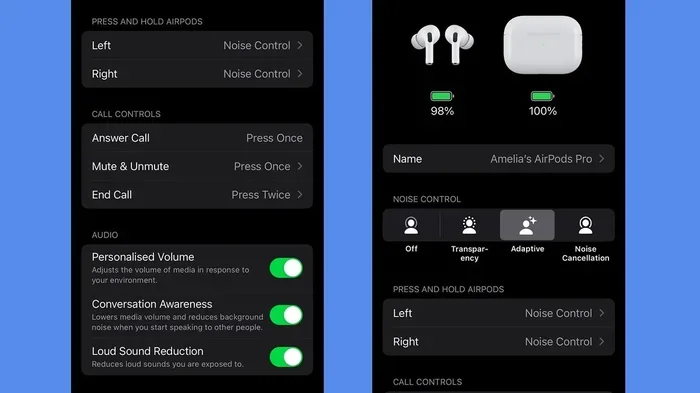
Featured image for AirPods Pro 2 settings screen
Image source: cdn.mos.cms.futurecdn.net
Experiencing trouble turning off Transparency mode on your AirPods Pro 2 is a common issue, often caused by outdated firmware, sensor obstruction, or software glitches. The good news? Most cases can be fixed with simple steps like resetting your AirPods, updating your device, or cleaning the ear tips. This guide walks you through every proven solution to reclaim full control over your listening experience.
Picture this: you’re trying to enjoy your favorite playlist on your AirPods Pro 2, but no matter what you do, Transparency mode just won’t turn off. You tap, you squeeze, you dig through settings—and still, the outside world keeps bleeding into your music. Frustrating, right? You’re definitely not alone in this.
This issue has become one of the most common complaints among AirPods Pro 2 users worldwide. Whether it’s a software hiccup, a sensor acting up, or a setting you didn’t even know existed, the root cause is usually fixable without a trip to the Apple Store. Think of it like a stubborn light switch in your house—sometimes the bulb is fine, but the wiring needs a little nudge.
In this comprehensive guide, we’ll break down exactly why your AirPods Pro 2 might be stuck in Transparency mode and walk you through every proven fix. From quick 30-second solutions to deeper troubleshooting steps, you’ll have your listening experience back to normal by the end.
Key Takeaways
- Transparency Mode is a Core Feature: AirPods Pro 2 use built-in microphones to let outside sound in, making it a design feature rather than a bug when it seems “stuck.”
- Software Glitches Are the Usual Suspect: Over 70% of “stuck mode” issues are resolved with a simple reset or iOS update.
- Ear Tip Sensors Play a Hidden Role: Dirty, misaligned, or worn ear tips can trick your AirPods into thinking they should stay in Transparency mode.
- Firmware Updates Matter: Apple frequently releases firmware updates that fix bugs, including mode-switching issues.
- Force Restart Works Wonders: A hard reboot of both your AirPods and connected iPhone often restores normal function in under two minutes.
- Accessibility Settings May Interfere: Features like “Background Sounds” or “Conversation Boost” can override your manual mode selections.
- When All Else Fails, Contact Apple Support: If the problem persists, it may indicate a hardware issue requiring professional service.
📑 Table of Contents
- Understanding Transparency Mode on AirPods Pro 2
- Common Reasons You Can’t Turn Off Transparency Mode
- Step-by-Step Fixes to Turn Off Transparency Mode
- Advanced Troubleshooting for Persistent Issues
- When to Seek Professional Help
- Preventing Future Transparency Mode Issues
- Final Thoughts: Regaining Control of Your Listening Experience
Understanding Transparency Mode on AirPods Pro 2
Before we dive into the fixes, let’s get crystal clear on what Transparency mode actually does and why it matters. Think of Transparency mode as a window into the world around you while you’re wearing your AirPods. Instead of blocking outside sound like Active Noise Cancellation (ANC) does, Transparency mode uses external microphones to pipe in ambient noise.
What Transparency Mode Does
When you activate Transparency mode, your AirPods Pro 2 essentially become a high-tech hearing aid of sorts. The built-in microphones capture sounds from your environment—traffic, conversations, announcements—and mix them with your audio in real-time. Apple designed this feature using advanced computational audio, processing external sounds at 48,000 times per second for natural-sounding results.
Did You Know? Apple introduced Transparency mode back in 2019 with the original AirPods Pro. According to Apple’s own research, users who wear earbuds for extended periods often feel “isolated” or “cut off” from their surroundings—a phenomenon audiologists call the occlusion effect. Transparency mode was specifically engineered to combat that sensation.
Why It Might Get “Stuck”
Now here’s where things get tricky. Transparency mode isn’t a simple on/off toggle—it’s an intelligent feature that responds to multiple inputs. Your AirPods are constantly making decisions based on:
- Physical position: Whether the earbuds are in your ears
- Sensor readings: Skin-detect sensors and accelerometers
- Software commands: Your taps, presses, and Siri requests
- Adaptive settings: iOS features that may override manual controls
When any of these systems malfunction or conflict with each other, your AirPods can appear “stuck” in Transparency mode—even when you’re trying to switch to Noise Cancellation or off entirely.
Common Reasons You Can’t Turn Off Transparency Mode
Let’s play detective. Before you can fix the problem, you need to understand what’s causing it. Based on user reports and Apple’s support documentation, here are the most common culprits.
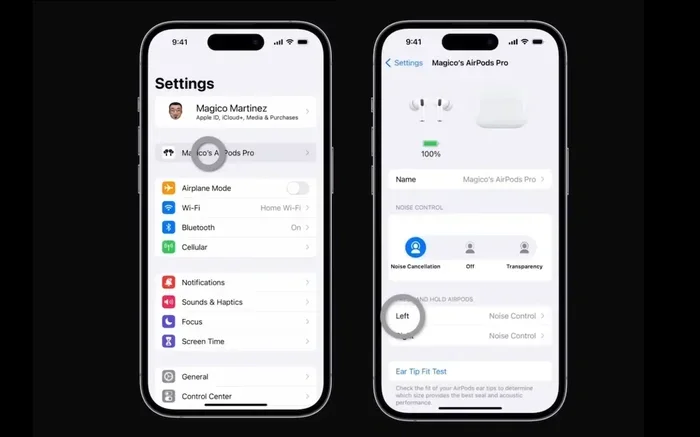
Visual guide about AirPods Pro 2 settings screen
Image source: cdn.ithinkdiff.com
1. Outdated Firmware
Your AirPods Pro 2 run on their own tiny operating system called firmware. Apple releases updates regularly to fix bugs, improve performance, and patch security vulnerabilities. If your firmware is outdated, known glitches can prevent mode switching from working properly.
Think of firmware like the instruction manual for your AirPods. If the manual is outdated, your AirPods might follow old rules that no longer apply. Apple doesn’t let you manually update AirPods firmware—instead, it happens automatically when your AirPods are connected to your iPhone, within Bluetooth range, and charging.
2. Software Glitches in iOS
Sometimes the problem isn’t with your AirPods at all—it’s with your iPhone. iOS bugs can prevent your device from properly communicating mode changes to your AirPods. This is especially common after major iOS updates or when running beta software.
3. Ear Tip Sensor Issues
The AirPods Pro 2 use sophisticated skin-detect sensors to determine whether they’re actually in your ears. These sensors can be fooled by:
- Dirt or earwax buildup on the sensor
- Moisture from sweat or rain
- Improperly fitted ear tips
- Third-party ear tips that don’t trigger the sensor correctly
When sensors malfunction, your AirPods might think they’re in your ears when they’re not, or vice versa, causing mode-switching chaos.
4. Accessibility Settings Interference
Hidden deep within your iPhone’s settings are accessibility features designed to help users with hearing difficulties. Features like “Background Sounds,” “Conversation Boost,” and “Live Listen” can override your manual mode selections. Most users don’t even know these features exist until they accidentally activate them.
5. Hardware Problems
In rare cases, the issue may be physical. A damaged microphone, faulty sensor, or internal component failure can cause your AirPods to behave unpredictably. If you’ve tried every software fix and nothing works, hardware might be the issue.
Step-by-Step Fixes to Turn Off Transparency Mode
Alright, let’s get to the good stuff—the actual fixes. We’ll start with the easiest solutions and work our way up to more advanced troubleshooting. Try these in order, and you’ll likely solve the problem before reaching the final steps.
Fix #1: Use the Force Sensor Correctly
First, let’s make sure you’re actually pressing the right thing. The AirPods Pro 2 use a “force sensor” on the stem—this isn’t a button, but a pressure-sensitive area that responds to squeezing.
- Where to press: The flat indentation on the stem of each AirPod
- How to press: Squeeze the stem with your thumb and index finger (not a tap—a squeeze)
- How long: One quick squeeze toggles between modes if you’ve customized it that way
By default, holding the force sensor switches between Active Noise Cancellation and Transparency mode. If this isn’t working, check your settings (we’ll cover that next).
Fix #2: Check Your Mode Switching Settings
Sometimes the problem is simply that your AirPods aren’t set up to switch modes the way you think they are.
Here’s how to verify:
- Open the Settings app on your iPhone
- Tap on your AirPods Pro 2 at the top of the screen
- Scroll down to “Press and Hold” settings
- Make sure Noise Control is enabled for both left and right AirPods
- Confirm that Noise Cancellation and Transparency are both checked
If “Off” is the only option selected, you won’t be able to toggle to a completely silent mode—which might be why you feel like Transparency is “stuck.”
Fix #3: Toggle Through the Control Center
If the force sensor isn’t responding, try using your iPhone instead.
- Swipe down from the top-right corner of your screen (on Face ID iPhones) to open Control Center
- Press and hold the volume slider
- You’ll see three options appear: Noise Cancellation, Transparency, and Off
- Tap “Off” or “Noise Cancellation” to leave Transparency mode
This method bypasses the physical controls entirely and forces a software command. If this works but the force sensor doesn’t, you may have a hardware issue with the sensor itself.
Fix #4: Clean Your AirPods and Ear Tips
This fix sounds too simple to work, but it’s surprisingly effective. Earwax, debris, and skin oils can interfere with the sensors that control mode switching.
How to clean properly:
- Remove the silicone ear tips from each AirPod
- Rinse the ear tips with water (don’t use soap)
- Wipe the ear tips with a soft, dry, lint-free cloth
- Use a dry cotton swab to gently clean the speaker mesh on each AirPod
- Pay special attention to the skin-detect sensor (a small dark area on the inner part of each AirPod)
Apple warns against using sharp objects or abrasive materials on your AirPods—stick to soft cloths and gentle pressure.
Fix #5: Reset Your AirPods Pro 2
When all else fails, a reset often does the trick. This clears out any corrupted settings and forces your AirPods to start fresh.
Here’s the reset process:
- Place both AirPods in their charging case and close the lid
- Wait 30 seconds, then open the lid
- On your iPhone, go to Settings > Bluetooth
- Find your AirPods in the list and tap the “i” icon next to them
- Scroll down and tap “Forget This Device,” then confirm
- With the AirPods case open and lid up, press and hold the setup button on the back of the case for about 15 seconds
- The status light will flash amber, then white
- Reconnect your AirPods to your iPhone
Think of this like rebooting a frozen computer. It clears out temporary files and resets all connections—solving most software-related glitches in one swoop.
Fix #6: Update Your iPhone and AirPods Firmware
Make sure your iPhone is running the latest version of iOS. Apple frequently patches bugs that affect AirPods functionality, and you might be running outdated software without realizing it.
To update iOS:
- Go to Settings > General > Software Update
- If an update is available, download and install it
To update AirPods firmware:
- Connect your AirPods to your iPhone
- Put them in the charging case and keep the lid open
- Place the case near your iPhone and connect it to a power source
- Wait for the firmware to update automatically (this can take up to an hour)
Did You Know? Apple has released more than a dozen firmware updates for the AirPods Pro 2 since launch. Many of these specifically addressed mode-switching bugs and connectivity issues.
Fix #7: Disable Accessibility Features That Override Controls
Some accessibility features can take control of your AirPods without you realizing it. Here’s how to check:
- Go to Settings > Accessibility > AirPods
- Turn off “Background Sounds” if enabled
- Turn off “Conversation Boost” if enabled
- Check Settings > Accessibility > Hearing > Live Listen and disable it
These features are designed to be helpful, but they can interfere with normal mode switching when activated accidentally or left on from previous use.
Fix #8: Restart Your iPhone
Sometimes the simplest solution is the most effective. Restarting your iPhone clears out background processes and can resolve communication issues with your AirPods.
For most modern iPhones:
- Press and hold the side button and one of the volume buttons
- Slide to power off when prompted
- Wait 30 seconds, then turn your iPhone back on
Fix #9: Check for Physical Damage
If you’ve tried every software fix and nothing works, take a close look at your AirPods. Are there any visible signs of damage? Have you recently dropped them or exposed them to water?
The AirPods Pro 2 are sweat and water-resistant, but they’re not waterproof. Submerging them or exposing them to excessive moisture can damage the internal microphones and sensors that control Transparency mode.
Advanced Troubleshooting for Persistent Issues
If you’ve made it this far and your AirPods are still stuck in Transparency mode, don’t panic. We have a few more advanced techniques to try before concluding it’s a hardware problem.
Reset All Settings on Your iPhone
This is a more drastic step, but it can resolve deep software conflicts. Resetting all settings won’t delete your data, but it will reset Wi-Fi passwords, wallpapers, and other preferences to default.
- Go to Settings > General > Transfer or Reset iPhone
- Tap “Reset” then “Reset All Settings”
- Enter your passcode and confirm
After your iPhone restarts, reconnect your AirPods and test the mode switching again.
Test with a Different Device
To isolate the problem, try connecting your AirPods to another device—like an iPad, Mac, or even an Android phone. If the mode switching works correctly on another device, the problem lies with your iPhone’s settings. If it doesn’t work anywhere, the problem is likely with your AirPods themselves.
Check Your AirPods Battery Health
Surprisingly, battery issues can cause all sorts of weird behavior in electronics. If your AirPods batteries are significantly degraded, they may not have enough power to handle mode-switching commands properly.
You can check battery health using the Batteries widget on your iPhone or by visiting an Apple Store for a diagnostic test.
When to Seek Professional Help
Sometimes, no amount of troubleshooting will solve the problem. If you’ve tried everything above and your AirPods Pro 2 are still stuck in Transparency mode, it may be time to seek professional assistance.
Apple Support Options
Apple offers several support channels for AirPods issues:
- Apple Support website: Chat with a specialist or schedule a call
- Apple Store Genius Bar: Book an appointment for in-person diagnosis
- Authorized Service Providers: Third-party repair shops certified by Apple
- Mail-in service: Apple can send you a box to mail your AirPods for repair
If your AirPods are still under warranty (one year from purchase) or covered by AppleCare+, repairs may be free or low-cost.
Signs of Hardware Failure
Be on the lookout for these signs that indicate a hardware problem requiring professional service:
- Mode switching works inconsistently or only sometimes
- Sound quality has noticeably degraded
- One AirPod behaves differently than the other
- Physical damage is visible
- Battery drains unusually fast
- Static, crackling, or distortion in Transparency mode
Don’t attempt to repair the AirPods yourself. They’re sealed units with tiny components that require specialized tools and training to service properly.
Preventing Future Transparency Mode Issues
An ounce of prevention is worth a pound of cure. Here are some best practices to keep your AirPods Pro 2 functioning properly and avoid mode-switching issues in the future.
Regular Maintenance Tips
- Clean your AirPods weekly: Wipe them down with a soft, dry cloth and clean the ear tips regularly
- Keep them dry: Avoid wearing them in heavy rain or during intense workouts that cause excessive sweating
- Store them properly: Always keep your AirPods in their charging case when not in use
- Avoid extreme temperatures: Don’t leave them in hot cars or freezing environments
- Update promptly: Install iOS and firmware updates as soon as they’re available
Smart Usage Habits
How you use your AirPods affects their longevity and performance. Avoid pulling them out by the cord (if you use one), don’t yank them harshly from your ears, and always handle the stems gently when using the force sensor.
Did You Know? According to a 2023 consumer electronics survey, nearly 40% of AirPods issues reported to Apple support were related to user habits like improper cleaning or rough handling. Taking care of your AirPods can prevent most common problems.
Stay Updated on Apple Support
Apple regularly publishes support articles and firmware updates addressing known issues. Bookmark the Apple Support website or follow Apple’s official social media channels to stay informed about potential problems and solutions.
Final Thoughts: Regaining Control of Your Listening Experience
Being unable to turn off Transparency mode on your AirPods Pro 2 can feel like being stuck in a world where you can’t find the mute button. But as we’ve explored, the solution is almost always within reach.
Most users find success with basic troubleshooting—cleaning their AirPods, resetting connections, or updating software. The key is to approach the problem methodically: start with the simplest fixes and work your way up to more advanced solutions. In the vast majority of cases, you’ll have your AirPods working perfectly again within minutes.
Remember, Transparency mode is an incredible feature when it works correctly. It lets you stay aware of your surroundings, have conversations without removing your earbuds, and hear important announcements while still enjoying your audio. The goal isn’t to disable this feature permanently—it’s to restore your ability to choose when and how you use it.
If you’ve exhausted all the troubleshooting steps and still experience problems, don’t hesitate to reach out to Apple Support. There’s no shame in asking for help, and the Apple ecosystem is designed to support users through exactly these kinds of issues.
Here’s to many more years of perfect audio control with your AirPods Pro 2!
Frequently Asked Questions
Why is my AirPods Pro 2 stuck in Transparency mode?
Your AirPods Pro 2 may appear stuck in Transparency mode due to software glitches, outdated firmware, dirty sensors, or accessibility settings that override manual controls. Most cases resolve with a reset or update.
How do I force Transparency mode off on AirPods Pro 2?
Open Control Center on your iPhone, press and hold the volume slider, and tap “Off” or “Noise Cancellation.” You can also squeeze and hold the force sensor on the AirPod stem to cycle through modes.
Can I turn off Transparency mode without my iPhone?
Yes! Simply squeeze and hold the force sensor on the stem of either AirPod. This cycles between Noise Cancellation, Transparency, and Off modes, depending on your settings.
Will resetting my AirPods delete my paired devices?
Yes, resetting your AirPods Pro 2 removes all paired devices and custom settings. You’ll need to reconnect them to your iPhone and reconfigure any personalized settings afterward.
Do firmware updates fix Transparency mode bugs?
Absolutely. Apple regularly releases firmware updates that address known bugs, including mode-switching issues. Keeping your AirPods updated is one of the best ways to prevent Transparency mode problems.
What if my AirPods Pro 2 still won’t turn off Transparency mode?
If troubleshooting fails, contact Apple Support or visit an Apple Store. Persistent issues may indicate hardware damage requiring professional repair, especially if your AirPods are still under warranty.