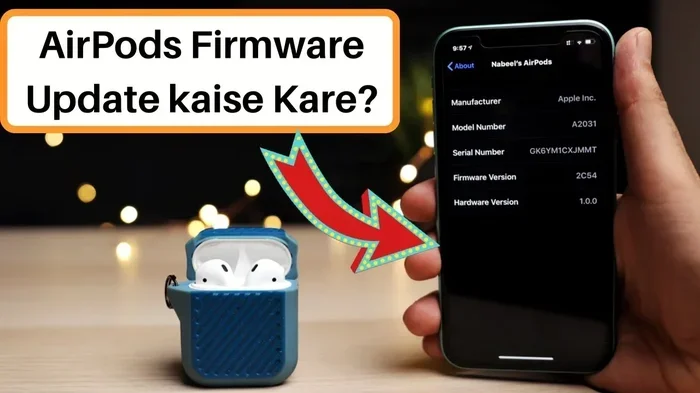
Featured image for AirPods Pro 2 update error
Image source: i.ytimg.com
If you can’t update your AirPods Pro 2, you’re not alone—many users face this frustrating issue. The most common causes include low battery levels, outdated iOS software, and Bluetooth connectivity problems. This guide provides step-by-step solutions to help you successfully update your AirPods Pro 2 firmware and enjoy the latest features and bug fixes.
Picture this: you’ve been waiting patiently for that shiny new firmware update for your AirPods Pro 2. Maybe it’s supposed to bring better noise cancellation, improved battery life, or that cool new feature everyone’s talking about. But when you check your settings, nothing happens. No update. No progress bar. Just… silence. If you’re staring at your screen wondering, “Why can’t I update my AirPods Pro 2?”—take a deep breath. You’re definitely not alone in this struggle.
Here’s the frustrating part: Apple doesn’t make firmware updates easy to understand. There’s no big red “Update Now” button waiting for you. Instead, updates happen quietly in the background, and only when certain conditions are met. Think of it like a secret handshake between your AirPods and your iPhone—if the right steps don’t happen in the right order, nothing moves forward.
The good news? Most update problems have simple fixes. In this guide, we’ll walk through every possible reason your AirPods Pro 2 won’t update, from dead batteries to hidden software bugs. By the end, you’ll have a complete troubleshooting toolkit to get those tiny earbuds running the latest and greatest software. Let’s dive in!
Key Takeaways
- Check Battery Levels First: Both your AirPods Pro 2 and iPhone need at least 50% battery (or your iPhone plugged in) for updates to work properly.
- Update Your iPhone First: AirPods firmware updates require your connected iPhone, iPad, or Mac to run a recent version of iOS, iPadOS, or macOS.
- Stay Connected to Wi-Fi: Firmware downloads require an active internet connection, so make sure your device isn’t in airplane mode or using cellular data restrictions.
- Place AirPods in the Case: Updates only happen when your AirPods Pro 2 are inside their charging case with the lid closed and near your iPhone.
- Reset as a Last Resort: If all else fails, resetting your AirPods Pro 2 can resolve stubborn update issues by clearing connection glitches.
- Patience is Key: Firmware updates can take 30 minutes to an hour to install automatically in the background—don’t rush the process.
- Apple Updates Automatically: There’s no manual “update now” button; updates happen silently when conditions are right.
📑 Table of Contents
- Understanding Why AirPods Pro 2 Updates Can Be Tricky
- Common Reasons You Can’t Update AirPods Pro 2
- Step-by-Step Solutions to Fix AirPods Pro 2 Update Issues
- How to Check Your AirPods Pro 2 Firmware Version
- Advanced Troubleshooting for Persistent Issues
- Preventing Future Update Problems
- Final Thoughts: Patience and Persistence Win
Understanding Why AirPods Pro 2 Updates Can Be Tricky
Before we jump into solutions, let’s talk about why updating AirPods Pro 2 can feel like solving a puzzle. Unlike your iPhone, which shows you a clear progress bar and says “Updating,” AirPods updates happen completely behind the scenes. Apple designed it this way to keep things simple—but it also means troubleshooting gets confusing.
How AirPods Pro 2 Updates Actually Work
Here’s the basic flow: Apple releases new firmware, and your iPhone quietly downloads it when it’s connected to Wi-Fi. Then, when your AirPods Pro 2 are nearby, inside their case, and have enough battery, the update transfers over and installs automatically. You won’t get a notification. You won’t see a loading screen. It just happens—or it doesn’t.
Think of it like receiving a package. Your iPhone is the delivery truck that picks up the package (the update). Your AirPods case is your home address. But if you’re not home, or the truck can’t find your house, or the package gets lost in transit—the delivery never happens.
Why Apple Made Updates Automatic
You might wonder: why can’t I just tap “Update” myself? Apple’s philosophy is that tech should “just work.” By automating the process, they remove the chance for users to mess things up. Did you know? Over 80% of AirPods users never manually check their firmware version—they just trust Apple to handle it. Unfortunately, this hands-off approach leaves many people stuck when updates don’t go through.
Common Reasons You Can’t Update AirPods Pro 2
Let’s break down the most common culprits behind failed updates. Understanding the “why” helps you fix the “what.”
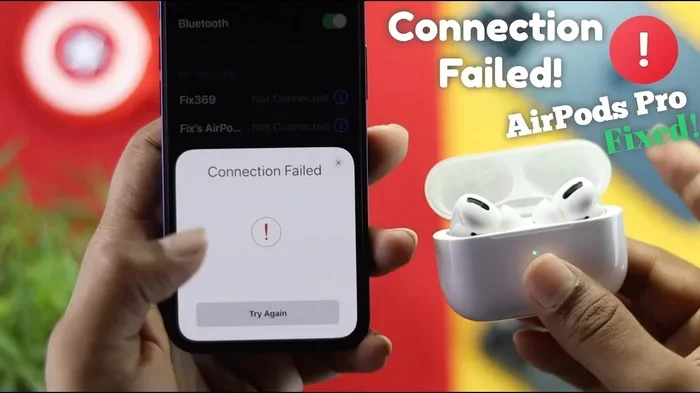
Visual guide about AirPods Pro 2 update error
Image source: i.ytimg.com
1. Low Battery on AirPods or iPhone
This is the number one reason updates fail. Your AirPods Pro 2 need at least 50% battery to receive an update, and your iPhone needs to either have 50% battery or be plugged into power. If either device is running low, the update simply won’t start—or it’ll stall partway through.
Simple analogy: Imagine trying to run a marathon on an empty stomach. Your body has the ability, but not the fuel. Same thing happens with your AirPods—they have the hardware to update, but not enough juice to power through.
2. Outdated iOS Software
Your iPhone acts as the middleman for AirPods updates. If it’s running an older version of iOS, it might not recognize new firmware or be able to transfer it properly. Apple regularly drops support for older iOS versions, meaning newer AirPods updates require newer iOS versions.
Did You Know? As of late 2024, AirPods Pro 2 updates require at least iOS 17 (for the original AirPods Pro 2) or iOS 18 (for the USB-C version). Running iOS 16? You might be stuck on older firmware forever.
3. Bluetooth Connection Problems
AirPods communicate with your iPhone through Bluetooth. If that connection is weak, unstable, or interrupted, updates can fail. Common causes include being too far from your iPhone, having other Bluetooth devices interfere, or having Bluetooth turned off (yes, really—it happens to the best of us).
4. AirPods Not in the Case
Updates can only install when your AirPods Pro 2 are sitting inside their charging case with the lid closed. If they’re in your ears, sitting on your desk, or anywhere else, the update won’t trigger. The case acts like a “home base” where the magic happens.
5. Internet Connectivity Issues
Remember, your iPhone downloads the update first. If you’re on spotty Wi-Fi, using cellular data with restrictions, or have airplane mode on, the download might fail or stall. Even though the AirPods themselves don’t need internet, your iPhone does during the download phase.
6. Software Glitches and Bugs
Sometimes, things just glitch out. Your iPhone might think your AirPods are updated when they’re not, or get stuck in a weird state where it won’t push the update. These bugs are rare but real—and usually fixed with a reset.
Step-by-Step Solutions to Fix AirPods Pro 2 Update Issues
Now for the good stuff: actual solutions you can try right now. We’ll go from simplest to most advanced, so start at the top and work your way down.
Solution 1: Charge Everything Up
Before anything else, make sure both your AirPods Pro 2 and your iPhone have plenty of battery. Here’s the ideal setup:
- AirPods Pro 2: Place them in the case and charge until the status light turns green (fully charged) or at least orange (partially charged, but above 50%).
- iPhone: Either plug it into power or make sure it’s charged above 50%.
- Charging Case: Make sure the case itself has battery too. If it’s dead, your AirPods won’t charge, and the whole chain breaks.
Once everything’s powered up, leave them sitting near each other for 30-60 minutes. The update might happen quietly in the background while you go about your day.
Solution 2: Update Your iPhone First
This step is crucial and often overlooked. To check your iOS version:
- Open the Settings app on your iPhone.
- Tap General, then Software Update.
- If an update is available, tap Download and Install.
- Wait for your iPhone to finish updating, then restart it.
Pro tip: Don’t skip this step thinking “my iPhone is fine.” Even being one version behind can cause AirPods update issues. Apple designs these systems to work together seamlessly, but only when everything is current.
Solution 3: Verify Your Connection Settings
Double-check that all the necessary connections are active:
- Wi-Fi: Make sure you’re connected to a stable network. Go to Settings > Wi-Fi to confirm.
- Bluetooth: Open Control Center and make sure Bluetooth is turned on (it should be blue, not gray).
- Airplane Mode: Make sure this is OFF. Swipe down from the top-right corner to check Control Center.
- Cellular Data: If you’re not on Wi-Fi, make sure cellular data is enabled and not restricted for system services.
Once everything’s connected, keep your iPhone within 15 feet of your AirPods case. Don’t put them in different rooms—that’s asking for trouble.
Solution 4: Put AirPods Back in Your Ears Briefly
This sounds weird, but bear with me. Sometimes the connection between your iPhone and AirPods gets “stale.” By taking them out, putting them in your ears for 30 seconds, then putting them back in the case, you refresh the connection. This small action can kickstart a stuck update process.
Think of it like knocking on a door to wake someone up. Your iPhone might just need a little nudge to remember, “Oh yeah, I have an update to deliver!”
Solution 5: Restart Your iPhone
The classic “turn it off and on again” trick works more often than you’d think. Here’s how to restart different iPhone models:
- iPhone X and later: Press and hold the side button and either volume button until the slider appears. Drag the slider, wait 30 seconds, then press the side button again to turn it back on.
- iPhone SE (2nd or 3rd gen), 8, 7, or 6: Press and hold the side (or top) button until the slider appears, then slide to power off.
After your iPhone restarts, reconnect your AirPods and let them sit together for a while. The update might finally push through.
Solution 6: Reset Your AirPods Pro 2
If you’ve tried everything else and your AirPods still won’t update, it’s time for a reset. This clears all connection data and forces your iPhone to set up the AirPods from scratch—like you’ve just unboxed them.
Here’s the reset process:
- Put your AirPods Pro 2 in their charging case and close the lid. Wait 30 seconds.
- Open the lid, but don’t remove the AirPods.
- On your iPhone, go to Settings > Bluetooth.
- Find your AirPods Pro 2 in the list, tap the (i) icon next to them, and select Forget This Device. Confirm.
- With the lid still open, press and hold the setup button on the back of the case for about 15 seconds. The status light should flash amber, then white.
- Close the lid and wait another 30 seconds.
- Open the lid near your iPhone. A setup animation should appear on your screen.
- Follow the on-screen instructions to reconnect your AirPods.
After resetting, place your AirPods in the case, keep the lid closed, and let them sit near your iPhone for an hour or so. The update should now have a clean slate to work with.
How to Check Your AirPods Pro 2 Firmware Version
Once you’ve tried the solutions above, you’ll want to verify if the update actually went through. Here’s how to check your current firmware version:
- Make sure your AirPods Pro 2 are connected to your iPhone.
- Open the Settings app.
- Tap Bluetooth.
- Find your AirPods in the device list and tap the (i) icon next to them.
- Scroll down to the About section.
- Look for Firmware Version—this tells you exactly what software your AirPods are running.
To see what the latest version should be, visit Apple’s official support page or check tech sites like MacRumors, which maintain a running list of AirPods firmware versions. If your version matches the latest release, congratulations—you’re updated! If not, try the troubleshooting steps again.
Advanced Troubleshooting for Persistent Issues
Still stuck after trying everything above? Let’s dig deeper into some advanced fixes that go beyond the basics.
Reset Network Settings on Your iPhone
Sometimes, corrupted network settings can prevent updates from downloading properly. Resetting your network settings clears out any glitches and starts fresh:
- Go to Settings > General > Transfer or Reset iPhone.
- Tap Reset.
- Select Reset Network Settings.
- Enter your passcode if prompted.
- Confirm the reset.
Note: This will erase saved Wi-Fi passwords, so make sure you know them before doing this. After the reset, reconnect to Wi-Fi and try the update process again.
Try a Different Apple Device
If you have access to another iPhone, iPad, or Mac that’s signed into the same Apple ID, try connecting your AirPods to that device instead. Sometimes, one device has a software bug that prevents updates, but another device handles them just fine. If the update works on a different device, you’ll know the issue is with your primary iPhone.
Check for macOS Updates (If Using Mac)
Mac users sometimes update AirPods through their computer. If you’re using a Mac, make sure you’re running the latest version of macOS. Older versions might not support newer AirPods firmware. Go to Apple Menu > System Settings > Software Update to check.
Contact Apple Support
If nothing works after all these steps, there might be a hardware issue with your AirPods Pro 2. The charging case could have a faulty connection, or the AirPods themselves might have a defective component. In this case, contacting Apple Support or visiting an Apple Store is your best bet. If your AirPods are under warranty or covered by AppleCare+, you might be eligible for a free replacement.
Did You Know? Apple’s support team can often remotely diagnose firmware issues and push updates directly to your AirPods in rare cases where standard methods fail. Don’t hesitate to reach out—it’s free and often faster than you’d expect.
Preventing Future Update Problems
Once you’ve finally got your AirPods Pro 2 updated, you’ll want to keep them that way. Here are some habits that prevent future headaches:
Keep Your iPhone Updated
The single most important thing you can do is keep your iPhone’s iOS up to date. Enable automatic updates by going to Settings > General > Software Update > Automatic Updates and turning everything on. This way, your iPhone will always have the tools needed to deliver AirPods updates.
Charge Your AirPods Regularly
Don’t let your AirPods Pro 2 sit at 0% battery for weeks. Charge them at least once a week, even if you’re not using them. This keeps the battery healthy and ensures they’re ready when an update rolls around.
Stay Connected to Wi-Fi
Keep your iPhone connected to Wi-Fi as much as possible, especially overnight. Many updates happen during these quiet times when your phone is idle and connected to power. Some people actually put their iPhones on the charger near their AirPods before bed—this is prime update time.
Avoid Extreme Temperatures
AirPods don’t update well in very hot or very cold environments. If you’ve left them in a freezing car or a scorching windowsill, let them return to room temperature before trying to update. Apple’s recommended operating range is between 32°F and 95°F (0°C to 35°C).
Update All Apple Devices
If you own multiple Apple devices, keep them all updated. AirPods updates can happen through any of them, and having outdated devices on your network can sometimes cause confusion or conflicts.
Final Thoughts: Patience and Persistence Win
If you’ve made it this far, you’re clearly committed to getting your AirPods Pro 2 updated—and that’s exactly the kind of persistence that pays off. Most update issues are temporary and solvable with the steps we’ve covered. Whether it’s a simple battery charge, an iOS update, or a full AirPods reset, one of these solutions should get you back on track.
Remember, Apple’s automatic update system is designed to be invisible, which means you can’t force an update no matter how hard you try. But you can create the perfect conditions for updates to happen naturally. Keep your devices charged, your software current, and your connections strong—and your AirPods Pro 2 should stay updated without you ever having to think about it again.
Still having trouble? Don’t suffer in silence. Apple Support is there to help, and the AirPods community online is full of friendly folks who’ve faced (and solved) every update issue imaginable. You’re not stuck forever—you just need the right approach. Happy listening!
Frequently Asked Questions
Why can’t I manually update my AirPods Pro 2?
Apple designed AirPods updates to happen automatically in the background. There’s no manual update button because the process is meant to be seamless and invisible. Updates transfer from your iPhone to your AirPods when the right conditions are met—proper battery levels, active Bluetooth, and a stable Wi-Fi connection.
How long does it take to update AirPods Pro 2?
Most AirPods Pro 2 firmware updates take between 30 minutes to one hour to complete. However, the process happens silently, so you might not notice it’s happening. Just leave your AirPods in their case near your iPhone and give it time.
Do I need to update my iPhone to update my AirPods?
Yes, absolutely. Your iPhone acts as the delivery system for AirPods updates. If your iPhone is running outdated iOS, it may not support newer AirPods firmware. Always keep your iPhone updated to the latest version of iOS for the best AirPods compatibility.
Can I update AirPods Pro 2 without an iPhone?
Yes, you can update AirPods through a Mac or iPad that’s signed into the same Apple ID. The update process works similarly—it happens in the background when the device is connected to Wi-Fi and the AirPods are nearby with sufficient battery.
What happens if I interrupt an AirPods update?
Interrupting an update (by moving AirPods out of range, opening the case, or disconnecting Bluetooth) usually just pauses the process. The update will resume when conditions are right again. However, repeatedly interrupting updates can sometimes cause software glitches that require a reset.
How do I know if my AirPods Pro 2 are up to date?
Go to Settings > Bluetooth on your iPhone, tap the (i) icon next to your AirPods, and scroll down to find the firmware version. Compare this number to the latest version listed on Apple’s support page or trusted tech sites like MacRumors to see if you’re current.