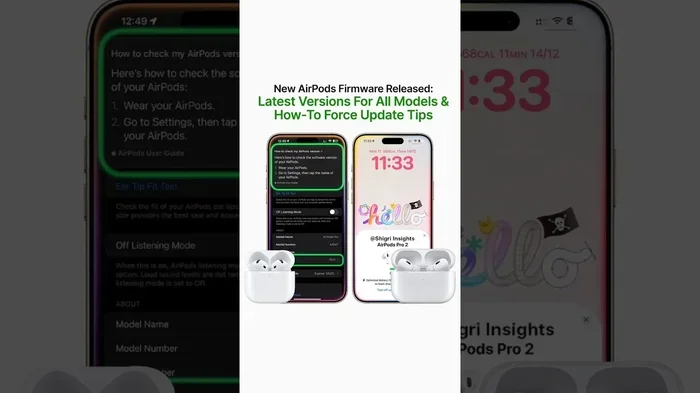
Featured image for AirPods Pro software update
Image source: i.ytimg.com
Yes, you can update AirPods Pro, and it’s actually essential for getting the best performance from your earbuds. Apple releases firmware updates that fix bugs, improve sound quality, and add new features like Adaptive Audio and Conversation Awareness. The process is automatic when your AirPods are connected to an iPhone with Wi-Fi, but knowing how to check your version and troubleshoot stuck updates ensures you never miss an important upgrade.
Imagine buying a brand-new gadget, and then weeks later, it magically gets smarter, sounds better, and lasts longer on a single charge. Sounds like science fiction, right? Well, that’s exactly what happens with AirPods Pro. These tiny white earbuds aren’t just static pieces of hardware; they have brains inside that Apple can upgrade from thousands of miles away.
If you’ve ever wondered, “can we update AirPods Pro?” the short answer is a resounding yes. Apple has built a system that quietly pushes improvements to your earbuds while they sit in their little charging case. No cables, no computers, no technical know-how required. Think of it like your earbuds going to sleep and waking up a little better than before.
This comprehensive guide will walk you through everything you need to know about AirPods Pro updates. We’ll cover how the update process works, why you should care about installing the latest firmware, and what to do when things don’t go as smoothly as planned. By the end, you’ll be an AirPods Pro update expert, ready to make sure your earbuds always have the freshest features and bug fixes.
Key Takeaways
- Automatic Updates: AirPods Pro update automatically when placed in their case, connected to power, and near an iPhone or iPad with Wi-Fi enabled.
- No Manual Button: Unlike iPhones, there’s no “Update Now” button for AirPods Pro; updates install in the background when conditions are right.
- Check Your Version: Go to Settings > Bluetooth > tap the “i” next to your AirPods Pro to see the current firmware version.
- Latest Features: Recent updates added Adaptive Audio, Personalized Volume, and Conversation Awareness to AirPods Pro 2.
- Stuck Updates: If updates aren’t installing, reset your AirPods, ensure your iPhone is updated, and keep them in range with the case charged.
- Why Update: Firmware updates fix connectivity bugs, improve battery life, enhance noise cancellation, and patch security vulnerabilities.
- Patience Required: Updates can take anywhere from 15 minutes to a few hours, so don’t panic if it doesn’t happen instantly.
📑 Table of Contents
- How AirPods Pro Updates Actually Work
- How to Check Your Current AirPods Pro Firmware Version
- What’s New in Recent AirPods Pro Updates
- Troubleshooting: When Your AirPods Pro Won’t Update
- Why You Should Always Keep AirPods Pro Updated
- Common Myths and Misconceptions About AirPods Pro Updates
- The Future of AirPods Pro Updates
- Best Practices for Managing AirPods Pro Updates
- Final Thoughts: Embrace the Updates
How AirPods Pro Updates Actually Work
The word “firmware” might sound intimidating, like something only IT professionals should touch. But here’s a simple analogy: if your AirPods Pro were a car, the firmware would be the engine software that controls how everything runs. When Apple “updates” your car, they don’t give you a new vehicle; they just make the existing one run smoother, faster, and more efficiently.
The Automatic Magic Behind Updates
AirPods Pro updates happen automatically through a beautifully orchestrated chain of events. Apple designed this process to be invisible because most people don’t want to fiddle with firmware files. Here’s the step-by-step magic that happens behind your curtains:
- Apple releases new firmware on its servers somewhere in the cloud.
- Your iPhone or iPad receives notification of available updates when connected to Wi-Fi.
- The firmware downloads silently to your iOS device.
- Your AirPods Pro pull the update from your iPhone when they’re nearby and in their case.
- Installation happens automatically while the AirPods are charging.
Think of your iPhone as a friendly mail carrier who picks up software updates from Apple’s headquarters and delivers them to your AirPods whenever the timing is right. You don’t have to do anything except keep your iPhone charged and connected to the internet.
What Conditions Need to Be Met?
For your AirPods Pro to receive updates, three things need to happen simultaneously, like a three-legged race where everyone has to keep pace:
1. The AirPods Must Be in Their Case: Updates only install when your AirPods Pro are sitting in their charging case with the lid closed. This is Apple’s way of ensuring your earbuds aren’t in use during a critical software installation. It’s like how you have to park a car before swapping out its engine.
2. The Case Needs Power: Whether you’re charging via Lightning cable, wireless charging, or MagSafe, the case needs to have enough battery to complete the process. If the case dies mid-update, the firmware might get corrupted, similar to how pulling out a USB drive while files are copying can scramble your data.
3. Proximity to an iOS Device: Your AirPods Pro need to be within Bluetooth range of an iPhone, iPad, or even a Mac that’s signed into the same Apple ID. The connected device acts as the bridge between Apple’s servers and your tiny earbuds. Without this bridge, there’s no way for the update to reach your AirPods.
How to Check Your Current AirPods Pro Firmware Version
Curiosity is a wonderful thing, especially when it comes to understanding your gadgets. Knowing how to check your current firmware version puts you in control and helps you verify when updates have actually installed. The process takes less than 30 seconds.

Visual guide about AirPods Pro software update
Image source: i.ytimg.com
Step-by-Step Instructions for iPhone and iPad
Step 1: Open the Settings app on your iPhone or iPad. It’s the one with the gear icon that looks like a tiny mechanical clock.
Step 2: Scroll down and tap on “Bluetooth.” Make sure Bluetooth is toggled on; you’ll see the switch glowing green.
Step 3: Look for your AirPods Pro in the list of “My Devices.” They should appear with a little earbuds icon next to their name.
Step 4: Tap the small “i” (information) button circled in blue next to your AirPods Pro name. This opens a detailed settings page.
Step 5: Scroll down to the “About” section. You’ll see “Version” followed by a number like “6A300” or “7B12.” That number is your current firmware version.
That’s it! You now know exactly what software version your AirPods Pro are running. This is incredibly useful when reading about new updates online or troubleshooting weird behavior.
What the Version Numbers Mean
AirPods Pro firmware versions follow a specific naming pattern that looks confusing at first glance but makes sense once you understand the system. For example, version “6A300” might sound like a robot’s serial number, but it’s actually packed with meaning.
The first digit often indicates the major update generation, while the letters and numbers after represent the specific build. Apple’s firmware naming convention helps their engineers track which version contains which changes. As an everyday user, you don’t need to decode these numbers; just knowing your current version is enough to compare it against the latest release.
What’s New in Recent AirPods Pro Updates
Apple doesn’t always publish detailed changelogs for AirPods Pro firmware updates, which can be frustrating for users who want to know exactly what’s changing. However, the company does highlight major features, and tech publications often dig into the details. Let’s explore what’s been added recently and why these updates matter.
Game-Changing Features Added to AirPods Pro 2
With the release of iOS 17 and subsequent updates, AirPods Pro 2 received several features that genuinely transformed how people use their earbuds:
Adaptive Audio: This brilliant feature blends Active Noise Cancellation and Transparency mode based on your environment. Walking past a construction site? Your AirPods crank up noise cancellation automatically. Stopping to chat with a cashier? They switch to Transparency mode without you lifting a finger. It’s like having a sound engineer living inside your earbuds, constantly adjusting the audio mix.
Personalized Volume: Using machine learning, your AirPods Pro now learn your preferred volume levels in different environments and adjust automatically over time. The feature studies your habits and subtly tweaks audio output to match conditions, protecting your hearing while ensuring you always hear clearly.
Conversation Awareness: When you start speaking while wearing your AirPods, this feature automatically lowers the music and amplifies the person’s voice in front of you. It’s perfect for ordering coffee or quick chats without removing your earbuds. Imagine your Airbuds saying, “Oh, you’re talking to a human? Let me make this easier for you.”
Improved Find My Integration: The case now emits a louder sound to help you locate it, and the Precision Finding feature works better than ever. If you’ve ever lost your AirPods in a couch cushion, you’ll appreciate this improvement.
The Importance of Audio Quality Improvements
Beyond flashy new features, firmware updates often include subtle audio enhancements that make a real difference. Apple’s audio engineers continuously tweak the sound signature, noise cancellation algorithms, and microphone performance. These changes might not generate headlines, but they result in clearer calls, deeper bass, and more effective noise blocking.
Did You Know? According to Apple’s support documentation, firmware updates have improved the Active Noise Cancellation performance on AirPods Pro by up to 2x compared to the original version through software refinements alone. That means a software update can literally double how well your earbuds block out the world, no new hardware required!
Troubleshooting: When Your AirPods Pro Won’t Update
Technology isn’t perfect, and sometimes the automatic update process hits a snag. If you’ve checked your firmware version and noticed it’s stuck on an older version despite newer releases being available, don’t panic. Here are proven solutions that have helped countless users get back on track.
Quick Fixes to Try First
Before diving into more complex solutions, try these simple steps that resolve the majority of update issues. Think of these as “turn it off and on again” for your ears:
1. Keep Your iPhone Updated: Apple often requires your iPhone, iPad, or Mac to be running a relatively recent version of iOS, iPadOS, or macOS before AirPods Pro can receive certain updates. Head to Settings > General > Software Update and make sure you’re running the latest iOS version. Outdated devices often block firmware delivery.
2. Reset Your AirPods Pro: Sometimes the connection between your iPhone and AirPods gets confused. To reset, place your AirPods in their case, close the lid, wait 30 seconds, then open it. On your iPhone, go to Settings > Bluetooth, tap the “i” next to your AirPods, and choose “Forget This Device.” Then pair them again like new.
3. Give It Time: Updates don’t always happen immediately. Apple staggers rollouts to ensure server stability, so your friend might get the update today while you wait another week. This staged approach prevents millions of devices from downloading simultaneously and crashing the system.
4. Charge Everything: Make sure both your AirPods case and iPhone have at least 50% battery. Low battery can interrupt the update process and leave your AirPods in a partially updated state.
Advanced Solutions for Stubborn Cases
If the basic troubleshooting doesn’t work, it’s time to roll up your sleeves and try these deeper fixes. The word “advanced” might sound scary, but they’re actually quite simple to execute:
Reset Network Settings on Your iPhone: Sometimes Bluetooth connectivity issues prevent updates from transferring. Go to Settings > General > Transfer or Reset iPhone > Reset > Reset Network Settings. This clears saved Wi-Fi passwords and Bluetooth connections, giving your AirPods a fresh start.
Use a Mac Instead: If your iPhone won’t deliver the update, try pairing your AirPods with a Mac running the latest macOS. The Mac can also serve as the bridge for firmware updates, and sometimes one device succeeds where another fails.
Try a Different Location: Believe it or not, electromagnetic interference from certain environments can disrupt Bluetooth communication. If you’re in an office full of wireless devices or near strong Wi-Fi routers, try moving to a different room or location.
Contact Apple Support: If nothing works after a week or two, there might be a hardware issue with your AirPods or case. Apple’s support team can run diagnostics and determine whether you need a replacement.
Why You Should Always Keep AirPods Pro Updated
Some users wonder whether updating is worth the hassle, especially when updates occasionally introduce temporary bugs. The honest answer is that staying current almost always pays off in the long run. Here’s why firmware updates deserve your patience.
Security and Privacy Benefits
Like any connected device, AirPods Pro can theoretically have security vulnerabilities that hackers might exploit. Apple takes security seriously and regularly patches these issues through firmware updates. Running outdated firmware is like leaving your front door unlocked; it probably won’t cause problems, but why take the risk?
Researchers have occasionally discovered potential Bluetooth vulnerabilities affecting wireless earbuds. Apple responds quickly with firmware patches that close these security holes, protecting your conversations and data from potential eavesdroppers.
Performance and Reliability Improvements
Have you ever experienced AirPods randomly disconnecting, audio cutting out, or one earbud playing louder than the other? These frustrating issues often get resolved through firmware updates. Apple collects anonymous diagnostic data from users and addresses the most common complaints in subsequent releases.
Battery life also improves over time through software optimization. While hardware battery capacity degrades with use, smart power management algorithms can extend your listening time by tweaking how different components consume energy. A firmware update might add 30 minutes to your daily listening time without any hardware changes.
Compatibility with New Devices and Features
When Apple releases new iPhones, iPads, or Macs, your AirPods Pro need firmware updates to take full advantage of new operating system features. Without updates, you might miss out on seamless switching between devices, improved Siri integration, or new accessibility options. Keeping your firmware current ensures your AirPods play nicely with your entire Apple ecosystem.
Did You Know? Apple’s ecosystem is so interconnected that a single firmware update can enable new features across multiple Apple devices you own. Your AirPods Pro might receive an update that improves how they interact with your Apple Watch, iPhone, and Mac simultaneously, even though only your earbuds are technically receiving new software.
Common Myths and Misconceptions About AirPods Pro Updates
The internet is full of misinformation, and AirPods Pro updates are no exception. Let’s debunk some persistent myths that confuse users and lead to unnecessary frustration.
Myth 1: “Updates Drain Battery Life”
Some users believe that updating firmware reduces battery longevity, but this isn’t accurate. Updates might temporarily use more battery during installation, but the new software is actually optimized to be more efficient than older versions. If anything, updates typically improve battery life over time as engineers refine power management.
Myth 2: “You Can Skip Major Updates”
Unlike iOS updates where you can delay installation indefinitely, AirPods Pro updates happen automatically whether you want them or not. There’s no way to opt out of firmware updates, and that’s actually a good thing. It ensures everyone has the latest security patches and that developers can build features assuming a baseline firmware version.
Myth 3: “Updates Will Brick Your AirPods”
The fear of “bricking” devices (rendering them completely non-functional) is common with complex electronics, but AirPods Pro updates are extremely safe. Apple has robust fail-safes that prevent corrupted installations, and even if something goes wrong, the devices can usually be recovered through simple reset procedures. Billions of firmware updates have been installed across Apple’s product lineup without widespread bricking incidents.
Myth 4: “All AirPods Pro Updates Are the Same”
Different AirPods Pro generations receive different updates. AirPods Pro 1st generation, AirPods Pro 2nd generation, and the newer AirPods Pro 2 with USB-C each have their own firmware tracks. An update for one model won’t install on another, even though they might share similar features. This is why checking your specific version matters.
The Future of AirPods Pro Updates
As we look ahead, AirPods Pro updates will likely become even more sophisticated. Apple continues investing in audio technology, machine learning, and health monitoring features that could eventually make their way to AirPods through firmware updates. Imagine your earbuds detecting irregular heartbeats, monitoring posture, or translating languages in real-time, all through software improvements to existing hardware.
Potential Future Features Through Updates
Based on Apple’s patents and industry trends, here are some features that might arrive through future AirPods Pro updates:
- Health Monitoring: Sensors that track body temperature, heart rate, or even blood oxygen levels through the ear canal.
- Advanced Hearing Assistance: More sophisticated hearing aid-like features for users with mild hearing loss.
- AI-Powered Noise Cancellation: Machine learning algorithms that adapt to your specific environments in real-time.
- Better Spatial Audio: Improved head tracking and personalized audio profiles for immersive listening experiences.
- Enhanced Find My: Even more precise location tracking through ultra-wideband improvements.
The beauty of firmware updates is that tomorrow’s features might already be running on today’s hardware, just waiting for Apple to flip the switch. Your AirPods Pro are essentially a platform that evolves, not a static product that becomes obsolete.
How Apple’s Update Strategy Differs from Competitors
Apple’s approach to AirPods updates is notably different from competitors like Samsung, Sony, or Bose. While other manufacturers often require companion apps and manual update processes, Apple has built updates directly into iOS. This integrated approach means updates happen seamlessly without users ever needing to think about them.
It also means Apple’s quality control is tighter. When an update releases, it’s been tested across the entire Apple ecosystem to ensure compatibility with iPhones, iPads, Macs, and Apple Watches. This holistic testing results in fewer bugs and a more reliable experience overall.
Best Practices for Managing AirPods Pro Updates
Now that you understand how updates work and why they matter, let’s discuss practical habits that ensure your AirPods Pro always have the latest firmware without you having to think about it.
Set It and Forget It: The Ideal Approach
For most users, the best strategy is to let updates happen automatically and never worry about them. To make this work smoothly, develop these simple habits:
Charge Regularly: Keep your AirPods case charged and your iPhone powered up. Updates can happen anytime your devices are connected and have sufficient battery. If your case sits at 0% for weeks, updates can’t install.
Stay Near Your Phone: When you’re not using your AirPods, keep them in their case and reasonably close to your iPhone. Don’t store your AirPods in a drawer across the house from your phone; they need Bluetooth proximity to receive updates.
Update iOS Promptly: When your iPhone prompts you to update iOS, do it within a reasonable timeframe. Apple often coordinates AirPods updates with iOS releases, so outdated iOS versions might block new AirPods features.
Use Your AirPods Regularly: AirPods that sit unused for months might miss updates. Active use keeps the Bluetooth connection warm and ensures your devices stay in communication with Apple’s servers.
When to Be Proactive About Updates
While automatic updates work great for most people, there are times when being proactive pays off:
After Major iOS Releases: When Apple releases a major iOS update (like iOS 18), check for corresponding AirPods updates a few days later. Apple often releases coordinated updates that take advantage of new iOS features.
When Experiencing Problems: If your AirPods start behaving strangely, check online to see if Apple has released a recent firmware update addressing those issues. Sometimes a quick check can save you from unnecessary troubleshooting or returns.
Before Important Events: If you have a long flight or important presentation coming up, make sure your AirPods are updated a few days in advance. You don’t want to discover bugs mid-flight when troubleshooting is impossible.
After Buying New AirPods: If you just purchased AirPods Pro, check the firmware version right away. They might have shipped with an older version, and updating ensures you have the latest features from day one.
Final Thoughts: Embrace the Updates
The question “can we update AirPods Pro?” has a beautifully simple answer: yes, and it’s wonderfully automatic. Apple has engineered an update system that works in the background, requiring minimal user intervention while delivering maximum value. From improved sound quality and battery life to entirely new features like Adaptive Audio and Conversation Awareness, firmware updates transform your AirPods Pro into better versions of themselves over time.
The key takeaways are straightforward. Keep your iPhone and AirPods charged, stay reasonably close to your devices, and update your iOS promptly when prompted. That’s really all it takes to ensure your AirPods Pro always have the latest firmware. Check your version occasionally to satisfy curiosity or troubleshoot problems, but trust the process most of the time.
As we move forward, AirPods Pro updates will likely bring even more impressive features to earbuds you might have purchased years ago. This longevity and continuous improvement represent one of the most compelling reasons to invest in Apple’s ecosystem. Your AirPods Pro aren’t just earbuds; they’re a platform that grows smarter, sounds better, and serves you longer thanks to the magic of firmware updates.
So the next time someone asks you whether AirPods Pro can be updated, you’ll have a confident, comprehensive answer. Yes, they can, and yes, you absolutely should let those updates happen. Your ears will thank you for it.
Frequently Asked Questions
How long does it take to update AirPods Pro?
AirPods Pro updates typically take anywhere from 15 minutes to a few hours to install. Since the process happens automatically in the background while your AirPods are in their case, you usually won’t notice the update happening. Just keep your AirPods in the case with the lid closed and near your iPhone.
Can I update AirPods Pro without an iPhone?
While an iPhone or iPad is the primary method, you can also update AirPods Pro using a Mac, Apple TV, or Apple Watch that’s signed into the same Apple ID. However, you’ll need at least one iOS device initially to set up your AirPods Pro.
Why are my AirPods Pro not updating to the latest version?
Common reasons include outdated iOS software, low battery on your AirPods case or iPhone, being out of Bluetooth range, or Apple’s staged rollout. Try resetting your AirPods, updating your iPhone, keeping them in the case near your phone for a few days, and ensuring both devices have sufficient charge.
Do AirPods Pro updates install on Android devices?
No, AirPods Pro firmware updates require an Apple device (iPhone, iPad, Mac, Apple TV, or Apple Watch) to facilitate the update process. Android devices can connect to AirPods Pro for audio playback, but they cannot install firmware updates.
What’s the latest AirPods Pro firmware version?
Firmware versions change regularly as Apple releases new updates. To find the current latest version, check Apple’s official support page or look at your AirPods settings following the steps outlined in this guide. Apple doesn’t always announce updates publicly, so checking directly is the most reliable method.
Will updating AirPods Pro delete my settings?
No, firmware updates preserve your custom settings, including noise cancellation preferences, ear tip fit test results, spatial audio settings, and personalized configurations. Your AirPods will function exactly as before once the update completes, just with potential improvements and new features.