
Featured image for person talking into airpods pro
Image source: idropnews.com
Yes, you can absolutely talk into AirPods Pro. Every pair comes with built-in microphones that pick up your voice clearly during phone calls, video chats, and voice commands. The AirPods Pro use advanced noise-canceling technology to isolate your voice from background sounds, making conversations crisp and clear even in noisy environments. With proper fit, regular cleaning, and a few simple settings tweaks, you can enjoy hands-free communication anywhere you go.
Have you ever wondered whether you can actually talk into your AirPods Pro? Maybe you just got your first pair, or perhaps you’ve had them for a while but never tried using them for a phone call. The good news is that the answer is a simple, resounding yes. AirPods Pro come packed with sophisticated microphone technology that makes hands-free talking a breeze.
But here’s the thing: just because you can talk into AirPods Pro doesn’t mean every call will sound like a studio recording. There are tips, tricks, and technical details that can make the difference between sounding crystal clear and sounding like you’re calling from inside a tin can. Think of it like a garden hose. The water is always there, but if you kink the hose or leave the nozzle dirty, the flow suffers. The same idea applies to your AirPods Pro microphone.
In this guide, we’ll break down everything you need to know about talking into AirPods Pro. From how the microphones actually work to common problems and easy fixes, you’ll walk away with the knowledge to make every call sound amazing. Let’s dive in.
Key Takeaways
- Built-In Mics: AirPods Pro have multiple beamforming microphones designed specifically for clear voice pickup during calls and voice commands.
- Noise Cancellation: The microphones work with active noise cancellation to filter out background noise, so people hear your voice, not the world around you.
- Automatic Switching: AirPods Pro automatically detect when you’re talking and shift audio processing to prioritize voice clarity.
- Multiple Uses: You can use them for phone calls, FaceTime, Zoom meetings, Siri commands, voice memos, and even recording audio on your phone.
- Call Quality Factors: Fit, environmental noise, device settings, and microphone cleanliness all affect how well you sound to others.
- Tips for Best Results: Keep your AirPods Pro clean, ensure a snug ear fit, update firmware, and adjust microphone settings in Bluetooth preferences.
- Limitations: AirPods Pro mics work great for casual and professional calls but aren’t ideal for professional music recording or broadcasting.
📑 Table of Contents
- How AirPods Pro Microphones Actually Work
- What Can You Use AirPods Pro Microphones For?
- How to Set Up AirPods Pro for Talking
- Tips for Sounding Your Best on AirPods Pro Calls
- Common Problems and Easy Fixes
- AirPods Pro vs. Other AirPods for Talking
- The Future of Talking into AirPods Pro
- Final Thoughts
How AirPods Pro Microphones Actually Work
Let’s start with the basics. When you ask, “can you talk into AirPods Pro,” the answer lies in some pretty impressive engineering that Apple has packed into these tiny earbuds.
The Dual Microphone System
Each AirPods Pro earbud contains two microphones: an outer microphone and an inner microphone. The outer one sits on the outside of the earbud, while the inner one faces inward toward your ear canal. Together, they form what Apple calls a “dual-beamforming microphone array.”
Think of beamforming like a pair of super-focused ears. Instead of catching sound from every direction equally, these microphones work together to focus on the sound coming directly from your mouth. It’s similar to how a satellite dish focuses on a specific signal rather than picking up everything in the sky.
Active Noise Cancellation and Voice Pickup
One of the coolest features of AirPods Pro is how the microphones collaborate with active noise cancellation (ANC). While one mic listens to outside noise to cancel it, another captures your voice. This dual-purpose design means your voice stays clear even when you’re walking through a busy street or sitting in a coffee shop.
Did You Know? AirPods Pro can process audio at a rate of 200 times per second to adjust noise cancellation in real time. This lightning-fast processing also helps them keep your voice sounding natural during calls.
The Accelerometer and Voice Detection
Here’s something most people don’t realize: AirPods Pro have tiny built-in accelerometers that detect vibrations from your jaw when you speak. This is how they can tell when you’re talking versus when someone next to you is talking. The earbuds use this data to focus the microphones on your voice, even in windy or loud conditions.
What Can You Use AirPods Pro Microphones For?
Now that you know how the microphones work, let’s talk about what you can actually do with them. The list is longer than most people think.
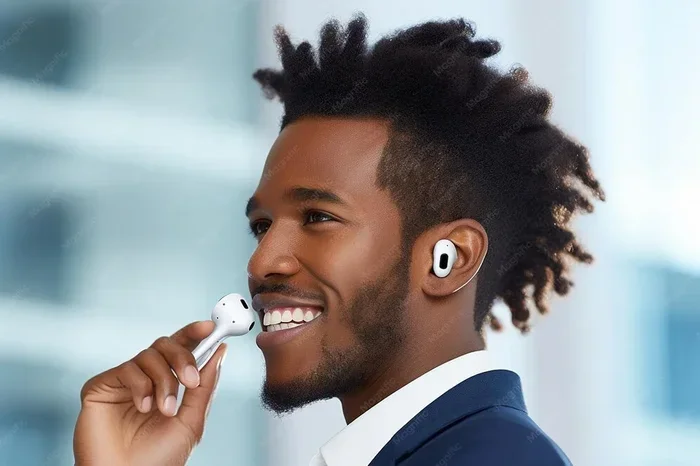
Visual guide about person talking into airpods pro
Image source: img.freepik.com
Phone Calls
The most obvious use is making and receiving phone calls. AirPods Pro automatically switch to call mode when your phone rings, and the microphones pick up your voice with impressive clarity. Whether you’re on a quick call with a friend or a long business meeting, they handle the job well.
Video Conferencing
Apps like Zoom, Microsoft Teams, Google Meet, and FaceTime all work seamlessly with AirPods Pro microphones. You can join meetings hands-free, take notes while you talk, or even pace around your office without holding your phone.
Voice Assistants
Want to ask Siri a question? Just say “Hey Siri” and the microphones pick up your command. You can send texts, set reminders, play music, get directions, and control your smart home devices all through your AirPods Pro.
Voice Memos and Audio Recording
Did You Know? You can record high-quality voice memos and even podcast audio using just your AirPods Pro and your iPhone. While they won’t replace a professional studio microphone, they’re surprisingly capable for on-the-go recording. Many content creators use them for quick voice notes, interview recording, and even rough podcast drafts.
Gaming and Streaming
Gamers and streamers often wonder, “can you talk into AirPods Pro for live communication?” Absolutely. Apps like Discord, in-game chat systems, and streaming platforms all recognize AirPods Pro as a microphone input. The noise-canceling features help keep your team chat clear even if your gaming setup is loud.
Voice-to-Text Dictation
Most modern smartphones support voice dictation. AirPods Pro work perfectly with this feature, allowing you to dictate texts, emails, and documents hands-free. This is a huge productivity boost for anyone who types all day.
How to Set Up AirPods Pro for Talking
Setting up your AirPods Pro for voice communication is super easy. If you can tap a button, you can do this.
Initial Pairing with Your Device
First things first, make sure your AirPods Pro are properly connected to your device. Here’s the quick version:
- For iPhone or iPad: Open the case near your device, and a setup animation should pop up on screen. Tap “Connect.”
- For Mac: Open System Preferences, click Bluetooth, and select your AirPods Pro from the list.
- For Android or Windows: Press and hold the setup button on the back of the AirPods Pro case until the light flashes white, then find them in your device’s Bluetooth settings.
Choosing AirPods as Your Microphone
Sometimes your device might use a different microphone by default. Here’s how to make sure AirPods Pro are your go-to mic:
- During a call: Tap the “Audio” button on your screen and select “AirPods Pro” from the list of available microphones.
- On Mac: Go to System Preferences > Sound > Input and select AirPods Pro.
- On Windows: Right-click the speaker icon, select “Sound Settings,” and choose AirPods Pro as your input device.
Once selected, your AirPods Pro will remember this choice for future calls, though some apps may override it.
Adjusting Microphone Settings on iPhone
Here’s a pro tip many people miss. iPhones have a feature that lets you choose which AirPod acts as the microphone. To access this:
- Open the Settings app on your iPhone.
- Tap on Bluetooth.
- Find your AirPods Pro in the list and tap the “i” icon next to them.
- Scroll down to Microphone.
- Choose between “Automatically Switch AirPods,” “Always Left AirPod,” or “Always Right AirPod.”
The “Automatically Switch” option is usually best because it picks whichever earbud has a better signal or better fit. But if one earbud isn’t working well, forcing the other one can solve your problem instantly.
Tips for Sounding Your Best on AirPods Pro Calls
Just because AirPods Pro can pick up your voice doesn’t mean they always will pick it up perfectly. Here are some practical tips to make sure you sound great every time.
Get the Right Fit
This is the most important tip, and it surprises many people. If your AirPods Pro don’t fit snugly in your ears, the microphones won’t be positioned correctly to pick up your voice clearly. Apple includes three sizes of silicone tips (small, medium, large) with every pair. Try them all and pick the one that creates a tight seal.
Did You Know? Apple has a built-in “Ear Tip Fit Test” that uses the microphones to check if you’ve got a good seal. You can find it in Settings > Bluetooth > AirPods Pro > Ear Tip Fit Test. It only takes a few seconds and can dramatically improve your call quality.
Keep Your Microphones Clean
Dirt, earwax, and debris love to collect on AirPods microphones. A clogged mic will make you sound muffled, distant, or scratchy. Clean your AirPods Pro regularly using a soft, dry, lint-free cloth. For stubborn grime, slightly dampen the cloth with water. Avoid using sharp objects that could damage the mesh.
Think of it like a window. A clean window lets light shine through clearly, but a dirty one blocks and distorts everything. The same principle applies to microphone mesh.
Update Your Firmware
Apple regularly releases firmware updates that improve microphone performance, fix bugs, and enhance noise cancellation. Make sure your AirPods Pro are running the latest version. The easiest way to update them is to keep them in their case, connected to power, and near your iPhone. Updates happen automatically when these conditions are met.
Manage Your Environment
Even the best microphones struggle in extreme conditions. Here are some environment-friendly tips:
- Windy conditions: AirPods Pro do a decent job filtering wind noise, but turning your head so the wind hits the back of your ear can help.
- Loud spaces: Active noise cancellation helps, but it won’t work miracles. If you’re in a really loud environment, consider moving somewhere quieter for important calls.
- Multiple speakers: If you’re in a group call, hand one AirPod to the person speaking so the mic can pick them up directly.
Use One Earbud for Calls
Here’s a trick many professionals use: when you need to sound your absolute best, use just one AirPod Pro. The single earbud with the active microphone often produces a slightly cleaner signal because there’s less audio processing happening. It also lets you keep one ear open to your surroundings, which is safer in public spaces.
Speak at a Normal Volume
It might be tempting to speak loudly when you’re on a call with AirPods, but resist the urge. The microphones are designed to pick up your voice at a normal conversational level. Yelling can actually cause distortion and make you harder to understand.
Common Problems and Easy Fixes
Even with all this great technology, things can sometimes go wrong. Here are the most common problems people face when talking into AirPods Pro, along with simple solutions.
Problem: People Say You Sound Muffled
The Cause: This is almost always a dirty microphone or a poor ear tip fit. Earwax buildup on the mic mesh is the number one culprit.
The Fix: Clean your AirPods Pro thoroughly and try different ear tip sizes. Run the Ear Tip Fit Test to confirm a good seal.
Problem: People Can’t Hear You at All
The Cause: Sometimes your device might still be using its built-in microphone instead of your AirPods Pro. Another common cause is a software glitch.
The Fix: During a call, check the audio source and manually select AirPods Pro. If that doesn’t work, disconnect and reconnect your AirPods, or restart your device.
Problem: Your Voice Sounds Robotic or Distorted
The Cause: Bluetooth interference or outdated firmware often causes this issue. Other wireless devices nearby can disrupt the signal.
The Fix: Move away from other Bluetooth devices, Wi-Fi routers, and microwaves. Update your AirPods Pro firmware and your device’s operating system.
Problem: Call Audio Keeps Cutting Out
The Cause: You’re probably too far from your device, or there’s something blocking the Bluetooth signal.
The Fix: Stay within 30 feet of your device and keep your phone in the same room. Walls, especially thick ones, can reduce Bluetooth range significantly.
Problem: Wind Noise Overpowers Your Voice
The Cause: Even with noise cancellation, strong wind can overwhelm the microphones.
The Fix: Use the transparency mode in mild wind, or cover one ear with your hand during gusts. For extreme conditions, consider switching to your phone’s microphone.
AirPods Pro vs. Other AirPods for Talking
You might be wondering how AirPods Pro compare to other AirPods models when it comes to voice quality. Let’s break it down.
AirPods Pro vs. Standard AirPods
Both models have microphones, but AirPods Pro have a clear advantage for talking in noisy environments. The in-ear design with silicone tips creates better passive noise isolation, and the dual-microphone array is more advanced. If you make a lot of calls in coffee shops, airports, or busy offices, AirPods Pro are the better choice.
AirPods Pro vs. AirPods Max
AirPods Max are Apple’s over-ear headphones, and they have excellent microphones for calls. However, they’re much bulkier and more expensive. For most people, AirPods Pro offer the best balance of portability, comfort, and call quality.
AirPods Pro vs. AirPods Pro 2
The second-generation AirPods Pro (released in 2022) have improved microphones compared to the original. They feature better noise cancellation, longer battery life, and the new H2 chip processes voice audio more efficiently. If you’re in the market for new AirPods and call quality is your top priority, the AirPods Pro 2 are worth the upgrade.
Did You Know? The H2 chip in AirPods Pro 2 can process audio two times faster than the H1 chip in the original AirPods Pro. This means less delay and clearer voice pickup during calls.
The Future of Talking into AirPods Pro
Apple continues to push the boundaries of what tiny earbuds can do. Looking ahead, we can expect even better microphone technology, smarter noise cancellation, and possibly new features like real-time language translation during calls. The AirPods Pro you buy today are already incredible, but the models coming in the next few years will make them seem like ancient history.
For now, AirPods Pro remain one of the best consumer earbuds for voice communication. Whether you’re taking a quick call, hosting a Zoom meeting, or dictating a long email, they deliver reliable, clear audio that rivals much more expensive equipment.
So yes, you can absolutely talk into AirPods Pro, and with the tips in this guide, you’ll sound better than ever. Go ahead, make that call, and let your AirPods do the heavy lifting.
Final Thoughts
Talking into AirPods Pro is one of those things that feels magical the first time you do it. There’s no need to hold your phone, no wires to untangle, and no awkward positioning. Just pop them in, speak naturally, and let the technology do its job.
Remember the key points: get a proper fit, keep your microphones clean, update your firmware, and don’t be afraid to adjust your settings. These small steps will transform your call experience from “good enough” to “wow, you sound amazing.”
Whether you’re a busy professional, a student attending online classes, or just someone who likes the convenience of hands-free calling, AirPods Pro are up to the task. The microphones are powerful, the noise cancellation is impressive, and the integration with Apple devices is seamless. So go ahead, talk away. Your AirPods Pro are ready when you are.
Frequently Asked Questions
Can you talk into AirPods Pro during phone calls?
Yes, absolutely. AirPods Pro have built-in microphones that automatically activate when you’re on a call. The dual-beamforming microphones pick up your voice clearly while filtering out background noise, so you can have hands-free conversations without holding your phone.
Do AirPods Pro microphones work with Android devices?
Yes, AirPods Pro microphones work with Android phones, Windows PCs, and other Bluetooth devices. While you won’t get all the iOS-specific features like automatic ear detection, the basic microphone functionality for calls and voice recording works perfectly across platforms.
Why do people say I sound muffled on my AirPods Pro?
Muffled sound is usually caused by a dirty microphone, poor ear tip fit, or both. Clean the microphone mesh with a dry cloth, try different sized ear tips, and run the Ear Tip Fit Test on your iPhone. A snug fit positions the microphone optimally for voice pickup.
Can you use AirPods Pro as a microphone for recording?
Yes, you can use AirPods Pro as a microphone for voice memos, audio notes, and even rough podcast recordings. The quality is good for casual use, but for professional music recording or broadcasting, a dedicated external microphone will give you much better results.
How do I make AirPods Pro the default microphone on my iPhone?
Go to Settings > Bluetooth, tap the “i” icon next to your AirPods Pro, and scroll to the Microphone section. Choose “Automatically Switch AirPods” for the best experience. You can also select AirPods Pro as the audio source during individual calls by tapping the audio button on your screen.
Do AirPods Pro block background noise when you’re talking?
Yes, AirPods Pro use active noise cancellation and beamforming microphone technology to minimize background noise during calls. The microphones focus on your voice while filtering out sounds like traffic, wind, and crowd noise. For very loud environments, you may still need to move somewhere quieter for important calls.