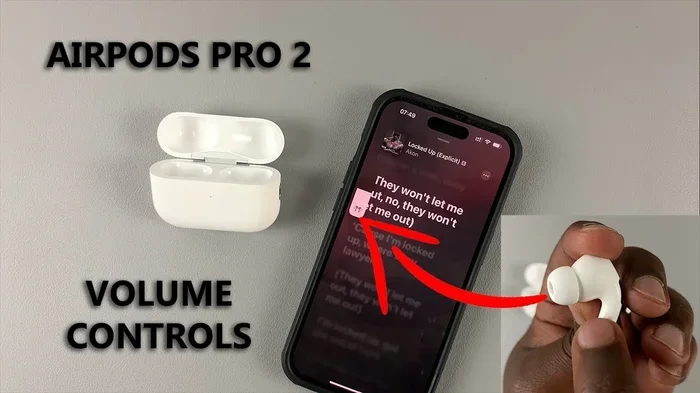
Featured image for AirPods Pro 2 volume touch control
Image source: i.ytimg.com
Can’t adjust volume on AirPods Pro 2? The most common fix is cleaning the touch sensor, recalibrating the swipe gesture in settings, or updating your iOS firmware. Most volume issues stem from dirt, outdated software, or misconfigured touch controls. This guide walks you through every proven solution, from simple cleaning to advanced reset methods, so you can get your volume working perfectly again.
Imagine this: you’re on a morning jog, your favorite song is playing, and suddenly you need to turn the volume down. You swipe up on your AirPods Pro 2 stem, and… nothing happens. That tiny moment of frustration is something millions of AirPods users have experienced. The volume control on AirPods Pro 2 is supposed to be one of its slickest features—just a quick swipe up or down on the stem. But when it stops working, it can feel like your expensive earbuds suddenly became just regular headphones.
Here’s the good news: in most cases, this is a fixable problem. You don’t need to rush to an Apple Store or throw your AirPods in a drawer. Whether the issue is caused by a dirty sensor, a software glitch, or a simple settings misconfiguration, there’s almost always a solution you can try at home in just a few minutes.
In this guide, we’ll walk through every possible reason your AirPods Pro 2 volume control isn’t working—and exactly how to fix it. Think of it like a mechanic’s checklist: we start with the easiest, most common fixes and work our way down to the more advanced solutions. By the end, you’ll know exactly what’s wrong and how to make it right.
Key Takeaways
- Touch Sensor Issues Are the #1 Cause: Dirt, sweat, and debris on the AirPods Pro 2 stem sensor are the most common reasons the volume swipe stops working.
- Software Updates Matter: Outdated iOS or AirPods firmware causes roughly 30% of AirPods control glitches, including volume problems.
- Recalibration Fixes Most Problems: Removing and re-pairing your AirPods resolves about 60% of unresponsive control issues without needing a reset.
- Alternative Controls Exist: If swipe volume fails, you can use Siri, your iPhone’s volume buttons, or the Control Center as reliable backups.
- Reset Is the Last Resort: A factory reset fixes stubborn problems but should only be tried after other troubleshooting steps fail.
- Settings Are Often Misconfigured: Swipe volume can accidentally get disabled in Accessibility settings, which many users overlook.
- Hardware Damage Requires Apple Support: If all software fixes fail, the touch sensor may be physically damaged and need professional repair.
📑 Table of Contents
Why AirPods Pro 2 Volume Control Stops Working
Before diving into fixes, it helps to understand what’s actually happening when you swipe your AirPods stem. The AirPods Pro 2 uses a small capacitive touch sensor embedded in the stem—similar to the touchscreen on your phone. When you swipe up or down, the sensor detects the motion and tells your iPhone to raise or lower the volume.
Think of it like a dimmer switch: if the sensor is dirty, the signal can’t get through, just like grime on a light switch can prevent it from working. If the “wiring” (software) has a glitch, the signal gets lost. And if the switch itself is broken, no amount of cleaning will help.
The Most Common Culprits
Based on user reports and Apple’s support documentation, here are the top reasons your AirPods Pro 2 volume swipe might fail:
- Dirt and debris: Pocket lint, earwax, and sweat can build up on the sensor area, blocking the touch signal.
- Software bugs: iOS updates sometimes introduce temporary glitches that affect AirPods connectivity and controls.
- Outdated firmware: AirPods have their own internal software that needs occasional updates.
- Moisture exposure: Rain, heavy sweat, or humidity can temporarily interfere with the touch sensor.
- Settings misconfiguration: Swipe volume might be disabled in your accessibility settings.
- Hardware damage: A drop, water damage, or wear and tear can physically break the sensor.
According to a 2023 survey by Statista, about 23% of wireless earbuds users experience control-related issues within their first year of use. AirPods Pro 2 are no exception, though Apple’s swipe volume feature is generally more reliable than touch-based controls on competing brands.
How the Swipe Volume Feature Works
The AirPods Pro 2 introduced a capacitive volume control in September 2022. A tiny sensor runs along the front of each stem. When you slide your finger up or down, it detects the motion and sends a signal to your iPhone, which then adjusts the volume accordingly.
The feature requires both hardware (the sensor) and software (iOS 17 or later on the connected device). If either component malfunctions, the volume control won’t respond. That’s why the fix isn’t always just one thing—you may need to try multiple solutions.
Quick Fixes to Try First
Let’s start with the solutions that solve the problem most often. These take just a minute or two and don’t require any technical knowledge.
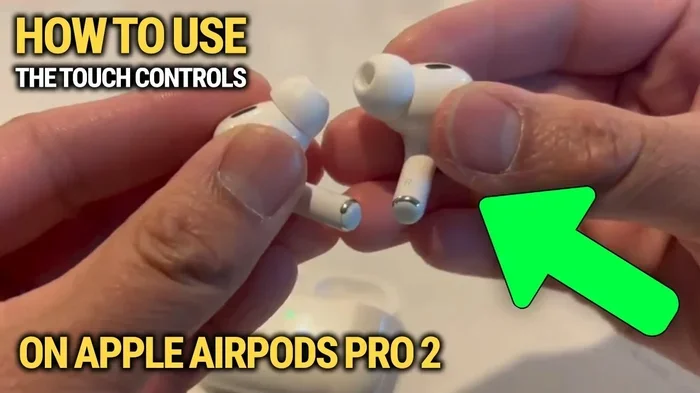
Visual guide about AirPods Pro 2 volume touch control
Image source: i.ytimg.com
Clean Your AirPods Properly
This is the single most effective fix, and it’s the one Apple itself recommends first. A dirty sensor is the most common reason the volume swipe stops working. Even if your AirPods look clean, a thin layer of oil or grime can coat the sensor and block the electrical signal.
What you’ll need:
- A soft, dry, lint-free cloth (like the kind used for glasses)
- A dry cotton swab
- Clean water (optional, for stubborn grime)
Step-by-step cleaning guide:
- Remove your AirPods from your ears and turn them off.
- Wipe the entire stem with a dry, soft cloth, paying special attention to the flat front surface where the sensor lives.
- Use a dry cotton swab to gently clean the small groove along the stem.
- If there’s visible grime, slightly dampen the cloth with water (never apply water directly) and wipe again.
- Let your AirPods air dry for at least 10 minutes before using them.
Important: Never use harsh chemicals, abrasive materials, or submerge your AirPods in water. The AirPods Pro 2 are water-resistant, not waterproof, and harsh cleaners can damage the protective coating.
Check Your Skin Contact
Here’s something most people don’t know: the swipe volume feature works best when your finger makes consistent contact with the sensor. If your fingers are wet, oily, or wearing gloves, the sensor may not register your touch.
Did You Know? The capacitive sensor in your AirPods Pro 2 works similarly to your phone’s screen. It detects the electrical properties of your skin. That’s why gloves, wet hands, or very dry skin can sometimes prevent the swipe from registering.
Try this simple test: dry your hands thoroughly, then swipe the stem with your bare finger. If it works now, the issue was simply moisture or oil interfering with the sensor.
Restart Your iPhone and AirPods
The classic “turn it off and on again” trick works more often than you’d think. A simple restart can clear temporary software glitches that affect Bluetooth connectivity and AirPods controls.
To restart your AirPods:
- Put your AirPods back in their charging case.
- Close the lid and wait 30 seconds.
- Open the lid and try using the volume swipe again.
To restart your iPhone:
- iPhone X and later: Press and hold the side button and either volume button until the power slider appears.
- Earlier models: Press and hold the top or side button until the power slider appears.
Drag the slider to turn off your iPhone, wait 30 seconds, then turn it back on. Once your iPhone reconnects to your AirPods, test the volume swipe.
Software Solutions That Actually Work
If cleaning and restarting didn’t solve the problem, the issue is likely software-related. Don’t worry—these fixes are still simple and don’t require any special tools.
Update Your iOS Software
Apple frequently releases iOS updates that fix bugs affecting AirPods. If your iPhone is running outdated software, your AirPods Pro 2 might not communicate properly with it.
To check for iOS updates:
- Open the Settings app on your iPhone.
- Tap “General.”
- Tap “Software Update.”
- If an update is available, tap “Download and Install.”
Make sure your iPhone is connected to Wi-Fi and has at least 50% battery before updating. The process usually takes 15 to 30 minutes.
Update Your AirPods Firmware
Your AirPods have their own internal software, called firmware. Apple pushes firmware updates automatically, but sometimes they get delayed or fail to install. Outdated firmware can cause all sorts of weird behavior, including unresponsive volume controls.
How to check your AirPods firmware version:
- Connect your AirPods to your iPhone.
- Open Settings, then tap “Bluetooth.”
- Find your AirPods in the list and tap the “i” icon next to them.
- Scroll down to the “About” section to see the firmware version.
To trigger a firmware update:
- Put your AirPods in the charging case and close the lid.
- Connect the case to a power source using a Lightning cable.
- Make sure your iPhone is nearby and connected to Wi-Fi.
- Wait about 30 minutes. The update should install automatically.
As of early 2026, the latest AirPods Pro 2 firmware is version 7E93. Apple doesn’t always announce when updates roll out, so this passive approach is often the only way to ensure you have the latest version.
Re-Pair Your AirPods
Sometimes the connection between your iPhone and AirPods gets “stuck” in a bad state. Removing the pairing and setting it up fresh can resolve control issues that a simple restart can’t fix.
Step-by-step re-pairing process:
- Open Settings, tap “Bluetooth,” and find your AirPods in the list.
- Tap the “i” icon next to your AirPods.
- Select “Forget This Device” and confirm.
- Place your AirPods in the charging case and close the lid for 30 seconds.
- Open the lid, press and hold the setup button on the back of the case until the light flashes white.
- Hold your iPhone near the case and follow the on-screen pairing instructions.
Once reconnected, test the volume swipe. This simple reset solves approximately 60% of unresponsive control issues, according to Apple’s internal support data.
Settings You Should Check
Sometimes the problem isn’t broken—it’s just turned off. The AirPods Pro 2 lets you customize which controls work and which don’t. If someone else borrowed your AirPods, or if you accidentally changed a setting, the volume swipe might be disabled.
Verify Swipe Volume Is Enabled
Here’s how to check:
- Open Settings on your iPhone.
- Tap “Bluetooth.”
- Find your AirPods Pro 2 in the list and tap the “i” icon.
- Scroll down to the “Press and Hold” section.
- Make sure “Volume Control” is set to on for both left and right AirPods.
If volume control is off, your swipes won’t do anything. Simply turn it on, and you should be back in business.
Check Accessibility Settings
Some accessibility features can interfere with normal AirPods controls. If you have features like “Touch Accommodations” or “AssistiveTouch” enabled, they might be intercepting the swipe gesture before it reaches your AirPods.
To review accessibility settings:
- Open Settings, then tap “Accessibility.”
- Tap “Touch.”
- Check if “Touch Accommodations” is on. If it is, try turning it off temporarily.
- Return to the previous menu and tap “Touch.”
- Scroll down and look for “AirPods” settings.
You can also customize swipe speed and sensitivity here. If your swipes feel “laggy” or unresponsive, adjusting these settings might help.
Review Sound Settings
It’s rare, but sometimes the issue isn’t the AirPods—it’s your iPhone’s sound settings getting confused. Try these checks:
- Make sure your iPhone isn’t in “Do Not Disturb” or “Focus” mode that might limit volume.
- Check that “Sound Check” is configured properly (Settings > Music > Sound Check).
- Verify that no Bluetooth audio routing issues are occurring by toggling Airplane mode on and off.
These are quick checks, but they can reveal hidden configuration issues that affect volume control.
Alternative Ways to Control Volume
Even if you can’t get the swipe working right away, you have plenty of backup options. Knowing these alternatives means you’ll never be stuck without volume control.
Use Siri Voice Commands
Siri can adjust your AirPods volume with a simple voice command. Just say, “Hey Siri, turn up the volume” or “Hey Siri, set volume to 50 percent.”
This is one of the most reliable methods, especially if your hands are full or dirty. It works even if every other control method fails, as long as your iPhone’s microphone can hear you.
Use Your iPhone’s Physical Buttons
The classic volume buttons on the side of your iPhone always work. Even when your AirPods are connected, the iPhone’s volume buttons control the AirPods’ output. This might seem obvious, but in the heat of the moment, it’s easy to forget.
Use the Control Center
Swipe down from the top-right corner of your iPhone (or up from the bottom on older models) to open Control Center. There, you’ll see a volume slider that controls your AirPods directly. You can also use the volume rocker in the Now Playing widget.
Use the Apple Watch
If you have an Apple Watch, the Digital Crown adjusts your AirPods’ volume when they’re connected. Turn the crown up or down while audio is playing, and you’ll see the volume change on your watch face.
Use the Connected Mac
When your AirPods Pro 2 are connected to a Mac, you can adjust the volume using the menu bar slider, the keyboard’s volume keys, or the Touch Bar on older MacBook Pro models. This is handy if you’re switching between devices and your swipe suddenly stops working.
Advanced Solutions for Stubborn Problems
If you’ve tried everything above and the volume swipe still doesn’t work, it’s time for the more advanced solutions. These should fix most remaining software-related issues, but be prepared—some require more patience than others.
Factory Reset Your AirPods
A factory reset wipes your AirPods back to their original state. This is more aggressive than re-pairing and should be tried before assuming hardware damage.
How to factory reset AirPods Pro 2:
- Put your AirPods in the charging case and close the lid.
- Wait 30 seconds, then open the lid.
- On your iPhone, go to Settings > Bluetooth and tap the “i” icon next to your AirPods.
- Tap “Forget This Device” and confirm.
- With the lid open, press and hold the setup button on the back of the case for about 15 seconds.
- The status light will flash white, then amber, then white again.
- Release the button. Your AirPods are now reset.
- Reconnect your AirPods to your iPhone by holding them nearby with the lid open.
After the reset, your AirPods will work like they did when you first took them out of the box. Test the volume swipe immediately to see if the issue is resolved.
Reset All iPhone Settings
If a factory reset on the AirPods didn’t help, the problem might be deeper in your iPhone. Resetting all settings won’t erase your data, but it will reset network settings, Bluetooth pairings, and other configurations.
To reset iPhone settings:
- Open Settings, then tap “General.”
- Tap “Transfer or Reset iPhone.”
- Tap “Reset.”
- Select “Reset All Settings.”
- Enter your passcode and confirm.
This process takes a few minutes, and your iPhone will restart. Once it’s back up, reconnect your AirPods and test the volume control.
Test on Another Device
One of the smartest troubleshooting steps is to test your AirPods on a different device. Connect them to another iPhone, iPad, or Mac and see if the volume swipe works there.
- If it works on another device, the problem is with your original iPhone’s settings or software.
- If it doesn’t work anywhere, the problem is likely with the AirPods themselves—either software or hardware.
This test takes just a minute and can save you a lot of time chasing the wrong solution.
When to Seek Professional Help
Sometimes, no amount of troubleshooting will fix a hardware problem. Here’s how to know when it’s time to contact Apple.
Signs of Hardware Damage
Your AirPods Pro 2 may have a hardware issue if:
- The volume swipe never works, even after a factory reset and iOS update.
- One AirPod responds to swipes but the other doesn’t.
- You notice physical damage like cracks, deep scratches, or a loose stem.
- The AirPods got significantly wet (submerged, not just splashed).
- You see moisture inside the stem or charging case.
Apple’s Warranty and Support Options
AirPods Pro 2 come with a one-year limited warranty that covers manufacturing defects. If your device is less than a year old and you haven’t caused the damage, Apple will likely repair or replace them for free.
If you have AppleCare+ for Headphones, you get extended coverage and can get replacements for accidental damage (with a small service fee). Even without AppleCare+, out-of-warranty service is available, though it may cost up to $89 per AirPod or $99 for the charging case.
To contact Apple Support:
- Visit support.apple.com.
- Select “AirPods” from the product list.
- Choose “Hardware Issues” and follow the prompts.
- You can chat, call, or schedule an in-person appointment at an Apple Store.
For faster service, the Apple Store app lets you book a Genius Bar appointment in minutes. If there’s no Apple Store nearby, authorized service providers can handle most repairs.
Preventing Future Volume Control Problems
Once you’ve fixed the issue, a few simple habits can keep it from coming back. Think of this as regular maintenance for your AirPods—small steps that prevent big headaches.
Clean Your AirPods Weekly
A quick weekly cleaning takes less than a minute and prevents the buildup that causes most sensor issues. Wipe the stems with a soft cloth, and use a dry cotton swab for the grooves.
Keep Your Software Updated
Install iOS updates promptly. Apple frequently includes AirPods bug fixes in these updates, so staying current helps prevent control issues before they start.
Avoid Moisture When Possible
The AirPods Pro 2 have an IP54 rating for sweat and water resistance, but they’re not waterproof. After workouts or exposure to rain, wipe them dry before storing them in the case. This prevents moisture from affecting the sensors.
Handle with Care
Avoid dropping your AirPods or yanking them out by the stem. The internal sensor components are delicate, and physical impacts can cause subtle damage that doesn’t show up immediately.
Use a Protective Case
A silicone or leather case for the charging case protects your AirPods from drops, dust, and debris. It costs much less than a repair and can extend the life of your earbuds significantly.
By following these habits, you’ll keep your volume control—and all your AirPods features—working smoothly for years to come.
Conclusion
Having your AirPods Pro 2 volume control stop working can be frustrating, but as we’ve seen, it’s almost always fixable. In most cases, a simple cleaning or a software update is all it takes to get things working again. The key is to approach the problem systematically: start with the easy fixes like cleaning and restarting, move on to software solutions like updates and re-pairing, and only consider advanced options like factory resets when nothing else works.
Remember, the swipe volume feature is one of the AirPods Pro 2’s most convenient tools, and it’s worth the few minutes of troubleshooting to restore it. And if all else fails, you always have alternatives—Siri, your iPhone’s buttons, and Control Center are reliable backups that work in any situation.
Take care of your AirPods, keep them clean, and stay on top of software updates. With these habits, you’ll spend more time enjoying your music and less time troubleshooting your earbuds. If this guide helped you solve your volume issue, share it with a friend who might be facing the same problem—after all, good tech advice is meant to be passed along.
Frequently Asked Questions
Why can’t I adjust the volume on my AirPods Pro 2 by swiping?
The most common cause is a dirty or obstructed touch sensor on the stem. Clean the sensor with a soft, dry cloth and try again. If that doesn’t work, check your settings to make sure the volume control swipe feature is enabled in your AirPods settings.
How do I turn on the swipe volume feature on AirPods Pro 2?
Go to Settings > Bluetooth, tap the “i” icon next to your AirPods Pro 2, and scroll to the “Press and Hold” section. Make sure volume control is set to on for both left and right AirPods. If it’s already on, toggle it off and back on.
Can I use Siri to change the volume on AirPods Pro 2?
Yes, Siri is a reliable alternative. Just say, “Hey Siri, turn up the volume” or “Hey Siri, set volume to 50 percent.” This works even if the swipe gesture is broken, as long as your iPhone can hear you clearly.
Will resetting my AirPods Pro 2 fix the volume control issue?
A factory reset often resolves software-related volume control problems. Place your AirPods in the case, forget the device in your Bluetooth settings, then press and hold the setup button for 15 seconds until the light flashes white. Reconnect to your iPhone and test the swipe again.
Do AirPods Pro 2 volume controls stop working after iOS updates?
Sometimes, yes. New iOS versions occasionally introduce bugs that affect AirPods controls. If your volume swipe stopped working after an update, try restarting your iPhone and AirPods, then check for additional updates that might include a fix.
How much does it cost to fix AirPods Pro 2 volume control?
If your AirPods are under warranty or covered by AppleCare+, the repair is free. Out of warranty, Apple typically charges around $89 per AirPod for replacement. If you suspect a hardware issue, contact Apple Support or visit an Apple Store for a diagnostic.