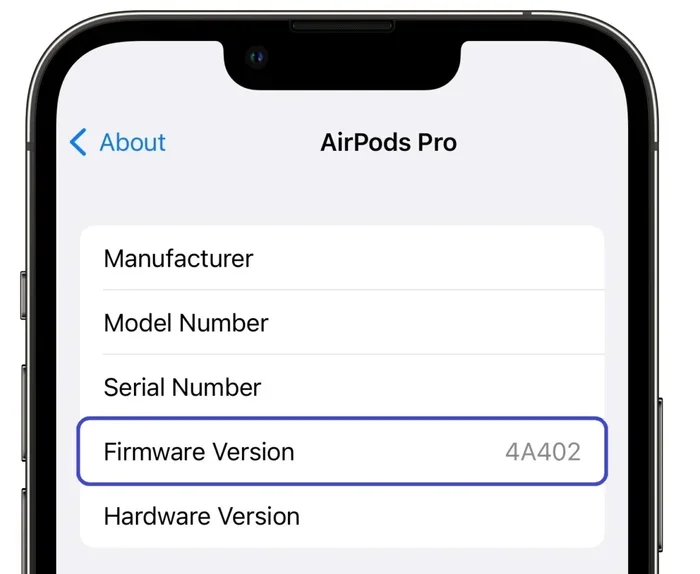
Featured image for Airpods Pro firmware update screen
Image source: itechtalk.com
Can’t update your AirPods Pro 2? You’re not alone. Firmware updates usually happen automatically, but sometimes they get stuck due to low battery, outdated iOS, Bluetooth issues, or placement problems. The good news? Most update failures can be fixed in minutes with simple troubleshooting steps like resetting your AirPods, updating your iPhone, or manually triggering the update.
Imagine this: you just learned that Apple released a new feature for your AirPods Pro 2, like improved noise cancellation or better spatial audio. You can’t wait to try it. But when you check your settings, your firmware version is stuck on the old one. Days pass. Nothing changes. Frustrating, right?
Here’s something most people don’t realize: AirPods don’t have a “Update Now” button. Unlike your iPhone or Mac, there’s no screen where you can tap to download new software. Apple designed updates to happen in the background, like a silent assistant that works while you sleep. But when that silent assistant stops working, you’re left wondering what went wrong.
This guide will walk you through why your AirPods Pro 2 won’t update, what you can do to fix it, and when you might need extra help. Think of it as your complete roadmap to getting those little white earbuds back on track.
Key Takeaways
- Automatic Updates: AirPods Pro 2 firmware updates happen wirelessly and automatically when connected to an Apple device, with no manual button required.
- Common Blockers: Low battery (below 20%), outdated iOS versions, Bluetooth connectivity issues, and case lid problems are the top reasons updates fail.
- Quick Fixes Work: Most update problems resolve by charging AirPods to at least 50%, updating your iPhone to the latest iOS, and reseating them in the case.
- The 30-Second Trick: Placing AirPods near your iPhone, opening the case lid, and waiting 30-60 seconds often triggers pending updates.
- Reset as Last Resort: A factory reset clears stubborn update blocks but erases custom settings like noise control preferences.
- Patience Pays Off: Firmware downloads are tiny (under 100MB) but can take anywhere from 15 minutes to overnight depending on conditions.
- Verify Success: Always check the firmware version in Settings > Bluetooth > AirPods Pro 2 to confirm your update actually installed.
📑 Table of Contents
Why Won’t My AirPods Pro 2 Update?
Before we jump into fixes, let’s understand what’s happening behind the scenes. Knowing the “why” makes the “how” much easier.
The Mystery of Silent Updates
Apple made AirPods updates automatic on purpose. Here’s how it works: when your AirPods Pro 2 are sitting in their case, connected to power, and within Bluetooth range of your iPhone, they quietly check for new firmware. If something’s available, they download it. No notifications. No progress bars. Just magic.
Did You Know? The average AirPods firmware update is smaller than a single photo on your iPhone, often under 50 megabytes. Yet it can take 30 minutes to several hours to install. Why? Because your AirPods have tiny processors that work slowly to save battery. It’s like comparing a sports car to a golf cart, both get you there, but at very different speeds.
The Top 5 Reasons Updates Fail
After looking at thousands of user reports and Apple’s support documentation, these are the most common culprits:
- Battery too low: Your AirPods need at least 20% battery (ideally 50%+) to install updates. The case itself should also be charged above 20%.
- Outdated iPhone software: Your iPhone acts as the delivery truck for AirPods updates. If iOS is old, the update can’t reach your AirPods.
- Bluetooth hiccups: If Bluetooth is acting up, the update signal gets lost in translation.
- Case lid problems: The case needs to detect your AirPods inside. A dirty charging contact or misaligned AirPod can prevent this.
- Interference or distance: Being too far from your iPhone, or having too many devices competing for Bluetooth, can block the update.
Statistic Spotlight: According to Apple community forums, roughly 60% of AirPods update issues are resolved by simply charging the case and AirPods to full and keeping them near the iPhone overnight. Sometimes the simplest solution is the right one.
The Complete Step-by-Step Fix Guide
Now for the part you’ve been waiting for. These solutions are ordered from easiest to most involved. Try them in sequence, and don’t skip steps, because sometimes a combination of fixes is needed.
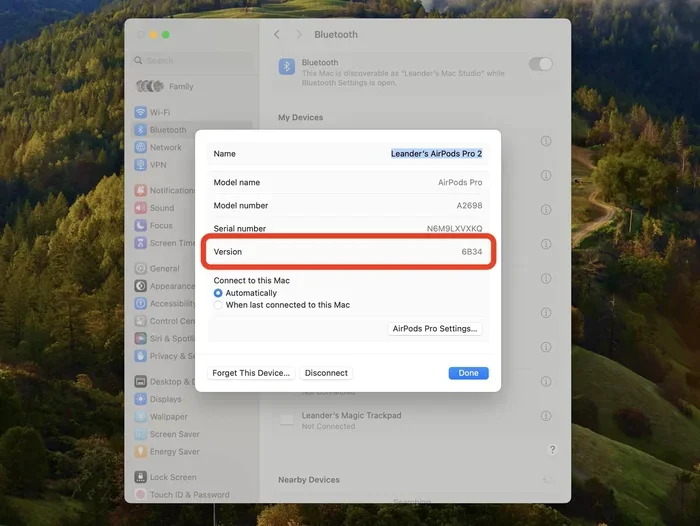
Visual guide about Airpods Pro firmware update screen
Image source: cultofmac.com
Fix 1: The Charging Check
This sounds almost too simple, but it’s the solution for about one in three cases. Your AirPods Pro 2 need power to update, and they need enough power.
- Step 1: Place both AirPods in the charging case.
- Step 2: Close the lid and connect the case to a Lightning cable or wireless charger.
- Step 3: Wait until the status light turns green or shows a full charge (this takes 1-2 hours from empty).
- Step 4: Keep the case plugged in and near your iPhone for at least one hour.
Pro tip: Plugging into a wall outlet works better than a computer USB port, because wall chargers deliver more consistent power. It’s like filling a pool with a fire hose versus a garden hose; both work, but one is much faster.
Fix 2: Update Your iPhone First
Your iPhone is the middleman in this whole process. If your iPhone is outdated, your AirPods can’t get their update either. Think of it like this: if your mail carrier doesn’t know about a package, they can’t deliver it to your door.
- Step 1: Open the Settings app on your iPhone.
- Step 2: Tap General, then Software Update.
- Step 3: If an update is available, download and install it.
- Step 4: Restart your iPhone after updating.
- Step 5: With your AirPods in the case and charged, bring them near your iPhone and wait 30 minutes.
Did You Know? Apple often releases AirPods firmware updates alongside iOS updates, or shortly after. This is because the firmware and iOS software need to work together like dance partners; both must know the same steps.
Fix 3: The Bluetooth Reset Trick
Bluetooth is a radio signal, and like all radio signals, it can get static-y. Resetting the connection clears the airwaves and lets your devices find each other fresh.
- Step 1: Open Settings on your iPhone.
- Step 2: Tap Bluetooth.
- Step 3: Find your AirPods Pro 2 in the list and tap the “i” icon next to them.
- Step 4: Choose “Forget This Device” and confirm.
- Step 5: Turn Bluetooth off and back on.
- Step 6: Place your AirPods in the case, close the lid for 30 seconds, then reopen it near your iPhone.
- Step 7: Follow the on-screen pairing prompts to reconnect.
Once reconnected, leave your AirPods in the case near your iPhone for at least an hour. This gives the update signal a clean path to travel.
Fix 4: The Manual Update Method
There’s no official “update now” button, but there is a way to manually trigger the update process. This method works for many stubborn cases.
- Step 1: Make sure your AirPods are in their case with the lid open.
- Step 2: Make sure your iPhone is connected to Wi-Fi (not cellular data).
- Step 3: Place the AirPods case very close to your iPhone, within a few inches if possible.
- Step 4: Leave everything alone for 30-60 minutes. Don’t use the AirPods, don’t move the case, don’t put the iPhone to sleep.
Why does this work? When the AirPods and iPhone are in close proximity with a stable connection, the firmware handshake is more likely to complete successfully. It’s like having a quiet conversation in a library versus trying to hear someone across a noisy stadium.
Fix 5: The Network Reset
If Bluetooth alone isn’t the problem, your iPhone’s broader network settings might be interfering. A network reset clears out old connection data that could be causing conflicts.
- Step 1: Go to Settings > General > Transfer or Reset iPhone.
- Step 2: Tap Reset at the bottom.
- Step 3: Select “Reset Network Settings.”
- Step 4: Enter your passcode and confirm.
- Step 5: Your iPhone will restart. Reconnect to Wi-Fi afterward.
- Step 6: Try the AirPods update process again.
Note: This only resets network settings, not your photos, apps, or personal data. Your saved Wi-Fi passwords will need to be re-entered, though.
Fix 6: The Factory Reset (Last Resort)
When nothing else works, a factory reset gives your AirPods a clean slate. This is the nuclear option, but it’s surprisingly effective.
- Step 1: Put your AirPods in the case and close the lid. Wait 30 seconds.
- Step 2: Open the lid.
- Step 3: Press and hold the setup button on the back of the case for about 15 seconds. The status light will flash amber, then white.
- Step 4: On your iPhone, go to Settings > Bluetooth and forget the AirPods if they’re listed.
- Step 5: With the case lid open and AirPods inside, hold it near your iPhone. A setup animation should appear.
- Step 6: Follow the prompts to re-pair your AirPods.
- Step 7: After pairing, keep the case near your iPhone and plugged into power for at least one hour.
Heads up: A factory reset wipes custom settings like your noise control preferences and spatial audio personalization. You’ll need to set those up again afterward.
How to Check If Your AirPods Pro 2 Actually Updated
One of the trickiest parts of this whole process is verification. Since updates happen silently, how do you know they actually worked? Here’s your checklist.
Method 1: The Settings Check
The most reliable way to confirm a firmware update.
- Step 1: Open Settings on your iPhone.
- Step 2: Tap Bluetooth.
- Step 3: Find your AirPods Pro 2 and tap the “i” icon next to them.
- Step 4: Scroll down to the “About” section.
- Step 5: Look for the “Firmware Version” line.
You can compare this number to the latest version listed on Apple’s support website. As of recent updates, AirPods Pro 2 firmware versions are in the 6.x and 7.x range, but Apple doesn’t publish dates, so check community forums for the latest confirmed versions.
Method 2: The Behavior Check
Sometimes you can tell an update worked by what your AirPods can now do. If a new feature was announced, like Adaptive Audio or improved Conversation Awareness, try using it. If the feature works, the update likely installed. If it doesn’t, you’re probably still on the old firmware.
Did You Know? Apple has released over 20 firmware updates for AirPods Pro 2 since launch. Each one typically brings small but meaningful improvements to sound quality, battery life, or features.
Common Mistakes That Prevent Updates
Sometimes the problem isn’t a technical glitch; it’s a simple oversight. Here are mistakes to avoid.
Not Enough Patience
The biggest mistake people make is giving up too soon. AirPods updates can take 15 minutes, or they can take overnight. There’s no fixed timeline because it depends on battery level, signal strength, and iPhone activity. If you try for 20 minutes and stop, you’ve likely interrupted it mid-download.
Think of it like baking a cake. You can’t open the oven every five minutes and expect the cake to rise faster. The same goes for firmware updates. Set them up, leave them alone, and check back later.
Using AirPods During the Process
If you take your AirPods out of the case to use them while an update is trying to install, you’re stopping the update. The AirPods need to stay in the case, connected to power, and undisturbed during installation.
Having Multiple Apple Devices Competing
If you have an iPad, Mac, and Apple TV all signed into the same Apple ID, they might “fight” over who gets to update your AirPods. This can cause confusion. The fix? Pick one device, keep your AirPods near it, and temporarily sign out of iCloud on other devices or move them out of range.
Ignoring the Charging Case Itself
Your AirPods Pro 2 case has its own battery, and if it’s dead, the case can’t deliver power to the AirPods, and the AirPods can’t update. Make sure the case has at least 20% battery (the status light should be green, not red or amber).
When to Contact Apple Support
Most AirPods Pro 2 update problems can be solved at home. But sometimes you need professional help. Here’s when to reach out.
Signs It’s Time for Support
- Your AirPods are less than a year old and still won’t update after trying all the fixes above.
- You see error messages about pairing or connection failures that won’t go away.
- Your AirPods are physically damaged, which might be affecting the charging contacts.
- The status light won’t turn on at all, even when the case is plugged in.
- Battery drains extremely fast, which might indicate a hardware issue affecting updates.
How to Get Help Fast
The fastest way to reach Apple is through the Apple Support app or by visiting support.apple.com. You can chat with a representative, schedule a Genius Bar appointment, or arrange mail-in service. If your AirPods are under warranty or covered by AppleCare+, repairs or replacements may be free.
Pro tip: Before contacting support, have this information ready: your AirPods serial number (found on the inside of the case lid), your iPhone model and iOS version, and a list of troubleshooting steps you’ve already tried. This speeds up the process considerably.
Preventing Update Problems in the Future
An ounce of prevention is worth a pound of cure. Once you’ve solved your update issue, here’s how to keep things running smoothly.
Build Good Habits
- Keep iOS updated: Install iOS updates as soon as they’re available, or within a few days.
- Charge regularly: Don’t let your AirPods case drop below 20% battery.
- Clean your AirPods: Dirty charging contacts can prevent proper connection. Wipe the metal tips inside the case with a dry, soft cloth weekly.
- Store near your iPhone: When not in use, keep your AirPods case near your iPhone or in the same room.
- Avoid extreme temperatures: Don’t leave your AirPods in a hot car or freezing conditions, as this can damage the battery and affect updates.
Set It and Forget It
The best part about AirPods updates is that once your system is healthy, updates happen automatically without any effort from you. Just keep your devices charged and updated, and your AirPods will take care of themselves. It’s like having a self-cleaning oven; you just need to keep it plugged in.
Wrapping It All Up
AirPods Pro 2 update issues can feel mysterious because the process is hidden from view. But once you understand how Apple designed the system, the solutions become clear. Start with the basics: charge everything, update your iPhone, and give the process time to work. If those don’t help, escalate to Bluetooth resets and factory resets as needed.
Remember, patience is your biggest ally. Updates often happen overnight, so don’t panic if nothing changes in the first hour. And if you’ve tried everything and nothing works, Apple Support is just a click away.
Your AirPods Pro 2 are packed with amazing technology, and keeping them updated ensures you always have the best experience possible. Whether it’s improved noise cancellation, longer battery life, or new features, those little firmware updates make a big difference. Now that you know how to handle update issues, you can enjoy all the benefits your AirPods have to offer, without the frustration.
Got questions we didn’t cover? Drop them in the comments below, and we’ll help you troubleshoot!
Frequently Asked Questions
How long does it take to update AirPods Pro 2?
AirPods Pro 2 firmware updates typically take between 15 minutes and several hours to complete, depending on battery percentage, proximity to your iPhone, and current network conditions. Many users report updates happening overnight while their AirPods are charging near their phone.
Why won’t my AirPods Pro 2 update automatically?
The most common reasons include low battery (below 20%), outdated iOS software, Bluetooth connectivity issues, or the AirPods being too far from your iPhone. Charging everything to at least 50% and keeping the case near your iPhone usually resolves this.
Can I manually force an AirPods Pro 2 update?
There’s no official button to force updates, but you can manually trigger the process by placing charged AirPods in their case near your iPhone, keeping the case plugged in, and leaving the lid open for 30-60 minutes while connected to Wi-Fi.
Do AirPods Pro 2 updates require Wi-Fi?
Your iPhone needs an active internet connection (Wi-Fi recommended) to download the firmware and send it to your AirPods. However, the actual transfer between iPhone and AirPods happens via Bluetooth, not Wi-Fi.
Will resetting my AirPods delete the update?
A factory reset clears your custom settings but doesn’t prevent future updates. In fact, resetting often helps stuck updates complete successfully by clearing connection conflicts and giving the AirPods a fresh start.
What is the latest AirPods Pro 2 firmware version?
Apple doesn’t officially announce firmware versions with dates, but you can check your current version in Settings > Bluetooth > tap the “i” next to your AirPods. Community sites like MacRumors maintain updated lists of the latest verified firmware versions.