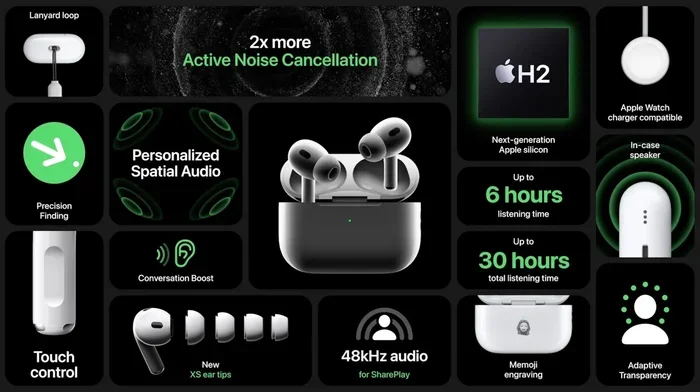
Featured image for Airpod Pro 2 multiple devices
Image source: cdn.wccftech.com
Yes, AirPods Pro 2 can connect to two devices simultaneously — but only within the Apple ecosystem using Automatic Switching. This means you can pair them with your iPhone and Mac, or iPhone and iPad, and the AirPods will intelligently switch between them. However, they do not support traditional multipoint Bluetooth pairing with two devices playing audio at the same time. Understanding this distinction is key to getting the most out of your AirPods Pro 2.
Picture this: you’re jamming to your favorite playlist on your MacBook, and suddenly your iPhone rings with a video call. You don’t want to fumble with cables or dig through menus. You just want your earbuds to know what to do. If you’ve ever wondered, “Can AirPods Pro 2 connect to 2 devices?” you’re not alone — it’s one of the most common questions Apple fans ask.
Here’s the good news. Yes, AirPods Pro 2 can connect to two devices. But there’s a catch. It’s not the same kind of connection you might expect. Think of it like a well-trained dog that can only listen to one owner at a time, even though it loves both of them. Apple’s “Automatic Switching” feature lets your AirPods hop between Apple devices seamlessly, but they can’t play audio from both devices simultaneously.
In this guide, we’ll break down exactly how this works, what you need to make it happen, and what to do if things aren’t switching smoothly. Whether you’re a longtime Apple user or just considering the switch, you’ll walk away knowing everything about AirPods Pro 2 and dual-device connectivity.
Key Takeaways
- Apple’s Automatic Switching is the answer: AirPods Pro 2 can connect to two Apple devices, switching audio between them automatically.
- No true simultaneous dual playback: Unlike some headphones, AirPods Pro 2 cannot stream audio from two devices at the exact same time.
- Apple ID sync is required: Both devices must be signed into the same iCloud account for the feature to work.
- No multipoint on non-Apple devices: Android, Windows, and other non-Apple gadgets won’t get the automatic switching experience.
- Firmware and OS matter: Your devices need updated software (iOS 16+, macOS Ventura+) for smooth Automatic Switching.
- Manual control is still an option: You can manually choose your AirPods output in Bluetooth settings anytime.
- Lossless and low-latency limitations exist: Some features work differently when switching between devices.
📑 Table of Contents
- What Does It Mean for AirPods Pro 2 to Connect to 2 Devices?
- Who Can Use AirPods Pro 2 Dual-Device Connectivity?
- How to Set Up AirPods Pro 2 to Connect to Two Devices
- When Do AirPods Pro 2 Switch Between Devices?
- Why Doesn’t AirPods Pro 2 Offer True Multipoint Bluetooth?
- Troubleshooting AirPods Pro 2 Dual-Device Connection Issues
- Where AirPods Pro 2 Dual-Device Connectivity Shines (And Where It Doesn’t)
- Comparing AirPods Pro 2 to Other Multipoint Headphones
- Future of AirPods and Multipoint Connectivity
- Final Thoughts: Should You Buy AirPods Pro 2 for Dual-Device Use?
What Does It Mean for AirPods Pro 2 to Connect to 2 Devices?
Let’s start with the basics. When people ask if AirPods Pro 2 can connect to 2 devices, they usually picture something called “multipoint Bluetooth pairing.” That’s when headphones stay actively connected to two gadgets at once, like a phone and a laptop, and you hear audio from both. Think of it like a telephone line that lets two people talk at the same time.
AirPods Pro 2 don’t quite do that. Instead, Apple built a system called Automatic Switching. This feature lets your AirPods stay paired with multiple Apple devices signed into the same iCloud account. When you play something on one device, the AirPods jump to it. When that device stops, they’re ready to follow you to the next one.
Automatic Switching vs. Multipoint Bluetooth
It’s worth understanding the difference clearly:
- Multipoint Bluetooth: Two devices stream audio at the same time. Some headphones can do this. AirPods Pro 2 cannot.
- Automatic Switching: One device plays at a time, and the AirPods move between devices as needed. AirPods Pro 2 can do this beautifully.
So if you were hoping to listen to a YouTube video on your Mac while also hearing turn-by-turn directions from your iPhone, that’s not happening. But if you want smooth handoffs between devices, you’re in luck.
Who Can Use AirPods Pro 2 Dual-Device Connectivity?
This feature is built for people deep in the Apple ecosystem. If you own multiple Apple gadgets, this is where AirPods Pro 2 truly shine. But there are some rules.
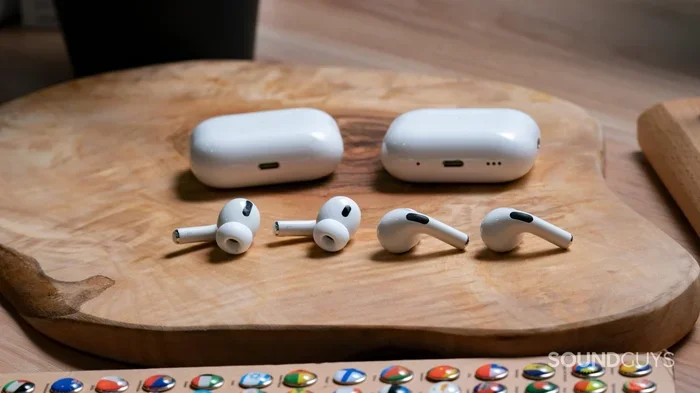
Visual guide about Airpod Pro 2 multiple devices
Image source: soundguys.com
The Apple ID Requirement
Both devices must be signed into the same Apple ID. This is the glue that holds the magic together. Without it, your devices won’t talk to each other, and your AirPods will behave like ordinary Bluetooth earbuds.
Compatible Devices
AirPods Pro 2 with the H2 chip support Automatic Switching across these devices:
- iPhone (iOS 16 or later)
- iPad (iPadOS 16 or later)
- Mac (macOS Ventura or later)
- Apple Watch (watchOS 9 or later)
- Apple TV (tvOS 16 or later)
- iPod touch (iOS 16 or later)
What About Non-Apple Devices?
Here’s the honest truth: if you connect AirPods Pro 2 to an Android phone or a Windows PC, they work like regular Bluetooth earbuds. You’ll have to manually disconnect and reconnect every time you want to switch. There’s no automatic handoff magic.
Did You Know? Over 1.8 billion active Apple devices are in use worldwide as of 2024, according to Apple’s earnings reports. If even a small fraction of those users own multiple Apple gadgets, that’s a massive audience benefiting from Automatic Switching.
How to Set Up AirPods Pro 2 to Connect to Two Devices
Getting this feature working is surprisingly simple. Most people don’t even realize they need to “set it up” because Apple does it automatically. But let’s walk through the steps so nothing gets missed.
Step 1: Update Your Software
Before anything else, make sure all your Apple devices are running the latest operating systems. Apple introduced improved Automatic Switching in iOS 16, macOS Ventura, and their companion updates. If you’re running older software, the handoffs may be sluggish or nonexistent.
To check for updates:
- iPhone/iPad: Go to Settings > General > Software Update
- Mac: Click the Apple menu > System Settings > Software Update
Step 2: Sign In With the Same Apple ID
Make sure every device you want to use your AirPods with is signed into the same Apple ID. You can check this in:
- iPhone: Settings > [Your Name]
- Mac: System Settings > Apple ID
- iPad: Settings > [Your Name]
If you see different Apple IDs on different devices, sign out and sign back in with the correct one.
Step 3: Pair Your AirPods Pro 2
Pair your AirPods Pro 2 with your primary Apple device first. This is usually your iPhone. Open the case near your phone, and a setup animation should appear. Tap “Connect,” and you’re good to go.
Once paired with one device, your AirPods should automatically appear in the Bluetooth menus of your other Apple devices, ready to connect.
Step 4: Enable Automatic Switching
Automatic Switching is usually enabled by default. But if you’ve turned it off, here’s how to turn it back on:
- On iPhone/iPad: Go to Settings > Bluetooth > Tap the “i” next to your AirPods > Connect to This iPhone/iPad > Automatically
- On Mac: Click the Bluetooth menu in the menu bar > Hover over your AirPods > Options > Choose “Automatically” under “Connect to This Mac”
That’s it! Your AirPods are now ready to hop between devices.
When Do AirPods Pro 2 Switch Between Devices?
Now that everything’s set up, you might wonder: when exactly do my AirPods decide to switch? It’s not random. Apple designed this feature to be intuitive.
Common Switching Triggers
- You receive a phone call: Music on your Mac pauses, and the AirPods switch to your iPhone.
- You start playing media on another device: Audio seamlessly hands off to wherever the new sound is coming from.
- You wake a device and interact with it: Picking up your iPad and tapping a video can pull your AirPods over.
- A notification or app activity: Some apps, like FaceTime or Maps, can trigger a switch.
When They Don’t Switch
Sometimes the AirPods stubbornly stay where they are. This usually happens when:
- You’re actively using the other device.
- The triggering sound is too quiet or too short.
- Bluetooth interference is messing things up.
If your AirPods aren’t switching the way you want, you can always take control manually.
Manual Switching Tips
You don’t have to wait for the magic to happen. You can force a switch anytime:
- On iPhone/iPad: Swipe down for Control Center, tap the AirPlay icon, and choose your AirPods.
- On Mac: Click the Sound icon in the menu bar and select your AirPods as the output.
- On Apple TV: Open Control Center and pick your AirPods.
Think of it like changing TV channels with a remote instead of waiting for the channel to change itself.
Why Doesn’t AirPods Pro 2 Offer True Multipoint Bluetooth?
This is the million-dollar question. Many competitors, like Sony’s WH-1000XM5 or Jabra’s Elite series, offer real multipoint pairing. So why not Apple?
The Apple Ecosystem Philosophy
Apple’s approach has always been different. Instead of making AirPods work like generic Bluetooth earbuds, they’re tightly integrated into Apple’s ecosystem. Automatic Switching is one piece of a much larger puzzle that includes:
- iCloud syncing: Your AirPods’ settings, paired devices, and preferences sync across all your Apple gear.
- Find My integration: You can locate lost AirPods on a map, just like an iPhone.
- Personalized Spatial Audio: A custom sound profile that follows your Apple ID.
For Apple, the experience matters more than ticking off a spec sheet. Automatic Switching may not be “true multipoint,” but in day-to-day use, it often feels just as good — sometimes better.
Hardware Limitations
There’s also a technical side. The H2 chip in AirPods Pro 2 is incredibly powerful, but it’s optimized for Apple’s ecosystem. Supporting multipoint with non-Apple devices would require additional hardware and software support that Apple has chosen not to include.
Did You Know? Apple’s H2 chip is custom-designed and exclusive to AirPods Pro 2. It’s twice as powerful as the previous H1 chip and enables features like Adaptive Transparency and Personalized Spatial Audio that older AirPods can’t handle.
Troubleshooting AirPods Pro 2 Dual-Device Connection Issues
Even the best tech has off days. If your AirPods Pro 2 aren’t switching between devices the way they should, here are some fixes that usually do the trick.
Fix 1: Check Automatic Switching Settings
Sometimes the feature gets accidentally turned off. Go back to your Bluetooth settings and make sure “Automatically” is selected for “Connect to This [Device]” on both gadgets.
Fix 2: Restart Your Devices
It sounds cliché, but restarting your iPhone, iPad, or Mac solves a surprising number of issues. Bluetooth connections can get tangled, and a fresh start clears them up.
Fix 3: Update Firmware
Apple occasionally releases firmware updates for AirPods. To check, put your AirPods in their case, connect them to power, and place them near your iPhone. The firmware version will appear in Settings > Bluetooth > AirPods Pro 2 > About.
Fix 4: Re-Pair Your AirPods
If nothing else works, forget the AirPods on all your devices and pair them fresh. It’s like wiping a whiteboard clean and starting over.
To do this:
- Go to Bluetooth settings on each device.
- Tap the “i” next to your AirPods.
- Select “Forget This Device.”
- Re-pair them by opening the case near your device.
Fix 5: Reset Your AirPods
If all else fails, a full reset can work wonders. Press and hold the setup button on the back of the AirPods case for about 15 seconds until the status light flashes amber, then white. Now pair them again from scratch.
Where AirPods Pro 2 Dual-Device Connectivity Shines (And Where It Doesn’t)
Not every scenario is a perfect fit for AirPods Pro 2’s dual-connection abilities. Let’s explore where this feature truly excels and where you might want to consider alternatives.
Best Use Cases
- The Apple Power User: If you own an iPhone, Mac, and iPad, this feature is a dream. Your AirPods follow you from device to device without lifting a finger.
- Remote Workers: Switch from a Zoom call on your Mac to a phone call on your iPhone without missing a beat.
- Students: Move between an iPad for reading and a Mac for research without fiddling with Bluetooth menus.
- Apple TV Fans: Watch a late-night show without waking anyone, then switch to your iPhone for music in bed.
Where It Falls Short
- Android + iPhone Users: No automatic switching. You’ll have to manually pair each time.
- Windows + Mac Users: Same problem. AirPods Pro 2 don’t automatically switch to Windows.
- Multitaskers Who Want Simultaneous Audio: If you want audio from two devices playing at once, you’ll need different headphones.
For people who live entirely inside Apple’s world, AirPods Pro 2 are nearly perfect. For everyone else, they may feel a bit limited.
Comparing AirPods Pro 2 to Other Multipoint Headphones
To put things in perspective, let’s look at how AirPods Pro 2 stack up against some popular multipoint competitors.
Sony WF-1000XM5
These earbuds offer true multipoint Bluetooth, allowing you to connect to two devices simultaneously and play audio from both. They’re a favorite among Android and Windows users. However, they lack Apple’s tight ecosystem integration.
Jabra Elite 7 Pro
Jabra’s multipoint implementation works across iOS, Android, Windows, and macOS. They offer strong call quality and seamless switching, but they don’t have features like Personalized Spatial Audio.
Beats Fit Pro
Interestingly, Beats Fit Pro (made by Apple) offers the same Automatic Switching as AirPods Pro 2, since they use a similar chip. They’re a great alternative if you prefer earhooks or want similar features at a lower price.
Each of these has strengths. AirPods Pro 2 win on ecosystem integration and unique features. Others win on raw flexibility and true multipoint support.
Future of AirPods and Multipoint Connectivity
Apple is always evolving its products. While AirPods Pro 2 don’t currently support traditional multipoint, future models might. Rumors about upcoming AirPods have hinted at enhanced connectivity features, including potential support for lossless audio and improved switching.
There’s also chatter that future iOS updates could bring even smarter device switching, possibly using on-device intelligence to predict which device you’ll want to use next.
For now, Automatic Switching remains the best Apple can offer — and for millions of users, it’s more than enough.
Final Thoughts: Should You Buy AirPods Pro 2 for Dual-Device Use?
So, can AirPods Pro 2 connect to 2 devices? Absolutely — if you’re all-in on Apple. The Automatic Switching feature is smooth, reliable, and frankly a joy to use once you get used to it.
If your daily tech life involves hopping between an iPhone and a Mac, or an iPad and an Apple TV, AirPods Pro 2 will make that experience feel effortless. You won’t have to dig through Bluetooth menus or press a bunch of pair buttons. Your AirPods will just follow you.
However, if you’re looking for true multipoint Bluetooth with simultaneous audio from two devices, or you frequently use non-Apple gadgets, you might be happier with a different pair of earbuds.
In the end, AirPods Pro 2 are designed for the Apple ecosystem first and foremost. If that describes you, they’re an outstanding choice. If not, there are plenty of other great options out there.
Either way, now you know exactly how AirPods Pro 2 handle dual-device connections — and what to expect from them.
Frequently Asked Questions
Can AirPods Pro 2 connect to two devices at the same time?
No, AirPods Pro 2 cannot stream audio from two devices simultaneously. They use Apple’s Automatic Switching feature, which lets them hop between Apple devices but only play audio from one at a time.
Do AirPods Pro 2 work with Android phones?
Yes, but with limitations. You can pair them via Bluetooth like any standard earbuds, but you won’t get Automatic Switching, Spatial Audio, or Find My integration on Android devices.
Why won’t my AirPods Pro 2 switch between my iPhone and Mac?
Make sure both devices are signed into the same Apple ID, running the latest software, and have Automatic Switching enabled in Bluetooth settings. If issues persist, try restarting both devices or re-pairing your AirPods.
Can I use AirPods Pro 2 with my Apple Watch and iPhone?
Yes. If both devices are signed into the same Apple ID, your AirPods Pro 2 can switch between them automatically. You can also manually choose the audio source from Control Center.
Do AirPods Pro 2 have multipoint Bluetooth like Sony or Jabra?
No. True multipoint Bluetooth, which allows simultaneous audio from two devices, is not supported on AirPods Pro 2. Apple uses its own Automatic Switching system within its ecosystem instead.
How many devices can I pair AirPods Pro 2 with?
You can pair AirPods Pro 2 with as many Apple devices as you own, as long as they share the same Apple ID. They can also pair with non-Apple devices, but the experience won’t be as seamless.