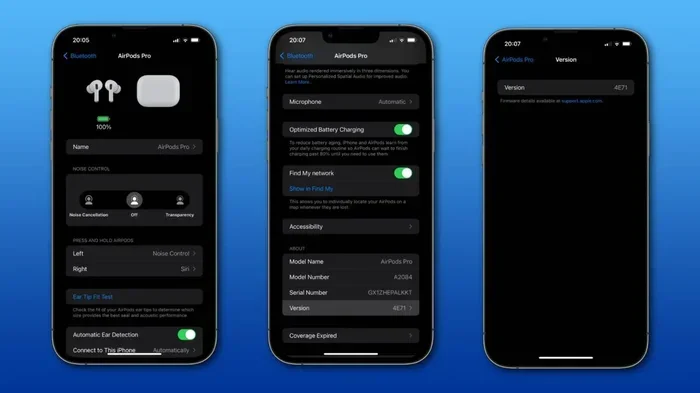
Featured image for AirPods Pro software update
Image source: media.idownloadblog.com
Yes, you can update your AirPods Pro, but Apple handles it automatically. Updates install wirelessly through your iPhone, iPad, or Mac when conditions are right. This guide explains how to check your firmware version, trigger an update, and fix common issues so your AirPods Pro always have the latest features and fixes.
Imagine this: you just unboxed a shiny new pair of AirPods Pro. You pop them in, the sound is amazing, and everything feels magical. Then a friend mentions a cool new feature like Adaptive Audio, and you realize your AirPods might not have it. A question pops into your head: can I update my AirPods Pro?
The short answer is a resounding yes, you absolutely can update your AirPods Pro. The slightly longer answer is that Apple makes it almost effortless, but also somewhat mysterious. Unlike your iPhone, which loudly tells you about a new iOS update, AirPods Pro firmware updates happen quietly in the background. You don’t tap a button or watch a progress bar. Apple simply pushes new software to your earbuds when the time is right.
This guide will walk you through everything you need to know. We’ll cover what firmware even is, how to check your current version, how updates actually work, and what to do if your AirPods seem stuck on an old version. Think of it like a roadmap for keeping your tiny computers in your ears running smoothly.
Key Takeaways
- Automatic Updates: AirPods Pro firmware updates happen automatically through your connected Apple device.
- No Manual Button: There is no direct “update now” button; updates roll out gradually over weeks or months.
- Connection Required: Your AirPods Pro must be in their case, charging, and near a connected Apple device to update.
- Check Your Version: You can verify your current firmware version in Settings under Bluetooth.
- Update Takes Time: Firmware installs in the background and may need 30 minutes to several hours.
- Troubleshooting Works: Most update issues resolve by resetting the AirPods or trying a different charger.
- Stay Updated: New firmware brings features like Adaptive Audio, Conversation Awareness, and bug fixes.
📑 Table of Contents
- What Does It Mean to Update AirPods Pro?
- How Do AirPods Pro Updates Actually Work?
- Step-by-Step: How to Check Your AirPods Pro Firmware Version
- How to Trigger an AirPods Pro Update
- Common Problems and Easy Fixes
- Tips to Keep Your AirPods Pro Updated Automatically
- What’s New in Recent AirPods Pro Updates?
- The Future of AirPods Pro Updates
- Final Thoughts on Updating Your AirPods Pro
What Does It Mean to Update AirPods Pro?
Let’s start with the basics. When people ask “can I update my AirPods Pro,” they’re really asking about firmware. Firmware is the deep-down software that tells your AirPods how to behave. It’s like the brain instructions that control noise cancellation, microphone quality, battery management, and those neat spatial audio tricks.
Firmware Explained in Simple Terms
Think of your AirPods Pro like a tiny house. The hardware is the bricks, wires, and windows. The firmware is the set of instructions that tells the lights when to turn on, how loud the music should be, and whether to block out the noise from your neighbor’s lawnmower. Without firmware, your expensive AirPods would just be silent pieces of plastic and metal.
Apple regularly releases firmware updates to fix bugs, patch security holes, and add shiny new features. For example, firmware updates introduced Conversation Awareness, Adaptive Audio, and improved noise cancellation algorithms over the years.
Why Firmware Updates Matter
Did You Know? According to Apple’s support documentation, firmware updates have been known to improve battery life by up to 10% in some AirPods models. While Apple doesn’t publish specific numbers, users have reported noticeable battery improvements after major updates.
Skipping firmware updates is like ignoring a recall notice for your car. Sure, the car still drives, but you might be missing important safety improvements. With AirPods Pro, outdated firmware can mean worse sound quality, bugs in noise cancellation, or missing features that your friend with the same earbuds already enjoys.
How Do AirPods Pro Updates Actually Work?
Here’s where things get interesting and a bit confusing. Unlike an iPhone update that you control, AirPods Pro updates are mostly automatic. Apple decides when your AirPods get the new software, not you. This often surprises people who are used to manually updating their gadgets.
Visual guide about AirPods Pro software update
Image source: soundguys.com
The Automatic Update Process
Updates roll out to AirPods Pro in waves. Apple staggers them over days, weeks, or sometimes months. Why? Because Apple needs to monitor how the new firmware performs on millions of devices. If something goes wrong, they can pause the rollout. This is the same strategy Apple uses for iOS updates.
Did You Know? Apple typically rolls out AirPods firmware in batches, with full deployment sometimes taking up to two months. This phased approach helps Apple catch issues before they affect everyone.
When you ask “can I update my AirPods Pro manually,” the honest answer is no, not really. You can’t force an update like you can on a phone or laptop. However, you can create the perfect conditions so that when Apple releases an update, your AirPods grab it right away.
The Perfect Conditions for an Update
For your AirPods Pro to update, certain boxes need to be checked:
- Charging Case Power: Your AirPods need to be in their charging case with at least 20% battery (ideally more).
- Connected Device Nearby: The case should be near your iPhone, iPad, or Mac that’s connected to Wi-Fi.
- Bluetooth Active: Your Apple device must have Bluetooth turned on.
- Wi-Fi Connection: Your iPhone or iPad needs to be on Wi-Fi (this is key, cellular alone usually won’t trigger updates).
- Charging Cable: The case itself should be plugged in or charging wirelessly for best results.
Think of it like watering a plant. You can’t make the plant grow faster by yelling at it, but you can give it sunlight, water, and good soil. Same thing here. You provide the right environment, and the update happens when it’s ready.
Step-by-Step: How to Check Your AirPods Pro Firmware Version
Before we dive into updating, let’s figure out what version you currently have. Checking your firmware is easy and takes about 30 seconds.
On iPhone or iPad
Follow these simple steps:
- Open the Settings app on your iPhone or iPad.
- Tap on Bluetooth.
- Make sure Bluetooth is turned on.
- Find your AirPods Pro in the list of connected devices.
- Tap the small “i” (information) icon next to your AirPods name.
- Scroll down to the About section.
- Look for Version followed by a number like 6A300 or similar.
Write down that number. You can compare it to Apple’s official list of latest firmware versions to see if you’re up to date.
On Mac
If you primarily use your AirPods with a Mac, here’s how to check:
- Click the Apple menu in the top left corner.
- Select System Settings (or System Preferences on older macOS).
- Click on Bluetooth.
- Find your AirPods Pro and click Options or the info button.
- Look for the firmware version listed there.
What Version Should You Have?
Apple doesn’t publish a clear changelog for every firmware version, but they do release notes through their support pages. As of late 2024, the latest AirPods Pro firmware versions include several updates that brought Adaptive Audio improvements and personalization features.
Pro Tip: Bookmark Apple’s AirPods firmware update page. They list the current version for each model. It’s like a heartbeat check for your earbuds.
How to Trigger an AirPods Pro Update
Now that you know your starting point, let’s talk about how to nudge your AirPods into updating. Remember, you can’t force it, but you can encourage it.
The Waiting Game Method
The simplest approach is the “just wait” method. Make sure all the conditions we talked about earlier are met, then leave your AirPods alone. Apple will push the update when it decides the time is right. For most people, this happens within a few days of a new release.
Did You Know? Many AirPods users report that updates often install overnight while their iPhone is charging on the nightstand. This is because all the perfect conditions exist at that moment.
The Reset and Refresh Method
If you’ve been waiting and nothing’s happening, try this little trick:
- Put your AirPods Pro in their charging case.
- Plug the case into a power source using a Lightning or USB-C cable.
- Place the case right next to your iPhone or iPad.
- Make sure your iPhone is connected to Wi-Fi and unlocked occasionally.
- Leave everything alone for at least an hour.
Some users swear by closing the lid, waiting 30 seconds, opening it near the iPhone, and repeating the process. While there’s no guarantee, it seems to help in some cases.
The Forget and Reconnect Method
If your AirPods really seem stuck, you can try forgetting the device and reconnecting:
- Go to Settings then Bluetooth.
- Tap the “i” icon next to your AirPods Pro.
- Select Forget This Device and confirm.
- Place your AirPods in the case, close the lid for 30 seconds.
- Open the lid near your iPhone and follow the pairing animation.
- After reconnecting, leave them charging near your iPhone on Wi-Fi.
This method sometimes helps because it resets the connection handshake between devices.
Common Problems and Easy Fixes
Sometimes updates don’t go smoothly. Here are the most common issues and how to solve them like a tech-savvy friend.
Problem: My AirPods Won’t Update No Matter What
This is the most frustrating scenario. You’ve done everything right, but your AirPods stay stuck on an old version. Try these fixes in order:
- Use a different charger: Sometimes a faulty cable prevents proper communication during updates.
- Update your iPhone first: Make sure your iPhone or iPad is running the latest iOS. Sometimes AirPods updates require a minimum iOS version.
- Try a different Apple device: If you have another iPad or Mac, try the update process there.
- Reset your AirPods: Press and hold the setup button on the back of the case for about 15 seconds until the light flashes amber then white.
Did You Know? Apple’s support forums are filled with users who solved stubborn update issues simply by switching from a wireless charger to a wired one. Wireless charging can sometimes be finicky during firmware installs.
Problem: The Update Installed But Features Are Missing
Sometimes you install a new firmware version only to find that a promised feature isn’t showing up. Don’t panic. Here’s what’s usually happening:
- iOS Update Needed: Many new AirPods features require a minimum iOS version. Update your iPhone first.
- Region Restrictions: Some features roll out in specific countries first.
- Device Compatibility: Certain features only work on specific iPhone models or AirPods generations.
- Hidden Settings: Some features need to be enabled in Settings > Accessibility > AirPods.
Problem: Audio Quality Got Worse After an Update
This is rare, but it happens. Sometimes new firmware introduces bugs. If you notice worse sound after an update:
- Check Apple’s support page for any known issues.
- Reset your AirPods Pro completely.
- Try toggling noise cancellation modes on and off a few times.
- Clean your AirPods (seriously, earwax buildup can affect sound).
- Contact Apple Support if the problem persists.
Apple typically pushes follow-up fixes quickly when major bugs appear, so waiting a few days often solves audio issues.
Tips to Keep Your AirPods Pro Updated Automatically
Want to make sure you never miss an update? Here’s how to set yourself up for automatic success.
Create an Update-Friendly Environment
Make your home a magnet for AirPods updates with these habits:
- Keep your case charged: Don’t let the case battery die. Charge it regularly, even if the AirPods themselves are full.
- Keep Wi-Fi on: Don’t turn off Wi-Fi on your iPhone when you’re home. AirPods need that connection.
- Leave Bluetooth active: Keeping Bluetooth on all the time is fine and helps updates install.
- Charge overnight: Plug in your iPhone and AirPods case at night. This creates ideal update conditions.
Update Your iPhone Regularly
Your AirPods and iPhone work as a team. When your iPhone is outdated, your AirPods often can’t get the newest firmware. Make it a habit to install iOS updates within a week of release. Turn on automatic updates if you haven’t already:
- Go to Settings > General > Software Update > Automatic Updates.
- Turn on Download iOS Updates and Install iOS Updates.
Check Monthly
Set a reminder once a month to check your AirPods firmware version. Compare it to Apple’s official page. If you’re behind, follow the update-friendly environment tips above. This five-minute habit ensures you always have the latest features.
Pro Tip: Some people add this check to their calendar on the first of each month. It’s like a wellness check for your earbuds.
What’s New in Recent AirPods Pro Updates?
Apple has been busy improving AirPods Pro over the years. Here’s a quick look at what recent firmware updates have brought.
Adaptive Audio and Conversation Awareness
One of the biggest updates introduced Adaptive Audio, which blends Active Noise Cancellation and Transparency mode automatically based on your environment. Conversation Awareness automatically lowers your music when you start talking to someone. Pretty neat, right?
Did You Know? Adaptive Audio uses machine learning algorithms that process over 48,000 times per second to adjust your audio environment. It’s like having a sound engineer inside your earbuds.
Personalized Spatial Audio
This feature uses your iPhone’s TrueDepth camera to scan your ear shape, then tunes spatial audio specifically for you. It’s like getting prescription glasses for your ears. The result is more immersive sound in movies and music.
Improved Find My Integration
Recent updates have improved how AirPods Pro work with Find My. You can now locate your case separately from your earbuds, and the precision finding is more accurate on supported iPhones.
Better Noise Cancellation
Each generation of AirPods Pro has brought improvements to noise cancellation. The AirPods Pro 2, for example, offers up to 2x more noise cancellation than the first generation, thanks in part to firmware optimizations.
The Future of AirPods Pro Updates
Looking ahead, AirPods Pro updates are likely to become even more important. As Apple integrates more health features into AirPods, like hearing tests and potential heart rate monitoring, firmware updates will deliver new capabilities to existing hardware.
Health Features Coming Soon
Apple has been investing heavily in hearing health. Future updates may include:
- Built-in hearing tests similar to clinical audiometry.
- Sound exposure monitoring to protect your hearing.
- Potential integration with health apps for tracking.
- Real-time translation features.
Why This Matters for Updates
Unlike iPhones that most people replace every three to four years, AirPods can last five years or more. Firmware updates help your older AirPods stay relevant by adding new features that originally required newer hardware. It’s Apple’s way of future-proofing your investment.
Think of it like your favorite app getting a major update. The app feels new again without buying new hardware. Same idea here.
Final Thoughts on Updating Your AirPods Pro
So, can I update my AirPods Pro? Absolutely, and now you know exactly how. The process is mostly hands-off, which is both a blessing and a curse. You don’t have to do anything, but you also can’t see the update happening. The key is to create the right environment and practice good charging habits.
Remember the golden rules: keep your case charged, stay connected to Wi-Fi, and update your iPhone regularly. With these habits, your AirPods Pro will stay fresh with the latest features, bug fixes, and security improvements.
AirPods Pro are amazing little pieces of technology. They pack processors, sensors, and batteries into something that weighs about as much as a sheet of paper. Keeping them updated ensures you get the best experience from your investment. So go ahead, check your firmware version right now, and make sure you’re not missing out on something awesome.
And that’s it. You now know everything you need to know about AirPods Pro updates. Keep those earbuds fresh, keep that firmware current, and enjoy the music.
Frequently Asked Questions
Can I manually force my AirPods Pro to update?
Unfortunately, no. Apple does not provide a manual update button for AirPods Pro. Firmware updates install automatically when your AirPods are in their charging case, connected to power, near a paired iPhone or iPad, and that device is connected to Wi-Fi.
How long does an AirPods Pro firmware update take?
The actual update process typically takes between 30 minutes to a few hours. However, you might not notice when it’s happening because it runs silently in the background. Some updates seem to complete while your AirPods are charging overnight.
How do I know if my AirPods Pro updated successfully?
Check your firmware version by going to Settings > Bluetooth, tapping the “i” icon next to your AirPods Pro, and scrolling to the Version field. Compare this number to the latest version listed on Apple’s official support page.
Do AirPods Pro updates work without Wi-Fi?
Generally, no. Your paired iPhone or iPad needs to be connected to Wi-Fi for the update to download and transfer to your AirPods. Cellular data alone usually won’t trigger firmware updates for AirPods Pro.
Why haven’t my AirPods Pro updated yet?
Apple rolls out firmware updates in waves over days or weeks. Your AirPods might simply not be in the current batch. Ensure your iPhone is updated, your AirPods case is charged and connected to power, and your iPhone is on Wi-Fi, then wait a few more days.
Can older AirPods Pro get the latest features?
Many firmware features are backward compatible with older AirPods Pro models, but some require specific hardware generations. For example, Adaptive Audio and Personalized Spatial Audio may only work fully on AirPods Pro 2 or newer, depending on the feature.