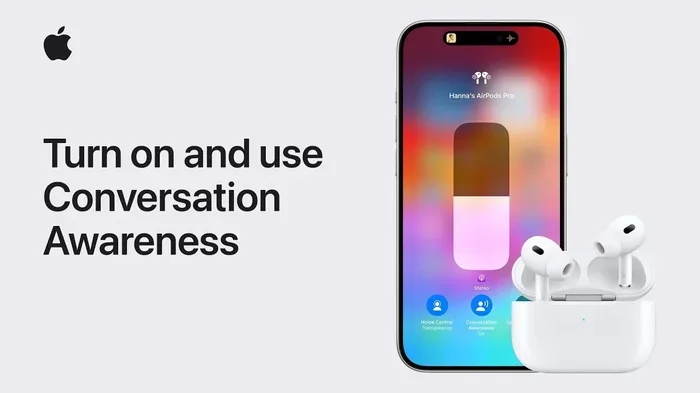
Featured image for talking on AirPods Pro phone
Image source: geeky-gadgets.com
Yes, you can absolutely talk on the phone with AirPods Pro — they feature built-in microphones designed specifically for crystal-clear voice calls. These earbuds use advanced noise-cancellation technology to filter out background noise, making your voice sound clear to the person on the other end. Whether you’re using an iPhone, Android, or other Bluetooth device, AirPods Pro handle phone calls seamlessly with simple tap or voice controls. This guide covers everything you need to know about making and receiving calls with AirPods Pro, from setup to troubleshooting common issues.
Picture this: you’re walking down a busy street, your phone rings, and you need to take that important call. Instead of fumbling around to hold your phone to your ear, you simply tap your AirPods Pro and start talking. It sounds like magic, right? Well, it’s not magic — it’s smart technology working quietly in your ears.
AirPods Pro have become one of the most popular wireless earbuds on the planet. According to Counterpoint Research, Apple captured nearly 31% of the global true wireless earbuds market in 2023, with AirPods Pro leading the charge. But many people still wonder whether these tiny earbuds can handle something as basic as a phone call. The short answer? Absolutely yes. The long answer involves understanding how the technology works, what features make calls clearer, and how to get the most out of your AirPods Pro during conversations.
This guide will walk you through everything you need to know about using AirPods Pro for phone calls. Whether you’re a first-time user or someone who’s had AirPods for years, you’ll discover tips, tricks, and troubleshooting advice that will make your calling experience smoother than ever. Let’s dive in.
Key Takeaways
- Built-in Microphones: AirPods Pro come equipped with dual beamforming microphones that capture your voice clearly during phone calls.
- Noise Cancellation: Active Noise Cancellation and Transparency mode work during calls to ensure you hear and are heard clearly.
- Easy Controls: You can answer, end, or reject calls using the force sensor on the stem or through Siri voice commands.
- Cross-Platform Compatibility: AirPods Pro work for phone calls on iPhones, Android phones, Macs, and other Bluetooth-enabled devices.
- Call Quality: Apple’s H1/H2 chip processes voice calls with minimal latency and superior audio clarity compared to standard Bluetooth headsets.
- Troubleshooting: Most call issues can be resolved by checking Bluetooth settings, updating firmware, or resetting the AirPods.
- Battery Considerations: AirPods Pro offer about 4.5-5.5 hours of talk time per charge, with the case providing additional charges.
📑 Table of Contents
- How AirPods Pro Handle Phone Calls: The Basics
- How to Make and Receive Calls with AirPods Pro
- Call Quality: What to Expect from AirPods Pro
- AirPods Pro Call Features You Should Know About
- Using AirPods Pro for Calls on Different Platforms
- Troubleshooting Common AirPods Pro Call Issues
- Battery Life and Talk Time Considerations
- Best Practices for AirPods Pro Phone Calls
- Comparing AirPods Pro to Other Options for Calls
- Final Thoughts on Talking on the Phone with AirPods Pro
How AirPods Pro Handle Phone Calls: The Basics
Let’s start with the fundamentals. Yes, you can talk on the phone with AirPods Pro, and Apple designed them specifically to do this well. Think of AirPods Pro as tiny computers for your ears — they’re not just speakers that play music. They’re sophisticated communication devices packed with sensors, microphones, and processors.
The Microphone System Explained
AirPods Pro contain multiple microphones that work together during phone calls. Picture a team of tiny listeners working in perfect harmony. One microphone faces inward toward your mouth, while another faces outward to detect background noise. Together, they use a technology called beamforming to focus on your voice and ignore everything else.
Here’s a simple analogy: imagine you’re at a loud concert trying to talk to a friend. You naturally cup your hand around your mouth and lean in closer. AirPods Pro do something similar digitally. They “listen” to your voice and subtract the surrounding noise, sending a clean version of your voice to the person on the other end of the call.
The H1 and H2 Chip Advantage
Inside every AirPods Pro sits a custom-designed Apple chip — either the H1 (in first and second generation) or the H2 (in second generation and USB-C models). This chip is like a tiny traffic controller that manages all the audio signals flowing in and out of your earbuds. It processes voice calls with incredibly low delay, which means there’s virtually no lag between when you speak and when your voice reaches the other person.
Did you know that the H2 chip can process audio 48,000 times per second? That’s faster than most computers could manage just a decade ago. This processing power is what allows AirPods Pro to deliver clear, lag-free phone calls even in noisy environments.
How to Make and Receive Calls with AirPods Pro
Using AirPods Pro for phone calls is wonderfully simple. Apple designed the experience to feel natural, even if you’ve never used wireless earbuds before. Let’s walk through the different ways you can manage calls.
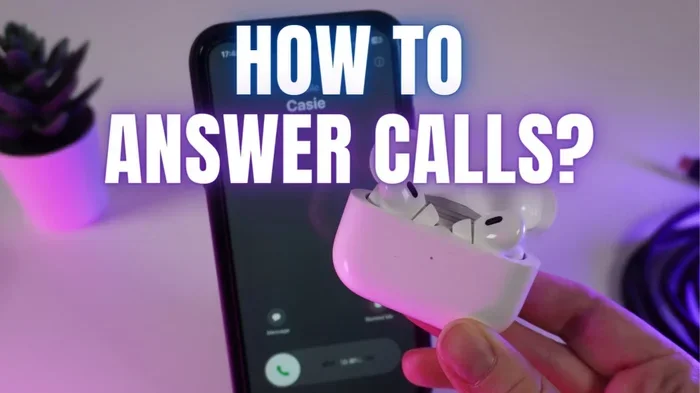
Visual guide about talking on AirPods Pro phone
Image source: i.ytimg.com
Answering Incoming Calls
When someone calls you and you’re wearing your AirPods Pro, you have several options to answer:
- Press the force sensor once: Squeeze the flat part of either AirPod stem once to answer the call. You’ll hear a subtle click confirming the action.
- Use Siri: Simply say “Hey Siri, answer the call” and your AirPods will connect you automatically — no hands needed.
- Automatic ear detection: If you’re already wearing your AirPods when the phone rings, the call audio routes directly to them.
Think of it like having a personal assistant in each ear. You don’t need to touch your phone at all once the AirPods are in.
Ending or Declining Calls
To end a call, just press the force sensor once on either AirPod stem. To decline an incoming call, press the force sensor twice quickly. It’s that straightforward. Some people worry about accidentally hanging up, but the squeeze mechanism requires intentional pressure, so random touches won’t end your calls.
Making Outgoing Calls
There are three main ways to start a call with AirPods Pro:
- Use Siri: Say “Hey Siri, call [name]” or “Hey Siri, dial [number].” Your AirPods will activate Siri, which will place the call for you.
- Use your phone normally: Dial a number or select a contact on your iPhone, and the audio automatically routes to your AirPods if they’re in your ears.
- Announce calls (iOS 15+): Siri can announce who’s calling without you looking at your phone. You can then answer by speaking.
The hands-free experience feels almost futuristic. Imagine you’re driving and need to call your spouse — just say “Hey Siri, call Sarah” and you’re connected without ever touching your phone.
Switching Between Calls
If you’re already on a call and another comes in, AirPods Pro can handle that too. Press the force sensor to answer the new call and put the first one on hold. Press it again to switch back. This feature is incredibly useful for busy professionals who juggle multiple conversations throughout the day.
Call Quality: What to Expect from AirPods Pro
Now let’s talk about the actual quality of phone calls with AirPods Pro. After all, being able to take calls is one thing — but sounding good matters just as much.
Voice Clarity for the Other Person
The person on the other end of your call will likely notice a significant improvement compared to your phone’s built-in microphone. Apple’s beamforming technology does an excellent job isolating your voice. According to testing by RTINGS.com, AirPods Pro deliver “excellent” microphone performance for phone calls, particularly in moderately noisy environments.
Think of it this way: when you talk directly into your phone’s microphone, it picks up everything around you — traffic, wind, conversations nearby. AirPods Pro, sitting closer to your mouth, capture more of your voice and less of the chaos.
What You Hear During Calls
On your end, AirPods Pro provide clear audio through their high-quality drivers. The second-generation AirPods Pro even feature Adaptive Transparency mode, which reduces loud environmental sounds while still letting you hear your call. It’s like having a volume knob that automatically adjusts based on your surroundings.
Background Noise Performance
Here’s where things get interesting. Active Noise Cancellation works during phone calls, but with a twist. The noise cancellation applies to what you hear, while the microphones actively reduce background noise for the person you’re talking to. So while you’re enjoying a quieter listening experience, the other person also hears less of that construction site next to you.
Did you know that Apple tested AirPods Pro microphones in environments up to 100 decibels — about as loud as a chainsaw — and they still delivered clear voice transmission? That’s impressive engineering for something that weighs less than a sheet of paper.
Wind Noise
Wind is the enemy of all microphones, and AirPods Pro are no exception. However, Apple has added an acoustic mesh covering the microphones to reduce wind interference. For best results on really windy days, you might cover one AirPod with your hand or switch to using your phone’s microphone for important calls.
AirPods Pro Call Features You Should Know About
Beyond basic call functionality, AirPods Pro offer several advanced features that enhance your calling experience. Let’s explore the ones most users overlook.
Live Translation During Calls
AirPods Pro can now translate conversations in real time when paired with compatible iPhones. While this feature is still developing, it shows how Apple is transforming AirPods from simple earbuds into communication powerhouses. Imagine taking a business call with someone who speaks a different language — your AirPods can translate in real time.
Share Audio for Group Calls
Need to put someone else on the call with you? AirPods Pro support Audio Sharing, allowing two sets of AirPods to connect to one iPhone. While this works great for music and movies, it can also be useful for conference-style calls where multiple people need to listen in.
Automatic Device Switching
If you own multiple Apple devices, your AirPods Pro automatically switch between them based on which device you’re using. Start a call on your iPhone, then hop on your Mac for a video conference — your AirPods follow you seamlessly. It’s like having one set of earbuds that magically appears wherever you need them.
Find My Integration
Misplaced your AirPods? The Find My app can locate them, play a sound, or show their last known location. This feature is unrelated to calls directly, but it ensures you always have your AirPods ready when that important call comes in.
Using AirPods Pro for Calls on Different Platforms
While AirPods Pro are designed primarily for Apple devices, they work surprisingly well across platforms. Let’s break down the experience on different systems.
Calls on iPhone and iPad
This is the native experience — the one Apple designed for. Everything works perfectly out of the box. Open the case near your iPhone, pair once, and your AirPods Pro will automatically connect every time thereafter. Calls route to your AirPods seamlessly, and Siri integration feels natural and responsive.
Calls on Android Phones
Here’s a pleasant surprise: AirPods Pro work wonderfully with Android phones too. You can pair them through standard Bluetooth settings, and they handle calls with excellent quality. However, some features are limited:
- Siri doesn’t work on Android, so you’ll need to use your phone’s voice assistant (Google Assistant) by tapping the force sensor.
- Automatic ear detection may not function the same way.
- You won’t get the fancy battery pop-ups that iPhone users enjoy.
Despite these limitations, call quality remains excellent on Android. In fact, many Android users prefer AirPods Pro over other options specifically for call clarity.
Calls on Mac and Windows PCs
For video conferences on your computer, AirPods Pro deliver excellent performance. On Mac, they integrate beautifully with FaceTime, Zoom, Microsoft Teams, and other apps. The noise cancellation during video calls helps everyone focus on the conversation.
On Windows PCs, AirPods Pro work as standard Bluetooth headphones. Call quality is good, though you might experience slightly higher latency compared to Mac. For the best experience on Windows, consider using an app that supports the AAC Bluetooth codec.
Troubleshooting Common AirPods Pro Call Issues
Even the best technology occasionally has hiccups. Here are solutions to the most common problems people encounter when using AirPods Pro for phone calls.
Issue: Other Person Can’t Hear Me Clearly
If the person on the other end complains about your audio quality, try these fixes:
- Check the microphones: Look at the microphone openings on your AirPods and clean them gently with a dry cotton swab. Dirt and earwax significantly impact microphone performance.
- Test both AirPods: Sometimes one AirPod’s microphone works better than the other. Try using just one to identify which performs better.
- Reset your AirPods: Hold the setup button on the case for 15 seconds until the light flashes amber, then white. This often resolves strange audio issues.
- Update firmware: Ensure your AirPods have the latest firmware by keeping them in their case near your iPhone while connected to Wi-Fi.
Issue: Calls Sound Muffled to Me
If incoming audio sounds unclear, the problem might be with your AirPods’ speakers, not the microphones. Clean the speaker meshes, check your volume levels, and make sure Active Noise Cancellation is set correctly. Sometimes simply reinserting the AirPods solves the issue.
Issue: AirPods Won’t Connect for Calls
Connection problems usually stem from Bluetooth interference or software glitches. Try these steps:
- Toggle Bluetooth off and on again on your device.
- Move closer to your phone — Bluetooth typically works best within 30 feet.
- Restart your phone.
- Forget the AirPods in Bluetooth settings and pair them again.
- Reset your AirPods as described above.
Issue: Calls Drop Frequently
Frequent call drops usually indicate Bluetooth range issues or interference. Stay within 30-40 feet of your device, avoid areas with heavy Wi-Fi congestion, and keep your AirPods firmware updated. If the problem persists, your AirPods might need service.
Issue: Siri Doesn’t Respond During Calls
Sometimes Siri becomes unresponsive during calls. This usually happens when the call is using too much audio bandwidth. Wait until you finish the call, or hang up and try Siri again. You can also disable “Hey Siri” during calls through Settings if it becomes problematic.
Battery Life and Talk Time Considerations
Understanding your AirPods Pro battery helps you plan for longer calls. Nobody wants their earbuds dying mid-conversation.
Official Talk Time Ratings
Apple rates AirPods Pro for the following talk times per charge:
- AirPods Pro (1st generation): Up to 3.5 hours of talk time
- AirPods Pro (2nd generation): Up to 4.5 hours of talk time
- AirPods Pro (USB-C): Up to 4.5 hours of talk time, with improved efficiency
The charging case provides multiple additional charges, extending your total talk time to 24+ hours before needing to find an outlet.
Tips for Extending Battery During Calls
To maximize your AirPods Pro battery life during calls:
- Use one AirPod at a time while the other charges in the case.
- Turn off Active Noise Cancellation if you’re in a quiet environment — it drains battery faster.
- Keep your AirPods in their case when not in use to prevent battery drain.
- Avoid extreme temperatures, which can damage battery health over time.
Think of your AirPods battery like a phone battery — the more features you use, the faster it drains. But with smart management, you can easily get through a full day of intermittent calls.
Best Practices for AirPods Pro Phone Calls
Now that you understand the technical side, let’s talk about best practices. These tips will help you get the most professional and clear calling experience possible.
Choose the Right Ear Tip Size
AirPods Pro come with multiple ear tip sizes. Using the correct size isn’t just about comfort — it affects microphone positioning and noise isolation. A secure fit keeps the microphones pointed correctly toward your mouth. Apple includes an Ear Tip Fit Test in Settings to help you find the perfect size.
Position Matters
When taking calls, try to position yourself so your mouth has a clear path to the AirPods microphones. The stem should hang naturally downward — don’t rotate the AirPods in a way that points the microphones away from your mouth.
Use Transparency Mode for Safety
When walking or driving, switch to Transparency mode during calls. This lets you hear your surroundings while still talking clearly, keeping you aware of traffic and other important sounds. It’s a small adjustment that makes a big safety difference.
Mute When Needed
Don’t forget you can mute yourself during calls. While AirPods Pro don’t have a dedicated mute button, you can use Siri (“Hey Siri, mute my call”) or mute through your phone. This is essential during conference calls when you’re not speaking.
Keep Firmware Updated
Apple regularly releases firmware updates that improve call quality and fix bugs. To update, place your AirPods in their case, connect them to power, and keep them near your iPhone while it’s connected to Wi-Fi. Updates happen automatically in the background.
Comparing AirPods Pro to Other Options for Calls
How do AirPods Pro stack up against alternatives for phone calls? Let’s take a brief look at the competition.
AirPods Pro vs. Standard AirPods
Standard AirPods work fine for calls, but AirPods Pro offer superior noise cancellation and a more secure fit. If you take lots of calls in noisy environments, AirPods Pro are worth the upgrade. The microphone quality is similar, but the overall experience is better with Pro.
AirPods Pro vs. AirPods Max
AirPods Max (over-ear headphones) provide excellent call quality with even better noise cancellation. However, they’re heavier, more expensive, and less portable. For people who take long calls at a desk, AirPods Max might be preferable. For on-the-go calling, AirPods Pro win.
AirPods Pro vs. Other Wireless Earbuds
When compared to competitors like Samsung Galaxy Buds, Sony WF-1000XM5, or Bose QuietComfort Earbuds, AirPods Pro hold their own for call quality — particularly within the Apple ecosystem. The H2 chip gives them an edge in processing speed and Apple device integration.
Did you know that in a 2023 survey by Consumer Reports, AirPods Pro ranked in the top three for call quality among all wireless earbuds tested? That’s impressive considering the hundreds of options on the market.
Final Thoughts on Talking on the Phone with AirPods Pro
So, can you talk on the phone with AirPods Pro? Without a doubt, yes — and you should. These tiny earbuds deliver professional-quality call performance wrapped in a package that fits in your pocket. Whether you’re taking a quick call while cooking dinner or participating in a marathon conference call from your home office, AirPods Pro handle the job with grace and clarity.
The combination of beamforming microphones, Apple’s custom H1 or H2 chip, and intelligent noise processing makes AirPods Pro one of the best tools available for hands-free calling. Add features like Siri voice control, automatic device switching, and cross-platform compatibility, and you have a communication device that goes far beyond basic earbuds.
If you’re experiencing any issues with call quality, remember the troubleshooting tips we covered. Most problems have simple solutions — a quick reset, a firmware update, or just cleaning your AirPods can make a world of difference. And if you’re still on the fence about using AirPods Pro for calls, give them a try. Once you experience the freedom of hands-free calling with crystal-clear audio, you’ll wonder how you ever managed with just your phone.
The future of communication is wireless, and AirPods Pro are leading the charge. Whether you’re an Apple loyalist or an Android enthusiast, these earbuds deserve a spot in your daily routine. So go ahead — take that call, walk around freely, and enjoy the conversation.