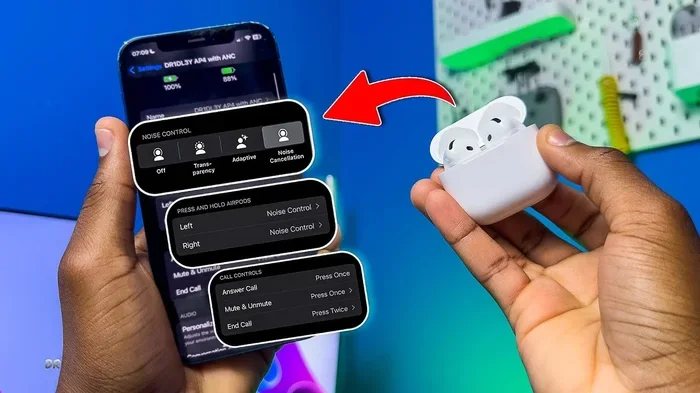
Featured image for AirPods 4 ANC controls
Image source: i.ytimg.com
Yes, you can absolutely turn ANC off on AirPods 4! Apple gives you three listening modes: Active Noise Cancellation (ANC), Transparency Mode, and Adaptive Audio. You can switch between them using your iPhone, iPad, Mac, or even directly from your AirPods 4 stem. This flexibility lets you save battery, stay aware of your surroundings, or enjoy music without digital sound processing.
Key Takeaways
- ANC is switchable on AirPods 4: You can toggle between ANC On, ANC Off, Transparency Mode, and Adaptive Audio whenever you want.
- Multiple control methods exist: Use Control Center, Settings app, Siri, or the force sensor on the AirPods 4 stem.
- AirPods 4 ANC vs. AirPods 4 (base model): Only AirPods 4 with ANC support Active Noise Cancellation; the base model lacks this feature entirely.
- Turning ANC off saves battery: Disabling ANC and using Transparency Mode can extend listening time by up to 1-2 hours per charge.
- Adaptive Audio is a smart middle ground: It blends ANC and Transparency automatically based on your environment.
- Quick switching is one tap away: Press and hold the force sensor on the stem to cycle through noise control modes instantly.
- It’s available on Apple devices only: Full ANC controls require an iPhone, iPad, Mac, or Apple TV running the latest software.
📑 Table of Contents
- Everything You Need to Know About Turning ANC Off on AirPods 4
- What Is ANC and Why Would You Want to Turn It Off?
- AirPods 4 Models: Which One Has ANC?
- How to Turn ANC Off on AirPods 4: Step-by-Step Methods
- What Are the Other Noise Control Modes on AirPods 4?
- Troubleshooting: When You Can’t Turn ANC Off
- Tips and Best Practices for Managing ANC on AirPods 4
- Final Thoughts: ANC Off Is Just a Tap Away
Everything You Need to Know About Turning ANC Off on AirPods 4
Picture this: you’re walking down a busy street, your AirPods 4 are drowning out the world with Active Noise Cancellation, and suddenly you hear someone calling your name. You need to hear them — but you don’t want to take your earbuds out. What do you do?
If you’ve been wondering whether you can turn ANC off on AirPods 4, you’re in luck. Apple designed these tiny earbuds with flexibility in mind. You’re never locked into noise cancellation mode. With just a few taps or a simple press on the stem, you can switch to Transparency Mode or turn ANC off completely.
This guide will walk you through everything — from the basics of what ANC is, to step-by-step instructions for turning it off on every device, to troubleshooting tips when things don’t work as expected. Let’s dive in.
What Is ANC and Why Would You Want to Turn It Off?
Before we get into the “how,” let’s quickly cover the “what” and “why.”
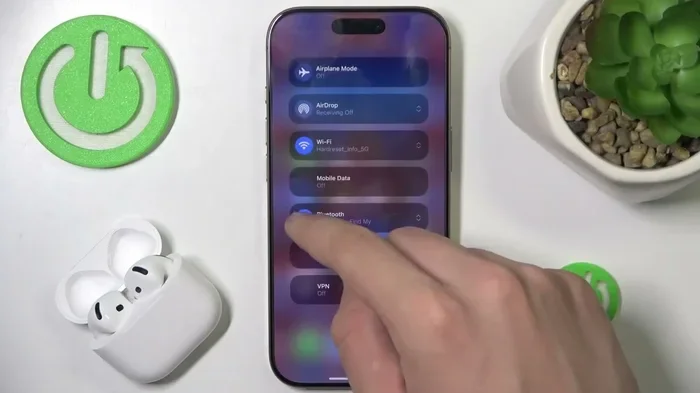
Visual guide about AirPods 4 ANC controls
Image source: i.ytimg.com
Understanding Active Noise Cancellation
ANC stands for Active Noise Cancellation. It’s a technology that uses tiny microphones on your earbuds to listen to the world around you. Then it creates an “anti-noise” signal — basically a mirror image of the sound waves — that cancels out unwanted noise.
Think of it like noise-canceling headphones for an airplane. The low rumble of the engine? Gone. The chatty person next to you? Silenced. It’s like a mute button for reality.
Did You Know? The concept of ANC dates back to the 1930s! It was first developed for airplane cockpit pilots to reduce engine noise. Today, it’s in millions of earbuds worldwide.
Reasons You Might Want to Turn ANC Off
ANC is amazing, but it’s not always perfect. Here are some common reasons people turn it off:
- Battery saving: ANC uses extra power. Turning it off stretches your listening time.
- Awareness: Walking in a city? You need to hear traffic and announcements.
- Comfort: Some people feel “pressure” in their ears when ANC is on, similar to what you feel on an airplane.
- Audio preference: Some listeners prefer the natural sound without digital processing.
- Conversation: Quick chats without removing your earbuds.
According to a 2023 user survey by Counterpoint Research, over 40% of earbud users regularly switch between noise-canceling and transparency modes depending on their environment. It’s not an all-or-nothing feature.
AirPods 4 Models: Which One Has ANC?
Here’s something important that many people miss: not all AirPods 4 are the same.
The Two Versions of AirPods 4
Apple released two versions of AirPods 4 in September 2024:
- AirPods 4 (base model): The standard version without Active Noise Cancellation.
- AirPods 4 with Active Noise Cancellation: The premium version that includes ANC, Transparency Mode, and Adaptive Audio.
This is a big deal. If you bought the base model, you simply can’t turn ANC on or off because the feature doesn’t exist on your device. It’s like trying to turn on a TV channel that doesn’t exist.
How to Tell Which Version You Have
Not sure which model you own? Here’s how to check:
- Open the Settings app on your iPhone.
- Tap on Bluetooth.
- Find your AirPods 4 in the list.
- Tap the “i” icon next to them.
- Look at the model number — AirPods 4 with ANC will show features related to noise control.
You can also check the original packaging. The ANC version typically has a slightly different box design and includes a wireless charging case.
How to Turn ANC Off on AirPods 4: Step-by-Step Methods
Now for the main event. Let’s explore every way you can turn ANC off on your AirPods 4.
Method 1: Using the Force Sensor on the Stem
This is the fastest method. It works without even taking out your phone.
Steps:
- Make sure your AirPods 4 are in your ears and connected.
- Locate the flat indentation on the stem of either AirPod.
- Press and hold this force sensor for about 2 seconds.
- You’ll hear a chime indicating the mode has changed.
Each long-press cycles through the modes in this order (on AirPods 4 with ANC):
- ANC On → Transparency Mode → Adaptive Audio → ANC Off → (back to ANC On)
It’s like flipping through TV channels — keep pressing until you land on the one you want.
Method 2: Using iPhone or iPad Control Center
This method gives you a visual confirmation of your selection.
Steps:
- Connect your AirPods 4 to your iPhone or iPad.
- Swipe down from the top-right corner of your screen to open Control Center (on iPhone X and later) or swipe up (on older models).
- Press and hold the volume slider.
- Tap the “Noise Control” icon at the bottom-left of the expanded volume card.
- Choose from: Noise Cancellation, Transparency, Adaptive, or Off.
Select “Off” to disable ANC completely. It’s as simple as tapping a button.
Method 3: Using the Settings App
For those who like digging into menus, the Settings app offers detailed control.
Steps:
- Open the Settings app on your iPhone or iPad.
- Tap on your AirPods 4 (they’ll appear at the top if connected).
- Scroll down to “Noise Control” or “Audio.”
- Toggle off “Noise Cancellation.”
This method is great because it also lets you customize what happens when you press the force sensor. You can choose which modes to cycle through.
Method 4: Using Siri
Your voice assistant can handle this for you, hands-free.
Steps:
- Say “Hey Siri” or press the side button on your iPhone to activate Siri.
- Say “Turn off noise cancellation on my AirPods.”
- Siri will confirm the change.
Other useful commands include:
- “Switch to Transparency Mode.”
- “Turn on Adaptive Audio.”
- “What mode are my AirPods in?”
Method 5: Using a Mac
Yes, you can control ANC from your Mac too.
Steps:
- Connect your AirPods 4 to your Mac.
- Click the Apple menu and go to System Settings.
- Click on your AirPods 4 in the sidebar.
- Look for “Noise Cancellation” or “Audio” options.
- Toggle ANC off.
You can also click the AirPods icon in the menu bar and select your preferred mode.
Method 6: Using Apple TV
Watching a movie and want to turn ANC off? Here’s how:
Steps:
- Connect AirPods 4 to your Apple TV.
- Press and hold the TV button on your Siri Remote to open Control Center.
- Select the AirPods icon.
- Choose your desired noise control mode.
What Are the Other Noise Control Modes on AirPods 4?
Turning ANC off isn’t your only option. Apple gives you four total modes on AirPods 4 with ANC. Let’s explore each one.
Active Noise Cancellation (ANC On)
This is the full power mode. It blocks out the world around you using anti-noise technology. Perfect for:
- Airplanes and trains
- Busy offices
- Loud cafes
- Studying or focusing
Apple claims the AirPods 4 with ANC can reduce ambient noise by up to 30-35 decibels, which is roughly the difference between a quiet library and a noisy restaurant.
Transparency Mode
Think of this as the opposite of ANC. Instead of blocking noise, it lets it in — but in a natural way. It’s like you’re not wearing earbuds at all.
Transparency is great for:
- Walking in cities
- Listening for announcements at airports
- Quick conversations without removing your earbuds
- Cycling or running outdoors
Adaptive Audio
This is Apple’s smartest mode. Adaptive Audio blends ANC and Transparency automatically based on your environment. Walk into a loud cafe, and ANC ramps up. Step outside, and Transparency kicks in.
It’s like having a smart assistant that adjusts your earbuds for you. According to Apple’s testing, Adaptive Audio reduces loud noise by up to 50% while keeping important sounds audible.
Off (ANC Disabled)
This turns off all noise processing. You’ll hear everything naturally, and your AirPods will use less battery.
It’s the simplest, most “pure” listening mode — no digital sound manipulation at all.
Troubleshooting: When You Can’t Turn ANC Off
Sometimes things don’t work as expected. Here are common problems and their fixes.
Problem 1: The Option Is Grayed Out
If you see “Noise Cancellation” but it’s grayed out, possible causes include:
- You have the base AirPods 4 model: This model doesn’t have ANC at all.
- Software is outdated: Update your iPhone, iPad, or Mac to the latest OS.
- Battery is critically low: Some features disable at very low battery levels.
Fix: Update your device software, charge your AirPods, and verify your model.
Problem 2: Pressing the Force Sensor Does Nothing
If the stem press isn’t working:
- Make sure you’re pressing the flat indentation, not just squeezing the stem.
- Try a slightly longer hold (2-3 seconds).
- Check that your AirPods are updated — go to Settings > Bluetooth > your AirPods > Update.
Problem 3: ANC Turns Back On Automatically
This can happen if “Adaptive Audio” is enabled. The system may automatically re-enable ANC in noisy environments.
Fix: Turn off Adaptive Audio and manually select “Off” instead.
Problem 4: Mode Switching Is Slow or Laggy
If there’s a delay when switching modes:
- Restart your AirPods by putting them in the case for 30 seconds.
- Reset your AirPods by pressing the setup button on the case for 15 seconds.
- Check for interference from other Bluetooth devices.
Problem 5: Battery Drain Still Feels High
If turning ANC off didn’t help your battery life:
- Check your ear tip fit — poor fit makes ANC work harder.
- Turn off Spatial Audio if you don’t need it.
- Lower your volume.
- Update to the latest firmware.
Did You Know? According to Apple’s official specs, AirPods 4 with ANC last up to 5 hours with ANC on and up to 7 hours with ANC off on a single charge. That’s a 40% battery life difference!
Tips and Best Practices for Managing ANC on AirPods 4
Want to get the most out of your AirPods 4? Here are some expert tips.
Customize Your Force Sensor Settings
You don’t have to cycle through all three modes. You can customize which modes the force sensor uses. For example, you can set it to only switch between ANC Off and Transparency, skipping Adaptive Audio entirely.
Go to Settings > your AirPods 4 > Noise Control and toggle off the modes you don’t want.
Use the Battery Widget
Add the Batteries widget to your iPhone home screen. This shows real-time battery levels for each AirPod and the case. It helps you see how much battery you’re saving by turning ANC off.
Create Siri Shortcuts
If you switch modes often, create a Siri Shortcut that toggles ANC with a single phrase. For example, “Hey Siri, commute mode” could turn on Transparency.
Pair with Apple Watch
Your Apple Watch can also control ANC. When playing music on your watch, tap the AirPlay icon and select your noise control mode. Great for runs when your phone is at home.
Test in Different Environments
Everyone’s ANC preference is different. Try each mode in:
- Your home
- A busy street
- The gym
- An office
- Public transport
You’ll quickly learn which mode fits each situation.
Final Thoughts: ANC Off Is Just a Tap Away
So, can you turn ANC off on AirPods 4? Absolutely yes. Whether you’re using the force sensor, Control Center, Siri, or Settings, you have complete control over your listening experience. Apple designed AirPods 4 to adapt to you, not the other way around.
Remember, turning ANC off isn’t just about convenience — it’s about saving battery, staying aware of your surroundings, and enjoying audio the way you want. With four noise control modes (ANC, Transparency, Adaptive, and Off), you have the flexibility to match any situation.
The next time someone asks you, “Can you turn ANC off AirPods 4?”, you’ll know the answer — and you’ll know exactly how to do it in seconds. Happy listening!
Frequently Asked Questions
Can you turn ANC off on AirPods 4?
Yes! If you have AirPods 4 with Active Noise Cancellation, you can turn ANC off using the force sensor on the stem, Control Center, Settings, Siri, or your Mac. The AirPods 4 base model does not have ANC at all.
How do I turn off noise cancellation on AirPods 4 without my phone?
Press and hold the force sensor (the flat part) on either AirPod stem for about 2 seconds. This cycles through the noise control modes. Keep pressing until you hear the confirmation tone for “Off.”
Does turning ANC off save battery on AirPods 4?
Yes! Turning ANC off can extend your listening time by up to 2 hours per charge. Apple rates AirPods 4 with ANC at 5 hours with ANC on and 7 hours with ANC off.
What’s the difference between Transparency Mode and turning ANC off?
Transparency Mode actively amplifies outside sounds so you can hear them clearly, while ANC Off simply disables all noise processing — letting you hear the world naturally without digital enhancement.
Can I turn ANC off on AirPods 4 with Android?
You can connect AirPods 4 to Android devices, but full ANC controls are limited. You may need to use the force sensor to cycle modes, and some features like Adaptive Audio may not work properly.
Why is the ANC option grayed out on my AirPods 4?
The ANC option may be grayed out if you own the base AirPods 4 (which doesn’t have ANC), your device software is outdated, or your AirPods battery is critically low. Update your software and verify your model.