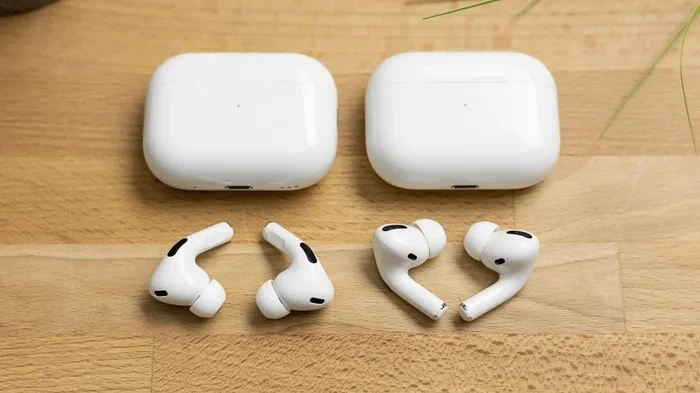
Featured image for AirPods Pro 2 comparison photo
Image source: m-cdn.phonearena.com
Figuring out whether you have AirPods Pro or AirPods Pro 2 is easier than you might think. The fastest method is to check your iPhone’s Settings app under Bluetooth, where the exact model number and generation appear. You can also look at the physical charging case and earbuds for telltale differences like the speaker grille, lanyard loop, and skin-detect sensors.
Have you ever picked up your AirPods, looked at them, and thought, “Wait a minute… do I have AirPods Pro or AirPods Pro 2?” You’re definitely not alone. Millions of people use these tiny earbuds every single day, yet plenty of them couldn’t tell you which generation they own if you asked them right now.
Here’s the thing: Apple made the two generations look almost identical at first glance. They’re both white, they’re both stem-style, and they both fit in your ears the same way. But underneath that familiar white shell, there are real differences that matter. The AirPods Pro 2 brought better noise cancellation, longer battery life, and a smarter charging case to the table.
The good news? You don’t need to be a tech wizard to figure out which version you own. In fact, you can find out in less than 30 seconds using your iPhone. This guide will walk you through every method available, plus give you insider tips that even some Apple Store employees might not mention. Whether you’re cleaning your AirPods, troubleshooting a problem, or just curious, you’ll know exactly which model you have by the time you finish reading.
Key Takeaways
- The Settings Method is Fastest: Check Settings > tap the info icon next to your AirPods to instantly see whether you have AirPods Pro or AirPods Pro 2.
- Model Numbers Reveal Everything: AirPods Pro 1 uses model numbers A2083, A2084, and A2190, while AirPods Pro 2 uses A2700, A2701, and A2968.
- The Charging Case Tells a Story: AirPods Pro 2 cases have a built-in speaker and lanyard loop, while the original AirPods Pro case lacks both features.
- Silicone Tip Sizes Differ: AirPods Pro 1 ships with three tip sizes (S/M/L), while AirPods Pro 2 adds an extra-small (XS) option.
- Skin-Detect Sensors Are New: Only AirPods Pro 2 feature optical skin-detect sensors instead of the older in-ear detection sensors found in the original model.
- Chip Generation Matters: AirPods Pro 1 use the H1 chip, while AirPods Pro 2 use the newer H2 chip for better noise cancellation and battery life.
- Case Charging Options Changed: AirPods Pro 2 cases support MagSafe, Apple Watch charging, and Lightning/USB-C, depending on the version you own.
📑 Table of Contents
- The Fastest Way to Identify Your AirPods Pro Generation
- How to Tell AirPods Pro 1 and 2 Apart by Looking at Them
- Understanding Model Numbers and What They Mean
- Feature Differences That Can Help You Identify Your Model
- How to Check AirPods Model on Different Apple Devices
- What to Do If You Still Can’t Tell Which Model You Have
- Why Knowing Your AirPods Model Matters
- Common Mix-ups and How to Avoid Them
- Caring for Your Specific AirPods Model
- The Bottom Line on Identifying Your AirPods
The Fastest Way to Identify Your AirPods Pro Generation
Let’s start with the quickest method because, honestly, most people just want a fast answer. Think of it like finding your car model by looking at the registration rather than counting the buttons on the dashboard.
Using Your iPhone Settings
If you have your AirPods paired with your iPhone, you can identify them in about 10 seconds. Here’s exactly what to do:
- Step 1: Open the Settings app on your iPhone.
- Step 2: Tap on Bluetooth.
- Step 3: Find your AirPods in the list of connected devices.
- Step 4: Tap the small “i” (information) icon next to your AirPods name.
- Step 5: Look at the Model Number listed on the screen.
This is where the mystery gets solved. If the model number starts with “A2700” or “A2701,” congratulations, you have AirPods Pro 2. If it shows “A2083” or “A2084,” those are AirPods Pro 1. The 2nd generation also has a USB-C version with model number “A2968.”
Using the “About” Feature
There’s another cool trick buried in your iPhone. When your AirPods are connected, go to Settings > General > About, and scroll down until you see your AirPods listed there. Tap on them, and you’ll see the model name, serial number, and firmware version. This method is great because it works even if your AirPods aren’t currently in your ears. They just need to be nearby and paired.
Pro tip: If you have multiple Apple devices, check your iPad and Mac too. Sometimes the information shows up on one device but not another, especially if you’ve recently switched between them.
How to Tell AirPods Pro 1 and 2 Apart by Looking at Them
Maybe you don’t have your phone handy, or maybe your AirPods aren’t currently paired with anything. Don’t worry, you can still play detective just by looking at your earbuds and their case. Think of it like telling two similar car models apart by examining the headlights and tail lights.
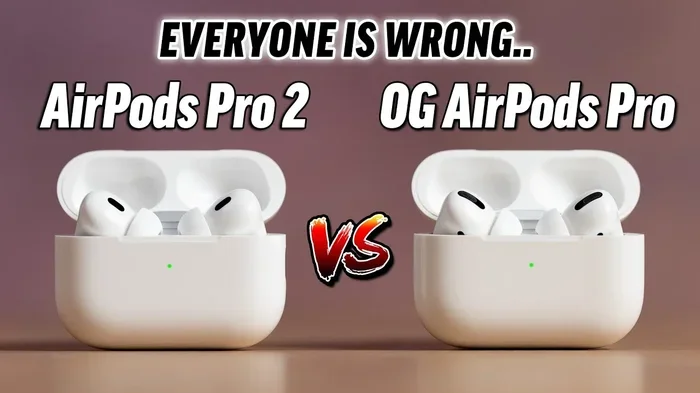
Visual guide about AirPods Pro 2 comparison photo
Image source: iphonewired.com
The Charging Case Differences
The charging case is actually where the biggest visual differences hide. Apple kept the AirPods Pro 2 case looking similar but added several smart upgrades that you can spot with your eyes.
Look for the lanyard loop. On the right side of the AirPods Pro 2 case, there’s a small built-in lanyard loop. The original AirPods Pro case doesn’t have this at all. It’s a tiny hook designed to attach a strap or wrist loop, and it’s one of the easiest physical giveaways.
Check for the speaker grille. Flip the case over and look at the bottom. AirPods Pro 2 cases have a small black speaker grille that the original model lacks. This speaker plays sounds to help you find the case using Apple’s Find My network. If you hear a chirp when pairing, that’s the speaker doing its job.
Find the serial number location. On AirPods Pro 1, the serial number is printed on the underside of the case lid. On AirPods Pro 2, Apple moved it to the bottom of the case, right next to that new speaker grille.
The Earbud Body Differences
The actual earbuds look very similar, but there are subtle clues if you know where to look.
The skin-detect sensor. Look at the inside of each earbud, the part that faces your ear canal. AirPods Pro 1 have a small, barely visible in-ear detection sensor. AirPods Pro 2 replaced this with a larger optical skin-detect sensor. The new sensor looks slightly different and is more accurate at knowing when the buds are actually in your ears.
The microphone position. Apple shifted the microphone position very slightly on the AirPods Pro 2 for better voice pickup. Honestly, this difference is so minor that most people won’t notice it just by looking. The sensor difference is your better bet here.
Understanding Model Numbers and What They Mean
Model numbers are like fingerprints for electronics. Every Apple product has unique model numbers for the left earbud, right earbud, and case. Once you know these numbers, you can identify any AirPods generation instantly.
AirPods Pro 1 Model Numbers
The first generation AirPods Pro uses these model numbers:
- A2083: Left earbud
- A2084: Right earbud
- A2190: Charging case (both wireless and Lightning versions share this case number)
AirPods Pro 2 Model Numbers
The second generation comes in two versions, each with their own set of numbers:
Lightning/MagSafe version (released September 2022):
- A2700: Left earbud
- A2701: Right earbud
- A2702: Charging case
USB-C version (released September 2023):
- A2700: Left earbud (same as above)
- A2701: Right earbud (same as above)
- A2968: Charging case (this is the new USB-C case)
Did you know that Apple uses the same earbud model numbers for both AirPods Pro 2 versions? The difference is only in the case. This is why checking the case model number is often the easiest way to know if you have the older Lightning version or the newer USB-C version.
Where to Find Model Numbers on the Physical Device
You can find these numbers printed in tiny text in a few places:
- On the inside of each earbud stem (you might need good lighting or a magnifying glass)
- Under the lid of the charging case
- On the original product packaging
- On your original receipt or invoice from Apple
If the numbers are too small to read, try using your phone’s camera zoom feature or taking a photo and zooming in on the image.
Feature Differences That Can Help You Identify Your Model
Even if you can’t see model numbers clearly, you can often tell which AirPods you have by the features they offer. Think of it like distinguishing between a basic car and a luxury model by testing whether certain buttons work.
Noise Cancellation Capabilities
Both generations have Active Noise Cancellation (ANC), but the AirPods Pro 2 version is significantly stronger. According to Apple, the AirPods Pro 2 cancel up to twice as much noise as the original AirPods Pro. If your noise cancellation feels exceptionally powerful, you might be on the second generation.
Here’s a simple test: put your AirPods in your ears, turn on noise cancellation, and play some music at medium volume. Walk near a loud appliance like a dishwasher or washing machine. If the sound completely disappears or becomes very faint, you’re likely using AirPods Pro 2. If you can still hear some of the machine’s rumble, it could be the first generation.
Adaptive Audio and Conversation Awareness
AirPods Pro 2 introduced some pretty smart features that simply don’t exist on the first generation:
- Adaptive Audio: Automatically blends noise cancellation and transparency mode based on your environment
- Conversation Awareness: Lowers your music volume when you start talking to someone
- Personalized Volume: Adjusts volume based on your listening habits and surroundings
- Touch Controls: Swipe up and down on the stem to adjust volume (AirPods Pro 1 can only do this through Siri)
To check if you have these features, go to Settings > Bluetooth > tap the “i” next to your AirPods. If you see options for “Adaptive Audio” or “Conversation Awareness,” you’re definitely on AirPods Pro 2.
Battery Life Indicators
The AirPods Pro 2 last about 6 hours on a single charge with ANC on, compared to about 4.5 hours on the original AirPods Pro. If your earbuds seem to last forever before needing a charge, that’s another hint you might have the newer model.
How to Check AirPods Model on Different Apple Devices
Maybe you’re not using an iPhone, or maybe you want to check from your computer. Good news, there are multiple ways to find this information depending on what device you have nearby.
Checking on a Mac
If your AirPods are connected to your Mac, here’s how to find the model information:
- Open the Apple menu and select “About This Mac”
- Click “More Info” or “System Report”
- Click on “Bluetooth” in the sidebar
- Find your AirPods in the list and look at the model information
You can also try this shortcut: hold Option key and click the Apple menu > System Information > Bluetooth. This method often shows details that aren’t visible through regular navigation.
Checking on an iPad
The process is almost identical to using an iPhone. Go to Settings > Bluetooth, find your AirPods, and tap the “i” icon. iPads running iPadOS 15 or later should show the same detailed information.
Checking on an Android Phone
Here’s where things get a little tricker. If you’re using AirPods with an Android phone, you won’t have the same Settings options. However, you can still identify your model by:
- Looking at the physical model number on the earbuds and case
- Checking the original packaging if you still have it
- Using third-party apps like “AirBattery” or “Assistant Trigger” that show detailed AirPods information
These apps connect to your AirPods’ Bluetooth signal and can display technical details including the model number, even on Android devices.
What to Do If You Still Can’t Tell Which Model You Have
Sometimes, despite trying everything, you might still feel uncertain. That’s totally okay. Here are some last-resort options that will give you a definitive answer.
Using Apple’s Support Website
Apple has a dedicated webpage where you can check your warranty status and get product information. Go to checkcoverage.apple.com and enter your AirPods serial number. The website will tell you exactly which model you have, when it was purchased, and whether it’s still under warranty.
Where do you find the serial number? You can get it from Settings > Bluetooth > tap “i” next to your AirPods, or from the original packaging, or from the underside of the case lid on AirPods Pro 1.
Visiting an Apple Store
If you’re still unsure, walk into any Apple Store or authorized retailer. The staff can identify your AirPods model in seconds using their diagnostic tools. They might even offer to update your firmware or clean your AirPods while you’re there.
Checking the Original Receipt
Did you keep your purchase receipt? This is like finding a birth certificate for your AirPods. The receipt will list either “AirPods Pro” or “AirPods Pro (2nd generation)” along with the exact purchase date. If you bought them from Apple, you can also log into your Apple ID account and view your purchase history.
Using the Find My App
Open the Find My app on your iPhone and look for your AirPods in the device list. Tap on them, and the app might show the model name and other details. This method works even if your AirPods are lost somewhere in your house.
Why Knowing Your AirPods Model Matters
You might be wondering, “Does it really matter which generation I have?” The answer is yes, especially in several common situations.
For Buying Replacement Parts
The silicone ear tips are different sizes between generations. AirPods Pro 1 comes with small, medium, and large tips. AirPods Pro 2 adds an extra-small (XS) option for people with smaller ear canals. Buying the wrong tips means they won’t fit properly, which affects both comfort and noise cancellation quality.
The charging cases are also not interchangeable. If you lose your AirPods Pro 2 case, you can’t replace it with an AirPods Pro 1 case. They look similar, but they pair differently and won’t work together.
For Software Updates
Apple releases different firmware updates for each generation. Knowing which model you have helps you understand which features are available to you. For example, if you’ve heard about “Adaptive Audio” but don’t see it in your settings, you probably have AirPods Pro 1 and that feature isn’t available for your model.
For Selling or Trading
If you plan to sell your AirPods, buyers will definitely ask which generation you have. Being able to answer confidently and provide model numbers builds trust and can help you get a better price. AirPods Pro 2 typically sell for $30-$50 more than AirPods Pro 1 on the used market.
For Getting Proper Support
When contacting Apple Support or visiting a repair center, knowing your exact model helps technicians help you faster. It also ensures you get the correct user guides and troubleshooting advice specific to your device.
Did you know that Apple released a software update in 2024 that brought some Pro 2 features to the original AirPods Pro? While not as advanced as the dedicated Pro 2 features, it shows how Apple tries to extend the life of older models when possible.
Common Mix-ups and How to Avoid Them
Sometimes people confuse their AirPods Pro with other models. Here are the most common mix-ups and how to avoid them.
AirPods Pro vs. AirPods 3
AirPods Pro have silicone ear tips, while AirPods 3 don’t. If your earbuds have removable silicone tips, they’re definitely AirPods Pro. If they have a hard plastic tip that sits in your ear without sealing, you have AirPods 3.
AirPods Pro 2 vs. AirPods 4 (with ANC)
Apple released the AirPods 4 with Active Noise Cancellation in late 2024. These earbuds look similar to AirPods Pro 2 but have a different shape and don’t have silicone tips. If your earbuds have silicone tips, you have AirPods Pro, regardless of the generation.
AirPods Pro 2 Lightning vs. USB-C
There are two versions of AirPods Pro 2, and they’re easy to confuse. The Lightning version came out in September 2022, and the USB-C version came out in September 2023. The main difference is the charging port on the case. If your case has a Lightning port, you have the older version. If it has a USB-C port, you have the newer version.
Caring for Your Specific AirPods Model
Once you know which model you have, you can take better care of them. Different generations have slightly different maintenance needs.
Cleaning Tips for Both Generations
Both AirPods Pro generations benefit from regular cleaning. Use a soft, dry, lint-free cloth to wipe down the exterior. For the silicone tips, remove them and rinse with water (no soap), then dry completely before reattaching. The mesh speaker area can be cleaned with a dry cotton swab.
For the charging case, use a slightly damp cloth to wipe the exterior. The speaker grille on AirPods Pro 2 cases can collect dust, so clean it gently with a soft brush.
Battery Maintenance
Both models use lithium-ion batteries that degrade over time. To maximize battery life:
- Avoid letting them drain to 0% regularly
- Don’t leave them in extreme temperatures (hot cars, freezing outdoors)
- Keep them in the case when not in use
- Avoid using them while charging
Did you know that AirPods batteries are designed to retain up to 80% of their original capacity after 500 complete charge cycles? That means even heavy users should get 2-3 years of solid battery life before noticing significant degradation.
The Bottom Line on Identifying Your AirPods
So, do you have AirPods Pro or AirPods Pro 2? By now, you should have the tools to answer that question confidently. The fastest method remains checking your iPhone’s Bluetooth settings for the model number. If that’s not possible, the physical differences in the case (lanyard loop and speaker grille) provide reliable clues.
Here’s a quick recap to keep in your back pocket:
- AirPods Pro 1: Model numbers A2083, A2084, A2190; no lanyard loop; no speaker on case
- AirPods Pro 2 (Lightning): Model numbers A2700, A2701, A2702; lanyard loop; speaker on case
- AirPods Pro 2 (USB-C): Model numbers A2700, A2701, A2968; lanyard loop; speaker on case; USB-C port
Knowing your exact model isn’t just about satisfying curiosity. It helps you buy the right accessories, get appropriate support, and take full advantage of the features your AirPods offer. Plus, if you’re ever thinking about selling or upgrading, you’ll know exactly what you have and what it’s worth.
The next time someone asks you, “Hey, do you have AirPods Pro or AirPods Pro 2?” you’ll be able to answer in seconds. And who knows, you might even teach them a thing or two about how to check their own. After all, knowledge shared is knowledge multiplied, and now you’re officially an AirPods identification expert.
Frequently Asked Questions
Can I tell if I have AirPods Pro or AirPods Pro 2 just by looking at the case?
Yes, you can. AirPods Pro 2 cases have a built-in lanyard loop on the side and a small speaker grille on the bottom. The original AirPods Pro case lacks both features. The lanyard loop is the easiest giveaway, and once you know what to look for, you’ll never miss it.
Do AirPods Pro 1 and 2 use the same ear tips?
No, they have slightly different sizes. AirPods Pro 1 comes with small, medium, and large silicone tips. AirPods Pro 2 adds an extra-small (XS) option for people with smaller ear canals. While the tips might physically fit on either generation, they’re designed for their specific model and won’t seal quite the same way if mixed.
Are AirPods Pro 2 worth upgrading from AirPods Pro 1?
For most people, yes. AirPods Pro 2 offer twice the noise cancellation, longer battery life (6 hours vs 4.5 hours), and smart features like Adaptive Audio and Conversation Awareness. The improved sound quality alone is worth it for many users. However, if your AirPods Pro 1 are still working well, the upgrade is more of a nice-to-have than a necessity.
How do I check my AirPods model on an Android phone?
Android phones don’t show AirPods model information natively, but you can use third-party apps like AirBattery, Assistant Trigger, or MaterialPods. These apps connect to your AirPods via Bluetooth and display detailed information including model numbers and battery status. Alternatively, you can check the physical model number printed inside the case or on the earbuds.
What’s the difference between AirPods Pro 2 Lightning and USB-C versions?
The main difference is the charging port. The Lightning version (released September 2022) has a Lightning port on the case, while the USB-C version (released September 2023) has a USB-C port. Both versions have identical earbuds, but the USB-C version adds support for lossless audio with the Apple Vision Pro. Otherwise, the audio quality, features, and performance are the same.
Can I use AirPods Pro 1 case with AirPods Pro 2 earbuds?
No, the cases are not interchangeable. AirPods Pro 1 and AirPods Pro 2 use different chips and pairing methods, so their cases won’t recognize each other’s earbuds. If you lose your AirPods Pro 2 case, you’ll need to buy a replacement AirPods Pro 2 case specifically. They might look similar, but they’re not compatible.