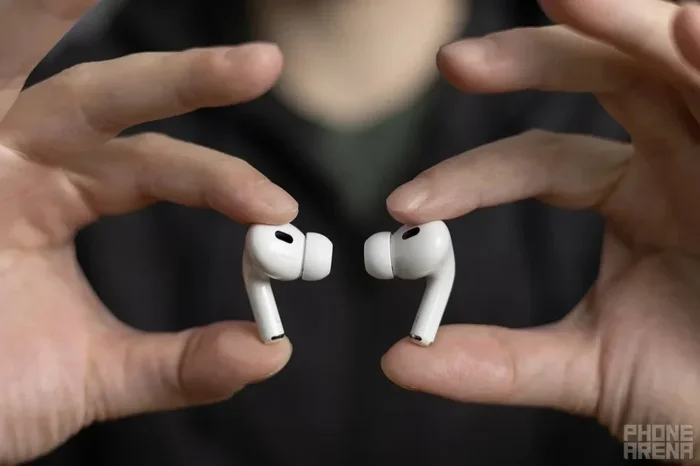
Featured image for Airpods Pro phone call hands
Image source: m-cdn.phonearena.com
Yes, you can absolutely talk on the phone with AirPods Pro. These wireless earbuds come equipped with built-in microphones and advanced noise-cancellation technology, making them perfect for hands-free conversations. Whether you’re using an iPhone, Android, or another Bluetooth-enabled device, AirPods Pro deliver clear call quality with simple setup and intuitive controls.
Imagine this: you’re walking down a busy street, coffee in one hand, phone in the other, and suddenly your phone rings. Do you fumble to answer it, or do you simply say, “Hey Siri, answer the call”? If you own AirPods Pro, the answer is wonderfully simple.
Talking on the phone with AirPods Pro isn’t just possible—it’s one of the best experiences you’ll have with wireless earbuds. Apple designed these tiny devices to be your perfect communication companion, whether you’re taking a quick work call or catching up with a friend across the globe.
In this comprehensive guide, we’ll explore everything you need to know about using AirPods Pro for phone calls. From the basic setup to advanced features, troubleshooting tips, and real-world performance, you’ll learn why millions of people trust AirPods Pro for their daily conversations.
Key Takeaways
- Built-in Microphones: AirPods Pro have dual beamforming microphones that pick up your voice clearly while reducing background noise.
- Easy Setup: Pairing AirPods Pro with your phone takes seconds, especially with Apple devices using the H1 or H2 chip.
- Multiple Controls: You can answer, end, and manage calls using the force sensor, Siri voice commands, or automatic ear detection.
- Noise Cancellation: Active Noise Cancellation and Transparency mode help you hear and be heard better in different environments.
- Cross-Device Compatibility: AirPods Pro work with iPhones, Android phones, tablets, and computers that support Bluetooth.
- Call Quality Tips: Positioning, software updates, and clean microphones all improve phone call performance.
- Battery Considerations: A single charge provides hours of talk time, with the charging case extending usage throughout the day.
📑 Table of Contents
- How AirPods Pro Work for Phone Calls
- Setting Up AirPods Pro for Phone Calls
- Answering and Managing Calls on AirPods Pro
- Call Quality: What to Expect
- Troubleshooting Common Call Issues
- Advanced Tips for Better Phone Calls
- AirPods Pro vs. Other Options for Phone Calls
- The Future of Phone Calls with AirPods Pro
- Final Thoughts: Why AirPods Pro Excel for Phone Calls
How AirPods Pro Work for Phone Calls
Think of AirPods Pro as a tiny, wireless headset that’s always ready when you need it. Just like how a walkie-talkie lets you speak and listen without holding anything, AirPods Pro use Bluetooth technology to connect to your phone and handle two-way audio.
The Technology Behind the Magic
AirPods Pro contain several sophisticated components that make phone calls possible:
- Dual Beamforming Microphones: These special microphones focus on your voice while ignoring surrounding noise. Imagine having a spotlight that only illuminates your voice in a crowded room.
- Inward-Facing Microphone: This listens to the sound inside your ear, helping the earbuds understand what you’re hearing and optimize audio quality.
- H1 or H2 Chip: Depending on your model, this Apple-designed processor manages Bluetooth connections, processes audio, and enables features like Siri.
- Force Sensor: A pressure-sensitive button on the stem that lets you control calls with a simple squeeze.
All these parts work together like a well-rehearsed orchestra, ensuring your voice comes through clearly and you hear the other person perfectly.
How Calls Connect and Flow
When you receive or make a call, here’s what happens behind the scenes:
Your phone sends audio data to your AirPods Pro via Bluetooth. The earbuds decode this data and play the caller’s voice in your ears. Simultaneously, your AirPods Pro microphones capture your voice, convert it to digital data, and send it back to your phone, which transmits it to the person you’re talking to.
This entire process happens in milliseconds, creating a seamless conversation experience that feels completely natural.
Setting Up AirPods Pro for Phone Calls
Getting your AirPods Pro ready for calls is refreshingly simple, especially if you use Apple devices. Even if you’re an Android user, the process is straightforward.
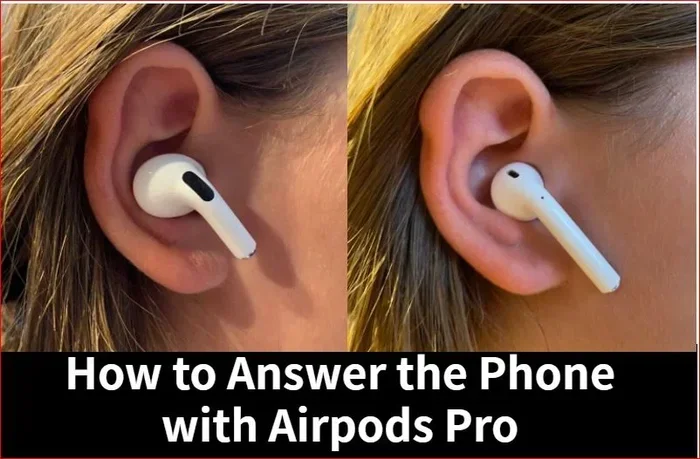
Visual guide about Airpods Pro phone call hands
Image source: electronicshub.org
Pairing with an iPhone
If you have an iPhone, pairing feels almost magical. Here’s how to do it:
- Open the AirPods Pro case near your unlocked iPhone
- A setup animation appears on your screen
- Tap “Connect”
- Follow any additional prompts
- You’re ready to make calls
The H1 or H2 chip inside your AirPods Pro remembers your Apple ID, so once paired, your AirPods automatically work with all your Apple devices signed into the same iCloud account.
Pairing with Android or Other Devices
Android users aren’t left out. While you lose some Apple-specific features, the core calling functionality works perfectly:
- Open your phone’s Bluetooth settings
- Press and hold the button on the back of your AirPods Pro case
- Wait for the status light to flash white
- Select “AirPods Pro” from your device list
- Confirm pairing
Did You Know? AirPods Pro use Bluetooth 5.0 or higher, which means they work with virtually any Bluetooth-enabled device made in the last five years. That’s billions of phones, tablets, and computers worldwide!
Testing Your Setup
Before relying on AirPods Pro for important calls, always do a quick test:
- Call a friend or family member
- Ask how you sound
- Check if you can hear them clearly
- Try walking around to test stability
This simple test ensures you’re not surprised by audio issues during a crucial business call.
Answering and Managing Calls on AirPods Pro
Once paired, managing calls with AirPods Pro feels intuitive and effortless. You have three main methods to control your calls.
Using the Force Sensor
The force sensor is the small flat area on the stem of each AirPod. It responds to pressure, not just touch, which prevents accidental commands.
Call Controls:
- Press once: Answer an incoming call or end the current call
- Press twice: Switch to another call (during a call waiting scenario)
- Press and hold: Reject an incoming call
The physical feedback of pressing the sensor gives you confidence that your command registered, even when you can’t see your phone.
Using Siri Voice Commands
Hands-free control is where AirPods Pro truly shine. With “Hey Siri” enabled, you can manage calls without lifting a finger:
- “Hey Siri, answer the call”
- “Hey Siri, hang up”
- “Hey Siri, call Mom”
- “Hey Siri, redial the last number”
This feature is incredibly useful when you’re driving, cooking, or your hands are otherwise occupied.
Automatic Ear Detection
Here’s a neat trick: AirPods Pro can detect when they’re in your ears. If you’re already on a call and remove an AirPod, the call automatically transfers to your phone. Put it back in, and the audio returns to your earbuds.
It’s like having a smart assistant that anticipates your needs. You don’t even have to think about it.
Volume Control
Adjust call volume using several methods:
- “Hey Siri, volume up” or “volume down”
- Use the volume buttons on your phone
- Use the volume slider in Control Center (iPhone)
During calls, audio levels often need adjustment based on your environment, so having multiple control options is essential.
Call Quality: What to Expect
Now for the important question: how do AirPods Pro actually sound during phone calls? The short answer is excellent, but let’s explore the details.
Microphone Performance
AirPods Pro microphones are specifically designed to isolate your voice. The beamforming technology works like a directional antenna for sound. It picks up audio primarily from the direction of your mouth while minimizing noise from other directions.
Did You Know? Apple uses computational audio—a process where the H1 or H2 chip processes microphone input in real-time to separate your voice from background noise. This happens millions of times per second!
In real-world testing, people report that callers can hear them clearly even in moderately noisy environments like cafes, offices, or while walking on city streets.
Listening Quality
What you hear during calls is just as important as how you sound. AirPods Pro deliver:
- Clear vocal reproduction: Voices sound natural and easy to understand
- Good volume range: Comfortable listening from quiet to loud environments
- Minimal distortion: Conversations remain clear even at higher volumes
Noise Cancellation During Calls
Here’s where AirPods Pro truly excel. You have two listening modes that dramatically affect your call experience:
Active Noise Cancellation (ANC):
This feature uses external microphones to detect environmental noise, then creates anti-noise signals to cancel it out. The result? You hear the caller more clearly because background noise is dramatically reduced.
Think of it like this: if you’ve ever tried to hear someone speaking while a loud fan is running, ANC removes the fan noise so you can focus on the voice.
Transparency Mode:
This does the opposite—it lets outside sounds in naturally. While on a call, Transparency mode lets you hear your own voice more naturally (so you don’t feel like you’re shouting) and stay aware of important environmental sounds like traffic or announcements.
To switch modes during a call, press and hold the force sensor on either AirPod stem.
Real-World Performance
Based on user reports and reviews, AirPods Pro perform well in various scenarios:
- Quiet indoor spaces: Excellent call quality, rivals dedicated headsets
- Moderate outdoor noise: Good quality, most callers don’t notice background sounds
- Windy conditions: AirPods Pro 2 handles wind better than the original, but extreme wind can still affect quality
- Crowded environments: ANC helps you hear clearly, though your voice might sound slightly compressed to the caller
Troubleshooting Common Call Issues
Even the best technology occasionally has hiccups. Here are solutions to the most common AirPods Pro calling problems.
Problem: Callers Can’t Hear You
If people complain they can’t hear you during calls, try these fixes:
Check the Microphone:
- Make sure nothing is blocking the microphones (the small black dots on each AirPod)
- Clean the microphones gently with a dry, soft-bristled brush
- Avoid using compressed air, which can damage the components
Check Your Connection:
- Ensure Bluetooth is enabled on your phone
- Confirm your AirPods Pro are selected as the audio device
- Try disconnecting and reconnecting your AirPods
Test with Another Device:
Try your AirPods Pro with a different phone or computer. If the problem persists, you might have a hardware issue. If the problem disappears, the issue is with your original device.
Problem: You Can’t Hear the Caller
If you can’t hear the other person clearly:
- Increase the volume using your phone or Siri
- Make sure your AirPods are properly seated in your ears
- Try switching between ANC and Transparency modes
- Check that audio is routing to your AirPods (look for the audio output indicator on your phone)
Problem: Calls Keep Dropping
Frequent call drops are frustrating. Common causes include:
- Bluetooth interference: Other wireless devices can disrupt the signal. Move away from Wi-Fi routers, microwaves, or crowded wireless areas
- Distance: Stay within 30-60 feet of your phone
- Battery level: Low AirPods battery can cause connection instability
- Outdated software: Update your device’s operating system and AirPods firmware
To update AirPods Pro firmware, place them in their case, connect them to power, and keep them near your iPhone while it’s connected to Wi-Fi. Updates happen automatically.
Problem: Choppy or Robotic Audio
If your audio sounds choppy or robotic:
- Turn off and restart Bluetooth on your phone
- Reset your AirPods Pro (hold the setup button until the light flashes amber, then white)
- Check for sources of wireless interference
- Make sure no other Bluetooth audio devices are connected
Problem: Call Quality is Poor in Wind
Wind creates unique challenges for microphones. To improve call quality in windy conditions:
- Use the AirPod in your ear that’s more sheltered from the wind
- Turn your head so your voice projects away from the wind
- Consider taking the call somewhere sheltered for important conversations
- AirPods Pro 2 has improved wind reduction compared to the original model
Advanced Tips for Better Phone Calls
Want to take your AirPods Pro calling experience to the next level? These pro tips will help.
Optimize Your Fit
A proper seal isn’t just about music quality—it affects call performance too. If your AirPods don’t fit well:
- Try different ear tip sizes (AirPods Pro comes with XS, S, M, and L tips)
- Use the Ear Tip Fit Test on iPhone (Settings > Bluetooth > AirPods Pro > Ear Tip Fit Test)
- Position the AirPod so it points slightly forward toward your mouth
A good seal ensures the inward-facing microphone works correctly and that Active Noise Cancellation performs optimally.
Master the Controls
Practice using the force sensor and Siri commands until they become second nature. The more fluid you are with controls, the more professional you’ll sound during calls.
Manage Battery Life for Long Calls
AirPods Pro offer about 3-4 hours of talk time per charge. For longer calls or back-to-back meetings:
- Keep your charging case nearby
- Charge your AirPods during short breaks
- A 5-minute charge provides about 1 hour of talk time
- Consider keeping a wired connection as backup for marathon calls
Use with Multiple Devices
If you take calls on multiple devices (iPhone, iPad, Mac), AirPods Pro can switch automatically between them. This means you can start a call on your iPhone and seamlessly continue on your Mac, or vice versa.
For non-Apple devices, you’ll need to manually switch the Bluetooth connection.
Customize Your Settings
On iPhone, explore these AirPods Pro settings for calls:
- Automatic Ear Detection: Toggles whether audio automatically routes when you put AirPods in
- Microphone Settings: Choose whether to always use the left, right, or automatic microphone
- Noise Control: Set your default listening mode for calls
Create a Call-Friendly Environment
Even with great technology, your surroundings matter. When possible:
- Find quiet spaces for important calls
- Face away from noise sources
- Close windows if traffic noise is loud
- Use ANC in noisy environments to focus better
Battery Tips and Tricks
To maximize battery life during calls:
- Lower the volume to reduce power consumption
- Turn off ANC when you don’t need it (Transparency mode uses less power)
- Keep your AirPods at room temperature (extreme cold drains batteries faster)
- Store them in the case when not in use
AirPods Pro vs. Other Options for Phone Calls
How do AirPods Pro compare to alternatives for making phone calls? Let’s examine the competition.
AirPods Pro vs. AirPods (Standard)
Both can handle calls, but AirPods Pro offer advantages:
- Better noise cancellation: Helps in loud environments
- Superior microphone array: Clearer voice pickup
- In-ear seal: Better passive noise isolation
AirPods Pro vs. Wired EarPods
Wired EarPods never need charging and never have connectivity issues. However, AirPods Pro win on:
- Freedom of movement
- Advanced noise cancellation
- Modern convenience features
- Better integration with Apple ecosystem
AirPods Pro vs. Professional Headsets
Dedicated call center headsets might offer superior noise cancellation for extreme environments, but for everyday use, AirPods Pro provide excellent quality with much greater convenience and comfort.
AirPods Pro vs. Other Wireless Earbuds
Premium wireless earbuds from brands like Sony, Bose, and Samsung all offer call functionality. AirPods Pro distinguish themselves through:
- Seamless Apple integration: Unmatched on iPhones and Macs
- Reliable connectivity: Apple’s H1/H2 chip provides stable connections
- Software updates: Regular improvements add features over time
- Computational audio: Real-time audio processing for clarity
The Future of Phone Calls with AirPods Pro
Technology continues to evolve, and AirPods Pro are at the forefront. What can we expect?
Improving Call Quality
Each generation of AirPods Pro brings better microphones, improved noise processing, and smarter algorithms. Future versions will likely include:
- Even better wind noise reduction
- AI-powered voice isolation
- Adaptive audio that adjusts to your environment automatically
- Potential health sensors that could integrate with communication features
Enhanced Integration
As Apple’s ecosystem grows, AirPods Pro will work even more seamlessly with:
- Vision Pro and other spatial computing devices
- Apple Intelligence features
- Improved Siri capabilities
- Live translation and accessibility features
Did You Know? Apple sold over 100 million AirPods in 2023 alone, making them one of the most popular wireless earbuds worldwide. This massive user base drives continuous software improvements through updates.
Final Thoughts: Why AirPods Pro Excel for Phone Calls
Talking on the phone with AirPods Pro isn’t just about convenience—it’s about experiencing the future of communication. These remarkable little devices combine cutting-edge technology with thoughtful design to deliver a calling experience that feels effortless.
From the moment you pair them with your device to the end of your last call of the day, AirPods Pro handle every aspect of phone communication with grace. The dual beamforming microphones capture your voice clearly. Active Noise Cancellation helps you focus on the conversation. The force sensor and Siri give you complete control. And the seamless Apple integration makes everything feel magical.
Whether you’re a professional taking back-to-back meetings, a busy parent juggling calls while cooking dinner, or someone who simply values the freedom of hands-free communication, AirPods Pro deliver exactly what you need.
So yes, you absolutely can talk on the phone with AirPods Pro—and once you do, you’ll wonder how you ever managed without them. They’re not just earbuds; they’re your personal communication hub, always ready when life calls.
Frequently Asked Questions
Can I talk on the phone with AirPods Pro?
Yes, AirPods Pro are designed for phone calls. They have built-in beamforming microphones and work seamlessly with iPhones, Android phones, and other Bluetooth devices to deliver clear hands-free conversations.
How do I answer a call with AirPods Pro?
You can answer calls three ways: press the force sensor once on either AirPod stem, say “Hey Siri, answer the call,” or simply tap “Answer” on your phone. The quickest method is pressing the force sensor.
Do AirPods Pro work for phone calls on Android?
Absolutely. AirPods Pro connect to Android phones via Bluetooth and handle calls perfectly. You’ll lose some Apple-specific features like automatic device switching, but the core calling functionality works flawlessly.
How long can I talk on the phone with AirPods Pro?
AirPods Pro provide approximately 3-4 hours of talk time on a single charge. The charging case extends this significantly throughout the day, and a quick 5-minute charge gives you about an hour of additional talk time.
Can other people hear me clearly when I use AirPods Pro for calls?
Yes, most callers report clear audio quality even in moderately noisy environments. The beamforming microphones focus on your voice while reducing background noise, and Active Noise Cancellation helps you hear the other person better too.
Why can’t people hear me on AirPods Pro during calls?
If callers can’t hear you, check that nothing is blocking the microphones, ensure Bluetooth is connected, try disconnecting and reconnecting, and clean the microphone openings gently. If problems persist, test with another device to identify whether it’s a hardware or software issue.