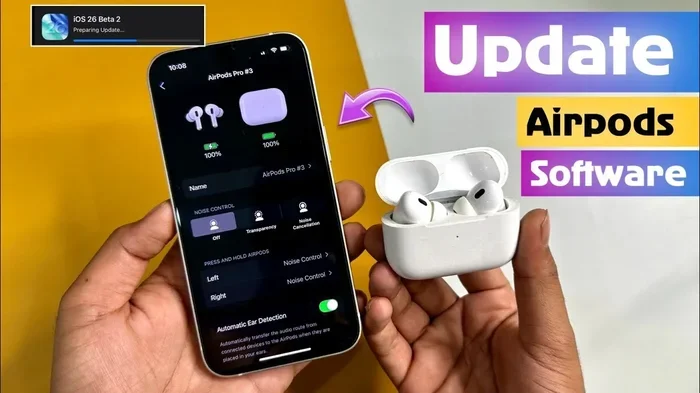
Featured image for AirPods Pro software update
Image source: i.ytimg.com
Yes, you can update AirPods Pro, and the process is usually automatic! Your AirPods Pro firmware updates wirelessly when connected to your iPhone, iPad, or Mac. Manual updates aren’t officially supported, but there are proven tips to force updates and troubleshoot common issues when your AirPods won’t update.
Imagine this: you’re listening to your favorite song, and suddenly your AirPods Pro start cutting out or sounding weird. What do you do? Many people rush to the Apple Store, but often the fix is much simpler. Sometimes, all your AirPods Pro need is a quick update.
Updating AirPods Pro is one of those things most people don’t think about—until something goes wrong. Think of it like getting an oil change for your car. You don’t see the benefits every day, but skip it, and problems pop up. AirPods Pro firmware updates fix bugs, improve how your music sounds, and even add cool new features you didn’t know existed.
In this guide, we’ll answer every question you have about updating your AirPods Pro. You’ll learn how updates work, how to check if you’re up to date, what to do when updates fail, and why these tiny updates matter so much. Let’s dive in!
Key Takeaways
- Automatic Updates: AirPods Pro firmware updates happen automatically when your AirPods are charging, in range, and connected to an Apple device with Wi-Fi.
- No Manual Button: Unlike iPhones, there’s no manual update button for AirPods Pro—you can’t tap a screen to force an update.
- Firmware is the Software: The “update” for AirPods Pro refers to firmware updates, not software updates like apps on your phone.
- Check Your Version: You can verify your current AirPods Pro firmware version in Settings > Bluetooth > AirPods Info on your iPhone or iPad.
- Troubleshooting Works: If updates aren’t installing, resetting your AirPods, checking your iOS version, and ensuring proper charging can help.
- Regular Updates Matter: Apple releases firmware updates to fix bugs, improve sound quality, add features like spatial audio, and enhance battery life.
- All Generations Update: AirPods Pro (1st generation), AirPods Pro (2nd generation), and AirPods Pro (3rd generation, if applicable) all receive firmware updates.
📑 Table of Contents
Understanding AirPods Pro Updates: The Basics
Let’s start with the most important question: what does it actually mean to “update” AirPods Pro? When people talk about updating AirPods, they’re talking about firmware updates. But what is firmware, and how is it different from the apps on your phone?
What Is Firmware, and Why Should You Care?
Firmware is like the brain of your AirPods Pro. It’s a special type of software that’s baked directly into the tiny chip inside each AirPod. While apps on your iPhone can be added, deleted, and updated anytime, firmware is permanent—until you update it.
Think of it this way: your iPhone’s operating system (iOS) is like a car’s dashboard. It controls everything you see and touch. Firmware, on the other hand, is like the engine control unit. It works behind the scenes to make everything function properly. You don’t interact with it directly, but without it, nothing works.
Did you know? Apple has been updating AirPods firmware since 2019, and there have been over 30 different firmware versions released across various AirPods models. Each one brings improvements you might not even notice—but you’d definitely notice if they were missing!
Who Needs to Update Their AirPods Pro?
If you own any generation of AirPods Pro, you should keep them updated. This includes:
- AirPods Pro (1st generation): Released in October 2019, these still receive updates.
- AirPods Pro (2nd generation): Released in September 2022, with USB-C and Lightning versions.
- AirPods Pro (3rd generation): If released in the future, these would also need updates.
Where do updates happen? Updates install on your AirPods themselves, not on your iPhone. Your iPhone, iPad, or Mac acts like a delivery truck—it brings the new firmware to your AirPods over Bluetooth.
When Does Apple Release Updates?
Apple doesn’t follow a strict schedule for AirPods Pro updates. Sometimes months pass between updates, and sometimes multiple updates drop within weeks. Major updates often coincide with new iOS releases, while smaller bug fixes can appear anytime.
Why does Apple update AirPods Pro? The reasons include:
- Bug fixes: Solving random glitches and connection problems.
- Sound quality improvements: Making music and calls sound better.
- New features: Adding capabilities like spatial audio, conversation awareness, or adaptive transparency.
- Battery optimization: Helping your AirPods last longer on a single charge.
- Security patches: Keeping your listening experience safe.
How to Update AirPods Pro: The Automatic Method
The great news is that AirPods Pro updates are designed to be completely automatic. You don’t need to click any buttons or download any files. But there’s a catch—the automatic update only works when certain conditions are met.
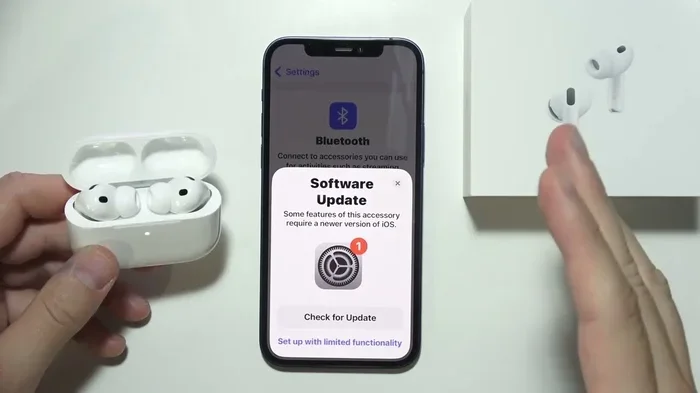
Visual guide about AirPods Pro software update
Image source: i.ytimg.com
The Simple Steps for Automatic Updates
Here’s the easiest way to ensure your AirPods Pro stay updated:
Step 1: Connect your iPhone to Wi-Fi. Your AirPods Pro can’t download updates using cellular data. They need a Wi-Fi connection through your iPhone or iPad.
Step 2: Place your AirPods Pro in their charging case. The case must have enough battery power (at least 20% is recommended, though not officially required).
Step 3: Close the lid of the charging case. This might sound strange, but the lid needs to be closed for the update to start.
Step 4: Keep the case near your iPhone or iPad. The devices need to be within Bluetooth range—usually about 30 feet or 10 meters.
Step 5: Wait. That’s it! The update will happen in the background. It might take a few minutes or even longer, but you don’t need to do anything else.
Think of it like charging your phone overnight. You plug it in, go to sleep, and wake up to a fully charged device. AirPods Pro updates work similarly—you set up the conditions and let them happen naturally.
Why Automatic Updates Are Convenient
Apple designed this system to be foolproof. Most people never think about updating their AirPods Pro, and that’s by design. The automatic process means even your tech-challenged relatives can have updated AirPods without doing a thing.
Did you know? Apple has never released a tool for manually updating AirPods Pro. The company believes the automatic system is the most reliable way to ensure everyone has the latest firmware. This approach reduces the risk of failed updates that could “brick” your AirPods (render them unusable).
How to Check Your AirPods Pro Firmware Version
Now that you know updates happen automatically, how do you know if they actually happened? Checking your current firmware version is easy and takes less than a minute.
Checking on iPhone or iPad
Follow these simple steps:
- Step 1: Make sure your AirPods Pro are connected to your device.
- Step 2: Open the Settings app on your iPhone or iPad.
- Step 3: Tap on Bluetooth.
- Step 4: Find your AirPods Pro in the list of devices and tap the small “i” (information) icon next to them.
- Step 5: Scroll down to find the “Firmware Version” section.
You’ll see a number like “6A300” or “6B34.” This is your current firmware version. To know if it’s the latest, you can check Apple’s support page or compare with what’s available online.
Where to Find the Latest Firmware Numbers
Apple doesn’t send notifications when new AirPods Pro firmware is released. To find out the latest version, you can:
- Visit Apple’s official support page for AirPods Pro firmware updates.
- Check reputable tech news websites like MacRumors, which maintain running lists of firmware versions.
- Ask in Apple Support communities or forums.
Here’s a tip: bookmark the Apple support page and check it every few weeks. It lists the latest firmware for every AirPods model, making it easy to see if you’re behind.
What to Do When AirPods Pro Won’t Update
Sometimes, automatic updates don’t work. Maybe you’ve waited days, and your firmware version hasn’t changed. Or perhaps you know a new update is out, but yours isn’t installing. Don’t panic! There are several proven ways to fix this.
Common Reasons Updates Fail
Before we jump into solutions, let’s understand why updates might fail:
- Low battery: If your AirPods case is below 20% or your iPhone is low on power, the update might not start.
- No Wi-Fi connection: Updates require Wi-Fi, not just cellular data.
- Bluetooth interference: Other devices or thick walls can disrupt the connection.
- Outdated iOS version: Sometimes, new AirPods firmware requires a recent version of iOS, iPadOS, or macOS.
- Distance issues: If your AirPods are too far from your iPhone, the update signal might be weak.
Did you know? Apple has a support document that mentions AirPods updates should happen “automatically” but doesn’t specify exactly how long the process takes. Some users report updates happening in minutes, while others wait days. Patience is part of the process!
Step-by-Step Troubleshooting Guide
If your AirPods Pro aren’t updating, work through these steps in order:
1. Charge Everything
Put your AirPods Pro in their case and charge them until the case is at least 50% full. Also, make sure your iPhone, iPad, or Mac is charged to at least 50%. Low battery is one of the most common reasons updates fail.
2. Update Your iPhone or iPad
Go to Settings > General > Software Update on your iPhone. If an iOS update is available, install it. Many AirPods Pro updates require the latest iOS version to work properly.
3. Reset Your AirPods Pro
This is the most effective troubleshooting step. Here’s how:
- Put your AirPods Pro in their charging case and close the lid. Wait 30 seconds.
- Open the lid but don’t remove the AirPods.
- On your iPhone, go to Settings > Bluetooth and tap the “i” icon next to your AirPods Pro.
- Scroll down and tap “Forget This Device,” then confirm.
- Press and hold the setup button on the back of the AirPods case for about 15 seconds, until the light flashes amber, then white.
- Reconnect your AirPods Pro by bringing them close to your iPhone with the lid open.
After resetting, place your AirPods back in the case, close the lid, and leave them near your iPhone overnight. Many users report that updates install during this time.
4. Try a Different Apple Device
If you have another iPhone, iPad, or Mac that’s signed into the same Apple ID, try connecting your AirPods to it. Sometimes, one device fails to deliver the update, while another succeeds.
5. Reset Network Settings
On your iPhone, go to Settings > General > Transfer or Reset iPhone > Reset > Reset Network Settings. This clears Wi-Fi passwords and Bluetooth connections, which can resolve hidden glitches.
6. Contact Apple Support
If nothing works, there might be a hardware issue. Contact Apple Support or visit an Apple Store for hands-on help.
Tips and Tricks for Smooth AirPods Pro Updates
Beyond basic troubleshooting, here are some insider tips to make sure your updates go smoothly every time.
Best Practices for Automatic Updates
- Keep your case charged: Try to keep your AirPods Pro case above 30% battery at all times. This ensures updates can happen anytime.
- Stay on Wi-Fi: When your iPhone is connected to Wi-Fi, make sure your AirPods are nearby and in their case.
- Update your iOS regularly: New iOS versions often prepare your iPhone to handle the latest AirPods firmware.
- Don’t open the case lid repeatedly: Each time you open the lid, the update process might pause. Let the lid stay closed until you think the update is done.
Think of it like letting bread dough rise. If you keep opening the oven to check on it, the bread won’t rise properly. AirPods Pro updates need uninterrupted time to install correctly.
The “Overnight Trick” That Often Works
Many users swear by this method: place your AirPods Pro in their case with the lid closed, put the case near your iPhone (or right on top of it), connect your iPhone to power and Wi-Fi, and let everything sit overnight. In the morning, check your firmware version. This trick works because it gives the update many uninterrupted hours to complete.
When to Be Patient
Sometimes, Apple rolls out updates gradually. Not every AirPods Pro receives the update on the same day. If your friend got the update but you didn’t, wait a few days. Apple does this to prevent server overload and to catch any last-minute issues.
The Future of AirPods Pro Updates
AirPods Pro updates will continue to evolve. Looking at Apple’s track record and recent trends, we can make some educated guesses about what’s coming.
What the Future Might Hold
Apple has filed patents and made announcements suggesting future AirPods updates could include:
- Health monitoring features: Heart rate tracking, body temperature, and even posture detection.
- Better noise cancellation: AI-powered adjustments based on your environment.
- Improved spatial audio: More realistic 3D sound for movies and music.
- Live translation features: Real-time language translation through your AirPods.
- Camera integration: Using AirPods as a remote shutter or for visual commands.
Each of these features would require firmware updates. This means keeping your AirPods updated is more crucial than ever—you don’t want to miss out on features you didn’t even know you wanted!
Why Updates Are Here to Stay
Unlike traditional headphones that never change after you buy them, AirPods Pro are smart devices. They’re essentially tiny computers for your ears. Just like your iPhone needs iOS updates, your AirPods need firmware updates to stay current, secure, and feature-rich.
Did you know? Apple has stated that AirPods Pro are designed to last about 2-3 years before the battery significantly degrades. But with regular updates, you might enjoy them even longer, as new software can optimize battery performance.
Conclusion: Stay Updated, Stay Happy
So, can you update AirPods Pro? Absolutely! And now you know that the process is designed to be as easy as possible. Apple handles everything automatically, requiring nothing more than a charged case, a Wi-Fi connection, and a nearby Apple device.
If your AirPods Pro aren’t updating, remember the troubleshooting steps: charge everything, update your iOS, reset your AirPods, and try the overnight trick. In almost every case, one of these solutions will work.
Keeping your AirPods Pro updated ensures you get the best sound quality, longest battery life, and access to the latest features Apple has to offer. It also helps fix annoying bugs before they become major problems. Think of firmware updates as free upgrades for your ears!
Make it a habit to check your firmware version every few months. Set a reminder on your phone if you need to. Your AirPods Pro will thank you with better sound, smoother performance, and maybe even a new feature you didn’t know was coming.
Now that you know everything about updating AirPods Pro, go check your firmware version! You might be surprised by what you find—and how easy it is to stay up to date.
Frequently Asked Questions
Can I manually update AirPods Pro firmware?
No, Apple does not provide a manual update option for AirPods Pro. Updates happen automatically when your AirPods are in their case, connected to Wi-Fi via an Apple device, and within Bluetooth range. You can encourage updates by ensuring your case is charged, your iOS is up to date, and the case lid stays closed.
How long does it take to update AirPods Pro?
AirPods Pro updates typically take anywhere from a few minutes to a few hours. Some users report updates completing overnight, while others see changes within 30 minutes. If your update hasn’t installed after 24 hours, try resetting your AirPods and placing them near your iPhone overnight.
Why are my AirPods Pro not updating?
Common reasons include low battery on your AirPods case or iPhone, no Wi-Fi connection, outdated iOS version, or Bluetooth interference. To fix this, charge everything to at least 50%, update your iPhone’s iOS, reset your AirPods Pro, and leave the case near your iPhone overnight.
Do AirPods Pro updates improve sound quality?
Yes, many AirPods Pro firmware updates include sound quality improvements, bug fixes for audio glitches, and enhanced noise cancellation. Apple has released updates that specifically improve bass response, vocal clarity, and the effectiveness of transparency mode. Keeping your AirPods updated ensures you get the best possible audio experience.
What’s the latest AirPods Pro firmware version?
The latest firmware version changes over time as Apple releases new updates. You can check your current version in Settings > Bluetooth > tap the “i” icon next to your AirPods Pro. To find the latest available version, visit Apple’s official AirPods support page or trusted tech news websites like MacRumors.
Will updating AirPods Pro delete my settings?
No, firmware updates do not delete your personalized settings. Your noise control preferences, spatial audio settings, and ear tip fit test results remain intact after updates. However, if you “Forget This Device” during troubleshooting, you may need to reconfigure some settings after reconnecting your AirPods Pro.