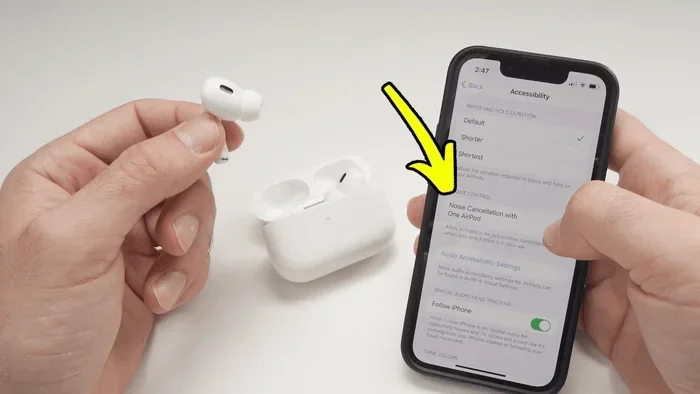
Featured image for AirPods noise cancelling feature
Image source: gsmchina.com
Yes, you can absolutely turn on noise cancelling on AirPods—but only on models that support it, including AirPods Pro, AirPods Max, and AirPods 4. The feature uses built-in microphones to detect ambient sound and counter it with anti-noise frequencies. You can activate it directly from your device, through the AirPods case, or via Siri voice commands.
Picture this: you’re sitting on a noisy airplane, the engine humming loudly in your ears. You pop in your AirPods, press a tiny button on the stem, and suddenly—silence. Well, almost silence. The world gets quieter, and your music becomes clearer. That’s the magic of noise cancelling, and it’s one of the coolest features Apple has ever built into earbuds.
If you’ve ever wondered whether you can turn on noise cancelling on AirPods, you’re in the right place. The short answer is yes—but there’s a catch. Not every AirPods model has this feature. And the way you activate it depends on which model you own, what device you’re using, and even which version of software you’ve installed.
In this guide, we’ll walk through everything you need to know. We’ll explain what noise cancelling actually does, which AirPods support it, and how to switch it on using three different methods. We’ll also cover troubleshooting tips, battery impact, and some advanced features you might not know about. By the end, you’ll be a noise-cancelling pro.
Key Takeaways
- Model Compatibility: Noise cancelling is available on AirPods Pro (1st, 2nd gen), AirPods Max, and AirPods 4 (ANC version only).
- Three Control Methods: You can turn on ANC through your iPhone/iPad settings, the AirPods stem press, or by asking Siri.
- Two ANC Modes: Most models offer Active Noise Cancellation and Transparency Mode, letting you switch between isolation and awareness.
- Battery Impact: Using noise cancelling consumes more battery—expect roughly 20-30% faster drain compared to standard listening.
- Adaptive Audio Feature: AirPods Pro 2nd gen and AirPods 4 introduce smart blending that automatically adjusts ANC based on your environment.
- Android Compatibility: ANC works on Android, but you lose some iOS-exclusive customization features like Adaptive Audio.
- Troubleshooting Common Issues: Firmware updates, proper fit, and clean microphones are essential for ANC to function properly.
📑 Table of Contents
- What Is Noise Cancelling and How Does It Work on AirPods?
- Which AirPods Models Support Noise Cancelling?
- How to Turn On Noise Cancelling on AirPods: Step-by-Step Methods
- Understanding Adaptive Audio and Advanced Features
- Battery Life: What to Expect When Using Noise Cancelling
- Troubleshooting: When Noise Cancelling Isn’t Working
- Using Noise Cancelling on Non-Apple Devices
- Noise Cancelling for Specific Situations
- The Future of Noise Cancelling on AirPods
- Final Thoughts: Making the Most of Your AirPods Noise Cancelling
What Is Noise Cancelling and How Does It Work on AirPods?
Let’s start with the basics. Noise cancelling on AirPods isn’t just about cranking up the volume to drown out the world. It’s much smarter than that. Apple uses a technology called Active Noise Cancellation (ANC), and it works in a way that almost feels like science fiction.
The Science Behind Active Noise Cancellation
Imagine you’re standing near a speaker that’s blasting a sound wave. Now imagine another speaker next to it plays the exact opposite sound wave at the same time. The two waves collide and cancel each other out. That’s the basic principle behind ANC.
Your AirPods have tiny microphones—both on the outside and inside of each earbud. These mics listen to the sounds around you. Then, in real time, the AirPods generate an “anti-noise” signal that’s the mirror image of the ambient sound. When this anti-noise meets the original noise, they essentially cancel each other out before the sound even reaches your eardrums.
Did You Know? The concept of active noise cancellation was first developed in the 1930s for pilots and industrial workers. It wasn’t until decades later that companies like Bose and Sony brought it to consumer headphones—and Apple joined the race with AirPods Pro in 2019.
Passive vs. Active Noise Cancellation
You might have heard the term “passive noise cancellation” too. This is different. Passive noise cancellation simply means that the physical design of the earbuds—like the silicone tips on AirPods Pro—blocks some sound from entering your ear. It’s like putting your hands over your ears. Effective, but limited.
Active noise cancellation goes much further. It can reduce low-frequency sounds like airplane engines, train rumble, and air conditioning hum by as much as 30-40 decibels. That’s a huge difference in real-world listening.
What About Transparency Mode?
Apple pairs ANC with another feature called Transparency Mode. Think of it as the opposite of noise cancelling. Instead of blocking sound, Transparency Mode uses the microphones to let outside sounds in. It’s perfect for crossing a busy street, hearing announcements at an airport, or having a quick conversation without removing your AirPods.
Which AirPods Models Support Noise Cancelling?
This is the most important question because if you have the wrong model, you simply can’t use the feature—no matter what you try. Apple has expanded ANC across its lineup over the years, but it’s still not available on every AirPods model.
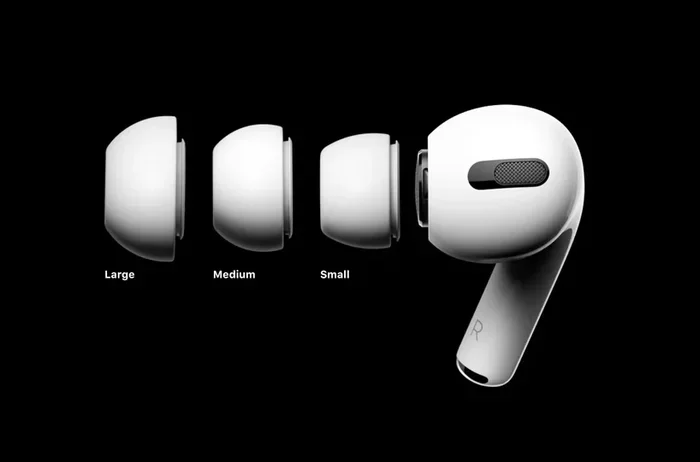
Visual guide about AirPods noise cancelling feature
Image source: static.designboom.com
AirPods Pro (1st Generation)
Released in October 2019, the original AirPods Pro were the first AirPods to feature active noise cancellation. They introduced the now-iconic silicone tip design, which helps with passive noise blocking. The ANC performance was impressive for the time, and Apple has continued to improve it through firmware updates.
AirPods Pro (2nd Generation)
The second-generation AirPods Pro launched in September 2022 and brought significant ANC improvements. Apple claims they offer up to 2x more noise cancellation than the first generation. They also introduced Adaptive Audio, Conversation Awareness, and Personalized Volume—features we’ll explore later in this guide.
AirPods Max
Released in December 2020, AirPods Max are Apple’s over-ear headphones. They feature the most powerful noise cancellation in the AirPods lineup, thanks to their larger size and more sophisticated hardware. With multiple microphones and Apple’s H1 chip in each ear cup, AirPods Max deliver premium ANC that rivals dedicated noise-cancelling headphones from Bose and Sony.
AirPods 4 (Active Noise Cancellation Version)
In September 2024, Apple introduced the AirPods 4 in two versions. The higher-tier model includes active noise cancellation—making it the first non-Pro, non-Max AirPods to offer this feature. It uses an open-ear design without silicone tips, which is impressive from an engineering standpoint, though the ANC isn’t quite as strong as the Pro models.
Models That Do NOT Support Noise Cancelling
If you have any of the following models, you won’t be able to turn on noise cancelling:
- AirPods (1st generation) – released 2016
- AirPods (2nd generation) – released 2019
- AirPods (3rd generation) – released 2021
- AirPods 4 (base model without ANC) – released 2024
These models only offer passive noise isolation through their fit. They don’t have the necessary microphones and processing hardware for ANC.
How to Turn On Noise Cancelling on AirPods: Step-by-Step Methods
Now for the main event. There are three primary ways to activate noise cancelling on your AirPods. We’ll walk through each method in detail.
Method 1: Using the Force Sensor on the AirPods Stem
This is the fastest and most common method. It works directly on your AirPods without needing to touch your phone.
For AirPods Pro (1st and 2nd gen) and AirPods 4 (ANC version):
- Make sure your AirPods are in your ears and connected to your device.
- Locate the force sensor on the stem of either AirPod. It’s the flat, indented area near the bottom.
- Press and hold the force sensor for about one second.
- You’ll hear a chime indicating you’ve switched modes. The noise cancelling should activate.
Each long press cycles through three modes: Noise Cancellation, Transparency, and (on supported models) Adaptive Audio. Keep pressing until you reach the mode you want.
For AirPods Max:
- Press the noise control button on the right ear cup. It’s the small button near the top.
- You’ll hear a tone confirming the mode change.
- Press again to cycle between Noise Cancellation and Transparency Mode.
Method 2: Through Your iPhone or iPad Settings
If you prefer adjusting settings through your device, this method works great. It also gives you more customization options.
Step-by-step instructions:
- Open the Settings app on your iPhone or iPad.
- Make sure your AirPods are connected and in your ears.
- Tap on the name of your AirPods (it appears near the top of the Settings menu, right below your Apple ID).
- Scroll down to the “Noise Control” or “Audio” section.
- You’ll see options for Noise Cancellation, Transparency, and Adaptive Audio (if supported).
- Tap your preferred mode.
Pro tip: You can also access these controls through the Control Center. Swipe down from the top-right corner of your screen (or up from the bottom on older iPhones), then long-press the volume slider. Your AirPods controls will appear at the bottom.
Method 3: Using Siri Voice Commands
If your hands are busy or you just love talking to Siri, you can use voice commands.
Try saying any of these phrases:
- “Hey Siri, turn on noise cancellation”
- “Hey Siri, turn on Transparency mode”
- “Hey Siri, turn off noise cancelling”
- “Hey Siri, switch to Adaptive Audio”
This method requires “Hey Siri” to be enabled on your device. You can turn this on in Settings > Siri & Search > Listen for “Hey Siri”.
Bonus Method: Customizing the Press and Hold Action
Did you know you can change what the press-and-hold gesture does? By default, it switches between noise control modes. But you can customize it for each AirPod individually.
How to customize:
- Go to Settings on your iPhone.
- Tap on your connected AirPods.
- Scroll to “Press and Hold” section.
- Choose between “Noise Control” (default), “Siri,” or “Off” for each AirPod.
Some users prefer to set one AirPod to control noise modes and the other to summon Siri. It saves time once you get used to it.
Understanding Adaptive Audio and Advanced Features
If you have AirPods Pro 2nd generation or AirPods 4 (ANC version), you have access to some cutting-edge features that go beyond basic noise cancelling.
What Is Adaptive Audio?
Think of Adaptive Audio as “smart noise cancelling.” Instead of choosing between full noise cancellation or full transparency, Adaptive Audio dynamically blends the two based on your surroundings. Walking into a noisy café? It ramps up the ANC. Sitting in a quiet room? It lets more ambient sound through so you don’t feel isolated.
Did You Know? According to Apple, Adaptive Audio uses machine learning algorithms that process over 48,000 times per second. That’s faster than the blink of an eye.
Conversation Awareness
This feature detects when you start speaking and automatically lowers your music volume while boosting transparency. It’s like having a polite conversation assistant in your ears. The moment you stop talking for a few seconds, your audio returns to normal.
Personalized Volume
Your AirPods can learn your listening preferences over time and automatically adjust volume based on your environment and usage patterns. It’s subtle, but over weeks of use, you’ll notice your AirPods seem to “just know” what you want to hear.
How to Enable These Features
- Open Settings on your iPhone.
- Tap your AirPods.
- Look for “Audio” or “Noise Control” section.
- Toggle on Adaptive Audio, Conversation Awareness, or Personalized Volume.
Battery Life: What to Expect When Using Noise Cancelling
Here’s something many users don’t realize: active noise cancellation is a power-hungry feature. Every time you turn it on, you’re asking the microphones, processors, and speakers to work harder.
Battery Drain Comparisons
AirPods Pro (2nd gen) battery estimates:
- Listening time with ANC on: Up to 6 hours
- Listening time with ANC off: Up to 7 hours
- Talk time with ANC on: Up to 4.5 hours
AirPods Max battery estimates:
- With ANC on: Up to 20 hours
- With ANC off: N/A (ANC is always on when using the headphones)
On average, expect ANC to reduce your listening time by about 20-30%. It’s not dramatic, but noticeable on long flights or workdays.
Tips to Extend Battery Life
- Turn off ANC when you don’t need it, like in quiet environments.
- Use one AirPod at a time if you’re taking calls.
- Keep your charging case topped up.
- Disable features like Conversation Awareness if you don’t need them.
- Avoid extreme temperatures, which can drain battery faster.
Charging Speeds
A quick 5-minute charge in the case gives you about 1 hour of listening time with ANC on. So even if you’re running low, a short pit stop can save your day.
Troubleshooting: When Noise Cancelling Isn’t Working
Sometimes you press the button, and nothing happens. Or the feature turns on, but doesn’t seem to block sound effectively. Let’s troubleshoot.
Issue 1: The Noise Control Option Doesn’t Appear
If you can’t find noise cancelling settings, you likely have a model that doesn’t support it. Double-check your AirPods model under Settings > [Your AirPods] > About.
Issue 2: Press and Hold Does Nothing
This usually means the gesture has been customized to do something else, like summon Siri. Go to Settings > [Your AirPods] and adjust the “Press and Hold” settings.
Issue 3: Noise Cancelling Sounds Weak
Several factors can reduce ANC effectiveness:
- Poor fit: AirPods Pro need a tight seal. Try different ear tip sizes.
- Dirty microphones: Clean the outer mesh with a soft, dry cloth.
- Outdated firmware: Update your AirPods by placing them in the case, connecting to power, and keeping them near your iPhone.
- Hairy situations: If you have long hair covering the microphones, ANC performance can suffer.
Issue 4: Battery Drains Too Fast
Make sure your AirPods firmware is up to date. Apple has released updates that improve battery efficiency. Also, check that you’re not running too many background features simultaneously.
Issue 5: Crackling or Popping Sounds
This is almost always a firmware issue. Reset your AirPods by holding the setup button on the case until the light flashes amber, then white. Reconnect them to your device.
The Ear Tip Fit Test (AirPods Pro Only)
Apple includes a built-in tool to check if your ear tips are sealing properly. Go to Settings > [Your AirPods] > Ear Tip Fit Test. This plays a quick audio sample and tells you if your current tips are providing a good seal. A poor seal dramatically reduces ANC effectiveness.
Using Noise Cancelling on Non-Apple Devices
Here’s a common question: does noise cancelling work on Android, Windows, or other non-Apple devices?
Android Compatibility
Yes, ANC works on Android phones and tablets via standard Bluetooth. However, you lose access to certain features:
- Adaptive Audio (iOS 17+ exclusive)
- Personalized Volume
- Spatial Audio with dynamic head tracking
- Easy switching between Apple devices
You can still control noise cancelling modes through the force sensor on the stem. Some Android apps may also let you adjust settings.
Windows and PC Compatibility
AirPods Pro and AirPods Max work with Windows PCs over Bluetooth. ANC will function, but you won’t have access to the iOS-style controls. You’ll need to press the stem or button to switch modes.
Best Practices for Non-Apple Users
- Pair your AirPods as you would any Bluetooth device.
- Download the “AirPods Controller” or similar third-party apps for limited customization on Android.
- Use the physical button on the AirPods to switch modes since software controls may not be available.
Noise Cancelling for Specific Situations
Different environments call for different settings. Here’s a quick guide to when to use each mode.
On an Airplane
Use full Noise Cancellation. The low humming of engines is exactly what ANC is designed to combat. You can also enable Conversation Awareness if flight attendants talk to you.
In an Office
Transparency Mode or Adaptive Audio is usually best. You want to hear if someone calls your name or if there’s an important announcement. Full ANC can make you feel isolated.
While Exercising
Transparency Mode is safer for outdoor activities like running or cycling. You need to hear traffic and other hazards. Indoors, you can use ANC if you want to focus.
For Studying or Focus
Full Noise Cancellation is ideal. It blocks distracting chatter and helps you concentrate. Pair it with calm instrumental music for maximum effect.
On Public Transit
Adaptive Audio is perfect here. It adjusts automatically as you move from quiet platforms to noisy train cars.
For Sleeping
Some users sleep with AirPods Pro. ANC can help block snoring partners or noisy neighbors. Just make sure the battery lasts through the night—consider charging before bed.
The Future of Noise Cancelling on AirPods
Apple continues to invest heavily in audio technology. Looking ahead, we can expect even smarter noise cancellation in future models.
Health Monitoring Possibilities
The microphones in AirPods could eventually monitor heart rate, body temperature, or even detect hearing loss. Apple has filed patents suggesting these features are in development.
Improved Machine Learning
Future AirPods may learn your routine and automatically adjust ANC based on your location, time of day, and activity. Imagine your AirPods knowing you’re at the gym before you do.
Better Battery Efficiency
New chip designs will likely make ANC more power-efficient. Apple’s H2 processor in AirPods Pro 2nd gen already shows what’s possible—expect more in future iterations.
Enhanced Spatial Audio
While not directly related to ANC, spatial audio and noise cancellation work together to create immersive soundscapes. Future updates may blur the line between these technologies.
Final Thoughts: Making the Most of Your AirPods Noise Cancelling
Turning on noise cancelling on AirPods is simple once you know how. Whether you’re using the stem press, your phone’s settings, or Siri, the feature is just a tap or voice command away.
Remember that noise cancelling works best on supported models—AirPods Pro, AirPods Max, and AirPods 4 (ANC version). Make sure your AirPods fit properly, your firmware is updated, and your microphones are clean. These small details make a huge difference in performance.
Don’t forget to experiment with different modes. Transparency Mode and Adaptive Audio are equally valuable, depending on your situation. The goal isn’t always to block the world—sometimes you want to stay connected to it.
With proper use, your AirPods can transform any noisy environment into your personal oasis of sound. Whether you’re commuting, working, traveling, or just relaxing, noise cancelling puts you in control of what you hear. Enjoy the silence—and the music.
Frequently Asked Questions
Can I turn on noise cancelling on AirPods without an iPhone?
Yes, you can turn on noise cancelling on AirPods without an iPhone by pressing and holding the force sensor on the stem (on AirPods Pro and AirPods 4) or the noise control button on AirPods Max. This works with any Bluetooth device, including Android phones and Windows PCs.
How do I know if my AirPods have noise cancelling?
Check your AirPods model by going to Settings > [Your AirPods] on your iPhone, or look at the original packaging. Models with noise cancelling include AirPods Pro (1st and 2nd generation), AirPods Max, and the higher-tier AirPods 4 with ANC.
Does noise cancelling drain AirPods battery faster?
Yes, active noise cancelling uses more battery than standard listening. Expect about 20-30% faster battery drain when ANC is on. AirPods Pro 2nd gen, for example, last up to 7 hours without ANC but about 6 hours with it enabled.
Can I use noise cancelling on just one AirPod?
Yes, you can use noise cancelling on a single AirPod. Just put one earbud in your ear and activate ANC as usual. However, performance may be slightly reduced since both earbuds typically work together for optimal noise cancellation.
Is noise cancelling safe for my ears?
Active noise cancelling is generally safe for your ears. In fact, it can protect your hearing by allowing you to listen at lower volumes in noisy environments. ANC doesn’t produce harmful frequencies—it’s essentially the opposite of loud sound.
Why does my noise cancelling sound weird or crackly?
Crackling or popping sounds usually indicate outdated firmware, a poor ear tip seal, or dirty microphones. Try updating your AirPods firmware, running the Ear Tip Fit Test, and gently cleaning the microphone mesh with a dry cloth.