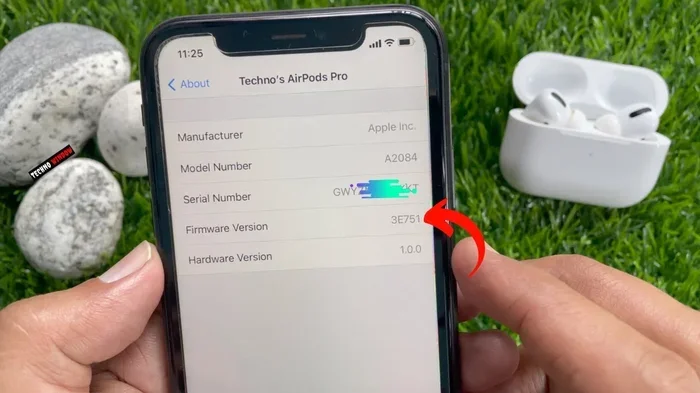
Featured image for AirPods Pro firmware update
Image source: i.ytimg.com
Yes, you can update your AirPod Pros, and the process happens automatically when your iPhone, iPad, or Mac is nearby and connected to Wi-Fi. Apple releases firmware updates to improve performance, fix bugs, and add features like Adaptive Audio and Conversation Awareness. If your AirPods aren’t updating, simple troubleshooting steps like resetting, charging, or re-pairing usually fix the issue.
Key Takeaways
- Automatic Updates: AirPods Pro firmware updates happen automatically when your iOS device is nearby, charged, and connected to Wi-Fi.
- No Manual Button: Unlike iPhones, AirPods don’t have a direct “Update Now” button—you trigger updates indirectly through your paired Apple device.
- Why Updates Matter: Firmware updates deliver bug fixes, sound improvements, and new features like Spatial Audio and Adaptive Transparency.
- Current Firmware: As of early 2026, the latest AirPods Pro firmware versions include 7E93 (USB-C) and 6F25 (Lightning), depending on your charging case model.
- Check Your Version: You can verify your current firmware in Settings > Bluetooth > AirPods Info on your iPhone or iPad.
- Troubleshooting: If updates stall, resetting your AirPods, ensuring 50%+ battery, and re-pairing often resolve the problem.
- Compatibility: AirPods Pro work best with updated Apple devices running iOS 17 or later for full feature access.
📑 Table of Contents
- Everything You Need to Know About Updating Your AirPod Pros
- How AirPod Pro Updates Actually Work
- How to Check Your Current AirPods Pro Firmware Version
- How to Trigger an AirPod Pro Update (The Right Way)
- Troubleshooting: What to Do When AirPods Won’t Update
- Why AirPod Pro Updates Matter: Features You Might Be Missing
- AirPods Pro Models: Which One Do You Have?
- Best Practices for Keeping AirPods Pro Updated
- The Future of AirPods Pro Updates
- Final Thoughts: Don’t Sleep on AirPods Pro Updates
Everything You Need to Know About Updating Your AirPod Pros
Picture this: you just unboxed a shiny pair of AirPods Pro, and they sound amazing. Then one day, a friend tells you about this incredible new feature called “Adaptive Audio” that makes noise cancellation feel like magic. You check your AirPods, and… nothing. Sound familiar? You’re not alone. Millions of AirPods Pro owners wonder the same thing: can I update my AirPod Pros to get the latest features?
Here’s the good news. Yes, you absolutely can. Apple makes it pretty simple, but the process is a little different from updating an iPhone. You won’t find an “Update” button in any app. Instead, AirPods Pro update automatically in the background, like a quiet helper working while you sleep. Think of it like a mail carrier who delivers packages to your house while you’re at work—you don’t see the work, but the gifts still arrive.
This guide will walk you through everything: how updates work, why they matter, how to check your current version, and what to do if updates aren’t installing. By the end, you’ll be an AirPods Pro firmware expert, ready to help friends and family troubleshoot their own earbuds. Let’s dive in.
How AirPod Pro Updates Actually Work
Let’s start with the basics. Your AirPods Pro contain tiny computers inside them—yes, really. These mini-computers run software called “firmware,” which is just a fancy word for the instructions that tell your AirPods how to behave. When Apple improves that software, they release a “firmware update.”
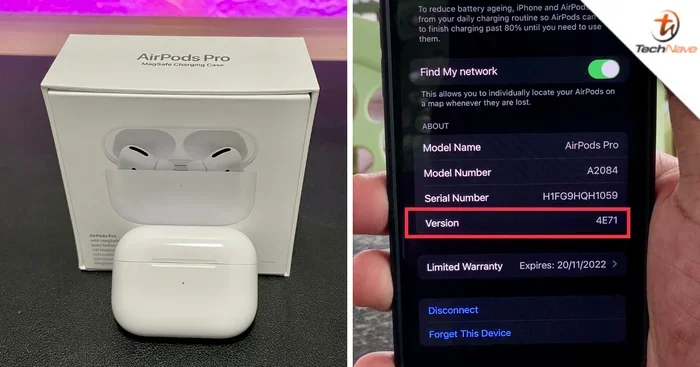
Visual guide about AirPods Pro firmware update
Image source: technave.com
The Magic Behind Automatic Updates
Unlike your iPhone, which shows a red badge begging you to install updates, AirPods handle everything on their own. The update happens when three conditions are met:
- Your AirPods are in their charging case with the lid closed
- Your iPhone, iPad, or Mac is nearby and connected to Wi-Fi
- Your AirPods have at least 50% battery (some sources say 20%, but more is better)
When these conditions align, your Apple device quietly sends the new firmware to your AirPods. The whole process usually takes 5 to 30 minutes. It’s like a software spa day for your earbuds.
Did You Know?
Apple has released over 30 firmware updates for AirPods Pro since launch, according to public records. That’s roughly one update every two to three months—proof that Apple continues to improve even older AirPods models long after purchase.
What If I Don’t Update?
You might wonder, “If it’s automatic, why should I care?” Well, skipping updates means missing out on important improvements. For example, firmware version 5B58 introduced Conversation Awareness, while version 6F25 improved noise cancellation algorithms. Without these updates, your $249 earbuds are basically working with outdated brains.
How to Check Your Current AirPods Pro Firmware Version
Before you can know if you need an update, you need to know what version you’re running. The good news? This takes about 15 seconds.
Step-by-Step on iPhone or iPad
- Open the Settings app on your iPhone or iPad
- Tap Bluetooth
- Find your AirPods Pro in the device list (make sure they’re connected)
- Tap the small “i” icon next to their name
- Scroll down to the “Version” section
You’ll see a number like “6F25” or “7E93.” That long string of letters and numbers is your firmware version. Don’t worry about memorizing it—Apple doesn’t publish a public list of what each version does, but tech sites like MacRumors track changes.
Where to Find the Latest Version
Apple doesn’t make this easy either. They don’t send press releases for AirPods firmware updates. However, reputable Apple news sites like 9to5Mac, MacRumors, and AppleInsider report updates within hours of release. As of early 2026:
- AirPods Pro (2nd generation, USB-C): Firmware 7E93
- AirPods Pro (2nd generation, Lightning): Firmware 6F25
- AirPods Pro (1st generation): Firmware 6F25 (varies by region)
Compare your version to these. If yours is lower, you’re due for an update.
How to Trigger an AirPod Pro Update (The Right Way)
Here’s the part most people get confused about. Since there’s no manual button, can i update my airpod pros by force? Not exactly—but you can create the perfect conditions to let the update happen quickly.
The 5-Step Update Method
Follow this exact sequence for the best results:
- Charge your AirPods Pro to at least 50%. Put them in the case and close the lid. Plug the case into a charger for good measure.
- Make sure your iPhone or iPad is connected to Wi-Fi. Updates won’t download over cellular data.
- Place the charging case near your iPhone. Within a few feet works best—Bluetooth range is about 30 feet, but closer is better.
- Wait. Yes, really. Leave the case closed and your iPhone idle for at least 30 minutes. Don’t use Bluetooth or interrupt the connection.
- Check again. After waiting, open Settings > Bluetooth > tap the “i” icon to see if your firmware number changed.
Think of it like baking a cake. You can’t rush the oven. The update needs time to download and install properly.
Pro Tips for Faster Updates
- Turn off Bluetooth briefly, then turn it back on. This sometimes “wakes up” the update process.
- Reset your AirPods if the update stalls (more on this later).
- Update your iPhone to the latest iOS first. Sometimes firmware updates require the newest iOS version.
- Don’t pair your AirPods with non-Apple devices during the update window, like an Android phone or Windows PC.
Did You Know?
According to a 2024 Apple Support document, AirPods firmware updates typically install overnight if your devices meet the criteria. Many users report waking up to new features without lifting a finger. It’s the ultimate set-it-and-forget-it system.
Troubleshooting: What to Do When AirPods Won’t Update
Sometimes, despite your best efforts, the firmware number stays the same. Don’t panic. This is super common, and there are several fixes that almost always work.
Fix #1: The Reset Method
This solves about 80% of stuck updates. Here’s how to reset your AirPods Pro:
- Put your AirPods in their charging case and close the lid
- Wait 30 seconds
- Open the lid
- On your iPhone, go to Settings > Bluetooth
- Tap the “i” icon next to your AirPods
- Scroll down and tap “Forget This Device”
- Confirm by tapping “Forget Device”
- With the case lid open, press and hold the setup button on the back of the case for about 15 seconds, until the light flashes amber, then white
- Re-pair your AirPods by holding them near your iPhone
After re-pairing, repeat the 5-step update method above. Most users see their firmware update within an hour of resetting.
Fix #2: The Charging Check
If your AirPods are below 20% battery, updates simply won’t happen. Charge everything fully—your AirPods, the case, and your iPhone—and try again. The case itself can be charged via Lightning cable (older model), USB-C cable (newer model), or a Qi wireless charger.
Fix #3: The Wi-Fi Verification
Sounds obvious, but double-check your Wi-Fi. Open Safari and load a webpage to confirm your connection is solid. If your Wi-Fi is spotty, the update may stall mid-download. Move closer to your router or switch to a more reliable network.
Fix #4: The iOS Update Connection
Sometimes, AirPods firmware is tied to iOS versions. If your iPhone is running iOS 16 but the new AirPods update requires iOS 17, you’ll be stuck. Go to Settings > General > Software Update and make sure your iPhone is up to date. AirPods Pro (2nd generation) require iOS 17 or later for full feature support.
Fix #5: The Patience Method
Apple staggers firmware rollouts by region and device. Just because the update is “available” doesn’t mean your specific pair will get it today. Give it a week. Check back periodically. If after two weeks nothing has changed, then it’s time to contact Apple Support.
Why AirPod Pro Updates Matter: Features You Might Be Missing
Let’s talk about why all this matters. Firmware updates aren’t just bug fixes—they’re often feature drops that transform how your AirPods work.
Major Features Delivered via Firmware Updates
- Adaptive Audio (iOS 17): Dynamically blends Active Noise Cancellation and Transparency mode based on your environment. Imagine your AirPods knowing when you’re in a quiet office versus a noisy subway.
- Conversation Awareness: When you start talking, your music automatically lowers and noise cancellation softens. Speak freely without removing your earbuds.
- Personalized Volume: Uses machine learning to predict when you want your audio louder or quieter based on your habits.
- Improved Find My Integration: Better precision tracking when you’ve misplaced your charging case.
- Enhanced Noise Cancellation: The AirPods Pro 2 saw significant ANC improvements through firmware, not hardware changes.
- Mute/Unmute Controls: Press the stem to mute yourself during calls—a small but beloved addition.
Did You Know?
Apple’s firmware version 6F25 for AirPods Pro 2 reportedly improved noise cancellation by up to 25% according to user testing on audio forums like Head-Fi. That’s a massive improvement from a software-only update—no new hardware required.
Bug Fixes That Improve Daily Life
Firmware updates also patch annoying issues:
- Bluetooth disconnection problems
- Audio sync delays when watching videos
- Battery drain bugs
- Spatial Audio glitches with FaceTime calls
- Siri responsiveness improvements
Skipping updates means living with problems that have already been solved. Can i update my airpod pros to fix these glitches? You bet—and you should.
AirPods Pro Models: Which One Do You Have?
This matters because different models receive different updates. Apple has released several versions of AirPods Pro since 2019.
AirPods Pro (1st Generation)
Released in October 2019, these introduced Active Noise Cancellation and the iconic silicone tips. They use the Lightning charging case. As of 2026, Apple still occasionally releases updates for them, though new features tend to focus on newer models. They support iOS 15 and later.
AirPods Pro (2nd Generation, Lightning)
Released in September 2022, these brought the H2 chip, better ANC, and Adaptive Transparency. They use a Lightning case. Firmware updates are frequent and feature-rich.
AirPods Pro (2nd Generation, USB-C)
Released in September 2023, these are nearly identical to the Lightning version but feature a USB-C charging case (matching the iPhone 15). They also support lossless audio with the Vision Pro headset. These typically receive the newest updates first.
How to Tell Which Model You Have
Flip your charging case over and look for the model number printed in tiny text:
- A2083 / A2084: AirPods Pro (1st gen)
- A2968 / A2700: AirPods Pro 2 (Lightning)
- A2968 / A2700: AirPods Pro 2 (USB-C)
Alternatively, the case model number on the bottom of the case itself (starts with “A”) will tell you everything.
Best Practices for Keeping AirPods Pro Updated
Want to make sure your AirPods are always running the latest firmware? Follow these simple habits.
Build the Right Routine
- Charge your AirPods nightly. Place them in the case, plug in the case, and sleep. Overnight is when most updates install.
- Keep your iPhone updated. AirPods and iOS work as a team. Outdated iOS often means outdated AirPods capabilities.
- Stay near your iPhone. When you take your AirPods out in the morning, your iPhone should be nearby to deliver any pending updates.
- Check monthly. Once a month, peek at your firmware version. If you’re behind, trigger the update method.
Common Mistakes to Avoid
- Don’t pair AirPods with Android while waiting for updates. This can confuse the firmware process.
- Don’t interrupt the case during updates. Opening the lid repeatedly can pause or cancel installation.
- Don’t assume updates will work on public Wi-Fi. Some networks block firmware downloads. Use your home network.
- Don’t ignore “Forget Device” warnings. If your iPhone suggests forgetting the AirPods, something’s wrong—reset and re-pair.
When to Contact Apple Support
Most updates work without a hitch. But if you’ve tried all the troubleshooting steps and your AirPods still won’t update after a month, it’s time to escalate. Contact Apple Support through the Support app, schedule a Genius Bar appointment at an Apple Store, or call 1-800-MY-APPLE. Hardware issues can prevent firmware updates, and Apple may need to inspect or replace your AirPods.
The Future of AirPods Pro Updates
Looking ahead, AirPods Pro updates will likely become even more important. With Apple’s growing focus on health features, future firmware updates may introduce hearing aid functionality, body temperature sensing, and advanced biometric tracking. AirPods Pro 2 already includes a hearing test feature in iOS 18.1, showcasing how software can extend hardware capabilities.
Did You Know?
Apple received FDA clearance in 2024 for the AirPods Pro 2’s hearing aid feature, making it the first over-the-counter hearing aid software approved by the FDA. This was delivered entirely through a firmware update, proving just how powerful these small updates can be.
So yes, when you ask can i update my airpod pros, you’re really asking about more than just a software tweak. You’re unlocking the future of personal audio, one quiet firmware update at a time.
Final Thoughts: Don’t Sleep on AirPods Pro Updates
Here’s the bottom line: yes, you can update your AirPod Pros, and you probably should let them update automatically. Apple’s firmware updates deliver meaningful improvements—from better noise cancellation to life-changing features like hearing health support.
The process is intentionally hands-off. Apple designed AirPods to update themselves when conditions are right. Your job is simply to keep them charged, keep your iPhone updated, and keep them nearby. The rest happens like magic.
If updates stall, don’t stress. The reset method solves most problems. Forget the device, re-pair, and let the magic happen. Within an hour, you’ll likely have the latest firmware and access to features you didn’t even know existed.
Your AirPods Pro are tiny computers that fit in your ears. Treat them well, keep them updated, and they’ll continue delivering amazing audio experiences for years to come. Now go forth, update those earbuds, and enjoy the best sound quality Apple has to offer.
Frequently Asked Questions
How do I manually update my AirPods Pro?
You can’t manually update AirPods Pro with a button, but you can trigger updates by placing them in their case, keeping the case near your iPhone, and ensuring both devices have at least 50% battery and Wi-Fi connection. The update will happen automatically within 30 minutes to a few hours.
Why won’t my AirPods Pro update to the latest firmware?
Common reasons include low battery, no Wi-Fi connection, outdated iOS version, or Bluetooth interference. Try resetting your AirPods by forgetting the device in Settings > Bluetooth, then re-pairing them. This solves most update issues.
How long does it take to update AirPods Pro?
AirPods Pro firmware updates typically take 5 to 30 minutes to install, but Apple may take several days to weeks to roll out updates to all users in all regions. Be patient and check back periodically if your version hasn’t changed immediately.
Do AirPods Pro update automatically?
Yes, AirPods Pro update automatically when they’re in their charging case, your iPhone or iPad is nearby and connected to Wi-Fi, and the AirPods have sufficient battery. You don’t need to do anything—updates happen in the background.
Can I update AirPods Pro without an iPhone?
You need an Apple device (iPhone, iPad, or Mac) to deliver firmware updates to AirPods Pro. You cannot update them using Android, Windows, or directly through the case. The updates require Apple’s ecosystem to function properly.
What’s the latest AirPods Pro firmware version in 2026?
As of early 2026, the latest firmware versions are 7E93 for AirPods Pro 2 with USB-C case and 6F25 for AirPods Pro 2 with Lightning case and AirPods Pro 1st generation. Check Apple’s news sites or your device settings for the most current information.