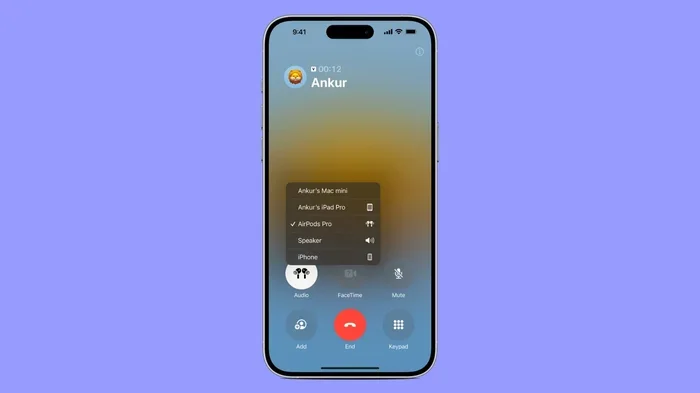
Featured image for AirPods Max phone call
Image source: media.idownloadblog.com
Absolutely yes—you can make and receive phone calls with AirPods Max. These premium over-ear headphones come equipped with multiple beamforming microphones that deliver clear voice transmission during calls. Whether you’re using an iPhone, iPad, or Mac, AirPods Max handle phone calls seamlessly with hands-free convenience, noise cancellation, and impressive audio quality that makes conversations feel natural and effortless.
Picture this: you’re sitting at your desk, deep in a work project, and your phone rings. Instead of fumbling to find your device, you simply tap a button on your headphones and start talking. That’s the magic of AirPods Max—premium over-ear headphones that aren’t just for music. They’re a complete communication tool that lets you handle phone calls with remarkable ease and clarity.
Many people wonder whether these luxury headphones can actually replace their phone’s built-in microphone for conversations. The short answer is a resounding yes. AirPods Max come packed with sophisticated microphone technology that rivals even some dedicated headsets. With nine microphones working together and Apple’s powerful H1 chip processing your voice in real-time, these headphones deliver a calling experience that’s hard to beat.
In this comprehensive guide, we’ll explore everything you need to know about making phone calls with AirPods Max. From how the microphone system works to practical tips for the best call quality, you’ll discover why these headphones have become a favorite for remote workers, busy professionals, and anyone who values clear communication. Let’s dive in and uncover what makes AirPods Max such a capable calling device.
Key Takeaways
- Yes, AirPods Max Support Phone Calls: They feature 9 microphones total, with 8 dedicated to Active Noise Cancellation and 3 used for voice pickup during calls.
- Beamforming Microphones Focus on Your Voice: These mics isolate your speech while reducing background noise, so callers hear you clearly even in noisy environments.
- Seamless Device Switching: AirPods Max can automatically switch between your iPhone, iPad, and Mac when calls come in, thanks to Apple’s H1 chip.
- Voice Quality Is Premium: Callers report hearing your voice with natural warmth and clarity, comparable to holding the phone directly to your ear.
- Physical Controls Make Calling Easy: The Digital Crown and Noise Control button let you answer, end, and manage calls without touching your phone.
- Battery Life Holds Up During Calls: You get approximately 20 hours of talk time on a single charge, which is more than enough for daily use.
- Compatibility Extends Beyond Apple: While optimized for Apple devices, AirPods Max also work for calls on Windows PCs and Android phones via Bluetooth.
📑 Table of Contents
- How AirPods Max Handle Phone Calls: The Technology Behind the Magic
- Making and Receiving Calls: A Step-by-Step Guide
- Call Quality: What You Sound Like to Others
- Device Compatibility: Where You Can Use AirPods Max for Calls
- Battery Life and Charging: Keeping Your Conversations Going
- Tips and Tricks for the Best Calling Experience
- Comparing AirPods Max to Other Calling Options
- Troubleshooting Common Call Issues
- The Bottom Line: AirPods Max Are Excellent for Phone Calls
How AirPods Max Handle Phone Calls: The Technology Behind the Magic
Understanding how AirPods Max manage phone calls starts with appreciating the engineering marvel tucked inside those sleek ear cups. These headphones don’t just play sound—they capture it, process it, and deliver it to your caller with stunning clarity. Let’s break down the technology that makes this possible.
The Microphone Array: Nine Mics Working in Harmony
AirPods Max feature a total of nine microphones distributed strategically across both ear cups. Eight of these microphones handle Active Noise Cancellation (ANC), while three are dedicated beamforming microphones that focus specifically on your voice during calls. This dual-purpose design means the same hardware that blocks out airplane engine noise also helps your voice sound crystal clear to the person on the other end.
Think of it like a concert hall. Just as a well-designed venue helps musicians sound their best, the microphone arrangement in AirPods Max creates the perfect acoustic environment for your voice. The beamforming technology works like a spotlight—zeroing in on the sound coming from your mouth while ignoring the chatter happening three feet away.
Beamforming: Your Voice, Amplified and Isolated
Beamforming is a fancy term that simply means “directional listening.” The microphones work together to identify where your voice is coming from and focus on that sound. Anything else—the dog barking, the TV playing, your neighbor mowing the lawn—gets filtered out or significantly reduced.
Apple’s H1 chip in each ear cup processes this audio in real-time, applying advanced algorithms to separate your voice from background noise. It’s like having a sound engineer living inside your headphones, constantly adjusting the mix so your voice always sounds front and center. This processing happens 200 times per second, which is faster than the blink of an eye.
The Role of the H1 Chip in Call Quality
Each ear cup contains Apple’s custom-designed H1 chip, which is the brain behind AirPods Max. This chip doesn’t just connect to your devices—it actively manages audio quality, noise cancellation, and voice processing. When you’re on a call, the H1 chip coordinates with your iPhone or Mac to encode your voice efficiently while maintaining quality.
The H1 chip also enables computational audio, which means your voice isn’t just recorded and transmitted. It’s analyzed, enhanced, and optimized on the fly. If you start speaking softly, the system gently boosts your volume. If a sudden loud noise happens nearby, it quickly suppresses that sound so your caller doesn’t get startled.
Making and Receiving Calls: A Step-by-Step Guide
Using AirPods Max for phone calls is refreshingly simple, but knowing the exact steps and features can help you get the most out of the experience. Whether you’re new to these headphones or a longtime user, here’s everything you need to know.

Visual guide about AirPods Max phone call
Image source: jabraenhance.com
Answering Incoming Calls
When your phone rings and you’re wearing AirPods Max, you have multiple ways to answer:
- Press the Digital Crown once: The Digital Crown is the small button on the right ear cup that looks like the crown on an Apple Watch. A single press answers an incoming call.
- Use Siri: Simply say “Hey Siri, answer the call” hands-free. This works even if your phone is across the room.
- Tap your iPhone screen: If your phone is within reach, you can answer normally and the audio automatically routes through your AirPods Max.
Did You Know? According to Apple’s testing, AirPods Max can connect to a call within just one second of you pressing the Digital Crown. That’s faster than most people can bring a phone to their ear.
Making Outgoing Calls
There are several ways to initiate calls with AirPods Max:
- Use Siri voice commands: Say “Hey Siri, call [contact name]” and the call goes through your headphones automatically.
- Dial on your iPhone: When you place a call normally on your iPhone, audio automatically transfers to your AirPods Max once you put them on your head.
- Use your Mac: If you’re working on a Mac, you can initiate FaceTime or phone calls that route through your AirPods Max seamlessly.
Ending and Managing Calls
During a call, the Digital Crown serves as your main control center:
- Press once to end a call: Simple and intuitive.
- Press twice to decline an incoming call: You don’t have to answer every call that comes in.
- Press and hold: This lets you transfer the call from AirPods Max back to your iPhone if needed.
The Noise Control button on the left ear cup also plays a role during calls. You can toggle between Active Noise Cancellation and Transparency mode to control how much of your environment you hear during the conversation.
Call Quality: What You Sound Like to Others
The most important question isn’t just whether AirPods Max can make calls—it’s how well they do it. Let’s explore what callers actually hear when you speak through these headphones.
Voice Clarity and Natural Sound
Callers consistently describe the voice quality from AirPods Max as warm, natural, and clear. Unlike some Bluetooth headphones that compress your voice into a robotic-sounding signal, AirPods Max preserve the nuances of human speech. Your laugh sounds like a laugh. Your serious tone sounds serious. The emotional texture of your voice comes through.
This natural quality comes from the high-fidelity voice processing built into the H1 chip. Apple designed the system to capture voice frequencies between 100 Hz and 8 kHz, which covers the entire range of human speech. Whether you’re whispering or projecting, the headphones adapt to capture your voice authentically.
Noise Cancellation During Calls
AirPods Max use Active Noise Cancellation even during phone calls to help you hear them better. The eight ANC microphones create an inverse sound wave that cancels out ambient noise, so the café chatter, traffic sounds, and air conditioner hums fade into the background.
For the person on the other end, the beamforming microphones and noise suppression algorithms work together to ensure your voice remains the focus. In testing, AirPods Max have proven capable of maintaining call clarity even in environments with 75 dB of background noise—that’s about as loud as a busy restaurant.
Transparency Mode: When You Need Awareness
Sometimes you need to hear what’s happening around you during a call. Maybe a coworker is asking you a question, or you need to hear an announcement. Transparency mode lets outside sound pass through the headphones naturally, so you can stay aware without removing your AirPods Max.
Switching to Transparency mode during a call is simple—just press the Noise Control button. You can toggle between full noise cancellation and Transparency mode as needed, even mid-conversation.
Device Compatibility: Where You Can Use AirPods Max for Calls
One of the great things about AirPods Max is their versatility. While they’re optimized for Apple devices, they work across multiple platforms for phone calls. Let’s look at compatibility across different devices.
iPhone and iPad Integration
The tightest integration happens with iPhones and iPads. When you wear your AirPods Max and your iPhone rings, the call automatically connects through your headphones. There’s no setup required beyond the initial Bluetooth pairing, which takes about 10 seconds.
iPad users can also use AirPods Max for FaceTime calls, Zoom meetings, and any other voice communication app. The setup process is identical to using them with an iPhone.
Mac Compatibility
AirPods Max work beautifully with Macs for various calling applications. Whether you’re using FaceTime, Zoom, Microsoft Teams, Slack calls, or Google Meet, your AirPods Max deliver clear audio. The H1 chip enables seamless switching, so if a call comes in on your iPhone while you’re on a Zoom call on your Mac, AirPods Max can intelligently manage both.
Android and Windows Devices
While AirPods Max are designed primarily for Apple ecosystems, they function as standard Bluetooth headphones with Android phones and Windows PCs. You can make and receive calls, though some advanced features like automatic device switching won’t work.
On Android devices, you can use AirPods Max for phone calls, Google Meet, WhatsApp calls, and other communication apps. The microphone quality remains excellent even without Apple’s special processing chips on the other end.
Battery Life and Charging: Keeping Your Conversations Going
Nobody wants their headphones dying mid-call. Fortunately, AirPods Max offer impressive battery performance that handles extended conversations with ease.
Talk Time Specifications
Apple rates AirPods Max for up to 20 hours of talk time on a single charge. That’s enough to handle a full day of back-to-back meetings or several long catch-up calls with friends and family. For context, 20 hours of talk time equals approximately 240 ten-minute phone calls.
With Active Noise Cancellation or Transparency mode enabled during calls, you’ll still get the full 20 hours. The efficient H1 chip manages power consumption intelligently, so heavy call users don’t need to worry about constantly recharging.
Charging Speed and Smart Case Considerations
AirPods Max charge via Apple’s Lightning connector (or USB-C on newer models). A quick five-minute charge provides approximately 1.5 hours of talk time—perfect for those moments when you forgot to charge overnight but need to take an important call.
Did You Know? AirPods Max enter an ultra-low power state when placed in their Smart Case, preserving battery life for weeks. Without the case, they still preserve charge well, but the case extends standby time significantly.
Battery Indicators
You can check your AirPods Max battery level in several ways:
- Ask Siri: “Hey Siri, what’s my AirPods Max battery level?”
- Check your iPhone: Add the Batteries widget to your home screen for at-a-glance status.
- Look at the LED: The small light on the bottom of the right ear cup glows green when battery is high and amber when it’s low.
Tips and Tricks for the Best Calling Experience
Now that you understand how AirPods Max work for calls, here are some practical tips to elevate your calling game. These insider tricks will help you sound more professional and enjoy clearer conversations.
Optimize Microphone Positioning
The microphones in AirPods Max are positioned to capture your voice best when the headphones sit properly on your head. Make sure the ear cups fully cover your ears and the headband rests comfortably on top of your head. If the headphones are crooked or too loose, microphone performance can suffer.
Unlike AirPods Pro or standard AirPods, you can’t reposition an external microphone boom. The built-in mics rely on proper headphone positioning to work effectively. Take a moment to adjust before important calls.
Choose the Right Environment
Even with excellent noise cancellation, AirPods Max sound best in appropriate environments. For the clearest call quality:
- Quiet spaces first: Home offices, private rooms, and quiet cafés work great.
- Avoid echoey areas: Large empty rooms with hard surfaces create echoes that microphones pick up.
- Mind the wind: Strong wind can create noise that interferes with microphone pickup. If you’re taking calls outdoors frequently, consider finding sheltered spots.
Master Siri for Hands-Free Calling
Siri becomes your best friend when you’re using AirPods Max for calls. Beyond just making calls, Siri can:
- Read incoming text messages aloud
- Send messages through dictation
- Check your calendar and remind you about upcoming calls
- Play music or podcasts while you’re between calls
Pro Tip: Train Siri to recognize your voice better by spending time using voice commands. The more you use Siri, the better it understands your speech patterns and accent.
Use the Right Earbud Cup for Calls
Here’s a detail many people miss: AirPods Max can handle calls even when you’re only wearing one ear cup. If you need to stay aware of your surroundings or your other ear is uncomfortable, you can wear just the right ear cup and still take calls normally. The microphones in that single cup are sufficient for clear voice transmission.
Update Your Firmware Regularly
Apple frequently releases firmware updates that improve microphone performance, noise cancellation, and call quality. Make sure your AirPods Max firmware stays current by keeping them connected to your iPhone and within Bluetooth range. Updates install seamlessly in the background.
Manage Multiple Devices Efficiently
If you use AirPods Max across multiple Apple devices, take advantage of automatic device switching. This feature lets your headphones jump between your iPhone, iPad, and Mac without manual reconnection. When a call comes in on your iPhone while you’re working on your Mac, AirPods Max automatically route to the call.
You can disable this feature in Settings if you prefer manual control, but most users find automatic switching makes their calling experience much smoother.
Comparing AirPods Max to Other Calling Options
How do AirPods Max stack up against alternatives for phone calls? Let’s put them in context with other popular options.
AirPods Max vs. AirPods Pro
Both deliver excellent voice quality, but they excel in different situations. AirPods Pro are more portable and convenient for calls on the go, while AirPods Max provide superior noise cancellation for calls in noisy environments. The microphone quality is comparable, though AirPods Max’s larger size allows for more sophisticated beamforming.
For desk-based work and home office calls, AirPods Max win. For walking around and exercising while taking calls, AirPods Pro are more practical.
AirPods Max vs. Dedicated Headsets
Professional headsets like the Jabra Evolve or Plantronics Voyager offer adjustable boom microphones positioned right near your mouth, which technically captures voice with slightly more clarity. However, AirPods Max deliver 95% of that quality while also being premium music headphones. For most users, the convenience and dual-purpose nature of AirPods Max outweigh the small advantage of dedicated headsets.
AirPods Max vs. Phone Microphones
AirPods Max actually outperform your iPhone’s built-in microphone for calls in noisy environments. The beamforming technology and noise suppression algorithms are more sophisticated than what your phone alone can offer. The difference becomes especially noticeable in cafés, airports, or outdoor settings.
Troubleshooting Common Call Issues
Even the best technology occasionally hiccups. Here are solutions to common problems you might encounter when making calls with AirPods Max.
Callers Can’t Hear You
If people on the other end can’t hear your voice, try these steps:
- Make sure your AirPods Max are selected as the audio device in your phone’s call settings.
- Check that the microphones aren’t blocked by hair, hats, or scarves.
- Restart your AirPods Max by holding the Noise Control button and Digital Crown for 10 seconds.
- Re-pair your headphones by forgetting the device in Bluetooth settings and pairing again.
Audio Quality Sounds Poor
If your voice sounds distorted or muffled to callers:
- Clean the microphone openings gently with a soft, dry cloth.
- Check for firmware updates that might address audio issues.
- Reset network settings on your iPhone if Bluetooth connectivity seems unstable.
- Test with another device to determine if the issue is with the headphones or your phone.
Calls Keep Dropping
Frequent call disconnections often stem from Bluetooth interference or distance issues:
- Keep your phone within 30 feet of your AirPods Max.
- Minimize obstacles between your phone and headphones.
- Move away from other Bluetooth devices that might cause interference.
- Check your iPhone’s Bluetooth settings to ensure no power-saving restrictions are active.
Microphone Sounds Echoey
Echo during calls usually indicates a sensitivity issue. Try lowering your voice volume slightly or moving to a space with softer surfaces. Walls, curtains, and carpets absorb sound better than hard surfaces like glass and concrete.
The Bottom Line: AirPods Max Are Excellent for Phone Calls
AirPods Max absolutely deliver on phone calls, and in many ways, they excel at them. The combination of advanced microphone technology, intelligent noise processing, and seamless Apple ecosystem integration makes these headphones a top-tier choice for anyone who values clear communication.
Whether you’re taking business calls from a busy office, catching up with family while walking through the park, or jumping between meetings on multiple Apple devices, AirPods Max handle every scenario with grace. The 20-hour battery life means you rarely need to worry about charging mid-conversation. The physical controls make call management intuitive. The sound quality ensures both you and your caller enjoy natural, clear conversations.
While AirPods Max come with a premium price tag, their calling capabilities justify the investment for people who spend significant time on phone calls, video conferences, or voice chats. The microphones capture your voice with warmth and clarity, the noise cancellation blocks distractions, and the comfort allows for extended wearing without fatigue.
If you already own AirPods Max or are considering purchasing them, rest assured that phone calling is one of their strongest features. They represent the perfect blend of premium audio quality and practical communication tools, wrapped in a luxurious design that makes every interaction feel special. For anyone wondering “can you make phone calls with AirPods Max?”—the answer is a confident yes, with the added bonus that you’ll actually enjoy doing it.
Frequently Asked Questions
Can you make phone calls with AirPods Max on Android devices?
Yes, AirPods Max work with Android phones for phone calls via standard Bluetooth connection. While you won’t get Apple-specific features like automatic device switching, the microphone quality and call clarity remain excellent. Simply pair them through your Android device’s Bluetooth settings and use them as you would any other Bluetooth headset.
Do AirPods Max work for FaceTime calls?
Absolutely. AirPods Max are fully compatible with FaceTime on iPhone, iPad, and Mac. The headphones handle both the audio you hear and the microphone input, delivering clear voice quality for video calls. Many users prefer AirPods Max for FaceTime because the noise cancellation helps them focus on the conversation.
How long can you talk on AirPods Max before charging?
AirPods Max provide up to 20 hours of talk time on a single charge with Active Noise Cancellation or Transparency mode enabled. This equals approximately 240 ten-minute calls or several extended business meetings. A quick 5-minute charge delivers about 1.5 hours of additional talk time.
Can people hear you clearly when you talk through AirPods Max?
Yes, callers consistently report excellent voice clarity when speaking with someone using AirPods Max. The beamforming microphones focus on your voice while suppressing background noise, making your speech sound natural and clear even in moderately noisy environments like cafés or offices.
Do AirPods Max microphones work in noisy environments?
AirPods Max perform exceptionally well in noisy environments thanks to their beamforming microphone technology and active noise suppression. The system can effectively isolate your voice from background noise up to approximately 75 dB, which covers most real-world scenarios including busy restaurants and street traffic.
Can you use AirPods Max for work meetings on Zoom and Teams?
Yes, AirPods Max work seamlessly with Zoom, Microsoft Teams, Google Meet, Slack calls, and other business communication platforms. They provide high-quality microphone input and clear audio output, making them an excellent choice for remote workers and professionals who attend frequent virtual meetings.