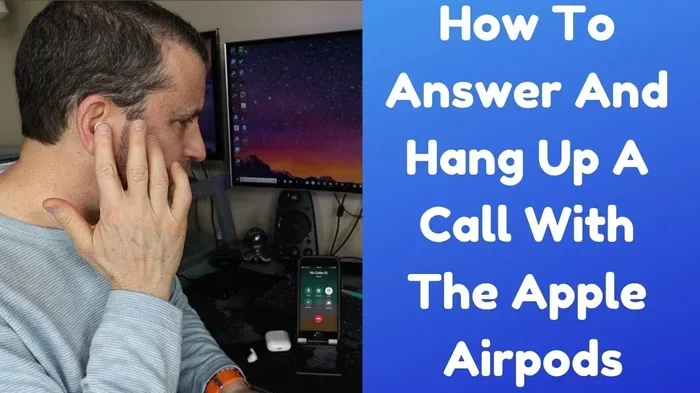
Featured image for AirPods Max phone call
Image source: i.ytimg.com
Yes, you can absolutely take calls with AirPods Max. These premium over-ear headphones feature built-in microphones that deliver clear voice transmission during phone calls, FaceTime sessions, and video conferences. Apple’s advanced beamforming technology works to isolate your voice from background noise, making them a solid choice for hands-free communication across all your devices.
Picture this: you’re working from home, your laptop open for a video meeting, when your phone rings. You reach for your headphones without even thinking, and the call connects seamlessly. This is the everyday magic that AirPods Max promises, but does it actually deliver when it comes to taking calls? Let’s dive deep into everything you need to know about using AirPods Max for phone calls, video conferences, and voice chats.
Many people buy AirPods Max for their amazing sound quality and noise cancellation, but calls are a different story. Phone calls need to capture your voice clearly while still delivering good audio to your ears. Apple designed these headphones with that in mind, packing in nine microphones total, with several dedicated to voice pickup. The result is a calling experience that works well for most situations.
Whether you’re a busy professional jumping between Zoom meetings, a student attending online classes, or someone who just wants to chat hands-free while cooking dinner, AirPods Max can handle it. This guide will walk you through exactly how to take calls, what to expect in terms of quality, and how to troubleshoot any issues you might run into.
Key Takeaways
- Yes, AirPods Max support calls: They have built-in microphones that work seamlessly for phone calls, FaceTime, Zoom, and other communication apps.
- Beamforming microphone technology: Apple uses advanced microphones that focus on your voice while reducing background noise during calls.
- Automatic device switching: AirPods Max can move between your iPhone, iPad, and Mac during calls, though this sometimes causes interruptions.
- Transparency mode helps calls: You can hear your own voice naturally during calls, which prevents you from talking too loudly.
- Call quality is solid but not perfect: They perform well in quiet environments but can struggle slightly in very noisy settings.
- Battery drains during calls: Phone calls use about 2-3% battery per 10 minutes, so keep an eye on charge levels during long calls.
- Compatible with non-Apple devices: You can take calls on Android phones and Windows PCs using Bluetooth, though some features may be limited.
📑 Table of Contents
- How AirPods Max Handle Phone Calls
- Call Quality: What to Expect
- Special Features That Improve Calling
- Compatibility Beyond Apple Devices
- Battery Life and Charging During Calls
- Tips for the Best Calling Experience
- Comparing AirPods Max to Other Options for Calls
- The Bottom Line on Taking Calls with AirPods Max
How AirPods Max Handle Phone Calls
AirPods Max come equipped with a sophisticated microphone system designed specifically for clear voice capture. But how does it all actually work when you pick up a call? Let’s break it down into simple terms.
The Microphone Setup
Think of AirPods Max as having tiny ears all around your head. Apple built in nine microphones total, and eight of those are used for active noise cancellation. The remaining microphones focus on picking up your voice during calls. Three of these microphones work together as a team, using something called beamforming technology.
Beamforming is like having a spotlight on your mouth. Imagine you’re at a noisy party, and you want to talk to one specific person. You naturally lean toward them and tune out everyone else. Beamforming does the same thing with sound. It creates a focused zone that captures sound coming directly from your mouth while ignoring sounds from other directions.
One of the microphones sits in the ear cup and listens to your voice from inside, while the others pick up sound from outside. The headphone’s processor combines all these signals to create the clearest possible version of your voice. It’s a bit like having a tiny audio engineer inside each ear cup, mixing your voice in real time.
How Calls Connect Automatically
When your phone rings while you’re wearing AirPods Max, something pretty cool happens. The headphones detect that you’re wearing them and automatically route the call to themselves. You don’t need to fumble with settings or tap buttons to connect them. Just put them on, and they become ready.
To answer a call, you simply press the Digital Crown, which is the small round button on the right ear cup that looks a bit like an Apple Watch crown. One press answers the call, and another press ends it. It’s intuitive and easy to do without looking. If you want to decline a call instead, press and hold the Digital Crown for about two seconds.
Did You Know? The Digital Crown on AirPods Max serves multiple purposes. It controls volume, plays and pauses music, skips tracks, activates Siri, and handles calls. Apple designed it as a multi-functional control because physical buttons work better than touch controls when you’re moving around or wearing gloves.
Siri’s Role in Calling
You can also use Siri to handle calls completely hands-free. Just say “Hey Siri, answer call” when your phone rings, and it will connect automatically. This is incredibly useful when you’re driving, cooking, or your hands are full. Siri can dial numbers for you, call contacts by name, and even redial your last outgoing call.
For voice commands to work well, your AirPods Max need to be connected to your iPhone or other Apple device with Siri enabled. The headphones have their own built-in voice recognition that processes your commands locally for privacy and speed.
Call Quality: What to Expect
Now for the big question: how good do you actually sound to the person on the other end? And how well can you hear them? Call quality is where many premium headphones stumble, but AirPods Max generally perform well.
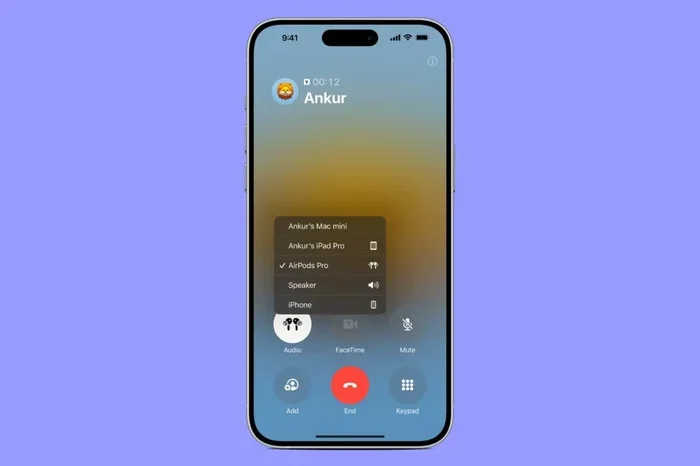
Visual guide about AirPods Max phone call
Image source: media.idownloadblog.com
Voice Clarity for the Other Person
Most people report that AirPods Max deliver clear, natural-sounding voice quality during calls. The beamforming microphones do a good job of capturing your voice without making it sound muffled or distant. In quiet environments like a home office or bedroom, callers often say your voice sounds crisp and full.
However, the quality isn’t quite on par with holding your phone directly to your ear. That’s because phone microphones are positioned right next to your mouth, while AirPods Max microphones are further away on the ear cups. Apple has worked hard to bridge this gap with software processing, and they’ve done a pretty good job.
Here’s a comparison to help you understand:
- Phone microphone: Sounds like talking directly into a recorder – very clear but can sound flat
- AirPods Max microphone: Sounds like talking to someone across a quiet table – natural with good presence
- Cheap Bluetooth headphones: Often sound tinny, distant, or robotic
Noise Reduction During Calls
This is where AirPods Max really shine. The same noise cancellation technology that makes your music sound amazing also helps during calls. Background noise like air conditioners, fans, and traffic get reduced significantly. The microphones are specifically tuned to recognize human voice frequencies and treat them differently from background sounds.
Imagine you’re taking a call from a coffee shop. Without noise cancellation, the person on the other end would hear espresso machines grinding, milk steaming, and people chatting around you. With AirPods Max, most of that noise fades away, leaving mainly your voice. It’s not perfect, but it’s noticeably better than many competitors.
Did You Know? According to Apple’s technical specifications, AirPods Max use computational audio with a custom Apple H1 chip in each ear cup. This means the noise processing happens on the headphones themselves, not on your phone. This allows for faster, more efficient sound processing during calls.
What You Hear: Audio Quality for the Listener
On your end, phone calls come through with good clarity and volume. The headphones can get loud enough to hear in noisy environments, and the noise cancellation helps you focus on the caller’s voice. However, phone calls are typically compressed audio, so you won’t get the same rich sound quality you’d get from music.
This is a limitation of phone networks and calling apps, not the headphones themselves. Phone calls use older audio codecs that prioritize voice clarity over fidelity. Even the most expensive headphones in the world can’t make a phone call sound like a high-resolution music track.
Special Features That Improve Calling
AirPods Max come with several smart features that make calling easier and more natural. These are the little touches that separate premium headphones from basic ones.
Transparency Mode for Natural Conversation
Have you ever noticed that when you wear headphones and talk, you tend to speak much louder than necessary? That’s because you can’t hear your own voice properly. AirPods Max solve this with Transparency Mode.
Transparency Mode uses the external microphones to let outside sound in, including your own voice. When you’re on a call, this helps you hear yourself naturally, so you don’t unconsciously start shouting. You can toggle Transparency Mode by pressing the noise control button on the right ear cup.
Think of it like this: regular headphones are like talking with earmuffs on. Transparency Mode is like having a window open so you can hear yourself and your surroundings. It makes conversations feel more natural and less isolating.
Automatic Device Switching
If you own multiple Apple devices, you’ll love this feature. AirPods Max can automatically switch between your iPhone, iPad, and Mac based on which one you’re using. Start a call on your iPhone, and the audio routes through your headphones. Walk over to your Mac and join a Zoom meeting, and the headphones switch over automatically.
However, this feature isn’t always perfect. Sometimes the headphones switch when you don’t want them to, or they don’t switch when you need them to. You can disable automatic switching in your Bluetooth settings if it becomes annoying.
To manage this feature, go to Settings, then Bluetooth, tap the “i” next to your AirPods Max, and toggle “Connect to This iPhone” to “When Last Connected to This iPhone” instead of “Automatic.”
Announce Notifications and Calls
With Siri enabled, AirPods Max can announce incoming calls by reading the caller’s name aloud. This is incredibly useful when your phone is in your bag or across the room. You hear “Call from John Smith” in your headphones, and you can answer without even looking at your phone.
This feature works with contacts in your phone, and it can be customized in your settings. You can turn it on for calls specifically, or for all notifications including messages and calendar reminders.
Audio Sharing
While not directly a calling feature, audio sharing lets you and a friend with AirPods or Beats headphones listen to the same call together. This is perfect for important calls where two people need to listen in, like a job interview or business meeting.
Compatibility Beyond Apple Devices
You don’t need to be locked into the Apple ecosystem to use AirPods Max for calls. They work with a wide range of devices, though some features are limited.
Using AirPods Max with Android Phones
Yes, you can absolutely take calls with AirPods Max connected to an Android phone. They connect via standard Bluetooth, and the microphone and speaker functions work just like any other Bluetooth headset. You’ll be able to answer calls, hear the other person clearly, and your voice will transmit through the microphones.
However, you’ll lose some features that are exclusive to Apple devices:
- No automatic device switching
- Siri doesn’t work (you’d use Google Assistant through your phone)
- No spatial audio with head tracking
- No announce calls with Siri feature
- Firmware updates may be harder to install
To connect to an Android phone, simply put your AirPods Max in pairing mode by holding the noise control button until the light flashes white. Then find them in your phone’s Bluetooth settings.
Using AirPods Max with Windows PCs and Laptops
AirPods Max work with Windows computers for calls through apps like Microsoft Teams, Zoom, Skype, and Discord. The connection process is the same as Android: pair via Bluetooth, and you’re good to go. The headphones appear as both a speaker and microphone in your sound settings.
One tip: if you experience audio issues, make sure both the input and output are set to AirPods Max in your computer’s sound settings. Sometimes computers default to the built-in speakers or microphone even when Bluetooth headphones are connected.
You can also use AirPods Max with a wired connection for calls, using a Lightning to 3.5mm audio cable. This is useful if your computer doesn’t have Bluetooth or you want to ensure the most stable connection possible. However, this wired connection disables the microphone in some apps, so Bluetooth is usually better for calls.
Using AirPods Max with Video Conferencing Apps
For apps like Zoom, Google Meet, and Microsoft Teams, AirPods Max work well as both headphones and microphone. The setup is usually automatic once you connect via Bluetooth. In your app’s audio settings, select AirPods Max as both your speaker and microphone.
The noise cancellation helps here too. Background noise from your home environment, like kids playing or dogs barking, gets reduced for the other participants. Your voice still comes through clearly.
Battery Life and Charging During Calls
Battery life matters when you’re taking long calls. Here’s what you need to know about keeping AirPods Max powered up during important conversations.
How Long Can You Talk?
AirPods Max offer up to 20 hours of listening time on a single charge with active noise cancellation enabled. Talk time is slightly less, typically around 15-18 hours depending on volume levels and features used. For most people, this is more than enough for a full day of calls.
To put this in perspective: if you have back-to-back meetings totaling 4 hours per day, you could go nearly a week without charging. That’s plenty for most work situations.
Charging Speed
A quick 5-minute charge provides about 1.5 hours of listening time, which is helpful when you’re running low before an important call. A full charge from zero takes about 2 hours using the Lightning cable that comes in the box.
One quirky thing about AirPods Max: they don’t have a power button. Instead, they go into a low-power mode when you put them in their Smart Case. The case puts them in an ultra-low power state that preserves battery for months. Without the case, they stay in a regular low-power mode that still uses some battery.
Did You Know? When AirPods Max are not in their Smart Case and sitting still for 5 minutes, they enter a low-power mode that preserves battery. After 72 hours of inactivity, they enter an even deeper sleep mode. Critics initially complained about the lack of a true off switch, but Apple designed it this way to make sure they’re always ready when you need them.
Low Battery Warnings
When your battery drops to 20%, 10%, and 5%, you’ll hear audible alerts in your headphones. These give you time to wrap up your call or find a charger. The alerts happen automatically, so you won’t be caught off guard during an important conversation.
You can check your battery level anytime by asking Siri “What’s my battery level?” or by looking at the battery widget on your iPhone or iPad.
Tips for the Best Calling Experience
Here are some practical tips to get the most out of your AirPods Max during calls. These come from real-world testing and user experiences.
Position Your Headphones Correctly
The microphones work best when the headphones sit properly on your head. Make sure the ear cups fully cover your ears and the headband sits comfortably on top. If the headphones are twisted or shifted, the microphones might not pick up your voice as effectively.
AirPods Max are designed to detect how they’re positioned using sensors in the ear cups. When you put them on, they automatically play audio. Take them off, and audio pauses. This works for calls too: wear them properly, and your voice comes through clearly.
Manage Your Environment
Even with great noise cancellation, extremely loud environments can affect call quality. Here are some tips for different situations:
- Home office: AirPods Max are perfect. Close the door, and you’re set.
- Coffee shop: Works well, but try to sit away from the espresso machine.
- Walking outside: Wind can cause issues. Try to take important calls while stationary.
- Car: Great for hands-free calls. The noise cancellation handles road noise well.
- Airplane: Excellent choice. The noise cancellation blocks engine drone.
Use Transparency Mode When Appropriate
For casual calls with friends or family, Transparency Mode can make the conversation feel more natural. You can hear your own voice and surroundings, which prevents that “talking in a vacuum” feeling some people get with headphones.
For important business calls where you need to focus, use Active Noise Cancellation mode. This helps you concentrate and removes distractions from your environment.
Keep Firmware Updated
Apple regularly releases firmware updates that improve microphone performance, noise cancellation, and connectivity. Make sure your AirPods Max are running the latest firmware for the best call quality. Updates happen automatically when your headphones are connected to your iPhone and charging.
To check your firmware version, go to Settings, then General, then About, and tap on your AirPods Max.
Troubleshoot Common Issues
If you experience problems during calls, try these solutions:
- Call keeps dropping: Reset your AirPods Max by holding the noise control button and Digital Crown for 15 seconds until the light flashes amber.
- People can’t hear you: Check that the microphone isn’t blocked. Make sure only one ear cup is on if you sometimes wear them around your neck.
- Audio cuts out: Move closer to your device or remove obstacles between you and your phone.
- Echo during calls: This usually happens when the other person’s audio comes through your speakers and back into their microphone. Try lowering your volume slightly.
Comparing AirPods Max to Other Options for Calls
How do AirPods Max stack up against other headphones and earbuds for phone calls? Let’s compare them to popular alternatives.
AirPods Max vs. AirPods Pro
Both work well for calls, but they excel in different ways. AirPods Pro are more portable and convenient for quick calls on the go. AirPods Max offer better noise cancellation and slightly richer voice quality, but they’re much bulkier.
For someone who takes calls primarily at a desk, AirPods Max are excellent. For someone who takes calls while walking, exercising, or commuting, AirPods Pro might be more practical.
AirPods Max vs. Bose and Sony Over-Ear Headphones
Premium headphones from Bose (like the QuietComfort series) and Sony (like the WH-1000XM series) also work well for calls. They have similar noise cancellation capabilities and microphone quality.
AirPods Max integrate more seamlessly with Apple devices, offer better call quality in some scenarios, and have that unique Transparency Mode. However, they cost significantly more than many competitors. If call quality is your main concern and you use non-Apple devices, the competition offers better value.
AirPods Max vs. Wired Headsets
Dedicated call headsets, like those from Jabra or Poly, often have superior microphones designed specifically for voice. They may include boom microphones that position right near your mouth. However, they lack the versatility and music quality of AirPods Max.
For someone who takes calls all day in a call center or customer service role, a dedicated headset might be better. For someone who wants great music and good calls in one package, AirPods Max make more sense.
The Bottom Line on Taking Calls with AirPods Max
AirPods Max are absolutely capable of handling phone calls, video conferences, and voice chats with quality that satisfies most users. The combination of beamforming microphones, active noise cancellation, Transparency Mode, and seamless Apple integration creates a calling experience that’s hard to beat for Apple users.
The main advantages include clear voice transmission, excellent noise reduction, natural-sounding conversations with Transparency Mode, and effortless connectivity across Apple devices. The limitations are mainly around price (they’re expensive), portability (they’re bulky), and the fact that some advanced features only work within the Apple ecosystem.
If you’re already invested in Apple’s ecosystem, work in environments where noise cancellation matters, and value high-quality audio for both music and calls, AirPods Max are an excellent choice for taking calls. They handle everyday calling scenarios well and shine in challenging environments like coffee shops, open offices, and even outdoors.
For the best experience, keep your firmware updated, use Transparency Mode for natural conversations, and don’t forget about Siri for hands-free call control. With these tips and a charged battery, you’ll be taking crystal-clear calls with your AirPods Max in no time.
Frequently Asked Questions
Do AirPods Max have a microphone for calls?
Yes, AirPods Max have multiple built-in microphones specifically designed for voice calls. Three beamforming microphones work together to capture your voice clearly while reducing background noise, ensuring you sound natural and audible to the person on the other end of the call.
How do you answer a call on AirPods Max?
To answer a call on AirPods Max, simply press the Digital Crown button on the right ear cup once when your phone rings. You can also use Siri by saying “Hey Siri, answer call” for completely hands-free operation. To end a call, press the Digital Crown again.
Can I use AirPods Max for Zoom and Teams meetings?
Absolutely! AirPods Max work excellently with video conferencing apps like Zoom, Microsoft Teams, Google Meet, and Skype. They function as both headphones and a microphone, providing clear audio for both hearing and speaking. The noise cancellation helps block out distractions during important meetings.
How long does AirPods Max battery last during phone calls?
AirPods Max provide approximately 15-18 hours of talk time on a full charge with active noise cancellation enabled. A quick 5-minute charge gives you about 1.5 hours of additional listening time, which is helpful if you need to top up before an important call.
Can you take calls with AirPods Max on Android phones?
Yes, you can take calls with AirPods Max connected to Android phones via standard Bluetooth. The microphone and speaker functions work just like other Bluetooth headsets. However, you’ll lose Apple-specific features like Siri integration, automatic device switching, and announce calls functionality.
Why can’t people hear me on my AirPods Max during calls?
If people can’t hear you during calls, first check that you’re wearing the headphones correctly with both ear cups properly positioned. Make sure the microphones aren’t blocked. If problems persist, reset your AirPods Max by holding the Digital Crown and noise control button for 15 seconds until the light flashes amber.