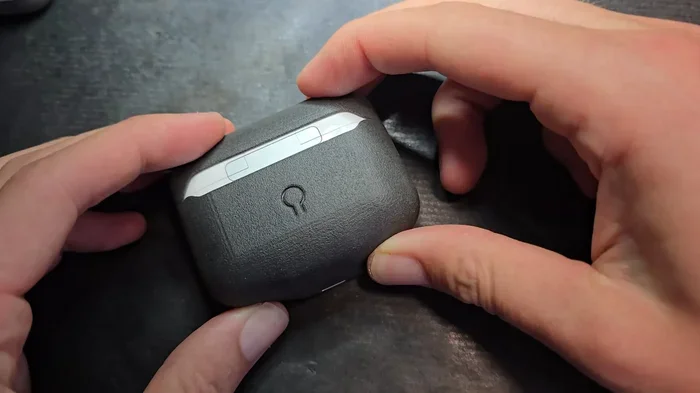
Featured image for AirPods USB connection setup
Image source: hackaday.com
You cannot sync AirPods via USB because they rely entirely on Bluetooth technology for pairing. AirPods have no USB port, and Apple’s pairing system requires a wireless connection between your AirPods and your Apple device. This guide explains why USB syncing isn’t possible, walks you through the correct Bluetooth pairing process, and shares helpful workarounds for using AirPods with USB-connected devices.
Have you ever wondered whether you can plug your AirPods into a USB port and get them paired up? You’re definitely not alone. Many people ask this question, especially when they see the charging case has a USB-C or Lightning port and assume there might be a hidden data connection in there. Let’s clear up the confusion once and for all.
Here’s the short answer: no, you cannot sync AirPods via USB. AirPods are designed to pair exclusively through Bluetooth wireless technology. There is no USB syncing method, no cable-based pairing option, and no hidden data port on your AirPods or their case. The USB port on your charging case exists for one purpose only: to charge the battery.
But don’t worry. This guide will walk you through exactly how AirPods pairing works, why USB isn’t an option, and the best ways to get your AirPods connected to any device you own. By the end, you’ll feel like an AirPods pairing expert.
Key Takeaways
- No USB Port: AirPods do not have a USB port, making direct USB syncing physically impossible.
- Bluetooth-Only Pairing: AirPods use Bluetooth technology exclusively for connecting to devices.
- Apple Ecosystem Required: The seamless pairing experience requires signing into your Apple ID on compatible devices.
- Quick Pairing Process: Opening the charging case near an Apple device triggers automatic setup in seconds.
- USB-C Charging Cases: Some newer AirPods cases charge via USB-C but still pair through Bluetooth only.
- Workarounds Exist: You can use USB Bluetooth adapters for computers that lack built-in Bluetooth support.
- Reset When Needed: Factory resetting your AirPods solves most pairing and connection issues.
📑 Table of Contents
- Understanding AirPods Pairing: How Does It Actually Work?
- The Truth About USB and AirPods: Why Wired Pairing Isn’t Possible
- Step-by-Step: How to Properly Pair Your AirPods
- Workarounds: Using AirPods with USB-Only Devices
- Troubleshooting Common AirPods Pairing Problems
- Special Cases: AirPods Max and Lightning vs. USB-C
- The Future of AirPods Pairing
- Final Thoughts: Embrace the Wireless Life
Understanding AirPods Pairing: How Does It Actually Work?
Before we dive deeper into the USB question, it helps to understand what’s really happening when you “sync” or pair AirPods. Think of it like introducing two people at a party. Your AirPods need to introduce themselves to your phone, laptop, or tablet. They do this by speaking a common language, and in the tech world, that language is called Bluetooth.
The Bluetooth Foundation
Bluetooth is a wireless technology that lets devices talk to each other over short distances. AirPods use a special version of Bluetooth that Apple optimized for better sound quality and lower battery drain. When you pair AirPods, your device stores their unique identifier, kind of like saving a phone contact. After the first introduction, they recognize each other automatically.
Apple introduced AirPods in December 2016, and they completely changed the wireless earbud market. By 2023, Apple had sold over 200 million pairs of AirPods worldwide, making them the most popular wireless earbuds on Earth. One big reason people love them is how ridiculously easy they are to pair. You literally open the case near your iPhone, and a setup animation pops up on screen. That’s it. No menu diving. No typing in codes. No USB cables needed.
What “Syncing” Really Means for AirPods
The word “sync” gets used a lot, but for AirPods, it usually means one of three things:
- Pairing: Connecting your AirPods to a new device for the first time.
- Switching: Moving your AirPods connection between devices you already own.
- Syncing Settings: Updating things like noise cancellation preferences, spatial audio settings, or renaming your AirPods across all your Apple devices through iCloud.
None of these require USB. They all happen through Bluetooth and your Apple ID. So when someone asks “can you sync your AirPods via USB,” they’re really asking if there’s a wired alternative to wireless pairing. The answer remains a firm no.
Why Bluetooth Matters for AirPods
Here’s a fun fact: your AirPods are constantly chatting with your device through Bluetooth, even when you’re not playing music. They send tiny signals to let your phone know the battery level, which earbud is in your ear, and whether the case is open or closed. This back-and-forth conversation happens many times per second. Imagine trying to have that conversation through a USB cable. You’d be tethered to your device, which defeats the whole purpose of wireless earbuds.
The Truth About USB and AirPods: Why Wired Pairing Isn’t Possible
Let’s get really specific about why USB syncing doesn’t work with AirPods. Understanding this will save you time and frustration.
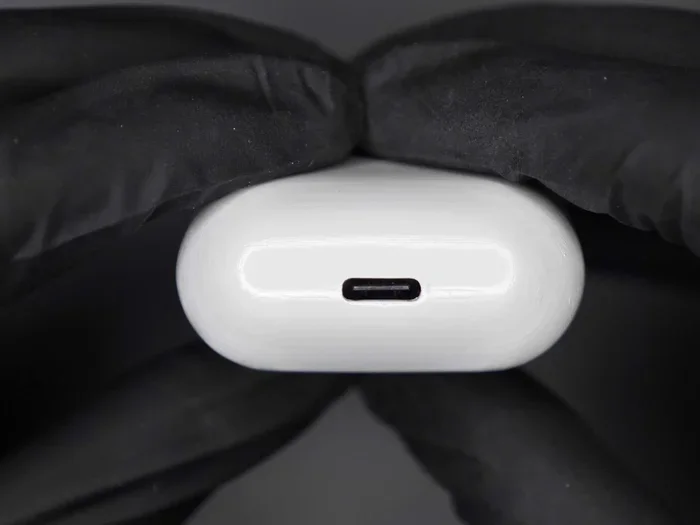
Visual guide about AirPods USB connection setup
Image source: robots.net
No USB Data Port Exists
Take a close look at your AirPods case. If you have older AirPods, you’ll see a small Lightning port on the bottom. If you have newer models like AirPods Pro 2 or AirPods 4, you’ll see a USB-C port. Either way, these ports are charging ports only. They have no data transfer capability built into them.
Think of it like a gas pump at a station. The pump fills your car’s tank with fuel, but it doesn’t transfer your music library or send text messages. Similarly, the port on your AirPods case pushes electricity into the battery. It doesn’t move data.
Apple’s Design Philosophy
Apple designed AirPods from the ground up to be wireless. Every single component, from the custom H1 and H2 chips inside to the sensors in each earbud, was engineered for Bluetooth communication. Adding USB syncing would mean adding extra hardware, extra complexity, and extra cost, all for a feature nobody asked for.
According to Apple’s technical specifications, every AirPods model from the original 2016 release to the latest 2024 versions uses Bluetooth 5.0 or higher for connectivity. There is zero mention of USB pairing in any official Apple documentation.
Misconceptions About the Charging Port
Many people confuse charging with syncing. When you charge your iPhone or iPad through a USB cable, your computer might open iTunes or Finder to sync your music, photos, and backups. This leads some folks to assume the same thing happens with AirPods. But AirPods are not computers. They’re tiny audio devices with limited processing power. All they need is power to charge, not a data connection to function.
What About Wired AirPods?
You might be thinking, “But Apple sells wired EarPods with a Lightning or USB-C connector. Why not make AirPods that connect via USB too?” Great question. The whole point of AirPods is wireless freedom. Wired earbuds already exist. Apple created AirPods to eliminate the cable entirely, not to create a new kind of wired option.
Step-by-Step: How to Properly Pair Your AirPods
Now that you understand why USB syncing isn’t possible, let’s walk through how to pair your AirPods the right way. The process is so simple you’ll wonder why you ever worried about it.
Pairing AirPods with an iPhone or iPad
This is the easiest pairing experience in tech. Here’s exactly what to do:
- Step 1: Make sure Bluetooth is turned on in your iPhone or iPad settings. Usually, it’s on by default.
- Step 2: Open the AirPods case lid while holding the case near your device. Don’t remove the AirPods yet.
- Step 3: Wait for the setup animation to appear on your screen. It takes about two to three seconds.
- Step 4: Tap “Connect” on the popup.
- Step 5: If you’re using AirPods Pro or AirPods 4, you’ll see an option to enable features like Spatial Audio. Tap “Done” when finished.
That’s the whole process. Your AirPods are now paired and ready to use. The same pairing information also syncs to your other Apple devices automatically through iCloud, as long as they share the same Apple ID.
Pairing AirPods with a Mac
Macs also support quick pairing, though the steps differ slightly:
- Step 1: Open System Settings and click on “Bluetooth.”
- Step 2: Make sure Bluetooth is turned on.
- Step 3: Open your AirPods case lid near your Mac.
- Step 4: Hold the setup button on the back of the case until the light blinks white.
- Step 5: Click “Connect” next to your AirPods name in the Bluetooth menu.
Pairing AirPods with Non-Apple Devices
Here’s something cool: AirPods work with Android phones, Windows PCs, smart TVs, and gaming consoles. You just need to put them in manual pairing mode:
- Step 1: Place your AirPods in the charging case and close the lid. Wait 30 seconds.
- Step 2: Open the lid and find the setup button on the back of the case.
- Step 3: Press and hold the setup button for about 15 seconds. The status light will blink white, indicating pairing mode.
- Step 4: On your non-Apple device, go to Bluetooth settings and look for your AirPods in the list.
- Step 5: Tap or click your AirPods name to complete the pairing.
Pro tip: When you use AirPods with non-Apple devices, you’ll lose some features like automatic ear detection and Siri integration. But core audio functions work perfectly.
Workarounds: Using AirPods with USB-Only Devices
Even though you can’t sync AirPods via USB, there are situations where you want to use AirPods with a device that primarily connects through USB. Let’s explore some solutions.
USB Bluetooth Adapters for Computers
Some desktop computers and older laptops don’t have built-in Bluetooth. If your computer falls into that category, a USB Bluetooth adapter is your best friend. These small dongles plug in into your USB port and add Bluetooth capability to your machine.
Once you install the adapter’s driver (usually automatic on modern systems), your computer will see your AirPods just like any other Bluetooth device. You’ll pair them through your operating system’s Bluetooth menu, not through the USB adapter itself. The adapter simply provides the Bluetooth radio your computer was missing.
Popular USB Bluetooth adapters from brands like TP-Link, ASUS, and Avantree work great with AirPods. Prices typically range from $10 to $30, making this an affordable fix.
Using AirPods with USB-C Devices
Modern smartphones, tablets, and laptops increasingly use USB-C as their primary port. You might wonder if there’s a way to connect AirPods directly through that port. Unfortunately, no adapter currently exists to make AirPods work through USB-C audio. USB-C audio is a different technology that requires wired headphones with built-in DACs (digital-to-analog converters).
However, your USB-C device almost certainly has Bluetooth built in, so you can still pair your AirPods wirelessly. The USB-C port is irrelevant to the AirPods connection process.
Gaming Consoles and Streaming Devices
Gaming consoles like PlayStation and Xbox primarily use USB or proprietary wireless protocols for accessories. AirPods don’t officially support these consoles. However, you can sometimes use AirPods with these devices through workarounds:
- PlayStation: Some newer PS5 models support Bluetooth audio natively, allowing AirPods pairing.
- Xbox: Requires a separate Bluetooth audio transmitter that plugs in into the controller’s 3.5mm jack or USB port.
- Nintendo Switch: Supports Bluetooth audio as of a 2021 firmware update.
- Apple TV: Pairs with AirPods seamlessly through the standard Apple setup process.
Troubleshooting Common AirPods Pairing Problems
Sometimes things go wrong. Here are the most common pairing issues and how to fix them.
AirPods Won’t Connect
If your AirPods refuse to connect, try these solutions in order:
- Check Battery: Make sure both AirPods and the charging case have enough battery. Dead AirPods won’t pair.
- Toggle Bluetooth: Turn Bluetooth off and back on again on your device.
- Restart Device: A simple restart fixes many weird tech glitches.
- Reset AirPods: Hold the setup button for 15 seconds until the light flashes amber, then white. Try pairing again.
- Forget Device: On your device, go to Bluetooth settings, tap your AirPods, and select “Forget This Device.” Then pair them fresh.
Only One AirPod Is Working
This annoying problem usually means the two earbuds lost their sync with each other. The fix is simple:
- Put both AirPods back in the case.
- Close the lid and wait 30 seconds.
- Open the lid and check the status light. If it shows green, both are charged.
- Reconnect to your device.
If the problem persists, reset your AirPods completely using the method described above.
AirPods Keep Disconnecting
Frequent dropouts usually come from interference or range issues. Bluetooth has a typical range of about 30 feet or 10 meters, but walls and other electronics can reduce this. Stay reasonably close to your device, and keep your AirPods away from microwaves, Wi-Fi routers, and other Bluetooth devices when possible.
Device Won’t Recognize AirPods
If your device doesn’t see your AirPods at all, make sure they’re actually in pairing mode. The status light should be blinking white, not solid green (meaning fully charged) or solid amber (meaning not paired). If you don’t see a white light, follow the reset steps above.
Special Cases: AirPods Max and Lightning vs. USB-C
The AirPods Max deserve special mention since they’re the odd member of the AirPods family. They do include a Lightning or USB-C port, but that port is still only for charging. Pairing happens through Bluetooth just like the smaller AirPods.
The AirPods Max Charging Port
AirPods Max originally launched with a Lightning port for charging. In 2024, Apple released an updated version with USB-C instead. Both versions pair exclusively through Bluetooth. There’s no way to use the charging cable for any data transfer or pairing function.
Smart Cases and Connection Features
AirPods Max come with a “Smart Case” that puts the headphones in an ultra-low power mode. However, this case doesn’t facilitate any kind of pairing or syncing. It simply turns things off to save battery.
The Future of AirPods Pairing
Will Apple ever add USB pairing to AirPods? Probably not. But the future might bring even more seamless connectivity options.
Ultra Wideband and Future Tech
Apple has invested heavily in Ultra Wideband (UWB) technology, which is more advanced than Bluetooth for spatial awareness. The H2 chip in newer AirPods already uses UWB for precise location tracking. Future AirPods might use UWB for pairing, which would still be wireless but faster and more reliable than Bluetooth.
What About AirPods Pro 3 and Beyond?
Rumors suggest Apple is working on AirPods with built-in health sensors, cameras, and even AI integration. These features will require advanced wireless protocols for data transfer, but they’ll still rely on Bluetooth or similar wireless tech for the core pairing process. USB remains firmly in the charging-only category.
Final Thoughts: Embrace the Wireless Life
The question “can you sync your AirPods via USB” comes from a reasonable place. USB has been the go-to connection method for decades, and many people assume it can handle everything. But AirPods represent a shift in how we think about device connectivity.
By going wireless-only, Apple created a product that’s easier to use, more portable, and more convenient than anything USB could offer. The pairing process takes seconds, the connection is reliable, and there are no cables to lose or break. Sure, there are occasional hiccups. A quick reset fixes most problems, and the freedom you get in exchange is well worth any minor inconvenience.
So next time someone asks you about USB AirPods syncing, you’ll know exactly what to tell them. And now you have all the knowledge you need to pair, troubleshoot, and enjoy your AirPods on any device you own.
Frequently Asked Questions
Can you sync AirPods via USB to a computer?
No, you cannot sync AirPods via USB to any computer. AirPods use Bluetooth exclusively for pairing and audio streaming. However, you can pair AirPods with any computer that has Bluetooth capability by putting them in pairing mode and selecting them from the computer’s Bluetooth settings.
Why don’t AirPods have a USB port for pairing?
AirPods are designed as completely wireless earbuds, so they only include a charging port, not a data port. Apple engineered them to rely entirely on Bluetooth for all connectivity needs, which keeps the design simple, lightweight, and truly wireless.
Can I use AirPods with a USB-C Android phone?
Yes, but not through the USB-C port. You pair AirPods with Android phones using Bluetooth. Simply put your AirPods in pairing mode by holding the setup button until the light flashes white, then select them from your Android device’s Bluetooth menu.
What does the USB-C port on AirPods Pro 2 do?
The USB-C port on AirPods Pro 2 is for charging only. It does not transfer data, sync settings, or pair with devices. All AirPods functionality, including pairing, audio streaming, and firmware updates, happens through Bluetooth wireless technology.
How do I reset my AirPods if they won’t pair?
Place your AirPods in the charging case, close the lid, and wait 30 seconds. Then open the lid and press and hold the setup button on the back of the case for about 15 seconds until the status light flashes amber and then white. Your AirPods are now reset and ready to pair fresh.
Will future AirPods support USB syncing?
It’s highly unlikely that future AirPods will add USB syncing. Apple has consistently moved toward wireless-only solutions, and adding USB syncing would add unnecessary complexity to the product. Expect future models to rely on Bluetooth and possibly newer wireless technologies like Ultra Wideband for connectivity.