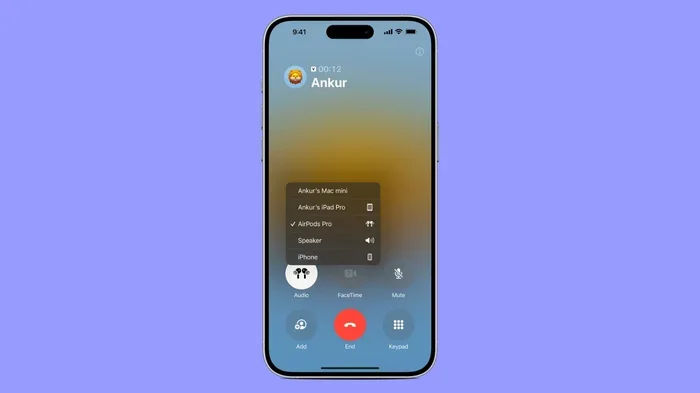
Featured image for AirPods Max phone call
Image source: media.idownloadblog.com
Yes, you can absolutely talk on the phone with AirPod Max. These premium over-ear headphones feature built-in microphones that make hands-free calling easy across iPhone, iPad, Mac, and even Android devices. The call quality is excellent thanks to beamforming microphones that isolate your voice from background noise. Whether you’re on a business call or catching up with family, AirPod Max delivers clear audio for both speaking and listening.
Picture this: you’re walking through a busy airport, noise everywhere, and your phone rings. You reach up to your ears and tap a button on your premium headphones. Within seconds, you’re having a clear conversation without ever pulling out your phone. That’s the magic of AirPod Max phone call capability.
AirPod Max isn’t just about listening to music. These over-ear headphones from Apple pack serious communication features that many people overlook when buying them. The built-in microphone system rivals dedicated headsets costing just as much.
This guide will walk you through everything you need to know about making and receiving phone calls with AirPod Max. We’ll cover setup, controls, call quality, troubleshooting, and tips for getting the best experience. Whether you’re new to AirPod Max or considering buying them, you’ll learn exactly how phone calls work on these headphones.
Key Takeaways
- Built-in Microphones: AirPod Max has nine microphones total, with three dedicated to voice calls for crystal-clear conversations.
- Easy Setup: Pair once with your iPhone, and AirPod Max automatically connects to all your Apple devices for seamless calling.
- Answering Calls: Simply press the Digital Crown once or say “Hey Siri” to answer, end, or make phone calls hands-free.
- Beamforming Technology: The microphones focus on your voice while blocking out wind and background noise during calls.
- Cross-Platform Compatible: AirPod Max works for phone calls on Android and Windows devices via standard Bluetooth pairing.
- One-at-a-Time Audio: When a call comes in, your music pauses automatically and resumes when you hang up.
- Call Quality: Reviewers consistently rate AirPod Max call quality as excellent, matching or beating dedicated headsets.
📑 Table of Contents
- How AirPod Max Phone Calls Work: The Basics
- Setting Up AirPod Max for Phone Calls
- Making and Answering Calls with AirPod Max
- AirPod Max Call Quality: What to Expect
- Troubleshooting Common Phone Call Issues
- Advanced Tips for Better AirPod Max Calls
- Comparing AirPod Max Call Quality to Other Headphones
- The Verdict: Are AirPod Max Good for Phone Calls?
- Final Thoughts
How AirPod Max Phone Calls Work: The Basics
Let’s start with the fundamentals. AirPod Max works just like other Bluetooth headphones when it comes to phone calls. Once paired with your phone, the headphones act as both a microphone and speaker for your voice conversations.
Think of AirPod Max as a wireless headset similar to those old Bluetooth earpieces, but way more advanced. When you make or receive a call, audio routes through the headphones automatically. Your voice gets picked up by tiny microphones hidden in the ear cups.
Here’s what happens behind the scenes: AirPod Max contains nine microphones total. Three of these work specifically for voice calls. The other six handle noise cancellation and transparency mode features.
The Microphone System Explained
The microphone setup in AirPod Max uses something called beamforming technology. Imagine a spotlight that follows you around a room. Beamforming works similarly with sound. The microphones focus their “listening” toward your mouth while ignoring sounds from other directions.
This is why AirPod Max calls sound so clear even in noisy environments. The headphones actively separate your voice from background noise like traffic, wind, or chatty coworkers.
What “Hands-Free” Really Means
When we say AirPod Max enables hands-free calling, we mean you can leave your phone in your pocket or bag entirely. You can answer calls, adjust volume, and end conversations using just the physical controls on the headphones or your voice through Siri.
This makes AirPod Max perfect for situations where you need your hands free. Cooking, driving (as a passenger), working out, or walking the dog all become easier when you don’t need to hold a phone to your ear.
Setting Up AirPod Max for Phone Calls
Getting AirPod Max ready for phone calls is incredibly simple, especially if you use an iPhone. Apple designed these headphones to work seamlessly within their ecosystem.
Visual guide about AirPods Max phone call
Image source: jabraenhance.com
Initial Pairing with iPhone
When you first take AirPod Max out of the case near your iPhone, a setup animation appears on your screen automatically. This is similar to how AirPods work, but with a fancier presentation.
Follow these steps to pair AirPod Max with your iPhone:
- Hold AirPod Max close to your unlocked iPhone
- Press and hold the noise control button until the status light flashes white
- Tap “Connect” when the setup animation appears
- Sign in to iCloud if prompted to enable automatic device switching
Once paired, your AirPod Max automatically appears in your list of available audio devices for calls. You don’t need to do anything special to enable phone call functionality.
Connecting to Android Devices
Don’t have an iPhone? No problem. AirPod Max works with Android phones too, including for phone calls. The setup process uses standard Bluetooth instead of Apple’s fancy animation.
To pair AirPod Max with an Android phone:
- Open Settings on your Android phone
- Go to Bluetooth settings and turn it on
- Press and hold the noise control button on AirPod Max until the light flashes white
- Select “AirPod Max” from the list of available devices
After pairing, your Android phone will route calls through AirPod Max automatically. You won’t get Siri, but the microphone and speaker functions work perfectly for regular phone calls.
Pairing with Mac and Other Devices
AirPod Max also connects to Mac computers, iPads, and Windows PCs. The process is similar to Android pairing through standard Bluetooth settings.
One neat feature for Mac users: if you paired AirPod Max with your iPhone and use the same Apple ID, your Mac recognizes them automatically. This means you can switch between iPhone calls and FaceTime on Mac without re-pairing.
Making and Answering Calls with AirPod Max
Now that you’re paired up, let’s talk about the actual calling experience. AirPod Max gives you multiple ways to control calls without touching your phone.
Using the Digital Crown
The Digital Crown is the rotating button on the right ear cup, similar to the Apple Watch crown. This little dial does a lot of work during phone calls.
Here are the call controls using the Digital Crown:
- Press once: Answer an incoming call or end the current call
- Press once: Answer a second call (puts first on hold)
- Press and hold: Decline an incoming call
- Double press: Switch between two active calls
- Rotate: Adjust call volume up or down
The tactile feedback of the Digital Crown makes call control feel natural and precise. You can adjust volume without looking at your headphones, which is great for driving or working out.
Voice Control with Siri
Want to keep your hands completely free? Siri has you covered. AirPod Max supports “Hey Siri” voice commands for phone calls.
Try these voice commands during your AirPod Max experience:
- “Hey Siri, call Mom”
- “Hey Siri, answer the call”
- “Hey Siri, hang up”
- “Hey Siri, redial the last number”
- “Hey Siri, decline the call”
Voice commands work reliably even in moderately noisy environments thanks to the beamforming microphones. Siri can usually hear you over background sounds without issue.
Using the Noise Control Button
The noise control button sits on the left ear cup opposite the Digital Crown. This button toggles between Active Noise Cancellation, Transparency Mode, and Off.
During phone calls, you might want to switch to Transparency Mode. This lets you hear your own voice more naturally while talking, preventing that “plugged up” feeling many headphone users experience during calls.
AirPod Max Call Quality: What to Expect
Call quality matters more than people think. Your headphones might sound amazing for music but terrible for phone calls. How does AirPod Max stack up?
Voice Clarity
AirPod Max delivers excellent voice clarity on phone calls. Reviewers and users consistently report that callers on the other end hear them clearly and naturally.
The beamforming microphones do a great job capturing your voice while filtering out background noise. Whether you’re in a quiet office or walking down a busy street, your voice comes through clearly.
Noise Handling
One of AirPod Max’s biggest strengths during calls is noise reduction. The headphones actively suppress background sounds like:
- Wind noise during outdoor calls
- Traffic and street sounds
- Office chatter and air conditioning hum
- Crowded restaurant background noise
This means your callers hear you, not the chaos around you. In fact, AirPod Max’s noise handling during calls rivals dedicated conference call headsets.
Audio Quality for Listening
On the receiving end, AirPod Max sounds fantastic. You hear the other person with full detail and clarity. The same premium drivers that make music sound great also make voices sound natural and easy to understand.
Some users report that voices sound slightly compressed compared to AirPods Pro. However, the overall experience is still excellent for everyday phone conversations.
Real-World Call Performance
Let’s look at how AirPod Max performs in actual calling situations:
Indoor quiet environments: Call quality is exceptional. Voices sound natural and clear on both ends.
Walking outside: AirPod Max handles moderate wind and traffic noise well. Callers may notice slight background sound, but your voice remains clear.
Public transportation: Subways and buses create challenging conditions. AirPod Max performs admirably, though very loud environments may affect clarity slightly.
Driving: As a passenger, AirPod Max works great for hands-free calling. Road noise gets filtered effectively.
Troubleshooting Common Phone Call Issues
Sometimes things don’t work perfectly. Here are solutions to the most common AirPod Max phone call problems.
Problem: Can’t Hear the Other Person
If you can’t hear your caller, try these fixes:
- Check that AirPod Max is selected as your audio output in the call screen
- Turn up the volume using the Digital Crown
- Make sure AirPod Max is charged (low battery can cause issues)
- Restart Bluetooth by turning it off and on again
- Check that the headphones aren’t connected to another device
Problem: Other Person Can’t Hear You
When callers struggle to hear your voice:
- Make sure you’re wearing AirPod Max correctly with microphones positioned near your mouth
- Clean the microphone areas gently with a dry cloth
- Check for debris blocking the microphone openings
- Try disconnecting and reconnecting Bluetooth
- Test with another call to confirm the issue isn’t with your phone
Problem: Audio Drops During Calls
Intermittent audio during calls usually indicates Bluetooth interference. Try these solutions:
- Move closer to your phone (stay within 30 feet)
- Remove obstacles between you and your phone
- Turn off other Bluetooth devices nearby
- Update your iPhone or device to the latest software
- Reset AirPod Max by holding the noise control and Digital Crown together
Problem: Call Audio Sounds Robotic or Distorted
Poor audio quality during calls often comes from Bluetooth codec issues. To fix this:
- Make sure your device supports AAC Bluetooth codec
- Check for software updates on both AirPod Max and your phone
- Try turning AirPod Max off and back on
- Reset network settings on your phone as a last resort
Advanced Tips for Better AirPod Max Calls
Once you’ve mastered the basics, these advanced tips will elevate your calling experience.
Use Transparency Mode During Calls
Many people don’t realize that talking with headphones on can feel strange. Your own voice sounds muffled because your ears are covered.
Transparency Mode solves this by piping in outside sounds, including your own voice. During long calls, switching to Transparency Mode reduces ear fatigue and makes conversations feel more natural.
Simply press the noise control button to cycle to Transparency Mode when a call connects.
Manage Battery Life During Long Calls
Phone calls drain AirPod Max battery faster than music playback because the microphones stay active. Here are battery-saving tips:
- Keep AirPod Max in the Smart Case when not in use
- Turn off Active Noise Cancellation if not needed during calls
- Lower volume to reduce power consumption
- Charge regularly – AirPod Max provides about 20 hours of call time
Switch Between Devices Mid-Call
One of AirPod Max’s best features is seamless device switching. If you’re on a call on your iPhone and need to move to your Mac for a video conference, you can transfer the call with one click.
This feature requires iCloud sign-in and works best within the Apple ecosystem. It’s incredibly useful for people who juggle calls between multiple devices throughout the day.
Use AirPod Max with Conference Apps
Beyond regular phone calls, AirPod Max works wonderfully with conferencing apps like Zoom, Microsoft Teams, and Google Meet. The same great microphone quality makes you sound professional in meetings.
For best results with conference apps, make sure AirPod Max is selected as both input and output device in the app’s audio settings.
Comparing AirPod Max Call Quality to Other Headphones
How do AirPod Max stack up against competitors for phone calls? Let’s compare.
AirPod Max vs AirPods Pro
Both Apple products offer excellent call quality. AirPods Pro might have a slight edge in some situations because the microphones sit closer to your mouth. However, AirPod Max’s noise cancellation during calls is arguably better due to the larger form factor.
For pure calling convenience, AirPods Pro are more portable. For extended call sessions, AirPod Max provides better comfort.
AirPod Max vs Sony WH-1000XM5
The Sony WH-1000XM5 is AirPod Max’s main competitor. Both headphones deliver excellent call quality. Sony’s beamforming technology is very good, but many users report AirPod Max edges it out slightly for voice clarity in noisy environments.
AirPod Max vs Bose Headphones 700
Bose designed the Headphones 700 specifically with calling in mind. They feature excellent microphone quality. AirPod Max matches this performance while offering better integration with Apple devices.
The Verdict: Are AirPod Max Good for Phone Calls?
AirPod Max delivers exceptional phone call quality. The combination of beamforming microphones, excellent noise reduction, and seamless Apple ecosystem integration makes them one of the best headphone options for frequent callers.
If you’re already in the Apple ecosystem, AirPod Max is a fantastic choice for phone calls. The setup is effortless, the controls are intuitive, and the call quality rivals dedicated headsets.
Even Android users benefit from AirPod Max’s call capabilities. While you lose Siri integration, the core calling experience remains excellent.
The main consideration is price. AirPod Max costs significantly more than many alternatives. However, if call quality is a priority and you want the best overall headphone experience too, AirPod Max delivers on both fronts.
For people who spend hours on calls each day, whether for work or personal reasons, AirPod Max represents a premium calling experience worth the investment.
Final Thoughts
Talking on the phone with AirPod Max is not just possible – it’s genuinely enjoyable. The headphones handle calls beautifully across all your devices, with clear audio on both ends and intelligent noise management.
From quick catch-up calls to multi-hour business conferences, AirPod Max performs reliably. The intuitive controls and Siri integration make managing calls effortless, even when your hands are busy.
If you’re considering AirPod Max primarily for calls, rest assured they’ll exceed your expectations. And as a bonus, you get one of the best music listening experiences available in any headphones.
Give AirPod Max a try for your next call. You might find that headphones designed for music also happen to be amazing communication tools.
Frequently Asked Questions
Do AirPod Max have a microphone for phone calls?
Yes, AirPod Max has three dedicated microphones for phone calls, plus six additional microphones for noise cancellation and transparency features. The beamforming technology focuses on your voice while blocking background noise during conversations.
How do I answer a phone call with AirPod Max?
To answer an incoming call, press the Digital Crown once on the right ear cup. You can also say “Hey Siri, answer the call” for hands-free answering. Press and hold the Digital Crown to decline a call instead of answering it.
Can you use AirPod Max for phone calls on Android?
Absolutely. AirPod Max works with Android phones for phone calls through standard Bluetooth pairing. You won’t have Siri voice control, but the microphone and speaker functions work perfectly for making and receiving calls on Android devices.
Why can’t people hear me on my AirPod Max during calls?
If callers can’t hear you, first check that AirPod Max is selected as the audio input device. Make sure you’re wearing them correctly with microphones unobstructed. Clean any debris from the microphone openings and try resetting Bluetooth connection if problems persist.
How long does AirPod Max battery last during phone calls?
AirPod Max provides approximately 20 hours of talk time on a full charge. This includes active noise cancellation during calls. Using Transparency Mode instead of noise cancellation may extend battery life slightly during longer conversations.
Can I use AirPod Max for Zoom and Teams calls?
Yes, AirPod Max works excellently with video conferencing apps including Zoom, Microsoft Teams, Google Meet, and FaceTime. The high-quality microphones ensure you sound clear in meetings, and the premium audio makes hearing other participants easy and natural.