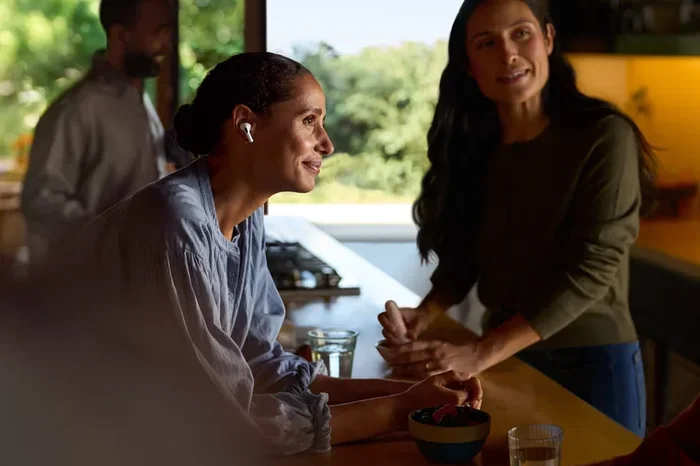
Featured image for person talking using AirPods Pro
Image source: apple.com
Yes, you can absolutely talk through AirPods Pro. They have built-in microphones that let you make phone calls, record voice memos, talk on FaceTime, chat in games, and use voice assistants hands-free. The AirPods Pro use advanced beamforming microphones with noise cancellation to pick up your voice clearly, even in noisy environments. This guide covers everything you need to know about talking through your AirPods Pro.
Imagine you’re walking down a busy street, your hands are full of shopping bags, and your phone starts ringing. Instead of fumbling to answer it, you simply say a few words and keep moving. Your AirPods Pro handle the rest. This is the magic of talking through wireless earbuds, and AirPods Pro make it feel effortless.
Talking through AirPods Pro isn’t just about answering phone calls anymore. Whether you’re dictating a text message, joining a Zoom meeting, chatting with teammates in a game, or recording a podcast episode, these tiny earbuds have become powerful communication tools. Apple packed serious microphone technology into these small devices, making them way more capable than most people realize.
In this guide, we’ll answer every question you might have about talking through AirPods Pro. You’ll learn how the microphones work, what you can do with them, how to set everything up properly, and how to fix common issues. By the end, you’ll be a true AirPods Pro communication expert.
Key Takeaways
- Built-In Microphones: AirPods Pro have dual beamforming microphones that capture your voice clearly during calls and recordings.
- Multiple Use Cases: You can talk through AirPods Pro for phone calls, FaceTime, Siri, voice memos, gaming, video conferencing, and more.
- Noise Cancellation Helps: Active Noise Cancellation and Transparency mode help your voice come through more clearly by minimizing background noise.
- Easy Activation: Talking is automatic for calls, but you may need to enable the microphone manually for some apps in settings.
- Quality Factors: Voice quality depends on fit, environment, battery life, and which AirPods Pro generation you own.
- Troubleshooting Tips: Most talking issues are fixed by checking microphone settings, cleaning the mics, or resetting the AirPods.
- Privacy Considerations: Always be aware that AirPods Pro are always listening for “Hey Siri,” which is a feature you can disable.
📑 Table of Contents
- How AirPods Pro Microphones Actually Work
- All the Ways You Can Talk Through AirPods Pro
- Setting Up AirPods Pro for Talking: A Step-by-Step Guide
- Tips for Better Voice Quality Through AirPods Pro
- Troubleshooting Common Talking Issues
- AirPods Pro Generations: Talking Differences
- Privacy and Security Considerations When Talking
- Talking Through AirPods Pro: Final Thoughts
How AirPods Pro Microphones Actually Work
Before we dive into all the ways you can talk through AirPods Pro, let’s understand what’s happening inside these little devices. Think of AirPods Pro as tiny computers for your ears. They aren’t just speakers that play sound. They also have sophisticated microphones that listen to your voice and the world around you.
The Dual Microphone System Explained
AirPods Pro come equipped with two microphones in each earbud. That’s four microphones total working together. Apple calls this a “dual beamforming microphone” setup, which sounds fancy but works on a simple principle.
Imagine you’re at a crowded party trying to hear your friend. Your brain naturally focuses on their voice while tuning out the background chatter. Beamforming microphones do the same thing digitally. They focus on sounds coming directly from your mouth while ignoring noise from other directions.
Here’s how it works in simple terms:
- The outer microphone sits on the outside of the earbud and picks up your voice along with some background noise.
- The inner microphone sits closer to your ear canal and captures the sound vibrations from inside your ear when you talk.
- The H1 or H2 chip (depending on your generation) processes both signals in real-time, separating your voice from background noise.
This dual setup is why people on the other end of your call hear you clearly, even when you’re in a noisy coffee shop or walking near traffic.
The Role of the Apple Chip
The H1 chip (in AirPods Pro 1st generation) and H2 chip (in AirPods Pro 2nd generation) are like tiny brains inside your earbuds. They handle audio processing at lightning speed. When you talk, these chips are analyzing your voice 48,000 times per second to keep your sound clear.
Did You Know? The H2 chip in AirPods Pro 2 is twice as powerful as the H1 chip in the original AirPods Pro. This means better voice clarity, faster connection times, and more efficient battery use during calls.
All the Ways You Can Talk Through AirPods Pro
Now for the fun part. AirPods Pro aren’t just for music. They’re communication powerhouses. Let’s explore every way you can use your voice through them.
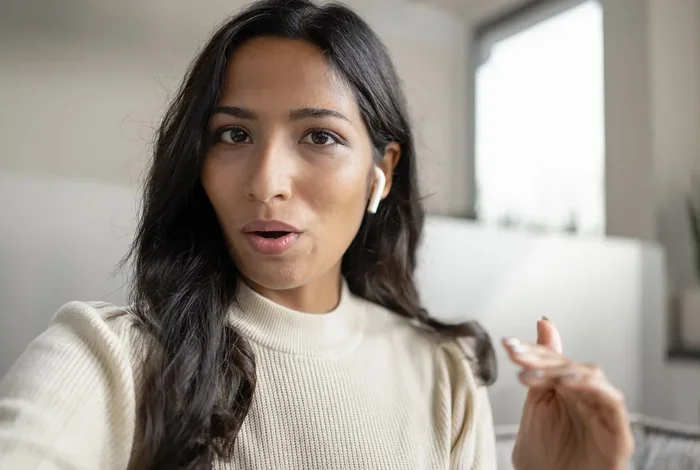
Visual guide about person talking using AirPods Pro
Image source: lifewire.com
Making and Receiving Phone Calls
The most common use case is simple phone calls. When your iPhone rings and you’re wearing AirPods Pro, you can answer by squeezing the stem or simply saying “answer” if you have voice announcement turned on. The call audio goes through your earbuds, and your voice gets picked up by the microphones.
The call quality is genuinely impressive. Apple uses a technology called “voice acceleration sensing” that detects when you’re speaking and focuses the microphones on your voice. The person on the other end hears you as if you were talking directly into your phone, but you get the freedom of wireless.
Quick tip: If you want to switch from AirPods Pro to your iPhone during a call, tap the audio button on your call screen and select “iPhone.” This is useful when your AirPods battery gets low.
FaceTime and Video Calls
Video calls work exactly like phone calls through AirPods Pro. Whether you’re using FaceTime, Zoom, Microsoft Teams, Google Meet, or WhatsApp video, your AirPods Pro will automatically route the audio when connected.
One cool feature is spatial audio during FaceTime. When enabled, voices sound like they’re coming from the direction of each person’s video tile on your screen. It makes group calls feel more natural, like sitting in a room with everyone.
Using Siri with Voice Commands
Talking through AirPods Pro means you can use Siri completely hands-free. Just say “Hey Siri” followed by your command. Some popular things to ask Siri while wearing AirPods Pro include:
- “Hey Siri, call Mom”
- “Hey Siri, send a message to John saying I’ll be there in 10 minutes”
- “Hey Siri, set a timer for 15 minutes”
- “Hey Siri, what’s the weather like today?”
- “Hey Siri, play my focus playlist”
The AirPods Pro microphones pick up “Hey Siri” even when music is playing or you’re in a moderately noisy environment. Your iPhone processes the command and sends the response back to your earbuds.
Did You Know? AirPods Pro can recognize your specific voice pattern. This means only you can activate Siri by saying “Hey Siri,” and other people’s voices won’t trigger your assistant. This security feature is called “voice recognition.”
Voice Memos and Audio Recording
Want to record a quick idea while walking? The Voice Memos app on your iPhone works perfectly with AirPods Pro. Open Voice Memos, hit record, and start talking. The microphone quality is good enough for personal notes, journal entries, or even rough drafts of podcasts.
For higher quality recordings, you can use third-party apps like GarageBand, Ferrite, or ShurePlus MOTIV. These apps give you more control over audio settings and can capture richer sound from your AirPods Pro microphones.
Gaming and Voice Chat
Gamers love AirPods Pro for voice chat. Games like Call of Duty Mobile, Fortnite, Among Us, and Discord all support microphone input through AirPods Pro. The low-latency connection (especially on the H2 chip) means your teammates hear you almost instantly.
For the best gaming experience, make sure you disable any audio processing features that might add delay. Some gamers prefer Transparency mode during chat so they can also hear their own voice naturally, preventing them from shouting.
Voice-to-Text Dictation
One of the most underrated features is using AirPods Pro for dictation. Anywhere you see a keyboard on your iPhone or iPad, you can tap the microphone icon and dictate text. This works through your AirPods Pro, so you can compose emails, write documents, or send messages without typing.
Dictation is surprisingly accurate, even with your quiet “indoor voice.” The microphones pick up whispers and normal speaking volumes equally well, which is perfect for quiet offices or late-night messaging.
Setting Up AirPods Pro for Talking: A Step-by-Step Guide
Most of the time, AirPods Pro work for talking right out of the box. But a few settings tweaks can make your experience even better. Let’s walk through the setup process.
Connecting Your AirPods Pro
First, make sure your AirPods Pro are connected to your device. For iPhone users, this is usually automatic once you’ve paired them. For Android or Windows users, you’ll need to manually pair through Bluetooth settings.
To pair with an iPhone:
- Open the AirPods Pro case near your iPhone
- Wait for the setup animation to appear on screen
- Tap “Connect”
- Follow any additional prompts
To pair with non-Apple devices:
- Put AirPods Pro in their case
- Press and hold the setup button on the back of the case until the light flashes white
- Go to Bluetooth settings on your device
- Select AirPods Pro from the list
Checking Microphone Settings
Here’s a setting most people miss. Your iPhone lets you choose which AirPod microphone to use. If you’re having voice quality issues, this setting might be the culprit.
To check your microphone settings:
- Open the Settings app on your iPhone
- Tap on your AirPods Pro at the top
- Scroll down and tap “Microphone”
- Choose between “Always Left,” “Always Right,” or “Automatically Switch”
The “Automatically Switch” option is best for most people because it uses both microphones for redundancy. But if one AirPod has a weak microphone, you might want to set it to the side that works better.
Enabling Voice Activation for Siri
To use “Hey Siri” through your AirPods Pro, you need to enable it in settings. Here’s how:
- Go to Settings > Siri & Search
- Turn on “Listen for ‘Hey Siri'”
- Make sure “Allow Siri When Locked” is enabled if you want hands-free access
After enabling, you can say “Hey Siri” anytime while wearing your AirPods Pro, even when your phone is in your pocket or across the room.
Tips for Better Voice Quality Through AirPods Pro
Even with great built-in microphones, a few habits can dramatically improve how you sound to others. Let’s talk about some pro tips.
Get the Right Fit
Your AirPods Pro come with multiple ear tip sizes (XS, S, M, L). The right fit isn’t just about comfort. It affects microphone performance too. If your earbuds are loose, they might shift around, and the inner microphone won’t align properly with your ear canal.
Take the Ear Tip Fit Test on your iPhone to find the perfect size. Go to Settings > [Your AirPods Pro] > Ear Tip Fit Test. This plays a few seconds of music and uses the microphones to detect any sound leakage.
Mind Your Environment
AirPods Pro are great at noise cancellation, but they can’t work miracles. Some environments are still challenging for voice transmission:
- Windy conditions: Wind hitting the microphones creates a whooshing sound. Consider using just one AirPod or switching to your phone in heavy wind.
- Extremely loud places: Concerts, construction sites, and busy stadiums may overwhelm the microphones.
- Echoey rooms: Large empty rooms with hard surfaces can create echo. Move to a carpeted area or smaller room when possible.
Use Noise Cancellation Modes Strategically
AirPods Pro have three listening modes:
- Active Noise Cancellation (ANC): Blocks outside noise so you hear your audio better
- Transparency Mode: Lets outside sounds in so you can hear your surroundings
- Adaptive Audio: Automatically adjusts based on your environment (AirPods Pro 2 only)
For calls, Transparency Mode is often the best choice. Why? Because you can hear your own voice naturally, which prevents you from talking too loudly. It also helps you stay aware of your surroundings for safety.
However, if you’re in a noisy place and need to focus on the call, Active Noise Cancellation helps you hear the other person better. The microphones will still pick up your voice clearly thanks to beamforming.
Keep Your Microphones Clean
This is the most overlooked tip. AirPods Pro microphones can get clogged with earwax, dust, and debris. When this happens, voice quality drops dramatically because the microphones can’t capture sound properly.
To clean your AirPods Pro microphones safely:
- Use a dry, soft-bristled brush (like a clean toothbrush)
- Gently brush the microphone openings (small black dots on the earbuds)
- Wipe the earbuds with a slightly damp cloth
- Avoid getting moisture in the openings
- Never use sharp objects to clean the microphones
Did You Know? Apple recommends against using compressed air or cleaning sprays on AirPods Pro. These can damage the delicate microphone membranes.
Mind the Battery
AirPods Pro microphones use some battery power, though not as much as audio playback. If your battery is below 20%, you might notice slightly reduced voice quality as the system conserves power. Keep your case charged, and you’ll always have fresh AirPods ready to talk.
Troubleshooting Common Talking Issues
Sometimes things don’t work perfectly. If you’re having trouble talking through your AirPods Pro, try these solutions before contacting Apple Support.
Problem: People Can’t Hear Me
If the person on the other end says they can’t hear you or you’re very quiet, try these fixes:
- Check the microphone setting: Make sure it’s set to “Automatically Switch” or the working earbud
- Clean the microphones: Remove any debris from the mic openings
- Reset your AirPods: Put them in the case, hold the setup button for 15 seconds until the light flashes amber, then white
- Update firmware: Make sure your AirPods Pro have the latest firmware through your iPhone
- Test the microphones: Open Voice Memos and record yourself to test each AirPod individually
Problem: Siri Doesn’t Respond
If “Hey Siri” isn’t working through your AirPods Pro:
- Make sure “Listen for ‘Hey Siri'” is enabled in Settings > Siri & Search
- Check that your AirPods Pro are connected and selected as the audio device
- Disable any focus modes that might be silencing Siri
- Try restarting your iPhone
Problem: Voice Sounds Distorted or Robotic
If your voice sounds strange to others:
- Move away from sources of interference like microwaves or routers
- Turn off Bluetooth on other devices that might be connecting
- Forget the AirPods in Bluetooth settings and re-pair them
- Check for iOS updates that might fix audio bugs
Problem: Audio Cuts Out During Calls
If your voice keeps dropping during conversations:
- Stay within 30-40 feet of your connected device
- Avoid walls or large metal objects between you and your device
- Close other Bluetooth connections that might interfere
- Reset your AirPods Pro as described above
Problem: Lag in Gaming or Live Apps
If there’s a noticeable delay between when you talk and when others hear you:
- Use AirPods Pro 2 for the lowest latency
- Connect directly to your device rather than through other apps
- Close background apps that use Bluetooth
- Consider wired headphones for professional audio work
AirPods Pro Generations: Talking Differences
Not all AirPods Pro are the same. There are currently two generations, and they perform differently for voice communication.
AirPods Pro 1st Generation
The original AirPods Pro (released 2019) introduced the dual beamforming microphone system. They use the H1 chip, which provides:
- Good voice clarity in most environments
- Reliable Siri performance
- Up to 3.5 hours of talk time on a single charge
- Bluetooth 5.0 connectivity
For most everyday talking tasks like phone calls and FaceTime, the original AirPods Pro work great. The microphones are clear and reliable.
AirPods Pro 2nd Generation
The AirPods Pro 2 (released 2022, updated 2023) bring significant improvements for talking:
- H2 chip: Better voice processing and faster Siri response
- Improved noise reduction: Up to 2x more background noise reduction during calls
- Longer battery: Up to 4.5 hours of talk time
- Adaptive Transparency: Automatically reduces loud sounds during calls
- Better wind reduction: New acoustic mesh helps in windy conditions
- Bluetooth 5.3: More stable connections and lower latency
Did You Know? The AirPods Pro 2 with USB-C case introduced lossless audio support when used with Apple Vision Pro. While this doesn’t directly affect microphone use, it shows how seriously Apple takes audio quality.
Which Generation Is Better for Talking?
If talking through your earbuds is a major use case, the AirPods Pro 2 is worth the upgrade. The improved noise reduction makes a noticeable difference in loud environments, and the longer battery life means more talk time per charge. However, the original AirPods Pro still work wonderfully for most people.
Privacy and Security Considerations When Talking
When you can talk through your AirPods Pro, there are some privacy points worth knowing. Being informed helps you stay in control of your data.
Always-Listening Concerns
AirPods Pro are always listening for the “Hey Siri” wake phrase. This requires the microphones to be active even when you’re not actively using them. Apple has addressed privacy concerns by processing the wake word detection directly on the AirPods Pro and iPhone. Your voice isn’t sent to Apple’s servers until after Siri is activated.
Apple’s privacy policy states that the “Hey Siri” detection happens locally on your device. Only after you say a command does anything get sent to Apple’s servers for processing. You can review Apple’s privacy details at any time on their website.
Disabling Voice Activation
If you’re uncomfortable with always-listening features, you can disable “Hey Siri” while still using your AirPods Pro for calls and recordings:
- Go to Settings > Siri & Search
- Turn off “Listen for ‘Hey Siri'”
You can still activate Siri by pressing and holding the stem of your AirPods Pro. This gives you control without sacrificing the talking features you need.
Call Privacy
Phone calls through AirPods Pro are encrypted just like regular phone calls. Voice memos stay on your device unless you share them. Video calls through apps like FaceTime, Zoom, or Teams use end-to-end encryption or transport encryption depending on the platform.
The microphones don’t record audio when you’re not actively using them for a call or Siri command. Once a call ends, the microphones return to passive listening only for “Hey Siri” detection.
Talking Through AirPods Pro: Final Thoughts
AirPods Pro are far more than just wireless headphones. They’re powerful communication tools that let you talk clearly in almost any situation. From answering phone calls with your hands full to dictating messages while driving, the voice capabilities of these small earbuds are remarkable.
The dual beamforming microphones, Apple’s custom audio chips, and intelligent noise processing all work together to make your voice sound clear and natural. Whether you choose the original AirPods Pro or the upgraded second generation, you’ll get reliable voice performance for calls, recordings, gaming, and voice commands.
Remember to keep your microphones clean, choose the right ear tip size, and use Transparency mode when you want to hear your own voice naturally. With these tips and the information in this guide, you’ll be talking through your AirPods Pro like a pro in no time.
The next time someone asks, “Can you talk through AirPods Pro?” you’ll have a confident answer: absolutely, and it’s one of the best features of these incredible little devices.
Frequently Asked Questions
Can you use AirPods Pro as a microphone for recording?
Yes, you can use AirPods Pro as a microphone for recording through apps like Voice Memos, GarageBand, or third-party recording apps. The dual beamforming microphones capture clear audio for voice notes, podcasts, and videos, though they work best in quiet to moderately noisy environments.
Do AirPods Pro microphones work with Android phones?
Yes, AirPods Pro microphones work with Android phones through standard Bluetooth connections. You can make calls, use voice assistants like Google Assistant, and record audio. However, some features like “Hey Siri” and spatial audio are only available on Apple devices.
How long can you talk on AirPods Pro before the battery dies?
AirPods Pro 1st generation provide about 3.5 hours of talk time on a single charge, while AirPods Pro 2nd generation offer about 4.5 hours. The charging case provides multiple additional charges, giving you up to 24 hours of total talk time before needing to find an outlet.
Can other people hear what I’m saying through my AirPods Pro?
No, other people cannot hear what you’re saying through your AirPods Pro. The audio you hear is sealed in your ear canal by the silicone tips, and the microphones only pick up your voice, not play it externally. Your conversations remain private between you and the person on the other end of the call.
Why does my voice sound different on AirPods Pro calls?
Your voice might sound different to you because of the sealed ear tips and noise cancellation. When wearing AirPods Pro, you hear your voice through bone conduction more than air conduction, which makes it sound deeper. Enabling Transparency mode helps you hear your natural voice better during calls.
Can you talk through AirPods Pro without an internet connection?
You can use AirPods Pro for traditional phone calls through cellular networks without internet, but internet-based calling services like FaceTime, WhatsApp, Zoom, and Discord require Wi-Fi or mobile data. Voice memos and dictation also work offline once the feature is enabled in your settings.