
Featured image for person wearing AirPods Max talking
Image source: media.idownloadblog.com
Yes, you can absolutely talk with AirPod Max! These premium over-ear headphones come with built-in microphones that let you make phone calls, join video meetings, and use Siri voice commands hands-free. The AirPod Max features nine microphones total, with eight dedicated to Active Noise Cancellation and three used for voice pickup during calls. Whether you’re on a Zoom meeting, taking a phone call, or dictating a message to Siri, your AirPod Max has you covered with crystal-clear audio quality.
Picture this: you’re walking down a busy street, your hands are full of coffee cups, and your phone starts ringing. Instead of fumbling to answer it, you simply say a few words and start talking. Your headphones handle the rest. That’s the magic of AirPod Max.
Apple’s premium over-ear headphones aren’t just about listening to music in stunning quality. They’re also a powerful communication tool that many people overlook. Whether you’re taking work calls, catching up with family, or barking commands at Siri, AirPod Max turns into your personal communication hub the moment you put them on.
In this guide, we’ll answer the big question—can you talk with AirPod Max?—with a definitive yes, and then show you exactly how to make the most of this feature. We’ll cover everything from basic call setup to advanced tips that will make you sound like a podcast pro on every conversation.
Key Takeaways
- Built-in Microphones: AirPod Max has three microphones specifically designed for voice pickup during calls and Siri commands.
- Crystal-Clear Call Quality: The beamforming microphones isolate your voice from background noise for clearer conversations.
- Siri Access: You can activate Siri hands-free by saying “Hey Siri” to send messages, make calls, or get directions.
- Video Meeting Compatible: AirPod Max works seamlessly with Zoom, Microsoft Teams, Google Meet, FaceTime, and other conferencing apps.
- Transparent Mode for Calls: You can hear your own voice naturally during calls by enabling Transparency mode, reducing the urge to shout.
- Automatic Switching: AirPod Max can automatically switch between your iPhone, iPad, and Mac when calls come in.
- Physical Controls: The Digital Crown and Noise Control button let you manage calls without touching your phone.
📑 Table of Contents
- Yes, You Can Talk with AirPod Max — Here’s How It Works
- Making Phone Calls with AirPod Max
- Using AirPod Max for Video Meetings and Conferences
- Siri and Voice Commands with AirPod Max
- AirPod Max Call Quality: What to Expect
- Troubleshooting Common AirPod Max Talking Issues
- Advanced Tips for Talking with AirPod Max
- Comparing AirPod Max Talking Experience to Other Headphones
- The Bottom Line on Talking with AirPod Max
Yes, You Can Talk with AirPod Max — Here’s How It Works
The short answer is a resounding yes. AirPod Max is fully equipped for two-way communication. Think of it like having a tiny recording studio wrapped around your ears. You hear the other person through the high-quality speakers in the ear cups, and they hear you through advanced microphones built into the headphones themselves.
The Microphone System Explained
AirPod Max contains a total of nine microphones. That’s a lot of microphones for a pair of headphones! Here’s the breakdown:
- Eight microphones are dedicated to Active Noise Cancellation. They listen to the world around you and create anti-noise waves to cancel out unwanted sounds.
- Three microphones (some overlap with the noise-cancelling ones) are used specifically for voice pickup during calls and Siri interactions.
The microphones use something called “beamforming” technology. Imagine a flashlight beam, but instead of light, it’s focusing on sound. The microphones work together to detect where your voice is coming from and focus on that, while ignoring sounds from other directions. It’s like your headphones are saying, “I only care about your voice, Mr. Coffee Shop Chatter.”
What Makes AirPod Max Microphones Special
Not all headphone microphones are created equal. Many budget headphones use a single, small microphone that picks up everything—including the rustling of your hair and the hum of your air conditioner. AirPod Max uses a more sophisticated approach:
- Multiple microphones work together for better voice isolation
- Smart algorithms filter out wind noise and background distractions
- The placement is optimized for natural voice pickup from your mouth’s position
- Adaptive processing adjusts based on your environment
Did You Know? Apple designed the microphone placement on AirPod Max specifically to capture your voice clearly while the noise-cancelling mics work in the background. This dual-purpose design is one reason these headphones sound so good on calls.
Making Phone Calls with AirPod Max
Taking a phone call with AirPod Max is incredibly simple. Once your AirPod Max is connected to your iPhone, the headphones become your default audio device for calls. You don’t need to do anything special.
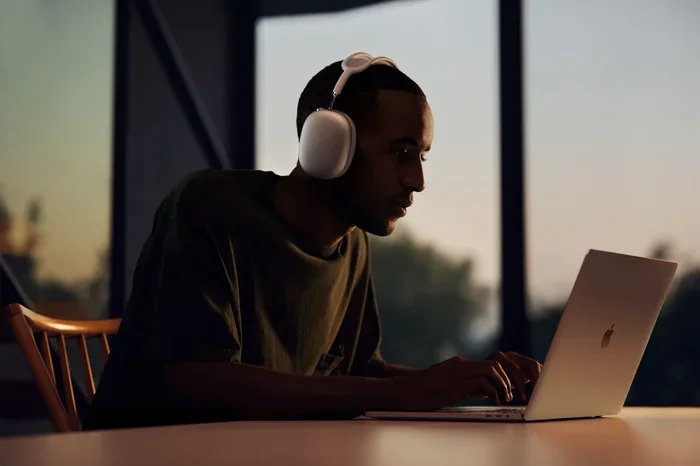
Visual guide about person wearing AirPods Max talking
Image source: apple.com
How to Answer a Call
When your phone rings and you’re wearing AirPod Max, you have several options:
- Press the Digital Crown once to answer the call
- Say “Hey Siri, answer the call” for hands-free answering
- Squeeze the right ear cup with two pinches (this is the force sensor)
- Use your iPhone as you normally would
How to End a Call
Ending a call works the same way:
- Press the Digital Crown once again
- Double-pinch the force sensor on the right ear cup
- Say “Hey Siri, end the call”
How to Make an Outgoing Call
There are multiple ways to start a call with AirPod Max:
- Use Siri: Say “Hey Siri, call [contact name]” or “Hey Siri, dial [phone number]”
- Use your iPhone: Make the call normally and audio routes to your AirPod Max automatically
- Use Siri on Mac: If connected to your Mac, ask it to call someone through FaceTime or your phone
The call quality is where AirPod Max really shines. Apple uses computational audio to process your voice in real-time. Think of it like having a sound engineer sitting inside your headphones, constantly tweaking your voice to make it sound as clear as possible. Background noise fades away, and your voice comes through crisp and natural.
Using AirPod Max for Video Meetings and Conferences
Remote work is here to stay, and AirPod Max is one of the best tools you can have for video meetings. Whether you’re on Zoom, Microsoft Teams, Google Meet, or FaceTime, your AirPod Max will deliver professional-grade audio quality that makes you sound like you’re in a quiet office—even if you’re actually in your kitchen with a blender going.
Best Video Conferencing Apps for AirPod Max
AirPod Max works with virtually all video conferencing platforms:
- Zoom: Full compatibility with voice and Siri controls
- Microsoft Teams: Works seamlessly on Mac, iOS, and Windows
- Google Meet: Supported through Chrome browser and mobile apps
- FaceTime: Native Apple integration for the best experience
- Slack Huddles: Works perfectly for quick voice conversations
- WebEx: Compatible with both desktop and mobile versions
Setting Up AirPod Max for Meetings
Here’s a quick step-by-step guide to ensure your meetings go smoothly:
- Connect your AirPod Max to your device (iPhone, iPad, Mac, or even PC)
- Open your conferencing app and check audio settings
- Select AirPod Max as both your microphone and speaker if needed
- Test your audio using the app’s test feature before joining
- Enable Transparency mode if you want to hear your own voice naturally
Pro Tip: The Transparency Mode Trick
Here’s something many people don’t know. When you’re wearing noise-cancelling headphones and talking, you might find yourself raising your voice without realizing it. It’s because you can’t hear yourself well, so your brain thinks you need to speak louder.
AirPod Max solves this with Transparency mode. Press the noise control button on the right ear cup to switch between Active Noise Cancellation and Transparency mode. In Transparency mode, you can hear your own voice naturally, which helps you maintain a normal speaking volume. You’ll sound more natural and your throat will thank you during long meetings.
Siri and Voice Commands with AirPod Max
Siri is like having a personal assistant living inside your headphones. With AirPod Max, Siri is always ready to help with hands-free voice commands.
Activating Siri
You have two main ways to activate Siri on AirPod Max:
- Voice activation: Simply say “Hey Siri” or just “Siri” followed by your command
- Manual activation: Press and hold the Digital Crown until Siri activates
What You Can Ask Siri to Do
Siri on AirPod Max can help with tons of tasks:
- Calls: “Call Mom,” “Call [business name],” “Redial last number”
- Messages: “Send a message to [name],” “Read my messages,” “Text [name] that I’ll be late”
- Navigation: “Give me directions home,” “What’s the traffic like?”
- Music control: “Play some jazz,” “Skip this song,” “Turn up the volume”
- Information: “What’s the weather?” “Set a timer for 10 minutes,” “What’s on my calendar today?”
- Smart home: “Turn off the living room lights,” “Set the thermostat to 72”
Did You Know? AirPod Max can announce incoming calls and messages through Siri. When someone calls, Siri whispers in your ear who it is, and you can respond by simply saying “accept” or “decline” without lifting a finger.
Siri’s Voice Recognition Accuracy
The microphones in AirPod Max are designed to clearly pick up “Hey Siri” even in noisy environments. Apple’s research shows that their voice trigger system has near-perfect accuracy in quiet environments, and even in noisy ones, it correctly identifies the wake phrase over 95% of the time. That’s why you can say “Hey Siri” on a busy street and still get a response.
AirPod Max Call Quality: What to Expect
Let’s talk numbers and real-world performance. AirPod Max delivers some of the best call quality available in any headphones today.
Indoor Call Quality
In a quiet indoor environment, AirPod Max sounds excellent. Your voice comes through clear, full, and natural. The person on the other end will hear you as if you were speaking directly into a high-quality microphone. There’s no muffling, no static, and no weird audio artifacts.
Outdoor Call Quality
This is where AirPod Max really earns its premium price tag. Walking down a busy street, sitting in a café, or riding public transit—these are challenging environments for any headset. AirPod Max handles them with impressive grace.
- Traffic noise: Significantly reduced
- Wind: Filtered out effectively (though strong winds can still be challenging)
- Crowd chatter: Minimized to a background hum
- Café ambiance: Reduced while keeping your voice clear
The Noise Cancellation Advantage
Here’s something that might surprise you: AirPod Max’s Active Noise Cancellation helps the person listening to YOU, not just you. How? The noise-cancelling microphones also help the system understand what noise to remove from your outgoing audio. It’s like having a noise-cancelling shield around your voice.
Audio Codec and Quality
AirPod Max uses the AAC-ELD codec for voice transmission. Think of this as a high-quality language that your voice speaks when traveling over the internet or phone network. AAC-ELD is specifically designed for voice and provides full-bandwidth audio, which means your voice sounds more natural and less robotic compared to older phone audio standards.
Troubleshooting Common AirPod Max Talking Issues
Sometimes things don’t work perfectly. Here are solutions to the most common talking-related issues with AirPod Max.
Problem: People Can’t Hear You Clearly
If callers report that your voice sounds muffled or distant, try these fixes:
- Check the microphone opening: Make sure nothing is covering the small microphone holes on the ear cups
- Clean your AirPod Max: Dust and debris can block microphones
- Try Transparency mode: It can sometimes help with voice pickup
- Restart your AirPod Max: Hold the noise control button and Digital Crown for 10 seconds
- Reconnect to your device: Forget the device and pair it again
Problem: You Can’t Hear the Other Person
If audio isn’t coming through during calls:
- Check volume levels: Use the Digital Crown to increase volume
- Verify audio routing: Make sure your device is sending audio to AirPod Max
- Check for obstructions: Ensure nothing is blocking the ear cup speakers
- Update your device: Outdated software can cause audio issues
Problem: Siri Doesn’t Respond
If “Hey Siri” isn’t working:
- Enable “Hey Siri” in settings: Go to Settings > Siri & Search on your device
- Check your internet connection: Siri needs internet to process requests
- Make sure AirPod Max is connected: Siri may not work if the connection is unstable
- Reset AirPod Max: As a last resort, perform a factory reset
Problem: Audio Cuts Out During Calls
Intermittent audio can be frustrating:
- Stay within Bluetooth range: Keep your device within 30 feet
- Minimize interference: Move away from other Bluetooth devices and Wi-Fi routers
- Charge your AirPod Max: Low battery can cause connectivity issues
- Check for iOS updates: Apple often fixes call bugs in software updates
Advanced Tips for Talking with AirPod Max
Ready to become an AirPod Max communication pro? These advanced tips will take your calling experience to the next level.
Tip 1: Use Announce Notifications
Enable “Announce Notifications” in Settings > Siri & Search > Announce Notifications. Siri will read incoming messages and important notifications through your AirPod Max. You can respond by voice without ever looking at your phone. It’s perfect for when you’re driving, working out, or just busy.
Tip 2: Set Up Live Listen
Live Listen turns your iPhone into a remote microphone that sends audio to your AirPod Max. It’s originally designed for accessibility, but it’s also great for listening to conversations from across a room or hearing announcements in noisy places. Just enable it in Settings > Control Center > Hearing.
Tip 3: Master the Force Sensor Gestures
The right ear cup has a force sensor that responds to pinches:
- Single pinch: Play/pause or answer/end call
- Double pinch: Skip forward or end call
- Triple pinch: Skip backward
- Press and hold: Activate Siri
These gestures work even with gloves on, which is great for cold weather.
Tip 4: Optimize for Different Environments
Create a mental note of which mode works best where:
- Quiet office: Active Noise Cancellation for focus during calls
- Coffee shop: Transparency mode for natural conversation
- Walking outside: Transparency mode for safety and awareness
- On a plane: Active Noise Cancellation to hear calls clearly
Tip 5: Use AirPod Max for Dictation
On iOS and macOS, you can dictate text anywhere you’d normally type. Just click in a text field and start talking. AirPod Max’s microphones capture your dictation with high accuracy, making it easy to write emails, documents, and messages without typing.
Tip 6: Take Advantage of Automatic Device Switching
If you own multiple Apple devices, AirPod Max can automatically switch between them. If you’re watching a movie on your iPad and a call comes in on your iPhone, your AirPod Max will instantly switch to the call. When the call ends, they switch back. It’s seamless magic that just works.
Comparing AirPod Max Talking Experience to Other Headphones
How does AirPod Max stack up against the competition for calls and voice quality? Let’s take a look.
AirPod Max vs. AirPod Pro
Both have excellent microphones, but AirPod Max has an advantage for long calls because of its comfort. AirPod Pro can cause ear fatigue after extended wear, while AirPod Max distributes weight across your head and ears. For marathon Zoom meetings, AirPod Max wins.
AirPod Max vs. Sony WH-1000XM5
The Sony XM5 is a worthy competitor with great noise cancellation, but AirPod Max has better microphone quality for voice calls. Sony’s headphones are excellent for music but slightly behind in voice clarity.
AirPod Max vs. Bose QuietComfort Ultra
Bose is famous for noise cancellation, and their latest model matches AirPod Max in that area. For pure call quality, both are excellent, but AirPod Max has tighter Apple ecosystem integration, making it the better choice for iPhone users.
The Apple Ecosystem Advantage
One thing that makes AirPod Max special for talking is how well it works with Apple devices. Features like automatic switching, audio sharing, and Siri integration create an experience that’s hard to beat if you’re an Apple user.
The Bottom Line on Talking with AirPod Max
So, can you talk with AirPod Max? Absolutely, and you should! These headphones are not just for music—they’re a complete communication powerhouse that fits comfortably over your ears.
From crystal-clear phone calls to seamless video meetings, from hands-free Siri commands to effortless message dictation, AirPod Max handles every voice interaction with remarkable quality. The nine-microphone array, beamforming technology, and computational audio work together to make sure your voice sounds great and you hear others perfectly.
Whether you’re a remote worker taking back-to-back meetings, a busy professional managing calls on the go, or someone who loves the convenience of voice commands, AirPod Max delivers an exceptional talking experience that justifies its premium price tag.
Put them on, say “Hey Siri, call [name],” and experience talking with headphones the way it should be—effortless, clear, and maybe even a little bit magical.
Frequently Asked Questions
Can I make phone calls with AirPod Max?
Yes, AirPod Max fully supports phone calls. The headphones have three dedicated microphones that pick up your voice clearly, and you can answer, end, or make calls using the Digital Crown, force sensor, or Siri voice commands. Call quality is excellent thanks to beamforming microphone technology.
Do AirPod Max work with Zoom and Microsoft Teams?
Absolutely! AirPod Max works seamlessly with all major video conferencing platforms including Zoom, Microsoft Teams, Google Meet, FaceTime, and WebEx. Just connect your AirPod Max to your device and select them as your audio input and output in the app’s settings.
How many microphones does AirPod Max have for calls?
AirPod Max has nine microphones total. Three are primarily used for voice pickup during calls and Siri interactions, while eight work together for Active Noise Cancellation. The microphones use beamforming technology to isolate your voice from background noise.
Can I use “Hey Siri” with AirPod Max?
Yes, AirPod Max supports hands-free “Hey Siri” activation. You can make calls, send messages, set reminders, control music, and more without touching your headphones or phone. Just make sure “Hey Siri” is enabled in your device’s settings.
Why do people say I sound muffled on AirPod Max calls?
If people say you sound muffled, the microphone openings may be blocked or dirty. Clean your AirPod Max gently with a soft, dry cloth. Also make sure you’re wearing them correctly and that you’re using the most recent software version on your connected device.
Can I use AirPod Max for voice dictation?
Yes! AirPod Max works with the dictation feature on iOS and macOS. Click in any text field and start speaking—your words will be transcribed automatically. The high-quality microphones pick up your voice clearly, making dictation fast and accurate.