Yes, you can update AirPods Pro, and the process happens automatically through your paired Apple device. Apple releases firmware updates regularly to improve performance, fix bugs, and add new features like Spatial Audio or Adaptive Transparency. While you can’t manually trigger these updates, ensuring your iPhone, iPad, or Mac stays connected to Wi-Fi with your AirPods nearby guarantees a smooth update process.
Featured image for AirPods Pro firmware update
Image source: i.ytimg.com
Picture this: you’re about to enjoy your favorite playlist, but your AirPods Pro sound slightly off. Maybe the noise cancellation feels weaker, or you’re missing out on a cool new feature everyone keeps talking about. The solution is probably hiding in plain sight, an update. But here’s the thing, updating AirPods Pro isn’t like updating your iPhone. There’s no big red badge, no download button, and definitely no progress bar. It almost feels like magic.
The truth is, Apple designed AirPods updates to happen quietly in the background, so most people never even realize their earbuds got better overnight. Yet understanding how this process works can save you from confusion, missed features, and unnecessary trips to the Apple Store. Think of it like your home’s heating system. You don’t need to know every technical detail, but understanding the basics helps you stay comfortable.
This guide breaks down everything you need to know about updating your AirPods Pro. We’ll cover the who, what, where, when, and why, plus share practical tips that make the whole process feel effortless. By the end, you’ll know exactly how to keep your premium earbuds performing at their absolute best, whether you own the original AirPods Pro, the AirPods Pro 2, or the latest AirPods Pro 3.
Key Takeaways
- Automatic Process: AirPods Pro updates happen automatically and cannot be manually triggered by users.
- Proximity Matters: Your AirPods must be near your paired iPhone or iPad and charging for updates to install.
- Wi-Fi Required: Your source device must have an active internet connection for firmware downloads.
- Regular Updates: Apple releases AirPods Pro updates several times yearly to enhance features and security.
- Check Current Version: You can verify your current firmware version in your iPhone’s Settings app under Bluetooth.
- Troubleshooting Available: If updates fail, resetting your AirPods and re-pairing them usually solves the problem.
- Universal Compatibility: The update process works identically across AirPods Pro, AirPods Pro 2, and AirPods Pro 3.
📑 Table of Contents
- What Does It Mean to Update AirPods Pro?
- Who Can Update AirPods Pro and On Which Devices?
- Where Does the Update Process Happen?
- When Do AirPods Pro Updates Happen?
- Why Should You Update Your AirPods Pro?
- How to Check Your Current AirPods Pro Firmware Version
- Troubleshooting: What to Do When Updates Won’t Install
- Common Misconceptions About AirPods Pro Updates
- Best Practices for Maintaining AirPods Pro
- The Future of AirPods Pro Updates
- Final Thoughts: Embrace the Invisible Updates
What Does It Mean to Update AirPods Pro?
Updating AirPods Pro means installing new firmware, which is essentially the software that controls how your earbuds function. Firmware is like the brain of your AirPods. It tells the tiny processors inside how to handle sound, manage battery life, connect to your devices, and run features like Active Noise Cancellation and Transparency mode. Without firmware, your AirPods would just be expensive pieces of plastic and metal.
When Apple releases a firmware update, they’re essentially giving your AirPods a brain upgrade. These updates can include:
- Bug fixes that resolve annoying glitches
- Performance improvements for better sound quality or battery life
- New features like Adaptive Audio or Conversation Awareness
- Security patches to protect your device
- Compatibility updates for newer iOS versions
The Invisible Update
Unlike your iPhone, which shouts “Update Available!” at you through notifications, AirPods Pro updates happen silently. You won’t see a prompt, won’t get a confirmation message, and might not even notice anything changed. This design choice by Apple aims to keep things simple. Most users prefer their tech to just work without constant interruptions. However, this convenience can also lead to confusion when people wonder whether their updates are actually happening.
Did you know that Apple has released over 30 firmware updates for AirPods Pro since the original model launched in 2019? That’s roughly five updates per year, showing Apple’s commitment to continuously improving even small devices. Each update typically ranges from 20MB to 50MB in size, tiny compared to iOS updates but significant for earbuds.
Who Can Update AirPods Pro and On Which Devices?
The answer might surprise you with its simplicity. Anyone who owns AirPods Pro can receive updates, but the update process requires a specific ecosystem of Apple products. Think of it like needing a key to start a car. Your AirPods have the engine, but they need your iPhone or Mac to actually drive the upgrade.
Visual guide about AirPods Pro firmware update
Image source: technave.com
Compatible Source Devices
AirPods Pro firmware updates can be delivered through several Apple devices, including:
- iPhone: Any model running iOS 12 or later (though newer features require iOS 16 or later)
- iPad: Any model running iPadOS 13 or later
- Mac: Any computer running macOS Catalina or newer
- Apple TV: Some updates can occur through Apple TV HD and Apple TV 4K models
The most common and reliable way to update AirPods Pro is through an iPhone or iPad. Why? Because these devices maintain the strongest, most consistent connection with your AirPods. Your Mac can also facilitate updates, but iOS devices tend to be the primary pathway Apple uses for firmware delivery.
What About Android Users?
Here’s where things get interesting. While AirPods Pro work with Android phones for basic listening, firmware updates require an Apple device. This limitation means Android users miss out on new features and bug fixes. It’s like buying a smart TV but needing a specific brand of remote to access certain streaming apps. Apple has kept AirPods updates exclusive to their ecosystem, which makes sense from a business perspective but can frustrate cross-platform users.
Where Does the Update Process Happen?
The “where” in our who-what-where-when-why framework has two answers: the physical location and the digital pathway. Let’s explore both.
Physical Location Requirements
For an AirPods Pro update to install, your earbuds need to be in a very specific situation:
- Inside the charging case with the lid closed
- Near your paired Apple device (within Bluetooth range, roughly 30 feet)
- Connected to power either through a charging cable or sufficiently charged battery
The charging case requirement is crucial. Apple designed updates this way because they don’t want to interrupt your listening experience or risk installing updates on low battery. It’s similar to how surgeons don’t perform operations on tired patients. The device needs to be in optimal condition for the procedure.
Digital Pathway
The update travels from Apple’s servers through your iPhone (or Mac) and finally to your AirPods Pro. This happens through your device’s internet connection, which is why having stable Wi-Fi matters. The digital journey looks like this:
Apple’s server sends firmware to your iPhone → Your iPhone verifies the update → Your iPhone pushes the firmware to AirPods via Bluetooth → AirPods install the new firmware → Installation completes
Think of it like a relay race. Each device passes the baton (firmware) to the next, ensuring your AirPods get the latest software safely.
When Do AirPods Pro Updates Happen?
Timing is one of the trickiest parts of AirPods Pro updates because Apple doesn’t announce them publicly. Unlike iOS updates, which get keynote presentations and dedicated press events, AirPods firmware updates arrive quietly, often discovered only when tech blogs notice them in server logs.
Typical Update Frequency
Based on historical patterns, AirPods Pro receive updates approximately every 2-3 months. However, this frequency can vary. Some periods see multiple updates within weeks, while other times, months pass without any new firmware. Apple doesn’t follow a predictable schedule, which keeps users on their toes.
Major iOS releases often coincide with AirPods Pro updates. When iOS 17 launched in September 2023, AirPods Pro received concurrent updates to enable new features like Adaptive Audio. This coordination ensures your earbuds can take full advantage of new iPhone capabilities.
Best Times for Updates
Your AirPods Pro will attempt to install updates whenever these conditions are met:
- AirPods are in their case with the lid closed
- AirPods are connected to a power source
- Your iPhone is connected to Wi-Fi
- Your iPhone has been recently used to play audio
The “recently used” condition is interesting. Apple requires your iPhone to have an active connection history with your AirPods before allowing updates. This prevents random firmware installations on devices that aren’t really “yours.” It’s a security measure that protects against unauthorized modifications.
How to Encourage Updates
If you suspect an update is available but isn’t installing, try this routine:
Place your AirPods Pro in their case → Connect the case to power → Put your iPhone on the charger nearby → Ensure Wi-Fi is connected → Wait 30 minutes to an hour → Check the firmware version in Settings
Most updates complete within 30-60 minutes, though some larger updates might take longer. Patience is key here.
Why Should You Update Your AirPods Pro?
Some users wonder if updates are really necessary. After all, if your AirPods work fine, why fix what isn’t broken? The answer lies in three powerful reasons that make updates genuinely important.
Reason 1: Access to New Features
Apple regularly uses firmware updates to unlock new capabilities for AirPods Pro. Recent examples include:
- Adaptive Transparency: Automatically reduces loud environmental sounds
- Conversation Awareness: Lowers music when you start talking
- Personalized Spatial Audio: Customizes sound based on your ear shape
- Find My improvements: Better location tracking for lost earbuds
- Adaptive Audio: Intelligently blends noise cancellation and transparency
Without updates, you’d miss out on these features entirely, even if your hardware supports them. It’s like buying a car with hidden capabilities that only unlock with software updates.
Reason 2: Better Performance and Stability
Did you know that firmware updates can measurably improve battery life? Apple has released updates that extended AirPods Pro battery life by up to 30 minutes in some scenarios. Other updates have improved Bluetooth connection stability, reduced audio dropouts, and fixed frustrating bugs like automatic ear detection failures.
Think of it like getting regular oil changes for your car. The engine might run fine without them, but maintenance keeps everything performing optimally and prevents bigger problems down the road.
Reason 3: Security and Privacy
AirPods Pro contain tiny computers that process audio data. Like any connected device, they’re potential targets for security exploits. Firmware updates patch these vulnerabilities, protecting your personal information and ensuring your conversations remain private. Apple takes security seriously, which is why they release updates promptly when vulnerabilities are discovered.
How to Check Your Current AirPods Pro Firmware Version
Since updates happen automatically, how do you know which version you’re running? This is where many users get confused, but the process is actually straightforward once you know where to look.
Step-by-Step Verification
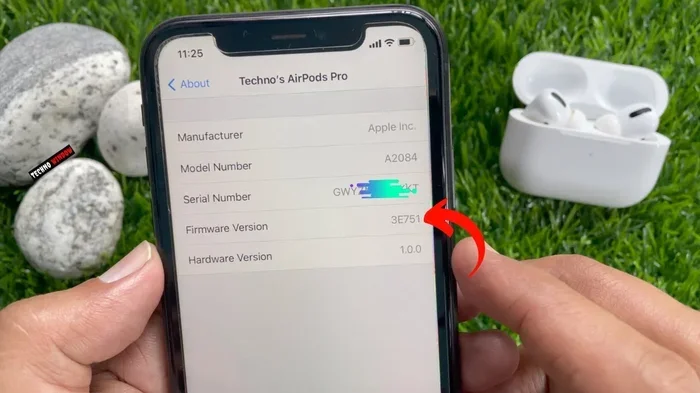
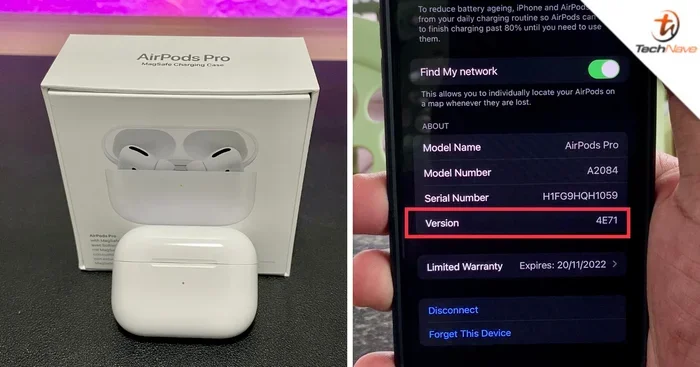
Open the Settings app on your iPhone → Tap Bluetooth → Find your AirPods Pro in the device list → Tap the “i” icon next to your AirPods name → Scroll down to find the “Version” section
The version number appears as a string like “6F8” or “6F21.” These alphanumeric codes seem random, but each represents a specific firmware build. When you check tech websites or Apple support pages for the latest version, you’ll see these same codes.
Understanding Version Numbers
Higher numbers generally indicate newer versions, but this isn’t always true. Apple sometimes releases versions with similar numbers that contain different fixes. The best approach is to check Apple support pages or trusted tech blogs for confirmation that you have the latest version.
For reference, recent firmware versions include:
- 6F8: Released for AirPods Pro 2 with USB-C in late 2023
- 6A300/6A301: Original AirPods Pro firmware updates from 2022
- 6F21: AirPods Pro 2 firmware that introduced new features
If your version doesn’t match the latest release and you’ve followed the update encouragement steps, there might be a delay. Updates often roll out gradually across regions and devices over several days or weeks.
Troubleshooting: What to Do When Updates Won’t Install
Sometimes, despite your best efforts, updates stubbornly refuse to install. Don’t panic. Most issues have simple solutions that don’t require technical expertise or Apple Store visits.
Solution 1: Reset Your AirPods Pro
When in doubt, reset. This time-tested troubleshooting step resolves most issues.
Place AirPods in their case → Close the lid → Wait 30 seconds → Open the lid → On your iPhone, go to Settings → Bluetooth → Tap “i” next to AirPods → Select “Forget This Device” → Confirm → Press and hold the setup button on the back of the case for 15 seconds → The light should flash amber then white → Re-pair your AirPods with your iPhone
This process essentially gives your AirPods a fresh start. Any corrupted data or connection issues typically resolve through this reset.
Solution 2: Update Your iPhone First
Sometimes AirPods Pro updates require the newest iOS to function properly. If your iPhone is running an older version, updates might fail silently. Check for iOS updates by going to Settings → General → Software Update. Install any available updates, then try the AirPods update process again.
Solution 3: Charge Everything
Low battery levels can prevent updates from installing. Ensure both your AirPods Pro case and your iPhone have at least 50% battery before attempting updates. Better yet, keep everything plugged into power during the update process.
Solution 4: Contact Apple Support
If nothing works after several attempts across multiple days, your AirPods might have a hardware issue preventing updates. Apple’s support team can diagnose problems remotely and, if necessary, arrange repairs or replacements. Before contacting support, note your current firmware version, your iOS version, and the troubleshooting steps you’ve already tried. This information helps them assist you more efficiently.
Common Misconceptions About AirPods Pro Updates
Several myths circulate about AirPods updates that can lead to confusion and unnecessary worry. Let’s clear up the most common ones.
Myth 1: You Need to Manually Download Updates
Many users search online for “how to download AirPods Pro updates” expecting to find download buttons or app interfaces. The reality is that no such option exists. Apple handles everything automatically, which is intentional. Manual updates would add complexity without meaningful user benefit.
Myth 2: Updates Require a Computer
Some people believe they need to connect AirPods to a Mac or PC to update them. While Macs can facilitate updates, they’re not required. Your iPhone alone can handle the entire process, making updates accessible even to users who aren’t tech-savvy.
Myth 3: Updates Drain Battery Significantly
A persistent rumor claims that firmware updates dramatically reduce AirPods battery life. In reality, updates use minimal power and don’t affect long-term battery performance. If you notice battery degradation, it’s more likely due to natural battery aging rather than update-related issues.
Myth 4: All AirPods Models Update Identically
While the update process is similar across models, firmware versions differ between AirPods Pro generations. AirPods Pro 1, AirPods Pro 2, and AirPods Pro 3 each receive separate updates tailored to their specific hardware. Don’t worry if your friend has a different version number, it doesn’t mean you’re behind.
Best Practices for Maintaining AirPods Pro
Beyond just updating, several practices help your AirPods Pro perform optimally throughout their lifespan.
Regular Cleaning
Did you know that earwax buildup can affect sound quality and even cause connection issues? Clean your AirPods Pro weekly using a soft, dry cloth and a small brush for the speaker meshes. This simple maintenance extends their lifespan and keeps audio quality crisp.
Battery Care
Avoid letting your AirPods Pro battery drain to 0% regularly. Lithium-ion batteries last longest when kept between 20% and 80% charge. Additionally, don’t leave your AirPods in extremely hot or cold environments, as temperature extremes damage battery cells permanently.
Proper Storage
Always store AirPods Pro in their charging case when not in use. This protects them from physical damage and keeps them charged and ready for updates. The case also prevents dust and debris from accumulating in the speaker meshes.
Software Harmony
Keep your iPhone, iPad, and Mac updated to the latest software versions. This ensures compatibility with AirPods Pro and enables all available features. Apple designs their ecosystem to work best when all devices run current software.
The Future of AirPods Pro Updates
Looking ahead, AirPods Pro updates will likely become even more sophisticated. Rumors suggest future firmware might include health monitoring features, improved spatial audio algorithms, and even AI-powered sound adjustments. As Apple continues investing in audio technology, your existing AirPods Pro may gain capabilities you never expected.
The automatic update system ensures everyone benefits from these improvements without needing technical knowledge. It’s one of the most user-friendly approaches to device maintenance in the tech industry.
Final Thoughts: Embrace the Invisible Updates
Updating AirPods Pro doesn’t require technical expertise, patience with complex procedures, or even awareness that updates are happening. That’s exactly how Apple designed it. Your premium earbuds quietly improve themselves while you sleep, charge, or go about your day.
By understanding the basics covered in this guide, you can ensure your AirPods Pro always have the latest features, best performance, and strongest security. Remember the key principles: keep your AirPods in their case near your iPhone with Wi-Fi connected, and let Apple handle the rest.
The next time someone asks “can you update AirPods Pro,” you’ll have a confident answer: yes, absolutely, and it’s easier than you ever imagined. Your AirPods Pro are already updating themselves, working tirelessly to deliver the premium audio experience you paid for. All you need to do is enjoy them.
Frequently Asked Questions
How long does it take to update AirPods Pro?
Most AirPods Pro firmware updates complete within 30-60 minutes, though some larger updates may take up to 2 hours. The process happens automatically while your AirPods are in their case, so you don’t need to actively wait or monitor the installation.
Can I update AirPods Pro without an iPhone?
While an iPhone or iPad provides the most reliable update pathway, you can also update AirPods Pro through a Mac running macOS Catalina or newer. However, you cannot update AirPods Pro using Android devices or Windows computers, as Apple restricts firmware updates to their ecosystem.
Do AirPods Pro update automatically overnight?
Yes, AirPods Pro often update overnight when conditions are ideal: they’re in their case, connected to power, near your iPhone, and your iPhone has Wi-Fi access. Many users discover their AirPods have new firmware each morning without ever initiating an update manually.
What happens if I unplug my AirPods during an update?
Disconnecting power during an update generally doesn’t cause problems because AirPods Pro have internal batteries that maintain the update process briefly. However, consistently interrupting updates could potentially cause installation failures, so it’s best to leave them plugged in and undisturbed until updates complete.
Will updating AirPods Pro delete my settings?
No, firmware updates preserve your personalized settings including noise cancellation preferences, ear tip fit test results, and Spatial Audio configurations. Your settings remain intact throughout the update process, so you won’t need to reconfigure anything after installation.
Why won’t my AirPods Pro update to the latest version?
Several factors can delay updates: your iPhone might need a software update first, your AirPods might need resetting, or Apple might be rolling out the update gradually by region. Try resetting your AirPods, updating your iPhone to the latest iOS, and ensuring stable Wi-Fi connectivity for at least an hour.