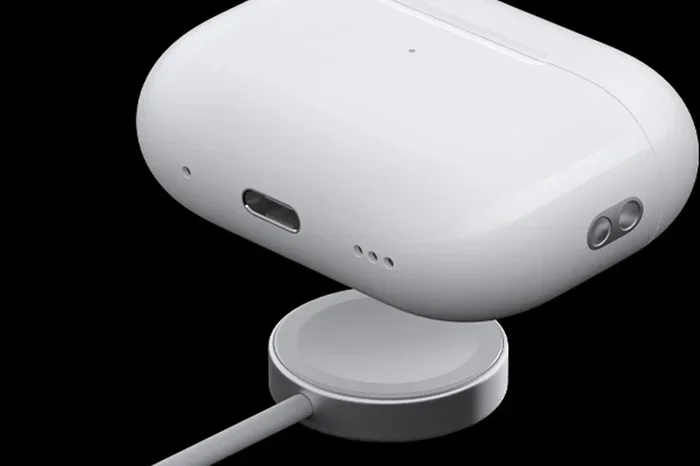
Featured image for AirPods Pro charging case
Image source: macworld.com
Yes, you can absolutely update AirPod Pros, but the process happens automatically rather than through manual controls. Apple pushes firmware updates wirelessly to your AirPods when they’re connected to an iPhone or iPad with internet access. While you can’t trigger updates manually, ensuring your AirPods stay charged, in their case, and near your iPhone guarantees you’ll receive the latest features and security improvements without lifting a finger.
Picture this: you’re enjoying your favorite playlist when suddenly your AirPod Pros sound different. Maybe the noise cancellation feels stronger, or perhaps spatial audio works smoother than before. What just happened? Your AirPods likely received a firmware update while you weren’t even paying attention. This invisible maintenance is one of Apple’s most hands-off approaches to product care, and it leaves many users wondering: can you update AirPod Pros manually, or does it really all happen by magic?
The short answer is yes, AirPod Pros can be updated, but the process is fundamentally different from updating an iPhone or iPad. There’s no Settings menu with a big “Update Now” button. Instead, Apple has designed AirPods to receive firmware updates automatically, like a self-watering plant that takes care of itself. This approach ensures every user benefits from the latest audio improvements, bug fixes, and security patches without needing technical knowledge.
However, this automation creates confusion. Some users worry their AirPods are outdated, others can’t tell if an update installed correctly, and tech enthusiasts crave more control. This comprehensive guide will demystify everything about AirPod Pro updates, from how they work behind the scenes to troubleshooting stubborn installations.
Key Takeaways
- Automatic Updates: AirPod Pro firmware updates happen automatically when connected to an iOS device, with no manual button to press.
- Latest Firmware: Current AirPod Pro models (2nd gen and USB-C) run firmware version 7E93 or newer as of 2026.
- Update Requirements: Your iPhone must have internet access, sufficient battery, and the latest iOS version installed.
- No Manual Trigger: Unlike iPhones, there’s no “Update Now” button for AirPods, which frustrates many users seeking control.
- Verification Method: You can check your current firmware version through Settings > Bluetooth > AirPods Info.
- Update Duration: Firmware downloads typically take 5-15 minutes, but installation happens seamlessly in the background.
- Reset Option: If updates stall, resetting your AirPods and re-pairing them often resolves installation issues.
📑 Table of Contents
- Understanding AirPod Pro Firmware: What You Need to Know
- How to Update AirPod Pros: The Complete Process
- Checking Your Current AirPod Pro Firmware Version
- Can You Manually Update AirPod Pros? The Honest Answer
- Troubleshooting AirPod Pro Update Issues
- What Changes in AirPod Pro Firmware Updates?
- Best Practices for Maintaining Updated AirPod Pros
- Common Misconceptions About AirPod Pro Updates
- The Future of AirPod Pro Updates
- Conclusion: Embracing the Automatic Update Lifestyle
Understanding AirPod Pro Firmware: What You Need to Know
Before diving into the update process, let’s establish what firmware actually means and why it matters for your AirPod Pros.
What Is Firmware?
Think of firmware as the brain software living inside your AirPods. Just like your iPhone runs iOS, your AirPods run their own miniature operating system called firmware. This software controls everything from how noise cancellation works to how your AirPods communicate with your iPhone.
Did You Know? AirPod Pros contain more processing power than the computer that landed humans on the moon in 1969. The Apollo Guidance Computer had roughly 64KB of memory, while modern AirPods pack sophisticated processors handling real-time audio processing.
Firmware updates serve several critical purposes:
- Bug Fixes: Resolving glitches like audio dropouts or connection problems
- New Features: Adding capabilities like improved spatial audio or conversation awareness
- Security Patches: Protecting against potential vulnerabilities
- Performance Improvements: Optimizing battery life and sound quality
- Compatibility Updates: Ensuring smooth interaction with new iOS versions
Who Needs to Update Their AirPod Pros?
Every AirPod Pro owner benefits from firmware updates, regardless of technical expertise. Whether you’re a casual listener or an audiophile, updated firmware ensures you’re getting the best possible experience from your investment.
When Apple releases a new iOS version, your AirPod Pros often need corresponding firmware updates to maintain compatibility. Skipping these updates can lead to frustrating issues like failed connections, degraded noise cancellation, or missing features.
How to Update AirPod Pros: The Complete Process
Here’s where things get interesting. Updating AirPod Pros doesn’t follow the traditional app update model most people expect.
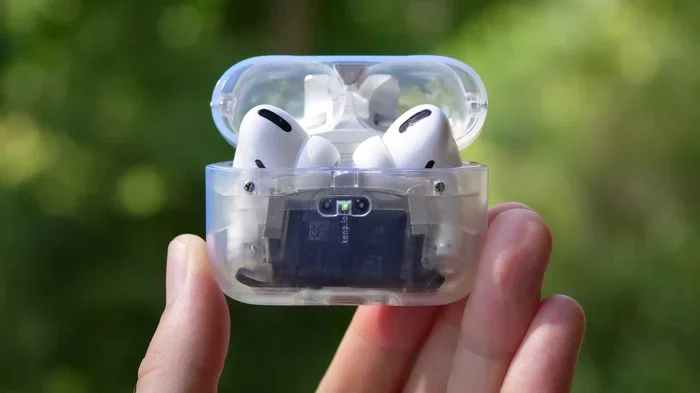
Visual guide about AirPods Pro charging case
Image source: images.macrumors.com
The Automatic Update Mechanism
Apple designed AirPod updates to happen passively. Think of it like a mail delivery system: letters (firmware updates) arrive at your mailbox (iPhone), and the postal service (Apple’s system) handles delivery to your AirPods automatically.
The update process works through these steps:
- Step 1: Apple releases new firmware through its update servers
- Step 2: Your iPhone or iPad detects available updates when connected to internet
- Step 3: The firmware downloads to your iOS device silently
- Step 4: When your AirPods connect to your iPhone, the update transfers
- Step 5: Installation happens while AirPods charge in their case
Essential Requirements for Updates
For updates to occur successfully, three conditions must align:
Internet Connection Required: Your paired iPhone or iPad needs active Wi-Fi or cellular data. Without internet, your device can’t download the new firmware to share with your AirPods.
Sufficient Battery Levels: Both your iPhone and AirPod case need adequate charge. Apple typically recommends at least 50% battery on your iPhone and ensuring your AirPods are charging in their case.
Latest iOS Version: Running outdated iOS can prevent firmware updates from reaching your AirPods. Always keep your iPhone updated to the newest available iOS version.
Optimal Conditions for Faster Updates
While you can’t force updates, you can create ideal conditions for them to happen quickly:
- Place AirPods in their charging case
- Keep the case near your iPhone (within Bluetooth range)
- Connect your iPhone to Wi-Fi
- Ensure your iPhone is plugged into power or has ample battery
- Leave the setup undisturbed for at least 30 minutes
Checking Your Current AirPod Pro Firmware Version
Since updates happen invisibly, knowing how to verify your firmware version empowers you to confirm whether updates have installed successfully.
Step-by-Step Verification Process
Checking your AirPod firmware version takes less than a minute. Imagine looking at the odometer in a car: it tells you exactly where you stand, helping you decide if service is needed.
- Open the Settings app on your iPhone or iPad
- Tap Bluetooth from the menu
- Locate your AirPod Pros in the device list
- Tap the small “i” information icon next to your AirPods
- Scroll down to find the Firmware Version number
Current Firmware Versions for AirPod Pros
As of early 2026, Apple has released several firmware versions for different AirPod Pro models:
AirPods Pro (2nd Generation): Currently running firmware version 7E93 or newer, which includes enhanced spatial audio personalization and improved conversation awareness features.
AirPods Pro (2nd Generation) USB-C: The USB-C variant typically receives updates simultaneously with the Lightning version, maintaining feature parity across models.
AirPods Pro (1st Generation): While still receiving occasional security updates, this older model has largely been succeeded by newer generations.
Can You Manually Update AirPod Pros? The Honest Answer
This question sparks more frustration than almost any other AirPod topic. Let’s address it directly.
The Reality of Manual Updates
No, you cannot manually trigger AirPod Pro firmware updates through any official method. Unlike updating apps from the App Store or installing iOS updates through Settings, AirPod firmware updates don’t offer a manual trigger button.
Apple’s philosophy centers on simplicity. The company believes most users shouldn’t need to think about updates, so they made the process automatic. While this works beautifully for 95% of users, it creates challenges for the remaining 5% who want more control.
Why Apple Restricts Manual Updates
Several technical and philosophical reasons explain this restriction:
Preventing Installation Errors: Manual updates could lead to corrupted installations if interrupted. Automatic updates happen only when conditions are optimal.
Battery Protection: Firmware installation requires significant power. Apple’s system ensures updates only occur when AirPods have sufficient charge.
Simplified User Experience: Most consumers prefer plug-and-play simplicity over managing yet another device’s updates.
Quality Control: By controlling when updates install, Apple can monitor deployment and pause problematic updates if issues arise.
What You Can Do Instead
While you can’t force updates, you can encourage them by following best practices:
- Keep your iPhone updated to the latest iOS version
- Charge your AirPods regularly
- Leave AirPods near your iPhone when not in use
- Maintain stable internet connectivity
- Don’t immediately close the AirPods case after use
Troubleshooting AirPod Pro Update Issues
Sometimes updates stall or fail to install. Here’s how to resolve common problems.
Problem: Firmware Won’t Update
If your AirPods show an outdated firmware version despite following best practices, try these solutions:
Solution 1: The Reset Method
- Place AirPods in their case and close the lid
- Wait 30 seconds, then open the lid
- Press and hold the setup button on the back of the case for 15 seconds
- Wait for the status light to flash amber, then white
- Re-pair your AirPods with your iPhone
Solution 2: The Overnight Trick
Many users report success by leaving their AirPods in the case, connected to power, near their iPhone with Wi-Fi enabled, overnight. This extended timeframe often allows stubborn updates to complete.
Solution 3: iPhone Reset Pathway
- Forget your AirPods in Bluetooth settings
- Restart your iPhone
- Re-pair your AirPods
- Allow 24-48 hours for the update to propagate
Problem: Update Causes Problems
Occasionally, new firmware introduces unexpected issues. If your AirPods behave strangely after an update:
- Audio Quality Issues: Reset your AirPods and test again
- Connection Drops: Toggle Bluetooth off and on, then re-pair
- Battery Drain: Drain AirPods completely, then full recharge
- Feature Malfunctions: Check for subsequent firmware updates that may fix known issues
When to Contact Apple Support
If troubleshooting fails, Apple Support can help. Issues requiring professional assistance include:
- AirPods not appearing in Bluetooth settings
- Persistent firmware version mismatches after multiple attempts
- Hardware malfunctions following updates
- Warranty-related concerns about update failures
What Changes in AirPod Pro Firmware Updates?
Understanding what updates actually deliver helps you appreciate why staying current matters.
Recent Major Firmware Improvements
Recent updates have introduced significant enhancements:
Adaptive Audio: This intelligent feature dynamically blends noise cancellation and transparency mode based on your environment, like having a smart assistant managing your audio experience.
Conversation Awareness: When you start speaking, your AirPods automatically lower volume and enhance voices in front of you, then restore previous settings when conversation ends.
Personalized Spatial Audio: Using your iPhone’s TrueDepth camera, this feature creates a custom audio profile based on your ear and head shape.
Improved Find My Integration: Enhanced location tracking with the U1 chip in the charging case helps locate misplaced AirPods more precisely.
The Science Behind the Updates
Each firmware update represents thousands of hours of engineering work. Apple’s audio team constantly refines algorithms for noise cancellation, audio processing, and power efficiency. Think of firmware updates like software updates for a telescope: each version reveals clearer images of the audio universe.
Did You Know? Apple employs over 1,000 audio engineers worldwide who work exclusively on products like AirPods. Each firmware update undergoes rigorous testing across thousands of scenarios before release.
Best Practices for Maintaining Updated AirPod Pros
Following these habits ensures your AirPods always run the latest firmware with minimal effort.
Daily Habits for Automatic Updates
Simple routines make updates nearly invisible:
- Morning Charging Routine: Place AirPods in their case while you shower and get ready, keeping them near your iPhone
- Workday Connectivity: Leave AirPods in their case on your desk, maintaining proximity to your paired iPhone
- Nightly Maintenance: Before bed, place AirPods in their case near your charging iPhone for overnight updates
Environmental Considerations
Your usage environment affects update success:
Home vs. Travel: Updates happen more reliably in stable home environments where your iPhone maintains consistent Wi-Fi connectivity.
Case Positioning: Keep your AirPods case within 30 feet of your iPhone for optimal Bluetooth communication during updates.
Temperature Matters: Extreme cold or heat can interfere with charging and update processes. Room temperature works best.
Long-Term Update Strategy
Think of maintaining AirPod updates like servicing a car. You don’t need to think about it daily, but regular attention prevents major problems:
- Check firmware version monthly
- Update iOS promptly when notifications appear
- Clean AirPods and case regularly to ensure proper charging
- Replace AirPods every 3-4 years for optimal feature support
Common Misconceptions About AirPod Pro Updates
Let’s clear up confusion surrounding several persistent myths.
Myth 1: “I Need to Update My AirPods Separately”
Many users search for separate AirPod update apps or menus. In reality, updates happen through your iPhone’s Bluetooth connection. You don’t need any special apps or separate procedures.
Myth 2: “All AirPod Pros Receive Updates Simultaneously”
Updates roll out gradually over days or weeks. Your friend might receive an update before you do. This staged deployment helps Apple monitor for issues and adjust if needed.
Myth 3: “Skipping Updates Improves Battery Life”
Updates typically optimize battery performance rather than degrade it. Avoiding updates means missing improvements that often extend battery life.
Myth 4: “Resetting AirPods Deletes Updates”
Factory resets don’t remove firmware updates. Firmware lives in protected memory that survives resets, similar to how your computer’s BIOS persists through system resets.
The Future of AirPod Pro Updates
Looking ahead, Apple continues evolving how AirPods receive updates and features.
Emerging Update Technologies
Future updates may incorporate:
- Over-the-Air Direct Updates: Potentially allowing AirPods to update without an iPhone intermediary
- Cloud-Based Feature Deployment: Server-side processing for advanced audio features
- AI-Powered Personalization: Machine learning algorithms that adapt audio based on usage patterns
Predictions for 2026 and Beyond
Industry analysts predict AirPod Pro updates will become even more sophisticated, potentially including health monitoring features, advanced hearing assistance, and seamless device switching improvements. The automatic update infrastructure Apple has built positions AirPods to receive these innovations smoothly.
Conclusion: Embracing the Automatic Update Lifestyle
So, can you update AirPod Pros? Absolutely yes, though the process happens automatically rather than manually. This hands-off approach reflects Apple’s commitment to seamless user experiences, even if it occasionally frustrates those wanting more control.
Your AirPod Pros are likely already updated or updating themselves as you read this. By keeping them charged, near your iPhone, and connected to Wi-Fi, you ensure they receive every improvement Apple releases. Think of it as having a skilled mechanic constantly fine-tuning your car while you focus on driving.
The key takeaways are simple: trust the automatic process, maintain good charging habits, keep your iPhone updated, and check your firmware version occasionally for peace of mind. AirPod Pro updates represent one of the most user-friendly approaches to device maintenance in the consumer electronics industry, and embracing this philosophy frees you to focus on enjoying exceptional audio rather than managing software.
Whether you’re listening to music, taking calls, or enjoying spatial audio, updated firmware ensures your AirPod Pros deliver the experience Apple designed. Let them update themselves, and enjoy the ride.
Frequently Asked Questions
Can you manually update AirPod Pros or is it only automatic?
AirPod Pro updates are exclusively automatic with no manual trigger available through official Apple channels. The firmware downloads wirelessly through your paired iPhone whenever your AirPods are in their case, charged, and within Bluetooth range of your iOS device with internet access.
How long does it take for AirPod Pros to update?
Most AirPod Pro firmware updates complete within 5 to 15 minutes when conditions are optimal, though some complex updates may take up to an hour. The installation happens silently in the background while your AirPods charge, so you won’t notice any interruption to your listening experience.
Why won’t my AirPod Pros update to the latest firmware?
Common reasons include outdated iOS on your iPhone, insufficient battery on either device, AirPods being too far from your iPhone, or lack of internet connectivity. Try resetting your AirPods, updating iOS, and leaving them in the case near your iPhone overnight to encourage the update.
How do I check what firmware version my AirPod Pros are running?
Open Settings on your iPhone, tap Bluetooth, find your AirPod Pros in the device list, and tap the small “i” information icon. Scroll down to see the Firmware Version number, which you can compare with Apple’s latest released version on their support website.
Do AirPod Pro updates improve sound quality?
Yes, many firmware updates include audio processing improvements that enhance sound quality, noise cancellation effectiveness, and spatial audio performance. Apple continuously refines the audio algorithms, so keeping your AirPods updated ensures you’re experiencing the best possible sound.
What happens if I interrupt an AirPod Pro firmware update?
Interrupting an update mid-installation can potentially cause issues, though Apple’s system is designed to handle interruptions gracefully. If problems occur, resetting your AirPods and re-pairing them usually resolves any installation errors, and the update will typically resume on the next connection.