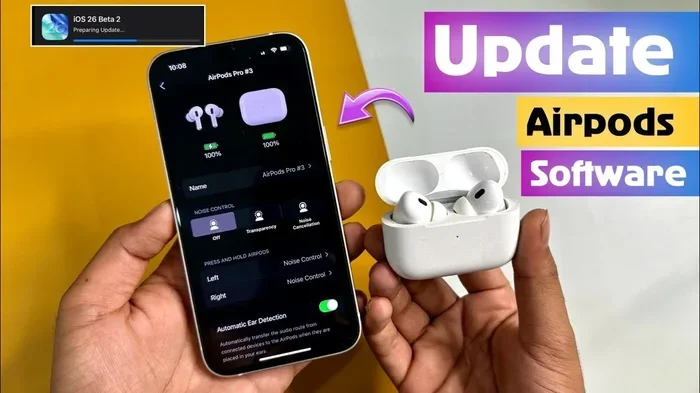
Featured image for AirPods Pro 2 firmware update
Image source: i.ytimg.com
Yes, you can update AirPods Pro 2, and Apple makes it surprisingly simple. The updates happen automatically over-the-air while your AirPods are charging and near your iPhone or iPad. However, you can’t manually trigger updates—instead, Apple pushes new firmware silently when conditions are right. This guide covers everything you need to know about checking, installing, and troubleshooting AirPods Pro 2 updates.
Picture this: you’re trying to enjoy your favorite podcast, but your AirPods Pro 2 keep disconnecting. You remember hearing about a firmware update that fixes connection issues. Now you’re wondering—can you actually update AirPods Pro 2, or are you stuck with whatever software shipped in the box?
The good news? Absolutely yes! AirPods Pro 2 receive regular firmware updates from Apple that bring new features, fix bugs, and improve performance. Think of it like getting a free upgrade for your earbuds without lifting a finger—literally. Apple designed the update process to be completely hands-off, which is both convenient and slightly mysterious if you don’t know what’s happening behind the scenes.
However, this automatic approach means many users don’t realize their AirPods have updated, miss out on troubleshooting opportunities, or wonder why a feature suddenly appeared or disappeared. In this comprehensive guide, we’ll demystify the entire update process. You’ll learn exactly how AirPods Pro 2 updates work, how to check your current version, what to do when updates stall, and how to access the latest features Apple has released.
Key Takeaways
- Automatic Updates: AirPods Pro 2 update themselves automatically—you can’t manually force an update, but you can create the right conditions for one to install.
- Charging Required: Your AirPods must be in their charging case with battery above 20% to receive firmware updates.
- iPhone Connection Needed: Updates download through a paired iPhone or iPad, so keep your Apple device nearby and connected to Wi-Fi.
- No Visible Progress: Unlike iPhone updates, there’s no progress bar or notification—the update happens silently in the background.
- Check Current Version: You can verify your current firmware version through Settings > Bluetooth > AirPods Pro 2 info icon.
- Patience is Key: Updates can take anywhere from a few minutes to several hours to complete and verify.
- Reset as Troubleshooting: If updates aren’t installing, resetting your AirPods and re-pairing them often solves the issue.
📑 Table of Contents
- How AirPods Pro 2 Updates Actually Work
- Checking Your Current AirPods Pro 2 Firmware Version
- Creating the Perfect Conditions for an Update
- What to Do When Updates Aren’t Installing
- Notable AirPods Pro 2 Updates Through the Years
- Best Practices for Maintaining Updated AirPods Pro 2
- The Future of AirPods Pro 2 Updates
- Final Thoughts on Updating Your AirPods Pro 2
How AirPods Pro 2 Updates Actually Work
Let’s start with the most important concept: AirPods Pro 2 updates happen through what tech experts call “over-the-air” (OTA) updates. Imagine your earbuds have tiny, invisible mail trucks that deliver new instructions while they sleep. That’s essentially what’s happening every time your AirPods connect to your iPhone.
Here’s the technical breakdown in simple terms:
The Update Delivery System
When Apple releases new firmware for AirPods Pro 2, they don’t send it directly to your earbuds. Instead, the update files live on Apple’s servers and get pushed to paired iPhones and iPads first. Your iPhone acts as a middleman—it downloads the update, then transfers it to your AirPods when they’re charging and nearby.
This system works like passing a baton in a relay race. Your iPhone grabs the baton (the update file), then hands it to your AirPods when the time is right. This approach lets Apple keep your earbuds updated without needing them to have their own internet connection.
Why Apple Chose Automatic Updates
Did you know that Apple first introduced firmware update capabilities for AirPods back in 2019? Before that, your AirPods were essentially frozen in time—whatever features they had at purchase were all you’d ever get. The shift to OTA updates was a game-changer.
Apple chose automatic updates for several smart reasons:
- User Convenience: Most people don’t want to fiddle with earbud software
- Security: Automatic patches protect users from newly discovered vulnerabilities
- Feature Rollouts: Apple can enable new capabilities without requiring store visits
- Quality Control: Apple ensures updates happen under optimal conditions
Think of it like a car’s automatic transmission—you don’t need to be a mechanic to drive, and the car handles the complex stuff behind the scenes.
Checking Your Current AirPods Pro 2 Firmware Version
Before you can update anything, you need to know where you stand. Checking your current firmware version is like reading your car’s odometer before a road trip—it tells you your starting point.
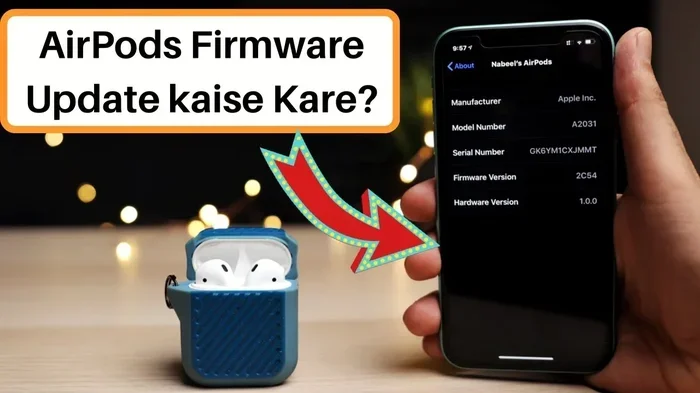
Visual guide about AirPods Pro 2 firmware update
Image source: i.ytimg.com
Step-by-Step Verification Process
Here’s exactly how to check what version your AirPods Pro 2 are running:
- Connect your AirPods to your iPhone or iPad (make sure they’re connected and working)
- Open the Settings app on your Apple device
- Tap Bluetooth in the Settings menu
- Find your AirPods Pro 2 in the list of connected devices
- Tap the small “i” (info) icon next to your AirPods name
- Scroll down to find the “Firmware Version” number
You’ll see something like “6F21” or “7B12″—these alphanumeric codes are version identifiers. Higher numbers generally (but not always) mean newer versions.
Understanding Version Numbers
Firmware version numbers might look random, but they follow a pattern. The first digit often indicates major updates, while subsequent digits represent smaller patches and improvements. For example, when Apple released the USB-C version of AirPods Pro 2 in September 2023, it shipped with firmware version 6A300 or higher.
As of late 2024, most AirPods Pro 2 users are running firmware version 6F21 or newer, which includes features like:
- Adaptive Audio (intelligent noise control adjustment)
- Conversation Awareness (automatic volume reduction when speaking)
- Personalized Volume (learns your listening preferences)
- Improved Find My precision
However, version numbers evolve constantly. To check what’s currently the latest, you can visit Apple’s support page or trusted tech news sources.
Creating the Perfect Conditions for an Update
Since you can’t manually trigger AirPods Pro 2 updates, your job is to set the stage for one to happen naturally. Think of it like preparing a garden—you can’t make plants grow on command, but you can create ideal conditions for growth.
The Four Essential Requirements
Your AirPods Pro 2 will only update when ALL these conditions are met:
1. Sufficient Battery Life
Your AirPods case needs at least 20% battery, and ideally more. Updates are energy-intensive processes. It’s like trying to run a marathon on an empty stomach—your AirPods need fuel to handle the update workload.
2. Active Charging Connection
Your AirPods must be physically inside the charging case, and the case should be plugged into power or placed on a wireless charger. Updates won’t happen on battery power alone—Apple wants to ensure your AirPods don’t die mid-update, which could cause software corruption.
3. Proximity to Paired Device
Keep your iPhone or iPad within Bluetooth range (about 30 feet or 10 meters) of your charging AirPods. The update transfer happens via Bluetooth, so distance matters. Imagine trying to hand someone a package across a football field—it won’t work.
4. Stable Internet Connection
Your iPhone or iPad needs a working internet connection—either Wi-Fi or cellular data. While the update file size is relatively small (usually under 50MB), a stable connection ensures clean transfer.
The Optimal Update Scenario
Here’s the perfect setup for triggering an update:
Plug your AirPods case into a charger. Place your iPhone nearby, connected to Wi-Fi. Leave this setup alone for 30 minutes to several hours. Apple’s servers check for compatible devices periodically, so patience is crucial.
Pro tip: Many users report successful updates overnight. Place your AirPods on a charger next to your iPhone before bed, and by morning, you might have new firmware installed.
What to Do When Updates Aren’t Installing
Sometimes you’ve waited hours, even days, and nothing’s changed. Your firmware version stays stuck on an older number while your friend brags about new features. Frustrating, right?
Don’t panic. Here are proven troubleshooting techniques that resolve most update issues:
Solution 1: The Reset and Re-Pair Method
This is the nuclear option that fixes about 80% of update problems. It’s like restarting a frozen computer—simple but effective.
How to reset your AirPods Pro 2:
- Put your AirPods in their charging case and close the lid
- Wait 30 seconds
- Open the lid
- On your iPhone, go to Settings > Bluetooth
- Tap the “i” icon next to your AirPods
- Select “Forget This Device” and confirm
- With the case lid open, press and hold the setup button on the back of the case for about 15 seconds until the light flashes amber, then white
- Re-pair your AirPods with your iPhone
After re-pairing, place everything in the optimal update conditions described earlier. This often triggers an update within 24-48 hours.
Solution 2: The Multiple Device Trick
If you own multiple Apple devices (iPhone, iPad, Mac), your AirPods might be paired with several of them. Sometimes updates get stuck because your AirPods are confused about which device to update through.
Try this approach:
- Unpair your AirPods from all devices except your primary iPhone
- Place them in the charging case near that iPhone
- Wait 24 hours
- Check the firmware version again
This “single source of truth” approach often jumpstarts stuck updates.
Solution 3: The Force Restart Method
Sometimes your iPhone needs a fresh start to properly deliver updates. Restart your iPhone, then place it near your charging AirPods. This clears temporary connection glitches that might be blocking the update process.
Solution 4: Update Your iPhone First
Here’s a fact many users miss: your iPhone’s iOS version can affect AirPods updates. If your iPhone is running outdated software, it might not be able to deliver the latest AirPods firmware.
Make sure your iPhone is running the latest iOS version before expecting AirPods updates to work. Go to Settings > General > Software Update to check.
Solution 5: Contact Apple Support
If you’ve tried everything and your AirPods still won’t update after a week, there might be a hardware issue or specific compatibility problem. Apple Support can run diagnostics and determine if your AirPods need service or replacement.
Notable AirPods Pro 2 Updates Through the Years
Understanding the update history helps you appreciate what these small firmware files actually do. Let’s walk through some of the most significant AirPods Pro 2 updates.
The Original AirPods Pro 2 Launch (2022)
When AirPods Pro 2 launched in September 2022, they shipped with firmware version 6A300. This was a substantial upgrade from the original AirPods Pro, featuring the new H2 chip that enabled computational audio capabilities.
The Adaptive Audio Revolution (2023)
In September 2023, Apple released iOS 17 alongside firmware updates that introduced three game-changing features:
- Adaptive Audio: Dynamically blends Active Noise Cancellation and Transparency mode based on your environment
- Conversation Awareness: Automatically lowers volume when you start speaking
- Personalized Volume: Uses machine learning to adjust volume based on your habits and surroundings
These updates transformed how AirPods Pro 2 interact with the world around you. Think of it like having a smart assistant for your ears that knows exactly what you want to hear.
The USB-C Transition Update (2023)
When Apple released the USB-C version of AirPods Pro 2 in September 2023, it came with firmware version 6A300 or higher. This update also brought lossless audio support when paired with Apple Vision Pro—a technical achievement that required specific firmware optimization.
The Hearing Health Features (2024)
One of the most significant updates came in late 2024, introducing hearing health features:
- Hearing Protection: Active noise reduction in loud environments
- Hearing Test: Clinical-grade hearing assessment through your AirPods
- Hearing Aid Feature: For users with mild to moderate hearing loss
This update essentially turned AirPods Pro 2 into legitimate health devices, which is remarkable for a product category that started as simple wireless earbuds.
Common Myths and Misconceptions About AirPods Pro 2 Updates
Let’s bust some persistent myths that confuse AirPods Pro 2 users.
Myth 1: “I Can Manually Force an Update”
False. Unlike iPhones or iPads, there’s no “Check for Updates” button for AirPods Pro 2. Apple has designed the process to be completely automatic. Any website or video claiming to show you a manual update process is misleading you.
Myth 2: “Updates Drain My Battery”
Partially true. While updates are installing, your AirPods might use slightly more battery than usual. However, once installed, updates generally improve battery efficiency through better power management algorithms.
Myth 3: “I Need to Update Every Time Apple Releases Something”
Actually, updates are cumulative. If you skipped several updates, installing the latest version gives you all previous improvements. You don’t need to install them in sequence.
Myth 4: “All AirPods Update at the Same Time”
False. Updates roll out gradually, often over days or weeks. Your friend might get the update before you, even with identical devices. Apple’s servers distribute updates in waves to manage load.
Myth 5: “Updating Voids My Warranty”
Absolutely false. Apple encourages updates and they won’t void your warranty. In fact, Apple might require certain updates before servicing your device.
Best Practices for Maintaining Updated AirPods Pro 2
Now that you understand how updates work, let’s discuss habits that keep your AirPods Pro 2 current.
Make Regular Charging a Habit
Charge your AirPods case regularly—ideally keeping it above 50% battery. This ensures that when updates become available, your AirPods are ready to receive them. Many people leave their case plugged in overnight, which is perfect for catching updates.
Keep Your iPhone Updated
Your iPhone is the delivery mechanism for AirPods updates. An outdated iPhone might not be able to transfer the latest AirPods firmware. Enable automatic iOS updates in Settings > General > Software Update > Automatic Updates.
Use Your AirPods Regularly
AirPods that sit unused for months might miss updates. Regular use keeps the Bluetooth connection active and the pairing fresh, which facilitates smoother update delivery.
Monitor Apple’s Release Notes
Apple doesn’t always publicize AirPods updates prominently. Check tech news sites or Apple’s support pages periodically to learn about new firmware. When you hear about a new update, that’s your cue to ensure your charging conditions are optimal.
Don’t Interrupt the Process
If you suspect an update is happening (maybe your iPhone shows unusual Bluetooth activity), don’t open the case lid repeatedly or move your iPhone far away. Let the process complete uninterrupted.
The Future of AirPods Pro 2 Updates
As we look ahead, AirPods Pro 2 updates will likely become even more significant. Apple is increasingly positioning AirPods as health devices, computing platforms, and accessibility tools.
Potential Future Features
Based on Apple’s patent filings and industry trends, upcoming updates might include:
- Advanced Health Monitoring: Body temperature sensing, heart rate tracking
- Enhanced Spatial Audio: Even more immersive 3D sound experiences
- AI Integration: On-device AI processing for real-time translation or voice commands
- Improved Find My: Longer range and more precise location tracking
The Update Evolution
While Apple currently restricts manual update control, there’s speculation that future versions might offer more user control. However, given Apple’s preference for seamless experiences, the automatic approach is likely here to stay for the foreseeable future.
Final Thoughts on Updating Your AirPods Pro 2
So, can you update AirPods Pro 2? Absolutely yes—it’s just done automatically rather than manually. While this might feel frustrating if you want immediate control, the system works remarkably well once you understand it. Apple has designed updates to be invisible, reliable, and effortless.
Remember the key principles: keep your AirPods charged, keep them near your iPhone, keep your iPhone updated, and be patient. These four simple habits ensure you’ll always have the latest features, bug fixes, and security improvements.
The next time someone tells you their AirPods have a “new feature,” don’t worry—yours will catch up soon. Just keep that charging case plugged in, your iPhone nearby, and trust that Apple’s invisible update trucks are doing their job. Your AirPods Pro 2 will stay current, and you’ll continue getting the premium audio experience you paid for.
Whether you’re troubleshooting a stubborn update or just curious about what your AirPods can do, you now have the complete picture. AirPods Pro 2 updates might be invisible, but their impact on your daily listening experience is anything but subtle.
Frequently Asked Questions
How long does it take to update AirPods Pro 2?
AirPods Pro 2 updates typically take between 30 minutes to several hours to complete. The actual file transfer is quick, but Apple’s servers may take time to deliver the update to your specific device. Many users find that leaving their AirPods charging near their iPhone overnight results in a successful update by morning.
Can I update AirPods Pro 2 without an iPhone?
No, you need an iPhone or iPad to update AirPods Pro 2. The update files are delivered through Apple’s ecosystem via your iOS device, which then transfers them to your AirPods via Bluetooth. Mac computers won’t deliver AirPods firmware updates directly.
Why won’t my AirPods Pro 2 update?
Common reasons include insufficient battery in the charging case, being out of Bluetooth range from your iPhone, outdated iOS software, or interference from multiple paired devices. Try resetting your AirPods, unpairing them from all devices, and placing them in the charging case near your iPhone with at least 20% battery.
Do AirPods Pro 2 updates improve sound quality?
Yes, many firmware updates include audio processing improvements, better noise cancellation algorithms, and enhanced Adaptive Audio features. Updates can also fix audio bugs, improve connection stability, and optimize battery performance, all of which contribute to a better listening experience.
How do I know if my AirPods Pro 2 are updated?
Check your firmware version by opening Settings > Bluetooth on your paired iPhone, tapping the “i” icon next to your AirPods Pro 2, and scrolling down to see the “Firmware Version” number. Compare this to the latest version listed on Apple’s support website or recent tech news articles.
Can I downgrade AirPods Pro 2 to an older firmware version?
No, Apple doesn’t offer firmware downgrades for AirPods Pro 2. Once you install an update, you cannot revert to an older version. This is by design to ensure security and prevent users from accessing potentially vulnerable older software versions.