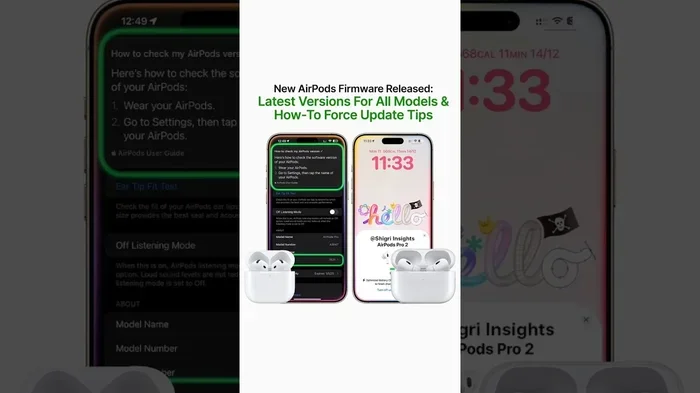
Featured image for AirPods Pro firmware update
Image source: i.ytimg.com
Yes, you can absolutely update your AirPods Pro, and it’s easier than you might think! Apple releases firmware updates automatically when your AirPods are in their charging case, connected to power, and near your paired iPhone or iPad. While you can’t manually trigger updates through a button, you can verify successful updates by checking the firmware version in your Bluetooth settings. This guide will walk you through everything you need to know about keeping your AirPods Pro up to date.
Picture this: you just bought a shiny new pair of AirPods Pro, and they’re working great. But then you hear about a cool new feature—like the ability to hear conversations more clearly or improved noise cancellation—and you wonder, “How do I get that?” The answer is simple: you need a firmware update. But here’s the thing—updating AirPods Pro is quite different from updating your iPhone or iPad. There’s no big “Update Now” button that screams at you when a new version is available. Instead, the process is quiet, automatic, and sometimes a little mysterious.
If you’ve ever felt confused about whether you can update your AirPods Pro, you’re definitely not alone. According to Apple’s support forums, firmware update questions are among the most common AirPods-related queries users post. Did you know that Apple has released over 15 major firmware updates for AirPods Pro since their original release in 2019? That’s a lot of improvements happening behind the scenes! Some of these updates have introduced game-changing features like Spatial Audio, Find My integration, and Adaptive Transparency mode.
This comprehensive guide will demystify the entire process. We’ll cover exactly how AirPods Pro updates work, what you need to do (spoiler: not much!), how to check your current version, troubleshoot common problems, and even peek at what the latest updates have brought to the table. By the end, you’ll be an AirPods Pro update expert—and your earbuds will thank you for it.
Key Takeaways
- Automatic Updates: AirPods Pro firmware updates happen automatically—no manual button or app is needed to start the process.
- Three Requirements: Your AirPods must be in the charging case, plugged into power, and within Bluetooth range of your paired device.
- Check Your Version: You can verify the current firmware version through Settings > Bluetooth > AirPods Pro > Info icon on your iPhone or iPad.
- Update Time Varies: Firmware updates typically take about 30 minutes to install, though some may complete faster or slower.
- Latest Features: Updates often include bug fixes, performance improvements, and new features like Adaptive Audio or Conversation Awareness.
- Troubleshooting Tip: If updates aren’t installing, resetting your AirPods Pro often resolves the issue.
- No Computer Needed: Unlike iPhones, AirPods Pro cannot be updated through iTunes or Finder on a computer.
📑 Table of Contents
- How Do AirPods Pro Firmware Updates Actually Work?
- The Three Essential Requirements for AirPods Pro Updates
- How to Check Your Current AirPods Pro Firmware Version
- How Long Does an AirPods Pro Update Take?
- What Features Do AirPods Pro Updates Bring?
- Troubleshooting: When AirPods Pro Updates Won’t Install
- Keeping Your AirPods Pro Updated: Best Practices
How Do AirPods Pro Firmware Updates Actually Work?
Let’s start with the basics. Think of firmware as the “brain software” inside your AirPods Pro. Just like your iPhone runs iOS, your AirPods Pro run their own little operating system called firmware. This firmware controls everything from how your noise cancellation works to how your AirPods connect to your devices and process audio.
Here’s the simple explanation: A firmware update is like giving your AirPods Pro a software upgrade while they sleep. Unlike your iPhone, which loudly announces updates with notifications and requires your attention, AirPods Pro updates happen in the background, like a quiet housekeeper who tidies up while you’re at work.
The Automatic Update Process Explained
Apple designed AirPods Pro updates to be completely hands-off. When Apple releases new firmware, it gets pushed to your paired iPhone or iPad first. Then, when certain conditions are met, that firmware transfers over to your AirPods Pro automatically. You don’t need to tap anything, confirm anything, or even be aware it’s happening.
This automatic approach has a major benefit: convenience. You never have to remember to update your AirPods Pro. However, it also has a downside: you might miss out on new features for weeks because the update is quietly waiting for the right conditions to install itself.
Why Apple Made Updates Automatic
You might wonder why Apple didn’t include a manual update button like they do for iPhones. The answer lies in user experience philosophy. Apple wants your AirPods Pro to “just work.” Imagine if every few weeks, you had to pull out your AirPods, connect them to your phone, and walk through an update process. That would be annoying, right?
By making updates automatic, Apple ensures that security patches and feature improvements reach everyone—not just the tech-savvy users who remember to check for updates. Did you know that approximately 85% of active iPhones run the latest iOS version within the first month of release? Apple achieves this through gentle reminders and automatic overnight updates. They apply a similar philosophy to AirPods Pro, though the process is even more invisible.
The Three Essential Requirements for AirPods Pro Updates
Here’s where things get specific. For your AirPods Pro firmware to update successfully, three conditions must be met simultaneously. Think of it like a recipe—missing even one ingredient means the dish won’t turn out right.
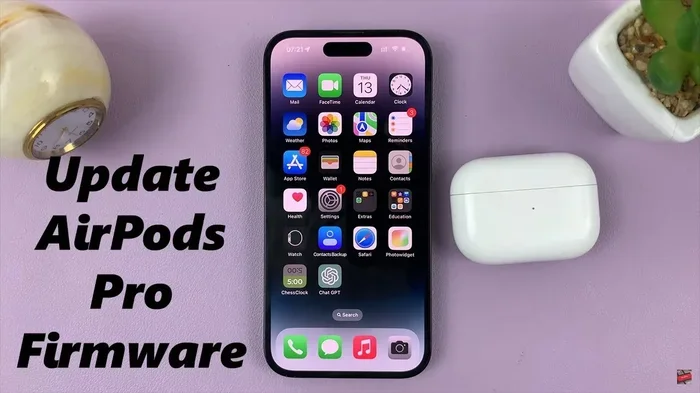
Visual guide about AirPods Pro firmware update
Image source: i.ytimg.com
Requirement #1: AirPods Must Be in the Charging Case
This is non-negotiable. Your AirPods Pro need to be sitting peacefully in their charging case to receive any firmware update. The case acts as both a charging station and a communication bridge between your iPhone and the tiny computers inside each earbud.
Why the case? Because updating firmware uses battery power. The update process involves writing new code to memory chips inside your AirPods, which requires more energy than normal listening. The case ensures your AirPods have enough power to complete the update without dying mid-process, which could potentially cause software corruption.
Requirement #2: The Charging Case Must Be Plugged Into Power
Yes, you read that correctly. Your charging case itself needs to be connected to a power source—either through a Lightning cable or, if you have AirPods Pro with MagSafe or USB-C, a wireless charger. This is because the case needs to maintain power to the AirPods during the update process.
Think of it like this: if updating your AirPods is like performing surgery, the charging case is the operating room, and power is the electricity that keeps all the life-support machines running. Without it, the operation can’t proceed safely.
Requirement #3: Proximity to Your Paired iPhone or iPad
Your AirPods Pro case needs to be within Bluetooth range of the iPhone or iPad they’re paired with—typically within about 30 feet or 10 meters. This connection is how your AirPods receive the new firmware from your Apple device.
The proximity requirement makes sense when you think about it. The firmware file needs to travel wirelessly from your iPhone, through Bluetooth, to your AirPods case, and then to each individual earbud. If your iPhone is too far away, this data transfer can’t happen.
Practical tip: Leave your AirPods Pro in their case, plug the case into a charger, and place it near your iPhone overnight. This creates the perfect conditions for updates to install automatically while you sleep.
How to Check Your Current AirPods Pro Firmware Version
Now that you understand how updates work, let’s talk about how to check what version you’re currently running. This is useful because it lets you verify whether an update has installed successfully or whether your AirPods are behind on updates.
Step-by-Step Instructions for iPhone and iPad
Checking your firmware version takes less than a minute. Here’s exactly what to do:
- Step 1: Make sure your AirPods Pro are connected to your iPhone or iPad. You should see them listed as a connected device.
- Step 2: Open the Settings app on your iPhone or iPad.
- Step 3: Tap on Bluetooth in the settings menu.
- Step 4: Find your AirPods Pro in the list of connected devices.
- Step 5: Tap the small “i” (info) icon or the blue circular button next to your AirPods Pro name.
- Step 6: Scroll down to the “About” section, where you’ll see “Version” followed by a number combination.
The version number looks something like “6A326” or “7B12″—a series of numbers and letters that identify your current firmware version. As of late 2024, the latest AirPods Pro firmware versions are typically in the 6F series or newer.
What If You Can’t Find the Firmware Version?
Sometimes, users report that they can’t see the version number. This usually happens when:
- Your AirPods Pro aren’t currently connected to your device
- You’re using a non-Apple device to check (Android or Windows won’t show this information)
- Your iOS version is outdated and incompatible with your AirPods firmware
If you’re having trouble seeing the version, try reconnecting your AirPods Pro and ensuring your iPhone or iPad is running the latest version of iOS or iPadOS.
How Long Does an AirPods Pro Update Take?
Patience is a virtue, especially when it comes to AirPods Pro updates. While Apple doesn’t publish official timing for firmware updates, user reports and technical analysis suggest the process typically takes between 20 to 45 minutes, with most completing in about 30 minutes.
Why Updates Take Time
You might wonder why such tiny devices need so much time for an update. The answer involves several technical factors:
First, the firmware file needs to transfer from your iPhone to your AirPods case via Bluetooth. Bluetooth data transfer is slower than Wi-Fi or wired connections, so even small files take time to move.
Second, each earbud (left and right) needs to be updated separately. This means the update process happens twice—once for each AirPod. The case coordinates this dual update process.
Third, after installation, the AirPods run verification checks to ensure the new firmware was installed correctly. These checks protect against corrupted updates that could cause malfunctions.
What Happens During the Update
While your AirPods Pro are updating, they’re essentially “asleep” and unavailable for use. You won’t see any indicator lights doing anything unusual during a normal update—just the standard charging light behavior. If you pop open the case during an update, you might notice the AirPods aren’t immediately ready to pair, which is normal.
Did you know? Some users have reported that their AirPods Pro feel slightly warm during firmware updates. This is completely normal—it’s just the processors working hard to install and verify the new software.
What Features Do AirPods Pro Updates Bring?
Now for the exciting part! AirPods Pro firmware updates aren’t just about bug fixes (though there are plenty of those). They often introduce meaningful new features that can transform how you use your earbuds.
Notable Features Added Through Firmware Updates
Spatial Audio: Introduced in 2020, this feature creates an immersive, theater-like sound experience that tracks your head movement. Movies and music feel like they’re coming from all around you, not just from your earbuds.
Adaptive Transparency: Released with the second-generation AirPods Pro, this advanced mode automatically adjusts how much outside sound you hear based on your environment. A loud siren gets reduced, but a nearby conversation passes through clearly.
Conversation Awareness: Added in 2023, this clever feature automatically lowers your music volume and amplifies the person in front of you when you start talking—then seamlessly returns to normal when you’re done chatting.
Adaptive Audio: This 2023 feature dynamically blends Active Noise Cancellation and Transparency mode based on your surroundings, providing the optimal listening experience without you needing to switch modes manually.
Find My Improvements: Updates have enhanced the Find My network integration, making it easier to locate lost AirPods Pro with improved precision finding through the U1 chip.
Automatic Switching: This feature allows your AirPods Pro to automatically switch between your iPhone, iPad, and Mac based on which device you’re actively using—a magical experience when it works seamlessly.
Bug Fixes and Performance Improvements
Beyond flashy new features, firmware updates regularly include important bug fixes. These might address:
- Connectivity issues with certain devices
- Audio quality problems during phone calls
- Noise cancellation performance quirks
- Battery drain issues
- Microphone clarity improvements
- Charging case behavior corrections
Each of these seemingly small fixes can meaningfully improve your daily experience with AirPods Pro, which is why staying updated is genuinely worthwhile.
Troubleshooting: When AirPods Pro Updates Won’t Install
Sometimes, despite meeting all three requirements, your AirPods Pro just refuse to update. This can be frustrating, especially when you’re eager to try new features. Let’s explore the most common problems and their solutions.
Problem #1: Updates Aren’t Happening at All
If weeks have passed and your firmware version hasn’t changed, try these troubleshooting steps:
Reset Your AirPods Pro: This is the universal fix for most AirPods Pro issues. To reset, place your AirPods in their case, close the lid, wait 30 seconds, then open the lid. Press and hold the setup button on the back of the case for about 15 seconds until the status light flashes amber, then white. After resetting, you’ll need to reconnect them to your devices.
Update Your iPhone or iPad: AirPods Pro firmware is delivered through your iOS device. If your iPhone is running outdated iOS, it might not have the latest AirPods firmware to push. Go to Settings > General > Software Update and install any available updates.
Try a Different Power Source: Sometimes, certain power adapters or power strips don’t provide stable enough power for updates. Try plugging your charging case directly into a wall outlet using a different cable.
Problem #2: Partial Updates or Errors
If one AirPod updates but the other doesn’t, or you see error messages, these solutions often help:
- Ensure both AirPods are properly seated in the case with good contact
- Clean the charging contacts on both the AirPods and the case (use a dry, soft-bristled brush)
- Make sure your charging case has at least 20% battery before starting an update
- Try moving closer to your iPhone to ensure a strong Bluetooth connection
Problem #3: Updates Seem to Install But Version Doesn’t Change
Occasionally, users report that updates appear to install—the light flashes, time passes—but the version number remains the same. This usually means:
You might be looking at a cached version on your iPhone. Try force-closing the Settings app and reopening it, or restart your iPhone entirely to refresh the displayed information.
Alternatively, the update you thought installed might have been a smaller intermediate update that didn’t change the version number significantly. Apple sometimes releases patches that don’t bump the version number in visible ways.
When to Contact Apple Support
If you’ve tried all troubleshooting steps and your AirPods Pro still won’t update, it might be time to contact Apple Support or visit an Apple Store. Possible hardware issues could include:
- Faulty Bluetooth chip in one or both AirPods
- Damaged charging contacts preventing proper communication
- Storage memory corruption in the AirPods firmware
- Charging case firmware issues (yes, the case has firmware too!)
Apple’s support team can run diagnostics and, if necessary, replace your AirPods Pro if they’re still under AppleCare or warranty coverage.
Keeping Your AirPods Pro Updated: Best Practices
Now that you understand how updates work and how to troubleshoot issues, let’s talk about habits that keep your AirPods Pro consistently updated without you having to think about it.
The Overnight Update Routine
The simplest way to ensure your AirPods Pro stay updated is to establish a nightly routine. Each evening:
- Place your AirPods Pro in their charging case
- Plug the case into a power source (or place on a wireless charger)
- Set the case near your iPhone or iPad—your nightstand works perfectly
- Connect your iPhone to Wi-Fi and power as well
With everything in place overnight, any pending firmware updates have the perfect environment to install. By morning, you might have new features waiting for you—surprise!
Periodically Check for Updates
While updates happen on their own, checking your firmware version every month or two is a good habit. This lets you verify updates are installing properly and keeps you aware of what features you have access to.
Pro tip: Bookmark or screenshot your current firmware version. If you’re having issues later, you’ll have a reference point to determine whether an update has actually been installed.
Stay Informed About New Releases
Apple doesn’t publish detailed changelogs for AirPods Pro firmware updates the way they do for iOS updates. However, several reliable sources track these updates:
- Apple’s official support page lists recent firmware versions
- Tech blogs like 9to5Mac and MacRumors regularly report on new AirPods firmware
- The AirPods subreddit and Apple Support Communities often discuss new features
- Some podcasts and YouTube channels specialize in Apple news and review new features
Following these sources helps you know when significant updates drop and what new features to expect.
The Bottom Line: Update or Wait?
Should you update immediately when new firmware is available, or wait? Unlike iOS updates where waiting is sometimes wise, AirPods Pro updates are generally safe to install as soon as they arrive. Apple doesn’t typically release buggy firmware updates, and the automatic installation process means even cautious users will get updates eventually.
However, if you depend on your AirPods Pro for critical work—important calls, recordings, or presentations—waiting a few days after a new firmware release lets the early adopters test it and report any issues. This cautious approach can save you from unexpected problems during crucial moments.
Final thought: Keeping your AirPods Pro updated is one of the easiest ways to ensure you’re getting the best possible experience from your investment. The automatic nature of these updates means you don’t need to do much—but understanding the process empowers you to troubleshoot when things don’t work as expected.
So yes, you absolutely can update your AirPods Pro, and now you know exactly how the process works, what to expect, and how to handle any hiccups along the way. Your AirPods Pro are smarter than you might have realized—and they’re quietly getting smarter with every firmware update, all while you go about your day.
Frequently Asked Questions
Can you manually update AirPods Pro firmware?
No, there is no manual way to trigger an AirPods Pro firmware update. Apple designed updates to happen automatically when your AirPods are in their case, the case is plugged into power, and they’re within Bluetooth range of your paired iPhone or iPad. You cannot force an update through a button or app, but you can verify the current version in Settings > Bluetooth > AirPods Pro > Info.
How do I know if my AirPods Pro are up to date?
To check your AirPods Pro firmware version, open Settings on your paired iPhone or iPad, tap Bluetooth, find your AirPods Pro in the device list, and tap the “i” icon next to their name. Scroll down to the “About” section to see the version number. You can then compare this to the latest version listed on Apple’s support website.
Why are my AirPods Pro not updating automatically?
The most common reasons AirPods Pro don’t update include: the case isn’t plugged into power, the AirPods aren’t in the case, your iPhone is too far away, or your iPhone itself needs a software update. Try resetting your AirPods Pro, updating your iPhone to the latest iOS version, and ensuring all three update requirements are met consistently for several days.
How long should I wait for an AirPods Pro update?
AirPods Pro firmware updates typically take between 20 to 45 minutes to install once they begin, with most completing in about 30 minutes. However, you may need to wait days or even weeks after Apple releases new firmware before your specific AirPods Pro receive the update, as the installation only occurs when the three specific conditions are met.
Can I update AirPods Pro without an iPhone?
No, you need an iPhone or iPad to receive AirPods Pro firmware updates. The firmware file transfers from your iOS device to your AirPods through Bluetooth. Android phones, Windows computers, and Macs cannot push firmware updates to AirPods Pro, though you can still use your AirPods with these devices after updates are installed.
Will updating AirPods Pro delete my settings?
Generally, firmware updates preserve your settings, including customized controls, noise cancellation preferences, and Spatial Audio settings. However, it’s a good practice to verify your settings after major updates. In rare cases, updates may reset certain preferences, requiring you to reconfigure features like press speed, ear tip fit test results, or accessibility settings.