Featured image for AirPods 4 noise controls
Image source: i.ytimg.com
Yes, you can easily turn off noise cancelling on AirPods 4. The process is straightforward: press and hold the force sensor on either AirPod stem, or use the Control Center on your iPhone, iPad, or Mac. You can switch between Active Noise Cancellation, Transparency mode, and Off completely depending on your environment and needs.
Picture this: you’re walking through a busy airport, your AirPods 4 firmly in your ears, and suddenly someone calls your name. Or maybe you’re jogging outside and need to hear approaching cars. In moments like these, knowing how to turn off noise cancelling on your AirPods 4 becomes essential, not just convenient.
Active Noise Cancellation is one of the most celebrated features of modern earbuds. It works like a sound eraser, blocking out the hum of airplane engines, chatty coworkers, and street noise. But sometimes, you actually need to hear the world around you. Maybe you’re waiting for a train announcement, having a quick conversation, or simply want to enjoy your music without that sealed-in feeling.
The good news? Apple designed AirPods 4 with flexibility in mind. You can turn noise cancellation on, off, or switch to Transparency mode in seconds. This guide will walk you through every method available, explain when each mode works best, and share tips to get the most from your earbuds. Let’s dive in.
Key Takeaways
- Three Listening Modes: AirPods 4 offer Active Noise Cancellation, Transparency mode, and Off, giving you full control over what you hear.
- Quick Toggle Method: Press and hold the force sensor on the stem of either AirPod to cycle through noise control modes instantly.
- iOS Settings Path: You can customize or disable noise cancelling through Settings > Bluetooth > AirPods 4 > Noise Control.
- Battery Life Boost: Turning off noise cancellation can extend your AirPods 4 battery life by up to 30% per charge.
- Situational Awareness: Disabling noise cancellation is safer for outdoor activities, conversations, and crossing streets.
- One AirPod Trick: Using only one AirPod automatically disables noise cancellation features.
- Adaptive Audio: AirPods 4 use smart technology to blend noise cancellation and transparency based on your surroundings automatically.
📑 Table of Contents
- Understanding the Three Noise Control Modes on AirPods 4
- How to Turn Off Noise Cancelling on AirPods 4: Step-by-Step Methods
- When to Turn Off Noise Cancelling: Real-World Scenarios
- Customizing Your AirPods 4 Noise Control Experience
- Troubleshooting Common Noise Cancellation Issues
- Comparing AirPods 4 Noise Control to Other AirPods Models
- Tips to Get the Most from Your AirPods 4 Noise Control
- Final Thoughts: Mastering Your AirPods 4 Noise Control
Understanding the Three Noise Control Modes on AirPods 4
Before learning how to turn off noise cancelling, it helps to understand what your options are. AirPods 4 with Active Noise Cancellation come with three distinct listening modes. Each one changes how you experience sound and the world around you.
Active Noise Cancellation (ANC)
Active Noise Cancellation uses tiny microphones both inside and outside the earbuds to detect external sounds. Then, the AirPods generate an opposite sound wave that cancels out the noise before it reaches your ears. Think of it like noise-canceling headphones for a construction site, but tiny and wireless.
This mode is perfect for loud environments. Airplanes, trains, busy offices, and gyms are ideal places to use ANC. The feature works best with consistent, low-frequency sounds like engine hum or air conditioning. It does not block everything, but it dramatically reduces background noise, making your music or podcasts much clearer at lower volumes.
Did you know? According to Apple, Active Noise Cancellation on AirPods 4 can reduce ambient noise by up to twice as much as the previous generation, thanks to improved acoustic design and the H2 chip.
Transparency Mode
Transparency mode is the opposite of noise cancellation. It actively lets outside sounds pass through to your ears while your music or calls continue. Imagine wearing earbuds that have a “see-through” mode for sound.
This is incredibly useful in real life. You can order coffee, hear traffic warnings, or chat with a colleague without removing your AirPods. Many people use Transparency mode daily, even at home, to stay connected to their surroundings.
AirPods 4 also feature Conversation Awareness, which automatically lowers your music and enhances voices when you start speaking. This is like having a polite assistant who turns down the volume whenever you have something to say.
Off (No Noise Control)
The third option is simply turning noise control off. In this mode, the AirPods act like regular earbuds with passive noise isolation. Some sound is naturally blocked by the ear tips, but no digital processing happens.
This is the mode you want when you need maximum awareness, longer battery life, or the most natural sound experience. It’s also great for situations where ANC might feel uncomfortable, like wearing earbuds for hours during a long work session.
How to Turn Off Noise Cancelling on AirPods 4: Step-by-Step Methods
Now that you understand the three modes, let’s get practical. There are several ways to turn off noise cancelling on AirPods 4, and each method works in slightly different situations. Pick the one that fits your needs best.
Visual guide about AirPods 4 noise controls
Image source: i.ytimg.com
Method 1: Using the Force Sensor on the AirPod Stem
The fastest way to change noise control settings is right on the AirPod itself. Both AirPods 4 have a small, flat indentation on the stem called the force sensor. It responds to pressure, not touch, so you need to actually squeeze it.
Here’s how to do it:
- Make sure your AirPods 4 are connected and in your ears.
- Locate the flat area on the stem of either AirPod.
- Press and hold this area for about two to three seconds.
- You’ll hear a chime, indicating the mode has changed.
- Continue holding to cycle through the modes: ANC, Transparency, and Off.
Each mode has its own distinct sound. A high chime typically means noise cancellation activated, while a softer tone indicates Transparency mode. When you reach “Off,” the AirPods will simply stop the chime cycle.
Pro tip: If you only want two modes instead of three (for example, just ANC and Off), you can customize this in your iPhone settings. More on that later.
Method 2: Using iPhone or iPad Control Center
Your iPhone or iPad offers a visual way to control noise cancellation. The Control Center is the panel that slides down from the top-right corner of your screen.
Follow these steps:
- Open Control Center by swiping down from the top-right corner of your iPhone or iPad.
- Find the volume slider, which now shows an AirPods icon when your earbuds are connected.
- Long-press or 3D Touch the volume slider to expand it.
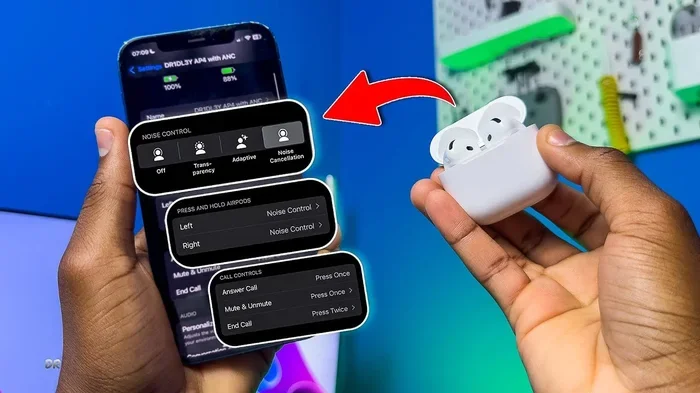
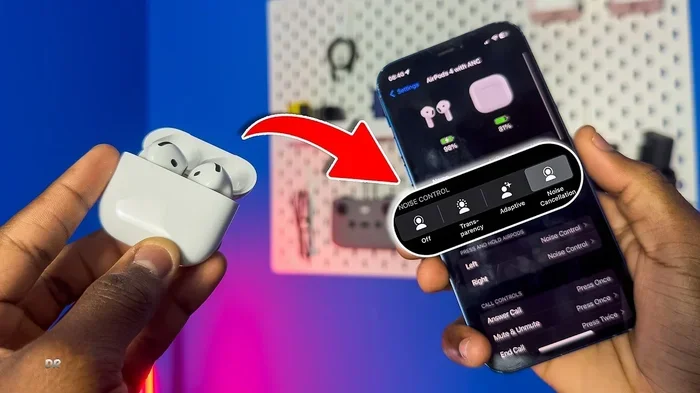
- You’ll see three icons: Noise Cancellation, Transparency, and Off.
- Tap “Off” to disable noise cancellation.
This method is great when your phone is in your hand and you want to see exactly which mode you’re choosing. It’s also helpful if the force sensor on your AirPods isn’t responding for some reason.
Method 3: Using iPhone Settings
For a more permanent change, head to your iPhone’s Settings app. This method is ideal for customizing which modes are available when you press the force sensor.
Here’s the path:
- Open the Settings app on your iPhone or iPad.
- Tap “Bluetooth.”
- Find your AirPods 4 in the list of connected devices.
- Tap the “i” (information) icon next to your AirPods name.
- Scroll down to find the “Noise Control” section.
- Choose between Noise Cancellation, Transparency, and Off.
In this same menu, you can also choose which modes the force sensor cycles through. For example, if you only want to toggle between Transparency and Off, you can disable ANC from the list. This makes the force sensor faster and more tailored to your habits.
Method 4: Using a Mac
If your AirPods 4 are connected to your Mac, you can also control noise cancellation from there. The process is similar to using an iPhone.
Steps for Mac users:
- Click the AirPods icon in your Mac’s menu bar (top-right corner).
- Hover over your AirPods 4 name.
- Select “Noise Control” from the dropdown menu.
- Choose your preferred mode: Noise Cancellation, Transparency, or Off.
If you don’t see the AirPods icon in your menu bar, go to System Settings > Control Center > Menu Bar Only, and make sure “Bluetooth” is set to “Show in Menu Bar.”
Method 5: Using Siri Voice Commands
Hate pressing buttons? Just ask Siri. Your virtual assistant can switch between noise control modes without you lifting a finger.
Try saying any of these commands:
- “Hey Siri, turn off noise cancellation.”
- “Hey Siri, switch to Transparency mode.”
- “Hey Siri, turn on noise cancellation.”
This is incredibly convenient when your hands are full, like when you’re cooking, driving, or carrying groceries. Siri responds almost instantly and confirms the mode change with audio feedback.
When to Turn Off Noise Cancelling: Real-World Scenarios
Knowing the technical steps is one thing. Knowing when to use each mode is another. Here are some real-world situations where turning off noise cancellation is the smart choice.
Outdoor Walks and Jogging
Safety should always come first. When you’re walking, running, or cycling outdoors, you need to hear cars, bikes, and other potential hazards. Noise cancellation blocks these warning sounds, putting you at risk. Transparency mode or fully turning off noise cancellation lets you enjoy your music while staying alert.
Did you know? A 2022 study published in the journal “Injury Prevention” found that pedestrians wearing noise-cancelling headphones were more likely to have unsafe street-crossing experiences than those without. Situational awareness saves lives.
Conversations and Social Settings
Wearing AirPods during a conversation can feel rude, but sometimes you need to keep one ear open. Transparency mode is perfect for quick chats at the coffee shop or hearing your partner call from another room. For longer conversations, just take one AirPod out, and noise cancellation automatically pauses.
Saving Battery Life
Active Noise Cancellation requires processing power, and that power comes from your battery. By turning off noise cancellation, you can extend your listening time significantly. Apple states that AirPods 4 with ANC off can last up to 30 hours with the charging case, compared to 20 hours with ANC on. That’s a 50% increase in total battery life when you factor in case charges.
Reducing Ear Pressure or Discomfort
Some people experience a slight “pressure” sensation when using Active Noise Cancellation. It’s similar to the feeling you get on an airplane when your ears need to pop. If ANC feels uncomfortable during long listening sessions, switching to Off or Transparency mode can provide relief.
Sleeping or Relaxing
When you’re trying to fall asleep or meditate, the digital processing of ANC might be more than you need. Turning it off creates a more natural, less processed sound that some users find more relaxing.
Customizing Your AirPods 4 Noise Control Experience
Apple gives you plenty of options to make AirPods 4 work exactly how you want. Beyond simply turning noise cancellation on or off, you can fine-tune the experience to match your lifestyle.
Choosing Your Default Mode
Every time you put your AirPods in your ears, they might default to a specific mode. You can change this in Settings. Navigate to Settings > Bluetooth > AirPods 4 > i icon > Noise Control, and select your preferred starting mode. Many people choose Transparency as default for safety, then switch to ANC in noisy environments.
Reducing Loud Sounds in Transparency Mode
Transparency mode on AirPods 4 has a smart feature that reduces sudden loud noises like sirens or construction sounds. You can disable this if you want to hear everything at full volume, but most users prefer the protection. It works like automatic volume control for your surroundings.
Personalized Volume
This feature learns your listening preferences over time and adjusts audio levels automatically. Combined with Adaptive Audio, your AirPods can intelligently choose between noise cancellation and transparency based on your environment. You can disable Personalized Volume in Settings > Accessibility > Audio/Visual > Personalized Volume if you prefer manual control.
Adaptive Audio
One of the coolest features of AirPods 4 is Adaptive Audio. It dynamically blends Active Noise Cancellation and Transparency mode based on where you are and what you’re doing. Walking into a noisy cafe? ANC kicks in. Step outside? Transparency takes over. You don’t have to fiddle with settings; your AirPods do the thinking for you.
To enable or disable Adaptive Audio, go to Settings > AirPods 4 > Audio > Adaptive Audio, and toggle it on or off. Many users love this set-it-and-forget-it approach.
Troubleshooting Common Noise Cancellation Issues
Sometimes, things don’t work as expected. If you’re having trouble turning off noise cancellation on your AirPods 4, try these troubleshooting tips.
The Force Sensor Isn’t Responding
If pressing the stem doesn’t change modes, there are a few things to check:
- Make sure you’re pressing the flat indentation, not the rounded part of the stem.
- Use a firm squeeze, not just a light touch.
- Check that your AirPods firmware is up to date.
- Restart your AirPods by placing them in the case, closing the lid, waiting 30 seconds, and trying again.
No Option to Turn Off Noise Cancellation
If you only see two options in your settings (like ANC and Transparency but no Off), you may need to enable the third option. Go to Settings > Bluetooth > AirPods 4 > i icon > Noise Control, and make sure all three modes are selected.
Noise Cancellation Won’t Turn Off
In rare cases, software glitches can cause noise cancellation to stay on. Try these steps:
- Forget the AirPods in your Bluetooth settings and pair them again.
- Update your iPhone, iPad, or Mac to the latest software version.
- Reset your AirPods by holding the setup button on the case until the light flashes amber, then white.
- Contact Apple Support if the issue persists.
Battery Drains Quickly
If your AirPods 4 battery seems to drain faster than expected, check whether Adaptive Audio or ANC is constantly activating. The processing power needed for noise cancellation can reduce battery life by 20-30%. Turning it off when not needed can significantly extend usage time.
Comparing AirPods 4 Noise Control to Other AirPods Models
AirPods 4 are not the only AirPods with noise cancellation. Apple now offers this feature across multiple models, but there are some important differences.
AirPods 4 vs. AirPods Pro 2
AirPods Pro 2 use silicone ear tips that create a physical seal in your ear. This passive isolation, combined with ANC, provides some of the best noise cancellation in any earbuds. AirPods 4 use an open-ear design without tips, which means ANC is less effective for high-frequency sounds. However, many people find the AirPods 4 more comfortable for all-day wear.
Both models offer Transparency mode and Adaptive Audio, but AirPods Pro 2 also include Conversation Awareness and a wider range of customization options.
AirPods 4 vs. AirPods 4 (Without ANC)
Apple sells two versions of AirPods 4: one with Active Noise Cancellation and one without. The cheaper model only has Transparency mode and Off. If you own the non-ANC version, you won’t see the noise cancellation option in your settings at all.
AirPods 4 vs. AirPods Max
AirPods Max are over-ear headphones with some of the most powerful ANC available in any Apple product. If maximum noise cancellation is your priority, AirPods Max win hands down. However, they’re much larger, heavier, and more expensive than AirPods 4. For portability and casual use, AirPods 4 are the better choice.
Tips to Get the Most from Your AirPods 4 Noise Control
Now that you know how to turn off noise cancelling on AirPods 4, here are some pro tips to make your experience even better.
Use One Earbud for Quick Awareness
Wearing just one AirPod automatically disables noise cancellation and Transparency mode. This is perfect for situations where you need to hear everything, like waiting at a train platform or working at a desk where coworkers might need your attention.
Create a Noise Control Shortcut
If you use an Apple Watch, you can add a noise control complication to your watch face. This lets you toggle between modes with a quick tap on your wrist, no phone needed. Open the Watch app on your iPhone, customize your watch face, and add the “Noise” complication.
Pair with Apple TV for Late-Night Viewing
When watching TV late at night, Transparency mode lets you hear your show clearly while still hearing if someone calls your name or a doorbell rings. It’s a great middle ground between immersion and awareness.
Use Off Mode for Voice Calls
When taking phone calls, many users prefer the Off mode. The digital processing of ANC can sometimes make your own voice sound strange or muffled during calls. Turning it off creates a more natural phone conversation experience.
Experiment with Ear Tip Fit (For Pro Users)
If you also own AirPods Pro 2, experiment with different ear tip sizes to find the best seal. A better seal improves both ANC performance and sound quality. AirPods 4, however, don’t have interchangeable tips due to their open design.
Final Thoughts: Mastering Your AirPods 4 Noise Control
Turning off noise cancelling on AirPods 4 is one of those small skills that makes a big difference in daily life. Whether you’re crossing a busy street, chatting with a friend, saving battery on a long flight, or simply preferring a more natural sound, knowing how to switch modes puts you in control.
Apple designed AirPods 4 to be flexible. With three listening modes, multiple control methods, and smart features like Adaptive Audio, you can tailor your audio experience to any situation. The force sensor on the stem gives you instant control, while your iPhone or Mac offers deeper customization when needed.
Take a few minutes to explore your settings and try out each mode in different environments. You might discover that Transparency mode becomes your daily favorite, or that Adaptive Audio handles everything for you. There’s no right or wrong answer; it’s about what works best for your ears and your lifestyle.
Now that you know exactly how to turn off noise cancelling on AirPods 4, go enjoy your music, podcasts, and calls with total control. Your perfect listening experience is just a squeeze away.
Frequently Asked Questions
Can I turn off noise cancelling on AirPods 4 without using my phone?
Yes, absolutely. You can press and hold the force sensor on the stem of either AirPod for about two to three seconds to cycle through the noise control modes. This method works directly from the AirPods without needing your iPhone, iPad, or Mac nearby.
Does turning off noise cancellation save battery on AirPods 4?
Yes, turning off noise cancellation can significantly extend your AirPods 4 battery life. Apple reports that with ANC off, you can get up to 30 hours of total listening time with the charging case, compared to 20 hours with ANC enabled. That’s roughly a 50% improvement in total usage time.
Will AirPods 4 noise cancellation damage my hearing?
No, Active Noise Cancellation does not damage your hearing. In fact, it can protect your hearing by allowing you to listen to music at lower volumes in noisy environments. However, always follow safe listening practices and take breaks during long sessions to protect your ear health.
Can I use just one AirPod 4 with noise cancellation?
When you wear only one AirPod 4, the noise cancellation feature automatically disables. This is by design, as ANC requires a proper seal in both ears to function correctly. Single AirPod use provides a natural, open listening experience similar to having noise control turned off.
Why does my AirPods 4 noise cancellation feel weak?
If Active Noise Cancellation feels less effective than expected, check that your AirPods firmware is up to date, ensure no debris is blocking the microphones, and verify that ANC is actually enabled in your settings. AirPods 4 use an open-ear design, which means they cannot block noise as effectively as silicone-tipped AirPods Pro.
Is there a way to schedule when noise cancellation turns on or off automatically?
AirPods 4 do not have a built-in scheduling feature for noise control modes. However, you can use Apple’s Shortcuts app to create automations based on time, location, or other triggers. For example, you could set your AirPods to automatically switch to Transparency mode when you arrive at the gym.