
Featured image for Person making phone call with headphones
Image source: thumbs.dreamstime.com
Yes, you can absolutely make and receive phone calls with AirPods Max. Apple’s over-ear headphones feature built-in microphones that deliver clear voice quality during calls across iPhone, iPad, Mac, and even Android devices. With three beamforming microphones and advanced noise cancellation, AirPods Max provide a premium hands-free calling experience, though some users may find the large over-ear design less convenient than earbuds for extended call sessions.
Picture this: you’re settling into your favorite chair with your premium AirPods Max perched comfortably on your head, ready to enjoy some music. Suddenly, your phone rings. You might wonder—can you actually take that call with these gorgeous over-ear headphones, or do you need to scramble for your phone? The answer will make your day much simpler.
AirPods Max aren’t just fancy music machines. They’re fully capable communication devices that handle phone calls with remarkable clarity. Think of them as the Swiss Army knife of headphones—they slice through your favorite playlists and also slice through phone conversations with equal skill. Apple designed these headphones with calling in mind, packing them with sophisticated microphone technology that rivals dedicated headsets.
Whether you’re taking a quick call from your mom, joining a critical business meeting on Zoom, or catching up with friends on FaceTime, AirPods Max have you covered. Let’s dive deep into everything you need to know about calling with these premium headphones, from setup tricks to secret features that will transform your calling experience.
Key Takeaways
- Built-in Microphones: AirPods Max feature 9 microphones total, with 3 dedicated beamforming mics specifically optimized for voice pickup during calls.
- Universal Compatibility: You can take calls on iPhone, iPad, Mac, Apple Watch, and even Android phones through standard Bluetooth connections.
- Exceptional Call Quality: The beamforming technology isolates your voice from background noise, making conversations clearer even in noisy environments.
- Simple Call Controls: Answering, ending, or rejecting calls requires just a single press of the Digital Crown on the right ear cup.
- Siri Integration: Hands-free “Hey Siri” commands let you make calls without touching your device or headphones.
- Battery Impact: Talk time on AirPods Max lasts up to 20 hours, covering even the longest work calls or virtual meetings.
- Versatile Use Cases: Beyond phone calls, AirPods Max work perfectly for FaceTime, Zoom, Microsoft Teams, WhatsApp, and other VoIP applications.
📑 Table of Contents
How Do AirPods Max Handle Phone Calls?
AirPods Max use a sophisticated microphone system that makes phone calls feel natural and effortless. When you receive a call while wearing them, the headphones automatically know and route audio through the headphones while picking up your voice through their built-in microphones. You don’t need to fumble with settings or press any buttons to enable calling—it’s all built into the seamless Apple experience.
The Microphone Technology Behind Clear Calls
Here’s something that might surprise you: AirPods Max contain nine microphones total. Three of these are specifically designed as beamforming microphones dedicated to voice pickup during calls. Think of beamforming like a spotlight for your voice—instead of capturing sound from every direction equally (like a regular microphone), these mics focus on your mouth while ignoring sounds from other directions.
Imagine you’re at a busy coffee shop. A normal microphone would pick up the espresso machine hissing, people chatting at nearby tables, and the music playing overhead—along with your voice. Beamforming microphones work like having a personal assistant who leans in close and politely asks everyone else to be quiet. The result? Your voice comes through crisp and clear while background noise fades away.
The remaining microphones handle active noise cancellation, which actually helps your calls too. By canceling ambient noise before it reaches the microphones, AirPods Max deliver cleaner audio to the person on the other end of your call.
Call Audio Routing
When you’re on a call with AirPods Max, audio flows in both directions seamlessly. You hear the other caller through the premium drivers in the ear cups, and they hear you through the beamforming microphones. The sound quality rivals or exceeds most dedicated Bluetooth headsets, with rich voice reproduction that’s easy on the ears during long conversations.
Setting Up AirPods Max for Calls
Getting AirPods Max ready for phone calls requires almost zero effort, especially if you own an Apple device. The magic happens through automatic device switching and instant pairing that Apple has perfected over the years.
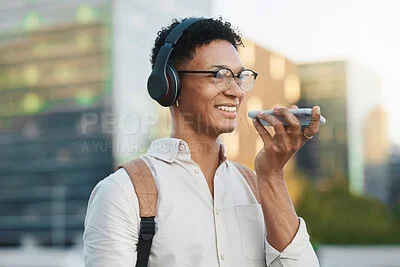
Visual guide about Person making phone call with headphones
Image source: photos.peopleimages.com
Initial Pairing with Your Devices
The first time you use AirPods Max with your iPhone or iPad, just hold them near your device with the case removed. A beautiful animation pops up on your screen showing the headphones, and one tap connects them. That’s literally it. Your AirPods Max now appear in your iCloud account and automatically pair with every Apple device signed into the same Apple ID.
Here’s a neat trick: once paired to your iPhone, your AirPods Max automatically work with your Mac, iPad, Apple Watch, and Apple TV. No need to pair separately with each device. It’s like having one key that opens every door in your house.
Connecting to Non-Apple Devices
Android users and PC owners aren’t left out. To pair AirPods Max with non-Apple devices:
- Press and hold the noise control button on the right ear cup until the status light flashes white
- This puts the headphones in pairing mode, just like any other Bluetooth device
- Select “AirPods Max” from your device’s Bluetooth menu
- Once connected, calls work normally through standard Bluetooth protocols
One small heads-up: when using AirPods Max with Android or Windows devices, you lose some Apple-specific features like automatic device switching and Siri. However, the core calling functionality works perfectly through standard Bluetooth audio profiles.
How to Answer and Make Calls with AirPods Max
Controlling calls on AirPods Max feels intuitive once you learn the gestures. Apple placed a Digital Crown on the right ear cup that serves as your main control hub for everything, including calls.
Answering Incoming Calls
When your phone rings with AirPods Max connected, you have two options:
- Press the Digital Crown once: This answers the call immediately
- Say “Hey Siri, answer the call”: Voice activation works hands-free
You’ll hear the ringtone through the headphones with a satisfying chime, and a small announcement tells you who’s calling. The whole experience feels premium and polished, just like everything Apple makes.
Ending, Rejecting, and Managing Calls
Controlling active calls on AirPods Max is wonderfully simple:
- End a call: Press the Digital Crown once
- Reject an incoming call: Double-press the Digital Crown
- Mute yourself: There’s no dedicated mute button, but Siri can help (“Hey Siri, mute my call”)
- Switch to phone: Press and hold the Digital Crown for about two seconds to transfer audio back to your iPhone
Here’s a cool fact: even with the headphones sitting around your neck (taken off your ears), you can still answer calls by pressing the Digital Crown. The microphones and speakers remain active, which is perfect for quick conversations when you don’t want to put the headphones back on.
Making Outgoing Calls
Starting a call with AirPods Max offers multiple convenient methods:
- Use Siri: “Hey Siri, call Mom” initiates the call without touching anything
- Use your phone normally: Dial or select a contact on your iPhone, and audio routes automatically to AirPods Max
- Use your Apple Watch: Make calls directly from your wrist with audio going through AirPods Max
The Siri integration is particularly magical. Imagine you’re cooking dinner with messy hands and need to call your spouse. Just say “Hey Siri, call Sarah mobile” and AirPods Max handle everything while you keep your hands clean.
Call Quality: What to Expect
Did you know that AirPods Max use computational audio to process your voice during calls? The H1 chip in each ear cup processes sound 9 billion times per second, making real-time decisions about what to amplify and what to filter out. This processing power translates to genuinely impressive call quality.
Voice Clarity for Call Recipients
People on the other end of your calls consistently report that AirPods Max deliver clear, natural-sounding voice quality. The beamforming microphones do an excellent job capturing your voice while the noise cancellation algorithms work behind the scenes to suppress unwanted sounds. In quiet environments, voice quality rivals holding your phone directly to your ear.
In noisier settings, AirPods Max still perform admirably. The person you’re calling will hear your voice clearly, with background sounds like traffic, chatter, or household noise significantly reduced. It’s not perfect—extremely loud environments can still cause some sound leakage—but for typical daily use, the quality is excellent.
Audio Quality for the Wearer
Here’s where AirPods Max truly shine compared to regular AirPods. The over-ear design with larger drivers delivers fuller, richer audio than the tiny speakers in earbuds. Voices sound warm and present during calls, with enough bass response that you can hear the subtle inflections in someone’s tone. This makes long conference calls much more pleasant and less fatiguing.
The active noise cancellation also helps during calls by blocking out environmental noise. You can take calls in a busy office, on public transit, or at the airport and still hear the other person clearly without straining.
Real-World Testing Scenarios
Let me paint a picture of typical AirPods Max calling experiences:
Scenario 1 – Home Office: Taking a video conference call with AirPods Max delivers studio-quality audio. Colleagues hear you clearly, and you hear them with full detail. Noise cancellation blocks out distractions like kids playing in another room or street noise outside.
Scenario 2 – Walking Outside: Wind noise is the main challenge here. AirPods Max handle moderate breezes well, but strong winds can create some turbulence in the microphones. For windy conditions, traditional AirPods Pro might perform slightly better.
Scenario 3 – Public Transportation: AirPods Max excel here. The combination of noise cancellation (for you) and beamforming microphones (for your voice) creates an impressive calling experience even on noisy buses or trains.
Using AirPods Max for Video Calls and Conferences
Beyond regular phone calls, AirPods Max work brilliantly with video conferencing apps. If you’re working from home or attending virtual meetings, these headphones might become your new best friend.
FaceTime Calls
AirPods Max integrate seamlessly with FaceTime on iPhone, iPad, and Mac. The moment you start a FaceTime call, audio routes through the headphones automatically. Voice quality remains excellent, and the noise cancellation makes FaceTime calls feel more intimate and focused than using device speakers.
Zoom, Microsoft Teams, and Other Apps
Popular meeting apps work perfectly with AirPods Max through standard Bluetooth audio protocols. Zoom, Microsoft Teams, Google Meet, Slack calls, WhatsApp, and virtually every other communication app recognizes AirPods Max as a high-quality audio device.
Here’s a professional tip: during long meetings, AirPods Max’s comfort becomes a major advantage. The breathable knit-mesh canopy and memory foam ear cushions distribute weight evenly, preventing the ear fatigue you might get from earbuds during a three-hour meeting.
Transparency Mode for Better Conversations
One often-overlooked feature is Transparency Mode during calls. Press the noise control button to switch from Active Noise Cancellation to Transparency Mode. This lets outside sounds in naturally, which helps during calls when you need to hear your own voice to avoid talking too loudly—a common issue with noise-canceling headphones.
Transparency Mode makes AirPods Max feel almost like you’re not wearing headphones at all, while still delivering clear audio to your caller. It’s the perfect middle ground for calls where you want awareness of your surroundings.
Troubleshooting Common Call Issues
Even the best technology occasionally hiccups. Here are solutions to common AirPods Max calling problems.
Callers Can’t Hear You Clearly
If people complain about your voice quality during calls, try these fixes:
- Check the microphone openings: Make sure nothing is covering the tiny microphone holes on the ear cups
- Restart your AirPods Max: Remove them from your ears for 10 seconds, then put them back on
- Reconnect Bluetooth: Forget the device in Bluetooth settings and pair again
- Update firmware: Ensure your AirPods Max run the latest firmware version
Audio Only Playing in One Ear
This rare issue usually resolves with a simple reset:
- Press and hold the Digital Crown and noise control button simultaneously for about 12 seconds
- Release when the status light flashes amber, then white
- Reconnect to your device
Calls Not Routing to AirPods Max
Sometimes audio plays through your phone instead of headphones. Check these settings:
- iPhone Settings > Phone > Audio Routing: Set to “Headphones” or “Automatic”
- Bluetooth connection: Ensure AirPods Max appear as connected in Bluetooth settings
- App permissions: Some apps have independent audio routing settings
Battery Draining Quickly During Long Calls
AirPods Max provide up to 20 hours of talk time, voice-activated Siri, and audio playback. However, certain features drain battery faster. Using Active Noise Cancellation during calls is more power-intensive than Transparency Mode. If you need extended battery life for marathon calls, switch to Transparency Mode or wired listening mode using the optional Lightning to 3.5mm audio cable.
Tips and Best Practices for Calling with AirPods Max
Let’s wrap up with insider tips that elevate your calling experience from good to great.
Position Yourself for Best Microphone Pickup
AirPods Max microphones sit on the ear cups, not near your mouth. This means your voice travels a short distance to reach the mics. Speak normally—the beamforming technology will capture your voice clearly. However, avoid covering the ear cups with hats, scarves, or hoods, as this can muffle the microphones.
Use the Smart Case Wisely
Here’s an interesting fact: the AirPods Max Smart Case puts the headphones in an ultra-low power state that preserves battery for days. When you’re not on calls and not listening to music, storing them in the Smart Case keeps them ready for your next conversation without wasting battery.
Take Advantage of Announce Calls
In iPhone Settings, enable “Announce Calls” under Phone > Announce Calls. Siri will speak the caller’s name through your AirPods Max when calls come in, so you know who’s calling without looking at your phone. This feature works beautifully for hands-free situations like driving or cooking.
Switch Devices Mid-Call
One of AirPods Max’s superpowers is automatic device switching. If you’re on a call on your iPhone and need to switch to your Mac for a video meeting, AirPods Max can transfer the audio seamlessly. Just start the new call on your other device, and the headphones switch automatically. It’s like having a personal assistant who handles all the technical stuff for you.
Manage Multiple Active Calls
AirPods Max handle multiple calls like a champ. If you’re already on a call and another comes in, double-press the Digital Crown to answer the second call and put the first on hold. Double-press again to swap between calls. This makes juggling work and personal calls effortless.
Final thought: AirPods Max aren’t just headphones—they’re a complete communication solution. From quick phone calls to marathon conference meetings, these premium over-ear headphones deliver call quality that justifies their premium price tag. Whether you’re an Apple loyalist or an Android user, AirPods Max handle phone calls with impressive clarity, comfort, and convenience. The combination of advanced microphone technology, seamless integration with Apple devices, and thoughtful features like Transparency Mode makes taking calls with AirPods Max a genuinely delightful experience. So go ahead—leave your phone in your pocket and enjoy the freedom of hands-free calling with confidence.
Frequently Asked Questions
Do AirPods Max work for phone calls on Android phones?
Yes, AirPods Max work for phone calls on Android devices through standard Bluetooth connections. You can pair them just like any Bluetooth headset, and calls will route through the headphones with good voice quality. However, you’ll lose some Apple-specific features like Siri and automatic device switching when using Android.
How long can you talk on AirPods Max before the battery dies?
AirPods Max provide up to 20 hours of talk time on a single charge. This covers most workdays and even the longest conference calls. With Active Noise Cancellation enabled during calls, you still get excellent longevity, though heavy use of features may reduce total talk time slightly.
Can other people hear you well when you call with AirPods Max?
Yes, most people report excellent voice clarity when receiving calls from AirPods Max users. The three beamforming microphones isolate your voice while the noise cancellation algorithms reduce background noise. In quiet to moderately noisy environments, voice quality is very clear and natural-sounding.
How do you answer a call on AirPods Max?
To answer a call on AirPods Max, press the Digital Crown on the right ear cup once. You can also answer hands-free by saying “Hey Siri, answer the call.” The call connects immediately, and audio routes through your headphones with clear voice quality in both directions.
Can you use AirPods Max for Zoom and Microsoft Teams calls?
Absolutely! AirPods Max work perfectly with Zoom, Microsoft Teams, Google Meet, Slack, and virtually all video conferencing apps. They appear as a high-quality audio device in these applications, and the noise cancellation makes virtual meetings clearer and more focused for both you and other participants.
Do AirPods Max microphones work well in noisy environments?
AirPods Max microphones perform impressively in noisy environments thanks to beamforming technology and active noise cancellation. The microphones focus on your voice while filtering out background sounds like traffic, chatter, and household noise. In extremely loud or windy conditions, some sound leakage may occur, but for typical daily use, performance is excellent.