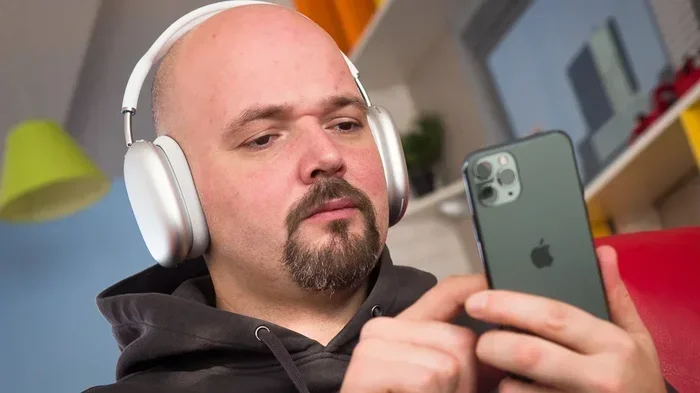
Featured image for Person talking on AirPods Max
Image source: m-cdn.phonearena.com
Yes, you can absolutely talk on AirPods Max. These premium over-ear headphones from Apple come equipped with built-in microphones that allow you to make and receive phone calls, participate in video conferences, and use voice assistants like Siri. The AirPods Max feature advanced noise-canceling technology that ensures clear voice transmission even in noisy environments, making them an excellent choice for both casual and professional communication.
Have you ever wondered whether those sleek, premium headphones sitting on your desk can actually be used for phone calls? The answer is a resounding yes. AirPods Max aren’t just about immersive music listening; they’re fully equipped communication tools that can handle everything from quick phone calls to marathon video conferences. In this comprehensive guide, we’ll walk you through everything you need to know about talking on AirPods Max, including how they work, what makes them special, and how to troubleshoot common issues.
Whether you’re a remote worker juggling Zoom meetings, a busy professional taking calls on the go, or simply someone who wants the freedom to chat hands-free while cooking dinner, AirPods Max have you covered. Apple’s flagship over-ear headphones pack an impressive array of microphones and smart features designed specifically to make your voice sound crystal clear, no matter where you are.
Let’s dive into the fascinating world of AirPods Max communication capabilities and discover why these headphones have become a favorite among professionals and casual users alike.
Key Takeaways
- Built-In Microphones: AirPods Max feature nine microphones total, with eight dedicated to Active Noise Cancellation and three specifically for voice pickup during calls.
- Easy Call Management: You can answer, end, and switch between calls using the Digital Crown or by simply saying “Hey Siri” with hands-free voice commands.
- Beamforming Technology: The microphones use beamforming to focus on your voice while filtering out background noise, similar to how a spotlight focuses on one area.
- Compatibility: AirPods Max work seamlessly for calls across all Apple devices and most Bluetooth-enabled devices, though some features are Apple-exclusive.
- Call Quality Factors: Environmental noise, fit, and software settings all impact call clarity when using AirPods Max.
- Battery Considerations: Active Noise Cancellation during calls drains battery faster than passive listening, so plan accordingly for long conversations.
- Troubleshooting: Most call issues can be resolved by checking Bluetooth connections, updating firmware, or resetting the headphones.
📑 Table of Contents
- How AirPods Max Handle Voice Calls: The Technical Magic Explained
- Making and Receiving Calls: A Step-by-Step Guide
- Call Quality: What to Expect and How to Maximize It
- Compatibility: Which Devices Can You Talk On?
- Advanced Features: Taking Calls to the Next Level
- Troubleshooting: Solving Common Call Issues
- Conclusion: AirPods Max Are Excellent for Talking
How AirPods Max Handle Voice Calls: The Technical Magic Explained
When someone asks, “can you talk on AirPods Max,” the short answer is yes, but the long answer reveals some truly impressive technology working behind the scenes. Apple has engineered these headphones with a sophisticated microphone system that goes far beyond what you’d find in typical earbuds.
The Microphone System Breakdown
AirPods Max contain a total of nine microphones. That’s right, nine! Think of it like having a small recording studio built into each ear cup. Out of these nine microphones:
- Eight microphones are dedicated to Active Noise Cancellation (ANC), detecting unwanted sound around you and canceling it out
- Three microphones specifically focus on voice pickup, with two of them also contributing to noise cancellation
- Two beamforming microphones work together to isolate your voice from background noise
Did You Know? The AirPods Max microphone system is so advanced that Apple describes it as “hearing what you hear.” This means the headphones can distinguish between your voice and ambient sounds with remarkable precision, similar to how your brain filters out background chatter at a crowded coffee shop.
Beamforming: The Secret Sauce
Beamforming is one of those fancy tech terms that actually does something incredibly useful. Imagine you’re at a party trying to talk to a friend. Your brain naturally focuses on their voice while ignoring the music, other conversations, and clinking glasses. Beamforming does the same thing for AirPods Max microphones.
The two beamforming microphones work together to create a directional “beam” that targets your mouth. Sounds coming from other directions are treated as noise and filtered out. This technology is the same concept used in professional concert sound systems and military communication equipment, now miniaturized into your headphones.
Voice Activity Detection
Here’s another cool feature: AirPods Max can actually detect when you’re speaking. When you start talking, the headphones automatically focus their microphones on your voice. When you stop speaking, they go back to their regular listening mode. It’s like having a smart assistant that knows exactly when to pay attention.
Making and Receiving Calls: A Step-by-Step Guide
Now that you understand the technology, let’s talk about the practical side of things. Using AirPods Max for calls is refreshingly simple, but there are some tips and tricks that can make your experience even better.
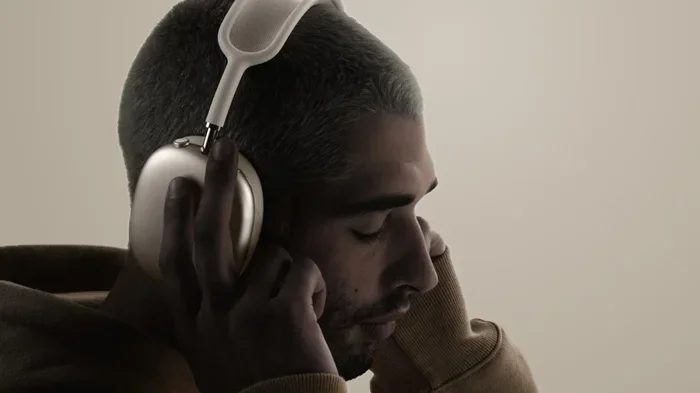
Visual guide about Person talking on AirPods Max
Image source: photos5.appleinsider.com
Answering Incoming Calls
When your phone rings while wearing AirPods Max, you have three options to answer:
- Squeeze the Digital Crown once: This is the button-like control on the top of the right ear cup. A single press answers the call
- Use “Hey Siri”: Simply say “Hey Siri, answer the call” for hands-free operation
- Tap your AirPods Max: If you’re wearing them, a quick tap on either ear cup will answer
Ending a Call
To end a call, you can:
- Double-squeeze the Digital Crown to hang up
- Say “Hey Siri, end the call” if you started the call with Siri
- Remove your AirPods Max: Thanks to the smart sensors, taking them off automatically pauses your audio, though this doesn’t end the call itself
Making Outgoing Calls
There are several ways to initiate a call with AirPods Max:
- Use Siri voice commands: “Hey Siri, call [contact name]” or “Hey Siri, call [phone number]”
- Use your paired device: Make the call from your iPhone, iPad, or Mac, and the audio will automatically route through your AirPods Max
- Announce Calls feature: Enable this in Settings to have Siri announce incoming callers, then accept with your voice
Pro Tip: When making calls through Siri, make sure you’re in a relatively quiet environment. While the beamforming microphones do an excellent job, very loud background noise can occasionally affect voice recognition accuracy.
Call Quality: What to Expect and How to Maximize It
One of the most common concerns people have about headphones for calls is whether they’ll actually sound good. Let’s break down what makes AirPods Max call quality stand out from the competition.
The Science of Clear Voice Transmission
AirPods Max use what Apple calls “computational audio” to process your voice in real-time. Think of it like having a tiny audio engineer living inside your headphones, constantly adjusting settings to make sure you sound your best. This processing happens thousands of times per second and includes:
- Noise suppression algorithms that remove wind, traffic, and crowd noise
- Echo cancellation to prevent your voice from being heard twice
- Voice enhancement that boosts clarity and natural sound
- Adaptive processing that adjusts based on your environment
Real-World Performance
In practical terms, AirPods Max deliver exceptional call quality in most situations. Whether you’re in a quiet home office, a moderately noisy coffee shop, or even walking down a somewhat busy street, people on the other end of your call will hear you clearly.
Did You Know? According to user reviews and tech publications, AirPods Max consistently rank among the top three headphones for call quality, competing with dedicated headsets that cost similar amounts. This is largely thanks to Apple’s custom H1 chip in each ear cup, which handles all the audio processing locally on the device.
Environmental Factors That Affect Call Quality
Even with all this technology, your environment still matters. Here’s how different settings impact call performance:
- Quiet indoor spaces: Excellent quality, voice sounds natural and clear
- Moderately noisy areas: Good quality, noise suppression handles most distractions
- Loud environments: Acceptable quality, though very loud sounds may occasionally leak through
- Windy conditions: Good thanks to acoustic mesh covering the microphones, though extremely strong winds can still cause issues
Compatibility: Which Devices Can You Talk On?
AirPods Max work with a wide range of devices for calls, but the experience varies depending on what you’re using. Let’s explore compatibility across different platforms.
Apple Ecosystem: The Best Experience
If you’re using an Apple device, you’ll get the full AirPods Max experience for calls. This includes:
- iPhone: Seamless call handling with all features available
- iPad: Works perfectly for FaceTime calls and third-party apps like Zoom
- Mac: Great for FaceTime, Zoom, Microsoft Teams, and other communication apps
- Apple Watch: Can route calls through your AirPods Max when your iPhone isn’t nearby
When using Apple devices together, you can even switch between them mid-call. For example, if you’re talking on your iPhone and want to switch to your Mac for a video call, the transition is seamless.
Android and Other Bluetooth Devices
AirPods Max also work with non-Apple devices via standard Bluetooth connections. However, you should know that:
- Basic calling works: You can make and receive calls on most Bluetooth-enabled Android phones and tablets
- Siri is unavailable: You’ll need to use your device’s voice assistant instead
- Some features are limited: Automatic device switching and Announce Notifications require Apple devices
- Call quality remains strong: The microphone and noise cancellation technology function regardless of the connected device
Video Conferencing Apps
For the remote workers out there, you’ll be happy to know that AirPods Max work wonderfully with popular video conferencing platforms:
- Zoom: Full compatibility with excellent voice clarity
- Microsoft Teams: Works seamlessly for both voice and video calls
- Google Meet: Compatible across devices with good quality
- Skype: Solid performance for personal and business calls
- FaceTime: Optimized for the best possible experience
Pro Tip: When using AirPods Max for video calls, make sure to select them as both your input (microphone) and output (speaker) device in your app’s audio settings. Sometimes apps default to your computer’s built-in microphone instead.
Advanced Features: Taking Calls to the Next Level
Beyond basic calling, AirPods Max offer several advanced features that can transform how you communicate. Let’s explore these hidden gems.
Share Audio for Group Calls
Did you know you can share audio between two sets of AirPods? This feature works with AirPods Max too. Imagine watching a movie together or having a group FaceTime call where multiple people can listen through their own AirPods while using the main AirPods Max microphones for voice pickup.
Transparency Mode During Calls
Sometimes you need to hear what’s happening around you during a call. Transparency mode lets outside sound in while you’re wearing AirPods Max, which is perfect for:
- Brief conversations with people in your office without removing your headphones
- Listening for announcements at airports or train stations
- Staying aware of your surroundings for safety reasons
You can toggle Transparency mode by pressing and holding the noise control button on the left ear cup.
Announce Calls Feature
This accessibility feature speaks the name of incoming callers through your AirPods Max, so you don’t need to look at your phone to know who’s calling. It’s incredibly useful when:
- You’re driving (though you should never take calls while driving)
- Your hands are busy with other tasks
- You want to filter calls without checking your screen
To enable this feature, go to Settings, then Phone, then Announce Calls, and select “Headphones Only” or “Always.”
Spatial Audio for Calls
While Spatial Audio is primarily known for movies and music, some apps support it for calls too. This creates an immersive, theater-like sound experience that makes conversations feel more natural and less flat.
Troubleshooting: Solving Common Call Issues
Even with all this advanced technology, you might occasionally encounter issues when trying to talk on AirPods Max. Let’s address the most common problems and their solutions.
Problem: People Can’t Hear You Clearly
If callers complain about your voice quality, try these solutions:
- Check the microphone openings: Make sure nothing is blocking the small microphone ports on your AirPods Max
- Clean your AirPods Max: Dust and lint can accumulate on the microphones, affecting performance
- Reset your AirPods Max: Hold the noise control button and Digital Crown for 15 seconds until the LED flashes amber
- Update firmware: Ensure your AirPods Max have the latest software through your connected iPhone or iPad
Problem: Call Audio Only Works in One Ear
This issue usually has a simple fix:
- Go to Settings, then Bluetooth, and tap the “i” next to your AirPods Max
- Check that audio routing is set correctly
- Disconnect and reconnect your AirPods Max
- Restart both your AirPods Max and the connected device
Problem: Calls Keep Dropping or Disconnecting
Intermittent connectivity issues often stem from:
- Bluetooth interference: Move away from other electronic devices or Wi-Fi routers
- Distance: Stay within 30-40 feet of your connected device
- Low battery: Charge your AirPods Max, as low battery can cause connectivity issues
- Outdated software: Update both your AirPods Max firmware and your device’s operating system
Problem: Can’t Answer Calls at All
If AirPods Max aren’t responding to incoming calls:
- Verify they’re set as your active audio device in Settings
- Check that “Automatic Ear Detection” is enabled
- Make sure call audio routing is set to AirPods in Settings, then Phone, then Calls on Other Devices
- Try unpairing and re-pairing your AirPods Max
Battery Life During Calls
AirPods Max provide approximately 20 hours of listening time with Active Noise Cancellation enabled. However, talk time is slightly less because the microphones and processing work harder during calls. Expect around:
- 15-18 hours of talk time with ANC enabled
- Up to 20 hours of talk time with ANC disabled
- Quick charge feature: 5 minutes of charging provides about 1.5 hours of talk time
Did You Know? AirPods Max enter an ultra-low power state when stored in their Smart Case, which preserves battery life significantly. If you don’t have your case, putting them in sleep mode manually by removing them and setting them down still saves considerable battery.
Conclusion: AirPods Max Are Excellent for Talking
So, can you talk on AirPods Max? Absolutely, and you should! These premium headphones offer an exceptional calling experience that rivals dedicated communication headsets. With nine microphones, advanced beamforming technology, and Apple’s computational audio processing, your voice comes through clearly in almost any environment.
Whether you’re taking a quick phone call, participating in a multi-hour video conference, or using Siri for hands-free commands, AirPods Max deliver the quality and reliability you’d expect from a premium Apple product. The seamless integration with Apple devices, combined with broad compatibility across other platforms, makes them a versatile communication tool for work, social calls, and everything in between.
If you’ve been hesitant about using AirPods Max for calls, give them a try. You might be pleasantly surprised at how natural and clear your conversations sound. And if you run into any issues, the troubleshooting tips in this article should help you resolve them quickly.
Remember to keep your AirPods Max updated with the latest firmware, clean them regularly, and charge them before important calls. With proper care, your AirPods Max will be your reliable communication companion for years to come.
Frequently Asked Questions
Can you talk on AirPods Max during phone calls?
Yes, AirPods Max have built-in microphones that allow you to talk during phone calls with excellent clarity. They use beamforming technology to focus on your voice while reducing background noise, making them perfect for both casual and professional conversations.
Do AirPods Max microphones work well in noisy environments?
AirPods Max perform exceptionally well in noisy environments thanks to their advanced noise-canceling microphone system. The beamforming microphones can isolate your voice from background sounds like traffic, crowds, and even moderate wind, though extremely loud conditions may still affect quality slightly.
Can I use Siri to make calls with AirPods Max?
Absolutely! You can use Siri hands-free by saying “Hey Siri” followed by commands like “Call [contact name]” or “Call [phone number].” This works with iPhone, iPad, and Mac when your AirPods Max are connected to these Apple devices.
How long does the battery last during phone calls on AirPods Max?
AirPods Max provide approximately 15-18 hours of talk time with Active Noise Cancellation enabled, and up to 20 hours with ANC disabled. A quick 5-minute charge gives you about 1.5 hours of additional talk time, which is perfect for urgent calls when you’re low on battery.
Can I use AirPods Max for video calls on Zoom and Teams?
Yes, AirPods Max work seamlessly with popular video conferencing platforms including Zoom, Microsoft Teams, Google Meet, Skype, and FaceTime. Just make sure to select AirPods Max as both your microphone and speaker in the app’s audio settings for the best experience.
Why can’t people hear me clearly when I talk on my AirPods Max?
If people can’t hear you well, first check that nothing is blocking the microphone openings and clean your AirPods Max if needed. You can also try resetting them by holding the noise control button and Digital Crown for 15 seconds, updating the firmware, or re-pairing with your device to resolve most clarity issues.