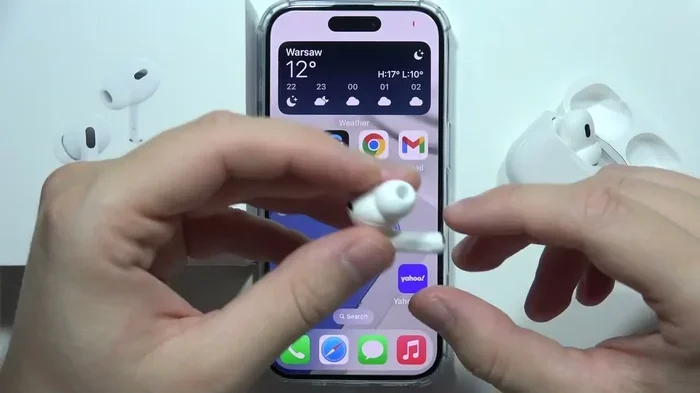
Featured image for Airpods Pro phone call
Image source: i.ytimg.com
Yes, you can absolutely talk on AirPods Pro—they’re designed with built-in microphones that make hands-free calling effortless. Whether you’re taking phone calls, joining Zoom meetings, or chatting with Siri, AirPods Pro deliver clear voice quality thanks to their advanced noise-canceling microphone technology. This guide covers everything you need to know about using AirPods Pro for talking, including setup tips, call quality optimization, and troubleshooting common microphone problems.
Picture this: you’re walking down a busy street, your phone rings, and instead of fumbling to answer it, you simply say a quick command and start talking—hands completely free. That’s the magic of AirPods Pro. These tiny earbuds have revolutionized how we communicate on the go, but many people still wonder about their full capabilities when it comes to talking and making calls.
If you’ve been asking yourself, “Can I actually talk on AirPods Pro?” you’re in the right place. The short answer is a resounding yes. In fact, AirPods Pro were specifically designed to handle voice communication beautifully. Think of them like a tiny personal assistant that sits in your ears—they don’t just play music; they hear you, understand you, and transmit your voice clearly to whoever’s on the other end of the line.
This comprehensive guide will walk you through everything you need to know about using AirPods Pro for talking. We’ll cover the basic functionality, advanced features, tips for getting the best call quality, and solutions to common problems. Whether you’re a first-time user or someone looking to maximize your AirPods Pro experience, you’ll find valuable insights here.
Key Takeaways
- Built-in Microphones: AirPods Pro feature dual beamforming microphones that pick up your voice clearly while filtering out background noise.
- Easy Call Answering: You can answer calls by simply saying “Hey Siri” or by squeezing the force sensor on the stem.
- Compatible Across Devices: AirPods Pro work for calls on iPhones, iPads, Macs, and even non-Apple devices via Bluetooth.
- Transparency Mode Helps: Using Transparency mode during calls lets you hear your own voice naturally, preventing you from talking too loudly.
- Battery Considerations: Talking on AirPods Pro uses more battery than just listening, with about 3-4 hours of talk time per charge.
- Call Quality Factors: Environmental noise, fit, and device settings all impact how well you can talk on AirPods Pro.
- Troubleshooting Available: Most call quality issues can be fixed by cleaning the microphones, checking settings, or resetting the AirPods.
📑 Table of Contents
- How AirPods Pro Microphones Work for Talking
- Getting Started: How to Talk on AirPods Pro
- Call Quality: What to Expect When Talking on AirPods Pro
- Using AirPods Pro for Video Calls and Meetings
- Troubleshooting: When Your AirPods Pro Microphone Isn’t Working
- Advanced Tips for Talking on AirPods Pro
- The Bottom Line: AirPods Pro as Communication Tools
How AirPods Pro Microphones Work for Talking
Understanding how AirPods Pro handle your voice starts with knowing about the impressive microphone technology packed into these tiny devices. AirPods Pro aren’t just speakers that sit in your ears—they’re sophisticated communication tools with multiple microphones working together to capture your voice clearly.
The Dual Microphone System
Each AirPod contains two microphones that work as a team. There’s an outer microphone on the outside of the earbud and an inner microphone positioned toward your ear canal. These dual microphones use something called beamforming technology, which is a fancy way of saying they focus on your voice while ignoring surrounding sounds.
Think of it like this: imagine you’re at a crowded party trying to have a conversation. You naturally tune out the background chatter to focus on the person in front of you. That’s exactly what beamforming does—it’s like your AirPods are constantly “listening” for your voice specifically and ignoring everything else. This technology makes AirPods Pro remarkably good at picking up your voice even in noisy environments.
Noise Cancellation During Calls
Here’s something interesting: AirPods Pro use their Active Noise Cancellation feature even during phone calls. This means that not only do the microphones filter out background noise from your end, but the noise cancellation also helps you hear the other person more clearly. According to Apple, the H1 chip in AirPods Pro processes audio 200 times per second, which means it can adapt to changing environments almost instantaneously.
Did you know that the average person takes about 5-7 phone calls per day? With AirPods Pro, each of those calls can be handled seamlessly, whether you’re in a quiet office, walking through a park, or sitting in a coffee shop.
Getting Started: How to Talk on AirPods Pro
Now that you understand the technology, let’s get practical. Using AirPods Pro for talking is refreshingly simple, but knowing all the methods available can enhance your experience significantly.
Visual guide about Airpods Pro phone call
Image source: i.ytimg.com
Answering and Making Calls
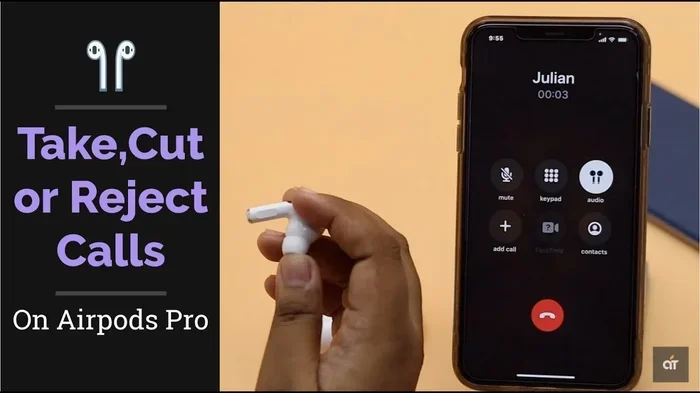
There are several ways to handle calls with your AirPods Pro, and once you learn them, you’ll feel like a pro. Here’s your complete guide to call management:
- Squeeze the Force Sensor: When a call comes in, simply squeeze the flat indentation on either AirPod stem once to answer. Squeeze again to end the call.
- Double Squeeze: Press twice quickly to decline an incoming call or send it to voicemail.
- Voice Commands: Say “Hey Siri, answer the call” or “Hey Siri, hang up” for completely hands-free operation.
- Automatic Ear Detection: When you put AirPods Pro in your ears during a call, audio automatically transfers to them—take them out, and the call switches back to your phone.
Making Outgoing Calls
Want to place a call without touching your phone? Easy! Just say “Hey Siri, call [contact name]” or “Hey Siri, call [phone number].” Your AirPods Pro will connect the call, and you can start talking immediately. This works whether you’re driving, cooking, working out, or simply have your hands full.
For those who prefer manual control, you can also place calls from your iPhone and the audio will automatically route to your AirPods Pro as long as they’re connected. It’s like the AirPods are always ready, waiting patiently to become your communication hub.
Using Siri for Voice Commands
Siri integration makes AirPods Pro feel almost magical. Here are some voice commands that work wonderfully during calls:
- “Hey Siri, volume up” or “Hey Siri, volume down”
- “Hey Siri, mute call” or “Hey Siri, unmute”
- “Hey Siri, who’s calling?” (when receiving a call)
This hands-free capability is particularly useful for people with busy lifestyles. Imagine you’re driving and need to take an important call—Siri handles everything while you keep your hands on the wheel and eyes on the road.
Call Quality: What to Expect When Talking on AirPods Pro
One of the biggest concerns people have is whether AirPods Pro actually deliver good call quality. After all, what good is a microphone if the person on the other end can’t hear you clearly? Let’s break down what you can realistically expect.
Voice Clarity in Different Environments
AirPods Pro perform exceptionally well in most situations, but like any technology, they have their strengths and limitations. Quiet environments like offices or homes produce crystal-clear audio quality that often rivals dedicated headsets. Moderately noisy environments such as cafes or walking on streets still deliver good results, though some background sounds may occasionally slip through. Very noisy environments like concerts, airports, or windy conditions can challenge even the best microphones, but AirPods Pro still perform admirably compared to most competitors.
Apple reports that AirPods Pro microphones capture your voice with 360-degree awareness, meaning it doesn’t matter exactly how you’re holding your head—the microphones adapt to pick up your voice clearly from virtually any angle.
The Transparency Mode Advantage
Here’s a feature that many people overlook: Transparency mode. When you’re talking on AirPods Pro, switching to Transparency mode (by squeezing and holding the force sensor) lets in outside sounds, including your own voice. This prevents that “talking with your fingers in your ears” sensation that can make you speak too loudly.
Think of Transparency mode as removing a wall between you and the world. Without it, you might unconsciously raise your voice because you can’t hear yourself well. With it, you maintain a natural speaking volume, which actually improves how the microphones capture your voice. It’s like the difference between talking with a hand over your mouth versus talking normally—obviously, the latter sounds better.
Battery Life During Calls
Talking uses more battery than listening to music, and understanding these limits helps you plan your day. AirPods Pro provide approximately:
- 3-4 hours of talk time on a single charge
- Up to 18 hours of talk time with the charging case
- About 1 hour of talk time from just 5 minutes in the case
The average phone call lasts about 3-4 minutes, so even heavy callers usually have enough battery for an entire day. However, if you’re planning back-to-back Zoom meetings, you might want to keep your charging case nearby for quick top-ups.
Using AirPods Pro for Video Calls and Meetings
The world of work has changed dramatically, and AirPods Pro have become essential tools for remote workers everywhere. Let’s explore how they perform in professional communication settings.
Zoom, Teams, and Other Platforms
AirPods Pro work seamlessly with all major video conferencing platforms including Zoom, Microsoft Teams, Google Meet, Skype, and FaceTime. The setup is typically automatic—once your AirPods are connected to your device, they’ll be recognized as both an input (microphone) and output (speaker) device.
For the best experience on video calls, make sure to:
- Select AirPods Pro as both your microphone AND speaker in your video app settings
- Keep your device within reasonable Bluetooth range (about 30 feet or 10 meters)
- Position yourself so the AirPods face toward your mouth for optimal pickup
- Test your audio before important meetings using the platform’s test feature
FaceTime and Apple’s Ecosystem
If you’re using Apple devices, FaceTime calls with AirPods Pro feel almost magical. The integration is so smooth that you barely have to think about it. Answer a FaceTime call by squeezing your AirPod stem, and the call connects instantly. The audio quality is optimized specifically for Apple devices, meaning your voice comes through clearly and you hear others in high definition.
According to recent statistics, over 50% of remote workers use wireless earbuds for daily video meetings, and AirPods Pro consistently rank among the top choices for professional communication.
Voice Quality Tips for Professional Settings
To ensure you sound professional during important calls, consider these expert tips:
- Find a quiet space when possible—even the best microphones struggle in extremely noisy environments
- Speak at a normal volume—AirPods Pro are sensitive enough to pick up your voice without shouting
- Stay within 3 feet of your device for the most stable Bluetooth connection
- Use one AirPod at a time for extended calls to double your talk time
- Keep your mouth clear of the AirPod microphones by maintaining a natural head position
Troubleshooting: When Your AirPods Pro Microphone Isn’t Working
Sometimes things don’t work perfectly, and that’s completely normal. If you’re experiencing issues with talking on your AirPods Pro, don’t panic—most problems have simple solutions.
Common Microphone Problems and Solutions
Let’s address the most frequent issues people encounter when trying to talk on their AirPods Pro:
Problem 1: People Can’t Hear You
If the person you’re calling says they can’t hear you clearly or at all, try these fixes:
- Check microphone permissions: Make sure your app has permission to use the microphone
- Clean the microphones: Use a dry cotton swab to gently clean the microphone openings
- Try one AirPod at a time: This helps identify if one specific AirPod has an issue
- Reset your AirPods: Hold the setup button on the case for 15 seconds until the light flashes white
- Check your Bluetooth connection: Sometimes reconnecting solves the problem
Problem 2: Your Voice Sounds Muffled or Distorted
Muffled audio usually indicates a simple fix. First, ensure your AirPods fit properly—if they’re loose, the microphones may be positioned incorrectly. The microphones work best when the AirPods sit securely in your ears with the stems pointing downward.
Also, check for debris or earwax buildup on the microphone grilles. A surprising number of microphone issues stem from simple cleanliness problems. A soft, dry brush can work wonders for keeping those tiny openings clear.
Problem 3: Audio Cutting In and Out
Intermittent audio during calls is frustrating but usually fixable. Common culprits include:
- Bluetooth interference: Move away from other wireless devices, microwaves, or Wi-Fi routers
- Low battery: AirPods with less than 20% battery may experience performance issues
- Distance from device: Stay within 30 feet for optimal connectivity
- Outdated firmware: Keep your AirPods updated by placing them near your iPhone periodically
When to Contact Apple Support
If you’ve tried everything and your AirPods Pro still aren’t working properly for calls, it might be time to contact Apple Support. This is especially true if you notice:
- Physical damage to the microphones
- One AirPod consistently failing while the other works
- Issues that started after a software update
- Problems that persist across multiple devices
Remember, AirPods Pro come with a one-year warranty, and AppleCare+ extends coverage for additional peace of mind.
Advanced Tips for Talking on AirPods Pro
Once you’ve mastered the basics, these advanced techniques will help you get even more out of your AirPods Pro for voice communication.
Optimizing Settings for Best Performance
Several settings can enhance your talking experience. In your iPhone settings, navigate to Bluetooth, tap the “i” next to your AirPods, and explore options like automatic ear detection and microphone selection. You can choose to always use the left or right AirPod microphone, or let the system automatically choose the best option for each situation.
For video calls specifically, adjusting your audio settings in apps like Zoom can make a significant difference. Set noise suppression to “High” and enable “Use original audio” when available for the most natural sound quality.
Using AirPods Pro with Non-Apple Devices
Here’s something many people don’t realize: AirPods Pro work wonderfully with Android phones, Windows PCs, and other non-Apple devices via standard Bluetooth. While you might lose some Siri-specific features, the core microphone and speaker functions work perfectly for talking on calls.
To connect to non-Apple devices, simply put your AirPods in their case, open the lid, press and hold the setup button until the light flashes white, then pair them like any other Bluetooth device. It’s that simple!
Accessibility Features Worth Knowing
Apple has built several accessibility features into AirPods Pro that benefit all users:
- Live Listen: Use your iPhone as a remote microphone that sends audio directly to your AirPods
- Headphone Accommodations: Customize audio frequencies for your specific hearing profile
- Conversation Boost: Amplifies voices in front of you for clearer conversations
- Background Sounds: Play calming sounds to help you focus during long calls
These features make AirPods Pro not just communication devices, but comprehensive audio tools that adapt to your needs.
The Bottom Line: AirPods Pro as Communication Tools
So, can you talk on AirPods Pro? Absolutely—and you should. These little earbuds represent some of the most advanced personal audio technology available today, with microphones specifically engineered for clear voice communication. From quick phone calls to marathon Zoom meetings, AirPods Pro handle it all with grace and reliability.
The combination of beamforming microphones, active noise cancellation, and seamless Siri integration creates an experience that feels almost futuristic. You’re not just answering calls; you’re experiencing a new way of communicating that keeps you connected while keeping your hands free.
Whether you’re a busy professional juggling multiple calls, a student attending virtual classes, or someone who simply enjoys the convenience of hands-free communication, AirPods Pro deliver on their promise. Yes, they have limitations in extremely noisy environments, and yes, they require occasional maintenance, but for everyday talking needs, they’re among the best options available.
If you’re still on the fence about using AirPods Pro for talking, give them a try. Start with a simple call in a quiet environment, then gradually test them in more challenging settings. You’ll likely discover what millions of users already know—AirPods Pro aren’t just earbuds, they’re your personal communication companions. With proper care, occasional cleaning, and the tips outlined in this guide, your AirPods Pro will serve as reliable communication tools for years to come.
Frequently Asked Questions
Can you talk on AirPods Pro without your phone nearby?
Yes, but with limitations. AirPods Pro use Bluetooth to connect to your phone, so you need your phone within about 30 feet. However, once connected, you can talk freely without holding your phone. Just make sure your phone stays within range for the call to continue.
How long can you talk on AirPods Pro before the battery dies?
AirPods Pro provide approximately 3-4 hours of talk time on a single charge. With the charging case, you can extend this to about 18 hours total. A quick 5-minute charge in the case gives you roughly 1 hour of talk time, which is perfect for those busy days.
Can people hear you clearly when you talk on AirPods Pro?
Yes, in most situations people can hear you very clearly. AirPods Pro feature dual beamforming microphones that focus on your voice while reducing background noise. In quiet to moderate environments, call quality is excellent. In very noisy places, some background sound may be audible, but your voice typically remains clear.
Do AirPods Pro work for phone calls on Android devices?
Absolutely! AirPods Pro connect to any Bluetooth-enabled device, including Android phones, Windows computers, and tablets. While you won’t have Siri access on non-Apple devices, the microphone and speaker functions work perfectly for calls, video chats, and voice messages.
Can you use just one AirPod Pro for talking?
Yes, you can use a single AirPod Pro for calls, and this is actually a great strategy to extend battery life. The microphone works perfectly in either ear, and Apple designed AirPods Pro to function independently. Many people use one AirPod while charging the other for essentially unlimited talk time.
How do you mute yourself when talking on AirPods Pro?
You can mute yourself during calls by using Siri—just say “Hey Siri, mute call.” Alternatively, you can use the mute button in your phone’s call interface or within your video conferencing app. AirPods Pro don’t have a dedicated mute button on the device itself, so voice commands or app controls are your best options.