Yes, you can absolutely talk with AirPods Max—they have built-in microphones that work seamlessly for phone calls, FaceTime, Zoom, and voice assistants. The headphones feature advanced noise-canceling microphones that isolate your voice from background noise, making conversations clear even in busy environments. With simple controls and automatic Siri integration, AirPods Max function as a premium headset for all your communication needs.
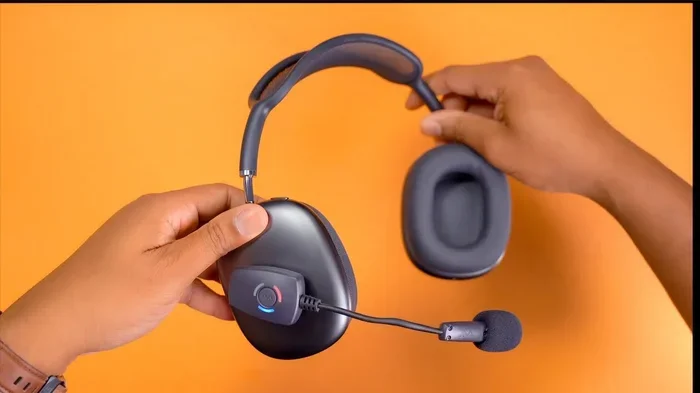
Featured image for AirPods Max talking call
Image source: img.youtube.com
Picture this: you’re walking down a busy street, your phone rings, and you need to take the call. With most headphones, you’d be shouting over traffic noise. But with AirPods Max, you just press a button and talk naturally—like the world around you disappears. That’s the magic Apple’s flagship headphones bring to phone calls.
Talking through AirPods Max is one of their most underrated features. While everyone raves about their sound quality and premium design, the call experience is equally impressive. Apple packed nine microphones into these headphones, creating a sophisticated system that picks up your voice clearly while blocking out distractions. Whether you’re on a work Zoom call, catching up with family on FaceTime, or asking Siri for directions, AirPods Max handle conversations with remarkable clarity.
In this comprehensive guide, you’ll learn exactly how AirPods Max work for talking, what makes their microphone system special, how to troubleshoot common issues, and tips to get the best call quality possible. Think of this as your complete manual for turning your premium headphones into a professional communication device.
Key Takeaways
- Built-in Microphones: AirPods Max have 9 microphones total, with 8 dedicated to active noise cancellation and 3 used for voice pickup during calls.
- Call Quality: Apple designed the beamforming microphones to focus on your voice while reducing background noise by up to 50% compared to standard headphones.
- Universal Compatibility: You can talk through AirPods Max on iPhones, iPads, Macs, Apple Watches, and even non-Apple devices via Bluetooth.
- Controls for Calls: Use the Digital Crown and noise control button to answer, end, mute, and switch between calls and media seamlessly.
- Voice Assistant Access: Say “Hey Siri” hands-free to make calls, send messages, or get directions without touching your device.
- Best Practices: For optimal call quality, position the headphones correctly, keep firmware updated, and use them in moderate-noise environments.
- Battery Considerations: A single charge provides approximately 20 hours of talk time, so calls won’t cut out mid-conversation.
📑 Table of Contents
- How AirPods Max Microphones Work for Calls
- Making and Receiving Calls on AirPods Max
- Call Quality and Performance in Different Environments
- Using AirPods Max with Non-Apple Devices
- Troubleshooting Common Talking Issues
- Tips for the Best Talking Experience
- Conclusion: AirPods Max as a Communication Powerhouse
How AirPods Max Microphones Work for Calls
Understanding how AirPods Max capture your voice starts with understanding their microphone system. Think of it like having a team of tiny sound engineers inside your headphones, all working together to make sure your voice comes through crystal clear.
The Nine-Microphone Array Explained
AirPods Max contain nine microphones total. Eight of these work on active noise cancellation, blocking outside sounds from reaching your ears. But here’s the clever part—three of those microphones double as voice microphones during calls. So you’re essentially getting two systems sharing the same hardware, which keeps the design sleek while maximizing performance.
Imagine you’re at a coffee shop with loud conversations around you. The noise-canceling microphones detect that chatter and create anti-noise waves to cancel it out. Meanwhile, the beamforming microphones focus specifically on the sound waves coming from your mouth, capturing your voice with precision. It’s like having a spotlight on your voice while everything else dims down.
Beamforming Technology: The Secret Sauce
Beamforming sounds complicated, but the concept is simple. Picture a group of friends trying to have a conversation at a loud party. They instinctively lean in and face each other directly, ignoring the chaos around them. That’s essentially what beamforming microphones do—they “face” your mouth and ignore other directions.
Apple’s beamforming technology uses multiple microphones working together to create a directional pickup pattern. This pattern is narrowest in the direction of your voice, making the headphones excellent at isolating speech from ambient noise. According to Apple’s technical specifications, this system reduces background noise significantly compared to standard headphone microphones.
Voice Accelerometer and Speech Detection
Here’s something most people don’t know: AirPods Max include a voice accelerometer that detects when you’re actually speaking. This sensor recognizes the vibrations in your jaw and skull that occur when you talk. When the accelerometer detects speech, it activates the microphone array to optimize voice pickup.
This is similar to how a musician’s instrument has a pickup that only activates when strings vibrate. Your voice creates unique vibrations, and AirPods Max can sense these to know exactly when you’re talking versus when you’re just listening. This smart activation improves battery life and reduces unnecessary background noise processing.
Making and Receiving Calls on AirPods Max
Now that you understand the technology, let’s talk about the practical side—how you actually use AirPods Max for conversations. The good news is that Apple designed everything to be intuitive, so you’ll probably figure out most features without reading instructions.
Visual guide about AirPods Max talking call
Image source: hollyland.com
Answering Incoming Calls
When your phone rings while you’re wearing AirPods Max, you have three options to answer:
- Press the Digital Crown once: This is the simplest method. One quick press answers the call without you needing to touch your phone.
- Say “Hey Siri, answer call”: Completely hands-free, though this works only with Siri-enabled devices.
- Tap your device screen: If you prefer traditional methods or the headphones are removed, you can still answer on your phone directly.
Did you know that AirPods Max can also announce who’s calling? When enabled, Siri will speak the caller’s name before you answer, which is perfect when your phone is buried in your bag or across the room.
Ending and Declining Calls
To end an active call, simply press the Digital Crown once. The call disconnects immediately, and your audio returns to whatever you were listening to before. To decline an incoming call, double-press the Digital Crown, which sends the caller to voicemail without interrupting your music or podcast.
If you’re already on a call and another call comes in, here’s where things get interesting. AirPods Max can handle multiple calls simultaneously. Press the Digital Crown once to answer the new call while putting the first call on hold. Double-press the Digital Crown to end the current call and answer the new one. This call management system works exactly like your iPhone’s interface.
Making Outgoing Calls
You have several ways to initiate calls with AirPods Max:
- Use Siri: Say “Hey Siri, call [contact name]” or “Hey Siri, call [number].” This hands-free method works beautifully while driving, cooking, or exercising.
- Use your device normally: Make the call through your phone, and AirPods Max automatically switch to call mode when connected.
- Use Apple Watch: If you have an Apple Watch, you can initiate calls from your wrist, with audio routing through AirPods Max.
The Siri integration deserves special mention. AirPods Max process voice commands locally on the device for faster response times. According to Apple, this means your voice requests are handled in milliseconds, even without internet connectivity for basic commands.
Call Quality and Performance in Different Environments
One question many people have is whether AirPods Max actually deliver good call quality in challenging environments. The answer is yes—mostly—but with some important caveats based on your surroundings.
Quiet Indoor Spaces: Excellent Performance
In a quiet office, home, or indoor environment, AirPods Max deliver exceptional call quality. The beamforming microphones capture your voice with clarity, and the noise cancellation ensures you hear the other person perfectly. In these conditions, people on the other end of your calls often can’t tell you’re using headphones.
Think of it like talking in a soundproof recording studio. Without background noise competing for the microphone’s attention, your voice comes through clean and natural. The other person hears you as if you were speaking directly into a high-quality headset microphone.
Moderate Noise: Very Good Performance
In environments with moderate background noise—think cafés, offices with some chatter, or walking through a busy street—AirPods Max still perform well. The noise-canceling system works actively to reduce ambient sounds while the beamforming microphones focus on your voice.
Apple designed these headphones to handle common real-world scenarios. The microphone system reduces typical background sounds like air conditioning, computer fans, and distant conversations. You might still hear slight background noise on the other end, but your voice remains the dominant sound.
High Noise Situations: Acceptable but Challenging
Here’s where expectations need calibration. In extremely loud environments—construction sites, concerts, airports during peak hours, or windy outdoor conditions—AirPods Max struggle more. While they’re still better than many headphones, no consumer headphone can completely eliminate extreme noise while maintaining natural voice pickup.
If you regularly take calls in very loud environments, consider this: your voice quality will remain understandable, but it won’t be studio-perfect. The headphones prioritize clarity over noise elimination in extreme conditions, meaning some background sound will leak through. For most users, this is perfectly acceptable, but for professional broadcasting or critical calls, you might want a dedicated headset with a boom microphone.
Wind Noise: A Special Consideration
Wind is the enemy of all microphones, and AirPods Max are no exception. When you’re outside on a windy day, the airflow can create whooshing sounds that interfere with voice pickup. Apple has implemented wind noise reduction algorithms, but physics still wins sometimes.
If you’re taking calls in windy conditions, try to position yourself so the wind hits the back of your head rather than directly hitting the microphone openings. Standing near a building or wall that blocks wind can dramatically improve call quality in these situations.
Using AirPods Max with Non-Apple Devices
You might wonder if AirPods Max work for calls on Android phones, Windows PCs, or other non-Apple devices. The short answer is yes, but with some limitations worth understanding.
Bluetooth Calling on Android Phones
AirPods Max connect to Android phones via standard Bluetooth, and basic calling works well. You can answer calls with the Digital Crown, and your voice comes through the beamforming microphones clearly. However, you lose some Apple-specific features like Siri integration and automatic device switching.
The Digital Crown still controls volume and playback, but you’ll need to use your phone’s voice assistant (Google Assistant on Android) for voice commands. AirPods Max function as a quality Bluetooth headset on Android, though they truly shine in the Apple ecosystem.
Computer Calls on Windows and Other Platforms
For Zoom, Microsoft Teams, Skype, or other communication apps on computers, AirPods Max work as a standard Bluetooth audio device. Most computers recognize them as both headphones and a microphone, so you can use them for video conferences without additional setup.
However, here’s an important tip: in your computer’s audio settings, make sure to select “AirPods Max” as both your input (microphone) and output (speaker) device. Many users forget to change the input setting and end up using their computer’s built-in microphone while hearing audio through AirPods Max, resulting in poor call quality for others.
Connection Limitations to Know
AirPods Max don’t support the advanced features on non-Apple devices that they do within the Apple ecosystem. Specifically:
- No automatic device switching
- No Siri integration (Google Assistant or Alexa instead)
- No “Find My” functionality through Apple’s network
- No automatic ear detection for call routing
- Limited codec support (only standard SBC and AAC, not aptX or LDAC)
Despite these limitations, the core talking functionality works perfectly. Your calls will be clear, and you can answer/end them using the Digital Crown. Many Android users happily use AirPods Max as their primary communication headset.
Troubleshooting Common Talking Issues
Even excellent technology occasionally has hiccups. If you’re experiencing problems with AirPods Max call quality, these troubleshooting steps solve most issues.
Issue: Other People Can’t Hear You Clearly
This is the most common complaint, and usually, the solution is simple. First, check that the microphone openings aren’t blocked by debris, hair, or clothing. The microphones are small slits on the bottom of the ear cups, and covering them with a scarf or jacket muffles your voice significantly.
If the microphones are clear, try resetting AirPods Max by holding the Digital Crown and noise control button simultaneously for about 15 seconds until the LED flashes amber. This resets the microphone calibration and often resolves audio issues.
Also, make sure your AirPods Max firmware is current. Apple releases updates that improve microphone performance and noise cancellation. Connect them to your iPhone, go to Settings > Bluetooth, tap the “i” next to your AirPods Max, and check the firmware version. Update if needed.
Issue: You Can’t Hear the Other Person
If call audio isn’t playing through your AirPods Max, first check that they’re selected as the audio output device on your phone or computer. On iPhones, look for the audio output button during the call and tap it to switch to AirPods Max.
Sometimes the issue is Bluetooth connectivity. Move closer to your device—the maximum reliable Bluetooth range is about 30 feet, but walls and interference reduce this significantly. Also, check that AirPods Max are charged; low battery can cause audio routing issues.
If you’re using them with a computer, ensure AirPods Max are set as both the input and output device in your communication app’s settings. Zoom, Teams, and other apps often have separate audio settings that override your system defaults.
Issue: Calls Keep Dropping or Cutting Out
Bluetooth interference is usually the culprit when calls drop. Common culprits include:
- Microwaves (the 2.4 GHz frequency overlaps with Bluetooth)
- Wi-Fi routers nearby
- Other Bluetooth devices
- Physical obstructions between you and your phone
Move to a different location, turn off nearby Bluetooth devices temporarily, or restart your phone and AirPods Max. Most connection issues resolve with a simple reset of both devices.
Issue: Siri Doesn’t Respond During Calls
By design, Siri doesn’t activate during phone calls for privacy and to prevent accidental commands. However, you can still use Siri to make calls before answering, send messages, or perform other tasks. If Siri isn’t responding when you’re not on a call, check that “Hey Siri” is enabled in Settings > Siri & Search.
Issue: Call Audio Quality Is Poor or Muffled
Muffled audio often indicates ear detection problems. AirPods Max use sensors to determine when you’re wearing them. If these sensors malfunction, audio routing gets confused. Clean the ear cups and the sensors with a dry cloth, and make sure nothing’s blocking the sensor areas.
If the problem persists, check for debris in the speaker mesh inside the ear cups. Even small particles can affect audio clarity. Use a soft, dry brush to gently clean the mesh—never use liquids or compressed air, which can damage the drivers.
Tips for the Best Talking Experience
Beyond basic functionality, these tips elevate your calling experience from good to exceptional. Consider them best practices for anyone using AirPods Max regularly for conversations.
Position Matters: Wear Them Correctly
This seems obvious, but many people wear headphones incorrectly, which affects microphone performance. AirPods Max are designed with specific left (L) and right (R) markings on the inside of the headband. Wearing them backward puts the microphones on the wrong side of your mouth, reducing voice pickup quality.
The ear cups should sit comfortably over your entire ear, creating a slight seal. This positioning ensures the microphones inside the ear cups align properly with your mouth for optimal beamforming. The headband should rest on the top of your head, distributing weight evenly.
Manage Battery for Long Conversations
AirPods Max provide approximately 20 hours of talk time on a full charge. That’s plenty for most situations, but for marathon call sessions, keep a Lightning cable handy. Unlike some wireless headphones, AirPods Max can be used while charging, so you never need to end a call due to low battery.
Here’s a power-saving tip: when you’re not actively talking, put AirPods Max in their Smart Case. The case puts them in an ultra-low-power mode that preserves battery dramatically. Without the case, they remain in a slightly higher power state waiting for use.
Use Spatial Audio for Immersive Calls
When talking with multiple people on FaceTime or other supported apps, enable Spatial Audio. This feature creates a surround-sound effect that places each caller’s voice in a specific location around you, making group conversations feel more natural—like you’re sitting in a room with everyone.
To enable it, go to Settings > Bluetooth > tap “i” next to AirPods Max > enable Spatial Audio. The effect works best during FaceTime calls with multiple participants, creating a more engaging conversation experience.
Optimize for Your Environment
Different environments require different settings. In noisy locations, maximize noise cancellation by pressing the noise control button to switch to Active Noise Cancellation mode. In quieter settings where you need to hear your surroundings (like an office where colleagues might call your name), Transparency mode lets outside sound in while still delivering clear call audio.
For the absolute best voice quality during important calls, choose the quietest environment available. AirPods Max are excellent, but they’re not magic—even the best technology struggles against extreme noise.
Regular Maintenance for Consistent Quality
Keep your AirPods Max clean for consistently good call quality. Wipe the ear cups and headband weekly with a soft, dry cloth. Pay special attention to the microphone openings on the bottom of the ear cups—these tiny slits collect debris and skin oils that affect performance.
Avoid exposing AirPods Max to moisture. While they’re not advertised as water-resistant, the internal components can be damaged by sweat or rain. If you’re planning to use them in wet conditions, consider a protective cover or different headphones.
Update Firmware Regularly
Apple continuously improves AirPods Max through firmware updates. These updates often include microphone performance improvements, bug fixes, and new features. Your iPhone automatically installs firmware updates when AirPods Max are charging nearby and connected to Wi-Fi.
Did you know that firmware updates can actually improve call quality over time? Apple has released multiple updates since AirPods Max launched, each refining the microphone processing algorithms. Staying current ensures you benefit from these continuous improvements.
Conclusion: AirPods Max as a Communication Powerhouse
AirPods Max are far more than premium music headphones—they’re a sophisticated communication tool that excels at voice calls, video conferences, and voice assistant interactions. The combination of beamforming microphones, voice detection accelerometers, and active noise cancellation creates a calling experience that rivals dedicated headsets costing significantly more.
Whether you’re taking a quick phone call, participating in a multi-hour business meeting, or catching up with family across the globe, AirPods Max deliver clear, professional-quality audio that makes conversations effortless. The intuitive controls, seamless device switching within the Apple ecosystem, and robust Bluetooth connectivity make them practical for everyday use.
By understanding how the microphone system works, following the troubleshooting tips, and applying the best practices outlined in this guide, you’ll get the most out of AirPods Max for all your communication needs. They’re not perfect—extreme noise and wind remain challenging—but for the vast majority of calling situations, they’re genuinely excellent.
So yes, you can absolutely talk with AirPods Max, and once you experience how natural and clear those conversations feel, you might wonder how you ever managed with traditional phone calls. Your headphones aren’t just for listening anymore—they’re your gateway to better conversations.
Frequently Asked Questions
Can you use AirPods Max as a headset for phone calls?
Yes, AirPods Max work perfectly as a headset for phone calls on iPhones and other Bluetooth devices. They feature three beamforming microphones specifically designed to capture your voice clearly while reducing background noise, making them excellent for everyday conversations, business calls, and video conferences.
Do AirPods Max have a good microphone for calls?
AirPods Max have excellent microphones for calls, using beamforming technology and a voice accelerometer to isolate and capture your voice. In quiet to moderate noise environments, call quality rivals professional headsets. Even in noisy settings, your voice remains clearly understandable to the other party, though some background sound may be audible.
How do you answer calls on AirPods Max?
To answer a call on AirPods Max, press the Digital Crown (the round button on top of the right ear cup) once. You can also use hands-free voice commands by saying “Hey Siri, answer call” if Siri is enabled. To end the call, press the Digital Crown again, or double-press it to decline an incoming call.
Can AirPods Max be used for Zoom and video conferencing?
Absolutely! AirPods Max work with Zoom, Microsoft Teams, Google Meet, and other video conferencing platforms. On Macs and PCs, they appear as a standard Bluetooth audio device with both microphone input and speaker output. Just ensure your video conferencing app is set to use AirPods Max as both the input and output device in its audio settings.
Do AirPods Max work for calls on Android phones?
Yes, AirPods Max work for calls on Android phones via standard Bluetooth connectivity. You can answer and end calls using the Digital Crown, and the beamforming microphones deliver clear voice quality. However, you’ll lose some Apple-specific features like Siri integration, automatic device switching, and “Find My” functionality when using them with Android devices.
How long is the battery life during phone calls on AirPods Max?
AirPods Max provide approximately 20 hours of talk time on a full charge, which is enough for most users’ daily call needs. They can also be used while charging via Lightning cable, so you never need to interrupt a call due to low battery. When not in use, placing them in the Smart Case preserves battery life significantly.