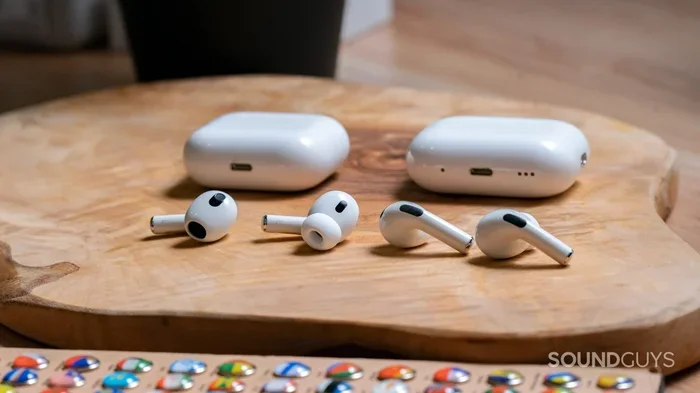
Featured image for AirPods Pro 3 multiple devices
Image source: soundguys.com
Yes, you can absolutely use AirPods Pro 3 on multiple devices, thanks to Apple’s seamless ecosystem integration. The earbuds connect to your iPhone, iPad, Mac, Apple Watch, and Apple TV simultaneously, automatically switching audio based on which device you’re actively using. While non-Apple devices work via standard Bluetooth, you lose the automatic switching magic that makes AirPods Pro 3 so convenient.
Picture this: you’re jamming to your favorite playlist on your MacBook, and suddenly your iPhone rings. Without lifting a finger, your AirPods Pro 3 pause the music and switch to the call. Hang up, and the music resumes automatically. Sounds like magic, right? Well, it’s not magic, it’s Apple’s brilliant ecosystem working behind the scenes.
If you’ve recently picked up the AirPods Pro 3 or are considering buying them, you probably have one burning question: can you actually use them on multiple devices without the hassle of constant re-pairing? The short answer is a resounding yes, but there’s a lot more to unpack. From how automatic switching works to what happens when you connect to a Windows laptop, this guide covers everything you need to know.
Whether you’re a dedicated Apple enthusiast with an iPhone, iPad, Mac, and Apple Watch, or someone who mixes Apple with Android or Windows devices, understanding how AirPods Pro 3 handle multiple connections will save you time and frustration. Let’s dive deep into this topic and explore every angle.
Key Takeaways
- Automatic Device Switching: AirPods Pro 3 can connect to all your Apple devices at once and switch automatically based on which one you’re using.
- Apple ID Matters: All devices must be signed into the same Apple ID for seamless switching to function properly.
- Bluetooth Limits: You can only actively play audio from one device at a time, even though multiple devices remain paired.
- Android Compatibility: Non-Apple devices work via standard Bluetooth but lack premium features like spatial audio and automatic switching.
- Setup is Simple: Pairing your AirPods Pro 3 with multiple devices takes just seconds once iCloud is configured.
- Battery Considerations: Using multiple devices doesn’t drain your battery faster, but Bluetooth range affects connection quality.
- Troubleshooting Exists: Most switching issues are resolved by toggling settings, resetting AirPods, or updating firmware.
📑 Table of Contents
- Understanding AirPods Pro 3 Multi-Device Connectivity
- Using AirPods Pro 3 Across Apple Devices
- Setting Up AirPods Pro 3 on Multiple Devices
- AirPods Pro 3 with Non-Apple Devices
- Managing Multiple Connections and Troubleshooting
- Maximizing Your Multi-Device AirPods Pro 3 Experience
- The Future of Multi-Device Audio
Understanding AirPods Pro 3 Multi-Device Connectivity
Think of AirPods Pro 3 as a universal remote control for your ears. Just like a universal remote can control your TV, soundbar, and streaming box, these earbuds can connect to virtually any Bluetooth-enabled device. But here’s where things get interesting: Apple has built a special layer of intelligence that goes beyond basic Bluetooth pairing.
How Bluetooth Works with AirPods Pro 3
At their core, AirPods Pro 3 use Bluetooth 5.3 technology to communicate wirelessly with devices. This is the same fundamental technology that powers wireless headphones from every brand. Bluetooth creates a short-range wireless connection, typically up to 33 feet or about 10 meters in open spaces.
When you pair your AirPods Pro 3 with a device, that device remembers the connection. Your earbuds can store pairing information for multiple devices, similar to how your phone remembers multiple Wi-Fi networks. However, standard Bluetooth only allows an active audio connection with one device at a time.
Did you know that AirPods Pro 3 can remember pairing information for up to 8 different devices? That’s plenty for most users, covering phones, tablets, computers, smartwatches, and even gaming consoles.
Apple’s Secret Sauce: The H2 Chip
What sets AirPods Pro 3 apart from generic Bluetooth earbuds is Apple’s custom-designed H2 chip. This tiny processor is like having a miniature computer inside each earbud. The H2 chip handles audio processing, noise cancellation, and most importantly for our discussion, device switching.
The H2 chip works in tandem with Apple’s software ecosystem to enable seamless switching between devices signed into the same Apple ID. It’s like having a smart assistant that knows exactly which device you want to listen to, without you having to tell it.
Using AirPods Pro 3 Across Apple Devices
If you’re all-in on Apple, you’re in for a treat. The multi-device experience with AirPods Pro 3 across Apple products is genuinely impressive and one of the biggest selling points for staying within the ecosystem.
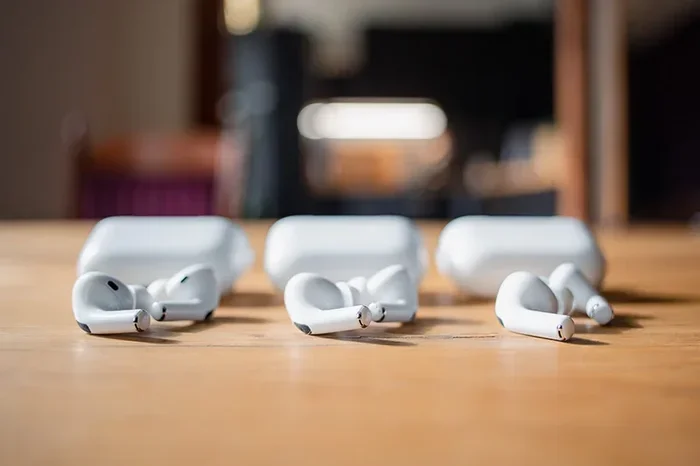
Visual guide about AirPods Pro 3 multiple devices
Image source: modernhifi.de
Connecting to iPhone and iPad
Setting up AirPods Pro 3 with your iPhone is incredibly straightforward. Open the charging case near your iPhone, and a setup animation appears on screen. Tap “Connect,” and you’re done. This same process works for iPad, creating a unified experience across your mobile devices.
Once connected to both your iPhone and iPad, your AirPods Pro 3 intelligently switch between them. Start watching a video on your iPad, then receive a call on your iPhone, the audio automatically transfers. It’s like having a personal audio butler.
Mac Integration
Adding your Mac to the mix is equally seamless. With macOS Ventura or later, your AirPods Pro 3 appear in your Mac’s sound settings automatically if you’re signed into the same Apple ID. No manual pairing needed if your earbuds are already connected to another Apple device.
Here’s a practical example: you’re editing a video on your Mac with audio playing through your AirPods. Your iPhone receives a FaceTime call. The AirPods instantly switch to the call on your iPhone. Once finished, the audio returns to your Mac, picking up right where it left off. This happens in under two seconds in most cases.
Apple Watch Compatibility
Your Apple Watch can also use AirPods Pro 3 independently. This is perfect for workouts when you don’t want to carry your phone. Leave your iPhone at home, stream music directly from your Apple Watch to your AirPods, and enjoy complete wireless freedom.
According to Apple’s support documentation, over 200 million Apple Watch users worldwide can benefit from this independent audio streaming capability. It’s particularly popular among runners and gym-goers who want a phone-free experience.
Apple TV Experience
Using AirPods Pro 3 with Apple TV transforms late-night viewing sessions. Pair them through your Apple TV’s settings, and you can watch movies at high volume without disturbing anyone. The spatial audio feature with dynamic head tracking creates an immersive home theater experience right in your living room.
Fun fact: Apple TV automatically detects when AirPods Pro 3 are nearby and offers to connect them. This is especially handy when multiple family members share an Apple TV but want private listening.
Setting Up AirPods Pro 3 on Multiple Devices
Getting your AirPods Pro 3 connected to multiple devices is refreshingly simple, especially within the Apple ecosystem. Let’s walk through the process step by step.
Initial Pairing with Your iPhone
Start with your iPhone, as this will be your primary device. Make sure Bluetooth is enabled, then open the AirPods Pro 3 case near your phone with the earbuds inside. A setup animation appears on your iPhone screen within seconds.
Tap “Connect” and follow the prompts. You’ll be asked whether to enable features like Siri, spatial audio, and automatic ear detection. Once complete, your AirPods Pro 3 are linked to your Apple ID, not just the iPhone.
Adding Additional Apple Devices
To add your iPad, Mac, or other Apple devices, you don’t need to repeat the manual pairing process. Just make sure the new device is signed into the same Apple ID and has Bluetooth enabled. Your AirPods Pro 3 will appear in the Bluetooth settings automatically.
On a Mac, go to System Settings, then Bluetooth. Your AirPods Pro 3 should appear in the device list. Click “Connect” the first time, and from then on, they’ll connect automatically when in range.
Verifying Automatic Switching is Enabled
Automatic switching is enabled by default, but it’s worth double-checking. On your iPhone, go to Settings, then tap on your AirPods Pro 3 name. Look for “Connect to This iPhone” and ensure it’s set to “Automatically.”
Repeat this check on each Apple device you plan to use. This setting tells each device whether to hand off audio connections to your AirPods when needed.
AirPods Pro 3 with Non-Apple Devices
Not everyone lives entirely in Apple’s world, and that’s perfectly fine. AirPods Pro 3 work with non-Apple devices too, though you lose some of the premium features that make them special.
Connecting to Android Phones
Pairing AirPods Pro 3 with an Android device is similar to connecting any Bluetooth headphone. Put your AirPods in pairing mode by holding the button on the back of the case until the LED flashes white. Then find them in your Android phone’s Bluetooth settings and tap to connect.
You’ll get basic functionality: audio playback, microphone for calls, and touch controls. However, features like automatic switching, spatial audio, and ear detection are unavailable. You’ll also need to check battery levels through your Android’s Bluetooth settings rather than dedicated widgets.
Did you know that Android users make up approximately 40% of the global smartphone market? That’s hundreds of millions of potential AirPods Pro 3 users who can enjoy the excellent audio quality, just without the full Apple experience.
Windows PC Compatibility
Windows computers connect to AirPods Pro 3 via standard Bluetooth as well. The process is straightforward: put AirPods in pairing mode, add a Bluetooth device in Windows Settings, and you’re connected.
One quirk: Windows sometimes struggles with the microphone input from AirPods. If you experience issues during video calls, you may need to manually select the AirPods microphone in your application’s audio settings.
Gaming Consoles and Smart TVs
AirPods Pro 3 work with PlayStation 5, Xbox Series X/S, and many smart TVs that support Bluetooth audio. Latency can be an issue for gaming, where audio lag of even 50 milliseconds can affect gameplay. For casual gaming, AirPods Pro 3 are fine, but competitive gamers might prefer dedicated wireless gaming headsets.
Smart TVs from Samsung, LG, and Sony generally pair without issues, letting you enjoy private listening without expensive sound systems.
Managing Multiple Connections and Troubleshooting
Even the best technology occasionally misbehaves. Here are common scenarios and solutions for managing multiple device connections with your AirPods Pro 3.
Preventing Unwanted Switching
Sometimes automatic switching activates when you don’t want it to. Maybe you’re listening to music on your Mac but want your iPhone notifications to stay silent. You can disable automatic switching for specific devices.
On your iPhone, go to Settings, then Bluetooth. Find your AirPods Pro 3 and tap the “i” icon. Select “Connect to This iPhone” and choose “When Last Connected to This iPhone” instead of “Automatically.” This forces the iPhone to be more conservative about grabbing the connection.
Resolving Connection Drops
Bluetooth operates on the 2.4 GHz frequency band, which is also used by Wi-Fi routers, microwaves, and many other devices. Interference can cause audio dropouts or connection failures. Moving closer to your source device or away from potential interference sources usually resolves this.
If problems persist, try resetting your AirPods Pro 3. Place them in the case, close the lid, wait 30 seconds, then open it. Press and hold the setup button on the back of the case for about 15 seconds until the LED flashes amber, then white. Your AirPods are now reset and ready to pair fresh.
Updating Firmware
Apple regularly releases firmware updates that improve connectivity, audio quality, and battery life. Updates happen automatically when your AirPods Pro 3 are connected to an iPhone or iPad with Wi-Fi. To check your current firmware version, go to Settings, then Bluetooth, tap the “i” icon next to your AirPods, and look for the “Version” field.
Apple’s firmware updates have historically improved multi-device switching reliability. In fact, since the original AirPods launch in 2016, Apple has issued over 30 firmware updates specifically addressing connectivity improvements.
Battery Management Across Devices
Using your AirPods Pro 3 with multiple devices doesn’t drain the battery faster. Battery life depends on active usage, not the number of paired devices. AirPods Pro 3 deliver up to 6 hours of listening time on a single charge, extending to 30 hours with the MagSafe charging case.
When battery runs low, you’ll hear a tone in your earbuds, and a notification appears on your connected iPhone or iPad. The charging case supports multiple charging methods: Lightning, MagSafe, Qi wireless chargers, and even Apple Watch chargers.
Maximizing Your Multi-Device AirPods Pro 3 Experience
Now that you understand the basics, let’s explore some pro tips to get the most out of your AirPods Pro 3 across multiple devices.
Create Custom Audio Settings per Device
Different activities call for different audio settings. You might want maximum noise cancellation on your commute but prefer transparency mode at the office. Unfortunately, AirPods Pro 3 don’t automatically adjust these settings based on device, but you can quickly toggle them using the stem squeeze controls.
Press and hold the stem to switch between noise cancellation and transparency mode. The earbuds remember your last setting for each device independently in some cases, so you might find your commute settings stick to your iPhone while office settings apply to your Mac.
Use Find My for Peace of Mind
With multiple devices, there’s a higher chance of misplacing your AirPods. The Find My app can locate them, showing their last known location on a map. If they’re nearby, you can play a sound to help find them. This feature requires your AirPods to be linked to your Apple ID, which happens automatically during initial setup.
According to Apple, Find My has helped users locate over 100 million lost devices. Don’t let your AirPods Pro 3 become another statistic.
Share Audio with Friends
Here’s a fun feature: you can share audio between two sets of AirPods from a single iPhone or iPad. Bring another pair of AirPods close to your device, and a prompt appears asking if you want to share audio. This is perfect for watching movies on a flight or sharing music during a workout.
Audio sharing works with AirPods Pro, AirPods Pro 2, AirPods Pro 3, AirPods 3, AirPods 4, and AirPods Max. It’s one of those small features that makes Apple products feel truly connected.
Optimize for Specific Use Cases
For video conferencing on your Mac, make sure your AirPods Pro 3 are selected as both the input and output device in your video conferencing app. Some apps default to your Mac’s built-in microphone, which defeats the purpose of using AirPods for their noise-canceling capabilities during calls.
For gaming on Apple devices, enable spatial audio with dynamic head tracking for an immersive experience. The H2 chip processes positional audio in real-time, making it feel like sound comes from specific locations in your environment.
For workouts, disable automatic ear detection if you find it pausing music when you adjust the earbuds. This setting is in the AirPods section of your iPhone’s settings menu.
The Future of Multi-Device Audio
Apple continues to push the boundaries of what’s possible with multi-device audio. The H2 chip in AirPods Pro 3 represents years of research and development, and future iterations will likely bring even more impressive capabilities.
Industry analysts predict that by 2027, over 60% of wireless earbuds sold globally will feature some form of multi-device connectivity. Apple’s early investment in this technology gives AirPods Pro 3 a significant advantage.
Competitors are catching up, with brands like Samsung, Sony, and Google introducing their own multi-device pairing features. However, the seamless integration across phones, tablets, computers, watches, and TVs that Apple offers remains best-in-class for most users.
Looking ahead, we might see features like simultaneous audio playback from multiple devices, enhanced spatial audio with personalized HRTF profiles, and even deeper integration with smart home devices. The foundation built with AirPods Pro 3 positions Apple well for these future innovations.
In conclusion, yes, you can absolutely use AirPods Pro 3 on multiple devices, and the experience is exceptionally smooth within the Apple ecosystem. Automatic switching eliminates the frustration of manual re-pairing, while standard Bluetooth ensures compatibility with non-Apple devices when needed. Whether you’re a power user with a dozen Apple devices or someone who just wants quality earbuds that work everywhere, AirPods Pro 3 deliver a versatile, user-friendly experience that justifies their premium price tag.
Frequently Asked Questions
How many devices can AirPods Pro 3 connect to simultaneously?
AirPods Pro 3 can be actively connected to one Apple device for audio playback at a time, but they remain paired with up to 8 devices in memory. Within the Apple ecosystem, automatic switching makes the transition between paired devices nearly instantaneous without manual reconnection.
Do AirPods Pro 3 work with Android phones?
Yes, AirPods Pro 3 connect to Android phones via standard Bluetooth. You’ll get core features like audio playback, calls, and touch controls, but lose Apple-specific features including automatic switching, spatial audio, ear detection, and Find My integration. Battery status must be checked through the Android Bluetooth menu.
Why won’t my AirPods Pro 3 switch between devices automatically?
Automatic switching requires all devices to be signed into the same Apple ID with iCloud enabled. Check that the feature is turned on by going to Settings, then Bluetooth, tapping your AirPods, and ensuring “Connect to This iPhone” is set to “Automatically.” Updating firmware often resolves persistent switching issues.
Can I use AirPods Pro 3 with my Windows PC and iPhone at the same time?
You can pair AirPods Pro 3 with both a Windows PC and iPhone, but only one device plays audio at a time. Switching between them requires manual intervention on the Windows side, as automatic switching only works between Apple devices. This is a common limitation of standard Bluetooth technology.
Does using AirPods Pro 3 with multiple devices drain the battery faster?
No, battery life is unaffected by the number of paired devices. AirPods Pro 3 deliver up to 6 hours of listening time per charge regardless of how many devices they’re paired with. Battery drain depends on active audio playback, noise cancellation usage, and call time, not connection count.
How do I reset AirPods Pro 3 if they’re not connecting to multiple devices?
Place both earbuds in the charging case and close the lid for 30 seconds. Open the lid, then press and hold the setup button on the back of the case for about 15 seconds until the status light flashes amber, then white. After resetting, you’ll need to pair your AirPods Pro 3 with your devices again from scratch.