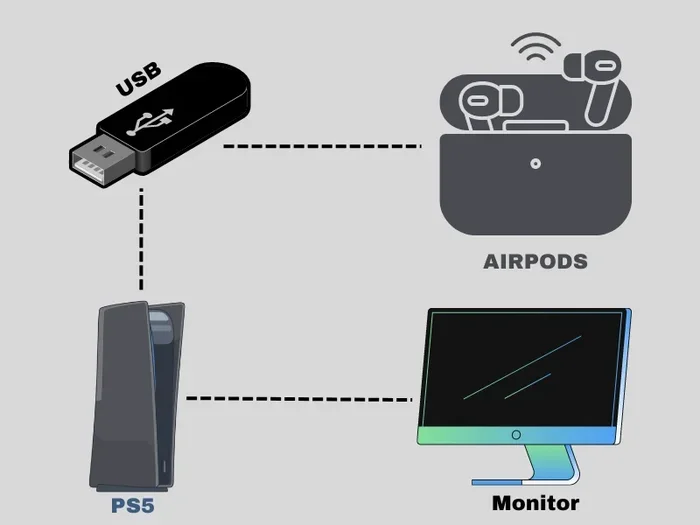
Featured image for AirPods USB adapter connection
Image source: audiospeaks.com
AirPods cannot connect to non-Bluetooth devices via USB because they rely entirely on wireless Bluetooth technology to pair and stream audio. However, you can use USB Bluetooth adapters or dongles as a workaround. This guide explains why direct USB connection isn’t possible, explores alternative solutions, and helps you understand your options for using AirPods with devices that lack built-in Bluetooth support.
Picture this: you’re sitting at your old desktop computer, ready to watch a movie or join a video call, but the machine doesn’t have Bluetooth. Your shiny AirPods sit right next to you, fully charged and ready to go. The question hits you immediately—can you just plug them in somehow?
Here’s the short and honest answer: AirPods cannot connect to non-Bluetooth devices through a direct USB cable. It doesn’t matter if you have the latest AirPods Pro or the basic AirPods 2nd generation. These earbuds speak only one wireless language, and that language is Bluetooth. There’s no USB port on any AirPods model, and Apple never designed them to accept a wired audio signal.
But don’t close this tab just yet! While a direct USB connection isn’t possible, there are clever ways to bridge the gap. Think of it like needing a translator when two people speak different languages. USB Bluetooth adapters act as that translator, turning a “non-Bluetooth” device into one that can talk to your AirPods. In this guide, we’ll walk you through exactly why AirPods work the way they do, what your real options are, and how to set up the best possible solution for your situation.
Key Takeaways
- AirPods are Bluetooth-only devices: They have no USB port or wired audio input, making direct USB connection physically impossible.
- USB Bluetooth adapters work as bridges: These small dongles plug into a device’s USB port and add Bluetooth capability, allowing AirPods to pair wirelessly.
- Compatibility depends on the host device: The device must support USB audio or generic Bluetooth drivers for an adapter to function properly.
- Wired headphones are simpler alternatives: If your device only has USB ports, traditional wired headphones or USB-C earbuds often work more reliably.
- AirPods work best with Apple ecosystems: Features like automatic switching and spatial audio require Apple-made devices for full functionality.
- Latency can be an issue: Bluetooth adapters may introduce audio delay, making them unsuitable for gaming or professional audio work.
- Cost varies widely: USB Bluetooth adapters range from $10 to $50, depending on codec support and audio quality features.
📑 Table of Contents
- Understanding How AirPods Actually Work
- Why Direct USB Connection to AirPods Is Impossible
- USB Bluetooth Adapters: The Best Workaround Solution
- Alternative Solutions for Non-Bluetooth Devices
- Device-Specific Compatibility and Limitations
- Frequently Asked Questions About AirPods and USB
- Making the Right Choice for Your Situation
- Final Thoughts on AirPods and USB Connectivity
Understanding How AirPods Actually Work
Before we dive into solutions, let’s take a quick look under the hood. Understanding how AirPods function helps you see why the USB question doesn’t quite work—and why the alternatives exist in the first place.
The Bluetooth-Only Design Philosophy
AirPods are built around a tiny chip called the Apple H1 (or W1 in older models). This chip is essentially a Bluetooth translator that handles everything from audio streaming to microphone input. When you pop AirPods into your ears, they’re already broadcasting and looking for devices to pair with.
Did you know that AirPods use Bluetooth 5.0 or higher? This newer version offers better range and stability than older Bluetooth iterations. However, they still need a device on the other end that “speaks Bluetooth” too. Without that, the connection simply cannot happen, no matter what cable you try to use.
Why There’s No USB Port on AirPods
Apple designed AirPods to be completely wireless. The charging case might have a Lightning or USB-C port (depending on your model), but that’s only for charging the case itself. The AirPods themselves only have tiny metal contacts that touch the case to recharge.
Think of it like a sealed thermos. You can pour liquid in through the top opening, but there’s no other entry point. AirPods have only one entry point for any kind of connection: Bluetooth signals through the air. No wired audio cable can plug into them because there’s nowhere for it to go.
The Audio Signal Flow Explained
Here’s a simple analogy: imagine your device is a radio station and your AirPods are a car radio. The station broadcasts music through the air (Bluetooth), and your car radio picks it up. Now imagine trying to plug a physical cable from the radio station directly into your car radio. It doesn’t make sense in that scenario, right? Same thing applies here. Bluetooth is the “air” that carries the audio signal, and a USB cable simply cannot transmit that same way.
Why Direct USB Connection to AirPods Is Impossible
Let’s get really specific about why you cannot plug AirPods into a USB port and expect them to work. There are three main reasons, and understanding each one will save you from wasting time on impossible solutions.
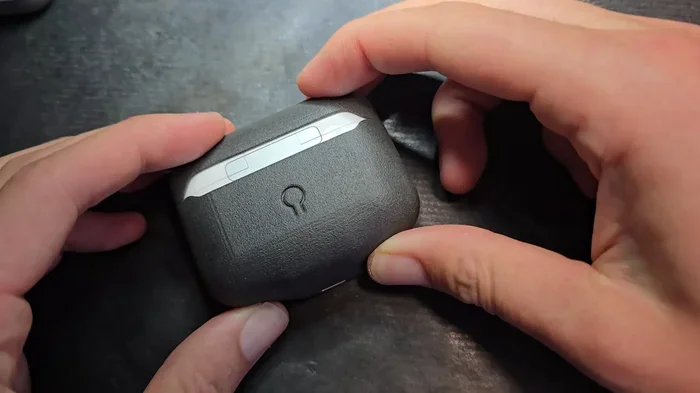
Visual guide about AirPods USB adapter connection
Image source: hackaday.com
Hardware Limitation: No Physical Connection Point
AirPods physically lack any port that would accept a USB connection. There’s no Lightning connector, no USB-C plug, and no 3.5mm jack. The only physical contacts are those tiny charging dots that sit inside the case. Even if you could somehow splice a USB cable to those contacts, you’d only be sending power, not audio data.
This is a hardware design choice Apple made from day one. Going wireless meant removing all the traditional ports. It’s like trying to fill a car with gas when the car has no gas tank opening—physically impossible.
Software Limitation: No Audio Drivers for USB
Even if you somehow engineered a way to connect AirPods via USB, the software inside wouldn’t know what to do with it. AirPods run on Apple’s custom firmware that only recognizes Bluetooth pairing protocols. There’s no USB audio driver built into AirPods because Apple never intended them to receive audio through a cable.
Your device would also need specific drivers to send audio through USB to AirPods, and those drivers simply don’t exist. It’s a two-sided problem: the sending device has no idea how to talk to AirPods via USB, and the AirPods have no idea how to listen.
The Charging Case USB Confusion
Many people get confused because the AirPods charging case has a USB port (either Lightning or USB-C depending on the model). They think this port might double as an audio input. Unfortunately, that port is hardwired only for power delivery. It charges the case battery, which then charges the AirPods. No audio data flows through it.
Did you know that the AirPods Pro 2nd generation (with USB-C) can actually be charged by any USB-C cable, but the audio still only travels wirelessly? The USB-C port is purely for power, not for sound.
USB Bluetooth Adapters: The Best Workaround Solution
Now for the good news! While direct USB connection is out, there’s a fantastic workaround that works in most situations. USB Bluetooth adapters are small, affordable devices that plug into a USB port and add Bluetooth capability to any compatible device.
What Is a USB Bluetooth Adapter?
A USB Bluetooth adapter is essentially a tiny Bluetooth radio that you plug into your computer or device. Once installed, it makes your device “think” it has Bluetooth built in. Your AirPods can then pair with this adapter just like they would pair with a phone or tablet.
Think of it like adding a removable Bluetooth antenna to a device that didn’t come with one. Before Bluetooth was standard in computers, people used these adapters all the time. They still work great today, especially for older machines.
How to Set Up AirPods with a USB Bluetooth Adapter
Setting up this workaround is easier than you might think. Here’s a step-by-step breakdown:
- Step 1: Buy a USB Bluetooth adapter that supports audio transmission. Look for adapters that specifically mention “audio” or “headphone” support, not just data transfer.
- Step 2: Plug the adapter into an available USB port on your device. Most adapters work with USB-A ports, but you can find USB-C versions too.
- Step 3: Install any necessary drivers. Many modern adapters are plug-and-play on Windows 10/11 and macOS, but some need driver installation.
- Step 4: Put your AirPods in pairing mode by pressing and holding the button on the back of the charging case until the light flashes white.
- Step 5: On your device, search for Bluetooth devices, find your AirPods in the list, and click pair.
- Step 6: Set your AirPods as the default audio output device in your system settings.
Recommended Adapter Features to Look For
Not all Bluetooth adapters are created equal. Here are the features that matter most for AirPods use:
- Bluetooth Version 5.0 or Higher: This ensures stable connections and decent range. AirPods use Bluetooth 5.0+, so matching that version prevents compatibility issues.
- aptX or AAC Codec Support: These codecs handle audio compression. AAC support is especially important because that’s what AirPods use natively.
- Low Latency Performance: If you plan to watch videos or play games, look for adapters with low-latency certification (under 40ms).
- USB-A vs. USB-C: Match the adapter to your available port. Many newer laptops only have USB-C, so you may need an adapter or a USB-C specific dongle.
Potential Drawbacks of This Approach
While USB Bluetooth adapters solve the connection problem, they come with a few limitations worth knowing about:
Audio Quality: The Bluetooth signal is compressed twice—once when it leaves your device and once when it reaches your AirPods. This can reduce audio fidelity compared to a direct connection. Most casual listeners won’t notice, but audiophiles might.
Latency Issues: There may be a slight delay between the video and the audio. This is called latency, and it’s the time it takes for the signal to travel through the adapter and then through Bluetooth. For casual video watching, it’s usually fine. For gaming or music production, it can be annoying.
Microphone Limitations: If you need to use your AirPods microphone for calls or recording, not all adapters support microphone input. Check the specifications before buying.
Alternative Solutions for Non-Bluetooth Devices
USB Bluetooth adapters aren’t your only option. Depending on your specific situation, other solutions might work better or be more cost-effective.
Wired USB Headphones as a Direct Alternative
If your device has USB ports but no Bluetooth, sometimes the simplest solution is the best one. USB wired headphones plug directly into your device without any pairing, drivers, or adapters needed. They’re plug-and-play, have zero latency, and often cost less than AirPods.
For desktop computers, USB headphones are actually superior to AirPods in many ways. You get consistent audio quality, no battery anxiety, and no connection drops. The trade-off is no wireless freedom, but if you’re sitting at a desk, that doesn’t matter much.
USB-C to 3.5mm Adapters (For Modern Phones)
If you’re trying to use AirPods with a modern Android phone that lacks a headphone jack, here’s a reality check: AirPods simply won’t work with a USB-C to 3.5mm adapter. That adapter is designed for traditional wired headphones. AirPods don’t have a 3.5mm plug to insert into the adapter.
However, modern Android phones almost always have Bluetooth built in. If your Android phone seems to lack Bluetooth, it might be turned off in settings, or you might need to check for software updates.
Using AirPods with Gaming Consoles
This is a common question, especially among gamers. Can you use AirPods with a PlayStation, Xbox, or Nintendo Switch via USB? The answer is complicated.
Most gaming consoles don’t support AirPods natively, even with USB Bluetooth adapters. Sony and Microsoft use proprietary wireless protocols for their own headsets, and their USB ports don’t typically support generic Bluetooth audio devices. The Nintendo Switch does support Bluetooth audio natively, but it works directly with AirPods without needing a USB adapter.
If you really want wireless audio while gaming, your best bet is a dedicated gaming headset or a console-specific Bluetooth transmitter that’s designed for that console.
Smart TV and Streaming Device Options
Many smart TVs and streaming devices have Bluetooth built in these days. If yours does, you can pair AirPods directly. If your TV lacks Bluetooth, there are specific Bluetooth audio transmitters designed for TVs that plug into the audio output (not USB) and broadcast to your AirPods.
These TV-specific transmitters often support better codecs and lower latency than generic USB adapters because they’re purpose-built for audio streaming.
Device-Specific Compatibility and Limitations
Different devices have different capabilities when it comes to working with AirPods via USB adapters. Let’s break down the most common scenarios.
Desktop Computers (Windows and Mac)
Desktop computers are the easiest devices to add Bluetooth to via USB adapter. Both Windows 10/11 and macOS have solid Bluetooth support built into the operating system. When you plug in a compatible adapter and install drivers, your computer will treat it like native Bluetooth.
For Windows, the adapter should work with most apps that use system audio, including browsers, media players, and communication apps. For macOS, AirPods work especially well because Apple optimizes the connection for their own hardware.
Did you know that macOS has special features for AirPods that Windows doesn’t? Automatic switching between Apple devices and spatial audio only work when connected to Apple-made devices. On Windows, you get basic audio but miss out on those premium features.
Laptop Computers
Most laptops built in the last decade already have Bluetooth built in. If yours doesn’t, the USB adapter solution works exactly the same as for desktops. Just make sure you have an available USB port, which can be tricky on thin ultrabooks with limited ports.
Older Devices Without USB Ports
What about really old devices that don’t have USB ports at all? This includes things like old MP3 players, early iPods, or vintage audio equipment. For these devices, there’s no way to connect AirPods. You’d need to use whatever wireless or wired audio option those devices originally supported.
This is a hard limitation that no adapter can solve. Bluetooth requires both hardware and software support, and very old devices simply don’t have either.
Frequently Asked Questions About AirPods and USB
Let’s address some of the most common questions people ask when they run into the AirPods-USB connection issue.
Can AirPods be used as a wired headset?
No, AirPods cannot be used as a wired headset under any circumstances. They have no physical port for audio input and are designed exclusively for wireless Bluetooth audio. If you need a wired option, you’ll need to purchase traditional wired earbuds or headphones.
Do all USB Bluetooth adapters work with AirPods?
Not all adapters are compatible. You need one that specifically supports Bluetooth audio profiles (A2DP for audio playback, HFP for microphone). Data-only adapters won’t work. Look for adapters marketed for audio or headphone use to ensure compatibility.
Will using a USB Bluetooth adapter void my AirPods warranty?
Using a USB Bluetooth adapter doesn’t void your AirPods warranty because you’re not physically modifying them. You’re simply using them as intended (via Bluetooth) through an additional piece of hardware. The warranty covers manufacturing defects in the AirPods themselves, not how you choose to connect them.
Can I charge AirPods and listen at the same time via USB?
This question doesn’t quite apply because AirPods don’t receive audio via USB in the first place. You can charge them in the case while wearing a previous pair, but that’s a different scenario. There’s no scenario where you’d charge and listen via USB simultaneously because listening requires Bluetooth, not USB.
Why doesn’t Apple make AirPods with a USB audio option?
Apple’s design philosophy centers on wireless simplicity. Adding a USB audio option would compromise the AirPods’ size, weight, and water resistance. It would also complicate the user experience. Apple believes in a fully wireless future, so they continue to invest in better Bluetooth rather than adding legacy ports.
Is there any way to reduce Bluetooth audio latency?
Yes, there are several ways to reduce latency. Using newer Bluetooth versions (5.0+) helps. Choosing adapters with aptX Low Latency codec support is the biggest improvement. Keeping your device close to the AirPods reduces interference. Finally, some apps allow you to manually adjust audio delay to sync with video.
Making the Right Choice for Your Situation
We’ve covered a lot of ground, so let’s bring it all together. The question of whether you can use AirPods with non-Bluetooth devices via USB has a clear answer: directly, no. But the practical answer is more nuanced.
If you absolutely must use your AirPods with a non-Bluetooth device, a USB Bluetooth adapter is your best bet. They’re affordable, widely available, and work with most modern operating systems. Just make sure to buy one with audio support and good codec compatibility.
However, it’s worth asking yourself whether AirPods are the right tool for the job. For stationary listening at a desk, wired USB headphones offer better audio quality, zero latency, and no battery concerns. They’re often cheaper too. The AirPods’ main advantage is portability and seamless integration with Apple devices.
Did you know that the global Bluetooth headphone market is expected to grow significantly in the coming years? This growth is driven by exactly the kind of flexibility people need—using one pair of headphones across multiple devices. AirPods sit at the premium end of this market, but they only shine in specific scenarios.
Here’s a quick decision guide to help you choose:
- Choose a USB Bluetooth adapter if: You already own AirPods and need to use them occasionally with a non-Bluetooth device for casual listening.
- Choose wired USB headphones if: You’re primarily using a desktop computer and don’t need wireless freedom.
- Choose a dedicated Bluetooth transmitter if: You’re connecting to a TV or older audio equipment and want the best possible wireless audio quality.
- Choose a different wireless headphone system if: You need low-latency audio for gaming or professional work.
Final Thoughts on AirPods and USB Connectivity
The relationship between AirPods and USB is simple: charging happens through USB, but audio does not. This is by design, and it’s unlikely to change in future AirPods models. Apple is fully committed to wireless audio, and they’re pushing the industry in that direction.
Understanding this limitation actually helps you make smarter buying decisions. If you know you’ll frequently use headphones with older computers or specific equipment, investing in AirPods might not be the best choice. A pair of wired USB headphones or a different wireless system could serve you better.
On the other hand, if you’re deeply invested in the Apple ecosystem and primarily use AirPods with iPhones, iPads, and Macs, the USB limitation rarely comes up. These devices all have Bluetooth built in, so you never need to think about adapters or workarounds.
For those rare situations where you absolutely need AirPods with a non-Bluetooth device, USB Bluetooth adapters provide a reliable bridge. They’re not perfect—there’s some audio compression and potential latency—but they get the job done for most casual listening scenarios.
The world of wireless audio continues to evolve. New Bluetooth versions promise lower latency, better range, and higher quality. As these improvements roll out, the gap between wired and wireless audio will keep shrinking. For now, understanding your options and choosing the right solution for your specific needs is the key to a great listening experience.
Whether you decide to go with a USB Bluetooth adapter, switch to wired headphones, or simply use your AirPods with their intended devices, you now have all the information you need to make the best choice. The technology might have limitations, but there’s almost always a workaround waiting to be discovered.