Featured image for AirPods Pro firmware update
Image source: geeky-gadgets.com
Yes, you should update your AirPods Pro regularly to get the latest features, bug fixes, and security patches. Updates are quick, free, and happen automatically when your AirPods are in their case near your iPhone. Checking your firmware version takes just seconds, and keeping your updates current ensures optimal sound quality, battery life, and compatibility with your Apple devices.
Picture this: you’re listening to your favorite playlist on your AirPods Pro, and suddenly one earbud sounds quieter than the other. Or maybe the noise cancellation just doesn’t feel as strong as it used to. Before you rush to the Apple Store or start shopping for new earbuds, there’s one simple fix many people overlook. It’s free, takes just minutes, and could solve your problem instantly.
Updating your AirPods Pro is one of those tasks that’s so easy you might forget it exists. Apple doesn’t send you push notifications. There’s no red badge on an app icon. Your earbuds don’t buzz or beep to tell you something new is available. But behind the scenes, your tiny earbuds are running on software, and that software needs refreshing from time to time.
This guide will walk you through everything you need to know about AirPods Pro updates. We’ll cover why they matter, how to check your current version, what to do when updates won’t install, and the cool new features you might be missing. Think of this as your complete owner’s manual for keeping your AirPods in tip-top shape.
Key Takeaways
- Automatic updates happen in the background: Your AirPods Pro update themselves when placed in their charging case near a connected iPhone with Wi-Fi.
- Updates add new features: Firmware updates have introduced Adaptive Transparency, Conversation Boost, and improved noise cancellation over time.
- Security matters: Updates patch vulnerabilities and protect your device from potential exploits, just like your iPhone updates.
- You cannot skip updates easily: Apple pushes firmware updates automatically, but knowing your version helps troubleshoot issues.
- Troubleshooting tool: Many AirPods problems like connectivity glitches or audio bugs get fixed through firmware updates.
- Free and frequent: Apple releases AirPods Pro updates several times per year at no cost to users.
- No manual button: Unlike iPhones, there’s no big “Update Now” button, which confuses many first-time AirPods owners.
📑 Table of Contents
- What Does It Mean to Update AirPods Pro?
- Why Should You Update Your AirPods Pro?
- How to Check Your AirPods Pro Firmware Version
- How to Update AirPods Pro
- What to Do If Updates Won’t Install
- Common Myths About AirPods Pro Updates
- The Future of AirPods Pro Updates
- Best Practices for AirPods Pro Maintenance
- Conclusion: Stay Updated, Stay Happy
What Does It Mean to Update AirPods Pro?
Let’s start with the basics. Your AirPods Pro are tiny computers that sit in your ears. Just like your laptop or smartphone, they run on software. Apple calls this software “firmware.” Firmware is the hidden instruction manual that tells your AirPods how to work, how to sound, and how to connect to your other devices.
When Apple releases a firmware update, they’re essentially sending your AirPods a new instruction manual. The update might teach them a new trick, fix a bug that was annoying users, or strengthen the security walls around your device. Think of it like getting a tune-up for your car. Your car might still drive without one, but it will run smoother, faster, and safer with regular maintenance.
Firmware vs. Software: What’s the Difference?
You might hear the terms “software” and “firmware” used interchangeably. They’re similar but not identical. Software usually refers to apps and programs you interact with directly, like Instagram or Safari. Firmware is more low-level. It lives deeper in the device and controls basic functions.
Your AirPods Pro firmware controls things like how the noise cancellation algorithms work, how the microphones pick up your voice during calls, and how the earbuds pair with your iPhone. When Apple finds a way to make any of these things better, they bundle the improvement into a firmware update.
Why Apple Doesn’t Make It Obvious
If you’ve ever wondered why Apple doesn’t send you a popup saying “Your AirPods have an update available,” you’re not alone. Apple designed AirPods updates to happen quietly in the background. The idea is convenience. You shouldn’t have to think about updating your earbuds. It should just happen while you’re going about your day.
This design philosophy is great for most people. It means you don’t need to be tech-savvy to keep your AirPods updated. But it can also lead to confusion. Some users go years without realizing their AirPods have firmware that can be updated. By the time they check, they might be running on software that’s several generations behind.
Why Should You Update Your AirPods Pro?
Now that you know what an AirPods Pro update is, let’s talk about why you should care. There are several compelling reasons, and they go beyond just “because Apple said so.”
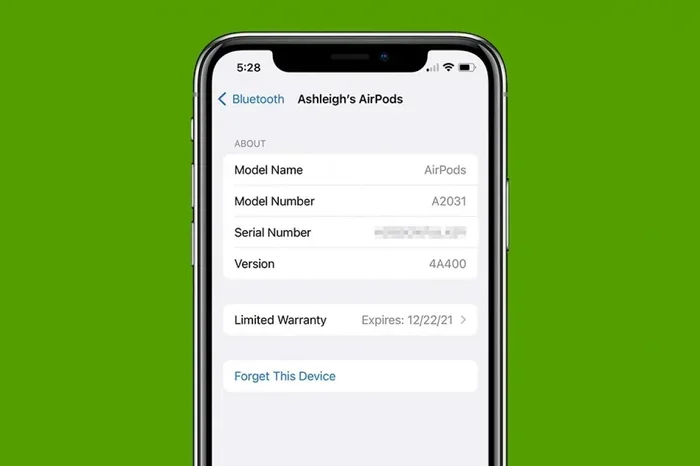
Visual guide about AirPods Pro firmware update
Image source: iphonelife.com
Access to New Features
Did you know your AirPods Pro can do things they couldn’t do when you first bought them? Apple has a habit of adding new features to existing products through firmware updates. This is one of the coolest things about the Apple ecosystem. You’re not stuck with the same old earbuds forever.
Here are some examples of features added through past updates:
- Spatial Audio: This feature creates a 3D surround sound experience that makes music and movies feel more immersive. It was added to AirPods Pro through a firmware update after launch.
- Adaptive Transparency: This smart feature lets important sounds through (like sirens or announcements) while still reducing loud noise. It arrived via update on AirPods Pro 2.
- Conversation Boost: This helps people with hearing difficulties by amplifying the voice of the person they’re talking to. It was added through a software update.
- Find My Improvements: Newer updates have improved the precision finding feature, making it easier to locate a lost AirPod.
Stat check: According to Apple’s support documentation, the AirPods Pro 2 received a firmware update in 2023 that added Adaptive Audio, a feature that automatically blends noise cancellation and transparency mode based on your environment. This was a major upgrade that users didn’t pay extra for.
Bug Fixes and Performance Improvements
Just like any piece of technology, AirPods Pro occasionally have bugs. Maybe the connection drops unexpectedly, or the noise cancellation sounds weird, or one earbud is louder than the other. Many of these issues have been fixed through firmware updates over the years.
Apple has released updates specifically to address problems like:
- Sweat or water detection issues causing audio problems
- Connectivity glitches with iPhones and iPads
- Battery drain problems
- Audio quality issues during phone calls
- Random disconnection problems
If you’re experiencing weird behavior with your AirPods Pro, the first troubleshooting step Apple recommends is checking for firmware updates. It’s amazing how many “broken” AirPods get fixed with a simple update.
Security Patches
Here’s something many people don’t think about: your AirPods Pro have security vulnerabilities just like any connected device. Researchers have demonstrated ways to potentially exploit Bluetooth earbuds. Apple takes these threats seriously and releases security patches through firmware updates.
“Did You Know” fact: In 2022, security researchers found a vulnerability that could theoretically allow someone to access your AirPods without permission. Apple released a firmware update to address this issue shortly after. Without that update, your AirPods could have been at risk.
Think of firmware updates like locking your front door. You hope nobody tries to break in, but you lock it anyway just in case. Security updates give you that same peace of mind for your earbuds.
Better Battery Life
Firmware updates often include optimizations to how your AirPods use power. Over time, Apple finds more efficient ways to handle tasks, and these improvements trickle down to your device. Users have reported better battery life after major firmware updates.
This doesn’t mean you’ll suddenly get 10 extra hours of listening time. But you might notice your AirPods lasting a bit longer between charges after an update. Every little bit helps, especially if you’re using older AirPods Pro where the battery has degraded somewhat.
Compatibility with New Devices
When Apple releases a new iPhone, iPad, or Mac, they sometimes require AirPods to be updated to work properly with new features. If you skip updates, you might not be able to use your AirPods with the latest devices or you might miss out on features that require updated firmware.
For example, when iOS 17 launched with new AirPods features, older AirPods Pro firmware couldn’t take advantage of them. Updating your AirPods was necessary to unlock the full experience.
How to Check Your AirPods Pro Firmware Version
Before you can decide whether to update, you need to know what version you’re running. Checking your firmware version is easy and only takes a few seconds.
Step-by-Step Instructions
- Connect your AirPods Pro to your iPhone or iPad. Make sure they’re paired and nearby.
- Open the Settings app on your iPhone or iPad.
- Tap on “Bluetooth.” You’ll see a list of connected devices.
- Find your AirPods Pro in the list of devices.
- Tap the “i” icon next to your AirPods Pro name.
- Scroll down to the “About” section. You’ll see a line that says “Version” followed by a number.
That number is your current firmware version. It will look something like “6F21” or “5E135.” These alphanumeric codes are how Apple labels different firmware versions. Each one represents a specific update.
What Version Should You Have?
The latest firmware version changes over time as Apple releases new updates. As of late 2024, AirPods Pro 2 users should be running firmware version 7A305 or later, while AirPods Pro 1 users should look for version 6F21 or newer.
To find out the latest version, you can check Apple’s support page or tech news sites that track AirPods firmware. If your version matches or is newer than what’s current, you’re up to date.
Where to Find Version Info on Other Devices
If you primarily use your AirPods with a Mac, the process is slightly different:
- Click the Apple menu and select “System Settings”
- Click “Bluetooth”
- Find your AirPods in the device list
- Click the “i” or “Options” button next to them
- Look for the firmware version information
Unfortunately, you can’t check firmware versions on Android devices or Windows PCs the same way. Apple limits this information to their own ecosystem.
How to Update AirPods Pro
Here’s the part that confuses most people. Unlike your iPhone, there’s no big “Update Now” button for AirPods Pro. The update process is designed to happen automatically. But there are steps you can take to make sure updates install properly.
The Automatic Update Method
AirPods Pro firmware updates happen automatically when certain conditions are met. You don’t need to do anything special, just follow these guidelines:
- Place your AirPods in their charging case. They need to be in the case to receive updates.
- Close the lid of the case. The lid should be shut during the update process.
- Make sure the case has battery power. If the case is dead, the update won’t happen.
- Keep your iPhone or iPad nearby. Your AirPods need to be within Bluetooth range.
- Connect your iPhone to Wi-Fi. The update downloads through your iPhone’s internet connection.
- Wait. The update might happen immediately, or it could take a day or two. Patience is key.
The update process is similar to how your smartwatch updates overnight. Apple designed it this way so you don’t have to think about it. Just make sure the conditions are right, and your AirPods will update themselves.
How Long Do Updates Take?
Most AirPods Pro updates take anywhere from 5 to 30 minutes to complete. However, you might not notice when they’re happening because your AirPods are sitting in their case. Some updates are so quick they finish before you even realize they started.
If you’re eager to update, the process might feel frustratingly slow. But remember, your AirPods have tiny processors and limited memory. Updates can’t happen as quickly as they would on your iPhone.
Forcing an Update
Sometimes updates seem stuck or delayed. If you’ve been waiting for an update and it hasn’t arrived, try these troubleshooting steps:
- Reset your AirPods: Press and hold the button on the back of the case until the light flashes amber, then white.
- Toggle Bluetooth off and on: This can refresh the connection between your iPhone and AirPods.
- Restart your iPhone: Sometimes a simple restart solves stubborn update issues.
- Make sure your iPhone is updated: Your iPhone’s iOS version might affect AirPods update compatibility.
- Leave the case near your iPhone overnight: This gives plenty of opportunity for the process to complete.
There’s no guaranteed way to force an update on demand. Apple controls the rollout, and sometimes updates happen in waves. Be patient, and try again later if it doesn’t work right away.
What to Do If Updates Won’t Install
Sometimes things go wrong. Maybe your AirPods won’t update, or an update keeps failing. Here are some solutions to common problems.
Check the Basics First
Before diving into complex troubleshooting, make sure the obvious things are in order:
- Is your AirPods case charged? If the case has no battery, updates can’t happen.
- Is your iPhone connected to Wi-Fi? Updates need internet access to download.
- Are your AirPods actually paired with your iPhone? Unpaired AirPods won’t receive updates.
- Is your iPhone updated to the latest iOS version? Older iOS versions might not support the latest AirPods firmware.
These simple checks solve most update problems. You’d be surprised how often the issue is just a dead case battery or an iPhone that lost its Wi-Fi connection.
Reset Your AirPods Pro
If basic checks don’t work, try resetting your AirPods Pro. This is like giving them a fresh start:
- Put your AirPods in their case and close the lid.
- Wait 30 seconds.
- Open the lid but don’t remove the AirPods.
- Press and hold the setup button on the back of the case.
- Keep holding until the status light flashes amber, then white.
- Re-pair your AirPods with your iPhone.
After resetting, place your AirPods back in their case near your iPhone. The update process should start fresh.
Contact Apple Support
If you’ve tried everything and your AirPods still won’t update, it might be time to contact Apple Support. There could be a hardware issue preventing updates, or your specific AirPods might need service. Apple Support can run diagnostics remotely and determine what’s going wrong.
You can reach Apple Support through the Support app on your iPhone, by visiting support.apple.com, or by scheduling an appointment at your local Apple Store.
Consider the Age of Your AirPods
If your AirPods Pro are several years old, Apple might eventually stop releasing firmware updates for them. This is normal for any tech product. Once Apple declares a product “vintage” or “obsolete,” they typically stop providing updates.
As of 2024, both AirPods Pro 1 and AirPods Pro 2 still receive updates. However, AirPods Pro 1 is approaching the end of its support lifecycle. If you have very old AirPods and updates have stopped entirely, it might be time to consider an upgrade.
Common Myths About AirPods Pro Updates
Let’s clear up some confusion. There are several myths floating around about AirPods Pro updates that just aren’t true.
Myth 1: “I Need to Update Through an App”
Unlike some Bluetooth earbuds from other brands, AirPods Pro don’t have a companion app for updates. Everything happens through your iPhone’s Settings app and Apple’s automatic update system. If someone tells you to download an “AirPods updater app,” they’re mistaken or trying to scam you.
Myth 2: “Updates Will Erase My Settings”
Some people worry that updating will reset their noise cancellation preferences, equalizer settings, or paired devices. The good news is that firmware updates preserve your settings. Your preferences for things like transparency mode, noise control, and spatial audio stay intact through updates.
Myth 3: “I Should Wait to Update Until Others Review It”
Unlike beta software on iPhones, AirPods Pro firmware updates are fully tested before release. You don’t need to wait for reviews or worry about bugs. Apple releases updates only after thorough testing. Of course, occasional bugs do slip through, but Apple typically fixes them quickly with subsequent updates.
Myth 4: “Updates Drain My Battery”
While the update process itself uses some battery, updated firmware typically improves battery efficiency. Don’t avoid updates out of fear of battery drain. In the long run, updates help your battery last longer, not shorter.
Myth 5: “I Can Choose Not to Update”
Technically, you can delay updates by not placing your AirPods in their case near your iPhone. But eventually, the update will happen. Apple doesn’t give users the option to permanently decline updates. This design ensures everyone has the latest security patches and features.
The Future of AirPods Pro Updates
AirPods Pro updates have come a long way since the original model launched in 2019. What can we expect in the future? Based on Apple’s track record, here’s what’s likely.
More Health Features
Apple has been turning AirPods into health devices. Recent updates have introduced features like hearing tests and hearing protection modes. Future updates will likely add even more health-focused features, possibly including heart rate monitoring or body temperature sensing.
Stat check: According to a 2023 report from Bloomberg, Apple is working on adding health sensors to AirPods that could monitor things like heart rate and body temperature. Firmware updates would be how these features get activated and improved over time.
Improved AI Integration
As Apple Intelligence and AI features expand across Apple’s product line, expect AirPods Pro to get smarter too. Future updates might add AI-powered translation, smarter noise cancellation that adapts to your specific environment, or better voice recognition for Siri.
Better Integration with Vision Pro and Other Devices
Apple’s ecosystem keeps growing. As new products like the Vision Pro launch, AirPods Pro updates will likely add features that make them work better across all Apple devices. We might see updates that improve how AirPods work with multiple devices simultaneously.
Enhanced Audio Quality
Apple is always working on better sound. Future firmware updates will likely bring improvements to audio codecs, better support for lossless audio, and refined tuning of the drivers. Even the same hardware can sound better with the right software.
Best Practices for AirPods Pro Maintenance
Updating is just one part of keeping your AirPods Pro in great condition. Here are some bonus tips to maximize their lifespan and performance.
Keep Them Clean
Dirt and earwax can block the speakers and microphones, affecting sound quality. Clean your AirPods regularly with a soft, dry cloth. For stubborn grime, slightly dampen the cloth with water. Avoid getting moisture in the speaker grilles.
Store Them Properly
Always store your AirPods in their case when not in use. This protects them from physical damage and ensures they stay charged. Avoid leaving them in extreme temperatures, like a hot car or freezing outside.
Manage Battery Health
AirPods Pro batteries are designed to last a few years with normal use. To maximize battery lifespan, avoid letting them completely die regularly. Partial discharges are better for long-term battery health than full cycles from 0% to 100%.
Check for Updates Monthly
Get in the habit of checking your firmware version once a month. This ensures you’re always current and helps you spot any unusual issues. It only takes a minute and keeps you in control.
Keep Your iPhone Updated Too
Your AirPods and iPhone work as a team. If your iPhone is running old iOS, it might not support the latest AirPods features. Keep both devices updated for the best experience.
Conclusion: Stay Updated, Stay Happy
So, do you need to update your AirPods Pro? The answer is a resounding yes, though thankfully, your AirPods do most of the work for you. Firmware updates bring new features, fix bugs, improve security, and keep your earbuds running smoothly. They’re free, automatic, and happen in the background while you go about your day.
The most important thing to remember is that your AirPods are smart devices that need occasional software refreshes, just like your iPhone. Make sure the charging case has power, keep your AirPods near your iPhone when they’re not in use, and connect to Wi-Fi regularly. These simple habits ensure updates happen without you having to think about them.
If you ever run into problems with your AirPods Pro, checking for firmware updates should be your first troubleshooting step. Many “broken” AirPods are actually just outdated AirPods. A simple update can save you a trip to the Apple Store and potentially hundreds of dollars on a replacement.
Take a moment right now to check your AirPods Pro firmware version. Compare it to the latest version available. If you’re behind, make sure your case is charged and sit your AirPods next to your iPhone for a while. Within a day or two, you should be running the latest software. Your ears will thank you.
Frequently Asked Questions
How often should I update my AirPods Pro?
You don’t need to manually update your AirPods Pro. Updates happen automatically when your AirPods are in their charging case near your iPhone with Wi-Fi access. Apple typically releases several updates per year, so checking your firmware version monthly is a good habit to ensure you’re current.
Can I update AirPods Pro without an iPhone?
AirPods Pro firmware updates require an Apple device like an iPhone or iPad. There’s no way to update them using an Android phone, Windows PC, or Mac alone. Your AirPods need to be paired with an iOS device to receive firmware updates, as the update downloads through your iPhone’s internet connection.
Do AirPods Pro updates delete my settings?
No, firmware updates preserve all your settings, including your noise control preferences, paired devices, and custom configurations. You won’t need to re-pair your AirPods or reset your preferences after an update. Everything carries over seamlessly.
What happens if I don’t update my AirPods Pro?
Skipping updates means missing out on new features, bug fixes, security patches, and performance improvements. Over time, your AirPods might develop issues that have already been fixed in newer firmware. You also might not be able to use certain functions on the latest iOS versions if your AirPods firmware is too old.
How long does an AirPods Pro update take?
Most AirPods Pro firmware updates take between 5 and 30 minutes to complete, though you might not notice when they happen since your AirPods are in their case. Sometimes updates are delayed and take a day or two to actually install, so patience is important.
Why won’t my AirPods Pro update?
Common reasons include a dead charging case battery, no Wi-Fi connection on your iPhone, an outdated iPhone iOS version, or your AirPods not being paired properly. Try resetting your AirPods, charging the case fully, and restarting your iPhone if updates aren’t going through.