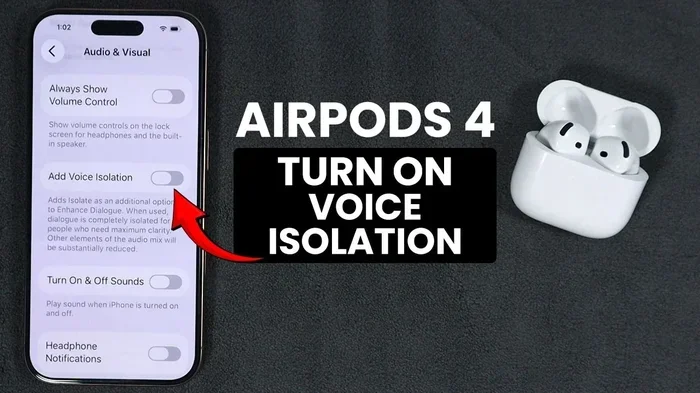
Featured image for AirPods 4 voice isolation feature
Image source: i.ytimg.com
Yes, AirPods 4 have voice isolation. This smart feature uses built-in microphones and clever software to separate your voice from background noise during calls. It’s available on both AirPods 4 models (with and without Active Noise Cancellation) and works automatically on FaceTime, phone calls, and many third-party apps. You can turn it on or off in your iPhone’s Control Center or in your AirPods settings.
Ever been on a call where the person on the other end keeps asking you to repeat yourself? Maybe a dog is barking, your kids are running around, or a lawn mower is buzzing right outside your window. We’ve all been there. It’s frustrating, and it makes even simple conversations feel exhausting.
That’s exactly the problem AirPods 4 voice isolation is built to solve. This clever little feature acts like a personal sound engineer sitting inside your earbuds, making sure your voice comes through loud and clear, even when the world around you is anything but quiet. Whether you’re taking an important work call from a coffee shop or chatting with family while doing dishes, voice isolation can be a total game-changer.
In this guide, we’ll break down everything you need to know about voice isolation on AirPods 4. You’ll learn what it is, how it works, when to use it, and how to turn it on or off. We’ll also share tips to get the most out of it. By the end, you’ll be a voice isolation pro, ready to take calls anywhere with confidence.
Key Takeaways
- Yes, AirPods 4 support voice isolation: Both the standard AirPods 4 and AirPods 4 with Active Noise Cancellation include this feature for clearer calls.
- It uses machine learning: Voice isolation relies on the H2 chip and computational audio to separate your voice from background sounds in real time.
- It works across many apps: You can use voice isolation on FaceTime, phone calls, WhatsApp, Zoom, and other supported apps on iPhone, iPad, and Mac.
- You have control: You can switch between Voice Isolation, Standard, and Wide Spectrum modes depending on your environment.
- It’s automatic in some cases: AirPods 4 may enable voice isolation by default during calls in noisy environments.
- No special setup needed: The feature works out of the box once your AirPods 4 are paired with your Apple device.
- It’s different from noise cancellation: Voice isolation cleans up your outgoing audio for others, while noise cancellation blocks incoming sound for you.
📑 Table of Contents
- What Is Voice Isolation on AirPods 4?
- Do Both AirPods 4 Models Have Voice Isolation?
- How Does AirPods 4 Voice Isolation Work?
- When Should You Use Voice Isolation on AirPods 4?
- How to Turn Voice Isolation On or Off on AirPods 4
- Voice Isolation vs. Wide Spectrum: Which Should You Choose?
- Tips to Get the Best Voice Isolation on AirPods 4
- Common Questions About AirPods 4 Voice Isolation
- The Future of Voice Isolation on AirPods
- Final Thoughts
What Is Voice Isolation on AirPods 4?
Voice isolation is a smart audio feature that focuses on your voice while reducing background noise during phone calls, video chats, and voice recordings. Think of it like a spotlight that shines only on your voice and ignores everything else around you.
When you talk, your AirPods 4 microphones pick up lots of sounds, like your voice, the TV in the background, traffic outside, or the typing of a nearby keyboard. Voice isolation uses advanced algorithms to tell those sounds apart. It then keeps your voice and softly removes (or reduces) the unwanted noise before sending the audio to the person on the other end of your call.
Imagine you’re talking to a friend at a crowded concert. Without voice isolation, your friend hears the music, the cheering crowd, and your voice all mashed together. With voice isolation, your friend mostly hears just you, like you’re standing in a quiet room. It’s the same idea, just powered by tiny computers inside your AirPods.
Voice Isolation vs. Noise Cancellation: What’s the Difference?
This is a super common point of confusion, so let’s clear it up. They sound similar but do opposite jobs:
- Noise Cancellation blocks noise from coming into your ears. It helps you hear better by silencing the world around you.
- Voice Isolation cleans up the noise going out from your mouth. It helps others hear you better.
Think of noise cancellation as wearing earplugs in a noisy place. Voice isolation is like giving the other person on your call their own pair of earplugs, but for your background noise. AirPods 4 with Active Noise Cancellation actually give you both features in one device.
Did You Know?
Apple first introduced voice isolation with iOS 15 back in 2021, but it originally only worked on AirPods Pro and AirPods Max. Over time, Apple expanded the feature to more devices, and now it’s available on AirPods 4 as well. Today, more than 80% of iPhone users have updated to a recent iOS version that supports this kind of advanced audio processing.
Do Both AirPods 4 Models Have Voice Isolation?
Yes, both models do. When Apple launched AirPods 4 in September 2024, they made sure voice isolation was included on both versions:
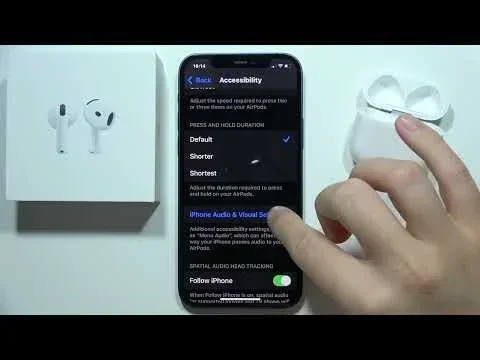
Visual guide about AirPods 4 voice isolation feature
Image source: i.ytimg.com
- AirPods 4 (the standard model): supports voice isolation
- AirPods 4 with Active Noise Cancellation (ANC): also supports voice isolation, plus extra noise-blocking features for your own listening
So no matter which AirPods 4 you own, you get this handy feature. The difference between the two models comes down to whether you also want noise cancellation for your own ears, not whether you can use voice isolation on calls.
Why This Matters
In the past, some features were locked behind more expensive models. Apple took a friendlier approach with AirPods 4 by including voice isolation across the board. This means even if you go for the more affordable option, you still get great call quality. For people who take lots of calls on the go, that’s a big win.
How Does AirPods 4 Voice Isolation Work?
The magic behind voice isolation is a mix of hardware and software working together. Here’s the simple breakdown:
The Hardware: H2 Chip and Dual Beamforming Mics
AirPods 4 are powered by Apple’s H2 chip, which is like a tiny supercomputer designed just for audio. The H2 chip can process sound in real time, millions of calculations per second, without using much battery.
Inside each AirPod, there are special microphones called beamforming microphones. These mics are designed to focus on the sound coming directly from your mouth while ignoring sounds from the sides or behind you. It’s a bit like how a flashlight beam points forward instead of lighting up the whole room.
The Software: Machine Learning Magic
The H2 chip runs machine learning models trained on thousands of hours of human voices and background noise. These models have learned the difference between a human voice saying “Hello” and the sound of a blender whirring or a baby crying.
When you talk, the software analyzes the audio 48,000 times per second. It decides which parts are your voice and which parts are noise. Then it turns down the noise and turns up your voice, all in real time. To you, it sounds instant. To the chip, it’s a nonstop audio puzzle being solved.
The Result
The person on the other end of your call hears a cleaner version of your voice, with less background rumble, chatter, or wind. You don’t have to do anything special. Just wear your AirPods 4 and start talking.
Did You Know? The H2 chip in AirPods 4 is twice as fast as the H1 chip found in older AirPods. That extra processing power is what makes features like voice isolation and Adaptive Audio feel smoother and more natural.
When Should You Use Voice Isolation on AirPods 4?
Voice isolation isn’t just a cool tech feature, it’s genuinely useful in everyday situations. Here are some of the best times to use it:
1. Working From a Coffee Shop
Coffee shops are full of lovely smells and awful background noise. Espresso machines hissing, blenders whirring, spoons clinking, and conversations from other tables. With voice isolation on, your coworkers or clients on the call only hear you, not the cafe chaos.
2. Taking Calls While Commuting
Trains, buses, and subways are loud. With voice isolation, the rumble of the train fades into the background, and your voice stays front and center. Plus, AirPods 4 with ANC can block out the noise for you at the same time.
3. Video Meetings at Home
If you’ve ever joined a Zoom call while your dog is barking or your kids are playing in the next room, you know the struggle. Voice isolation helps your colleagues focus on your brilliant ideas, not your dog’s excitement.
4. Outdoor Walks and Runs
Wind is one of the trickiest sounds to deal with on calls. Voice isolation helps cut down on wind noise so your friend doesn’t think you’re calling from inside a wind tunnel.
5. Recording Voice Memos
Want to record a quick idea or a song? Voice isolation makes your voice memos sound much cleaner, especially if you’re recording in a noisy place.
When You Might Not Want It
There are times when you might want to turn voice isolation off. For example, if you’re on a group call and want others to hear the sounds around you, like music or a presentation. In those cases, you can switch to Standard mode or Wide Spectrum mode (more on that below).
How to Turn Voice Isolation On or Off on AirPods 4
Good news: turning voice isolation on or off is super easy. You have a couple of ways to do it, depending on what feels most natural for you.
Method 1: Using Control Center on iPhone or iPad
This is the fastest way, and it’s the one most people use.
- Step 1: Make sure your AirPods 4 are connected and you’re on a call or in an app that supports voice isolation (like FaceTime, Phone, Zoom, or WhatsApp).
- Step 2: Swipe down from the top-right corner of your iPhone or iPad screen to open Control Center.
- Step 3: Tap the Mic Mode button. It looks like a little microphone icon.
- Step 4: Choose your preferred mode:
- Voice Isolation: Focuses on your voice and reduces background noise.
- Standard: No special processing, just natural sound.
- Wide Spectrum: Lets the other person hear everything around you, including your surroundings.
- Step 5: Tap your choice, and you’re all set.
Method 2: Using AirPods Settings
If you want to set voice isolation as your default for all calls, you can do that too.
- Step 1: Open the Settings app on your iPhone or iPad.
- Step 2: Tap on your AirPods 4 at the top of the settings menu (you’ll see them listed when connected).
- Step 3: Scroll down and look for the Microphone or Call Audio section.
- Step 4: Choose your default microphone mode.
Method 3: During a Call on Mac
Voice isolation also works on Mac when your AirPods 4 are connected.
- Step 1: Open the app you’re using for the call (FaceTime, Zoom, etc.).
- Step 2: Click the Control Center icon in the menu bar (top-right corner of your screen).
- Step 3: Click Mic Mode.
- Step 4: Select Voice Isolation, Standard, or Wide Spectrum.
Quick Tip
If you don’t see the Mic Mode option in Control Center, make sure your AirPods 4 are connected and you’re actively in a call or recording. The option only appears when the feature is available.
Voice Isolation vs. Wide Spectrum: Which Should You Choose?
Apple gives you three options for your microphone mode. Here’s a simple guide to help you pick the right one:
Voice Isolation
Best for: Noisy environments, work calls, video meetings, talking on the go.
What it does: Reduces background noise and focuses on your voice.
When to use it: Anytime you’re somewhere loud and want the other person to hear only you.
Standard
Best for: Quiet environments, normal calls, everyday use.
What it does: Uses basic microphone settings without any extra processing.
When to use it: When you’re somewhere quiet and don’t need any help with noise.
Wide Spectrum
Best for: Group calls, sharing music, letting others hear your surroundings.
What it does: Picks up everything around you, not just your voice.
When to use it: When you want the other person to feel like they’re right there with you, hearing the same things you hear.
A Simple Rule of Thumb
If you want the other person to hear only you, pick Voice Isolation. If you want them to hear everything, pick Wide Spectrum. If you’re somewhere quiet, Standard is just fine.
Tips to Get the Best Voice Isolation on AirPods 4
Voice isolation is smart, but a few simple habits can make it work even better for you. Try these tips:
1. Keep Your AirPods Clean
Dust and earwax can block the microphones, which makes it harder for them to pick up your voice clearly. Wipe your AirPods 4 gently with a soft, dry cloth every week or so. Avoid getting moisture inside the speaker grilles.
2. Make Sure They Fit Well
If your AirPods 4 are loose, the microphones might shift away from your mouth. A snug fit helps them capture your voice more accurately. If they keep slipping, try different ear tip sizes (for AirPods Pro) or adjust how you place them.
3. Update Your Software
Apple regularly improves voice isolation through software updates. Make sure your iPhone, iPad, or Mac is running the latest version of iOS, iPadOS, or macOS, and that your AirPods 4 firmware is up to date too.
4. Use the Right App
Voice isolation works best with apps that support Apple’s audio features. These include FaceTime, Phone, WhatsApp, Zoom, Microsoft Teams, Skype, Slack, and many others. If your app doesn’t support voice isolation, you won’t see the Mic Mode option.
5. Don’t Cover the Mics
Try not to cover the microphones with your hand, a scarf, or a hat. The beamforming mics are designed to pick up sound from a specific direction, so blocking them can muffle your voice.
6. Turn It On Before the Call
If you know you’re about to take a call in a noisy place, set voice isolation ahead of time. That way, you won’t have to fiddle with settings mid-conversation.
Common Questions About AirPods 4 Voice Isolation
Does Voice Isolation Drain the Battery Faster?
Not noticeably. The H2 chip is very efficient, and voice isolation uses only a tiny bit of extra processing power. You might see a small difference in battery life during long calls, but it’s minimal.
Can I Use Voice Isolation on Android?
AirPods 4 can pair with Android phones, but voice isolation is an Apple-specific feature. When you use AirPods 4 with Android, you get standard Bluetooth audio without Apple’s special microphone processing.
Does Voice Isolation Work with Siri?
Yes, voice isolation can help Siri hear you better in noisy environments, especially on AirPods 4 with ANC. This means fewer “Sorry, I didn’t catch that” moments.
Can Voice Isolation Remove All Background Noise?
It does a great job, but it’s not magic. Very loud or sudden noises (like a fire truck siren) can still be heard a little. But for everyday noise like traffic, chatter, and household sounds, it works wonderfully.
The Future of Voice Isolation on AirPods
Voice isolation has come a long way in just a few years. Apple continues to improve it with each software update. In the future, we can expect even smarter features, like:
- Better wind noise reduction: Great for runners and cyclists.
- Multi-person voice focus: Helpful for interviews or group recordings.
- Personalized voice profiles: So the AirPods can recognize your voice even more accurately.
With the H2 chip getting more powerful over time, AirPods 4 users will likely enjoy ongoing improvements without needing new hardware.
Final Thoughts
So, do AirPods 4 have voice isolation? Absolutely, and it’s one of the most useful features you’ll find on these earbuds. Whether you’re working from a busy cafe, commuting on a noisy train, or just trying to have a clear chat at home, voice isolation makes sure your voice comes through crisp and clean.
The best part is that you don’t need to be a tech wizard to use it. With just a few taps in Control Center, you can switch between Voice Isolation, Standard, and Wide Spectrum modes, depending on where you are and what you’re doing. It’s the kind of feature you don’t realize you needed until you try it, and then you can’t imagine living without it.
If you just got your AirPods 4, give voice isolation a try on your next call. You’ll probably hear an instant difference in how you sound to the other person. And if you’re still on the fence about getting AirPods 4, knowing they have this feature might just be the push you need.
Happy calling, no matter where life takes you!