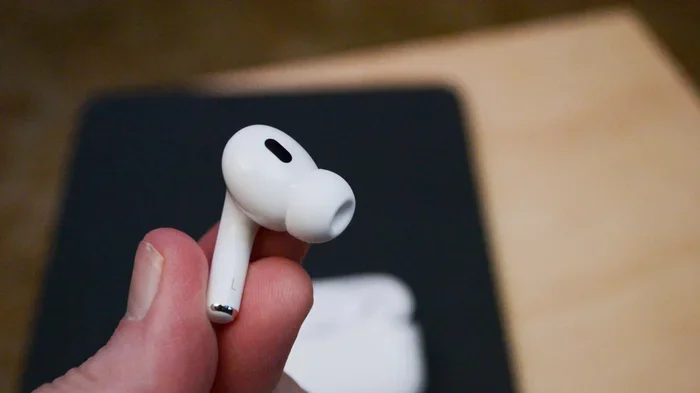
Featured image for single AirPods Pro earbud
Image source: howtogeek.com
Yes, you can absolutely use only one AirPods Pro earbud at a time. Apple designed AirPods with this feature built in, making it easy to switch between one and two earbuds seamlessly. Whether you want to save battery, stay aware of your surroundings, or use a single earbud for calls, the process is simple and works across all AirPods Pro generations.
Have you ever wanted to listen to music or take a call using just one AirPod? Maybe you want to keep one ear free to hear traffic while walking, or perhaps you want to stretch your battery life as long as possible. Whatever your reason, you’re in luck because Apple made this incredibly easy to do.
AirPods Pro are some of the most popular wireless earbuds in the world, with Apple selling over 100 million units since their original launch. Despite their tiny size and advanced technology, they come with a feature that many people overlook: the ability to use just a single earbud at any time. This isn’t a hidden trick or a complicated workaround. It’s a core part of how AirPods are designed to work.
In this guide, we’ll walk you through everything you need to know about using a single AirPod Pro. You’ll learn how to set it up, why it’s useful, and how to troubleshoot any issues you might encounter. Think of it like having two flashlights in one package, where you can use one light for some tasks and both lights for others. Let’s dive in!
Key Takeaways
- Single-Ear Mode is Built-In: Every AirPods Pro model supports using just one earbud right out of the box, with no special settings needed.
- Automatic Detection: Your iPhone, iPad, or Mac automatically detects when one earbud is removed and routes audio accordingly.
- Battery Benefits: Using one earbud at a time effectively doubles your listening time before needing to charge.
- Call Clarity: Single AirPods Pro work perfectly for phone calls and video conferences, with built-in microphones in each bud.
- Transparency Mode Advantage: Wearing one AirPod while keeping the other ear free helps you stay aware of your environment.
- Easy Reconnection: When you put the second earbud back in your ear, it automatically reconnects and syncs with the first.
- Accessibility Feature: Apple includes this as part of their commitment to accessibility for users with hearing differences in each ear.
📑 Table of Contents
How Single AirPod Mode Works on AirPods Pro
The technology behind using a single AirPod Pro is surprisingly simple, but it’s also very smart. Each AirPod Pro contains its own battery, its own Bluetooth radio, and its own microphone. This means each earbud can work completely on its own, independent of the other one.
The Science Behind Independent Earbuds
Think of your AirPods Pro like a pair of walkie-talkies. Each one can send and receive signals on its own. When you pair both with your phone, they communicate like a team. But if you take one away, the remaining one can still talk to your phone directly. There’s no “master” earbud controlling everything.
Apple uses a custom H1 or H2 chip (depending on your AirPods Pro generation) inside each earbud. This chip handles Bluetooth connections, audio processing, and sensor data. Because each earbud has its own brain, they can operate solo without missing a beat.
What Happens When You Remove One AirPod
Here’s where things get interesting. Your AirPods Pro have tiny sensors that detect when they’re in your ears. These sensors use infrared light to tell if skin is touching the earbud. When you pull one out, here’s what happens automatically:
- The removed AirPod pauses its audio playback
- The remaining AirPod continues playing without interruption
- Your device switches from stereo sound to mono sound
- The removed AirPod enters a low-power mode to save battery
This all happens in less than a second. You don’t need to tap any buttons or change any settings. It’s like having a helpful assistant who notices what you need before you even ask.
Stereo to Mono: What Changes in Sound
When you use both AirPods, you hear stereo sound, which means different sounds come from different directions, just like in a movie theater. When you switch to a single AirPod, the audio becomes mono, meaning all sounds come from one source. Apple handles this transition smoothly, so music doesn’t suddenly sound strange or incomplete.
Fun fact: some people actually prefer listening to certain types of content in mono. Podcasts and audiobooks, for example, sound great in single-ear mode because they don’t rely on stereo effects.
Step-by-Step Guide: Using Only One AirPod Pro
Getting started with single AirPod mode is so easy that you probably already know how to do it without realizing it. Still, let’s walk through the exact steps so you can use this feature with confidence.
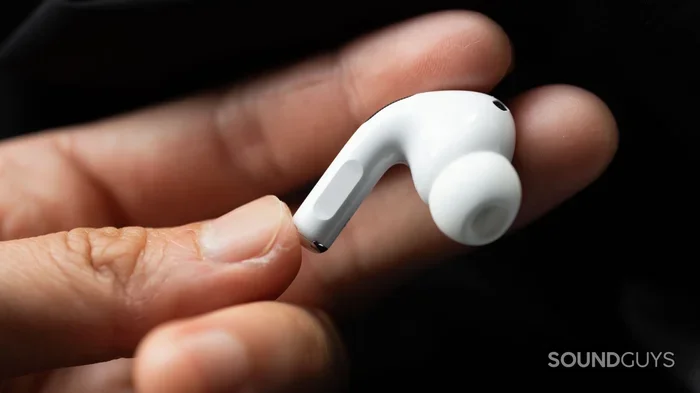
Visual guide about single AirPods Pro earbud
Image source: soundguys.com
Method 1: Start with One Earbud in Your Ear
The simplest way to use one AirPod is to just put one in your ear and leave the other in the case. Here’s the process:
- Open your AirPods Pro charging case near your iPhone, iPad, or Mac
- Take out just the right or left AirPod, your choice
- Put it in your ear and wait for the connection chime
- Start playing your music, podcast, or take your call
- Leave the other AirPod safely in the case
That’s it! Your device will automatically detect that only one AirPod is active and route audio to it. No additional setup is required.
Method 2: Remove One Earbud During Use
What if you’re already listening with both AirPods in and you want to switch to one? Easy:
- While audio is playing, simply take one AirPod out of your ear
- The audio will continue playing through the remaining AirPod
- Place the removed AirPod in the charging case or set it aside
- Enjoy your content with one ear free
The audio pause feature might kick in depending on your settings, but the remaining AirPod will keep playing. You can also set your AirPods to not pause when you remove one, which is helpful for single-ear use.
Choosing Left or Right: Does It Matter?
Here’s something cool: it doesn’t matter which AirPod you use. Both the left and right earbuds have identical microphones and sensors. You can use whichever one feels more comfortable or convenient.
Some people prefer the right ear for phone calls because phone audio traditionally comes through the right side. Others switch between ears throughout the day to prevent ear fatigue. With AirPods Pro, the choice is entirely yours.
Benefits of Using a Single AirPod Pro
You might be wondering why anyone would want to use just one earbud when they have two. The truth is, there are many practical reasons why this feature is more useful than you might think.
Extended Battery Life
This is probably the biggest reason people use single AirPod mode. According to Apple’s specifications, AirPods Pro 2 offer up to 6 hours of listening time on a single charge. But if you use one earbud at a time and swap when the battery gets low, you can essentially double that to 12 hours of continuous listening.
Think of it like having two water bottles instead of one. If you’re thirsty on a long hike, having two bottles means you don’t have to stop and refill as often. The same logic applies to AirPods battery life.
Situational Awareness
Keeping one ear free while listening to audio is a safety feature in disguise. When you’re walking in a city, crossing busy streets, or working in an office where coworkers might need your attention, single AirPod mode lets you stay connected to both your audio and your environment.
A study from the University of Maryland found that pedestrians wearing headphones are more likely to have accidents because they can’t hear approaching vehicles or warning signals. Using just one AirPod significantly reduces this risk while still letting you enjoy your content.
Professional Call Quality
Many professionals prefer using one AirPod for video calls and phone conferences. Here’s why:
- It feels less isolating than having both ears covered
- You can still hear your own voice naturally
- It’s easier to talk to people in the room while on a call
- It reduces ear fatigue during long meetings
Customer service representatives, drivers, and office workers often use single-ear setups for exactly these reasons.
Accessibility Needs
Apple designed single AirPod mode with accessibility in mind. People who have hearing loss in one ear, or who experience different hearing levels between ears, can use a single AirPod to match their specific needs. This is part of Apple’s broader commitment to making technology work for everyone, regardless of their abilities.
Comfort and Ear Health
Wearing earbuds for extended periods can sometimes cause ear fatigue or discomfort. By switching between ears, or using just one at a time, you give each ear a break. It’s similar to how runners alternate which leg they lead with to avoid strain.
Common Scenarios for Single AirPod Use
Let’s explore some real-world situations where using one AirPod Pro makes a lot of sense. You might find that you encounter these scenarios more often than you realized.
Working From Home
Remote work has become the new normal for millions of people. If you’re on a video call but also need to hear your doorbell, kids, or pets, one AirPod is perfect. You can stay engaged in your meeting while remaining aware of your surroundings.
Many work-from-home professionals use one AirPod for calls and the other ear free to listen for important sounds in their environment. It’s a practical compromise between connectivity and awareness.
Exercise and Outdoor Activities
Running, cycling, or walking outdoors with both AirPods in can be dangerous. You need to hear traffic, other people, and potential hazards. Single AirPod mode lets you enjoy your workout playlist while staying safe.
Gym-goers also appreciate this feature. You can listen to music or podcasts while still hearing announcements, gym staff, or workout partners.
Driving and Commuting
While we don’t recommend wearing AirPods while driving (your car’s Bluetooth system is better for that), single AirPod mode is handy for other commuting situations. On a train or bus, you can listen to content with one ear while staying aware of station announcements and fellow passengers.
Studying and Focus
Some students find that wearing one AirPod helps them focus better than wearing both. They can listen to focus music, white noise, or lectures while still being able to hear if someone calls their name or needs their attention.
Sleep and Relaxation
If you like falling asleep to music, podcasts, or white noise, one AirPod is much more comfortable than two. It reduces ear pressure and lets you sleep on your side without discomfort. The other ear stays free and can rest on your pillow comfortably.
Troubleshooting Single AirPod Issues
While using one AirPod Pro is usually seamless, sometimes things don’t work as expected. Here are common problems and how to fix them.
Audio Stops When You Remove One AirPod
By default, your AirPods pause audio when you remove one earbud. This is convenient when switching between two and one, but annoying if you want continuous playback. Here’s how to change it:
- Open Settings on your iPhone or iPad
- Tap on your AirPods Pro at the top of the screen
- Scroll down and find “Automatic Ear Detection”
- Toggle it off
With this off, audio will continue playing through the remaining AirPod when you remove one. You can also set this on a per-device basis, so your iPhone might pause while your Mac continues playing.
One AirPod Won’t Connect
If your second AirPod refuses to connect when you try to use it, try these steps:
- Make sure both AirPods have enough battery charge
- Put both AirPods back in the case for 30 seconds
- Close the lid, then open it and try again
- Reset your AirPods by holding the setup button on the case
Sometimes a simple “reunion” in the charging case is all it takes to get both AirPods working together again. Think of it like rebooting a computer when it acts strange.
Sound Only Comes From One AirPod
If audio is only playing through one AirPod even when both are in your ears, this usually means one isn’t properly connected. Try this:
- Take both AirPods out of your ears
- Put them back in the charging case
- Wait 30 seconds
- Close the lid and reopen it
- Put both AirPods back in your ears
If the problem continues, check your audio balance settings in Accessibility settings. The balance might be shifted all the way to one side.
Single AirPod Battery Drains Fast
When using one AirPod, you might notice it drains battery differently than when using both. This is normal. The single AirPod works harder because it’s doing all the audio processing alone. To maximize battery life in single-ear mode, keep the other AirPod charged in the case so you can swap when needed.
Microphone Not Working on Calls
By default, AirPods Pro use the microphone in both earbuds. When using just one, the microphone in that single AirPod takes over. If people can’t hear you well on calls, make sure you’re using the AirPod with the cleanest microphone (free of debris or earwax) and that it’s seated properly in your ear.
Settings and Customization for Single AirPod Users
Apple offers several settings that can enhance your single AirPod experience. Let’s explore the most useful ones.
Adjusting Audio Balance
Your AirPods Pro let you adjust the audio balance between left and right channels. This is helpful if one ear hears better than the other, or if you want to fine-tune your single AirPod experience:
- Go to Settings, then Accessibility
- Tap on Audio/Visual
- Find the Balance slider under “Headphone Audio”
- Drag the slider to adjust L (left) and R (right) balance
This setting affects both stereo and mono audio, giving you full control over your listening experience.
Customizing Press and Hold Actions
Each AirPod has a force sensor (or touch sensor on newer models) that you can customize. When using one AirPod, you can program it to do specific tasks like:
- Play/pause audio
- Skip to the next track
- Activate Siri
- Switch between noise cancellation modes
To customize these, go to Settings, tap your AirPods, and look for the “Press and Hold” or “Touch Control” section.
Noise Control Modes
AirPods Pro come with three noise control modes: Active Noise Cancellation, Transparency Mode, and Off. When using a single AirPod, you might prefer Transparency Mode because it lets you hear your surroundings naturally through the remaining ear. Active Noise Cancellation is also great if you want to block out distractions.
To switch modes with one AirPod in, just press and hold the force sensor on the stem. You can also use Siri to switch modes hands-free.
Live Listen Feature
Live Listen is an accessibility feature that turns your iPhone into a remote microphone. You can place your phone near someone speaking and hear them amplified through your AirPod. This works great with a single AirPod, especially for people with hearing difficulties. To enable it, go to Settings, Accessibility, then Audio/Visual, and toggle on “Live Listen.”
Final Thoughts
Using a single AirPod Pro is one of those features that’s simple but incredibly useful. Apple designed AirPods with flexibility in mind, and the ability to use one earbud at a time is a perfect example of this philosophy. Whether you’re trying to extend battery life, stay aware of your surroundings, or just prefer the comfort of one ear free, your AirPods Pro can handle it all without any complicated setup.
The best part is that this feature works automatically. You don’t need to download special apps, change complicated settings, or buy additional accessories. Just take one AirPod out, put it in your ear, and enjoy. It’s technology that adapts to your life, not the other way around.
So go ahead and experiment with single AirPod mode. Try it during your next phone call, while exercising, or when you just want to give your ears a break. You might discover that you use this feature more often than you expected.
Remember, AirPods Pro are designed to work for you, not the other way around. With features like single-ear mode, automatic ear detection, and seamless switching, they’re some of the most user-friendly earbuds on the market. Whether you use one or two, you’ll get the same great sound quality and reliable performance that makes AirPods Pro so popular worldwide.
Frequently Asked Questions
Can you use just one AirPod Pro at a time?
Yes, absolutely. AirPods Pro are designed to work perfectly with just one earbud. Simply take one AirPod out of the case and put it in your ear. Your device will automatically connect and route audio to that single earbud without any special setup required.
Does using one AirPod Pro drain the battery faster?
The single AirPod actually works harder because it handles all the audio processing alone, so it may drain slightly faster than each bud would in pair mode. However, by alternating between earbuds, you can effectively double your total listening time before needing to charge the case.
Which AirPod is better for phone calls, left or right?
Both AirPods Pro have identical microphones and work equally well for calls. Choose whichever side feels more comfortable. Some people prefer the right ear by tradition, but there’s no technical advantage to using one over the other.
Will audio automatically pause when I remove one AirPod?
By default, yes. Your AirPods Pro pause audio when you remove an earbud thanks to automatic ear detection. You can disable this feature in Settings if you prefer audio to continue playing through the remaining AirPod.
Can I use one AirPod Pro with two different devices?
No, a single AirPod can only connect to one device at a time. However, you can switch the connected device through your iPhone’s Bluetooth settings or by using automatic switching if you have multiple Apple devices signed into the same iCloud account.
Is using one AirPod Pro bad for my ears?
Using one AirPod is actually gentler on your ears than using both. It reduces overall sound exposure and gives each ear a break. Just make sure to keep the volume at a safe level and take regular breaks to protect your hearing health.