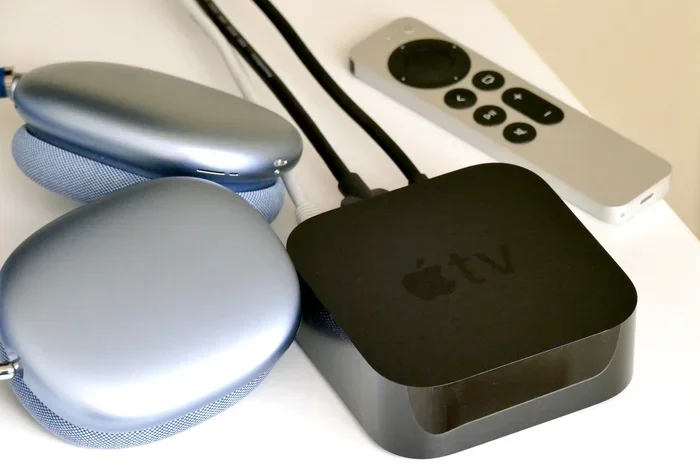
Featured image for AirPods Max with Apple TV
Image source: digitaltrends.com
Yes, AirPods Max work perfectly with Apple TV, offering premium spatial audio and seamless wireless connectivity for an immersive home theater experience. Pairing takes less than a minute through your Apple TV’s Bluetooth settings, and you can even connect two sets simultaneously for shared listening. This guide covers everything you need to know about setup, troubleshooting, and optimizing your AirPods Max for Apple TV viewing.
Picture this: it’s Friday night, you’re curled up on the couch, and you’re about to watch that blockbuster you’ve been saving all week. You grab your AirPods Max, settle in, and hit play. The sound wraps around you like you’re sitting in a private movie theater. Sounds dreamy, right? The good news is this isn’t a fantasy. It’s completely achievable with your Apple TV.
Whether you’re a longtime Apple TV owner or just unboxed your first one, connecting premium headphones like AirPods Max to your streaming box opens up a world of private, high-fidelity entertainment that won’t disturb anyone else in your home. Think of it like having your own personal cinema that follows you everywhere in your living room.
In this comprehensive guide, we’ll walk you through every step, tip, and trick for making AirPods Max work beautifully with Apple TV. From initial pairing to advanced features like Spatial Audio and two-person listening, you’ll become an expert by the time you finish reading. Let’s dive in!
Key Takeaways
- Full Compatibility: AirPods Max work with all Apple TV models (HD and 4K) running tvOS 11 or later, supporting high-quality audio and Spatial Audio.
- Quick Pairing: Connection takes under 60 seconds through Settings > Remotes and Devices > Bluetooth on your Apple TV.
- Spatial Audio Support: AirPods Max deliver theater-like Dolby Atmos sound when watching supported content on Apple TV.
- Two-Person Listening: Apple TV allows two AirPods (including AirPods Max) to connect at once for shared viewing.
- Personalized Volume: iOS 17+ and tvOS 17+ introduced Personalized Volume that learns your listening preferences automatically.
- Smart Switching: Your AirPods Max can automatically switch between Apple TV, iPhone, and iPad when signed into the same Apple ID.
- Battery Consideration: A full charge provides roughly 20 hours of listening, perfect for binge-watching sessions.
📑 Table of Contents
- The Short Answer: Yes, AirPods Max Work Seamlessly with Apple TV
- How to Connect AirPods Max to Apple TV: Step-by-Step Guide
- Maximizing Your Audio Experience: Key Features to Enable
- Troubleshooting Common AirPods Max and Apple TV Issues
- Two-Person Listening: Sharing AirPods Max with Apple TV
- Battery Life and Charging Best Practices
- Final Thoughts: Is This the Ultimate Home Theater Combo?
The Short Answer: Yes, AirPods Max Work Seamlessly with Apple TV
Let’s get the big question out of the way immediately. Yes, AirPods Max absolutely work with Apple TV. In fact, they’re considered one of the best headphone pairings for Apple’s streaming device, especially if you’re already invested in the Apple ecosystem.
Apple designed AirPods Max with deep compatibility in mind. When you open the box, you’ll find they’re engineered to work flawlessly across iPhone, iPad, Mac, and yes, Apple TV. The magic happens through Bluetooth technology combined with Apple’s proprietary H1 chip tucked inside each ear cup.
Think of the H1 chip as a tiny translator that helps your AirPods Max “speak the same language” as your Apple TV. This specialized processor does three important things:
- Faster pairing: It dramatically reduces connection time compared to standard Bluetooth headphones.
- Better range: You can wander up to 30-40 feet from your Apple TV without audio dropping.
- Smarter switching: It enables automatic transitions between your Apple devices.
Did You Know? Apple first introduced the H1 chip with AirPods (2nd generation) in 2019. The AirPods Max launched in December 2020, making them among the first premium over-ear headphones to feature this advanced wireless technology.
Which Apple TV Models Support AirPods Max?
Here’s some excellent news: every Apple TV model ever made supports AirPods Max. This includes:
- Apple TV HD (4th generation): Released November 2015, runs tvOS 11+
- Apple TV 4K (1st generation): Released September 2017, runs tvOS 11+
- Apple TV 4K (2nd generation): Released May 2021, runs tvOS 11+
- Apple TV 4K (3rd generation): Released November 2022, runs tvOS 16+
The only requirement is that your Apple TV runs tvOS 11 or later. To check your version, head to Settings > System > Software Updates on your Apple TV. If you’re running anything older than tvOS 11, you’ll need to update before connecting your AirPods Max.
Did You Know? Apple TV was the first streaming device to support Dolby Atmos through headphones, and AirPods Max are among the very few headphones that can take full advantage of this feature when paired with supported content.
How to Connect AirPods Max to Apple TV: Step-by-Step Guide
Now that we’ve established the “yes,” let’s get into the “how.” Connecting AirPods Max to your Apple TV is remarkably simple. You don’t need any special apps, cables, or technical know-how. If you can use a TV remote, you can do this.
Visual guide about AirPods Max with Apple TV
Image source: vesinhairpod.com
Method 1: Direct Bluetooth Pairing (The Standard Way)
This is the most common method and works every time. Here’s your foolproof guide:
- Turn on your Apple TV and make sure you’re on the home screen.
- Grab your Siri Remote and navigate to Settings using the directional pad.
- Scroll down and select Remotes and Devices.
- Choose Bluetooth from the menu.
- Put your AirPods Max in pairing mode by pressing and holding the noise control button on the right ear cup until the LED light flashes white.
- Wait for AirPods Max to appear in the list of devices on your Apple TV.
- Select your AirPods Max from the list to complete the connection.
The whole process takes about 30-60 seconds. Once connected, you’ll hear audio confirmation in your headphones, and your AirPods Max will show up as the active audio output.
Method 2: Automatic One-Tap Pairing
Here’s where Apple’s ecosystem magic really shines. If you have an iPhone signed into the same Apple ID as your Apple TV, you can skip most of the manual steps.
Simply hold your AirPods Max close to your Apple TV (within a few inches), and a setup animation should appear on your TV screen automatically. Tap “Connect” using your Siri Remote, and you’re done. It’s almost like the devices are introducing themselves to each other.
Did You Know? Apple introduced this seamless pairing feature specifically for Apple TV with tvOS 15, making it dramatically easier to connect AirPods, AirPods Pro, and AirPods Max without diving into settings menus.
What Happens When You Put AirPods Max on Your Head?
Here’s a neat feature: AirPods Max use ear detection sensors to automatically resume audio when you put them on and pause when you take them off. This works with Apple TV too, so if someone interrupts you mid-show, simply lifting your headphones pauses the content instantly.
Think of it like having a built-in butler who knows exactly when you want sound and when you want silence. This small detail makes the viewing experience feel much more natural and intuitive.
Maximizing Your Audio Experience: Key Features to Enable
Connecting your AirPods Max is just the beginning. To truly unlock the premium audio experience Apple designed, you’ll want to explore a few key features that transform good sound into great sound.
Spatial Audio with Dolby Atmos: Theater-Quality Sound
Spatial Audio is the crown jewel of AirPods Max when paired with Apple TV. Imagine sound coming from all around you, like you’re sitting inside the movie rather than watching it from the outside. That’s Spatial Audio in action.
To enable this feature, you’ll need to:
- Put on your AirPods Max while connected to Apple TV.
- Press and hold the Siri Remote’s center button to open the control panel.
- Look for the audio output icon (it looks like a speaker with sound waves).
- Select your AirPods Max and ensure Spatial Audio is toggled on.
When working correctly, you’ll see a small “Spatial Audio” indicator appear on screen when watching supported content. Supported platforms include:
- Apple TV+ (most original content supports it)
- Netflix (select titles)
- Disney+ (most Marvel and Star Wars content)
- Apple Music (thousands of Dolby Atmos tracks)
Did You Know? Spatial Audio works by using gyroscopes and accelerometers in your AirPods Max to track head movement. When you turn your head, the audio adjusts so that the soundstage stays “fixed” in space, mimicking how we hear in real life.
Active Noise Cancellation and Transparency Mode
The AirPods Max feature a physical button on the right ear cup called the noise control button. Pressing this toggles between three modes:
- Active Noise Cancellation (ANC): Blocks out all external noise, perfect for distraction-free viewing.
- Transparency Mode: Lets outside sound in, useful if you want to hear someone calling you from another room.
- Off: Neither mode active, just the natural passive isolation of the ear cups.
For late-night movie watching, Active Noise Cancellation is a game-changer. It’s like putting a “closed” sign on the world around you. You hear every whisper, every musical note, every explosion with crystal clarity.
Personalized Volume (iOS 17 / tvOS 17 and Later)
If you’ve updated to the latest software, you have access to Personalized Volume. This feature uses machine learning to learn your preferred listening levels and adjust audio automatically based on your environment and content type.
Think of it like having a sound engineer constantly tweaking your audio settings behind the scenes. Over time, it learns that you like dialogue louder during movies and music slightly quieter during concerts, and it adjusts accordingly.
To enable Personalized Volume, head to Settings > Remotes and Devices > Bluetooth > AirPods Max > Personalized Volume on your Apple TV.
Troubleshooting Common AirPods Max and Apple TV Issues
Even the best tech occasionally has hiccups. Let’s address the most common problems you might encounter and how to fix them quickly.
Problem 1: AirPods Max Won’t Connect
If your AirPods Max aren’t showing up in the Bluetooth menu, try these solutions in order:
- Charge your headphones: A dead battery is the most common culprit. Place them on the charger for at least 10 minutes.
- Restart your AirPods Max: Hold the noise control button and the Digital Crown for about 15 seconds until the LED flashes amber, then white.
- Restart your Apple TV: Go to Settings > System > Restart, or unplug it for 30 seconds.
- Forget the device: If previously connected, select AirPods Max in the Bluetooth menu and choose “Forget Device,” then re-pair.
- Check for updates: Ensure both your AirPods Max firmware and Apple TV are running the latest software.
Problem 2: Audio Lag or Lip Sync Issues
Notice the audio doesn’t quite match the video? This is called latency, and it’s more noticeable on Apple TV than other devices because you’re watching video content.
Solutions include:
- Stay within range: Keep your AirPods Max within 15-20 feet of your Apple TV.
- Reduce interference: Move away from other Bluetooth devices, microwaves, or Wi-Fi routers.
- Reset video settings: On Apple TV, try Settings > Video and Audio > Match Content > Match Frame Rate.
Did You Know? AirPods Max use Apple’s proprietary AAC codec for audio transmission, which has about 40% lower latency than standard Bluetooth SBC codec. This is why lip-sync issues are rare with AirPods Max compared to many other wireless headphones.
Problem 3: Audio Only Playing in One Ear
If sound is only coming from one side, try these fixes:
- Clean the mesh: Ear wax or debris can block the speaker mesh. Use a soft, dry brush.
- Re-pair the headphones: Forget the device and connect fresh.
- Check audio balance: Go to Settings > Accessibility > Audio > Balance on your Apple TV and ensure it’s centered.
Problem 4: AirPods Max Keep Disconnecting
Frequent disconnections are frustrating. Try these steps:
- Charge fully: Low battery can cause unstable connections.
- Update firmware: Place AirPods Max near your iPhone connected to Wi-Fi to trigger a firmware update.
- Reset network settings on Apple TV: Settings > System > Reset > Reset Network Settings.
Two-Person Listening: Sharing AirPods Max with Apple TV
One of Apple TV’s coolest features is the ability to connect two pairs of AirPods simultaneously. This means you and a partner can both enjoy your AirPods Max (or one of you can use AirPods Pro while the other uses AirPods Max) without disturbing anyone else in the house.
How to Set Up Two-Person Listening
- Connect your first pair of AirPods Max to your Apple TV using the steps above.
- Navigate to Settings > Remotes and Devices > Bluetooth.
- Put the second pair of AirPods or AirPods Max in pairing mode.
- Select the second device from the list when it appears.
Both pairs of headphones will now receive audio simultaneously. Perfect for late-night movie watching when one person wants to sleep!
Did You Know? Apple originally called this feature “Audio Sharing” when it launched with iOS 13. It’s one of the few features that makes AirPods stand out from competitors who often limit audio sharing to wired connections.
Adjusting Volume for Each Person
Here’s something neat: each listener can adjust their own volume independently. When you use the volume controls on your AirPods Max (the Digital Crown), it only affects your headphones, not the other person’s. No more fighting over the remote!
Battery Life and Charging Best Practices
Let’s talk about one of the most practical aspects: keeping your AirPods Max powered up for those long binge-watching sessions.
Expected Battery Life
AirPods Max deliver up to 20 hours of listening time on a single charge with Active Noise Cancellation or Spatial Audio enabled. In practical terms, this means:
- About 6-8 full-length movies
- A complete season of most TV shows
- Approximately 200 songs or 10 hours of music
A 5-minute charge provides roughly 1.5 hours of listening time, which is incredibly useful when you realize your battery is low right as the movie starts.
Smart Case and Power Management
AirPods Max come with a distinctive Smart Case that triggers an ultra-low power mode when your headphones are placed inside. This helps preserve battery during storage.
If you’ve misplaced your Smart Case, don’t worry. AirPods Max also enter low power mode after being stationary for 5 minutes and ultra-low power mode after 72 hours of inactivity (without the case).
Charging Tips for Longevity
- Avoid complete discharges: Try to charge when battery hits 20% rather than 0%.
- Use Apple-certified cables: The included USB-C to Lightning cable is designed for optimal charging.
- Avoid extreme temperatures: Don’t charge in environments below 32°F (0°C) or above 95°F (35°C).
- Store properly: When not using for extended periods, store with about 50% charge in a cool, dry place.
Final Thoughts: Is This the Ultimate Home Theater Combo?
So, do AirPods Max work with Apple TV? The answer is a resounding yes, and they might just be the perfect pairing for your home entertainment setup.
From the moment you unbox your AirPods Max to the instant you press play on your favorite show, Apple has engineered an experience that feels effortless and premium. The combination of high-fidelity audio, Spatial Audio, Active Noise Cancellation, and seamless integration creates something special.
Yes, AirPods Max aren’t cheap, and yes, there are more affordable options out there. But if you’re already in the Apple ecosystem, value premium sound, and want a private listening experience that rivals (or exceeds) dedicated home theater systems, this pairing delivers in spades.
The setup takes less time than reading this guide. The sound quality will blow you away. The convenience of wireless freedom means you can grab a snack without missing a beat. And the battery life easily handles even the most aggressive Netflix marathons.
Whether you’re a movie buff craving that cinematic audio experience, a music lover who wants to hear every instrument detail, or someone who simply wants to watch TV without waking the kids, AirPods Max and Apple TV together create something genuinely magical. Give it a try tonight. You’ll wonder how you ever watched TV any other way.
Frequently Asked Questions
Do AirPods Max work with Apple TV without an internet connection?
Yes, AirPods Max connect to Apple TV via Bluetooth, so they work perfectly without internet. However, you’ll need internet to stream content from apps like Netflix, Disney+, or Apple TV+ itself.
Can I use AirPods Max with Apple TV while someone else uses the TV speakers?
No, Apple TV routes audio to one output at a time. You’ll need to choose between your AirPods Max or the TV speakers. However, you can connect two AirPods simultaneously for shared private listening.
Why is my AirPods Max audio delayed on Apple TV?
Bluetooth audio has slight latency, but AirPods Max use Apple’s AAC codec which minimizes this. If you notice significant delay, try staying closer to your Apple TV, reducing wireless interference, or updating your tvOS software.
Do AirPods Max support Spatial Audio on all Apple TV apps?
No, Spatial Audio only works with content specifically mixed in Dolby Atmos. Apple TV+, Disney+, Netflix, and a few other apps have substantial Spatial Audio libraries, but not every show or movie supports the feature.
How do I disconnect AirPods Max from Apple TV?
The easiest method is to take them off your head and place them in the Smart Case, or simply disconnect via Settings > Remotes and Devices > Bluetooth > AirPods Max > Disconnect on your Apple TV.
Will AirPods Max auto-connect to Apple TV if I’m already using them with my iPhone?
Yes, if all devices share the same Apple ID, AirPods Max will intelligently switch between them. When you start playing content on Apple TV, they should automatically transfer the audio output to your headphones.