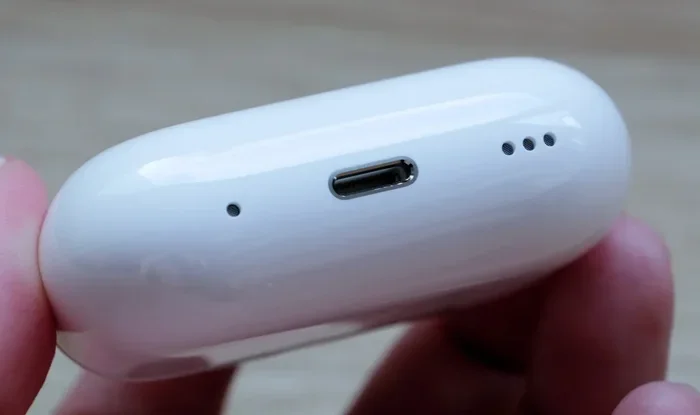
Featured image for AirPods charging cable closeup
Image source: assets.hardwarezone.com
Yes, you can charge AirPods with a normal USB cable, but only if you use the correct type. AirPods use either a Lightning cable (older models) or a USB-C cable (newer models), depending on the generation and case you own. As long as your cable matches the charging port on your AirPods case, any standard USB power source will work.
Picture this: you’re about to head out the door, ready to enjoy your favorite playlist or take an important call, and you glance at your AirPods. The battery light blinks red. Panic sets in. You rummage through drawers looking for a charger, but all you find is a random USB cable. The big question hits you: can you charge AirPods with a normal USB?
The good news? Yes, you absolutely can in most cases. But here’s the catch: not every USB cable will work, and using the wrong one could lead to slow charging, no charging at all, or even damage to your device over time. Think of it like trying to fill a swimming pool with a garden hose versus a fire hose. Both deliver water, but the experience and results are completely different.
This guide will walk you through everything you need to know about charging your AirPods with a regular USB cable. We’ll cover which cables work, which don’t, how to identify your AirPods model, and tips to keep your battery healthy for years to come. By the end, you’ll never have to wonder about charging cables again.
Key Takeaways
- Compatibility Matters: Older AirPods use Lightning cables, while AirPods Pro 2 and AirPods 4 use USB-C cables.
- Any USB Power Source Works: As long as the cable fits, you can plug it into any USB wall adapter, computer, or power bank.
- Wireless Charging Is Optional: Only certain AirPods cases support Qi or MagSafe wireless charging pads.
- Charge Time Is Fast: A full AirPods case charge takes about 1 hour, giving you roughly 24 hours of listening time.
- Avoid Knockoff Cables: Cheap, uncertified cables can damage your battery or charge slowly.
- USB-A vs USB-C: Both work, but USB-C charges faster and is the modern standard for new Apple devices.
- Safety First: Always use certified cables (MFi for Lightning, USB-IF for USB-C) to protect your AirPods.
📑 Table of Contents
- Understanding AirPods Charging Basics
- Can You Charge AirPods with a Normal USB Cable?
- USB-A vs USB-C: Which Should You Use?
- How to Identify the Right Cable for Your AirPods
- Common Mistakes to Avoid When Charging AirPods
- Wireless Charging: An Alternative to USB
- How to Maximize Your AirPods Battery Life
- Troubleshooting: What If Your AirPods Won’t Charge?
- The Future of AirPods Charging
- Final Thoughts
Understanding AirPods Charging Basics
Before we dive into the specifics of USB cables, let’s get one thing straight: AirPods don’t actually charge through your standard phone charger port. Instead, they charge through their carrying case, which acts like a portable power bank for your earbuds. The case itself is what needs to be plugged in or placed on a charging pad.
Think of the AirPods case like a tiny treasure chest. Inside that chest are two small slots where your AirPods snap in magnetically. The case transfers power to the earbuds automatically. When the case runs low on battery, that’s when you need a charging cable to refill it. The case then becomes the middleman, holding onto that power until your AirPods need it next.
What Type of Charging Port Does Your AirPods Case Have?
This is the most important question you need to answer. Since Apple released the first AirPods in 2016, there have been three main types of charging ports used across different models:
- Lightning Port: Found on AirPods 1st, 2nd, and 3rd generation, plus AirPods Pro 1st generation. This is the same port used on older iPhones (iPhone 14 and earlier).
- USB-C Port: Found on AirPods Pro 2 (released September 2023), AirPods 4, and AirPods 4 Active Noise Cancellation model. This matches newer iPhones (iPhone 15 and later) and most modern Android phones.
- Wireless Charging Only: Some cases have no port at all and rely entirely on Qi or MagSafe wireless charging pads.
To figure out which type you have, flip your AirPods case over and look at the bottom. If you see a small oval-shaped slot, that’s Lightning. If you see a smaller, rounded rectangular slot, that’s USB-C. If you see nothing, your case is wireless-only.
Did You Know?
Apple switched to USB-C on AirPods Pro 2 in 2023, largely because of European Union regulations requiring a common charging standard. By 2024, over 500 million devices worldwide use USB-C, making it the most popular charging port on the planet.
Can You Charge AirPods with a Normal USB Cable?
Now let’s answer the big question directly: yes, you can charge AirPods with a normal USB cable, but only if it’s the right type. A “normal USB cable” isn’t really a thing because there are several types of USB connectors, and AirPods only work with specific ones.
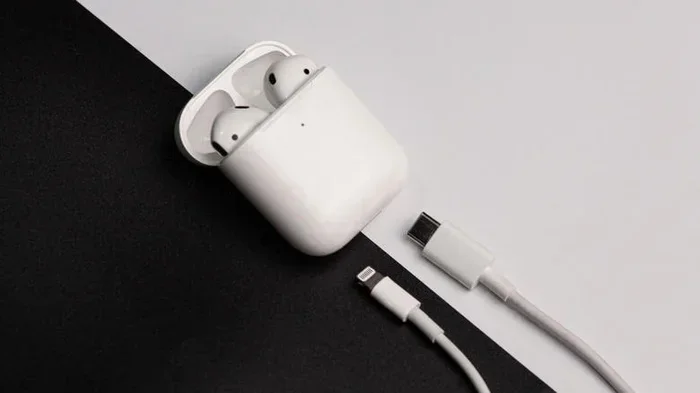
Visual guide about AirPods charging cable closeup
Image source: img-s-msn-com.akamaized.net
Here’s the breakdown: when people ask about charging AirPods with a “normal USB,” they usually mean one of three things:
- A USB-A to Lightning cable (the old iPhone charger with the rectangular USB end)
- A USB-C to Lightning cable (newer iPhone charger)
- A USB-C to USB-C cable (modern Android and new iPhone charger)
If your AirPods case has a Lightning port, you’ll need a cable with a Lightning connector on one end. If your case has a USB-C port, you’ll need a cable with a USB-C connector on one end. The other end (the USB-A or USB-C end) simply plugs into any power source.
What Counts as a “Normal” USB Power Source?
The good news is that almost any USB power source works. Here are the most common options:
- Wall Adapters: The small charging bricks that come with phones. Any wattage from 5W to 20W works fine.
- Computers and Laptops: USB ports on PCs and Macs deliver enough power to charge AirPods, though slightly slower.
- Power Banks: Portable chargers work perfectly as long as they have a USB-A or USB-C output port.
- Car Chargers: Those adapters that plug into your car’s cigarette lighter work great for road trips.
- USB Hubs: Even multi-port hubs can charge AirPods, though charging may be slower if multiple devices are drawing power.
The AirPods case doesn’t need much power at all. It only draws about 5 volts at 0.5 amps, which is roughly 2.5 watts. That’s barely a trickle compared to what an iPhone needs (20 watts or more). So even the oldest, weakest USB power source can handle it easily.
USB-A vs USB-C: Which Should You Use?
You might be wondering if there’s a difference between using an older USB-A cable and a newer USB-C cable. The answer is yes, but the difference is small when it comes to AirPods.
USB-A is the classic rectangular USB port that’s been around since the 1990s. You’ll find it on older computers, wall adapters, and power banks. USB-C is the newer, smaller, oval-shaped port that’s becoming the universal standard. It’s faster, more powerful, and reversible (you can plug it in either way).
Charging Speed Differences
Because AirPods draw so little power, you won’t notice a huge difference between USB-A and USB-C in real-world use. However, here are some general guidelines:
- USB-A to Lightning: Takes about 60-90 minutes for a full case charge.
- USB-C to Lightning: Slightly faster, around 45-60 minutes for a full case charge.
- USB-C to USB-C: Fastest option, roughly 30-45 minutes for a full case charge.
The reason USB-C is faster comes down to power delivery protocols. USB-C can negotiate higher power levels with the device, while USB-A sticks to basic 5-volt charging. For AirPods, this difference is minimal, but it’s still worth noting.
Did You Know?
According to a 2023 survey by the Consumer Technology Association, 78% of Americans own at least one USB-C device, and that number is growing by about 15% each year. By 2026, USB-C is expected to be the dominant charging standard globally.
How to Identify the Right Cable for Your AirPods
Walking into a drawer full of cables can feel overwhelming. Here’s a simple step-by-step process to find the right one every time:
Step 1: Check Your AirPods Case
Flip your case over and look at the bottom edge. You’re looking for a small port. If it’s a thin oval with two small pins inside, that’s Lightning. If it’s a rounded rectangle with no pins visible, that’s USB-C. This tells you exactly what cable tip you need.
Step 2: Match the Cable End
Once you know your port type, find a cable with that connector on one end. The other end can be anything USB-A or USB-C, depending on what power source you plan to use. For example:
- If you have a Lightning AirPods case, grab a USB-A to Lightning or USB-C to Lightning cable.
- If you have a USB-C AirPods case, grab a USB-C to USB-C cable or a USB-A to USB-C cable.
Step 3: Check the Cable Quality
Not all cables are created equal. Look for these quality markers:
- MFi Certification: For Lightning cables, “Made for iPhone” certification means Apple has tested and approved the cable.
- USB-IF Certification: For USB-C cables, this means the USB Implementers Forum has certified the cable meets standards.
- Thick Cable Body: Higher-quality cables tend to have braided exteriors and thicker insulation, which prevents fraying and internal damage.
Avoid dollar store cables at all costs. These often lack proper safety features and can deliver inconsistent power, which may damage your AirPods battery over time. A good cable costs between $8 and $20, and it’s worth every penny to protect a device that costs $130 or more.
Pro Tip: Label Your Cables
If you have multiple Apple devices with different ports, grab a pack of small colored stickers or tape and label each cable. This saves you tons of time hunting for the right one in the future. It also prevents family members from grabbing the wrong cable and leaving you stranded with a dead charger.
Common Mistakes to Avoid When Charging AirPods
Even though AirPods charging seems simple, there are a few common mistakes that can shorten your battery life or damage your device. Let’s walk through them so you can avoid the pitfalls.
Mistake 1: Using a Damaged Cable
Cables don’t last forever. If you notice fraying, exposed wires, bent connectors, or loose connections when you wiggle the cable, it’s time to replace it. Damaged cables can short-circuit, overheat, or deliver inconsistent power, all of which can harm your AirPods battery. Think of it like drinking water from a cracked glass. You might get away with it for a while, but eventually it’s going to cause problems.
Mistake 2: Charging in Extreme Temperatures
Lithium-ion batteries, like the one in your AirPods case, are sensitive to temperature. Apple recommends charging your AirPods in environments between 32°F and 95°F (0°C to 35°C). Charging in a hot car or freezing outdoors can permanently reduce battery capacity. If your case feels hot to the touch while charging, unplug it and let it cool down.
Mistake 3: Draining the Battery Completely
While it’s tempting to use your AirPods until they die, letting the battery drain to 0% regularly can shorten its overall lifespan. Try to recharge when the case drops below 20%. Modern lithium-ion batteries prefer partial charges over deep discharges.
Mistake 4: Ignoring Software Updates
Apple occasionally releases firmware updates for the AirPods case that can improve charging efficiency and battery management. Make sure your AirPods are connected to your iPhone regularly so updates can install automatically. You can check for updates by going to Settings > Bluetooth > AirPods > About on your paired device.
Mistake 5: Using Third-Party Chargers Without Certification
We touched on this earlier, but it bears repeating. Knockoff cables might save you a few dollars upfront, but they can cost you hundreds in damaged AirPods. Stick with certified cables from reputable brands like Apple, Anker, Belkin, or UGREEN.
Wireless Charging: An Alternative to USB
While the focus of this article is on USB charging, it’s worth mentioning that some AirPods cases support wireless charging. If you own one of these models, you can skip the cable entirely:
- AirPods 2nd Generation (Wireless Charging Case): Released in 2019, this optional case supports Qi wireless charging.
- AirPods 3rd Generation: All cases support MagSafe and Qi wireless charging.
- AirPods Pro: All cases support Qi wireless charging.
- AirPods Pro 2 (USB-C version): Supports both MagSafe and Qi wireless charging.
Wireless charging works through electromagnetic induction. A charging pad creates a magnetic field, and a coil inside your AirPods case converts that field back into electrical current to charge the battery. It’s the same technology used to charge electric toothbrushes and many Android phones.
Pros and Cons of Wireless Charging
Wireless charging is convenient because you just set the case down on a pad and pick it up when you need it. No cables to plug in or wear out. However, it’s slower than wired charging and requires you to buy a separate charging pad if you don’t already own one. Wireless charging also generates more heat, which can affect battery longevity if used constantly.
For most people, a good USB cable is still the fastest and most reliable way to charge AirPods. Wireless charging is a nice backup option for your desk or nightstand.
Did You Know?
The global wireless charging market is expected to reach $30 billion by 2027, according to a 2023 report by Market Research Future. Apple has been a major driver of this growth by including wireless charging in iPhones and AirPods.
How to Maximize Your AirPods Battery Life
Charging your AirPods correctly is only part of the equation. To get the most out of every charge and extend the overall lifespan of your battery, follow these practical tips:
Tip 1: Use Optimized Battery Charging
iOS includes a feature called Optimized Battery Charging that learns your daily routine and delays charging past 80% until you need it. This reduces battery aging. To enable it, go to Settings > Bluetooth > Tap your AirPods > Optimized Battery Charging.
Tip 2: Store Your AirPods Properly
If you’re not using your AirPods for a while, store them in the case at around 50% charge. Leaving them at 0% or 100% for extended periods can damage the battery. The ideal storage temperature is around 72°F (22°C).
Tip 3: Turn Off Unnecessary Features
Features like Active Noise Cancellation, Transparency Mode, and spatial audio all consume extra battery. If you’re trying to squeeze more listening time out of a charge, turn off these features when you don’t need them.
Tip 4: Keep the Case Clean
Dust and debris in the charging port can prevent a proper connection. Use a soft, dry brush or a wooden toothpick to gently clean the port every few weeks. Compressed air also works well for blowing out stubborn particles.
Tip 5: Don’t Leave Them Plugged In Forever
Modern devices are smart enough to stop charging once they hit 100%, but keeping them plugged in for days at a time still generates heat. Once your AirPods case is fully charged, unplug the cable.
Troubleshooting: What If Your AirPods Won’t Charge?
Sometimes you plug in your AirPods and nothing happens. Before you panic, try these troubleshooting steps:
Check the Cable and Power Source
First, make sure your cable isn’t damaged. Try a different cable if you have one. Then test the power source by plugging in another device, like your phone, to confirm it’s actually delivering power.
Clean the Charging Port
Lint and debris often get stuck in the charging port, preventing a good connection. Use a wooden toothpick or soft brush to gently clean it out. Be careful not to use metal objects that could damage the contacts.
Reset Your AirPods
If your AirPods still won’t charge, try resetting them. Place them in the case, hold the setup button on the back for about 15 seconds until the light flashes amber, then white. Reconnect them to your device and try charging again.
Check the Battery Status
Open your AirPods case near your iPhone and check the battery popup. If the case shows 0% and refuses to charge, the battery may be completely dead. Leave it plugged in for at least 30 minutes before testing again.
Contact Apple Support
If none of these steps work, your AirPods may have a hardware issue. Apple’s AirPods come with a one-year warranty, and AppleCare+ extends coverage to two years. Visit Apple’s support website or make an appointment at your local Apple Store for professional help.
The Future of AirPods Charging
Charging technology continues to evolve, and AirPods are likely to change with it. Here are some trends to watch:
USB-C Is Here to Stay
With Apple switching to USB-C across its product lineup, expect all future AirPods models to use USB-C. This simplifies charging because one cable can power your iPhone, iPad, Mac, and AirPods.
Faster Charging Speeds
Apple may introduce faster charging in future AirPods models. Imagine getting a full charge in just 15 minutes instead of an hour. Battery technology continues to improve, making this possible.
Reverse Wireless Charging
Some smartphones already support reverse wireless charging, where you can charge other devices by placing them on the back of your phone. Apple hasn’t brought this to iPhones yet, but it could be a game-changer for AirPods in the future.
Solar and Kinetic Charging
Far-fetched? Maybe, but researchers are exploring ways to harvest energy from body movement and ambient light. Your AirPods could one day charge themselves while you walk or sit in the sun.
For now, though, a regular USB cable is the simplest and most reliable way to keep your AirPods powered up.
Final Thoughts
So, can you charge AirPods with a normal USB? Absolutely. As long as you use the right cable for your AirPods case, any USB power source will do the job. The key is matching the connector type to your case’s port, whether that’s Lightning or USB-C, and using a quality cable from a reputable brand.
Remember, charging your AirPods properly isn’t just about convenience. It’s about protecting your investment and making sure your battery lasts for years to come. Follow the tips in this guide, avoid common mistakes, and you’ll enjoy countless hours of music, podcasts, and calls without ever worrying about a dead battery.
Next time you see that red blinking light, take a deep breath. You know exactly what to do. Grab the right cable, plug it in, and let your AirPods case do the rest. Happy listening!
Frequently Asked Questions
Can I charge AirPods with any USB cable?
No, you need a cable that matches the charging port on your AirPods case. Older AirPods use Lightning cables, while newer models (AirPods Pro 2 USB-C, AirPods 4) use USB-C cables. Using the wrong cable simply won’t fit or charge your device.
How long does it take to charge AirPods with a USB cable?
A full charge for an AirPods case typically takes 30 to 90 minutes, depending on the cable type and power source. USB-C to USB-C charging is the fastest, while USB-A to Lightning is the slowest. The earbuds themselves charge in about 20 minutes when placed in the case.
Can I charge AirPods from a laptop USB port?
Yes, any laptop with a USB-A or USB-C port can charge your AirPods case. However, charging may be slightly slower compared to a wall adapter because laptop USB ports typically deliver less power. This won’t harm your AirPods, though.
Do AirPods come with a charging cable in the box?
It depends on the model. Newer AirPods Pro 2 (USB-C) and AirPods 4 models include a USB-C cable in the box. Older AirPods with Lightning cases often came with a Lightning to USB-A cable. Starting in 2020, Apple stopped including chargers with iPhones, and some AirPods models have followed suit.
Is it safe to charge AirPods overnight with a USB cable?
Yes, charging your AirPods case overnight is generally safe. The case has built-in circuitry that stops charging once the battery reaches 100%. However, to maximize battery lifespan, Apple recommends using the Optimized Battery Charging feature, which pauses charging at 80% until you need it.
Can I use an Android phone charger to charge AirPods?
Yes, you can use an Android USB-C charger to charge AirPods with a USB-C case. For older AirPods with Lightning cases, you’ll need a Lightning cable. The power source (Android charger, iPhone charger, or third-party adapter) doesn’t matter as long as the cable connector matches your AirPods case.