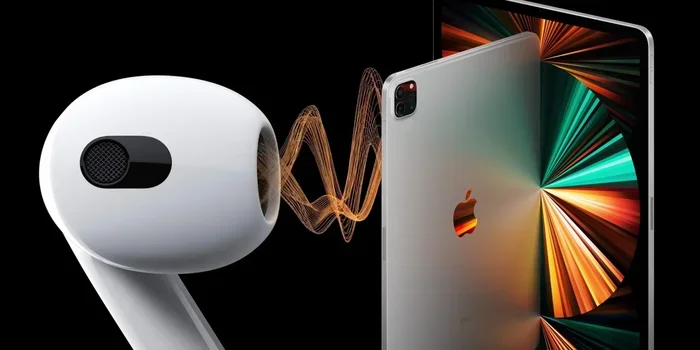
Featured image for AirPods Pro with iPad
Image source: 9to5mac.com
AirPods Pro do work with iPad Mini 2, but with significant limitations. The iPad Mini 2 lacks the H1 chip integration needed for advanced features like Siri announcements and spatial audio. Basic Bluetooth audio streaming, playback controls, and microphone functions work perfectly fine. However, you won’t get features like seamless device switching, ear detection, or noise control customization.
So, you’ve got an older iPad Mini 2 sitting around, and you’re wondering if those fancy AirPods Pro you just bought will work with it. Or maybe it’s the opposite—you have AirPods Pro and are considering whether your trusty old iPad Mini 2 can still get some use out of them. Either way, you’re in the right place.
The short answer is yes, AirPods Pro do work with iPad Mini 2. They connect via Bluetooth just like any other wireless earbuds. However, before you get too excited, there are some important limitations you should know about. Think of it like buying a sports car but living on a road with a 25 mph speed limit—you can still drive it, but you won’t experience the full thrill.
In this guide, we’ll break down exactly what works, what doesn’t, why certain limitations exist, and how to get the most out of this pairing. Whether you’re a tech newbie or a seasoned Apple user, we’ll make this easy to follow.
Key Takeaways
- Basic Compatibility Exists: AirPods Pro connect to iPad Mini 2 via standard Bluetooth 4.0, allowing audio playback and basic functionality.
- Advanced Features Are Missing: Features requiring iOS 13 or later (like spatial audio, automatic device switching, and ear detection) won’t work on iPad Mini 2.
- Maximum iPad Mini 2 iOS Version: The iPad Mini 2 can only run iOS 12.5.7, which limits the AirPods Pro software integration capabilities.
- Battery and Charging Work Normally: The charging case and battery indicators function independently of the connected device’s iOS version.
- Bluetooth Connection is Stable: Audio quality remains high because Bluetooth codec support (SBC and AAC) is available on iPad Mini 2.
- No H1 Chip Benefits: The AirPods Pro H1 chip’s advanced features require iOS 13+ devices, which the iPad Mini 2 cannot run.
- Worth Using?: If you already own both devices, pairing them provides good wireless audio; upgrading only for this purpose isn’t recommended.
📑 Table of Contents
- Understanding the Connection: How AirPods Pro and iPad Mini 2 Talk to Each Other
- What Works: Features You Can Actually Use
- What Doesn’t Work: The Limitations You Should Know
- Why These Limitations Exist: The Technical Background
- Step-by-Step Guide: How to Connect AirPods Pro to iPad Mini 2
- Practical Tips for Using AirPods Pro with iPad Mini 2
- Should You Upgrade? Making the Decision
- The Bottom Line: Final Verdict
Understanding the Connection: How AirPods Pro and iPad Mini 2 Talk to Each Other
Before diving into compatibility specifics, let’s understand the basics of how these two devices communicate. AirPods Pro use Bluetooth technology to connect wirelessly to other devices. The iPad Mini 2, released in November 2013, also uses Bluetooth—but here’s where things get interesting.
The Bluetooth Standards at Play
The iPad Mini 2 supports Bluetooth 4.0, which was the standard back in 2013. AirPods Pro, released in October 2019, use Bluetooth 5.0. Think of Bluetooth versions like languages: Bluetooth 5.0 speakers fluent “modern English,” but they can also understand older versions like Bluetooth 4.0. This backward compatibility is why your AirPods Pro can pair with your iPad Mini 2 in the first place.
According to the Bluetooth Special Interest Group (SIG), Bluetooth 5.0 offers four times the range and twice the speed of Bluetooth 4.0. But when connecting to a Bluetooth 4.0 device, you’ll only get Bluetooth 4.0 performance. It’s like driving a Ferrari in a school zone—you’re limited by the environment.
What Happens During Pairing
When you open the AirPods Pro case near your iPad Mini 2, the following process occurs:
- Discovery Mode: The AirPods Pro enter pairing mode automatically when the case lid opens (if not already paired to a device).
- Bluetooth Search: Your iPad Mini 2 scans for nearby Bluetooth devices.
- Connection Request: You tap “AirPods Pro” in the Bluetooth settings menu.
- Confirmation: The devices handshake, and audio routing begins.
The whole process takes about 10-15 seconds. Simple and painless.
What Works: Features You Can Actually Use
Now for the good news—there’s plenty of functionality that works perfectly fine when pairing AirPods Pro with iPad Mini 2. Let’s explore what you get.
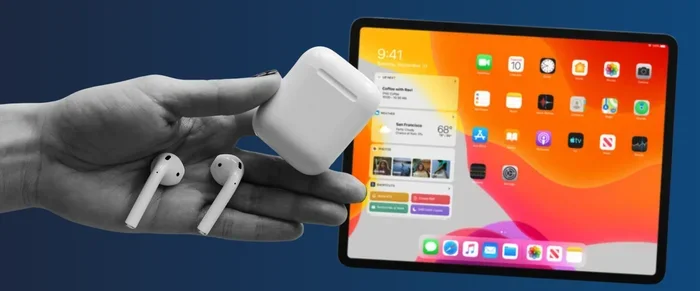
Visual guide about AirPods Pro with iPad
Image source: news.techable.com
Audio Playback and Sound Quality
This is the most important feature, and it works beautifully. The iPad Mini 2 supports the AAC (Advanced Audio Coding) Bluetooth codec, which is exactly what AirPods Pro need to stream high-quality audio. You’ll get:
- Clear music playback from apps like Apple Music, Spotify, YouTube, and more
- Video audio from streaming services like Netflix and Hulu
- Podcast listening without any issues
- Game audio with reasonable latency (around 200-250 milliseconds)
Did you know that AAC codec support was actually introduced in iOS 5.0? This means even older Apple devices have been optimized for high-quality Bluetooth audio streaming for over a decade. The iPad Mini 2 was designed during this AAC-friendly era.
Microphone Functionality
The AirPods Pro microphones work perfectly with iPad Mini 2 for:
- FaceTime calls (though the iPad Mini 2 only supports FaceTime via its front camera at limited resolution)
- Voice memos and recordings
- Siri voice commands (though with limitations we’ll discuss)
- Skype, Zoom, and other video calling apps
The microphone quality is actually excellent because AirPods Pro use beamforming technology that focuses on your voice while reducing background noise.
Battery Status Monitoring
Here’s something many people don’t realize: you can check your AirPods Pro battery on iPad Mini 2, but with a caveat. iOS 12 and earlier required a workaround—you’d need to use the Batteries widget or check via the Bluetooth settings. However, the iPad Mini 2 running iOS 12.5.7 supports basic battery indicators when the case is opened nearby.
Think of it like a basic fuel gauge. It tells you if you have gas, but not how many miles until empty.
Basic Playback Controls
The double-tap and force sensor controls on AirPods Pro work for basic functions:
- Play/pause (double-tap or single squeeze on the stem)
- Skip tracks (double squeeze)
- Return to previous track (triple squeeze)
- Activate Siri (long press)
These work through standard Bluetooth commands that any Bluetooth audio device can interpret, regardless of iOS version.
What Doesn’t Work: The Limitations You Should Know
Now for the limitations—and there are several. This is where the “it works, but…” part of the story really matters.
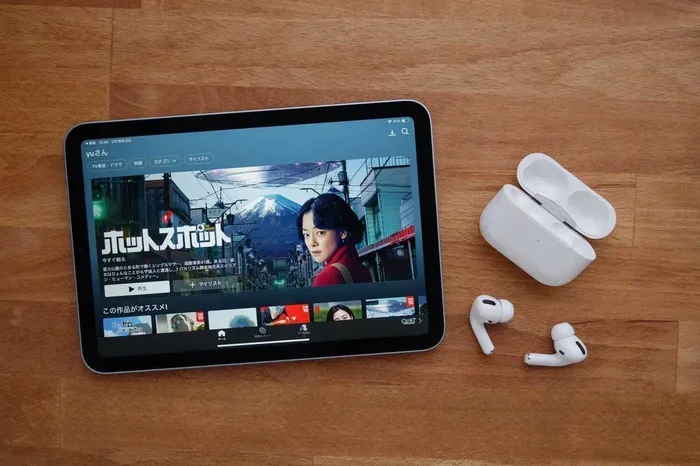
Visual guide about AirPods Pro with iPad
Image source: assets.st-note.com
No Active Noise Cancellation Control
The iPad Mini 2’s iOS 12.5.7 doesn’t support the in-ear tip fit test, noise control toggling, or transparency mode switching through the operating system. This means:
- You can’t switch between Active Noise Cancellation and Transparency Mode from your iPad
- You can’t customize the noise control settings
- You have to use the force sensor on the AirPods Pro stem directly to toggle modes
It’s like having a car with manual windows when everyone else has power windows. The functionality exists, but it’s less convenient.
No Ear Detection (Auto-Pause)
One of the most beloved AirPods Pro features—automatic pause when you remove an earbud—requires iOS 13 or later. Since the iPad Mini 2 maxes out at iOS 12.5.7, this feature is unavailable. Your music won’t pause automatically when you take out an AirPod.
According to Apple’s developer documentation, ear detection relies on iOS 13+ frameworks that handle the sensor data from the AirPods Pro. These frameworks simply don’t exist in iOS 12.
No Siri Voice Announcements
On newer devices, Siri can announce incoming calls, messages, and notifications through your AirPods Pro. This feature requires iOS 13 or later, so you’ll need to look at your iPad screen to see notifications.
No Spatial Audio
Spatial Audio, which provides theater-like surround sound, requires:
- iPad models with the A10 processor or later
- iOS 14 or later
The iPad Mini 2 has the A7 processor (introduced in 2013), so it’s far too old for spatial audio. This is one of the most significant limitations.
No Automatic Device Switching
This is another iOS 13+ feature. If you have multiple Apple devices signed into the same iCloud account, AirPods Pro can automatically switch between them. The iPad Mini 2 won’t participate in this ecosystem feature.
Why These Limitations Exist: The Technical Background
You might wonder why these limitations exist when the AirPods Pro clearly have all the hardware needed. The answer lies in software.
The H1 Chip and Software Dependencies
The AirPods Pro contain Apple’s custom H1 chip, which is essentially a small computer. This chip handles audio processing, noise cancellation, and communication with your device. However, many of its advanced features require specific software frameworks on the connected device.
Think of it like this: the H1 chip is a multilingual translator, but it needs the “translation handbook” from your device’s operating system to interpret advanced commands. iOS 12 doesn’t have the chapters needed for advanced translation.
The iPad Mini 2’s Last Supported iOS Version
The iPad Mini 2 received its final iOS version in January 2023—iOS 12.5.7, which was a security update. According to Apple’s official iOS compatibility list, the iPad Mini 2 supports a maximum of iOS 12.x. This was determined by the device’s hardware specifications, particularly its A7 processor and 1GB of RAM, which can’t efficiently run iOS 13+.
To put this in perspective, iOS 13 was released in September 2019 and dropped support for devices with less than 2GB of RAM. The iPad Mini 2’s 1GB of RAM made it ineligible.
The Bluetooth Audio Architecture
iOS 13 introduced significant changes to how iOS handles Bluetooth audio, including lower latency and better power management for AirPods. The iPad Mini 2’s older Bluetooth stack doesn’t support these improvements, resulting in slightly less optimal performance compared to newer devices.
Step-by-Step Guide: How to Connect AirPods Pro to iPad Mini 2
If you’re ready to pair your devices, here’s a simple step-by-step process.
Preparing Your AirPods Pro
- Make sure your AirPods Pro are charged (at least 20% battery is recommended)
- Place the AirPods Pro in their charging case
- Open the lid (but don’t remove the AirPods yet)
- Press and hold the setup button on the back of the case until the LED light flashes white
Connecting via iPad Mini 2 Settings
- Open the Settings app on your iPad Mini 2
- Tap on “Bluetooth”
- Make sure Bluetooth is toggled on
- Wait for “AirPods Pro” to appear in the “Other Devices” section
- Tap on “AirPods Pro” to pair
- Confirm the pairing request
Testing the Connection
- Open the Music app or any audio app
- Press play
- Audio should now stream through your AirPods Pro
- Test the squeeze controls on the AirPods Pro stem
The whole process typically takes less than a minute. If you experience any issues, try resetting your AirPods Pro by holding the setup button for about 15 seconds until the LED flashes amber, then white.
Practical Tips for Using AirPods Pro with iPad Mini 2
Now that you know what to expect, here are some practical tips to maximize your experience.
Optimize Your Audio Settings
Since you don’t have access to advanced features, focus on optimizing what you do have:
- Adjust EQ settings: Use the equalizer in the Music app’s playback options
- Volume matching: Set a comfortable baseline volume to avoid sudden loud sounds
- Mono audio: If you only use one AirPod, enable mono audio in Settings > Accessibility > Audio/Visual
Battery Management
The iPad Mini 2 can display basic battery information for your AirPods Pro:
- Check battery levels by going to Settings > Bluetooth and tapping the “i” next to your AirPods Pro
- Charge your AirPods Pro regularly (the case provides multiple charges)
- The case itself charges via Lightning cable (or wireless with the MagSafe case)
Did you know that AirPods Pro can provide about 4.5 hours of listening time on a single charge with Active Noise Cancellation enabled? With the charging case, you get more than 24 hours of total listening time.
Troubleshooting Common Issues
If you encounter problems, try these solutions:
- Connection drops: Move closer to your iPad Mini 2 and ensure no major obstructions
- Audio lag in videos: Try closing and reopening the video app
- One AirPod not working: Reset by placing them back in the case for 30 seconds
- Poor microphone quality: Ensure the AirPods Pro are clean and properly seated
Best Use Cases for This Pairing
Honestly, the iPad Mini 2 + AirPods Pro combination works best for:
- Casual music listening
- Podcast enjoyment
- Audiobook playback
- Background audio while working
- Video calls (though video quality is limited by the iPad Mini 2’s camera)
Should You Upgrade? Making the Decision
At this point, you might be wondering whether it’s worth upgrading your iPad Mini 2 to take full advantage of AirPods Pro features.
When It Makes Sense to Upgrade
- You use your iPad for professional video calls and need the best audio/video quality
- You’re a content creator who needs spatial audio for video editing
- You own multiple Apple devices and want seamless switching
- You heavily rely on Siri and voice commands
When It’s Not Worth Upgrading
- You only use the iPad for casual browsing and media consumption
- You primarily use AirPods Pro with other devices (iPhone, Mac, Apple TV)
- You’re satisfied with basic audio playback functionality
- Budget is a major concern
Alternative Devices to Consider
If you decide you want more AirPods Pro features but don’t want a full iPad replacement, consider:
- iPad Mini 5 (2019): Supports iPadOS 15+, works with most AirPods Pro features
- iPad Air 4 (2020): Excellent compatibility with all AirPods Pro features
- Refurbished iPad Pro models: Often available at reasonable prices with full compatibility
According to Statista, Apple sold over 58 million iPads in 2022, and the refurbished market has grown significantly. You can often find iPad Mini 5 models in excellent condition for reasonable prices.
The Bottom Line: Final Verdict
So, let’s bring it all together. AirPods Pro do work with iPad Mini 2—they connect via Bluetooth and provide quality audio streaming, microphone functionality, and basic controls. However, you’re missing out on the premium features that make AirPods Pro special: Active Noise Cancellation control through iOS, automatic device switching, ear detection, spatial audio, and Siri announcements.
Think of this pairing as a “compatibility lite” experience. You get the core functionality—great-sounding wireless audio with a decent microphone—but not the full ecosystem magic that newer Apple devices provide.
If you already own both devices and want to use them together, absolutely go for it. The connection is stable, the audio quality is excellent, and you’ll enjoy wireless freedom with your older iPad. However, if you’re considering buying AirPods Pro specifically for use with an iPad Mini 2, you might want to think twice—either upgrade to a newer iPad or accept that you’ll be using them mainly with another device that has iOS 13 or later.
Remember, technology is about serving your needs. If basic wireless audio with your iPad Mini 2 is what you need, this pairing delivers. If you want the full premium experience, it might be time to consider an upgrade. Either way, you’re now armed with all the information you need to make the best decision for your situation.
Frequently Asked Questions
Can I use AirPods Pro with iPad Mini 2 for phone calls?
Yes, but with a caveat. The iPad Mini 2 doesn’t support cellular calls, so you can only make calls through internet-based apps like FaceTime, Skype, or WhatsApp. The AirPods Pro microphone works well for these calls, though the iPad Mini 2’s front-facing camera offers limited video quality (1.2 MP).
Will AirPods Pro firmware update on iPad Mini 2?
AirPods Pro firmware updates typically happen automatically when connected to an iOS device, but iPad Mini 2’s older iOS version may prevent some firmware updates from installing properly. You might need to connect your AirPods Pro to a newer Apple device (iPhone, iPad, or Mac) to ensure they have the latest firmware.
How long does the AirPods Pro battery last when used with iPad Mini 2?
Battery life is identical regardless of the connected device—approximately 4.5 hours of listening time with Active Noise Cancellation on, or about 5 hours with it off. The charging case provides more than 24 hours of total listening time. The iPad Mini 2 doesn’t affect battery performance.
Can I use just one AirPod with iPad Mini 2?
Yes, you can use a single AirPod with iPad Mini 2. Both the left and right AirPods can function independently for audio playback and calls. This is useful for conserving battery life or staying aware of your surroundings. The mono audio accessibility feature is available in iOS 12.5.7 as well.
Do AirPods Pro noise cancellation work automatically on iPad Mini 2?
Active Noise Cancellation will work physically (the hardware activates it), but you won’t have the option to control it through iOS settings on iPad Mini 2. You’ll need to manually toggle between Active Noise Cancellation, Transparency Mode, and Off using the force sensor on the AirPods Pro stem itself.
Is there any lag when watching videos with AirPods Pro on iPad Mini 2?
There’s typically a 200-250 millisecond audio delay, which is noticeable but not severely disruptive for most video content. This is due to Bluetooth 4.0’s higher latency compared to newer standards. Newer iPads with Bluetooth 5.0 reduce latency to about 100 milliseconds or less.