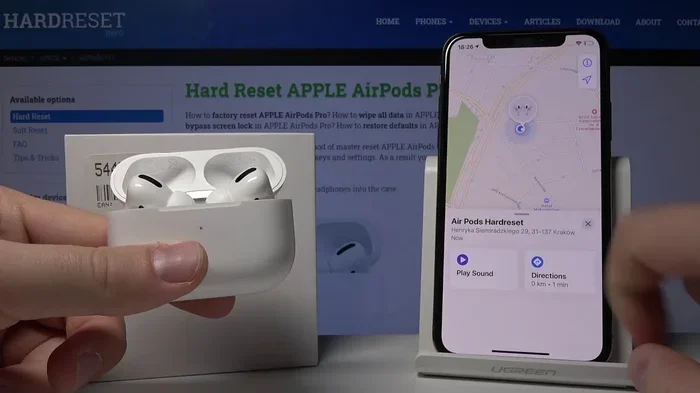
Featured image for AirPods Pro Find My ping
Image source: i.ytimg.com
Yes, you can ping your AirPods Pro using Apple’s Find My app, but only when they’re charged, powered on, and within Bluetooth range of one of your Apple devices. The ping feature plays a loud chirping sound that grows louder the longer it plays, making it easier to locate your earbuds if they’re hiding under couch cushions or buried in a bag. If your AirPods Pro are out of range, dead, or still in their charging case, the ping function won’t work—but Find My can still show their last known location on a map.
We’ve all been there. You reach into your pocket for your AirPods Pro and—nothing. Just that awful moment of empty space where your favorite earbuds should be. Maybe they slipped between the couch cushions. Maybe you left them at the gym. Maybe your dog thinks they’re a chew toy. Whatever the scenario, the panic is the same.
The good news? Apple built a clever feature right into your iPhone that can make your AirPods Pro chirp like a confused cricket, helping you track them down in seconds. This feature is called “ping,” and it’s part of Apple’s Find My app. Think of it as a digital version of yelling “Marco!” and waiting for a “Polo!” back from your missing earbuds.
But here’s the catch: pinging AirPods Pro only works under certain conditions. If your battery is dead, your AirPods are inside their charging case, or they’re sitting in a drawer 50 miles away, the ping feature won’t help much. That’s why it’s worth knowing exactly how the system works, what to do if it fails, and how to avoid losing your AirPods in the first place. In this guide, we’ll walk you through everything you need to know—from the basics of pinging to advanced troubleshooting and prevention tips.
Key Takeaways
- Ping works only under specific conditions: Your AirPods Pro must be charged, powered on, outside their case, and within Bluetooth range of an Apple device you’ve previously connected them to.
- Find My is your main tool: Apple’s Find My app handles the ping feature, lets you view your AirPods’ location on a map, and lets you mark them as lost to protect your data.
- The ping sound is loud but not infinite: It plays for about two minutes and then stops, giving you a window to track down your earbuds before the sound fades.
- You can ping from multiple devices: Whether you have an iPhone, iPad, Mac, or even access to iCloud.com, you have several ways to trigger the ping feature.
- No, you can’t ping AirPods Pro from an Android device: The Find My network and ping feature are exclusive to Apple users.
- Lost Mode is your backup plan: If pinging fails because your AirPods are out of range or powered off, Lost Mode shows the last known location and notifies you when they come back online.
- Prevention beats searching: Simple habits like always putting AirPods back in their case and keeping Find My enabled save you the headache of a frantic search later.
📑 Table of Contents
- How Does Pinging AirPods Pro Actually Work?
- What Conditions Do You Need to Ping AirPods Pro?
- Step-by-Step Guide: How to Ping AirPods Pro on iPhone
- What to Do If You Can’t Ping Your AirPods Pro
- Can You Ping AirPods Pro From Other Devices?
- Tips to Prevent Losing Your AirPods Pro
- The Future of AirPods Tracking: What’s Coming Next?
- Conclusion
How Does Pinging AirPods Pro Actually Work?
Let’s start with the basics. When someone asks, “Can you ping AirPods Pro?” the answer is yes—but the magic happens through Apple’s Find My network, not your iPhone directly.
Think of Find My as a giant, invisible safety net stretched across the entire Apple ecosystem. It uses Bluetooth signals from millions of Apple devices worldwide to help you locate lost items. Your AirPods Pro, once paired with your iPhone or iPad, automatically register with this network. When you trigger a ping, your iPhone sends a signal to your AirPods telling them to play a sound. That chirp gets louder over time, so even if your AirPods are buried under laundry, you should be able to hear them within a minute or two.
The Science Behind the Sound
Did you know that the ping sound on AirPods Pro reaches up to about 80 decibels when you’re close to them? That’s roughly as loud as a garbage disposal or busy city traffic. Apple designed it to be noticeable but not painful. The sound is also high-pitched, which makes it easier to hear through fabric, cushions, or other sound-absorbing materials.
Here’s how the process works in real-time:
- You open Find My: Launch the app on your iPhone, iPad, or Mac.
- You select your AirPods: Tap the “Devices” tab and choose your AirPods Pro from the list.
- You tap “Play Sound”: This sends a Bluetooth command to your AirPods.
- The AirPods respond: They emit a series of chirping sounds that get progressively louder.
- You follow the sound: Walk toward the noise until you find your earbuds.
The whole process usually takes less than 30 seconds to start, assuming your AirPods are powered on and within range. If they’re not, Find My will show you their last known location on a map instead.
What Conditions Do You Need to Ping AirPods Pro?
Here’s the part that frustrates a lot of people. Pinging AirPods Pro isn’t a guaranteed magic trick. There are specific conditions your earbuds must meet before they’ll respond to your command.
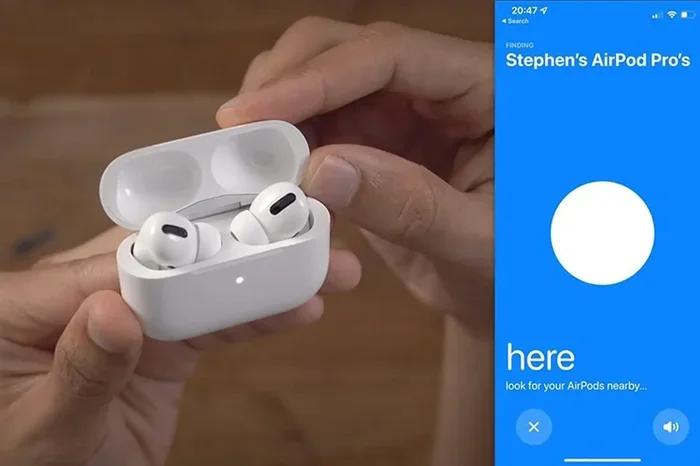
Visual guide about AirPods Pro Find My ping
Image source: cdn2.fptshop.com.vn
The AirPods Must Be Powered On
Your AirPods Pro need to have enough battery life to power their Bluetooth chip and speaker. If the battery is completely dead, they can’t receive your ping signal. The same goes for AirPods that have been physically damaged to the point where they won’t turn on.
The AirPods Must Be Outside the Charging Case
This one trips people up all the time. If your AirPods are sitting snug in their charging case, the ping feature won’t work. Why? Because when they’re in the case, they’re in a low-power state, conserving battery. The case essentially “turns them off” from a connectivity standpoint. You’ll need to take them out before you can ping them.
The AirPods Must Be Within Bluetooth Range
Bluetooth has a practical range of about 30 to 100 feet, depending on walls, interference, and other obstacles. If your AirPods Pro are too far from your iPhone, the ping signal simply won’t reach them. In this case, Find My will show you the last location where your AirPods connected to your device.
Your iPhone Must Have an Internet Connection
Even though pinging happens over Bluetooth, your iPhone needs internet access to communicate with Apple’s Find My network and trigger the command. If you’re offline, the app won’t be able to send the ping instruction.
Pro Tip: If you’re trying to ping AirPods Pro that you know are nearby but the sound isn’t playing, try moving your iPhone closer to where you think the AirPods are. Bluetooth signals can be finicky, especially in homes with lots of wireless devices.
Step-by-Step Guide: How to Ping AirPods Pro on iPhone
Ready to try it for yourself? Here’s a foolproof walkthrough that works on any iPhone running iOS 14 or later.
Step 1: Open the Find My App
Find My comes pre-installed on every modern iPhone. Look for the green and white radar icon on your home screen. If you can’t find it, swipe down from the middle of your home screen and search “Find My.”
Step 2: Tap the Devices Tab
At the bottom of the Find My screen, you’ll see two tabs: “People” and “Devices.” Tap “Devices.” This shows you a list of all Apple devices linked to your Apple ID, including your AirPods Pro.
Step 3: Select Your AirPods Pro
Scroll through the list and tap your AirPods Pro. You’ll see options like “Play Sound,” “Directions,” “Notifications,” and “Mark as Lost.”
Step 4: Tap “Play Sound”
This is the big moment. Tap “Play Sound” and wait. Within seconds, your AirPods should start chirping. The sound will gradually get louder over a two-minute period. If you don’t hear anything right away, don’t panic—give it a few seconds and stay still so you can pinpoint where the sound is coming from.
Step 5: Follow the Sound
Walk slowly in the direction where the sound seems loudest. Once you’ve located your AirPods, the sound will keep playing until you tap “Stop Sound” in the Find My app or the two-minute timer runs out.
What to Do If You Can’t Ping Your AirPods Pro
Sometimes, despite your best efforts, the ping feature just doesn’t cooperate. Before you give up, try these troubleshooting steps.
Check the Battery
Open your AirPods case near your iPhone and check the battery widget. If your AirPods are at 0%, they won’t respond to a ping. You’ll need to charge them first, which could take 30 minutes to an hour depending on how depleted they are.
Take Them Out of the Case
Remember, AirPods in their case can’t be pinged. Open the case, remove the AirPods, and wait a few seconds for them to connect to your iPhone. Then try the ping again.
Make Sure Bluetooth Is Enabled
It sounds obvious, but Bluetooth is the highway your ping signal travels on. If Bluetooth is off, your iPhone can’t communicate with your AirPods. Swipe down from the top-right of your iPhone to access Control Center and make sure the Bluetooth icon is blue.
Sign Into the Same Apple ID
If you’re trying to ping AirPods Pro from a device that uses a different Apple ID, it won’t work. Make sure you’re signed into the same Apple ID you used when you first paired your AirPods.
Update Your iOS Software
Apple occasionally rolls out updates that fix bugs in the Find My app. If your ping feature has been unreliable, check Settings > General > Software Update to make sure you’re running the latest version of iOS.
Use Lost Mode as a Backup
If your AirPods are truly out of range, you can still protect them. In the Find My app, tap your AirPods Pro and select “Mark as Lost.” This locks your AirPods so no one else can pair them with their device, and it notifies you when your AirPods come back online. You’ll also see their last known location on a map, which can be a lifesaver if you left them somewhere like a coffee shop or hotel.
Can You Ping AirPods Pro From Other Devices?
Absolutely. Your iPhone isn’t the only option. Here are other ways to trigger a ping.
Pinging AirPods Pro From an iPad
The process is identical to using an iPhone. Open Find My, go to the Devices tab, select your AirPods Pro, and tap “Play Sound.” As long as your iPad is signed into the same Apple ID and has Bluetooth enabled, it works just as well.
Pinging AirPods Pro From a Mac
Open the Find My app on your Mac (macOS Catalina or later). Click your AirPods Pro in the sidebar and hit “Play Sound.” Your Mac’s speakers will play a sound to help you locate them, but your AirPods will also chirp if they’re within range. Pretty cool, right?
Pinging AirPods Pro From iCloud.com
What if you don’t have access to any of your Apple devices? You can log into iCloud.com/find from any web browser. Sign in with your Apple ID, click “All Devices,” and select your AirPods Pro. From there, you can see their location on a map and play a sound if they’re online. This is especially handy if you left your iPhone somewhere along with your AirPods.
Can Android Users Ping AirPods Pro?
Unfortunately, no. The Find My network is exclusive to Apple users. If you have AirPods Pro paired with an Android phone, you won’t be able to use the ping feature. Your only options are to use a Bluetooth scanner app to try to locate the signal or rely on memory. This is one of the biggest reasons people who switch to Android often miss their AirPods.
Tips to Prevent Losing Your AirPods Pro
Let’s be real: the best ping is the one you never have to use. Here are some smart habits that will keep your AirPods Pro safe and sound.
Always Put Them Back in the Case
This sounds simple, but it’s the number one rule. Every time you’re done using your AirPods Pro, put them right back in their charging case. The case is basically a safety deposit box for your earbuds—it protects them, charges them, and keeps them from rolling off tables or slipping out of pockets.
Enable Find My for AirPods
When you pair AirPods Pro with your iPhone, Find My is automatically enabled. But it’s worth double-checking. Go to Settings > [Your Name] > Find My > Find My iPhone, and make sure “Find My network” is turned on. This allows your AirPods to be located even when they’re not connected to Wi-Fi or cellular data.
Use a Tracking Accessory
If you’re especially worried about losing your AirPods Pro, consider attaching a small Bluetooth tracker like a Tile or AirTag to the case. These accessories work alongside Find My and give you a backup location method. Some AirPods Pro cases even come with built-in tracking slots.
Keep Them in a Designated Spot
Habit plays a huge role in not losing things. Pick a specific spot in your home—like a bowl by the door or a designated hook—and always store your AirPods there when you’re not using them. Your brain will quickly learn the routine, and you’ll always know exactly where they are.
Check the Battery Regularly
Low battery is one of the main reasons people lose their AirPods. If you remember to charge them every night, they’ll always have enough juice to respond to a ping if needed. Make it part of your bedtime routine, just like brushing your teeth.
Be Mindful When Traveling
AirPods Pro are notorious for getting left behind in hotel rooms, Uber cars, and airplanes. When you’re traveling, do a quick “AirPods check” every time you leave a location. It takes five seconds and can save you a lot of stress.
The Future of AirPods Tracking: What’s Coming Next?
Apple is always improving its Find My technology, and the future looks bright for AirPods tracking.
Precision Finding with AirPods Pro 2
The AirPods Pro 2 introduced a major upgrade: a U1 ultra-wideband chip that enables Precision Finding. This is the same technology used in AirTags, and it gives you turn-by-turn directions to your AirPods on your iPhone screen. If you’ve ever tried to find a Bluetooth device using sound alone, you know how game-changing this is.
Enhanced Find My Network
Apple’s Find My network is already massive, with over a billion active devices. As more people join, the network becomes more reliable for locating lost items. Future updates may include real-time crowdsourced tracking, similar to what we see with AirTags.
Potential Integration with Vision Pro and Other Devices
With Apple entering the spatial computing era with Vision Pro, it’s possible that future AirPods models will include AR-based finding features. Imagine looking around your room through your Vision Pro and seeing a glowing arrow pointing to your missing AirPods. That future might not be far off.
For now, pinging AirPods Pro remains one of the most reliable ways to track them down when they’re hiding nearby. By understanding how the feature works—and what to do when it doesn’t—you’ll be ready for any lost-earbud emergency that comes your way.
Conclusion
So, can you ping AirPods Pro? Absolutely—and it’s one of the handiest features Apple has built into its ecosystem. Whether you’re hunting for earbuds buried in your couch or trying to locate them across the house, the Find My app makes it easier than ever to track them down. Just remember the key requirements: your AirPods need to be charged, powered on, out of their case, and within Bluetooth range.
If the ping doesn’t work, don’t panic. The Find My network will still show you the last known location of your AirPods, and Lost Mode will protect them until they reconnect. By building good habits—like always storing your AirPods in their case, keeping Find My enabled, and charging them regularly—you’ll rarely need to ping them in the first place.
Lost your AirPods Pro right now? Open Find My, tap your AirPods, hit “Play Sound,” and start listening. They’re closer than you think.
Frequently Asked Questions
Can you ping AirPods Pro if they’re dead?
No, you can’t ping AirPods Pro if the battery is completely dead because they need power to receive the Bluetooth signal and play the sound. However, Find My will still show you the last known location of your AirPods before they powered down, which can help you retrace your steps.
Why can’t I ping my AirPods Pro from Find My?
The most common reasons are that your AirPods are in their case, out of Bluetooth range, have a dead battery, or aren’t connected to your Apple ID. Make sure Bluetooth is enabled, your iPhone has internet, and your AirPods are powered on and out of the case before trying again.
Can you ping AirPods Pro without an iPhone?
Yes, you can ping AirPods Pro using an iPad, Mac, or by logging into iCloud.com from any web browser. As long as the device is signed into the same Apple ID and has Bluetooth, you can trigger the ping feature.
How long does the AirPods Pro ping sound play?
The ping sound plays for approximately two minutes, gradually getting louder before stopping on its own. You can stop it manually by tapping “Stop Sound” in the Find My app as soon as you locate your AirPods.
Can someone else ping my AirPods Pro if they steal them?
No, only devices signed into your Apple ID can ping your AirPods Pro. If someone steals them, they can’t pair them with their own device unless you remove them from your Apple ID first. Use “Mark as Lost” in Find My to lock them.
Does pinging AirPods Pro work internationally?
Yes, the Find My network works globally, and pinging works anywhere in the world as long as your AirPods are within Bluetooth range of a device signed into your Apple ID. The last known location will also display on the map regardless of country.