Yes, you can ping AirPod Pros using Apple’s “Find My” app or Siri. This feature helps locate your AirPods by playing a sound, even if they’re in the case. However, the ping sound may be softer if the AirPods are in their charging case or out of Bluetooth range. Knowing how to use this feature can save you time and frustration when your AirPods go missing.
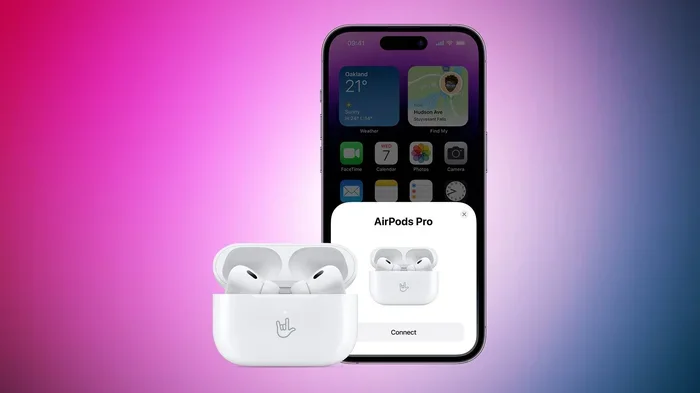
Featured image for AirPods Pro ping feature
Image source: images.macrumors.com
Imagine this: you rush out the door, coffee in hand, ready to conquer the day. You reach for your AirPod Pros, and… they’re gone. Panic sets in. Did you leave them at the gym? Under the couch cushions? Or worse, at the coffee shop yesterday?
If you’ve ever experienced that mini heart attack, you’re not alone. Millions of people misplace their wireless earbuds every single day. In fact, a 2023 survey by Statista found that 1 in 4 people lose their earbuds at least once a month. The good news? Apple built a clever little feature that lets you ping your AirPod Pros, making them easier to find than ever.
This guide will walk you through everything you need to know about pinging AirPod Pros. Whether you’re a tech newbie or a seasoned Apple fan, we’ve got you covered with clear steps, handy tips, and answers to the questions you didn’t even know you had. Let’s dive in.
Key Takeaways
- Find My App: Apple’s built-in app lets you ping AirPod Pros and locate them on a map.
- Siri Voice Command: You can ask Siri to ping your AirPods hands-free for quick locating.
- Sound Limitations: The ping works only within Bluetooth range and won’t play if the case is closed or battery is dead.
- Lost Mode Feature: Enables notifications when your AirPods come within range of any Apple device.
- Compatibility: Find My works with iPhones, iPads, Macs, and even via iCloud.com.
- AirPod Pro Specifics: Both AirPod Pro and AirPod Pro 2 support the ping feature with the same steps.
- Third-Party Options: Limited, but some apps and Bluetooth trackers offer alternative methods.
📑 Table of Contents
- What Does “Pinging” AirPod Pros Actually Mean?
- How to Ping AirPod Pros: Step-by-Step Guide
- When Can You (and Can’t You) Ping AirPod Pros?
- What If Your AirPod Pros Are Truly Lost?
- Common Mistakes to Avoid When Pinging AirPod Pros
- AirPod Pro vs. AirPod Pro 2: What’s Different?
- Final Thoughts: Making the Most of Your AirPod Pros
What Does “Pinging” AirPod Pros Actually Mean?
Let’s start with the basics. When someone says “ping your AirPod Pros,” they’re talking about making the earbuds play a sound so you can find them. Think of it like calling your lost dog, but instead of shouting their name, your phone sends a wireless signal that makes them “bark” (in this case, chirp).
Technically, pinging is a simple process. Your iPhone or Apple device sends a Bluetooth signal to your AirPods, triggering a built-in chime. This chime gradually gets louder for two minutes, giving you plenty of time to track them down.
Did You Know? The ping feature uses Bluetooth Low Energy (BLE), the same tech that lets your Apple Watch count your steps without draining your battery. It’s like a gentle tap on the shoulder, not a loud shout across a stadium.
Here’s the thing: pinging only works if your AirPods are within Bluetooth range (about 30-40 feet or 10-12 meters in open spaces) and have battery life. If they’re dead or miles away, the ping won’t help. But more on that later.
The Science Behind the Sound
Apple designed the AirPod ping sound to be sharp and distinct. It’s higher-pitched than most ambient noise, so even in a busy room, you should be able to hear it. The sound lasts about two minutes, then stops automatically to save battery. You can replay it as many times as needed.
Imagine dropping a coin in a quiet library. The ping is designed to be that noticeable, but without being annoying.
How to Ping AirPod Pros: Step-by-Step Guide
Alright, let’s get practical. There are two main ways to ping your AirPod Pros: using the Find My app or using Siri. Both are super easy, but each has its perks. Let’s break them down.
Visual guide about AirPods Pro ping feature
Image source: a57.foxnews.com
Method 1: Using the Find My App
The Find My app is Apple’s all-in-one tool for locating lost Apple devices. It’s like having a personal detective in your pocket.
Step 1: Open the Find My app on your iPhone, iPad, or Mac. It comes pre-installed on most Apple devices.
Step 2: Tap the “Devices” tab at the bottom of the screen.
Step 3: Scroll through your list of devices until you find your AirPods. They’ll show up as “AirPod Pros” (or whatever custom name you’ve given them).
Step 4: Tap on your AirPods, then tap “Play Sound.”
Step 5: Listen carefully! Your AirPods will start chiming. Follow the sound until you find them.
Pro Tip: If you have AirPod Pro 2, you can also use the Precision Finding feature, which uses ultra-wideband technology to guide you to your exact location, almost like a GPS arrow. Pretty cool, right?
Method 2: Using Siri
If your hands are full or you’re feeling lazy (no judgment), Siri can do the work for you.
Step 1: Activate Siri by saying “Hey Siri” or holding the side button on your iPhone.
Step 2: Say something like, “Find my AirPods” or “Play a sound on my AirPods.”
Step 3: Siri will confirm and trigger the ping sound automatically.
This method is perfect when you’re cooking, driving, or carrying groceries. Just talk, and Siri does the rest.
Bonus Method: Using iCloud.com
Don’t have your iPhone handy? No problem. You can also ping your AirPods from a computer.
Step 1: Go to iCloud.com and log in with your Apple ID.
Step 2: Click “Find iPhone” (yes, even for AirPods).
Step 3: Select your AirPods from the device list.
Step 4: Click “Play Sound.”
It’s like having a remote control for your missing earbuds.
When Can You (and Can’t You) Ping AirPod Pros?
Now, here’s the part most people don’t know. Pinging isn’t magic, and it has some limitations. Let’s talk about when it works and when it doesn’t.
When Pinging Works
- AirPods are out of the case: The sound plays at full volume.
- AirPods are in the case, but the lid is open: The sound will play, but at a softer volume.
- Within Bluetooth range: Roughly 30-40 feet, depending on walls and interference.
- Battery is charged: Obviously, dead AirPods can’t ping.
- Connected to your Apple ID: They must be paired to your iCloud account.
When Pinging Doesn’t Work
- Case is closed: If both AirPods are inside and the lid is shut, no sound plays.
- Out of Bluetooth range: Beyond 40 feet or so, the signal won’t reach.
- Battery is dead: No power, no ping.
- Reset or unpaired: If your AirPods have been factory reset, Find My won’t recognize them.
- No internet connection: Find My requires an active connection to locate devices.
Did You Know? If you have AirPod Pro 2, the charging case itself has a built-in speaker. That means even if both earbuds are in the case, you can ping the case separately, making it easier to find. It’s like giving your case its own voice.
Think of pinging like a phone call. You can’t call someone if their phone is off or if they’re on another continent without signal. Same logic applies here.
What If Your AirPod Pros Are Truly Lost?
Sometimes, pinging just isn’t enough. Maybe your AirPods were stolen, left on a plane, or fell behind your car seat weeks ago. In those cases, you need a backup plan.
Using Lost Mode
The Find My app includes a “Lost Mode” feature for AirPods. Here’s how it works:
Step 1: Open Find My and select your AirPods.
Step 2: Scroll down and tap “Mark as Lost” (or “Enable” under Notifications).
Step 3: You’ll get a notification the moment your AirPods come within range of any Apple device, even if it’s not yours.
This feature relies on Apple’s vast network of devices. There are over 1 billion active Apple devices worldwide, so chances are, someone nearby will help locate yours.
Checking the Last Known Location
Find My also shows the last known location of your AirPods. If they went out of range or died, you’ll see their last spot on the map. This is super helpful for retracing your steps.
Imagine it like breadcrumbs. Your AirPods leave a digital trail wherever they go, and Find My keeps track of the last piece of bread.
Reporting to Apple or Insurance
If your AirPods were stolen or lost permanently, you can report the serial number to Apple. If you have AppleCare+ or third-party insurance that covers theft, you may be eligible for a replacement. Just make sure to file a police report if theft is involved.
Preventing Future Losses
An ounce of prevention is worth a pound of cure, right? Here are some easy habits to avoid losing your AirPods in the future:
- Always store them in the case: When not in use, the case is the safest spot.
- Attach a Bluetooth tracker: Tools like AirTags or third-party trackers can clip onto your case.
- Set a “Home” location reminder: Use Siri to remind you to grab your AirPods when leaving certain places.
- Customize your AirPods name: Adding your contact info in the name (e.g., “John’s AirPods – Call 555-1234”) might help honest finders reach you.
Common Mistakes to Avoid When Pinging AirPod Pros
Even simple features can be misused. Here are some common mistakes people make when trying to ping their AirPods, and how to avoid them.
Mistake 1: Assuming the Ping Always Works
As we covered earlier, pinging has limits. Don’t waste time pinging if your AirPods are dead, out of range, or in a closed case. Check those conditions first.
Mistake 2: Forgetting to Enable Find My
Find My must be enabled on your device for pinging to work. If you accidentally turned it off, you’ll need to reactivate it under Settings > [Your Name] > Find My > Find My iPhone.
Mistake 3: Confusing Find My with iCloud
Some people log into iCloud expecting to ping their AirPods and get confused. While iCloud.com works, the Find My app is the primary tool. Make sure you’re using the right one.
Mistake 4: Not Updating Firmware
Apple regularly updates AirPods firmware to improve features, including Find My. If your AirPods haven’t been updated in a while, they may have glitches. Place them in the case, connect to power, and bring them near your iPhone to trigger an automatic update.
Mistake 5: Ignoring Privacy Concerns
Some users worry about privacy when using Find My. Rest assured, Apple uses end-to-end encryption, meaning only you can see your AirPods’ location. Even Apple can’t access this data. It’s like having a diary with a lock only you have the key to.
AirPod Pro vs. AirPod Pro 2: What’s Different?
Since their release, Apple has released two generations of AirPod Pros. While both support pinging, there are some differences worth noting.
AirPod Pro (1st Generation)
- Released in 2019.
- Supports basic ping via Find My and Siri.
- No Precision Finding.
- The case does not have a built-in speaker.
AirPod Pro (2nd Generation)
- Released in 2022.
- Supports Precision Finding with the U1 chip.
- The MagSafe charging case has its own speaker for pinging.
- Compatible with Apple Watch chargers.
- Improved Bluetooth range and battery life.
Did You Know? The AirPod Pro 2 case can play a sound up to 80 decibels loud, making it easier to find than ever. That’s about as loud as a garbage disposal!
If you own the first generation, don’t worry, you still get the basic ping feature. But if you’re in the market for new earbuds, the second generation offers a noticeably better finding experience.
Final Thoughts: Making the Most of Your AirPod Pros
So, can you ping AirPod Pros? Absolutely. Apple’s Find My feature makes locating your earbuds a breeze, whether they’re hiding under your pillow or lost somewhere across town. With the addition of Siri voice commands and even iCloud access, you have multiple ways to track them down.
Remember, pinging works best when your AirPods are charged, within Bluetooth range, and not sealed inside the case. For added peace of mind, enable Lost Mode and keep your firmware updated.
Losing your AirPod Pros can feel like losing a piece of yourself, especially if you use them daily for work, exercise, or relaxation. But with the right tools and a little know-how, you can find them faster than ever before. Bookmark this guide, share it with a friend who’s always misplacing their gadgets, and breathe easy knowing help is just a tap or voice command away.
Happy listening, and may your AirPods always be within ping range!
Frequently Asked Questions
Can you ping AirPod Pros if the case is closed?
No, if both AirPods are inside the case and the lid is shut, the ping sound will not play. However, if you have AirPod Pro 2, the case itself has a built-in speaker that can play a sound even when the AirPods are inside. For first-generation AirPod Pros, you’ll need to open the case to ping.
How loud is the AirPod Pro ping sound?
The ping sound typically reaches around 60-70 decibels when the AirPods are out of the case. If they’re inside the case (with the lid open), it’s softer, around 40-50 decibels. For comparison, that’s about as loud as a quiet conversation versus a normal one.
Can I ping my AirPod Pros from an Android phone?
Unfortunately, no. The Find My feature is exclusive to Apple devices. Android users can’t ping AirPod Pros using Siri or Find My. However, you may be able to use third-party Bluetooth scanner apps to detect their signal, though functionality is limited.
Does pinging AirPod Pros drain the battery?
Pinging uses a small amount of battery, but it’s minimal because it relies on short Bluetooth bursts. The two-minute sound uses roughly 1-2% of battery life. However, if you repeatedly ping them without charging, it can add up over time.
What happens if my AirPod Pros are out of Bluetooth range?
If your AirPods are out of Bluetooth range, the ping won’t play, but Find My will show their last known location on the map. You can also enable Lost Mode to get notified when they come back within range of any Apple device.
Can someone else ping my AirPod Pros if they steal them?
No, Find My is tied to your Apple ID. Even if someone steals your AirPods, they can’t ping or locate them without your login credentials. However, they can pair them with a new device if they’re factory reset, which is why reporting to Apple and police quickly is important.