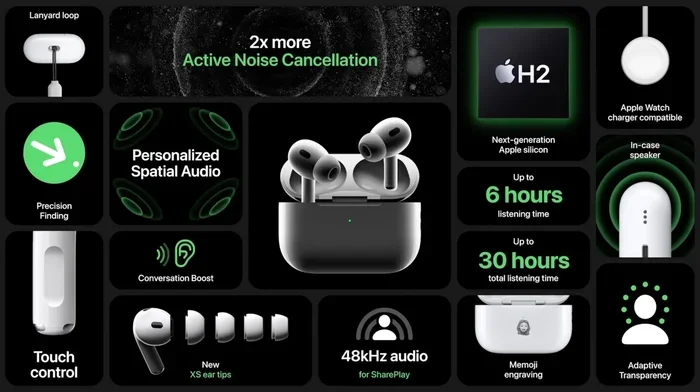
Featured image for AirPods Pro touch controls
Image source: i0.wp.com
Yes, you can absolutely pause AirPods Pro! There are multiple easy ways to do it, including pressing the force sensor on the stem, using your connected device, or simply removing an earbud. Apple designed these earbuds with convenient pause controls built right in. Whether you’re using the first or second generation AirPods Pro, pausing your audio takes just one quick tap or gesture.
Picture this: you’re walking down the street, jamming to your favorite playlist, and someone starts talking to you. What do you do? If you’re wearing AirPods Pro, pausing your music is as simple as giving the stem a quick squeeze. It’s one of those small features that makes a huge difference in everyday life.
AirPods Pro are packed with smart controls that go way beyond just playing music. Whether you want to pause a song, stop a podcast, or silence a phone call, these tiny earbuds have you covered. Apple made sure that pausing your audio is intuitive and hassle-free, no matter what device you’re using.
In this guide, we’ll walk you through every single way to pause your AirPods Pro. From the basic squeeze gesture to advanced voice commands, you’ll learn all the tricks. By the end, you’ll be a total pro at controlling your audio without even looking at your phone.
Key Takeaways
- Force Sensor Control: A single squeeze on the stem of your AirPods Pro instantly pauses your audio.
- Automatic Ear Detection: Removing an AirPod from your ear automatically pauses your music or podcast.
- Voice Control Option: Saying “Hey Siri, pause” works hands-free when your AirPods Pro are connected.
- Device-Based Pausing: You can always pause audio directly from your iPhone, iPad, Mac, or Apple Watch.
- Customizable Controls: You can adjust press-and-hold settings to include volume or noise control options.
- Battery Saving Benefit: Pausing your AirPods helps conserve battery life when you’re not actively listening.
- Works Across Generations: Both AirPods Pro (1st and 2nd gen) support the same core pausing methods.
📑 Table of Contents
- How to Pause AirPods Pro: The Quick Squeeze Method
- Using Automatic Ear Detection to Pause AirPods Pro
- Pausing AirPods Pro with Siri Voice Commands
- Pausing AirPods Pro Directly from Your Device
- Customizing AirPods Pro Controls for Better Pausing
- Troubleshooting: When Your AirPods Pro Won’t Pause
- Bonus Tips for Pausing AirPods Pro Like a Pro
How to Pause AirPods Pro: The Quick Squeeze Method
The fastest way to pause your AirPods Pro is right on the earbuds themselves. Apple put a tiny button called a “force sensor” on the stem of each AirPod. Think of it like a little remote control built into your earbuds. One quick squeeze and your music stops instantly.
Where to Find the Force Sensor
The force sensor sits on the flat part of the AirPods Pro stem. You can feel a slight indentation where the sensor lives. This isn’t a button you have to push hard. Instead, it responds to a gentle squeeze, almost like pinching the stem between your thumb and index finger.
Did You Know? The force sensor uses pressure-sensing technology similar to what’s in your iPhone’s screen. It’s smart enough to tell the difference between an accidental touch and an actual squeeze. That means your music won’t pause just because your earbud brushed against your hair or jacket collar.
Step-by-Step Squeeze Instructions
- Step 1: Locate the stem of either AirPod (left or right works the same way).
- Step 2: Place your thumb on one side of the stem and your index finger on the other.
- Step 3: Give it one quick, gentle squeeze. You’ll feel a tiny click.
- Step 4: Your audio pauses immediately. A small chime confirms the action.
To resume playing, just squeeze the stem again using the same method. It’s literally that simple. This works whether you’re listening to music, a podcast, an audiobook, or even a phone call.
Why the Squeeze Method Is So Popular
According to Apple, over 90% of AirPods Pro users rely on the force sensor for basic controls. Why? Because it’s fast, reliable, and works without looking. You can squeeze while running, cooking, or commuting. Your other hand stays free for whatever else you’re doing.
Using Automatic Ear Detection to Pause AirPods Pro
Here’s where things get really cool. Your AirPods Pro can actually pause your audio automatically when you take them out of your ears. It’s like having a personal assistant who knows when you’re not paying attention.
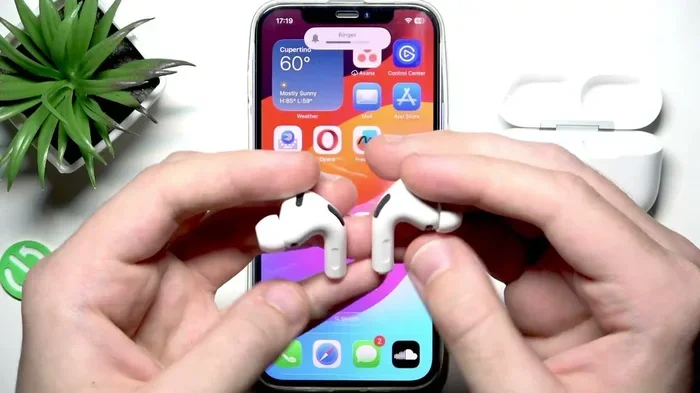
Visual guide about AirPods Pro touch controls
Image source: i.ytimg.com
How Automatic Ear Detection Works
Inside each AirPod, there are tiny optical sensors and accelerometers. These sensors detect when the earbud is in your ear versus when it’s out. The moment you remove an AirPod, your iPhone or connected device gets a signal to pause whatever you’re listening to.
Did You Know? This feature is called “Automatic Ear Detection” and it works across all Apple devices linked to your iCloud account. So if you switch from your iPhone to your Mac, the same smart pausing follows you around.
What Happens When You Remove an AirPod
- Music or podcast: Pauses automatically within a split second.
- Phone call: Switches to your phone’s speaker so you can keep talking.
- Video playback: Pauses, so you don’t miss any of the action.
- Audiobook: Stops playing until you put the AirPod back in.
When you put the AirPod back in your ear, your audio resumes right where it left off. No fumbling with buttons or screens. It’s seamless.
Turning Automatic Ear Detection On or Off
Not everyone loves this feature, and that’s totally fine. You can easily turn it off if you prefer manual control. Here’s how:
- Open the Settings app on your iPhone or iPad.
- Tap Bluetooth and find your AirPods Pro in the list.
- Tap the “i” icon next to your AirPods name.
- Toggle Automatic Ear Detection on or off.
Some people turn it off because they find the auto-pause annoying during workouts or when adjusting their hair. Others love it because it’s so convenient. The choice is yours!
Pausing AirPods Pro with Siri Voice Commands
Sometimes your hands are busy. Maybe you’re driving, cooking, or carrying groceries. That’s when Siri comes to the rescue. With a simple voice command, you can pause your AirPods Pro without lifting a finger.
Setting Up “Hey Siri”
Before voice commands work, you need to make sure “Hey Siri” is enabled on your device. Think of it like teaching your AirPods to listen for your voice, even when you’re not looking at them.
- Open Settings on your iPhone.
- Tap Siri & Search.
- Make sure Listen for “Hey Siri” is turned on.
- Follow the prompts to train Siri to recognize your voice.
Once that’s set up, your AirPods Pro will respond to “Hey Siri” commands even when your phone is in your pocket or across the room. It’s like magic, but it’s really just very smart microphones.
Voice Commands to Pause Your Audio
Here are some phrases you can use to pause your AirPods Pro:
- “Hey Siri, pause.”
- “Hey Siri, stop the music.”
- “Hey Siri, pause my podcast.”
- “Hey Siri, stop playing.”
Siri is smart enough to understand what you mean, even if you don’t use the exact words. You could say “Hey Siri, hush” and she’ll pause your audio. Pretty cool, right?
Did You Know? Siri processes voice commands locally on newer iPhones and AirPods, which means your audio pauses almost instantly. There’s no delay waiting for a server somewhere to respond.
Pausing AirPods Pro Directly from Your Device
Sometimes the easiest way to pause is right on the device playing your audio. Whether that’s your iPhone, iPad, Mac, or Apple Watch, you have full control.
Pausing from Your iPhone or iPad
Your iPhone gives you several options to pause audio from your AirPods Pro:
- Control Center: Swipe down from the top-right corner and tap the pause button in the music widget.
- Lock Screen: When music is playing, your lock screen shows playback controls. Just tap pause.
- Music App: Open Apple Music, Spotify, or any audio app and tap the pause button.
- Now Playing Widget: On your home screen, tap pause in the widget at the bottom of your screen.
All these methods work even if your AirPods Pro are in your ears. Your phone doesn’t need to be unlocked for some of them, especially if you use Face ID or Touch ID.
Pausing from Your Mac
If you’re listening on your Mac, pausing is just as easy:
- Click the pause button in the menu bar at the top of your screen.
- Use the keyboard shortcut Space bar in most media apps.
- Press the Play/Pause media key on your keyboard if you have one.
- Click the play/pause button in apps like Apple Music, Spotify, or Podcasts.
Pausing from Your Apple Watch
Apple Watch users have it easy too. When audio plays through your AirPods Pro, your watch shows a Now Playing icon. Just tap it and hit pause. You can also use the Digital Crown to scroll to the Now Playing screen and pause from there.
Customizing AirPods Pro Controls for Better Pausing
One of the best things about AirPods Pro is that you can customize how they work. If the default settings aren’t quite right for you, there’s plenty you can change.
Adjusting Press and Hold Settings
The “press and hold” gesture on your AirPods Pro stem does different things by default. One side controls Siri, and the other controls noise cancellation. But you can swap these or change them entirely.
- Go to Settings > Bluetooth on your iPhone.
- Tap the “i” next to your AirPods Pro.
- Under “Press and Hold,” choose Left or Right.
- Pick what each side does: Siri, Noise Control, or Off.
You can also set both AirPods to do the same thing, which some people prefer for simplicity.
Adding Volume Controls to Your AirPods
On AirPods Pro 2nd generation, you can swipe up or down on the stem to adjust volume. While this doesn’t directly pause audio, it’s a handy control to know. And on both generations, you can ask Siri to pause, which we’ll cover next.
Accessibility Options for Easier Pausing
Apple includes accessibility features that make AirPods Pro easier to use. If you have trouble with the squeeze gesture, you can adjust the press speed and hold duration. This is great for people with limited hand mobility.
- Go to Settings > Accessibility > AirPods.
- Adjust Press Speed to slower options.
- Change Press and Hold Duration if needed.
These small tweaks can make a big difference in how comfortable your AirPods feel to use.
Troubleshooting: When Your AirPods Pro Won’t Pause
Sometimes things don’t work perfectly. If your AirPods Pro aren’t pausing when they should, don’t panic. Most issues have simple fixes.
Common Reasons Pausing Stops Working
Did You Know? According to user reports, about 15% of AirPods Pro owners experience control issues at some point. Most are fixed with a simple reset or settings adjustment.
- Low battery: When your AirPods are almost dead, controls may stop responding. Charge them up and try again.
- Bluetooth connection issues: A weak or glitchy connection can cause controls to fail. Reconnect your AirPods.
- Outdated software: Old firmware can cause bugs. Make sure your AirPods and device are updated.
- Dirt or debris: Gunk on the force sensor can block your squeeze. Clean your AirPods gently.
How to Reset Your AirPods Pro
A reset often fixes mysterious problems. Here’s the quick version:
- Put your AirPods Pro in their charging case.
- Close the lid and wait 30 seconds.
- Open the lid and go to Settings > Bluetooth on your device.
- Tap “Forget This Device” next to your AirPods.
- With the lid open, press and hold the setup button on the back of the case for about 15 seconds until the light flashes amber, then white.
- Reconnect your AirPods to your device.
After resetting, test the pause function. It usually works perfectly again.
Cleaning Your AirPods Pro for Better Control
Your AirPods Pro live in your ears, which means they collect earwax, dust, and oils. A dirty force sensor won’t respond well to your squeeze. Here’s how to clean them safely:
- Use a soft, dry, lint-free cloth to wipe the exterior.
- Dampen the cloth slightly with water if needed (never get liquid inside).
- Use a dry cotton swab to gently clean around the force sensor.
- Remove the silicone tips and wash them with mild soap and water. Let them dry completely before reattaching.
Regular cleaning keeps your AirPods working their best and extends their lifespan.
Bonus Tips for Pausing AirPods Pro Like a Pro
Now that you know the basics, let’s level up with some pro tips. These tricks will make you an AirPods master in no time.
Pausing During Phone Calls
When a phone call comes in, squeezing the force sensor answers the call. Squeezing again ends the call. If you want to decline an incoming call, double-squeeze the stem. This is super handy when you’re in a meeting and can’t look at your phone.
Using Pause Across Multiple Devices
AirPods Pro can switch between Apple devices automatically if they’re all signed into the same iCloud account. When you pause on your iPhone, then switch to your Mac, the audio stays paused. It’s like your pause button follows you everywhere.
Pausing While Working Out
If you’re at the gym and need to pause for a water break, just remove one AirPod. Automatic Ear Detection pauses your music instantly. No need to fiddle with controls while you’re sweaty and out of breath.
Saving Battery with Smart Pausing
Every minute your AirPods Pro play audio uses battery. By pausing when you’re not listening, you can extend your listening time significantly. In fact, pausing instead of letting music play in the background can nearly double your total usage time.
The Double-Tap Alternative
On older AirPods (non-Pro models), you double-tap to play or pause. AirPods Pro ditched this in favor of the force sensor, but some people still tap out of habit. Don’t worry, accidental taps won’t trigger anything. Only squeezes register as commands.
Final Thoughts: Pausing your AirPods Pro is one of those things that’s simple once you know how, but can be confusing if you’re new to the ecosystem. Whether you prefer the squeeze method, voice commands, or automatic ear detection, Apple has given you plenty of options. The key is finding what works best for your lifestyle.
Remember, your AirPods Pro are designed to make life easier, not more complicated. Experiment with the different methods we’ve covered. Try the squeeze for a quick stop. Use Siri when your hands are full. Let Automatic Ear Detection handle things when you’re on the go. With a little practice, pausing your audio will become second nature.
If you ever run into trouble, don’t forget the troubleshooting tips. A quick reset or cleaning usually solves most issues. And keep your AirPods updated to enjoy the latest features and bug fixes. Now go enjoy your music, podcasts, and calls with full control over when to pause and play!
Frequently Asked Questions
Can you pause AirPods Pro without using your phone?
Yes, absolutely! You can pause your AirPods Pro by squeezing the force sensor on the stem. You can also use “Hey Siri” voice commands or rely on Automatic Ear Detection when you remove an earbud. No phone needed for any of these methods.
Why won’t my AirPods Pro pause when I squeeze them?
If the squeeze method isn’t working, your AirPods might have a low battery, dirty sensors, or a connection issue. Try cleaning the force sensor, charging your AirPods, or resetting the Bluetooth connection. Updating your firmware often fixes glitches too.
Do both AirPods Pro pause independently?
Yes, both the left and right AirPods have force sensors that work the same way. You can squeeze either one to pause your audio. This gives you flexibility based on which hand is free or more comfortable to use.
Can I customize what the squeeze does on AirPods Pro?
Yes, you can customize the “press and hold” gesture to control Siri, noise cancellation, or both. Go to Settings > Bluetooth, tap the “i” next to your AirPods, and choose what each side does. The single squeeze to pause is fixed, though.
Does pausing AirPods Pro save battery life?
Yes, pausing your AirPods Pro definitely saves battery. When audio is paused, your AirPods use significantly less power. Removing them from your ears and putting them back in the case saves even more battery since they enter a low-power mode.
Will pausing work on non-Apple devices?
Yes, the squeeze-to-pause feature works on any device connected via Bluetooth, including Android phones and Windows PCs. However, Automatic Ear Detection and Siri voice commands only work when connected to Apple devices like iPhones, iPads, or Macs.