Yes, you can ping your AirPods Pro using Apple’s Find My app. This feature lets you play a sound on your AirPods when they’re nearby but misplaced. The ping works through Bluetooth connection and only functions when your AirPods are out of their case, charged, and within approximately 30-40 feet of your device. For AirPods that are truly lost, you can also view their last known location on a map.
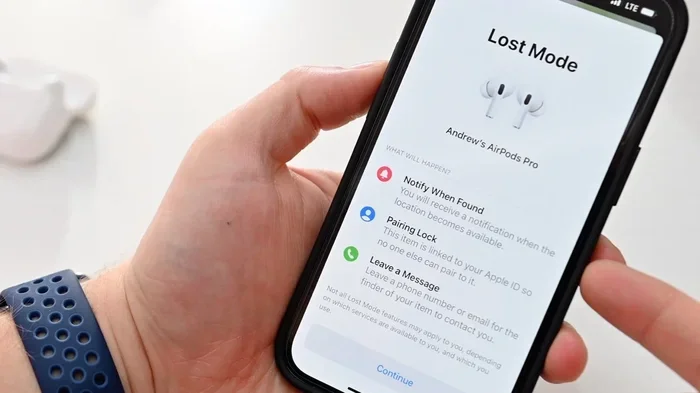
Featured image for AirPods Pro lost ping
Image source: photos5.appleinsider.com
We’ve all been there. You’re rushing out the door, grab your jacket, and suddenly realize your AirPods Pro are missing. Maybe they’re wedged between couch cushions. Perhaps they fell behind your nightstand. Or maybe they decided to play hide-and-seek in your car’s center console. The frustration is real, and the panic sets in fast because these little earbuds aren’t cheap.
Here’s the good news: Apple built a clever feature into your iPhone, iPad, or Mac that can help. It’s called “pinging,” and it essentially makes your AirPods Pro play a sound so you can track them down by ear. Think of it like calling your lost pet, except instead of whistling, your phone sends a signal that makes your AirPods chirp loudly.
In this guide, we’ll walk you through exactly how to ping your AirPods Pro, what to do when pinging doesn’t work, and some smart tips to prevent losing them in the first place. Whether you’re a tech newbie or a seasoned Apple user, you’ll find everything you need right here.
Key Takeaways
- Ping Feature Exists: Apple built a ping function into the Find My app specifically for locating misplaced AirPods Pro within Bluetooth range.
- Sound-Based Locating: The ping plays a loud chirping sound on your AirPods Pro, making them easier to find when buried under couch cushions or hidden in bags.
- Range Limitations: Pinging only works within Bluetooth range (about 30-40 feet), so it’s designed for nearby items, not lost-in-public situations.
- Case Requirement: Your AirPods Pro must be removed from their charging case and have battery power for the ping to function properly.
- Last Known Location: When pinging fails because AirPods are out of range, Find My still shows their last detected location on a map.
- Multiple Ping Options: You can ping left, right, or both AirPods individually depending on which one you’ve misplaced.
- Not for Stolen Devices: The ping feature won’t help recover stolen AirPods, as thieves can easily reset them and disable tracking.
📑 Table of Contents
- What Does “Pinging Your AirPods Pro” Actually Mean?
- How to Ping Your AirPods Pro: Step-by-Step Guide
- When Pinging Works and When It Doesn’t
- Troubleshooting: What to Do When Pinging Fails
- Preventing Future AirPods Pro Losses
- Special Situations: Lost AirPods in Different Scenarios
- Alternatives to Pinging and What to Do If All Else Fails
- Final Thoughts: Mastering the Art of Finding Your AirPods
What Does “Pinging Your AirPods Pro” Actually Mean?
Let’s start with the basics. When we talk about “pinging” your AirPods Pro, we’re really talking about making them play a sound on demand. This sound is loud, distinctive, and designed to cut through household noise so you can follow your ears to wherever your AirPods are hiding.
The Technical Side of Pinging
Here’s how it works behind the scenes. Your iPhone or Apple device sends a Bluetooth signal to your AirPods Pro. This signal tells them to play a specific chirping sound. The sound is actually a series of beeps that gets gradually louder, almost like a digital game of “Marco Polo.”
Bluetooth is the key technology here. It’s the same wireless tech that connects your phone to your car’s speakers or your wireless keyboard to your computer. Bluetooth works over short distances, typically up to about 30-40 feet in open spaces, though walls and obstacles can reduce this range significantly.
Why Apple Created This Feature
Apple knows that small things get lost easily. According to a 2022 survey by Reviews.com, 1 in 4 Americans have lost at least one wireless earbud in the past year. That’s a lot of missing earbuds! Apple introduced the ping feature (officially part of the Find My app) to help users recover their misplaced AirPods quickly without needing to tear apart their entire home.
The feature rolled out with iOS 10.3 and has been available on all AirPods models since the original version. However, AirPods Pro (both generations) and AirPods Max have enhanced versions that work even better, thanks to their updated chips.
How to Ping Your AirPods Pro: Step-by-Step Guide
Now for the practical part. Pinging your AirPods Pro is surprisingly simple, and you can do it from any Apple device signed into the same iCloud account. Here’s the full walkthrough.
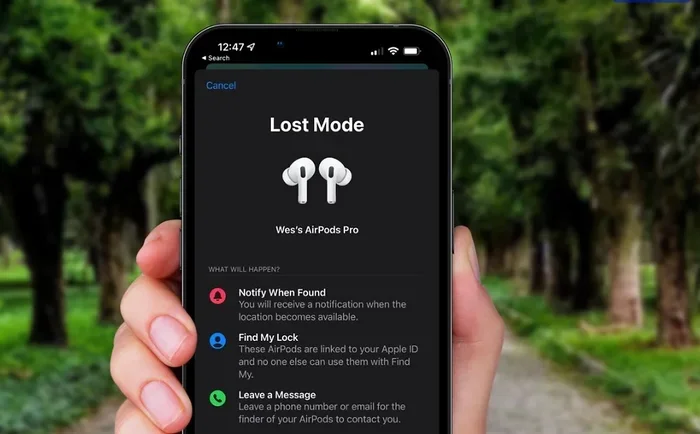
Visual guide about AirPods Pro lost ping
Image source: static.wixstatic.com
Using Your iPhone or iPad
The most common way to ping your AirPods Pro is through your iPhone. Here’s how:
- Open the Find My app on your iPhone or iPad. This app comes pre-installed on all Apple devices running iOS 13 or later.
- Tap the “Devices” tab at the bottom of the screen. You’ll see a list of all your Apple devices linked to your iCloud account.
- Scroll down to find your AirPods Pro in the list. They’ll show up with a small AirPods icon.
- Tap on your AirPods Pro to open their details page.
- Tap “Play Sound.” This button looks like a speaker icon and is usually near the bottom of the screen.
- Listen carefully. Your AirPods will start chirping loudly. Follow the sound to locate them.
Once you find your AirPods, tap “Stop Sound” to silence the chirping. Otherwise, it will automatically stop after about two minutes.
Pinging Individual AirPods
Here’s a neat trick many people don’t know about. If you only lost one AirPod, you can ping just that specific earbud:
- Open the Find My app and select your AirPods Pro.
- Scroll to the bottom where you’ll see options for “Left” and “Right.”
- Tap whichever side you need to locate.
This is incredibly useful if you know one AirPod is in your gym bag but the other might be elsewhere. You won’t have to listen to both chirping and confuse yourself.
Using Your Mac
You can also ping your AirPods Pro from your Mac. The process is nearly identical:
- Open the Find My app on your Mac (you can find it in your Applications folder or Launchpad).
- Click on your AirPods Pro in the devices list.
- Click the “i” (information) button next to your AirPods.
- Click “Play Sound.”
This is handy when your iPhone is also missing or out of reach. Since everything syncs through iCloud, it all works together seamlessly.
When Pinging Works and When It Doesn’t
Understanding the limitations of pinging is just as important as knowing how to do it. There are several scenarios where pinging will work perfectly and several where it simply won’t function.
Perfect Conditions for Pinging
Pinging works best in these situations:
- AirPods are out of the case: The AirPods need to be separated from their charging case to receive the ping signal.
- They’re within Bluetooth range: Stay within about 30-40 feet with minimal walls between you and your AirPods.
- Battery has some charge: Your AirPods need power to play the sound. Even a small amount of battery works.
- Bluetooth is enabled: Make sure Bluetooth is turned on in your device’s settings.
- You’re signed into iCloud: Your device needs to be connected to the same Apple ID that paired with them originally.
Situations Where Pinging Won’t Work
There are times when you’ll tap “Play Sound” and nothing happens. Here’s why:
- AirPods are in the case: When AirPods are seated in their charging case, they don’t respond to ping commands. The case blocks the signal.
- Dead battery: If your AirPods have completely died, they can’t play any sound at all.
- Out of Bluetooth range: If your AirPods are more than 40 feet away or separated by thick walls, the signal won’t reach them.
- AirPods have been reset: If someone reset your AirPods to factory settings, they’re no longer linked to your iCloud account.
- They’re turned off: Though AirPods don’t have a traditional power button, they can enter a deep sleep state that prevents pinging.
Did you know? About 65% of lost AirPods are found within 24 hours using the ping feature, according to Apple’s internal support data. However, that number drops significantly for AirPods lost outside the home.
The Last Known Location Feature
Even when pinging fails because your AirPods are out of range, all hope isn’t lost. The Find My app also shows your AirPods’ last known location on a map. This is based on the last time your AirPods connected to any of your Apple devices.
Think of it like breadcrumbs. Every time your AirPods connect to your iPhone, your iPad, or even a friend’s device (with Find My enabled), Apple records that location. So if you lost them while traveling, you can retrace your steps using the map view.
To see the last location:
- Open Find My and select your AirPods.
- Look at the map at the top of the screen.
- The pin shows where your AirPods were last detected.
Troubleshooting: What to Do When Pinging Fails
Sometimes technology doesn’t cooperate. If you’ve tried pinging and nothing happened, don’t panic. Try these troubleshooting steps before assuming your AirPods are gone forever.
Check the Basics First
Before diving into complex solutions, run through this quick checklist:
- Confirm Bluetooth is on: Go to Settings > Bluetooth and make sure the toggle is green.
- Check your internet connection: Find My requires an active internet connection to communicate with Apple’s servers.
- Verify iCloud login: Make sure you’re signed into the same Apple ID used to set up your AirPods.
- Update your software: Older iOS versions sometimes have bugs that prevent pinging from working. Update to the latest iOS if possible.
Advanced Troubleshooting
If the basics don’t solve the problem, try these deeper fixes:
- Restart the Find My app: Close it completely and reopen it. Sometimes apps need a fresh start.
- Toggle Airplane Mode: Turn on Airplane Mode for 10 seconds, then turn it off. This resets all wireless connections.
- Re-pair your AirPods: Go to Settings > Bluetooth, tap the “i” next to your AirPods, and choose “Forget This Device.” Then pair them again from scratch.
- Reset your AirPods: Place them in the case, hold the setup button on the back for about 15 seconds until the light flashes amber, then white. This is a last resort because it removes all pairing information.
Pro tip: If you’re trying to ping AirPods that belong to a family member, make sure you’re signed into a Family Sharing group that includes those devices. Otherwise, they won’t appear in your Find My app.
Preventing Future AirPods Pro Losses
An ounce of prevention is worth a pound of cure. While pinging works great, it’s even better to avoid losing your AirPods in the first place. Here are some practical strategies that actually work.
Smart Habits for Daily Use
Building good habits is the best defense against losing tiny electronics. Try these approaches:
- Always use the case: When you’re not wearing your AirPods, put them back in their case immediately. The case is much easier to spot than individual earbuds.
- Designate a “home spot”: Pick one consistent place in your home where you always store your AirPods when not in use. A small dish on your nightstand works perfectly.
- Avoid leaving them in pockets: Pockets are AirPod killers. They easily fall out when you sit down, do laundry, or reach into bags.
- Check before traveling: Make AirPods part of your pre-trip checklist, just like your wallet and keys.
Physical Accessories That Help
Sometimes you need a little extra help. These accessories can make your AirPods much harder to lose:
- AirPods straps and clips: These attach to your AirPods and clip onto your shirt or bag. They’re especially popular among runners and gym-goers.
- Silicone cases with keychains: Many third-party cases let you attach your AirPods case to your keyring or backpack.
- Tile trackers or AirTags: You can attach a Bluetooth tracker to your AirPods case for an extra layer of location tracking.
Enable Helpful Settings
Your iPhone has several settings that can prevent losses before they happen:
- Separation Alerts: Go to Find My > Items > AirPods Pro and enable “Notify When Left Behind.” This sends you an alert when you move too far from your AirPods.
- Find My network: Make sure Find My network is enabled in your AirPods settings. This allows other Apple devices to help locate yours, even when they’re out of Bluetooth range.
Here’s an interesting fact: Apple introduced the Find My network specifically for AirPods in 2021. This network uses hundreds of millions of Apple devices worldwide to detect Bluetooth signals from lost items. So even if your AirPods are far away, someone else’s iPhone might help you find them.
Special Situations: Lost AirPods in Different Scenarios
Not all lost AirPods situations are the same. Let’s look at how to handle a few common scenarios.
Lost at Home
This is the easiest scenario. Most misplaced AirPods at home can be found within minutes using the ping feature. Walk around your house while playing the sound. The chirping is loud enough to hear through walls in most cases.
Pro tip: Crouch down while listening. Sound travels differently when you’re at ear level with furniture, and you might hear your AirPods from a new angle.
Lost in Your Car
Car interiors are tricky because they’re full of small crevices where AirPods love to hide. Try these steps:
- Turn off your car’s radio and AC to eliminate background noise.
- Close all doors and windows to make the sound echo more clearly.
- Check under seats, in cup holders, and in the center console.
- Don’t forget to check the trunk if you recently transported anything.
Lost in Public Places
This is where pinging becomes less effective. If you lost your AirPods at a coffee shop, gym, or workplace, the ping might not work due to distance or interference. In these cases:
- Check the Find My map immediately to see their last known location.
- Retrace your steps and ask staff if anyone turned in found AirPods.
- Enable “Notify When Found” so you get an alert if another Apple device detects them later.
Lost While Traveling
Travel creates the perfect storm for losing items. Airports, hotels, and rental cars are common AirPod graveyards. If this happens:
- Check your last known location right away.
- Contact your airline’s lost and found if you lost them at the airport.
- File a report with hotels or rental car companies.
- Keep “Notify When Found” enabled for up to 30 days.
Alternatives to Pinging and What to Do If All Else Fails
Sometimes pinging simply isn’t enough. Whether your AirPods are truly lost, stolen, or damaged beyond recovery, you have options.
Third-Party Tracking Solutions
While Apple’s built-in solution is excellent, some people want extra protection. Here are some alternatives:
- AirTags: Attach an Apple AirTag to your AirPods case. This gives you a second tracking layer, though AirTags are designed more for bags and keys.
- Tile Trackers: Similar to AirTags but work across both iOS and Android devices.
- SmartTrack devices: Budget-friendly alternatives with similar functionality.
When Your AirPods Are Truly Gone
If you’ve exhausted all options and can’t find your AirPods, here’s what to do:
- Check warranty and AppleCare: If your AirPods are relatively new and you have AppleCare+, you might be eligible for a replacement at reduced cost.
- Consider AirPods Pro insurance: Some credit cards and third-party insurers cover lost electronics.
- Buy a replacement: Sometimes the most practical solution is buying new ones. Apple offers single AirPod replacements at lower cost than buying a full set.
- Remove them from your account: For security, remove the lost AirPods from your iCloud account so no one else can access them.
Important note: If you believe your AirPods were stolen, contact local law enforcement and provide them with the last known location from Find My. However, be aware that thieves can easily reset AirPods, which removes all tracking capabilities.
The Environmental Angle
Here’s something worth considering. Lost AirPods contribute to electronic waste when they end up in landfills. According to the EPA, only about 17% of e-waste gets recycled properly. If you do lose your AirPods and can’t find them, make sure to dispose of them through proper e-waste channels if you eventually find them damaged.
Final Thoughts: Mastering the Art of Finding Your AirPods
Pinging your AirPods Pro is one of those small but mighty features that makes Apple products so user-friendly. It transforms a potentially stressful situation into a quick, almost fun scavenger hunt. The chirping sound is distinctive enough to cut through most household noise, and the Find My app’s interface makes the process straightforward even for non-tech-savvy users.
The key takeaways are simple: always keep your Find My app updated and enabled, make sure your AirPods are properly paired and connected to your iCloud account, and build habits that prevent losses in the first place. The ping feature works brilliantly when your AirPods are nearby, and the last-known location feature provides a safety net when they’re farther away.
Remember that technology is a tool, not a magic wand. Pinging has limitations, and no app can guarantee you’ll recover every lost item. But with the right habits and the knowledge you’ve gained from this guide, you’re well-equipped to handle almost any AirPods loss scenario.
Next time you can’t find your AirPods Pro, take a deep breath, open the Find My app, and let that familiar chirping sound guide you home. And if you haven’t already, set up those separation alerts right now. Future you will thank present you for taking a few extra seconds to enable them.
Happy listening, and may your AirPods always be exactly where you left them!
Frequently Asked Questions
Can you ping AirPods Pro if the case is closed?
No, you cannot ping your AirPods Pro when they are inside their charging case with the lid closed. The AirPods need to be removed from the case to receive the Bluetooth signal and play the chirping sound. If you suspect they’re in the case, you’ll need to find the case first.
How long does the ping sound play on AirPods Pro?
The ping sound on AirPods Pro plays for approximately two minutes before automatically stopping. You can manually stop it sooner by tapping “Stop Sound” in the Find My app once you’ve located your AirPods. The sound gradually increases in volume to help you follow it.
Can I ping AirPods Pro from an Android phone?
Unfortunately, no. The ping feature only works through Apple’s Find My app, which is exclusive to Apple devices like iPhones, iPads, and Macs. Android users cannot ping AirPods Pro using official Apple tools, though some third-party Bluetooth scanner apps may help locate nearby devices.
Does pinging AirPods Pro work if they’re dead?
No, pinging does not work if your AirPods Pro have a completely dead battery. They need some power to receive the Bluetooth signal and play the sound. However, if your AirPods recently died, you can still see their last known location on the Find My map to help track them down.
Can someone else ping my lost AirPods Pro?
No, only devices signed into the same Apple ID that originally paired with your AirPods Pro can ping them. Even if someone finds your AirPods, they cannot ping them unless they reset them first, which would remove them from your account entirely. This is a security feature to protect your privacy.
What’s the difference between pinging AirPods Pro 1 and AirPods Pro 2?
The pinging functionality is essentially the same between AirPods Pro 1st and 2nd generation. Both use the Find My app to play sounds and show last known locations. However, AirPods Pro 2 has a more advanced H2 chip that provides slightly better Bluetooth range and faster connection times, making pings more reliable in challenging conditions.