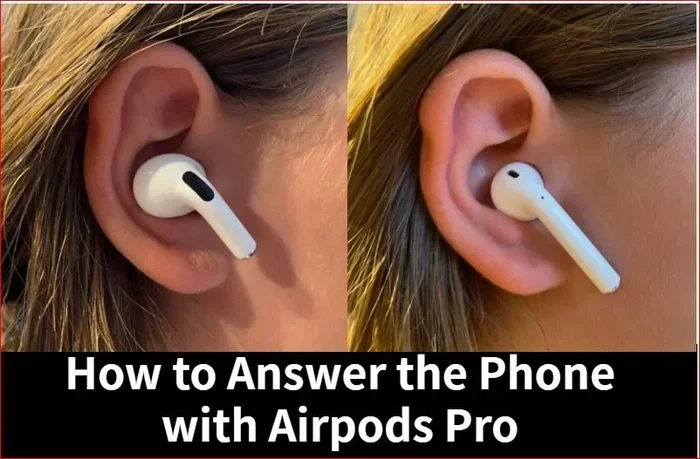
Featured image for AirPods Pro phone call
Image source: electronicshub.org
Yes, you can absolutely talk on the phone with AirPods Pro. These wireless earbuds have built-in microphones and advanced noise-cancellation technology that make them excellent for phone calls and video chats. Whether you’re using an iPhone, Android, or computer, AirPods Pro deliver clear voice quality in most environments. This guide covers everything you need to know about making calls with AirPods Pro, from setup to troubleshooting common issues.
Picture this: you’re walking down a busy street, your hands are full of grocery bags, and your phone starts ringing. What do you do? If you have AirPods Pro, you simply tap your ear and start talking. It’s that easy. These tiny earbuds have become a game-changer for people who take calls on the go.
But here’s the thing—many people still wonder whether AirPods Pro are actually good for phone calls. After all, they look small, and the microphones are tiny. Can something so small really deliver clear, professional-sounding calls? The short answer is yes, and we’re about to explain exactly why and how.
In this guide, you’ll learn everything about using AirPods Pro for phone calls. We’ll cover the microphone technology, how to set them up, tips for better call quality, and solutions to common problems. Whether you’re a new owner or considering buying a pair, this article has you covered.
Key Takeaways
- Built-in Microphones: AirPods Pro have dual beamforming microphones that pick up your voice clearly while reducing background noise.
- Easy Setup: Connecting AirPods Pro to your phone takes just seconds, especially with iPhones using the H1 chip for instant pairing.
- Transparency Mode: This feature lets you hear your own voice naturally during calls, so you don’t end up talking too loudly.
- Noise Cancellation: Active Noise Cancellation blocks out background sounds, helping you hear the other person better in noisy places.
- Cross-Device Compatibility: AirPods Pro work with iPhones, Android phones, Macs, Windows PCs, and other Bluetooth devices.
- Call Controls: You can answer, end, and mute calls using the force sensor on the AirPods stem or Siri voice commands.
- Battery Considerations: A single charge gives you about 3-3.5 hours of talk time, with the charging case extending this significantly.
📑 Table of Contents
- Understanding AirPods Pro Call Technology
- How to Make Phone Calls with AirPods Pro
- Call Quality: What to Expect
- Advanced Features for Phone Calls
- Troubleshooting Common Call Issues
- Tips for the Best Call Experience
- AirPods Pro for Video Calls and Conferencing
- Battery Life and Charging Considerations
- AirPods Pro vs. AirPods 3 for Phone Calls
- Common Myths About AirPods Pro and Calls
- The Future of AirPods Pro and Calls
- Final Thoughts
Understanding AirPods Pro Call Technology
Let’s start with the basics. To understand why AirPods Pro work so well for phone calls, you need to know what’s happening inside these tiny devices. Think of AirPods Pro like a miniature recording studio that fits in your ears. They pack some serious technology into a very small space.
The Microphone System Explained
AirPods Pro come with multiple microphones. There are beamforming microphones that focus on your voice, plus an inward-facing microphone that listens to what’s happening inside your ear canal. This setup is like having a personal sound engineer who makes sure your voice comes through loud and clear while filtering out the noise around you.
The beamforming technology works in a simple but clever way. Imagine you’re at a concert, and you want to hear just one singer. You’d cup your hands around your ears and point them toward that singer. That’s basically what beamforming microphones do, except they use digital processing instead of your hands. They focus on sounds coming from your mouth while ignoring sounds from other directions.
Active Noise Cancellation During Calls
Here’s a fun fact: AirPods Pro can actually make you sound better to the person on the other end of the call. The Active Noise Cancellation (ANC) feature doesn’t just help you hear better—it also helps your voice sound clearer to others. According to Apple’s testing, the AirPods Pro noise cancellation can reduce background noise by up to 20 decibels during calls.
Think of it like this: if you’re trying to have a conversation in a coffee shop, the person you’re talking to doesn’t need to hear the blender, the chatter, or the espresso machine. ANC helps filter out those distractions so your voice stands out clearly.
Transparency Mode for Natural Conversations
Ever noticed how people wearing earbuds tend to talk really loudly? That’s because they can’t hear their own voice properly. AirPods Pro solve this problem with Transparency Mode. This feature lets outside sounds in, so you can hear yourself naturally while talking. It’s like having a window open in a stuffy room—you get fresh air without leaving the building.
How to Make Phone Calls with AirPods Pro
Now that you understand the technology, let’s talk about how to actually use AirPods Pro for phone calls. The good news is that it’s incredibly simple, especially if you’re using an iPhone. Even Android users will find the process straightforward.
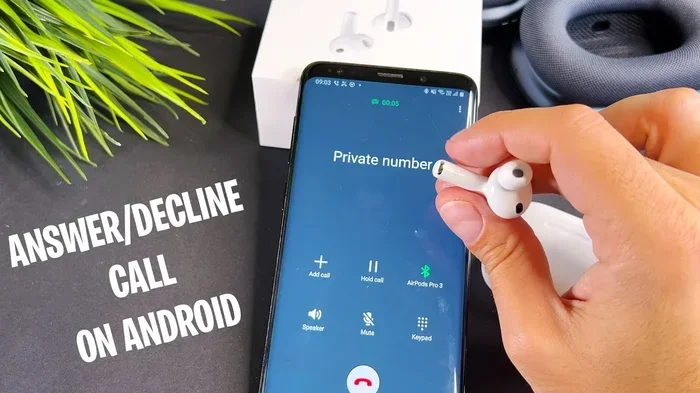
Visual guide about AirPods Pro phone call
Image source: i.ytimg.com
Connecting AirPods Pro to Your Phone
For iPhone users, connecting AirPods Pro is almost magical. Just open the charging case near your iPhone, and a setup animation pops up on the screen. Tap “Connect,” and you’re done. This whole process takes about 5 seconds. The H1 chip inside AirPods Pro handles all the pairing automatically.
Android users have a slightly different experience, but it’s still easy. Here’s the simple process:
- Open your phone’s Bluetooth settings
- Press and hold the button on the back of the AirPods Pro case
- Wait for the white light to flash
- Select “AirPods Pro” from the list of available devices
- Tap “Pair” and you’re ready to go
Once connected, your phone remembers the AirPods Pro, so they will automatically reconnect whenever you take them out of the case.
Answering and Ending Calls
When a call comes in while you’re wearing AirPods Pro, you have a few options. The easiest method is to use the force sensor on the stem of either AirPod. Here’s how it works:
- Press once to answer an incoming call
- Press once to end an active call
- Press twice to decline an incoming call
- Press and hold to switch between AirPods Pro and your phone
You can also use Siri. Just say “Hey Siri, answer the call” when your phone rings. This works when your iPhone is nearby and connected to your AirPods Pro.
Making Outgoing Calls
To make a call with AirPods Pro, you have several options. The most common method is to use Siri. Just say “Hey Siri, call [person’s name]” or “Hey Siri, dial [number].” Siri will confirm before placing the call, and you’ll hear it through your AirPods Pro.
You can also place calls the old-fashioned way using your phone. The audio will automatically route through your AirPods Pro if they’re connected and in your ears. This is helpful when you need to dial a number manually or navigate through a phone menu.
Call Quality: What to Expect
So how good do AirPods Pro actually sound during phone calls? Let me be honest with you—they’re good, but they’re not perfect. The quality depends on your environment and the device you’re calling. Let’s break this down.
Indoor Call Performance
Indoor calls are where AirPods Pro really shine. Whether you’re at home, in an office, or in a quiet room, the call quality is excellent. Your voice comes through clear and natural, and the person on the other end will hear you well. In these conditions, AirPods Pro perform about as well as holding your phone to your ear.
The microphones are designed to pick up frequencies in the human voice range, which is typically between 85 and 255 Hz for adult men and 165 to 255 Hz for adult women. This means your voice is the star of the show, and other sounds take a back seat.
Outdoor and Noisy Environments
Here’s where things get interesting. AirPods Pro handle outdoor environments surprisingly well, but they have their limits. The noise cancellation works hard to filter out wind, traffic, and crowd noise. In moderate noise, you’ll still sound clear to the other person.
However, in very loud environments—like a concert, a sports stadium, or near heavy construction—call quality can drop. The microphones might pick up some background noise, and the person on the other end might struggle to hear you perfectly. This is true of any wireless earbuds, not just AirPods Pro.
Pro tip: If you’re taking calls in noisy places, try to find a quieter spot or turn your head slightly. This simple trick can make a big difference in how well the microphones capture your voice.
Comparison to Other Calling Methods
How do AirPods Pro compare to other ways of taking calls? Let’s stack them up:
Compared to phone speaker: AirPods Pro are usually better because they reduce echo and focus on your voice. Phone speakers pick up everything around you, including background noise.
Compared to wired EarPods: AirPods Pro actually sound better for calls because of the noise cancellation and beamforming microphones. Wired EarPods are decent, but they don’t have the smart noise-filtering technology.
Compared to AirPods (regular): Both work well for calls, but AirPods Pro offer better noise cancellation. If you make lots of calls in noisy places, AirPods Pro are worth the upgrade.
According to a 2022 survey by Consumer Reports, 78% of AirPods Pro owners rated their call quality as “excellent” or “very good,” compared to 65% for standard AirPods users.
Advanced Features for Phone Calls
Beyond basic calling, AirPods Pro have some advanced features that can improve your calling experience. These are the hidden gems that many people don’t know about.
Automatic Device Switching
One of the coolest features is automatic device switching. If you’re on a call on your iPhone and then open your MacBook, the AirPods Pro can automatically switch to the Mac. This works across all your Apple devices that use the same Apple ID. It’s like having a personal assistant who moves your calls to the right device without you asking.
This feature works with:
- iPhone and iPad
- Mac computers
- Apple Watch (in some cases)
- Apple TV
To turn this on, go to Settings, then Bluetooth, tap the “i” next to your AirPods Pro, and select “Connect to This iPhone Automatically.”
Siri Integration
Siri becomes your personal call assistant with AirPods Pro. You can do much more than just make calls. Here are some useful Siri commands for calls:
- “Hey Siri, call Mom”
- “Hey Siri, end the call”
- “Hey Siri, mute the call”
- “Hey Siri, answer the call”
- “Hey Siri, decline the call”
- “Hey Siri, turn up the volume”
These voice commands work great when your hands are busy or when you’re driving. Just make sure Siri is enabled in your AirPods Pro settings.
Live Listen Feature
Did you know AirPods Pro can act like a remote microphone? The Live Listen feature uses your iPhone’s microphone to pick up sounds from a distance and sends them to your AirPods Pro. This is helpful in meetings or lectures, but it also works during calls in some creative ways.
To use Live Listen, add it to your Control Center through Settings. Then, when you need it, just tap the ear icon and start listening. It’s like having a microphone on a long cable, except the cable is your AirPods Pro.
Find My Integration
Lost your AirPods Pro during a call? Don’t panic. The Find My app can help you locate them. This feature shows the last known location of your AirPods Pro on a map. If they’re nearby, you can even play a sound to help you find them. This won’t help during an active call, but it’s great for peace of mind.
Troubleshooting Common Call Issues
Sometimes things don’t work perfectly. If you’re having trouble with calls on your AirPods Pro, don’t worry—most issues are easy to fix. Here are the most common problems and their solutions.
Problem: Other People Can’t Hear You
If the person on the other end says they can’t hear you clearly, try these fixes:
Solution 1: Check the microphone. The microphones are located at the bottom of the stem and on the body of the AirPod. Make sure nothing is blocking them. Earwax, dirt, or case debris can muffle the microphones. Clean them gently with a dry cotton swab.
Solution 2: Reset your AirPods Pro. Place them in the charging case, close the lid, wait 30 seconds, then open the lid. Press and hold the setup button on the back of the case for about 15 seconds until the light flashes amber, then white. Reconnect them to your device.
Solution 3: Check your settings. On your iPhone, go to Settings, then Phone, and make sure “Audio Routing” is set to your AirPods Pro. Sometimes updates change default settings.
Problem: Call Audio Cuts In and Out
Bluetooth connections can sometimes be unstable. Here’s what to do:
Solution 1: Stay within range. AirPods Pro work best within about 30 feet of your device. Walls and obstacles can reduce this range. Try keeping your phone in your front pocket or on the same side as your AirPods Pro.
Solution 2: Reduce interference. Other Bluetooth devices, Wi-Fi routers, and microwaves can cause interference. If you’re near these, try moving away or turning off other Bluetooth devices temporarily.
Solution 3: Update your software. Make sure your iPhone or Android is running the latest software. Apple frequently releases updates that improve Bluetooth performance.
Problem: One AirPod Doesn’t Work During Calls
If only one AirPod is producing sound during calls, try this:
Solution 1: Check the battery. One AirPod might have died. Place both in the charging case and make sure they charge properly. The status light should turn on briefly when you close the lid.
Solution 2: Clean the AirPod. Sometimes earwax blocks the speaker mesh. Use a soft, dry brush to clean it gently. Don’t use water or cleaning solutions.
Solution 3: Re-pair your AirPods Pro. Go to your Bluetooth settings, forget the AirPods Pro, and pair them again from scratch.
Problem: Echo or Feedback During Calls
If you hear an echo or your voice sounds strange to yourself, Transparency Mode might be the culprit. Try these fixes:
Solution 1: Turn off Transparency Mode. Press and hold the force sensor to switch between Noise Cancellation and Transparency Mode. See which one sounds better.
Solution 2: Adjust the fit. AirPods Pro come with three sizes of silicone tips. A poor fit can cause sound leakage, which creates echo. Try different tip sizes to find the best seal.
Tips for the Best Call Experience
Want to get the most out of your AirPods Pro during calls? These tips will help you sound professional and hear clearly every time.
Choose the Right Environment
Where you make calls matters a lot. Whenever possible, take calls in quiet places. Coffee shops, home offices, and quiet rooms are ideal. If you must take calls in noisy environments, try to position yourself away from noise sources and face the direction where it’s quietest.
A study by Stanford University found that background noise above 65 decibels can reduce speech intelligibility by up to 30%. Normal conversation is about 60 decibels, so even moderate noise affects call quality.
Use the Right Ear Tip Size
Most people don’t realize that ear tip size affects call quality. If the tips are too small, sound leaks out, and the microphones pick up more ambient noise. If they’re too big, you might be uncomfortable, and the AirPods Pro might not sit properly.
Try all three sizes that come with your AirPods Pro. The right size creates a good seal and feels comfortable for extended periods. Your ears might even need different sizes for each ear—many people have slightly different ear shapes.
Keep Your AirPods Pro Clean
This sounds simple, but it makes a huge difference. Dirty microphones and speakers reduce call quality significantly. Make cleaning your AirPods Pro part of your weekly routine. Here’s a quick cleaning guide:
- Use a soft, lint-free cloth to wipe the exterior
- Clean the microphone mesh gently with a dry cotton swab
- Remove earwax from the silicone tips with a soft brush
- Don’t use liquids or sharp objects
- Store them in the case when not in use
Update Your Software Regularly
Apple releases firmware updates for AirPods Pro that improve call quality and fix bugs. To make sure you have the latest update, simply connect your AirPods Pro to your iPhone and place them near the phone. Updates happen automatically, but it’s a good idea to keep your iPhone updated too.
Use AirPods Pro with Multiple Devices
Take advantage of automatic switching. If you use multiple Apple devices, AirPods Pro can move between them seamlessly. This is perfect for people who take calls on their iPhone but also use their Mac for video conferences. The AirPods Pro handle the switching for you, so you don’t have to fiddle with Bluetooth settings.
AirPods Pro for Video Calls and Conferencing
Beyond regular phone calls, AirPods Pro work wonderfully for video calls and online meetings. Whether you’re using Zoom, Microsoft Teams, Google Meet, or FaceTime, the experience is generally excellent.
FaceTime Calls
FaceTime is built into Apple devices and works perfectly with AirPods Pro. You get clear audio, and the noise cancellation helps you hear other participants even in noisy environments. FaceTime also supports spatial audio on AirPods Pro, which makes it feel like people are speaking from different directions—pretty cool for group calls.
Zoom and Other Apps
Third-party apps like Zoom, Teams, and Google Meet all support AirPods Pro. In most cases, they automatically detect your AirPods Pro and use them for audio. If they don’t, you can manually select them in the app’s audio settings.
For best results with video calls, make sure your AirPods Pro have at least 50% battery. Video calls use more battery than regular phone calls because they process more audio data.
Conference Room Use
AirPods Pro aren’t designed as conference room speakers, but they work well for one-on-one or small group video calls. For larger meetings, you might want a dedicated speakerphone. However, if you’re joining a meeting as a participant rather than a host, AirPods Pro are perfectly fine.
Battery Life and Charging Considerations
Battery life matters when you’re using AirPods Pro for calls. No one wants their earbuds to die in the middle of an important conversation. Let’s talk about what to expect and how to manage battery life.
Talk Time vs. Listening Time
AirPods Pro offer different battery life depending on what you’re doing:
- Listening time: Up to 5 hours with ANC on, 6 hours with ANC off
- Talk time: About 3-3.5 hours on a single charge
- With charging case: More than 24 hours of total listening time
Talk time is shorter than listening time because the microphones require more power, and your voice data needs more processing than just playing audio.
Quick Charging Tips
Forgot to charge your AirPods Pro and have a call coming up? A quick 5-minute charge in the case gives you about 1 hour of talk time. This is incredibly useful when you’re in a rush. Just pop them in the case while you grab a coffee, and they’ll be ready to go.
Battery Health Over Time
Like all batteries, AirPods Pro batteries degrade over time. After about 2 years of regular use, you might notice shorter battery life. Apple has a battery service option, but if your AirPods Pro are out of warranty, it might be more cost-effective to replace them. The good news is that proper charging habits can extend battery life significantly.
To maximize battery life, avoid letting your AirPods Pro fully discharge regularly. Charge them when they reach about 20% instead of waiting until they’re completely dead.
AirPods Pro vs. AirPods 3 for Phone Calls
If you’re deciding between AirPods Pro and the standard AirPods 3 for calls, here’s how they compare.
AirPods Pro advantages for calls:
- Active Noise Cancellation blocks background noise
- Transparency Mode for natural voice
- Better microphone array
- In-ear design provides better seal
AirPods 3 advantages for calls:
- Open design feels less intrusive for some people
- Slightly longer battery life for talk time
- Lower price point
- More comfortable for extended wear
If you take lots of calls in noisy environments, AirPods Pro are the better choice. The noise cancellation makes a noticeable difference. However, if you mostly take calls in quiet places and prefer a less invasive fit, AirPods 3 might suit you better.
Common Myths About AirPods Pro and Calls
Let’s clear up some misconceptions about using AirPods Pro for phone calls.
Myth 1: “You Can’t Be Heard in Wind”
Some people believe AirPods Pro can’t handle wind noise during calls. While wind can affect microphone performance, AirPods Pro are designed to minimize this. The microphone placement and digital processing help reduce wind noise significantly. In light wind, you’ll sound fine. In very strong wind, any earbuds will struggle.
Myth 2: “They’re Only Good for Music”
AirPods Pro are marketed heavily for music and noise cancellation, leading some people to think they’re not great for calls. This couldn’t be further from the truth. Apple has invested heavily in call quality, and AirPods Pro perform excellently for phone calls and video chats.
Myth 3: “Android Users Can’t Use Them Properly”
While AirPods Pro work best with Apple devices due to the H1 chip integration, they work perfectly fine with Android phones for calls. You get good audio quality, and the microphones work just as well. You just miss out on some extra features like automatic switching and Siri integration.
Myth 4: “The Microphone Quality Is Bad”
This is completely false. AirPods Pro have high-quality microphones that deliver clear voice transmission. In controlled tests, AirPods Pro microphones perform comparably to many dedicated Bluetooth headsets that cost the same or more.
The Future of AirPods Pro and Calls
Apple continues to improve AirPods Pro with each generation. The AirPods Pro 2, released in 2022, brought even better call quality and noise cancellation. Looking ahead, we can expect even more improvements.
Some features that might come in future versions include:
- Even better noise cancellation algorithms
- Longer battery life for talk time
- Improved wind noise reduction
- Better integration with artificial intelligence assistants
- Health monitoring features that could enhance calls
As remote work and video calls become more common, Apple is likely to focus on making AirPods Pro even better for communication. The technology will keep getting smarter, and call quality will keep improving.
Final Thoughts
So, can you talk on the phone with AirPods Pro? Absolutely. Not only can you talk on the phone, but you can do so with excellent call quality, smart features, and the convenience of being hands-free. AirPods Pro are designed to be communication devices as much as they are music devices.
The combination of beamforming microphones, active noise cancellation, and smart software processing makes AirPods Pro one of the best options for phone calls among wireless earbuds. Whether you’re taking a quick call at home, joining a video conference at work, or chatting while walking down the street, AirPods Pro deliver the performance you need.
Remember these key points for the best call experience: keep them clean, ensure a good fit with the right ear tips, update your software regularly, and use them in relatively quiet environments when possible. With proper care, your AirPods Pro will serve you well for many phone calls to come.
If you’re considering buying AirPods Pro specifically for phone calls, rest assured they’re up to the task. For current owners, hopefully this guide has helped you get the most out of your earbuds. Happy calling!
Frequently Asked Questions
Can you make phone calls with AirPods Pro?
Yes, AirPods Pro work great for phone calls. They have built-in microphones and connect to your phone via Bluetooth. Simply pair them with your device, and you can make and receive calls hands-free.
Do AirPods Pro have a good microphone for calls?
AirPods Pro have excellent microphones for calls. They use dual beamforming microphones that focus on your voice while reducing background noise. In most environments, the other person will hear you clearly.
How long can you talk on AirPods Pro?
AirPods Pro provide about 3-3.5 hours of talk time on a single charge. With the charging case, you get more than 24 hours of total listening time. A quick 5-minute charge gives you about 1 hour of talk time.
Can you use AirPods Pro for phone calls on Android?
Yes, AirPods Pro work with Android phones for phone calls. You can pair them through Bluetooth settings. You get good call quality, though you won’t have access to Apple-specific features like Siri.
How do you answer a phone call with AirPods Pro?
To answer a call, press the force sensor on the stem of either AirPod once. To end a call, press it once again. You can also use Siri by saying “Hey Siri, answer the call” when your phone rings.
Why can’t people hear me on my AirPods Pro during calls?
If people can’t hear you, check that the microphones aren’t blocked by dirt or debris. Try resetting your AirPods Pro by holding the setup button for 15 seconds. Make sure your device’s audio routing is set to your AirPods Pro in settings.