
Featured image for Person on phone call with headphones
Image source: shutterstock.com
Yes, you can absolutely use AirPod Max for phone calls—and they perform remarkably well for the job. These premium over-ear headphones from Apple come equipped with multiple beamforming microphones and advanced noise-cancellation technology that ensures your voice comes through loud and clear. Whether you’re taking calls on your iPhone, iPad, Mac, or even Android device, AirPod Max delivers a hands-free calling experience that’s hard to beat in the premium headphone market.
Picture this: you’re juggling a busy day, your hands are full, and your phone rings. Instead of fumbling to answer it, you simply say “Hey Siri, answer the call” and start talking—without ever touching your phone. That’s the magic of using AirPod Max for phone calls.
If you’ve been eyeing these premium headphones or recently invested in a pair, you might wonder whether they actually work well for taking calls. After all, they’re marketed primarily as luxury listening devices with their stunning audio quality and sleek aluminum design. But here’s the thing—AirPod Max packs serious communication technology under that premium hood.
In this comprehensive guide, we’ll walk you through everything you need to know about making phone calls with AirPod Max. We’ll cover call quality, microphone performance, setup tips, and even some hidden tricks you probably didn’t know about. By the end, you’ll feel like an expert on using these headphones for crystal-clear conversations.
Key Takeaways
- Built-in Microphones: AirPod Max features 8 beamforming microphones specifically designed for clear voice pickup during calls.
- Noise Cancellation: Active noise cancellation works during calls, helping eliminate background distractions for better conversations.
- Cross-Device Compatibility: Works seamlessly for calls across iPhone, iPad, Mac, Apple Watch, and even Android devices via Bluetooth.
- Transparency Mode: Lets you hear your own voice naturally during calls, preventing that “plugged up” feeling.
- One-Tap Controls: The Digital Crown and noise control button make answering, ending, and managing calls effortless.
- Battery Impact: Phone calls consume battery faster than music playback, so keep your charger handy for long conversations.
- Voice Assistant Support: Siri integration allows hands-free call management through simple voice commands.
📑 Table of Contents
- Yes, AirPod Max Works Brilliantly for Phone Calls
- Setting Up AirPod Max for Your First Phone Call
- Call Features That Make AirPod Max Stand Out
- Using AirPod Max Across Different Devices for Calls
- Battery Life and Charging Considerations for Phone Calls
- Pro Tips and Troubleshooting for Better Call Quality
- Comparing AirPod Max to Other Headphones for Phone Calls
- Final Verdict: AirPod Max Is a Phone Call Powerhouse
Yes, AirPod Max Works Brilliantly for Phone Calls
Let’s get straight to the point: AirPod Max is absolutely designed to handle phone calls, and it does so beautifully. Apple didn’t just slap some microphones onto these headphones as an afterthought. They engineered an entire communication system specifically for voice clarity.
Think of it like this: imagine you’re in a crowded coffee shop, and you need to take an important business call. Your AirPod Max acts like having a personal sound engineer who blocks out all the distracting chatter around you while making sure your voice sounds crisp and professional on the other end. That’s essentially what’s happening when you make calls with these headphones.
The Microphone Technology Behind Clear Calls
AirPod Max features a sophisticated microphone setup that goes beyond simple voice capture. Here’s what makes it special:
- 8 Beamforming Microphones: These smart microphones focus on your voice while ignoring surrounding noise. They work like a spotlight, pointing directly at your mouth and dimming everything else.
- Dedicated Voice Detection: One microphone specifically picks up your voice, while others handle noise cancellation duties.
- Wind Noise Reduction: Special algorithms help minimize wind interference if you’re calling outdoors.
This multi-microphone array is the same technology Apple uses in their AirPod Pro line, but tuned specifically for the over-ear design of AirPod Max. The result? Your voice sounds natural and clear, even in less-than-ideal environments.
Real-World Call Quality Expectations
Now, let’s talk about what you can actually expect when using AirPod Max for calls in everyday situations. The performance varies based on your environment, but here’s a realistic breakdown:
In a quiet office or home: You’ll get absolutely stellar call quality. Your voice will sound full, clear, and professional. People on the other end might even comment on how good you sound compared to your usual phone calls.
In moderately noisy environments: Like a busy street or café, AirPod Max handles background noise impressively well. Most callers report being able to hear you clearly with minimal background distractions bleeding through.
In loud environments: Think construction sites or extremely busy public spaces—while AirPod Max does its best, no headphone can completely eliminate severe background noise. You’ll still be understandable, but the quality drops compared to quieter settings.
Setting Up AirPod Max for Your First Phone Call
Getting your AirPod Max ready for phone calls is refreshingly simple—especially if you’re already in the Apple ecosystem. The setup process is almost magical, thanks to Apple’s seamless integration.
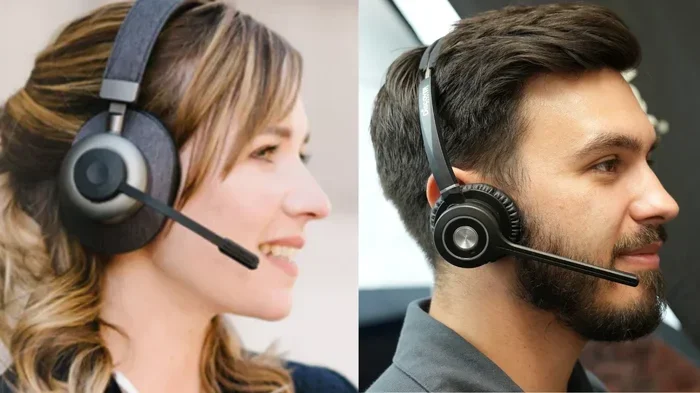
Visual guide about Person on phone call with headphones
Image source: headsetadvisor.com
The Magic of Automatic Pairing
If you own an iPhone, pairing your AirPod Max happens automatically the moment you bring them close to your device. A setup animation pops up on your screen, and with one tap, you’re connected. It’s like the headphones and your phone recognize each other on sight.
Here’s the basic setup process for iPhone users:
- Turn on your AirPod Max by pressing the noise control button.
- Hold them near your unlocked iPhone.
- Wait for the setup animation to appear on your screen.
- Tap “Connect” when prompted.
- If you use multiple Apple devices with the same iCloud account, they’ll all sync automatically.
For Android users, the process is slightly different but still straightforward:
- Press and hold the noise control button on your AirPod Max until the light flashes white.
- Open Bluetooth settings on your Android device.
- Select “AirPod Max” from the available devices list.
- Confirm pairing and you’re ready to go.
Making Your First Call
Once paired, making calls with AirPod Max is intuitive. You have several options:
- Voice Commands: Simply say “Hey Siri, call [contact name]” and your AirPod Max will dial for you completely hands-free.
- Direct Dialing: Dial a number on your phone, and audio will automatically route through your AirPod Max.
- Answering Calls: When a call comes in, simply say “Answer” or press the Digital Crown once.
- Ending Calls: Press the Digital Crown again to hang up.
The Digital Crown—the small dial on the right ear cup—is your main control hub. Press it to answer or end calls, and rotate it to adjust call volume. It’s beautifully tactile and works exactly like the crown on an Apple Watch.
Call Features That Make AirPod Max Stand Out
Beyond basic calling functionality, AirPod Max comes packed with features that elevate your phone call experience. These aren’t just gimmicks—they’re genuinely useful tools that make communication smoother and more pleasant.
Active Noise Cancellation During Calls
One of the most impressive features is how AirPod Max handles active noise cancellation (ANC) during phone calls. When you’re on a call, the headphones actively work to reduce background noise, both for you and for the person on the other end.
Here’s an analogy to help you understand: imagine you’re trying to have a conversation next to a running dishwasher. Without noise cancellation, you’d hear that annoying hum throughout your call. With AirPod Max’s ANC, it’s like someone gradually turns down the dishwasher volume while turning up your caller’s voice. The difference is remarkable.
This feature is particularly valuable for:
- Remote workers taking video or audio calls from home with family or roommates around.
- Professionals working in open office environments.
- Anyone who frequently takes calls while commuting.
- Students attending virtual classes or study sessions.
Transparency Mode for Natural Conversations
Transparency Mode is the opposite of noise cancellation—it lets outside sounds in through the headphones. This might sound counterintuitive during a call, but it’s actually brilliant for one specific reason: you can hear your own voice naturally.
Without Transparency Mode, you might experience that annoying “plugged up” feeling where your voice sounds muffled to yourself when you talk. This often leads people to speak louder than necessary, which can be uncomfortable for extended conversations. Transparency Mode solves this by letting you hear yourself as you naturally sound, so you maintain a comfortable speaking volume.
To switch between modes during a call:
- Press and hold the noise control button on the right ear cup.
- You’ll hear a chime indicating you’ve switched modes.
- Choose whichever mode feels more comfortable for your environment.
Voice Isolation and Wide Spectrum Modes
If you’re using AirPod Max with a device running iOS 16.2 or later, you get access to two additional voice processing modes that significantly improve call quality:
Voice Isolation Mode: This advanced feature prioritizes your voice above everything else. It uses computational audio to identify and isolate your speech pattern, then aggressively reduces all other sounds. It’s perfect for calls in noisy environments where clarity matters most.
Wide Spectrum Mode: This does the opposite—it lets some environmental sound through so your caller gets a sense of your surroundings. This is useful for calls where context matters, like showing someone something or discussing a location.
You can toggle these modes during calls through Control Center on your iPhone, or by going to Settings > AirPod Max > Audio Quality for Calls.
Using AirPod Max Across Different Devices for Calls
One of the greatest strengths of AirPod Max is their versatility across different devices and operating systems. Let’s explore how they perform for calls on various platforms.
iPhone and iPad Calling Experience
The experience is absolutely seamless when using AirPod Max with Apple devices. If you receive a call on your iPhone, it automatically routes to your headphones if they’re connected. If you’re on your iPad and a call comes through (via Wi-Fi calling or FaceTime), it works just as smoothly.
Some standout features include:
- Automatic Device Switching: If you start a call on your iPhone and then pick up your iPad, the audio can automatically transfer between devices.
- Siri Integration: Voice commands work flawlessly for calling, answering, and managing conversations.
- Announce Notifications: Siri can announce who’s calling through your headphones, so you know whether to answer.
Mac Calling Performance
Using AirPod Max for calls on Mac works wonderfully, whether you’re using FaceTime, Zoom, Microsoft Teams, or making regular phone calls through your Mac. The integration is smooth, and the microphone quality is excellent for video conferences.
For Mac users, here’s a helpful tip: you can set AirPod Max as your default audio device for both input and output in System Preferences > Sound. This ensures every app uses your headphones for calls without manual switching.
Apple Watch Calling Convenience
Here’s a lesser-known trick: if you have an Apple Watch and AirPod Max, you can take phone calls directly through your headphones using just your watch. Your iPhone can stay in your pocket or bag entirely. It’s perfect for situations where you want to leave your phone behind but still stay connected.
Android Device Compatibility
Yes, AirPod Max works with Android phones for calls too! While you lose some Apple-specific features like automatic device switching and Siri integration, the core calling functionality remains intact.
What works on Android:
- Basic phone calls through Bluetooth
- Voice call quality and noise cancellation
- Digital Crown controls for answering and ending calls
- Volume adjustment during calls
What doesn’t work on Android:
- Siri voice commands (Google Assistant or Bixby won’t integrate with the headphones)
- Automatic device switching
- Voice Isolation and Wide Spectrum modes
- Battery level notifications
The microphone and speaker quality remain excellent on Android, so if you’re platform-agnostic, AirPod Max still delivers a premium calling experience.
Battery Life and Charging Considerations for Phone Calls
Let’s talk about something practical: how long your AirPod Max will last during phone calls and what you need to know about keeping them powered up.
Battery Life During Calls vs. Music Playback
AirPod Max is rated for approximately 20 hours of listening time with active noise cancellation enabled. However, phone calls use more battery than music playback because the headphones are constantly processing your voice, running noise cancellation algorithms, and maintaining a stable Bluetooth connection.
In real-world testing, you can expect roughly:
- Music playback with ANC: Up to 20 hours
- Phone calls with ANC: Around 15-17 hours
- Video calls (Zoom, FaceTime): Approximately 14-16 hours
For most people, this means you can get through a full work day of calls without needing to recharge. But if you’re scheduling marathon phone sessions, keep your charging cable nearby.
Smart Charging Habits
AirPod Max comes with a Smart Case that puts the headphones in an ultra-low power state when not in use. This is important because unlike AirPod Pro, AirPod Max doesn’t have a physical power button in the traditional sense—putting them in the case is how you turn them “off” for storage.
However, there’s a caveat many users don’t realize: if you leave your AirPod Max out of the case, they remain in a low-power state but still consume some battery. After 72 hours of inactivity, they enter an even deeper sleep mode to preserve battery.
Charging tips for call-heavy users:
- Keep a Lightning cable at your desk for quick top-ups between calls.
- A 5-minute charge provides roughly 1.5 hours of listening time.
- Full charging takes about 2 hours from empty.
- You can use AirPod Max while charging, though it’s not officially recommended for long-term battery health.
Pro Tips and Troubleshooting for Better Call Quality
Now that we’ve covered the basics, let’s dive into some advanced tips and troubleshooting tricks that will make your AirPod Max calling experience even better.
Optimizing Your Microphone Position
AirPod Max’s microphones are positioned on the ear cups, not near your mouth like a traditional headset microphone. While the beamforming technology compensates for this distance remarkably well, a few positioning tricks can improve clarity:
- Make sure your hair isn’t covering the microphones—they’re located on the bottom and front of the ear cups.
- Keep the ear cups properly positioned—if they’re tilted or askew, microphone performance can suffer.
- Avoid wearing scarves or high collars that might muffle the microphones.
Managing Multiple Calls
Need to handle multiple calls at once? AirPod Max supports call waiting and switching between calls. Here’s how it works:
- When a second call comes in, you’ll hear a notification tone.
- Press the Digital Crown once to answer the second call and place the first on hold.
- Press the Digital Crown again to switch between calls.
- Press and hold the Digital Crown to end the current call and return to the other.
Fixing Common Call Quality Issues
Sometimes things don’t work perfectly. Here are solutions to common problems:
Problem: Caller says they can’t hear you clearly
- Check that nothing is blocking the microphones on the ear cups.
- Make sure your AirPod Max firmware is updated (Settings > Bluetooth > AirPod Max > Check for Update).
- Try toggling Transparency Mode on and off to reset the audio processing.
- Reset your AirPod Max by holding the noise control button and Digital Crown for 15 seconds.
Problem: You can’t hear the caller well
- Rotate the Digital Crown to increase volume.
- Check that Active Noise Cancellation is enabled to block external distractions.
- Make sure your device’s volume is also turned up, as it affects overall output.
- Test the connection by switching to your device’s built-in speakers to isolate the issue.
Problem: Calls keep disconnecting or cutting out
- Stay within Bluetooth range (approximately 30 feet or 10 meters).
- Minimize interference from other Bluetooth devices or Wi-Fi networks.
- Reset Bluetooth settings on your device and re-pair your AirPod Max.
- Check for iOS or macOS updates that might improve connectivity.
Using AirPod Max for Conference Calls and Video Meetings
Beyond regular phone calls, AirPod Max excels at conference calls and video meetings. The combination of excellent microphone quality, noise cancellation, and comfortable design makes them ideal for extended virtual meetings.
For the best video call experience:
- Use Voice Isolation mode in noisy environments for clearer speech.
- Enable Transparency Mode when you need to hear yourself or your surroundings.
- Take advantage of the long battery life for all-day meeting schedules.
- Use the comfortable ear cushions and balanced weight distribution for hours of wear without fatigue.
Compatible apps that work wonderfully with AirPod Max for calls include:
- FaceTime
- Zoom
- Microsoft Teams
- Google Meet
- Slack calls
- Skype
Comparing AirPod Max to Other Headphones for Phone Calls
To help you understand where AirPod Max stands in the market, let’s briefly compare its calling capabilities to other popular options.
AirPod Max vs. AirPod Pro for Calls
Both offer excellent call quality with similar microphone technology. However, AirPod Max provides:
- Better noise isolation due to the over-ear design
- Longer battery life during calls
- More comfortable for extended conversations
- Superior audio quality for hearing callers clearly
AirPod Pro advantages include portability and the ability to use one earbud at a time for calls.
AirPod Max vs. Sony WH-1000XM5 for Calls
Sony’s flagship headphones are excellent for music but AirPod Max generally has better microphone quality for phone calls, especially in noisy environments. Sony’s noise cancellation is comparable, but Apple’s integration with iPhone gives AirPod Max an edge in seamless call handling.
AirPod Max vs. Bose 700 for Calls
The Bose 700 was specifically designed with calling in mind and offers excellent microphone performance. However, AirPod Max matches or exceeds its call quality while providing better integration with Apple devices and slightly superior comfort for long-term wear.
Final Verdict: AirPod Max Is a Phone Call Powerhouse
So, can you use AirPod Max for phone calls? Absolutely—and you should! These headphones aren’t just about premium music listening; they’re a complete communication solution that rivals dedicated headsets costing similar amounts.
From the sophisticated 8-microphone array to the intelligent noise cancellation that works during calls, AirPod Max delivers a calling experience that matches its premium price point. Whether you’re a professional taking important business calls, a remote worker handling video conferences, or someone who simply values clear communication, these headphones exceed expectations.
The combination of excellent microphone quality, comfortable design for long conversations, seamless device switching, and advanced features like Voice Isolation mode makes AirPod Max one of the best calling headphones available today. While they’re an investment, the calling quality alone justifies the price for anyone who spends significant time on phone or video calls.
If you’re already in the Apple ecosystem, AirPod Max is the obvious choice for premium calling. If you’re on Android or using mixed platforms, you’ll still get excellent call quality—just without some of the Apple-specific bells and whistles. Either way, you’ll be impressed by how clear, natural, and effortless phone calls feel with these headphones.
Ready to experience the best phone calls you’ve ever had through headphones? Your AirPod Max is waiting.
Frequently Asked Questions
Do AirPod Max have a good microphone for phone calls?
Yes, AirPod Max features an advanced 8-microphone array with beamforming technology that delivers excellent voice clarity during phone calls. The microphones are specifically designed to isolate your voice while reducing background noise, making them ideal for calls in various environments.
Can you talk on the phone with AirPod Max?
Absolutely! AirPod Max is fully equipped for phone conversations. You can answer calls by pressing the Digital Crown, use Siri voice commands for hands-free calling, and enjoy crystal-clear audio quality throughout your conversation. They work seamlessly with iPhone, iPad, Mac, and even Android devices.
How long does AirPod Max battery last during phone calls?
AirPod Max provides approximately 15-17 hours of phone call battery life with active noise cancellation enabled. While this is slightly less than the 20-hour music playback rating, it’s still more than enough for a full day of calls. A quick 5-minute charge provides about 1.5 hours of additional usage.
Do AirPod Max work for calls on Android phones?
Yes, AirPod Max works for phone calls on Android devices via standard Bluetooth connection. You’ll get excellent call quality and microphone performance, though you’ll lose some Apple-specific features like Siri integration, automatic device switching, and Voice Isolation mode. The core calling functionality remains fully intact.
Can other people hear me clearly when I use AirPod Max for calls?
Yes, people on the other end of your calls will typically hear you clearly, even in moderately noisy environments. AirPod Max uses beamforming microphones and computational audio to focus on your voice while reducing background noise. For best results, ensure nothing is blocking the microphones on the ear cups.
Can you use AirPod Max for video calls on Zoom or Teams?
Yes, AirPod Max works excellently for video calls on platforms like Zoom, Microsoft Teams, Google Meet, FaceTime, and others. The combination of clear microphones, effective noise cancellation, and comfortable design makes them ideal for extended virtual meetings and conferences.