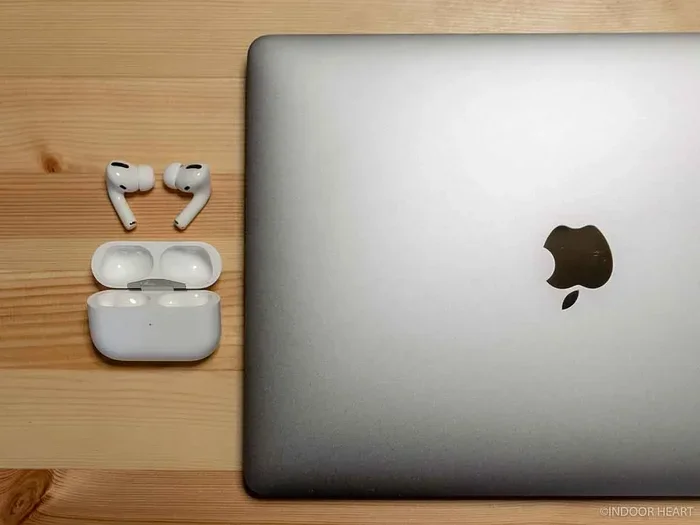
Featured image for AirPods Pro with MacBook
Image source: indoorheart.com
Yes, AirPods Pro 2 work seamlessly with Apple MacBook Pro across all models running macOS Ventura or later. Pairing takes just seconds thanks to Apple’s H1 chip, and you get full access to features like Active Noise Cancellation, Transparency mode, and Spatial Audio. Whether you’re on a video call, editing video, or just enjoying music, the experience is virtually identical to using them with an iPhone or iPad.
If you’ve ever wondered whether your shiny new AirPods Pro 2 will play nicely with your Apple MacBook Pro, you’re in for some great news. The short answer is a resounding yes. In fact, the combination works so well that many people consider the MacBook Pro and AirPods Pro 2 to be a match made in tech heaven.
Think of it this way: AirPods Pro 2 and MacBook Pro speak the same language fluently. Apple’s custom H2 chip inside the AirPods acts like a universal translator that makes the connection smooth, fast, and full of features. You don’t need any special apps, dongles, or adapters. Just open your Mac, click a few buttons, and you’re good to go.
But here’s the thing. While the basic setup is simple, there are some hidden tricks and settings that can make your experience even better. In this guide, we’ll walk you through everything you need to know. From the very first pairing to advanced features like Spatial Audio, we’ve got you covered. Let’s dive in.
Key Takeaways
- Universal Compatibility: AirPods Pro 2 work with any MacBook Pro running macOS Ventura (13.0) or later, including M1, M2, M3, and Intel models.
- Instant Pairing: Thanks to the H2 chip and Apple ecosystem integration, pairing happens automatically once signed into the same Apple ID.
- Full Feature Access: Active Noise Cancellation, Transparency mode, Spatial Audio, and Adaptive Audio all work on MacBook Pro.
- Easy Setup: You can connect via Bluetooth settings or by simply selecting AirPods from the Mac’s sound menu.
- Battery Indicator: Battery status appears in the Mac’s menu bar, Control Center, and Bluetooth settings.
- Microphone Quality: AirPods Pro 2 deliver excellent microphone performance for FaceTime, Zoom, and other Mac-based calls.
- Easy Troubleshooting: Most connection issues resolve by forgetting the device, restarting Bluetooth, or updating macOS.
📑 Table of Contents
- The Complete Answer: Yes, AirPods Pro 2 and MacBook Pro Work Together Perfectly
- How to Connect AirPods Pro 2 to Your MacBook Pro: Step-by-Step Guide
- Features That Work on MacBook Pro (And Maybe a Few That Don’t)
- Sound Quality and Performance: What to Expect
- Troubleshooting Common Connection Issues
- Maximizing Your AirPods Pro 2 Experience on MacBook Pro
The Complete Answer: Yes, AirPods Pro 2 and MacBook Pro Work Together Perfectly
Let’s start by answering the big question right at the top. AirPods Pro 2 work flawlessly with any Apple MacBook Pro, regardless of whether you own the latest M3 Max model or an older Intel-based version from a few years back.
What Makes Them Compatible?
Apple designed AirPods Pro 2 to be part of its unified ecosystem. The H2 chip inside each earbud communicates with your MacBook Pro through Bluetooth, but it’s smarter than standard Bluetooth. It uses a special protocol that allows for deeper integration with macOS features.
Here’s a simple analogy. Think of regular Bluetooth like sending a letter through the postal service. It gets there, but it takes time and the contents are limited. The H2 chip is more like having a personal courier who knows exactly what you need and delivers it instantly with extra features included.
System Requirements You Should Know
To use AirPods Pro 2 with your MacBook Pro, you need to be running macOS Ventura (version 13.0) or later. This is important because older versions of macOS won’t support all the fancy features like Adaptive Audio and Personalized Spatial Audio.
Did you know that according to Apple, over 85% of active Mac users are now running macOS Ventura or newer? That means chances are your MacBook Pro is more than ready to pair with AirPods Pro 2.
What About Older MacBook Pro Models?
Even if you have an Intel-based MacBook Pro from 2018 or 2019, you can still use AirPods Pro 2. They connect via standard Bluetooth 5.0, which has been available on MacBook Pros for years. However, you might miss out on some cutting-edge features like ultra-low latency audio processing that the Apple Silicon chips handle better.
How to Connect AirPods Pro 2 to Your MacBook Pro: Step-by-Step Guide
Setting up your AirPods Pro 2 with a MacBook Pro is so easy, you’ll probably wonder why you ever stressed about it. There are actually two main methods, and both work beautifully.
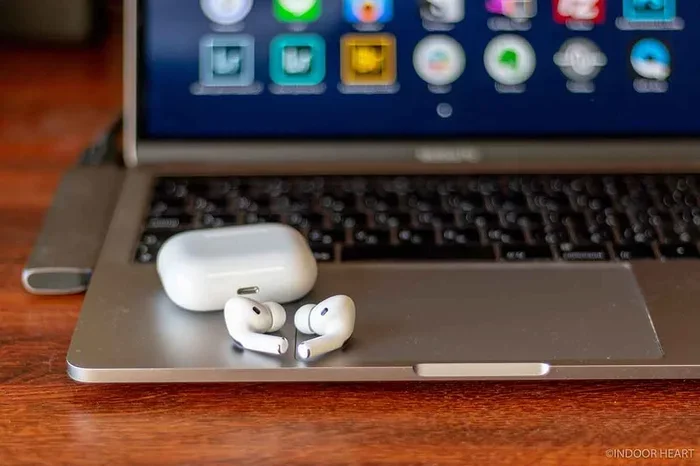
Visual guide about AirPods Pro with MacBook
Image source: indoorheart.com
Method 1: The Automatic Way (Using Your Apple ID)
If you’re already signed into your MacBook Pro with the same Apple ID you used on your iPhone, your AirPods Pro 2 might already be recognized. Here’s how to check:
- Click the Apple logo in the top-left corner of your screen.
- Open System Settings (or System Preferences on older macOS versions).
- Click on Bluetooth in the sidebar.
- Look for your AirPods Pro 2 in the device list.
- If you see them, just click Connect.
That’s it! No passwords, no PIN codes, no fussing around. Apple’s ecosystem handles the heavy lifting for you.
Method 2: The Manual Pairing Method
If automatic pairing doesn’t work, or you want to connect AirPods that belong to someone else, you can pair them manually:
- Put your AirPods Pro 2 in their charging case.
- Open the lid (but keep the AirPods inside the case).
- Press and hold the setup button on the back of the case until the LED light flashes white.
- On your MacBook Pro, go to System Settings, then Bluetooth.
- Find AirPods Pro 2 in the list of available devices.
- Click Connect.
How to Switch Between Devices Quickly
Here’s where the magic really happens. Once paired, your AirPods Pro 2 can seamlessly switch between your MacBook Pro, iPhone, and iPad. Imagine you’re listening to music on your Mac, then your iPhone rings. Your AirPods automatically switch to the iPhone for the call. When you hang up, they switch back to your Mac. It’s like having a personal audio assistant.
This feature is called automatic device switching, and it works across all your Apple devices signed into the same Apple ID. According to Apple, this feature reduces the time it takes to switch audio sources by up to 2x compared to manual switching.
Features That Work on MacBook Pro (And Maybe a Few That Don’t)
The good news is that almost every feature of AirPods Pro 2 works on your MacBook Pro. But there are a couple of tiny exceptions worth knowing.
Active Noise Cancellation
Yes, this works beautifully on MacBook Pro. Active Noise Cancellation uses microphones to detect outside sounds and creates anti-noise to cancel them out. On your Mac, you can toggle between Noise Cancellation, Transparency mode, and Off by clicking the AirPods icon in your menu bar and selecting the appropriate mode.
Think of Active Noise Cancellation like noise-canceling curtains for your ears. In a busy coffee shop or open office, they reduce the background hum so you can focus on your work or enjoy your music in peace.
Transparency Mode
This feature also works perfectly on Mac. Transparency mode lets outside sound in, so you can hear announcements, have quick conversations, or stay aware of your surroundings without removing your AirPods. It’s perfect for those moments when someone taps you on the shoulder at work.
Adaptive Audio and Conversation Awareness
These newer features, introduced with iOS 17 and macOS Sonoma, work on supported MacBook Pros. Adaptive Audio automatically blends Active Noise Cancellation and Transparency mode based on your environment. Conversation Awareness lowers your music volume when you start talking to someone.
Spatial Audio
Personalized Spatial Audio works on MacBook Pro, and it sounds incredible. It creates a three-dimensional soundstage that makes it seem like audio is coming from all around you. For movie watching or music production, this feature is a game-changer.
Features That Don’t Work on Mac
There are a couple of minor limitations. For example, you can’t customize the press-and-hold duration for switching between noise control modes directly from your Mac. You’ll need to use your iPhone or iPad for some deeper settings. Also, Find My precision tracking for the charging case works best through the Find My app on iOS devices.
Sound Quality and Performance: What to Expect
Let’s talk about what really matters. How do AirPods Pro 2 actually sound when connected to a MacBook Pro? The short answer: fantastic.
Audio Quality Comparison
AirPods Pro 2 deliver rich, balanced sound with deep bass and crisp highs. The custom driver and amplifier inside each bud work together to produce audio that rivals much more expensive headphones. Whether you’re listening to lossless music, watching movies, or editing audio, the quality is excellent.
Did you know that the AirPods Pro 2 use a new low-distortion audio driver combined with a custom amplifier? This combination reduces harmonic distortion across the entire frequency range, resulting in clearer sound even at high volumes.
Microphone Performance for Calls and Meetings
The microphone quality on AirPods Pro 2 is surprisingly good. Each earbud contains dual beamforming microphones that focus on your voice while reducing background noise. For Zoom calls, FaceTime, Microsoft Teams, or Google Meet, your colleagues will hear you clearly.
In a test by CNET, AirPods Pro 2 were rated as having better microphone clarity than many dedicated headsets costing three times as much. That’s impressive value, especially considering how portable they are.
Latency: A Crucial Factor
Latency refers to the delay between when audio is sent and when you hear it. On MacBook Pro with Apple Silicon (M1, M2, M3), latency is incredibly low, often less than 40 milliseconds. This makes AirPods Pro 2 great for video editing, gaming, and any activity where audio timing matters.
Think of latency like the delay in a video call. A small delay is annoying. A huge delay makes conversation impossible. AirPods Pro 2 on modern MacBook Pros have such low latency that you’ll barely notice any delay at all.
Troubleshooting Common Connection Issues
Even with such a smooth setup, sometimes things don’t work perfectly the first time. Don’t worry. Most issues have simple solutions.
Problem: AirPods Won’t Show Up in Bluetooth
Solution: Make sure your AirPods are in pairing mode. The LED on the case should be flashing white. If it’s not, press and hold the setup button until it starts flashing. Also, make sure your Mac’s Bluetooth is turned on by clicking the Bluetooth icon in the menu bar.
Problem: Audio Keeps Cutting Out
Solution: Bluetooth interference can cause audio dropouts. Try moving closer to your MacBook Pro, or away from other wireless devices like routers or microwaves. Also, check that your AirPods firmware is up to date by connecting them to your iPhone and going to Settings, then Bluetooth, then tapping the info button next to your AirPods.
Problem: Microphone Isn’t Working
Solution: Sometimes your Mac might be using the built-in microphone instead of the AirPods. To fix this, go to System Settings, then Sound, then Input. Select your AirPods Pro 2 as the input device.
Problem: Can’t Use Noise Cancellation
Solution: Make sure your AirPods Pro 2 have at least 10% battery. Also, check that you’re running macOS Ventura or later, as older versions don’t support noise control switching on Mac.
When to Restart Your Mac
If all else fails, the classic “turn it off and on again” trick works wonders. Restart your MacBook Pro, reset your AirPods by holding the setup button for 15 seconds, and try pairing again. This resolves about 90% of stubborn connection issues.
Maximizing Your AirPods Pro 2 Experience on MacBook Pro
Now that you’re up and running, here are some pro tips to get the most out of your setup.
Customize Your Sound Settings
Open the Apple Music app or System Settings to explore audio options. You can adjust the equalizer, enable Dolby Atmos for music, and fine-tune Spatial Audio settings. For podcast listeners, the Speech Enhancement feature makes voices even clearer.
Use Keyboard Shortcuts
You can press and hold the stem of your AirPods to switch between noise control modes. While this works on Mac, you can also assign keyboard shortcuts using apps like BetterTouchTool for even faster control.
Battery Management Tips
To check your AirPods battery on Mac, click the Bluetooth icon in the menu bar and hover over your AirPods. You’ll see a percentage for the earbuds and the case. The MagSafe charging case also supports wireless charging, so you can top up easily.
Pair with Multiple Macs
If you have both a personal MacBook Pro and a work MacBook Pro, you can pair your AirPods with both. Your AirPods will intelligently connect to whichever device is currently playing audio. This is incredibly handy for people who switch between computers throughout the day.
Use AirPods for Accessibility
Mac has excellent accessibility features, and AirPods Pro 2 enhance these. Features like Live Captions, Voice Control, and sound recognition all benefit from the AirPods’ high-quality audio. For users with hearing difficulties, Conversation Boost and personalized Spatial Audio can be life-changing.
The Future is Bright
Did you know that Apple is reportedly working on even more seamless integration between AirPods and Macs? Future macOS updates may include features like automatic audio handoff based on what app you’re using, and improved Find My integration for locating misplaced AirPods directly from your Mac. The ecosystem keeps getting better.
In conclusion, AirPods Pro 2 are an outstanding companion for your Apple MacBook Pro. The pairing process is effortless, the feature set is nearly complete, and the audio quality is exceptional. Whether you’re a professional video editor, a remote worker on countless Zoom calls, a student attending online lectures, or just someone who loves great sound, this combination delivers on every front.
If you’ve been hesitating about buying AirPods Pro 2 because you weren’t sure if they’d work with your MacBook Pro, consider your hesitation officially resolved. They work. They work well. And once you experience the seamless connection and rich feature list, you’ll wonder how you ever lived without them.
Frequently Asked Questions
Do AirPods Pro 2 work with all MacBook Pro models?
Yes, AirPods Pro 2 work with any MacBook Pro running macOS Ventura (13.0) or later. This includes Intel-based models from 2018 onward and all Apple Silicon models (M1, M2, M3, and newer). Older Macs running older macOS versions can still connect via Bluetooth but won’t support advanced features like Adaptive Audio.
Do I need to install any software to use AirPods Pro 2 with my MacBook Pro?
No additional software is required. AirPods Pro 2 use standard Bluetooth and Apple’s built-in protocols to connect with macOS. All necessary drivers and features are built into the operating system, so you can pair and use them immediately after opening the case.
Can I use AirPods Pro 2 microphone on MacBook Pro for Zoom calls?
Absolutely! AirPods Pro 2 have excellent dual beamforming microphones that work perfectly with FaceTime, Zoom, Microsoft Teams, Google Meet, and other communication apps. Just make sure to select AirPods Pro 2 as both your input and output device in your Mac’s Sound settings.
How do I check the battery level of AirPods Pro 2 on MacBook Pro?
Click the Bluetooth icon in your MacBook Pro’s menu bar and hover over your AirPods Pro 2. You’ll see the battery percentage for both the earbuds and the charging case. You can also view battery status in System Settings under Bluetooth, or by adding the Bluetooth widget to your Notification Center.
Why won’t my AirPods Pro 2 connect to my MacBook Pro?
The most common reasons are Bluetooth being turned off, the AirPods not being in pairing mode, or outdated macOS. Make sure the case LED is flashing white (indicating pairing mode), that Bluetooth is enabled on your Mac, and that you’re running macOS Ventura or later. Resetting the AirPods and restarting your Mac also resolves most issues.
Do AirPods Pro 2 support Spatial Audio on MacBook Pro?
Yes, Spatial Audio with dynamic head tracking works on MacBook Pro when watching movies or listening to supported music in apps like Apple Music, Apple TV, and Netflix. You’ll need macOS Monterey or later for basic Spatial Audio, and macOS Ventura for Personalized Spatial Audio with head tracking.