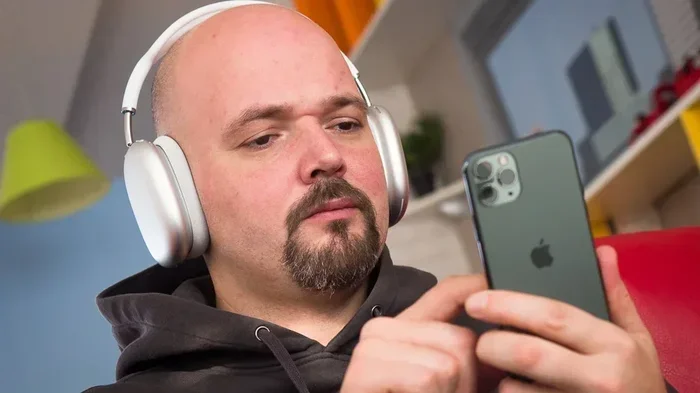
Featured image for Person talking on AirPods Max
Image source: m-cdn.phonearena.com
Yes, you can absolutely talk on the phone with AirPods Max! These premium over-ear headphones come equipped with built-in microphones specifically designed for crystal-clear phone calls and video conferencing. With 9 microphones total (8 for Active Noise Cancellation and 3 dedicated to voice pickup), AirPods Max deliver excellent call quality in most environments, making them a fantastic hands-free communication tool whether you’re on iPhone, iPad, or Mac.
Picture this: you’re walking through a busy coffee shop, your hands are full, and your phone starts ringing. You reach up, tap your ear, and suddenly you’re in a clear, noise-free conversation. That’s the magic of AirPods Max. But can you really use these premium over-ear headphones for phone calls? The short answer is a resounding yes, and the long answer is even better.
Apple designed AirPods Max to be more than just incredible music headphones. They’re a complete communication powerhouse. With nine built-in microphones and advanced audio processing, these headphones turn every phone call into a premium experience. Whether you’re taking a quick call from your boss or catching up with grandma, AirPods Max handle it all with impressive clarity.
In this comprehensive guide, we’ll explore everything you need to know about using AirPods Max for phone calls. From the technology behind the microphones to practical tips for the best call quality, you’ll learn why these headphones are a top choice for hands-free communication. Let’s dive in!
Key Takeaways
- Built-in Microphones: AirPods Max feature 9 total microphones, with 3 specifically designed for voice pickup during calls.
- Seamless Connectivity: They work effortlessly with iPhone, iPad, Mac, and even non-Apple devices via Bluetooth for phone calls.
- Excellent Call Quality: Beamforming microphones isolate your voice while blocking background noise for clearer conversations.
- Smart Features: Automatic switching between devices and Siri integration make call handling smooth and intuitive.
- Controls: Use the Digital Crown and noise control button to manage calls without touching your phone.
- Compatibility: AirPods Max support phone calls on any Bluetooth-enabled device, including Android phones and Windows PCs.
- Battery Impact: A typical phone call drains roughly 3-5% battery per hour, so calls won’t quickly deplete your charge.
📑 Table of Contents
- How AirPods Max Handle Phone Calls: The Basics
- The Controls: Managing Calls Without Your Phone
- Call Quality: What to Expect in Different Environments
- Compatibility: Using AirPods Max with Different Phones and Devices
- Advanced Features That Enhance Your Calling Experience
- Battery Life and Practical Tips for Phone Calls
- Troubleshooting Common Phone Call Issues
- Comparing AirPods Max to Other Options for Phone Calls
- Best Practices for the Best Calling Experience
- The Final Word: Are AirPods Max Good for Phone Calls?
How AirPods Max Handle Phone Calls: The Basics
AirPods Max work just like other Bluetooth headphones when it comes to phone calls. Once they’re connected to your device, your phone routes the call audio through the headphones, and your voice gets picked up by their built-in microphones. It’s that simple on the surface, but there’s some serious technology happening under the hood.
The Microphone Technology Explained
Here’s where AirPods Max really shine. Apple packed these headphones with a total of nine microphones. Eight of them work together for Active Noise Cancellation (ANC) and Transparency mode, while three beamforming microphones are specifically dedicated to capturing your voice during calls.
Think of it like this: Imagine you’re at a concert trying to have a conversation. The beamforming microphones are like having a friend cup their hands around their mouth and point directly at you, blocking out the band playing behind them. That’s exactly what these microphones do with your voice during a phone call.
The beamforming technology works by using multiple microphones to focus on the sound coming from your mouth while ignoring surrounding noise. This means the person on the other end of your call hears you clearly, even if you’re in a noisy environment.
Setting Up Your First Call
Getting started with phone calls on AirPods Max is incredibly straightforward. If you’re an iPhone user, your AirPods Max will automatically pair when you bring them close to your phone. For everyone else, a simple Bluetooth pairing through your device’s settings menu does the trick.
Once connected, your device treats AirPods Max like any other audio output device. When a call comes in, you can answer it directly through the headphones. No need to fish out your phone, unlock it, or tap the screen. Everything happens with a simple tap or button press.
The Controls: Managing Calls Without Your Phone
One of the coolest features of AirPods Max is the physical controls built right into the ear cup. Apple designed these controls to be intuitive enough that you never need to look at your phone during a call.
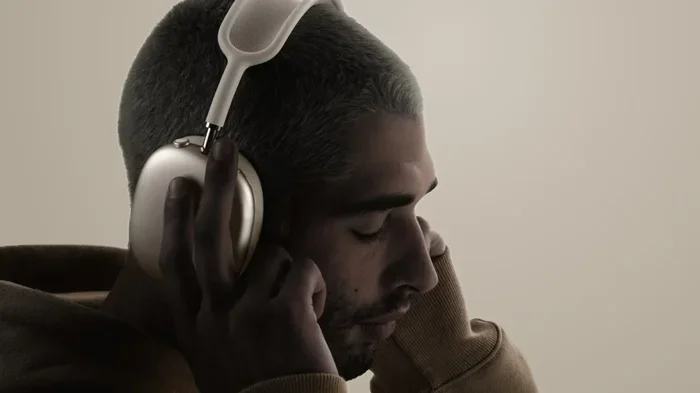
Visual guide about Person talking on AirPods Max
Image source: photos5.appleinsider.com
The Digital Crown
Remember the click wheel on older iPods? The Digital Crown on AirPods Max serves a similar purpose but does so much more. This small, Apple Watch-inspired button on the right ear cup lets you control almost everything.
During a phone call, here’s what you can do with the Digital Crown:
- Press once to answer an incoming call or end a current call
- Press twice to decline an incoming call
- Press and hold to activate Siri
- Rotate up or down to adjust call volume
The tactile feedback from the Digital Crown is satisfying and precise. You’ll know exactly how much you’re adjusting the volume, even without looking. It’s a small detail that makes AirPods Max feel premium and well-engineered.
The Noise Control Button
On the opposite ear cup, you’ll find the noise control button. This button toggles between Active Noise Cancellation and Transparency mode during calls. Each mode has its benefits depending on your situation.
Active Noise Cancellation is perfect when you’re in a noisy environment and want to focus entirely on the conversation. The headphones block out background sounds, making it easier to hear the other person clearly.
Transparency Mode lets outside sound in naturally. This is great when you’re walking down the street and need to hear traffic, or when you want to stay aware of your surroundings without ending the call.
Quick tip: if you’re crossing a street or in an environment where you need to hear announcements, switching to Transparency mode during a call keeps you safe while still maintaining your conversation.
Call Quality: What to Expect in Different Environments
Let’s get real about call quality. AirPods Max are premium headphones with a premium price tag, so you should expect premium performance. But how do they actually perform in the real world?
Quiet Indoor Settings
In a quiet room or office, AirPods Max deliver absolutely stellar call quality. Your voice sounds natural, full, and clear. The person on the other end will likely think you’re using a high-quality dedicated microphone. Background noise is essentially nonexistent in these conditions.
Did you know that AirPods Max use computational audio to process your voice in real-time? This means the headphones are constantly analyzing your voice and the environment, making micro-adjustments to optimize clarity. It’s like having a tiny audio engineer inside your headphones!
Moderately Noisy Environments
Step into a coffee shop or a moderately busy street, and AirPods Max still perform admirably. The beamforming microphones work hard to isolate your voice, and most callers will report hearing you clearly with just minor background noise.
The noise reduction isn’t perfect in these conditions. Some ambient sounds might creep through, especially sudden loud noises. But compared to most Bluetooth headphones, AirPods Max handle moderate noise exceptionally well.
Very Noisy Environments
Now let’s talk about challenging situations. In very noisy places like airports, crowded public transportation, or windy outdoors, AirPods Max still hold up surprisingly well, though limitations appear.
The headphones do an impressive job of reducing constant background noise like airplane engines or traffic hum. However, sudden loud sounds or wind can still affect call quality. If you’re on a windy day, you might notice some wind interference, though Apple has implemented wind noise reduction algorithms to minimize this.
Here’s an interesting fact: AirPods Max use acoustic mesh covering on the microphones to help reduce wind noise. It’s the same technology used in professional recording equipment. Pretty cool, right?
Compatibility: Using AirPods Max with Different Phones and Devices
One common question is whether AirPods Max only work with Apple devices for phone calls. The answer might surprise you.
iPhone and iPad: The Native Experience
When used with an iPhone or iPad, AirPods Max provide the most seamless experience. The moment you put them on, they’re ready to go. Calls automatically route through the headphones, and you can answer with a single press of the Digital Crown.
iOS also enables automatic device switching. Start a call on your iPhone, then switch to your iPad mid-conversation (if you do that for some reason), and the audio follows. It’s the kind of feature that makes you wonder how you ever lived without it.
Mac Computers
AirPods Max work beautifully with Mac computers for apps like FaceTime, Zoom, Microsoft Teams, and phone calls routed through your Mac. The setup is similar to iPhone: pair once, and you’re good to go. Your Mac will recognize them as both a speaker and microphone device.
Android Phones
Here’s the good news for Android users: AirPods Max absolutely work for phone calls on Android devices! They connect via standard Bluetooth, and once paired, your calls route through the headphones. The experience isn’t quite as seamless as on iPhone (you won’t get automatic ear detection or Siri), but the core functionality of making and receiving calls works perfectly.
To pair with an Android phone, simply put your AirPods Max in pairing mode by pressing and holding the noise control button until the light flashes white. Then select them in your phone’s Bluetooth settings. That’s it!
Windows PCs and Other Bluetooth Devices
AirPods Max also work with Windows PCs, Chromebooks, and other Bluetooth-enabled devices. Phone calls over Wi-Fi (VoIP apps like WhatsApp, Skype, or Zoom) function just as they would on Apple devices. The connection is stable, and call quality remains consistent across platforms.
Advanced Features That Enhance Your Calling Experience
Beyond basic call functionality, AirPods Max come packed with smart features that make phone calls even better.
Siri Integration
You can use Siri completely hands-free during calls. Need to make a call? Just say “Hey Siri, call Mom” and Siri handles the rest. Want to send a quick text while on a call? Siri can help with that too.
During a call, you can also ask Siri to perform other tasks:
- Adjust volume (“Hey Siri, turn up the volume”)
- Check your schedule (“Hey Siri, what’s my next meeting?”)
- Send messages (“Hey Siri, send a message to John”)
- Get directions (“Hey Siri, give me directions home”)
Announce Notifications
With iOS 15 and later, AirPods Max can announce incoming notifications, including who’s calling. This feature is incredibly useful when your hands are full or you’re focused on another task. Siri simply whispers “John is calling” in your ear, and you can decide whether to answer.
Live Listen
While not specifically for calls, Live Listen lets you use your iPhone as a directional microphone that sends audio to your AirPods Max. This isn’t a phone call feature per se, but it showcases how versatile the microphone system is.
Automatic Switching
Picture this scenario: you’re taking a call on your iPhone while working on your Mac. Suddenly, your iPhone rings with another call. AirPods Max can automatically switch the audio to your iPhone for the new call. Once you finish, they switch back to your Mac. It’s seamless and incredibly convenient.
Battery Life and Practical Tips for Phone Calls
Battery life is a legitimate concern for any wireless device, especially when using them for extended conversations.
Battery Performance During Calls
AirPods Max offer up to 20 hours of battery life for various activities including music, movies, and calls. During phone calls, you can expect similar performance. A one-hour phone call typically uses only 3-5% of your battery life.
This means you can take multiple long calls throughout the day without worrying about your headphones dying mid-conversation. Even a marathon three-hour call will only use about 15% of your battery.
The Smart Case and Battery Preservation
AirPods Max come with a Smart Case that puts the headphones in an ultra-low power state when not in use. Apple designed this case to preserve battery when you’re not actively using the headphones.
Here’s a pro tip: if you know you won’t be using your AirPods Max for a while, placing them in the Smart Case helps preserve battery. The case is a bit unusual looking (some people joke it looks like a purse), but it serves a real functional purpose.
Charging During Calls
Yes, you can charge AirPods Max while using them for calls! Just plug in the Lightning cable (or USB-C cable on newer models), and continue your conversation. The headphones charge while in use, so you never have to worry about running out of battery mid-call.
Troubleshooting Common Phone Call Issues
Even premium headphones occasionally have hiccup. Here are solutions to common problems you might encounter.
People Can’t Hear You Clearly
If callers complain about your voice quality, try these solutions:
- Make sure your AirPods Max firmware is up to date
- Clean the microphone openings gently with a dry, soft brush
- Check that your device’s microphone permissions are correctly set
- Try resetting your AirPods Max by holding the Digital Crown and noise control button for 15 seconds
Calls Not Routing Through AirPods Max
Sometimes your phone might not automatically route calls through your headphones. This usually happens when:
- Another audio device is connected (like your car’s Bluetooth)
- Your AirPods Max battery is critically low
- There’s a Bluetooth connectivity issue
To fix this, open your phone’s audio settings during a call and manually select AirPods Max as the audio output.
Audio Cutting In and Out
Bluetooth interference can occasionally cause audio dropouts. Common culprits include:
- Being too far from your device (beyond 30-40 feet)
- Wi-Fi router interference
- Other Bluetooth devices competing for signal
- Physical obstructions between you and your phone
Staying within reasonable range of your device and minimizing physical barriers usually resolves these issues.
Comparing AirPods Max to Other Options for Phone Calls
How do AirPods Max stack up against other options for phone calls? Let’s be honest about the competition.
AirPods Pro and AirPods (3rd Generation)
The smaller AirPods also work great for calls and offer better portability. However, AirPods Max provide superior noise cancellation and microphone quality for calls in noisy environments. If you work from home or take calls in challenging environments, AirPods Max are the better choice.
Traditional Bluetooth Headsets
Dedicated Bluetooth headsets like the ones worn by call center workers prioritize voice quality above all else. They often outperform AirPods Max in pure voice clarity. However, they lack the music quality, comfort, and versatility of AirPods Max.
Wired Headphones with Microphone
Wired options still exist and provide reliable call quality. The downside is, well, the wire. AirPods Max offer freedom of movement that wired headphones simply can’t match.
The Verdict
AirPods Max strike an excellent balance between premium audio quality, call performance, comfort, and smart features. They’re not the absolute best at any single category, but they’re among the best overall for someone who wants one premium device that handles everything well.
Best Practices for the Best Calling Experience
Let’s wrap up with practical tips to get the most out of your AirPods Max for phone calls.
Position Matters
AirPods Max are designed to work best when worn correctly. The Digital Crown should be on your right ear, and the headband should sit comfortably on the top of your head. Proper positioning ensures the microphones are aligned optimally for voice pickup.
Environmental Awareness
Be aware of your surroundings. Even with excellent noise cancellation, extremely loud environments will affect call quality. When possible, move to quieter areas for important calls.
Regular Updates
Keep your AirPods Max firmware updated. Apple regularly releases updates that improve performance, including microphone quality and noise cancellation. Updates happen automatically when your headphones are connected to your iPhone and charging.
Cleanliness Counts
Gently clean your AirPods Max regularly, especially the microphone areas and ear cushions. Dirt and debris can affect microphone performance over time. Use a soft, dry, lint-free cloth for cleaning.
Battery Management
For long call-heavy days, consider charging during breaks. AirPods Max charge relatively quickly, so even a 10-minute charge can add hours of talk time.
The Final Word: Are AirPods Max Good for Phone Calls?
Absolutely, yes. AirPods Max are excellent for phone calls across all your devices. They combine premium build quality, advanced microphone technology, smart features, and seamless integration into the Apple ecosystem (while still working great with non-Apple devices).
The combination of beamforming microphones, computational audio, and Active Noise Cancellation creates a calling experience that’s hard to beat. Whether you’re taking a quick call or settling in for a long work meeting, AirPods Max deliver consistent, clear audio quality that makes both ends of the conversation pleasant.
While they’re a significant investment, the versatility of AirPods Max makes them worth considering for anyone who takes calls frequently and values audio quality. They’re not just headphones; they’re a complete communication tool that happens to play incredible music too.
If you’re already in the Apple ecosystem and want the best possible wireless calling experience, AirPods Max won’t disappoint. They turn every phone call into a premium experience, and once you start using them, you’ll wonder how you ever managed without them.
Ready to take your phone calls to the next level? Your AirPods Max are waiting. Just put them on, press the Digital Crown, and enjoy the conversation!
Frequently Asked Questions
Can I use AirPods Max for phone calls on Android devices?
Yes, AirPods Max work for phone calls on Android devices via standard Bluetooth pairing. While you won’t get iOS-specific features like Siri or automatic switching, the core calling functionality works perfectly. The microphone quality and call clarity remain excellent on Android phones.
How many microphones do AirPods Max have for calls?
AirPods Max have a total of nine microphones. Eight microphones handle Active Noise Cancellation and Transparency mode, while three beamforming microphones are specifically dedicated to capturing your voice during phone calls and voice commands.
Do AirPods Max work well for phone calls in noisy environments?
AirPods Max perform exceptionally well in moderately noisy environments thanks to their beamforming microphone technology. In very loud settings, some background noise may still be audible to callers, but they handle ambient noise better than most wireless headphones on the market.
How long does the AirPods Max battery last during phone calls?
AirPods Max provide approximately 20 hours of battery life during phone calls, similar to music playback. A typical one-hour phone call uses only about 3-5% of the battery, making them reliable for all-day calling without needing frequent recharges.
Can I charge AirPods Max while on a phone call?
Yes, you can absolutely charge AirPods Max during phone calls. Simply connect them to a power source using the included charging cable, and they’ll continue to function normally while charging. This is perfect for marathon calls or extended work meetings.
Do I need an iPhone to use AirPods Max for calls?
No, AirPods Max work for phone calls with any Bluetooth-enabled device, including Android phones, Windows PCs, and Chromebooks. However, iPhone and other Apple devices offer the most seamless experience with features like automatic device switching and Siri integration.