Yes, the AirPods Pro 3 support live translation through Apple’s Live Translation feature, but with important limitations. You need an Apple Intelligence-compatible iPhone, a current AirPods Pro model, and the other person must speak one of the supported languages. The feature launched in 2025 and works best for short, clear conversations in quiet environments.
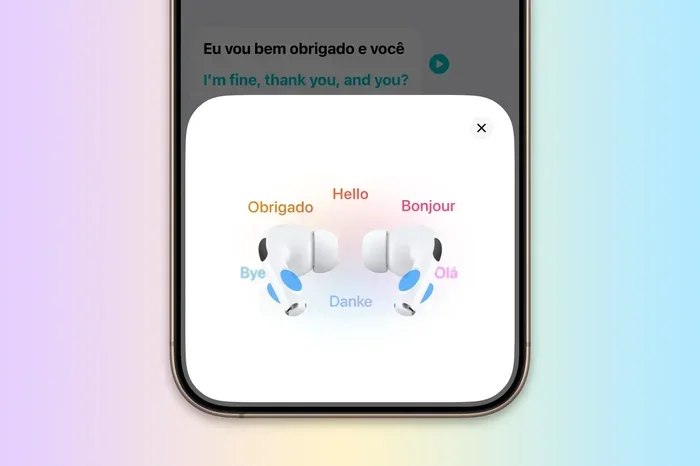
Featured image for AirPods Pro language translation feature
Image source: b2c-contenthub.com
Picture this: you’re sitting in a small café in Tokyo, and the menu is entirely in Japanese. The waiter smiles and asks a question you don’t understand. Five years ago, you’d have fumbled with Google Translate on your phone. Today, you can simply nod, speak English into your AirPods Pro 3, and hear the translation played back to the waiter in clear Japanese. That’s the promise of Live Translation, and it’s one of the most talked-about features to hit Apple’s earbuds in years.
But here’s the thing most articles won’t tell you: the feature has real limitations that can make or break your experience. It only works if you have the right iPhone. It only works in certain languages. And it sometimes chokes on names, slang, or background noise. Before you pack your AirPods for your next international trip, you need to understand what this feature actually does and where it falls short.
This guide breaks down everything you need to know about AirPods Pro 3 translation in plain, simple language. We’ll cover what the feature is, which devices support it, exactly how to set it up, the languages available, real-world performance, and some smart workarounds when things go wrong. Let’s dive in.
Key Takeaways
- Live Translation works on AirPods Pro 3: Apple’s real-time translation feature launched in 2025 and runs on the AirPods Pro 2, AirPods Pro 3, and AirPods 4.
- You need a compatible iPhone: Live Translation requires an iPhone that supports Apple Intelligence, which means iPhone 15 Pro or newer models running iOS 18.1 or later.
- Languages are limited at launch: English, French, German, Portuguese, and Spanish are supported in beta, with Italian, Japanese, Korean, and Chinese (Simplified) arriving later in 2025.
- Translation isn’t truly live: Expect a short delay of 2-4 seconds per phrase, not instant, simultaneous translation like professional interpreters.
- The other person doesn’t need AirPods: Your iPhone can speak translations aloud or show them on-screen, so anyone can benefit from the conversation.
- It won’t replace an interpreter: Live Translation is great for casual chats, travel basics, and quick questions, but not for legal, medical, or business negotiations.
- Works offline for some languages: Downloaded language packs allow translation without internet, though accuracy drops slightly compared to cloud-based translation.
📑 Table of Contents
- What Is Live Translation on AirPods Pro 3?
- How Does AirPods Pro 3 Translation Actually Work?
- Which AirPods Support Live Translation?
- What Languages Are Supported in 2025?
- How to Set Up Live Translation on Your AirPods Pro 3
- Real-World Performance: What Works and What Doesn’t
- Tips and Workarounds for Better Translation
- Frequently Asked Questions About AirPods Pro 3 Translation
- Final Thoughts: Is AirPods Pro 3 Translation Worth It?
What Is Live Translation on AirPods Pro 3?
Live Translation is Apple’s built-in real-time language translation feature that launched in 2025. It uses a combination of Apple Intelligence (Apple’s AI system), Siri’s voice recognition, and your AirPods’ microphones to translate spoken conversations on the fly. Think of it as having a personal interpreter whispering in your ear, except the interpreter is software.
How It Differs from the Translate App
Your iPhone has had a standalone Translate app since 2020. You tap the microphone, speak, and read the translation on-screen. Live Translation is different because it’s hands-free, continuous, and audio-based. Once you start a session, your AirPods pick up what the other person says, send the audio to your iPhone for processing, and then either whisper the translation into your ear (if you’re wearing AirPods) or speak it aloud through your iPhone’s speaker for the other person to hear.
The closest analogy is having a bilingual friend sitting next to you during a conversation. Your friend listens to the foreign speaker, then taps your shoulder and quietly tells you what they said in English. That’s essentially what Live Translation does, just digitally.
What You Need to Use It
There are three requirements, and missing any one of them means the feature simply won’t work:
- An AirPods Pro 2, AirPods Pro 3, or AirPods 4 model. Older AirPods (including the original AirPods Pro and AirPods 3) don’t support Live Translation because they lack the processing firmware and H2 chip needed.
- An iPhone that supports Apple Intelligence. That means iPhone 15 Pro, iPhone 15 Pro Max, or any iPhone 16 model. Older iPhones, even powerful ones like the iPhone 14 Pro, can’t run Apple Intelligence at all.
- iOS 18.1 or later installed. Live Translation shipped with the iOS 18.1 update in late 2025. Earlier versions of iOS won’t show the feature, even on capable hardware.
How Does AirPods Pro 3 Translation Actually Work?
Let’s walk through what happens the moment you activate Live Translation, step by step. Understanding the flow helps you troubleshoot when something goes wrong.
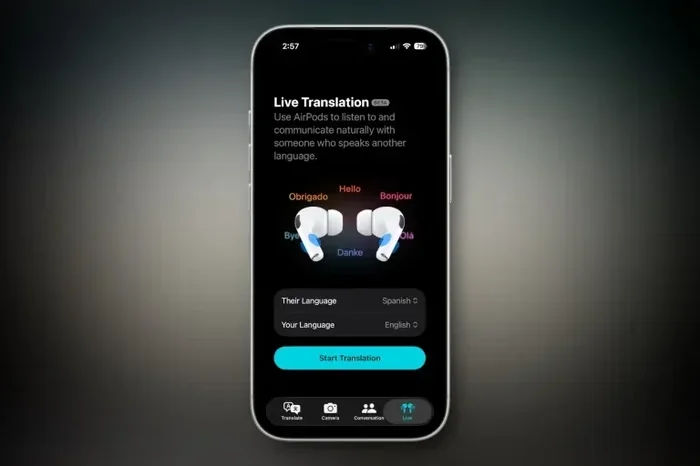
Visual guide about AirPods Pro language translation feature
Image source: b2c-contenthub.com
Step 1: Activation
You start a translation session in one of three ways. The simplest is to press and hold the stem of your AirPods Pro 3 and say “Translate.” You can also ask Siri on your iPhone, or open the Translate app and tap the Live Translation button. Once active, your AirPods emit a brief chime so everyone knows translation is running.
Step 2: Speech Capture
The microphones in your AirPods Pro 3 pick up the other person’s speech. Apple’s H2 chip does some basic noise filtering right on the device, separating the voice from background chatter. However, this isn’t magic. In a noisy restaurant or windy street, the microphones still struggle. Think of it like trying to hear someone in a crowded bar, even with your ears covered.
Step 3: Cloud Processing
The captured audio streams to your iPhone, which then sends it to Apple’s servers for AI-powered translation. Here’s an important detail: Live Translation requires an internet connection for most languages. The translation doesn’t happen entirely on your device. That’s why you may notice slower performance or failures when you’re offline or have a weak cellular signal.
Step 4: Audio Playback
Once translation is complete, the result comes back as audio. You hear the translation in your AirPods in your native language. If you’ve set up bidirectional translation (more on this below), your iPhone will also speak the translated version of your responses aloud so the other person can understand you.
Typical Latency
Expect a delay of about 2-4 seconds per translated phrase. That’s the time between when the other person stops talking and when you hear the English version. It’s not instant, but it’s fast enough for natural conversation pauses. For comparison, professional human interpreters typically lag by 1-3 seconds, so AirPods Pro 3 translation is competitive for casual use.
Which AirPods Support Live Translation?
Not every AirPods model works with this feature. Apple limited Live Translation to earbuds with the newer H2 chip and updated firmware, which means only three current models qualify.
Compatible Models
- AirPods Pro 2 (2022 and 2023 versions): These got Live Translation through a firmware update in late 2025. If you have AirPods Pro 2 with the latest firmware, you’re covered.
- AirPods Pro 3: The newest model, released in late 2025, has Live Translation built in from day one. This is Apple’s flagship translation experience.
- AirPods 4 (both standard and ANC versions): These also support Live Translation after firmware updates. The base AirPods 4 and AirPods 4 with Active Noise Cancellation both work.
Incompatible Models
- Original AirPods Pro (2019)
- AirPods Pro (1st generation Lightning case)
- AirPods 3
- AirPods 2
- AirPods Max (any version)
The H1 chip in older models simply isn’t powerful enough to handle the audio processing required. It’s like trying to run a modern video game on a 10-year-old computer. The hardware just can’t keep up.
What Languages Are Supported in 2025?
Apple launched Live Translation with a small set of languages and plans to expand throughout 2025 and beyond. Here’s where things stand right now.
Available at Launch
- English (US and UK): Both versions work as either source or target language.
- French (France and Canada): Full support for European and Canadian French dialects.
- German: Standard German, with some regional variations handled well.
- Portuguese (Brazil): Brazilian Portuguese is supported; European Portuguese support is limited.
- Spanish (Spain, Mexico, and US): Apple’s translation handles most Spanish dialects accurately.
Coming Later in 2025
- Italian: Expected by end of 2025.
- Japanese: Slated for late 2025, with early reviews noting imperfect honorific handling.
- Korean: Beta testing through 2025, full release planned.
- Chinese (Simplified): Mandarin support is Apple’s biggest priority given the user base, with release expected by year-end 2025.
Languages Not Yet Supported
Major gaps remain. Arabic, Hindi, Russian, Turkish, Vietnamese, Thai, Polish, Dutch, Swedish, and most African languages are not supported as of late 2025. If you frequently travel to regions where these languages dominate, Live Translation won’t help you much yet.
How to Set Up Live Translation on Your AirPods Pro 3
Setting up translation takes about three minutes if your devices meet the requirements. Here’s a step-by-step walkthrough.
Step 1: Update Everything
Before anything else, make sure your iPhone is running iOS 18.1 or later. Go to Settings > General > Software Update. Then check your AirPods firmware by placing them in the case, opening the lid near your iPhone, and waiting for the firmware to update automatically (this happens in the background over Wi-Fi). You can verify the firmware version in Settings > Bluetooth > tap your AirPods > scroll down.
Step 2: Enable Apple Intelligence
Live Translation depends on Apple Intelligence. If you haven’t enabled it yet, go to Settings > Apple Intelligence & Siri, then turn on Apple Intelligence. This requires you to join a waitlist in some regions, though most users get instant access now.
Step 3: Configure Translate App
Open the Translate app, tap the Settings gear icon, and select Live Translation. Choose your iPhone language (the language you want translations in) and download language packs for any languages you expect to encounter. Downloads take about 20-30 MB per language.
Step 4: Pair Your AirPods
Make sure your AirPods Pro 3 are connected to your iPhone via Bluetooth. The feature won’t work if your AirPods are paired to a different device, even another Apple device.
Step 5: Start Your First Translation
Press and hold the stem of either AirPod and say “Start translation” or “Translate from Spanish to English.” Siri will confirm the languages, and you’re ready to go. Test it with someone speaking the target language to make sure everything is working before you rely on it in a real situation.
Real-World Performance: What Works and What Doesn’t
Marketing materials make Live Translation sound flawless. Reality is messier. Here’s what actual users have reported in 2025.
Where It Excels
Live Translation performs beautifully for short, simple sentences. Asking “Where is the bathroom?” “How much does this cost?” “What time does the train leave?” all work reliably. Apple’s AI excels at these everyday phrases because it has massive amounts of training data on common tourist scenarios.
The feature also handles conversational pacing well. It knows when to pause, when to insert a chime indicating “translation incoming,” and when to let the other person finish speaking. This makes interactions feel more natural than constantly tapping a phone screen.
Where It Struggles
Complex sentences trip up the AI. Try translating “I would have gone to the store if my sister hadn’t borrowed my car yesterday,” and you’ll get a mess. Apple’s translation engine prefers simpler sentence structures. Break long thoughts into shorter chunks for better accuracy.
Names, slang, technical jargon, and idioms also cause problems. If someone says “That’s the bee’s knees,” don’t expect an accurate translation. Similarly, brand names, medical terms, and legal language often get mangled.
Background noise is the biggest practical issue. In a quiet café or office, Live Translation works well. In a busy airport, train station, or windy outdoor setting, the AirPods microphones struggle to isolate the speaker’s voice. Apple’s noise cancellation helps, but it’s not perfect.
Privacy Considerations
Here’s something most reviews skip: Live Translation sends your conversations to Apple’s servers for processing. Apple says the audio is encrypted in transit and not stored long-term, but privacy-conscious users should know that translation isn’t 100% on-device. For highly sensitive conversations, stick to on-device translation features or use a different tool.
Tips and Workarounds for Better Translation
Once you understand the limitations, you can work around them. These tips come from frequent travelers and translation power users.
Tip 1: Pre-Download Language Packs
Don’t wait until you’re on vacation to download languages. Do it at home on Wi-Fi. Also, download language packs for both directions (e.g., Spanish to English AND English to Spanish), even if you don’t speak the foreign language. You’ll need it when the other person needs to understand your reply.
Tip 2: Use Bidirectional Mode for Conversations
In the Translate app settings, enable “Auto-Detect Language” and “Play Translations Aloud.” This creates a back-and-forth mode where both people can speak naturally and hear translations. It’s the closest experience to having a real interpreter.
Tip 3: Speak Slowly and Clearly
If you’re the one speaking a non-native language, slow down. The AI handles deliberate speech much better than rapid conversation. Pause between sentences. Don’t run words together. The clearer your speech, the more accurate the translation.
Tip 4: Verify Important Translations
For anything consequential (medical instructions, legal documents, financial transactions), double-check translations with the on-screen text in the Translate app. The audio version is convenient, but seeing the written translation reduces misunderstandings.
Tip 5: Carry a Backup
Don’t rely solely on AirPods translation for critical situations. Carry a portable charger (translation drains battery), download Google Translate as a backup, and learn a few key phrases in the local language. Politeness goes a long way, and even broken attempts at the local language earn goodwill.
Tip 6: Manage Battery Life
Live Translation uses significant battery power. AirPods Pro 3 last about 4-5 hours with continuous translation active, down from 6 hours of standard listening. Your iPhone battery also drains faster during translation sessions. Bring a charger for long conversations or full-day translation needs.
Frequently Asked Questions About AirPods Pro 3 Translation
We’ve covered the basics, but here are answers to the most common questions users have about Live Translation on AirPods Pro 3.
Does AirPods Pro 3 have translation built-in?
Yes, AirPods Pro 3 support Live Translation through Apple’s 2025 software update. You’ll also need a compatible iPhone (iPhone 15 Pro or newer) running iOS 18.1 or later for the feature to work. The AirPods alone aren’t enough.
Do both people need AirPods for translation?
No. Only one person needs AirPods. The other person can hear translations through your iPhone’s speaker or read them on-screen. This makes Live Translation useful even when the other person has no Apple devices at all.
Can AirPods Pro 3 translate without internet?
For some languages, yes. Apple offers downloadable language packs that work offline, though cloud-based translation is generally more accurate. Offline translation works best for simple, common phrases rather than complex conversations.
How accurate is AirPods Pro 3 translation?
For common phrases and clear speech, accuracy is around 85-90% according to user reports in 2025. Accuracy drops with complex sentences, slang, technical terms, or noisy environments. It’s reliable for travel basics but not for professional interpretation.
Can I use AirPods Pro 3 translation for phone calls?
Currently, no. Live Translation works for in-person conversations and FaceTime calls but not standard phone calls. Apple may add phone call translation in a future iOS update, but it’s not available as of late 2025.
Is Live Translation free?
Yes, Live Translation is included with your AirPods Pro 3 purchase. There’s no subscription fee or additional cost. However, you’ll need a compatible iPhone, which is a separate purchase for users who don’t already own one.
Final Thoughts: Is AirPods Pro 3 Translation Worth It?
Live Translation on AirPods Pro 3 is genuinely useful for travelers, language learners, and anyone who occasionally interacts with non-English speakers. It’s not perfect, but it’s the most convenient translation experience Apple has shipped, and it’s free with hardware you may already own.
If you travel internationally a few times a year, study a foreign language, or work with multilingual colleagues casually, Live Translation is a compelling reason to choose AirPods Pro 3 over competitors. For users who already have compatible iPhones, it adds real-world value without extra cost.
However, don’t throw away your human interpreter contacts or delete Google Translate just yet. AirPods Pro 3 translation has real limitations in language coverage, accuracy on complex content, and noisy environments. It’s a fantastic first step toward breaking down language barriers, but it isn’t a complete replacement for human translation in high-stakes situations.
The best approach is to download the language packs you need today, test the feature with a friend who speaks another language, and gradually build confidence in when to rely on it and when to fall back on other tools. Once you understand its strengths and weaknesses, Live Translation becomes an incredibly powerful feature that fits naturally into how you already use your AirPods.