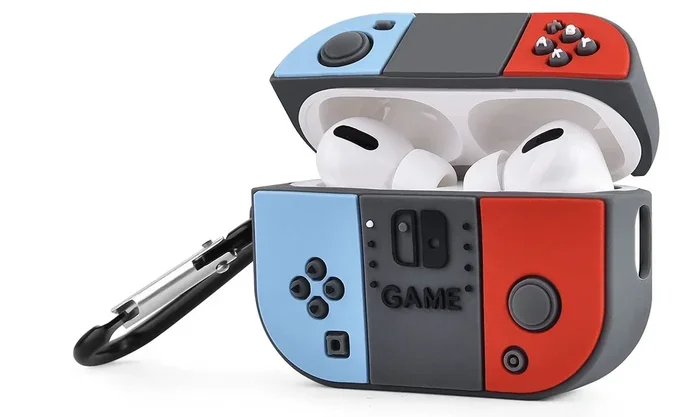
Featured image for AirPods Pro 2nd generation case
Image source: appsntips.com
Yes, AirPod Pro 2nd Generation can make various sounds, but most are normal features at work. These include subtle audio cues for transparency mode, noise cancellation adjustments, charging notifications, and connection alerts. However, unexpected noises like crackling, popping, or static may indicate hardware issues or require software troubleshooting. Understanding which sounds are intentional versus problematic helps users maximize their listening experience.
Picture this: you’re settling into your favorite coffee shop, ready to enjoy your morning playlist with your AirPod Pro 2nd Generation. You slide them into your ears, expecting sweet silence and perfect audio. Instead, you hear a faint hiss, a subtle click, or maybe an unexpected chime. Your first thought? “Wait, do AirPod Pro 2nd Gen make noise?”
You’re not alone in wondering. Millions of users worldwide have asked this exact question, and the answer is more nuanced than a simple yes or no. The AirPod Pro 2nd Generation is engineered to deliver pristine audio quality, but it also communicates with you through intentional sounds. Add in potential software glitches, environmental interference, and the occasional hardware hiccup, and you’ve got a topic worth exploring thoroughly.
This comprehensive guide breaks down everything you need to know about AirPod Pro 2 sounds. We’ll explore the intentional noises these earbuds make, explain the sophisticated noise cancellation technology, troubleshoot unexpected sounds, and help you distinguish between features and problems. By the end, you’ll be an expert on every beep, chirp, and silence your AirPods produce.
Key Takeaways
- Intentional Sounds Are Normal: AirPod Pro 2 emits beeps, chimes, and tones for features like pairing, noise cancellation switching, and battery alerts.
- Noise Cancellation vs. Noise Making: The H2 chip actively reduces ambient sound, but the buds themselves remain virtually silent during operation.
- Transparency Mode Sounds: This mode intentionally lets external sounds pass through, which some users mistake for the AirPods “making noise.”
- Crackling or Static Indicates Issues: Unexpected popping, crackling, or static often signals firmware bugs, Bluetooth interference, or hardware defects.
- Adaptive Audio Creates Subtle Changes: The AirPod Pro 2 dynamically adjusts sound profiles, sometimes producing faint transitions users might notice.
- Firmware Updates Fix Most Glitches: Most unusual noise problems are resolved through iOS updates or resetting the AirPods.
- Environmental Factors Matter: Wi-Fi routers, other Bluetooth devices, and even LED lights can cause interference that produces noise.
📑 Table of Contents
- Understanding the AirPod Pro 2nd Generation Sound System
- Intentional Sounds Your AirPod Pro 2 Makes
- Noise Cancellation vs. Noise Generation: What’s the Difference?
- Common Unexpected Noises and Their Meanings
- Environmental Factors That Cause AirPod Pro 2 Noise
- Troubleshooting AirPod Pro 2 Noise Issues
- Maximizing Your AirPod Pro 2 Sound Experience
- The Final Verdict on AirPod Pro 2 Noise
Understanding the AirPod Pro 2nd Generation Sound System
The AirPod Pro 2nd Generation, released in September 2022, represents Apple’s most advanced earbud technology. At its heart lies the H2 chip, a custom-designed processor that handles audio processing, noise cancellation, and connectivity. This tiny powerhouse is why your AirPods can do so much more than just play music.
What Makes the H2 Chip Special?
Think of the H2 chip as a tiny brain that processes sound faster than you can blink. It analyzes your environment 48,000 times per second, adjusting audio output to match your surroundings. That’s like having a sound engineer working inside each earbud, making real-time adjustments.
The H2 chip enables several features that directly relate to sound production:
- Active Noise Cancellation (ANC): Blocks unwanted external sounds
- Transparency Mode: Lets outside sounds in naturally
- Adaptive Audio: Blends both modes based on your environment
- Conversation Awareness: Lowers music when you start talking
- Personalized Volume: Adjusts levels based on your listening habits
Did You Know? The H2 chip in AirPod Pro 2 is 2x more powerful than the H1 chip in the original AirPods Pro, yet it’s remarkably energy-efficient, contributing to the buds’ 6-hour battery life with ANC enabled.
The Anatomy of AirPod Pro 2 Sound
Each AirPod Pro 2 contains multiple components that work together:
- A custom high-excursion Apple driver for rich bass and crisp highs
- A high dynamic range amplifier for clear sound reproduction
- Beamforming microphones that analyze your environment
- Inward-facing microphones that measure what you actually hear
- A vent system for pressure equalization
Together, these components create the sound experience. They also generate some intentional sounds as part of their operation, which we’ll explore throughout this guide.
Intentional Sounds Your AirPod Pro 2 Makes
Yes, AirPod Pro 2nd Gen make noise—but many of these sounds are by design. Understanding these intentional audio cues helps you know your earbuds are working correctly and gives you control over various features.
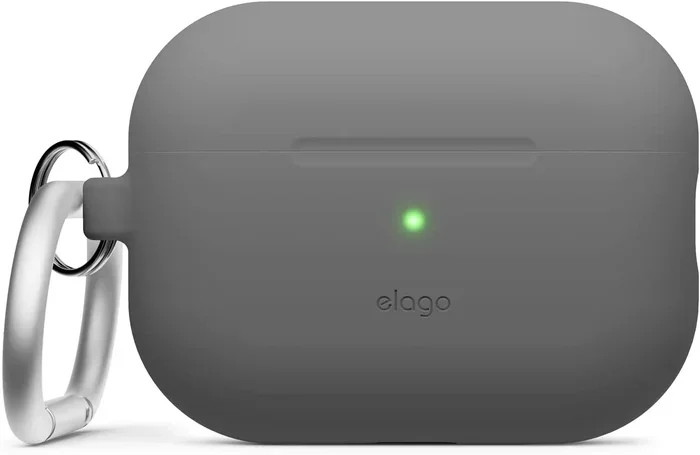
Visual guide about AirPods Pro 2nd generation case
Image source: i5.walmartimages.com
Connection and Pairing Sounds
When you first pair your AirPods with an Apple device, you’ll hear a distinctive chime. This pleasant tone confirms successful pairing and is one of the most recognizable AirPod sounds. It’s like a digital handshake saying, “We’re connected and ready to go.”
Similar sounds occur when:
- Your AirPods connect to a previously paired device
- You switch between Apple devices on the same iCloud account
- Bluetooth connection is established after being disconnected
Battery and Charging Notifications
Your AirPod Pro 2 communicates battery status through sounds and voice prompts. When battery drops below certain thresholds, you’ll hear warning tones. The MagSafe charging case also produces a soft click when you close it, confirming proper closure.
Did You Know? AirPod Pro 2 can last up to 6 hours on a single charge with Active Noise Cancellation enabled, and the case provides an additional 24 hours of total listening time.
Mode Switching Indicators
When you press and hold the force sensor on the AirPod stem to switch between Active Noise Cancellation and Transparency Mode, you’ll hear a subtle chime. This confirms the mode change has been registered.
This sound is intentional and helps you know:
- You’ve successfully activated Transparency Mode (ambient sounds flow in)
- You’ve engaged Active Noise Cancellation (external sounds are blocked)
- Adaptive Audio has taken over (automatic mode blending)
Touch Control Feedback
The AirPod Pro 2 features intuitive touch controls on the stems. When you press correctly, you’ll feel a click and sometimes hear a faint confirmation sound, especially for certain gestures like answering calls or activating Siri.
Noise Cancellation vs. Noise Generation: What’s the Difference?
Here’s where things get interesting. The AirPod Pro 2’s primary job is to eliminate noise, not create it. Understanding this distinction is crucial.
How Active Noise Cancellation Works
Imagine you’re in a noisy room. Active Noise Cancellation is like having an anti-sound shield around your ears. The AirPods listen to incoming noise, then create “anti-noise” sound waves that cancel out the unwanted sound before it reaches your ears.
Here’s the simple version:
- Microphones on the outside of each AirPod capture ambient sound
- The H2 chip analyzes this sound 48,000 times per second
- The chip generates an opposite sound wave
- The two waves meet and effectively cancel each other out
- You experience beautiful silence (or just your music)
This process happens so quickly that it’s imperceptible. The result is up to 2x more noise cancellation than the original AirPods Pro, according to Apple’s testing.
Transparency Mode: Letting Sound In
Transparency Mode works oppositely. Instead of blocking sound, it amplifies and clarifies external noises so you can hear your surroundings naturally. This is when your AirPods are “making noise” in the sense that they’re processing environmental sounds and passing them through.
Common Transparency Mode uses:
- Having quick conversations without removing your AirPods
- Listening for airport announcements or train stops
- Staying aware of traffic while walking
- Ordering at coffee shops or restaurants
Adaptive Audio: The Smart Hybrid
Introduced with iOS 17, Adaptive Audio dynamically blends Active Noise Cancellation and Transparency Mode based on your environment. Walking into a quiet library? ANC kicks in. Stepping onto a busy street? Transparency activates automatically.
This feature can produce subtle transitions—almost imperceptible shifts in how your AirPods process sound. Some users describe this as the AirPods “making noise,” though it’s really just feature activation.
Common Unexpected Noises and Their Meanings
Now let’s address the sounds that shouldn’t happen. If your AirPod Pro 2nd Gen make noise in unexpected ways, here are the likely culprits and solutions.
Crackling or Static Sounds
Crackling is the most commonly reported issue. It sounds like Rice Krispies in your ears—little pops and snaps that interrupt your audio experience.
Common causes include:
- Bluetooth interference from other devices
- Firmware bugs requiring updates
- Physical damage to internal components
- Earwax or debris blocking the speaker mesh
- Software conflicts with specific apps
Quick fixes to resolve crackling:
- Update your iPhone or iPad to the latest iOS version
- Update AirPod firmware (happens automatically when charging near your iPhone)
- Reset your AirPods by holding the setup button for 15 seconds
- Clean the speaker mesh gently with a soft, dry brush
- Move away from potential interference sources
Hissing or White Noise
A faint hissing sound when nothing is playing can be alarming. This high-frequency noise often indicates:
- Active Noise Cancellation working harder in certain environments
- Bluetooth codec compression artifacts
- Poor seal between the AirPod tip and your ear canal
- Adaptive Audio adjusting to subtle environmental changes
Try different ear tip sizes if you hear persistent hissing. The right fit dramatically improves both sound quality and noise cancellation effectiveness.
Popping Sounds
Random popping or clicking sounds often occur due to:
- Bluetooth signal drops and reconnections
- Interference from Wi-Fi routers (especially 2.4 GHz networks)
- Distance from your source device exceeding optimal range
- Other Bluetooth devices competing for bandwidth
Did You Know? The optimal Bluetooth range for AirPod Pro 2 is approximately 30-40 feet in open spaces, but walls and interference can reduce this significantly.
Rattling or Vibrating
If your AirPods sound like they’re rattling, the issue might be physical rather than electronic. Check for:
- Loose ear tips that aren’t properly seated
- Debris stuck in the mesh
- Physical damage from drops or impacts
- Moisture inside the AirPods (yes, even though they’re sweat-resistant)
Environmental Factors That Cause AirPod Pro 2 Noise
Sometimes the noise isn’t coming from your AirPods at all—it’s interference from your environment. Modern wireless earbuds operate in a crowded radio frequency space, and various electronic devices can cause interference.
Common Interference Sources
Your AirPod Pro 2 uses 2.4 GHz Bluetooth frequencies, which overlap with many household devices:
- Wi-Fi routers: Especially older models using 2.4 GHz bands
- Microwave ovens: Can cause brief interference when in use
- Other Bluetooth devices: Speakers, keyboards, smartwatches
- LED lights: Some cheaper brands emit radio frequency interference
- Baby monitors: Often operate on similar frequencies
- Wireless security cameras: Constantly transmitting signals
How to Minimize Environmental Interference
If you suspect environmental interference is causing your AirPod Pro 2 to make noise, try these strategies:
- Move closer to your source device (within 10 feet is ideal)
- Switch your Wi-Fi router to 5 GHz if possible
- Turn off unnecessary Bluetooth devices temporarily
- Avoid placing your phone in back pockets (signal obstruction)
- Re-pair your AirPods in a different location to establish a cleaner connection
Troubleshooting AirPod Pro 2 Noise Issues
When your AirPod Pro 2nd Gen make noise inappropriately, systematic troubleshooting can identify and resolve the problem. Here’s a step-by-step approach.
Step 1: Update Everything
Software updates fix bugs that cause audio glitches. Ensure you have:
- The latest iOS or iPadOS version on your connected device
- The latest AirPod firmware (updates automatically)
- The latest macOS version if using with a Mac
- Updated apps, especially music and streaming services
Step 2: Reset Your AirPods
A reset can resolve many temporary glitches:
- Place AirPods in the charging case and close the lid
- Wait 30 seconds
- Open the lid and go to Settings > Bluetooth on your iPhone
- Tap the “i” next to your AirPods
- Select “Forget This Device” and confirm
- Hold the setup button on the back of the case for 15 seconds until the light flashes amber, then white
- Re-pair your AirPods
Step 3: Clean Your AirPods Properly
Dirty AirPods can produce crackling or muffled sounds. Clean them carefully:
- Use a soft, dry, lint-free cloth for the exterior
- Gently brush the speaker mesh with a clean, soft-bristled brush
- Remove ear tips and rinse them with water (not the AirPods themselves)
- Dry everything completely before reattaching
- Avoid liquids, sharp objects, or compressed air
Step 4: Test with Multiple Devices
Determining whether the issue is with your AirPods or your source device is crucial. Test your AirPods with:
- A different iPhone or iPad
- A Mac computer
- An Apple TV
- Another Apple device on your iCloud account
If the noise occurs across all devices, the problem is likely with the AirPods themselves. If it only happens with one device, the source device needs troubleshooting.
Step 5: Check Ear Tip Fit and Seal
Poor fit causes many audio issues. Apple includes four ear tip sizes (XS, S, M, L) with AirPod Pro 2. The right size creates a proper seal in your ear canal, which is essential for:
- Effective noise cancellation
- Optimal sound quality
- Secure fit during movement
- Preventing sound leakage
Use the Ear Tip Fit Test on your iPhone (Settings > Bluetooth > [Your AirPods] > Ear Tip Fit Test) to ensure you’re using the right size.
Step 6: When to Contact Apple Support
If troubleshooting doesn’t resolve the noise issue, your AirPods may have a hardware problem. Contact Apple Support if:
- Noises persist after all troubleshooting steps
- One AirPod produces different sounds than the other
- Physical damage is visible
- Sounds occur even when AirPods aren’t in your ears
- The issue started after a drop or water exposure
Your AirPod Pro 2 comes with a one-year limited warranty, and AppleCare+ extends coverage. Battery service is also available at a reduced cost if battery capacity has significantly degraded.
Maximizing Your AirPod Pro 2 Sound Experience
Now that you understand the various sounds your AirPods can make, let’s optimize your experience to get the best audio quality possible.
Optimizing Noise Cancellation
For the best Active Noise Cancellation experience:
- Ensure proper ear tip fit and seal
- Keep the microphone vents clean and unblocked
- Update to the latest firmware for improvements
- Use Adaptive Audio for dynamic environments
- Enable Personalized Noise Cancellation (available in newer iOS versions)
Customizing Sound Settings
Personalize your audio experience through several settings:
- Spatial Audio: Creates immersive, theater-like sound
- Head Tracked Spatial Audio: Keeps sound anchored to your device
- Equalizer Settings: Adjust bass, mids, and treble in Music app
- Sound Check: Normalizes volume across songs
- Lossless Audio: Available with Apple Music on supported devices
Battery Management for Consistent Performance
Low battery can affect audio quality. Maintain your AirPods by:
- Charging regularly before complete depletion
- Using the MagSafe case or Qi-compatible chargers
- Avoiding extreme temperatures (very hot or cold)
- Keeping the charging case charged
- Replacing the battery if capacity drops significantly
Did You Know? AirPod Pro 2 batteries are designed to retain up to 80% of original capacity after 500 complete charge cycles. That’s roughly 2-3 years of typical use.
Best Practices for Longevity
To keep your AirPods performing their best for years:
- Store them in the case when not in use
- Avoid exposure to water despite their IP54 rating
- Clean them regularly but gently
- Keep them away from magnets and metal objects
- Avoid dropping or applying excessive pressure
The Final Verdict on AirPod Pro 2 Noise
So, do AirPod Pro 2nd Gen make noise? The answer is definitively yes—but context matters enormously. The sounds your AirPods produce fall into three categories: intentional feature notifications, environmental interference, and problematic glitches.
Intentional sounds like connection chimes, mode-switching tones, and battery alerts are by design. They enhance user experience by providing feedback about your AirPods’ status and operations. These sounds are normal and indicate your AirPods are working correctly.
Environmental noise interference from Wi-Fi routers, other Bluetooth devices, and electronics is external to your AirPods but affects their operation. Moving closer to your source device or away from interference sources typically resolves these issues.
Truly problematic noises—persistent crackling, popping, or sounds that don’t respond to troubleshooting—indicate hardware or firmware issues. Most of these can be resolved through updates, resets, and proper maintenance. When they can’t, Apple’s warranty and support services have you covered.
The AirPod Pro 2nd Generation represents a remarkable achievement in audio engineering. The H2 chip processes sound at extraordinary speeds, delivering Active Noise Cancellation that’s twice as effective as its predecessor. While these sophisticated earbuds do produce various sounds as part of their operation, they remain among the quietest, most refined listening devices available.
Understanding what your AirPods are trying to tell you through their sounds empowers you to use them confidently. Whether it’s a friendly pairing chime, a helpful battery warning, or a warning sign of a technical issue, each sound has meaning. Embrace the intentional sounds, troubleshoot the unexpected ones, and enjoy the premium audio experience these tiny technological marvels provide.
Remember: if your AirPod Pro 2nd Gen make noise and you’re unsure whether it’s normal, start with the basics. Check for updates, ensure proper fit, clean your AirPods, and reset if necessary. For persistent issues, Apple Support offers expert assistance to get your listening experience back on track.
Frequently Asked Questions
Is it normal for AirPod Pro 2 to make noise when noise cancellation is on?
A very faint hiss is occasionally normal, especially in quiet environments, as the H2 chip works to cancel ambient sound. However, loud or persistent crackling, popping, or static is not normal and typically indicates a firmware issue, interference, or the need to reset your AirPods.
Why do my AirPod Pro 2 make a clicking sound?
Clicking sounds can occur when switching between Active Noise Cancellation and Transparency Mode, which is intentional. Random clicking during audio playback usually signals Bluetooth interference, a poor connection, or debris stuck in the speaker mesh. Try resetting your AirPods and cleaning them gently.
Can AirPod Pro 2 make noise without playing music?
Yes, AirPod Pro 2 can produce intentional notification sounds (like battery warnings or connection chimes) even when no audio is playing. If you hear crackling or static with no music, it’s likely interference or a firmware glitch that can typically be resolved with an update or reset.
How do I stop my AirPod Pro 2 from making static noise?
To eliminate static noise: update your iOS and AirPod firmware, reset your AirPods by holding the setup button for 15 seconds, move closer to your source device, check for Wi-Fi or Bluetooth interference, and clean the speaker mesh. If the issue persists, contact Apple Support.
Do AirPod Pro 2 make noise when charging?
The charging case may produce a subtle magnetic click when closing properly, which is normal. Some users hear a very faint electrical hum during charging, which is also typical. However, loud buzzing, sparking sounds, or excessive heat indicate a problem requiring immediate attention and discontinuation of use.
Why do my AirPod Pro 2 sound different in Transparency Mode?
Transparency Mode intentionally lets external sounds pass through your AirPods while playing audio. If sounds seem amplified or unusual, ensure you’re using the correct ear tip size for a proper seal. You can also adjust Transparency Mode settings or disable Conversation Awareness if environmental sounds feel overwhelming.