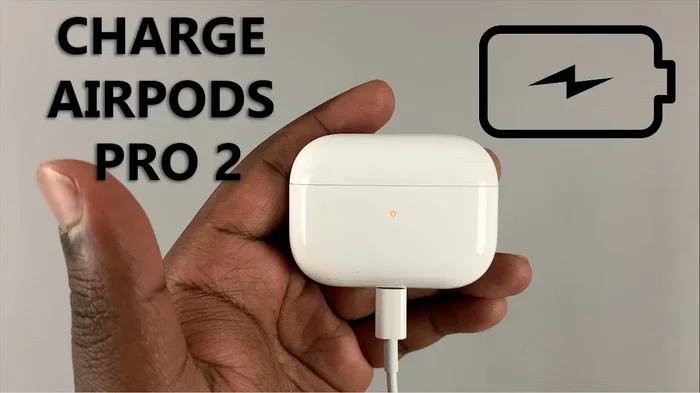
Featured image for Airpods Pro Lightning Cable Charging
Image source: i.ytimg.com
Yes, you can absolutely charge your AirPods Pro with a USB to Lightning cable — it’s actually the official Apple-recommended method. The Lightning port on your AirPods Pro charging case accepts any certified Lightning cable, and pairing it with a USB power source gives you fast, reliable charging. This guide explains everything you need to know about compatibility, charging speeds, and the best practices to keep your AirPods Pro powered up safely.
Key Takeaways
- Yes, It’s Officially Supported: Apple designed the AirPods Pro charging case with a Lightning port, making any USB to Lightning cable fully compatible for wired charging.
- Fast Charging Available: Five minutes in the case delivers around 1 hour of listening time, and a full charge takes about 30-60 minutes depending on the case model.
- USB Side Doesn’t Matter Much: You can plug the USB end into any standard USB-A or USB-C port using the right adapter — only the Lightning connector matters for compatibility.
- MFi Certification Is Critical: Always use MFi-certified cables to avoid battery issues, overheating warnings, or “accessory not supported” errors.
- Charging Case Is Required: You cannot charge the AirPods Pro earbuds directly — they only charge when seated inside the case.
- Wireless Charging Exists Too: AirPods Pro (2nd gen) supports MagSafe and Qi wireless charging, but Lightning remains the fastest and most reliable option.
- Cable Care Extends Battery Life: Proper cable handling and using the right wattage charger protects the long-term health of your AirPods Pro battery.
📑 Table of Contents
- The Simple Answer: Yes, You Absolutely Can
- Understanding AirPods Pro Charging Basics
- Why USB to Lightning Works Perfectly
- Step-by-Step: How to Charge AirPods Pro with USB to Lightning
- AirPods Pro Generations: Which Models Use Lightning?
- Cable Quality and Safety: What You Need to Know
- Common Questions and Troubleshooting
- The Bottom Line: USB to Lightning Is Your Best Friend
The Simple Answer: Yes, You Absolutely Can
If you’ve ever stared at your AirPods Pro and wondered, “Wait — can I just plug this thing in with a regular Lightning cable?” — take a deep breath because the answer is a resounding yes. Apple’s AirPods Pro charging case has a tiny Lightning port built right into it, and any USB to Lightning cable will do the job beautifully.
Think of it like charging your iPhone. You grab your cable, plug the Lightning end into your AirPods Pro case, and stick the USB end into a wall adapter, computer, or power bank. That’s it. No special tricks, no secret settings, no compatibility headaches. Apple designed the AirPods Pro case to charge exactly this way, and it’s been that way since the very first generation launched in October 2019.
Here’s a fun fact to share at your next dinner party: over 100 million AirPods have been sold worldwide as of recent estimates, and the Lightning cable method remains the most popular charging technique among users. Why? Because it’s simple, fast, and works everywhere. Whether you’re at home, in a coffee shop, or stuck at an airport, that little cable is your best friend.
Understanding AirPods Pro Charging Basics
Before we dive deeper into the USB to Lightning cable specifics, let’s make sure we’re all on the same page about how AirPods Pro charging actually works. It’s a bit different from charging your phone, and understanding the basics will save you tons of frustration.
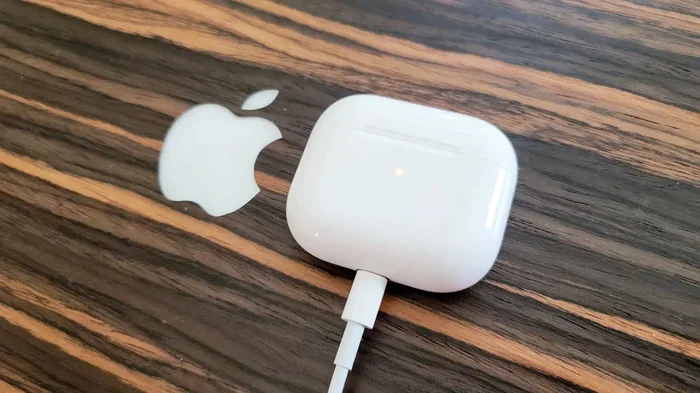
Visual guide about Airpods Pro Lightning Cable Charging
Image source: cdn.mos.cms.futurecdn.net
What You’re Actually Charging
Here’s the thing most people don’t realize — you aren’t directly charging the earbuds themselves. Instead, you’re charging the charging case, and then the case wirelessly charges the earbuds whenever they’re inside. It’s a two-step process, like filling up a water bottle (the case) and then pouring water into smaller cups (the earbuds).
The AirPods Pro charging case has a small battery inside (usually around 519 mAh for newer models), and the earbuds each have their own tiny batteries (about 50 mAh each). When you plug in the case, the case charges first, and then any earbuds sitting inside get topped off automatically. Pretty clever, right?
The Lightning Port Location
On the AirPods Pro and AirPods Pro (2nd generation), you’ll find the Lightning port on the bottom of the charging case. Just flip the case upside down, and you’ll see the familiar small oval-shaped slot. It looks exactly like the one on older iPhones, so if you’ve ever charged an iPhone with a Lightning cable, you already know what to do.
Quick tip: If you have the AirPods Pro (2nd generation) with the MagSafe Charging Case (USB-C), the port on the bottom is actually a USB-C port, not Lightning. Apple released this version in September 2023, and it’s an important distinction we’ll cover later in this guide.
Why USB to Lightning Works Perfectly
Now let’s get into the nitty-gritty of why this cable combination works so well. The answer lies in how Apple designed the AirPods Pro ecosystem, but the concept is simple enough that anyone can understand it.
The Lightning Connector Explained
Think of the Lightning connector as a universal key. Apple created it back in 2012 to replace the old 30-pin connector, and it became the standard charging port for iPhones, iPads, and AirPods for over a decade. The small, reversible design means you can plug it in either way — no fumbling around in the dark trying to figure out which side is up.
The Lightning connector handles two main jobs: power delivery and data communication. When you charge your AirPods Pro, the cable’s main job is delivering power from your USB source to the case’s battery. The data communication part is what allows your iPhone or Mac to recognize the AirPods and show you that little charging status popup.
What “USB to Lightning” Really Means
A USB to Lightning cable has two ends:
- The USB end: This plugs into any standard USB power source — a wall adapter, laptop, power bank, car charger, or even a TV. It carries the power from the source to your device.
- The Lightning end: This plugs into your AirPods Pro case. It receives the power and delivers it to the battery.
The “USB” part just describes how the cable connects to your power source. It doesn’t matter if it’s USB-A (the classic rectangular shape) or USB-C (the smaller oval shape) on the USB end — both will work. What matters is that the other end is a Lightning connector, which fits perfectly into your AirPods Pro case.
Power Requirements and Charging Speed
Here’s where things get interesting. AirPods Pro doesn’t need a ton of power — we’re talking about tiny batteries here. According to Apple’s specifications, the AirPods Pro charging case draws about 5V at 1A (5W), which is barely a trickle compared to what modern phones need.
This low power requirement means you don’t need a fancy high-wattage charger. Any standard 5W Apple charger (the small white cube that used to come with iPhones) will charge your AirPods Pro perfectly. You can also use a 10W, 12W, 20W, or even a 96W MacBook charger — the case will only pull the power it needs. It’s like filling a small cup with water — the cup only takes what it can hold, even if you turn the faucet on full blast.
Charging times are pretty quick too:
- 5 minutes of charging = roughly 1 hour of listening time or about 1 hour of talk time
- Full case charge = approximately 30-60 minutes, depending on the model and starting battery level
- Full earbud charge inside the case = about 20-30 minutes
Step-by-Step: How to Charge AirPods Pro with USB to Lightning
Alright, let’s walk through the exact steps. Even if you’ve never done this before, you’ll be a pro after reading this section.
Step 1: Gather Your Equipment
You’ll need three things:
- Your AirPods Pro charging case with the earbuds inside (or empty — both work)
- A USB to Lightning cable (MFi-certified preferred)
- A USB power source (wall adapter, computer, or power bank)
Step 2: Plug the USB End into Your Power Source
Take the USB end of your cable and plug it into your chosen power source. If you’re using a wall adapter, plug the adapter into the wall first, then connect the cable. If you’re using a computer, just plug it into any available USB port.
Step 3: Connect the Lightning End to Your AirPods Pro Case
Flip your AirPods Pro case upside down so you can see the Lightning port on the bottom. Gently insert the Lightning connector until it clicks into place. Don’t force it — if it doesn’t slide in easily, you might have the cable upside down. Remember, Lightning is reversible, but it still only fits one way in terms of orientation.
Step 4: Check the Charging Indicator
Once connected, you should see a small amber or orange light on the front of your AirPods Pro case (between the earbuds, near the top). This light indicates that the case is actively charging. If the light is green, your case is already fully charged. If there’s no light at all, check your connections and make sure the power source is working.
Step 5: Wait and Go About Your Day
That’s literally it. You can leave the case plugged in as long as you want — modern lithium-ion batteries have built-in protection that stops charging once the battery reaches 100%. So don’t worry about “overcharging” your AirPods Pro.
AirPods Pro Generations: Which Models Use Lightning?
This is where things get a little tricky. Not all AirPods Pro cases use Lightning, so it’s important to know which version you own.
AirPods Pro (1st Generation) — Lightning Only
The original AirPods Pro launched in October 2019 and featured a charging case with only a Lightning port. There was no wireless charging option initially, though Apple later released a Wireless Charging Case for the 1st gen that added Qi compatibility alongside the Lightning port. Both cases use USB to Lightning cables for wired charging.
AirPods Pro (2nd Generation) — Lightning Version
Released in September 2022, the 2nd generation AirPods Pro came in a case with a Lightning port, MagSafe wireless charging, and Qi compatibility. The USB to Lightning cable works perfectly with this version. This model remained Apple’s flagship until September 2023.
AirPods Pro (2nd Generation) — USB-C Version
In September 2023, Apple updated the AirPods Pro (2nd generation) to use a USB-C port instead of Lightning, aligning it with the iPhone 15 series and other Apple products that transitioned to USB-C. If you have this version, you’ll need a USB-C to USB-C cable, not a Lightning cable.
How to Tell Which Model You Have
Not sure which version you own? Here are three quick ways to check:
- Look at the port: Lightning ports are smaller and oval-shaped; USB-C ports are wider and also oval-shaped but slightly larger.
- Check the model number: Go to Settings → Bluetooth → tap the “i” next to your AirPods Pro. The model number will tell you which generation you have (A2700, A2968, etc.).
- Look at the original box: The packaging will clearly say “USB-C” or “Lightning” on the side.
Cable Quality and Safety: What You Need to Know
Not all Lightning cables are created equal, and using the wrong one can cause problems. Let’s talk about why cable quality matters and how to choose the right one.
The Importance of MFi Certification
MFi stands for “Made for iPhone/iPad/iPod”, and it’s Apple’s certification program for accessories. Cables with the MFi badge have been tested and approved by Apple to meet specific quality and safety standards. Think of it like a seal of approval — it means the cable won’t damage your device, won’t overheat, and will work reliably for years.
Did you know that roughly 70% of Lightning cables sold on Amazon are counterfeit or non-certified, according to industry estimates? That’s a scary number, and it explains why so many people experience charging issues, “accessory not supported” warnings, or cables that stop working after just a few months.
Non-certified cables can cause several problems:
- “Accessory not supported” errors popping up on your iPhone when you try to charge your AirPods
- Slower charging speeds or inconsistent power delivery
- Overheating that can reduce battery lifespan
- Premature cable failure, with fraying or broken connectors within weeks
Recommended Cable Brands and Options
Here are some trustworthy options that won’t let you down:
- Apple Original Lightning Cable: The safest bet, though a bit pricier. Comes in 1-meter and 2-meter lengths.
- Anker Lightning Cables: MFi-certified, durable, and affordable. Available in various lengths and colors.
- Belkin BoostCharge Lightning Cables: Premium build quality with a lifetime warranty on some models.
- Amazon Basics Lightning Cables: Budget-friendly and MFi-certified for everyday use.
Cable Care Tips for Longevity
Want your cable to last longer than a few months? Follow these simple tips:
- Avoid bending near the connectors: This is where 90% of cable failures happen. Use gentle curves instead of sharp angles.
- Unplug by gripping the connector: Never yank the cable itself — this damages the internal wiring.
- Keep it away from heat and moisture: Don’t leave it in hot cars or use it near water.
- Use cable organizers: Simple velcro straps or cable clips prevent tangling and stress.
Common Questions and Troubleshooting
Even with the best setup, you might run into occasional issues. Let’s address the most common questions and problems users face.
Why Isn’t My AirPods Pro Charging?
If your AirPods Pro case isn’t charging when you plug it in, work through this checklist:
- Check the cable connection: Make sure the Lightning connector is fully inserted and the USB end is firmly plugged into your power source.
- Try a different cable: Cables can fail silently. If you have another Lightning cable, swap it in to test.
- Try a different power source: Plug into a different outlet, computer port, or power bank to rule out a faulty source.
- Clean the Lightning port: Lint and debris can accumulate inside the case’s port. Use a soft, dry brush (like a clean toothbrush) to gently clean it out.
- Restart your AirPods: Put them in the case, close the lid, wait 30 seconds, then try again.
Can I Use My iPhone Charger for AirPods Pro?
Absolutely yes! In fact, that’s exactly what Apple recommends. Any iPhone charger with a Lightning cable will work perfectly with your AirPods Pro. The 5W charger that used to come with older iPhones is ideal, but higher-wattage chargers won’t harm the case either.
Is It Safe to Charge AirPods Pro Overnight?
Yes, it’s completely safe. Modern lithium-ion batteries have built-in charging controllers that stop the flow of power once the battery reaches 100%. You can leave your AirPods Pro plugged in all night without worrying about battery damage or overheating.
What’s the Difference Between Lightning and USB-C Charging?
Functionally, very little. Both deliver power to the case at similar rates (5W). The main difference is the connector type and the ecosystem you live in. If you own a newer iPhone (15 or later) or a MacBook, USB-C might be more convenient because you can use the same cable for everything. But Lightning cables are still widely available and perfectly functional.
The Bottom Line: USB to Lightning Is Your Best Friend
So, can you charge AirPods Pro with a USB to Lightning cable? Yes, yes, and yes. It’s not just possible — it’s the official, recommended way to charge your AirPods Pro. Apple designed the case with a Lightning port for this exact purpose, and millions of users around the world rely on this method every single day.
To recap the most important points: always use an MFi-certified cable, plug the Lightning end into the bottom of your case, and connect the USB end to any standard power source. Within five minutes, you’ll have enough charge for about an hour of listening time. A full charge takes less than an hour, and you can safely leave the case plugged in overnight.
Whether you have the original AirPods Pro from 2019 or the Lightning version of the 2nd generation, the USB to Lightning cable is a reliable, fast, and universally compatible charging solution. Just remember to take care of your cable, keep the charging port clean, and you’ll enjoy years of hassle-free listening. Now go plug in those AirPods and enjoy your favorite playlist — you’ve earned it!