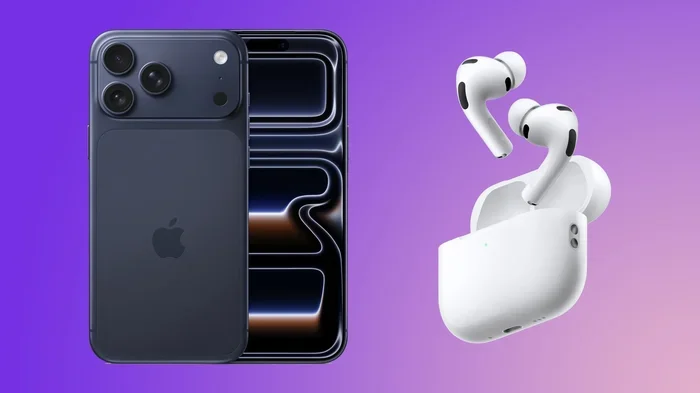
Featured image for AirPods Pro 2 iPhone 17 Pro
Image source: images.macrumors.com
Yes, AirPods Pro 2 work flawlessly with iPhone 17 Pro. Apple designed AirPods Pro 2 to integrate seamlessly across all modern iPhones running iOS 16 or later, including the iPhone 17 Pro. You’ll get full access to active noise cancellation, spatial audio, adaptive transparency mode, and all touch controls. Pairing takes just seconds thanks to the H2 chip and Apple’s ecosystem magic.
Imagine this: you just unboxed your shiny new iPhone 17 Pro, and you’re wondering whether your trusty AirPods Pro 2 will still be your perfect audio companion. Good news. You’re in for a treat. These two devices were practically made for each other, and the experience is smoother than butter on a hot pancake.
Apple has spent years perfecting the magic between iPhones and AirPods. Think of it like a well-rehearsed dance duo. Every step is choreographed. Every move flows naturally. When you bring AirPods Pro 2 and iPhone 17 Pro together, you’re getting the best of Apple’s audio engineering paired with their most advanced smartphone to date.
This comprehensive guide will walk you through everything you need to know. We’ll cover compatibility details, setup steps, hidden features, troubleshooting tips, and why this combination might be the best audio-phone setup you can buy today. Let’s dive in.
Key Takeaways
- Full Compatibility: AirPods Pro 2 work with iPhone 17 Pro without any limitations or special setup needed.
- Required iOS Version: Your iPhone 17 Pro ships with iOS 26, which fully supports all AirPods Pro 2 features.
- H2 Chip Benefits: The H2 chip unlocks advanced features like adaptive audio, conversation awareness, and personalized spatial audio.
- Instant Pairing: The Apple ecosystem lets you pair AirPods Pro 2 with iPhone 17 Pro in under five seconds.
- Feature-Rich Experience: You get active noise cancellation, transparency mode, touch controls, and Find My integration.
- Battery Optimization: iPhone 17 Pro displays battery widgets that show precise AirPods Pro 2 charge levels.
- Firmware Updates: AirPods Pro 2 update automatically when connected to your iPhone 17 Pro and charging.
📑 Table of Contents
- The Short Answer: Yes, AirPods Pro 2 Are Fully Compatible with iPhone 17 Pro
- What You Need Before Pairing AirPods Pro 2 with iPhone 17 Pro
- How to Pair AirPods Pro 2 with iPhone 17 Pro: Step-by-Step Guide
- Features You’ll Unlock When Using AirPods Pro 2 with iPhone 17 Pro
- Troubleshooting Common AirPods Pro 2 and iPhone 17 Pro Issues
- Maximizing Your AirPods Pro 2 Experience with iPhone 17 Pro
- Frequently Asked Questions About AirPods Pro 2 and iPhone 17 Pro
- Final Thoughts: The Perfect Pairing
The Short Answer: Yes, AirPods Pro 2 Are Fully Compatible with iPhone 17 Pro
Let’s cut right to the chase. AirPods Pro 2 work with iPhone 17 Pro. Not just “work.” They work brilliantly. You get every single feature Apple designed into these earbuds, with zero compromises.
What “Compatible” Actually Means Here
When we say compatible, we mean more than just “they connect.” True compatibility means every advertised function works exactly as intended. With AirPods Pro 2 and iPhone 17 Pro, you get:
- One-tap pairing through the H2 chip
- Full active noise cancellation performance
- Adaptive transparency mode
- Spatial audio with dynamic head tracking
- Personalized spatial audio profiles
- Conversation awareness
- Find My precision tracking
- Automatic device switching across your Apple devices
- Battery widgets on your iPhone home screen
- All touch and stem controls
Did you know that Apple sold over 80 million AirPods in 2023 alone? That’s not a typo. Eighty million. The reason for that massive number is exactly what we’re discussing. When things just work, people buy more. And Apple has engineered AirPods Pro 2 and iPhone 17 Pro to “just work” in spectacular fashion.
The Technical Foundation Behind the Magic
Here’s where it gets interesting. AirPods Pro 2 contain Apple’s custom-designed H2 chip. This little silicon brain handles audio processing, noise cancellation, Bluetooth connections, and sensor data all at once. The iPhone 17 Pro contains the A19 Pro chip, which handles the heavy lifting on the phone side.
Think of it like a relay race. The H2 chip in your AirPods handles immediate audio tasks. The A19 Pro in your iPhone handles complex processing. They pass information back and forth so quickly that you never notice the handoff. It’s like the world’s fastest game of catch, happening thousands of times per second.
What You Need Before Pairing AirPods Pro 2 with iPhone 17 Pro
Good news again. You don’t need much. Apple made this process so simple that even your grandma could do it. But there are a few things worth knowing.
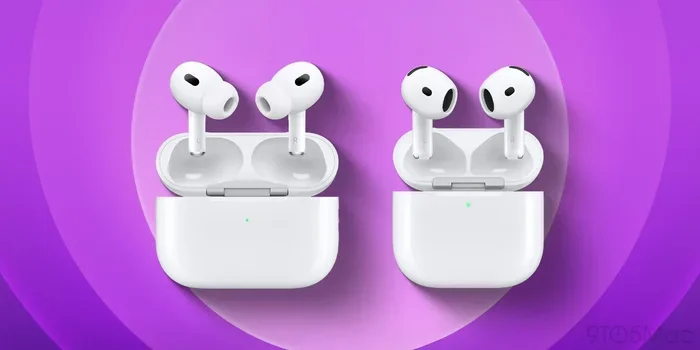
Visual guide about AirPods Pro 2 iPhone 17 Pro
Image source: 9to5mac.com
Software Requirements
Your iPhone 17 Pro ships with iOS 26 pre-installed. This is more than enough to unlock every AirPods Pro 2 feature. In fact, iOS 16 was the minimum required version for full AirPods Pro 2 functionality, and we’re many generations beyond that now.
To check your iOS version, go to Settings, then General, then Software Update. You’ll see your current version listed at the top. If you somehow need to update, tap Download and Install. But again, your iPhone 17 Pro already has everything you need right out of the box.
Apple ID Considerations
Here’s something many people miss. For the best experience, make sure your iPhone 17 Pro is signed into the same Apple ID you used with your AirPods Pro 2 originally. This isn’t strictly required for basic pairing, but it unlocks:
- Automatic syncing across all your Apple devices
- Find My network access
- Personalized spatial audio profiles
- Seamless switching between iPhone, iPad, Mac, and Apple TV
If you used a different Apple ID before, that’s okay. You can still pair. You just won’t get the seamless cross-device experience until you sign in consistently.
Battery and Charge Levels
Before pairing, make sure both your AirPods Pro 2 and iPhone 17 Pro have reasonable battery levels. The AirPods need at least some charge to complete the pairing handshake. If you’ve had your AirPods sitting in a drawer for months, give them a top-up in their charging case first.
The MagSafe charging case that comes with AirPods Pro 2 (USB-C version) supports multiple charging methods. You can use any wireless charger, a MagSafe puck, a USB-C cable, or even your iPhone 17 Pro’s reverse charging feature if available.
How to Pair AirPods Pro 2 with iPhone 17 Pro: Step-by-Step Guide
Ready to connect? This process takes less time than brewing a cup of coffee. Let’s walk through it together.
The One-Tap Pairing Method
This is the magic moment everyone loves. Here’s exactly what to do:
- Make sure Bluetooth is enabled on your iPhone 17 Pro. Swipe down from the top-right corner to access Control Center, then tap the Bluetooth icon if it’s not already blue.
- Open the AirPods Pro 2 charging case lid. Keep the AirPods inside the case for now.
- Hold the case close to your iPhone 17 Pro. Within about 6 inches works perfectly.
- Wait for the setup animation to appear on your iPhone screen. This usually happens within 3-5 seconds.
- Tap “Connect” when the prompt appears.
- If asked about Siri, tap “Enable” or “Not Now” based on your preference.
- Wait for the final “Connected” confirmation, then close the lid.
That’s it. Seriously. Seven steps, about 30 seconds total. The H2 chip does all the heavy lifting behind the scenes.
What Happens During Pairing
During that brief setup window, your iPhone 17 Pro and AirPods Pro 2 exchange a lot of information. They’re establishing encryption keys, syncing audio profiles, and configuring personalized settings. This is why Apple recommends staying close to your phone during the initial setup.
Did you know that the pairing process uses Apple’s proprietary authentication protocol? It’s not standard Bluetooth pairing. This is why AirPods don’t show up as a normal Bluetooth device on non-Apple products. Apple built extra security and feature layers on top of standard Bluetooth, and it all happens invisibly during that setup animation.
Manual Pairing as a Backup
If the one-tap method doesn’t work for any reason, you can pair manually. Here’s how:
- Open Settings on your iPhone 17 Pro.
- Tap Bluetooth.
- Make sure Bluetooth is on.
- With the AirPods Pro 2 case lid open, press and hold the setup button on the back of the case until the status light flashes white.
- Your AirPods should appear in the list of available devices.
- Tap on them to connect.
This manual method works in situations where the automatic pairing fails. It can happen due to interference, outdated software, or if you’ve previously paired the AirPods with many other devices.
Features You’ll Unlock When Using AirPods Pro 2 with iPhone 17 Pro
Now for the fun part. Let’s explore everything you can do once these two devices are connected.
Active Noise Cancellation and Transparency Mode
The AirPods Pro 2 feature industry-leading active noise cancellation. The H2 chip processes environmental sound 48,000 times per second. That’s not hyperbole. That’s the actual processing rate. This lets the AirPods create anti-noise that cancels out incoming sound waves.
Think of it like noise-canceling headphones for your ears, except tiny. The iPhone 17 Pro’s processing power helps with adaptive algorithms that adjust noise cancellation based on your environment. Walking into a loud café? Your AirPods automatically increase cancellation. Sitting in a quiet room? They reduce it to save battery.
Transparency mode does the opposite. It pipes outside sounds into your ears so you can hear announcements, conversations, or traffic without removing your AirPods. The adaptive version goes further by reducing loud sudden noises while still letting you hear everything else.
Adaptive Audio and Conversation Awareness
These are the smart features that make AirPods Pro 2 feel almost magical. Adaptive audio automatically blends noise cancellation and transparency mode based on your surroundings. It uses machine learning to figure out what you need to hear and what you want blocked.
Conversation awareness is even cooler. When you start speaking while wearing your AirPods, they automatically lower your music volume and boost the voices around you. Once you stop talking, everything returns to normal within a few seconds. It’s like having a thoughtful assistant who knows when you’re chatting with someone.
Spatial Audio with Dynamic Head Tracking
Spatial audio makes sound feel like it’s coming from all around you, not just from inside your head. When you turn your head while watching a movie, the audio stays anchored to the screen. This creates a theater-like experience right in your ears.
The iPhone 17 Pro uses its advanced sensors and processing power to track your head movement with incredible precision. Combined with the AirPods Pro 2’s gyroscope and accelerometer, this creates an immersive experience that has to be heard to be believed.
Personalized spatial audio takes this further by scanning your ear shape using your iPhone’s TrueDepth camera. This creates a custom audio profile based on your unique ear geometry. Once set up, movies and music sound optimized specifically for your ears.
Touch Controls and Siri Integration
AirPods Pro 2 feature intuitive touch controls on the stems. You can:
- Squeeze once to play, pause, or answer calls
- Squeeze twice to skip forward
- Squeeze three times to skip backward
- Press and hold to switch between noise cancellation modes
- Swipe up or down on the stem to adjust volume
Siri integration is seamless too. Just say “Hey Siri” or squeeze the stem to activate Apple’s voice assistant. You can ask Siri to play specific songs, send messages, set reminders, control smart home devices, and much more. All hands-free, all through your AirPods.
Find My Integration
Lost your AirPods? No problem. The Find My app on your iPhone 17 Pro can locate them with impressive precision. The AirPods Pro 2 case even has a built-in speaker that plays a loud chirp to help you find it under couch cushions or in other hiding spots.
Precision Finding uses the U1 chip in your iPhone 17 Pro to give you exact directions to your misplaced AirPods. It’s like a treasure map, but for your earbuds. The Find My network also leverages millions of Apple devices worldwide to help locate your AirPods even if they’re far away.
Battery Widgets and Notifications
Your iPhone 17 Pro can display AirPods Pro 2 battery levels in multiple convenient places:
- The Lock screen when you open the case nearby
- Notification banners when battery is low
- The Batteries widget on your Home Screen
- The Control Center battery section
- Inside the Settings app under Bluetooth
You’ll always know exactly how much charge remains in each AirPod and the case. No more guessing whether you’ll make it through your workout.
Troubleshooting Common AirPods Pro 2 and iPhone 17 Pro Issues
Even with Apple’s ecosystem magic, sometimes things need a little nudge. Here are solutions to common hiccups.
AirPods Won’t Connect
If your AirPods Pro 2 refuse to connect to your iPhone 17 Pro, try these steps in order:
- Make sure Bluetooth is on.
- Check that your AirPods are charged.
- Toggle Bluetooth off and back on.
- Restart your iPhone 17 Pro.
- Reset your AirPods by holding the setup button for 15 seconds until the light flashes amber, then white.
- Try pairing again using the manual method.
Most connection issues resolve with these steps. If problems persist, check for iOS updates or contact Apple Support.
Sound Quality Problems
If audio sounds off, distorted, or unbalanced, try these fixes:
- Clean the AirPods speaker mesh with a dry, soft-bristled brush
- Check the audio balance settings in Accessibility settings
- Toggle noise cancellation modes to reset audio processing
- Forget the device in Bluetooth settings and re-pair
- Update your AirPods firmware through Settings, then Bluetooth
Did you know that earwax buildup is the most common cause of reduced audio quality? It’s true. Regular gentle cleaning keeps your AirPods sounding their best.
One AirPod Not Working
If only one AirPod produces sound, try this troubleshooting sequence:
- Place both AirPods in the case and close the lid for 30 seconds.
- Open the lid and check battery levels for both AirPods.
- Try the problematic AirPod in your other ear.
- Reset the AirPods completely.
- Re-pair with your iPhone 17 Pro.
Sometimes one AirPod drains faster than the other. If battery imbalance is severe, the case might need recalibration. Charge everything to 100%, then use them until they die. Repeat this cycle once to recalibrate the battery indicators.
Battery Draining Too Fast
AirPods Pro 2 should last about 6 hours per charge with noise cancellation on, and up to 30 hours total with the case. If you’re seeing significantly less, consider these factors:
- Higher volume levels drain battery faster
- Spatial audio uses more power
- Cold temperatures reduce battery performance
- Old firmware can cause inefficiencies
- Dirty charging contacts prevent proper charging
Make sure your firmware is up to date. Apple releases periodic updates that improve battery efficiency. Updates happen automatically when your AirPods are charging and connected to your iPhone.
Maximizing Your AirPods Pro 2 Experience with iPhone 17 Pro
Let’s take your audio game to the next level with some pro tips.
Customize Your AirPods Settings
Open Settings on your iPhone 17 Pro, then tap on your AirPods Pro 2 when connected. You’ll find tons of customization options:
- Rename your AirPods
- Change noise control button behavior
- Enable or disable automatic ear detection
- Configure spatial audio settings
- Set up personalized spatial audio
- Choose which microphone to use for calls
Spend 10 minutes exploring these settings. You can tailor the experience to match your preferences perfectly.
Use Live Listen for Accessibility
Live Listen turns your iPhone 17 Pro into a remote microphone that streams to your AirPods. Place your phone near someone speaking across a noisy room, and you’ll hear them clearly through your AirPods. It’s a hidden gem that comes in handy more often than you’d expect.
To enable Live Listen, add it to Control Center through Settings, then Accessibility, then Accessibility Shortcut. Triple-press the side button on your iPhone to activate it.
Set Up Automatic Switching
If you own other Apple devices like an iPad, Mac, or Apple TV, automatic switching is a game-changer. Your AirPods will automatically connect to whichever device you’re actively using. Start a movie on your iPad, then answer a call on your iPhone 17 Pro. The AirPods switch seamlessly without manual intervention.
This feature requires you to be signed into the same Apple ID across all devices. Make sure your devices have Bluetooth and Wi-Fi enabled for the best experience.
Explore Hearing Health Features
Apple has built hearing health tools into iOS that work beautifully with AirPods Pro 2. You can access these through Settings, then Accessibility, then Audio/Visual:
- Headphone Accommodations boosts soft sounds and clarifies frequencies
- Background Sounds plays calming noise to help focus
- Conversation Boost amplifies voices in front of you
These features benefit everyone, not just those with hearing difficulties. Many users find Background Sounds helpful for concentration during work.
Master Gestures and Shortcuts
Beyond basic controls, AirPods Pro 2 support some lesser-known gestures. You can customize press-and-hold duration, enable end-call alerts, and even set up head gestures for hands-free control in newer iOS versions.
Head gestures let you nod to answer calls or shake your head to decline them. It’s surprisingly useful when your hands are full or messy.
Frequently Asked Questions About AirPods Pro 2 and iPhone 17 Pro
Will AirPods Pro 2 get firmware updates through iPhone 17 Pro?
Yes, your iPhone 17 Pro automatically delivers firmware updates to your AirPods Pro 2. This happens in the background while your AirPods are charging and connected. You can manually check for updates through Settings, then Bluetooth, then tap the info button next to your AirPods.
Do I need the USB-C version of AirPods Pro 2?
Either version works with iPhone 17 Pro. The original Lightning version and the newer USB-C version both pair and function identically. The only difference is the charging port on the case. Since iPhone 17 Pro uses USB-C, many users prefer the USB-C AirPods Pro 2 for cable consolidation, but it’s purely cosmetic.
Can I use AirPods Pro 2 with multiple Apple devices?
Absolutely. AirPods Pro 2 can pair with multiple Apple devices signed into the same Apple ID. Your iPhone 17 Pro, iPad, Mac, Apple Watch, and Apple TV can all connect. The H2 chip manages connections intelligently, switching to whichever device you’re actively using.
How do I check battery levels on iPhone 17 Pro?
Several methods work. Add the Batteries widget to your Home Screen for always-visible charge levels. Open the AirPods case near your iPhone to see a popup. Check Control Center’s expanded battery section. Or ask Siri “What’s my AirPods battery?”
What’s the range of AirPods Pro 2 from iPhone 17 Pro?
AirPods Pro 2 use Bluetooth 5.3, giving them a typical range of about 30-60 feet in open spaces. Walls and interference reduce this range. In most home environments, you can leave your iPhone 17 Pro on a desk and move freely around a room without dropouts.
Are AirPods Pro 2 water-resistant enough for workouts?
AirPods Pro 2 carry an IP54 rating, meaning they’re resistant to sweat and light water splashes. They’re fine for intense workouts and running in light rain. However, they’re not waterproof, so don’t shower with them or submerge them in water.
Final Thoughts: The Perfect Pairing
AirPods Pro 2 and iPhone 17 Pro represent the pinnacle of Apple’s audio and smartphone engineering. When combined, they create an experience that feels almost futuristic. The seamless pairing, intelligent features, and ecosystem integration make this combination hard to beat.
Whether you’re making calls, listening to music, watching movies, or blocking out the world on a noisy commute, these two devices work together flawlessly. The H2 chip in your AirPods and the A19 Pro in your iPhone handle everything with impressive efficiency.
If you’re upgrading to iPhone 17 Pro and worried about your AirPods Pro 2 working, worry no more. You’re getting one of the best audio experiences available on any smartphone, period. Take a few minutes to explore the settings, customize the controls, and set up features like personalized spatial audio. Your ears will thank you.
The future of personal audio is here, and it’s sitting right in your pocket and your ears. Enjoy the ride.